

Accessing SPCC and Finance Training Canvas Course
In order to complete the Canvas login, you will need to have the Duo Mobile authenticator on your mobile phone. This allows you to authenticate your single sign on required to access Canvas. If you need to get Duo Mobile or have questions about Duo and authentication, please contact the UMW Help Desk x2255.
The Program Administrator will assign you to the correct Canvas course for your role: SPCC & Finance Fundamentals Training, SPC Training for Non-eVA Users, or SPCC Approver Training. You will receive an email from Canvas regarding your assignment. Click on the blue button to Get Started.
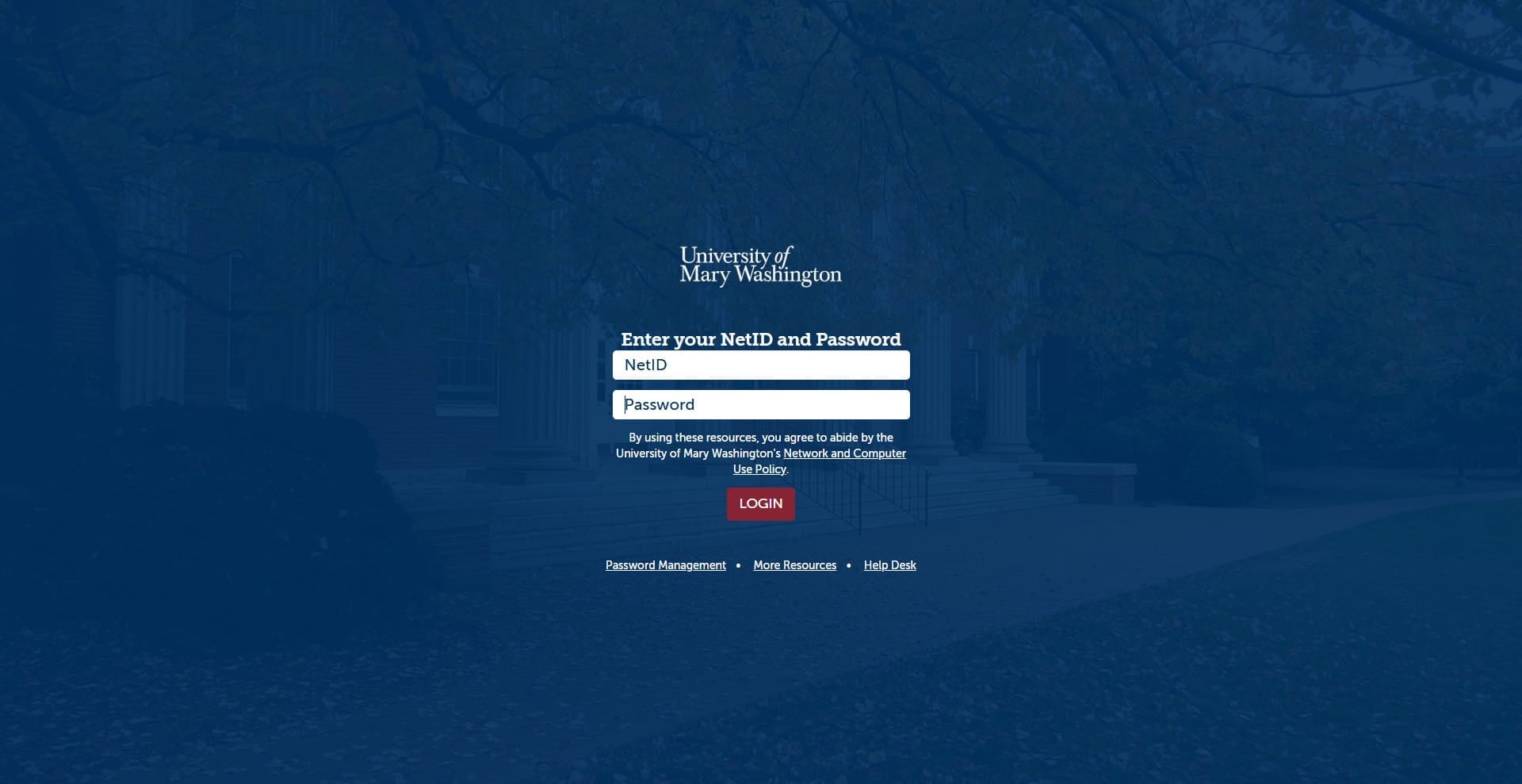
This will take you directly to the Canvas single sign on page. You must have Duo Mobile in order to complete this sign on. Sign in with your NetID and Password.
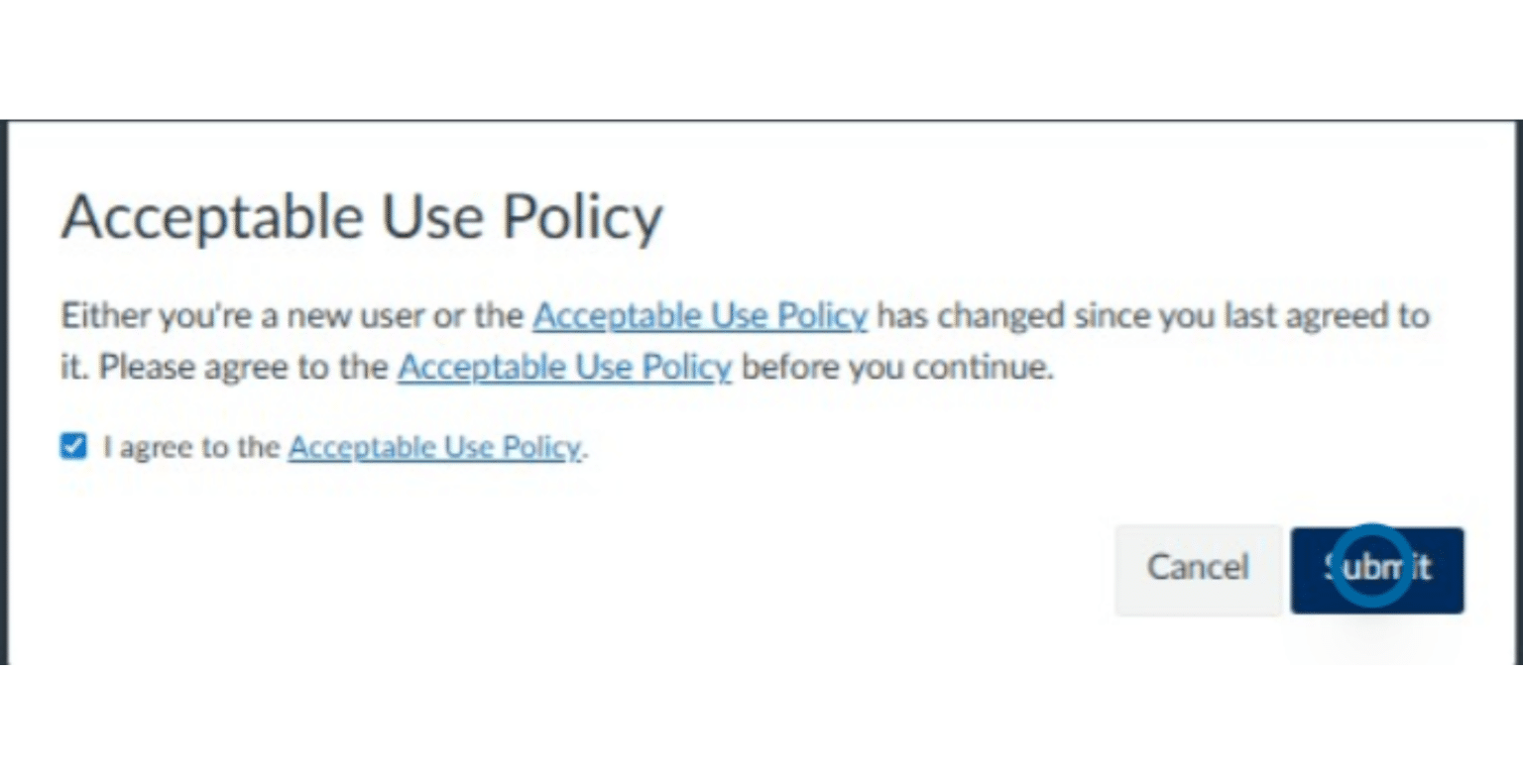
Once you complete the Duo Mobile authentication, you may be asked to agree to the Acceptable Use Policy if this is your first time logging into Canvas. Check the box to agree to the Acceptable Use Policy and then click Submit.
Once you complete the Duo Mobile authentication, Click on "Accept" to accept the Course invitation.
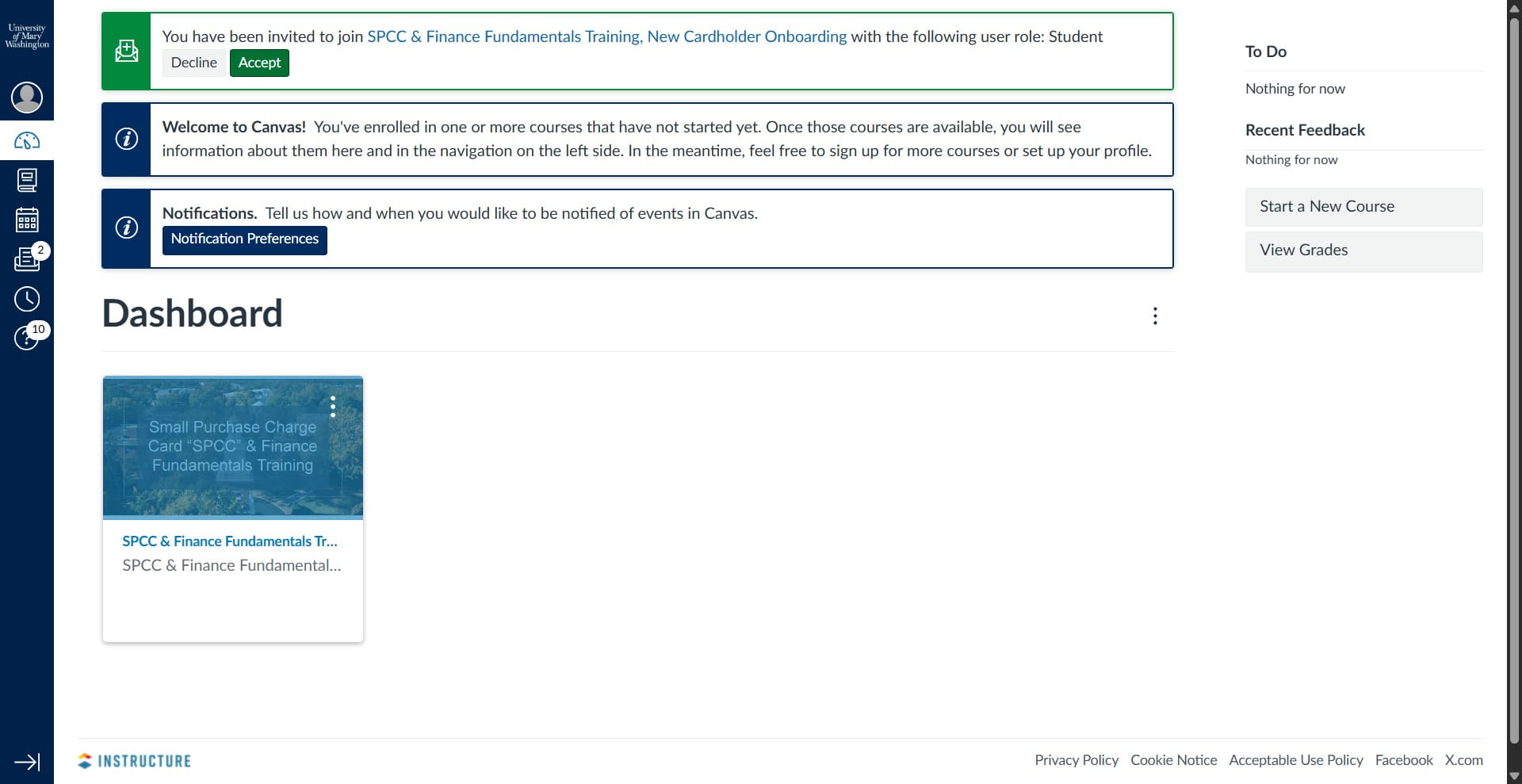
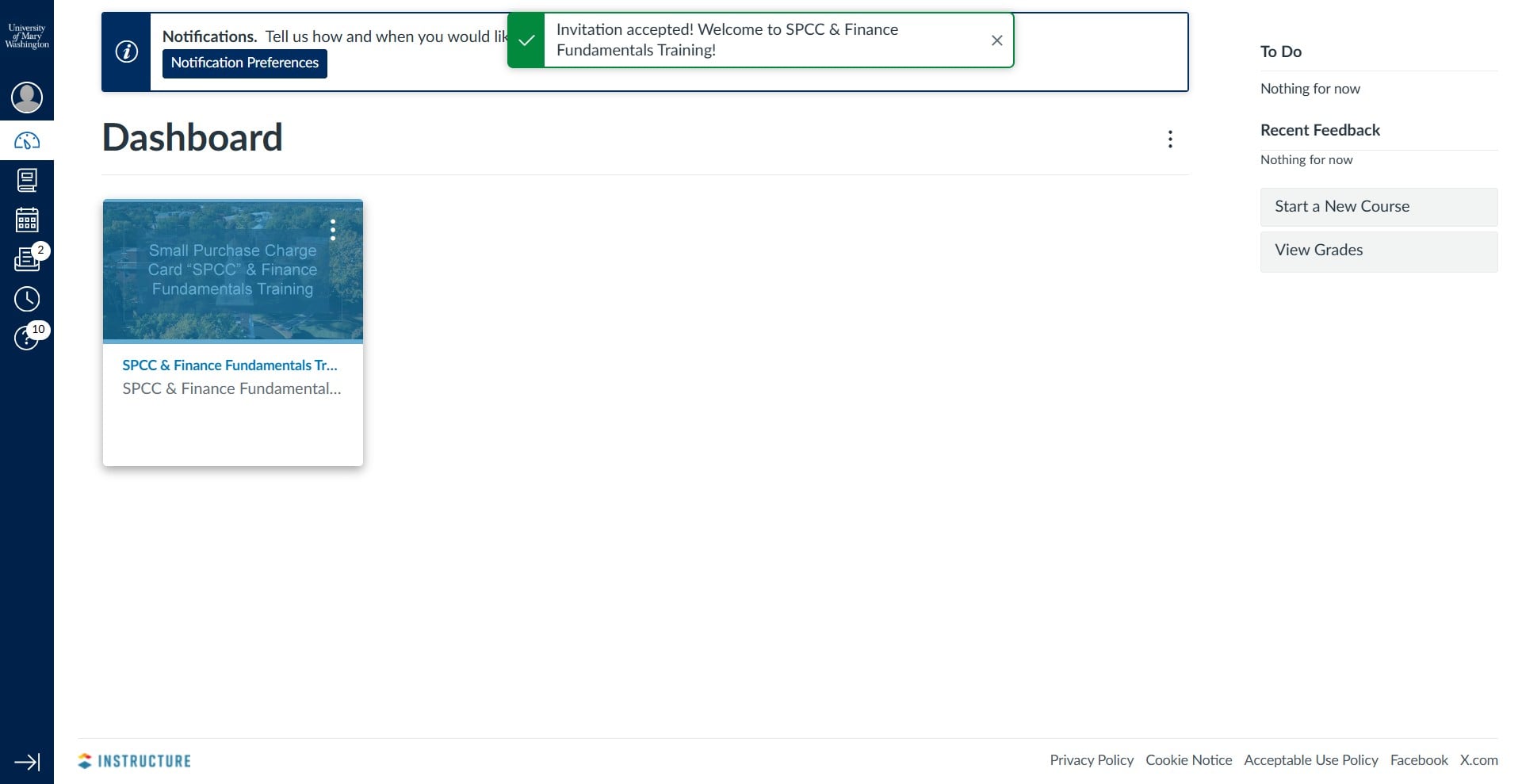
Once accepted, click on the Course you have been assigned to.
Within the course, you will have several modules of content followed by a quiz which must be passed with 100% before you can move onto the next module.You may take the quiz as many times as needed in order to pass. For navigation purposes: 1. Course content is indicated by the link icon. 2. The quiz is indicated by the rocket icon.
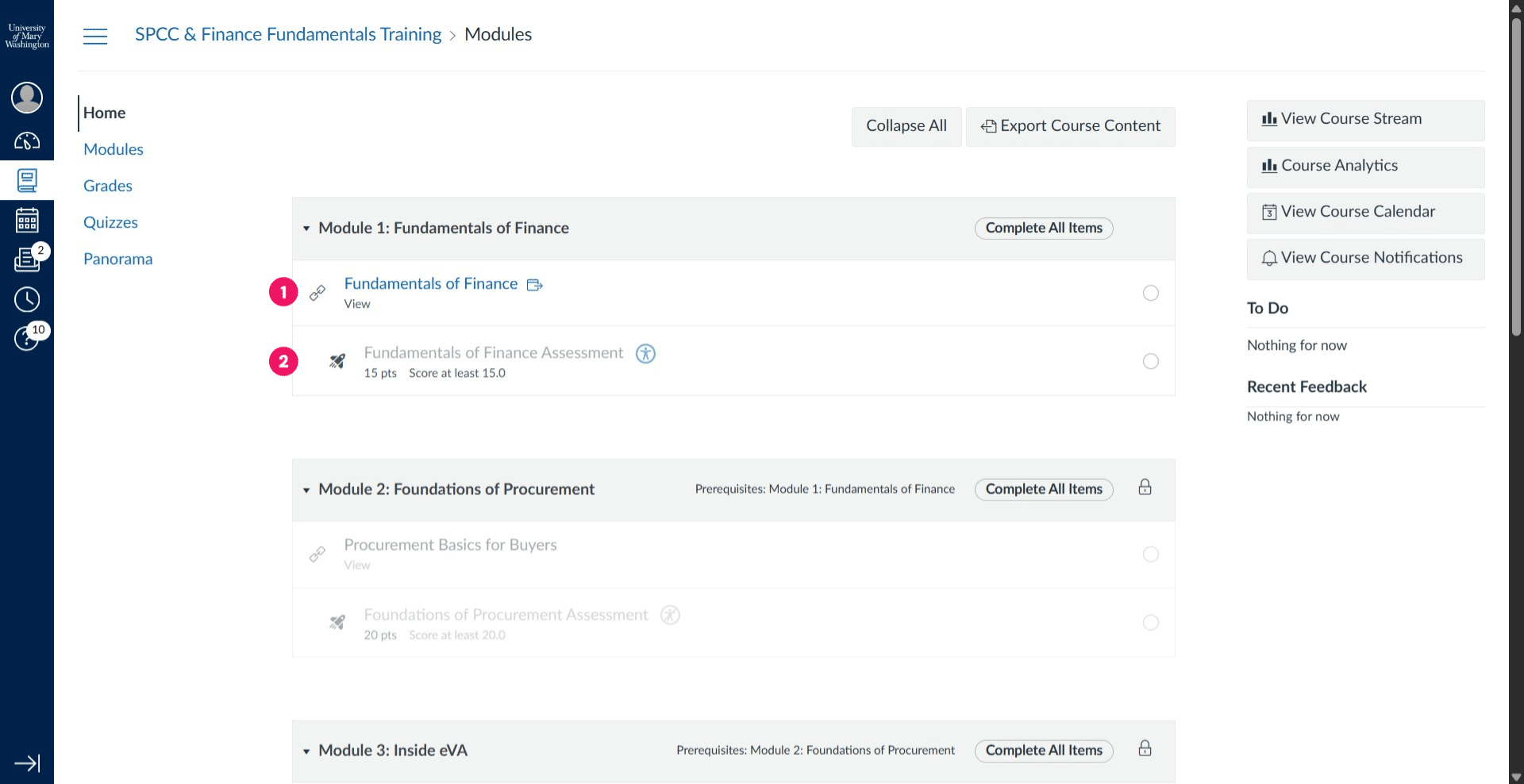
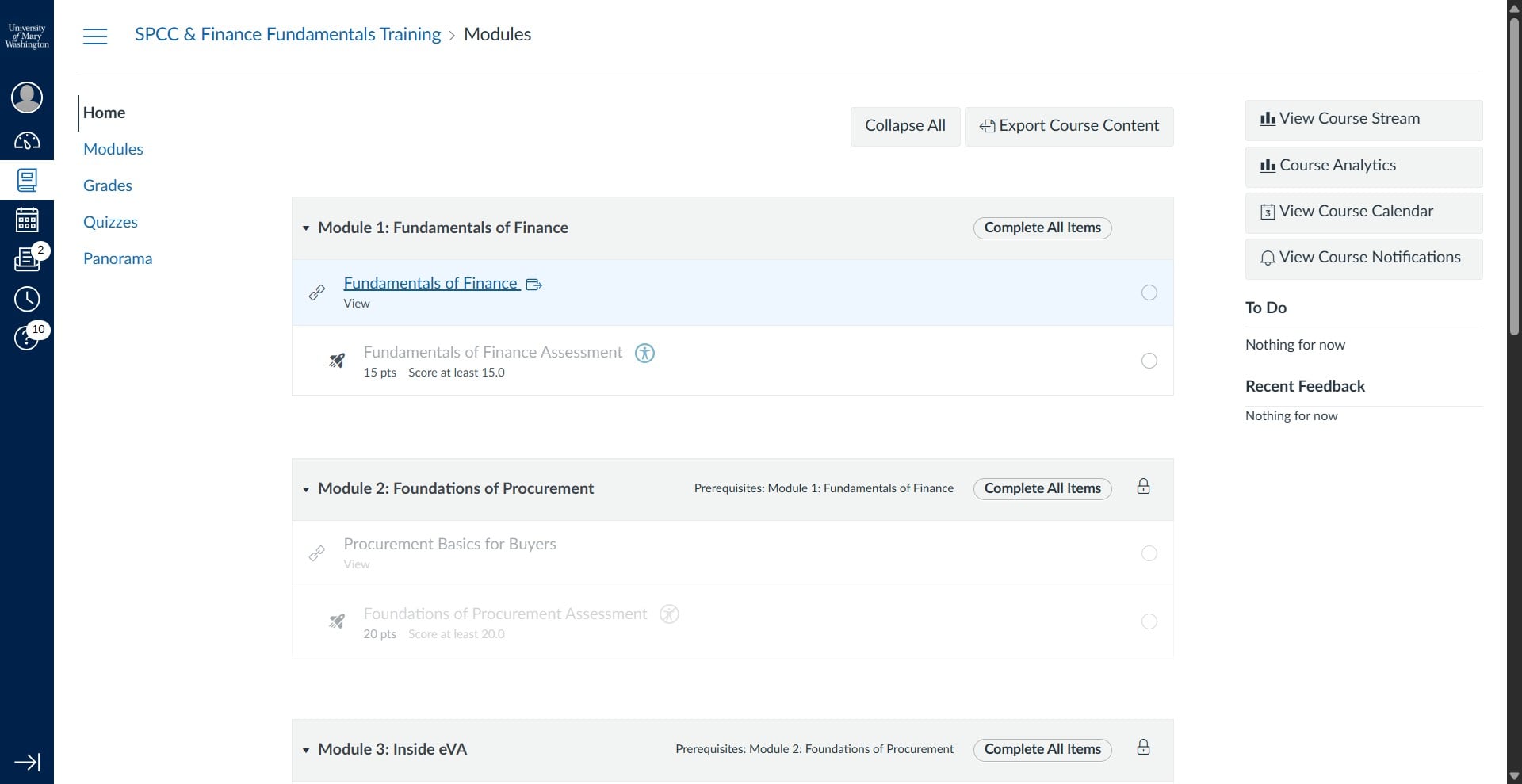
To get started, click on the first module content link.
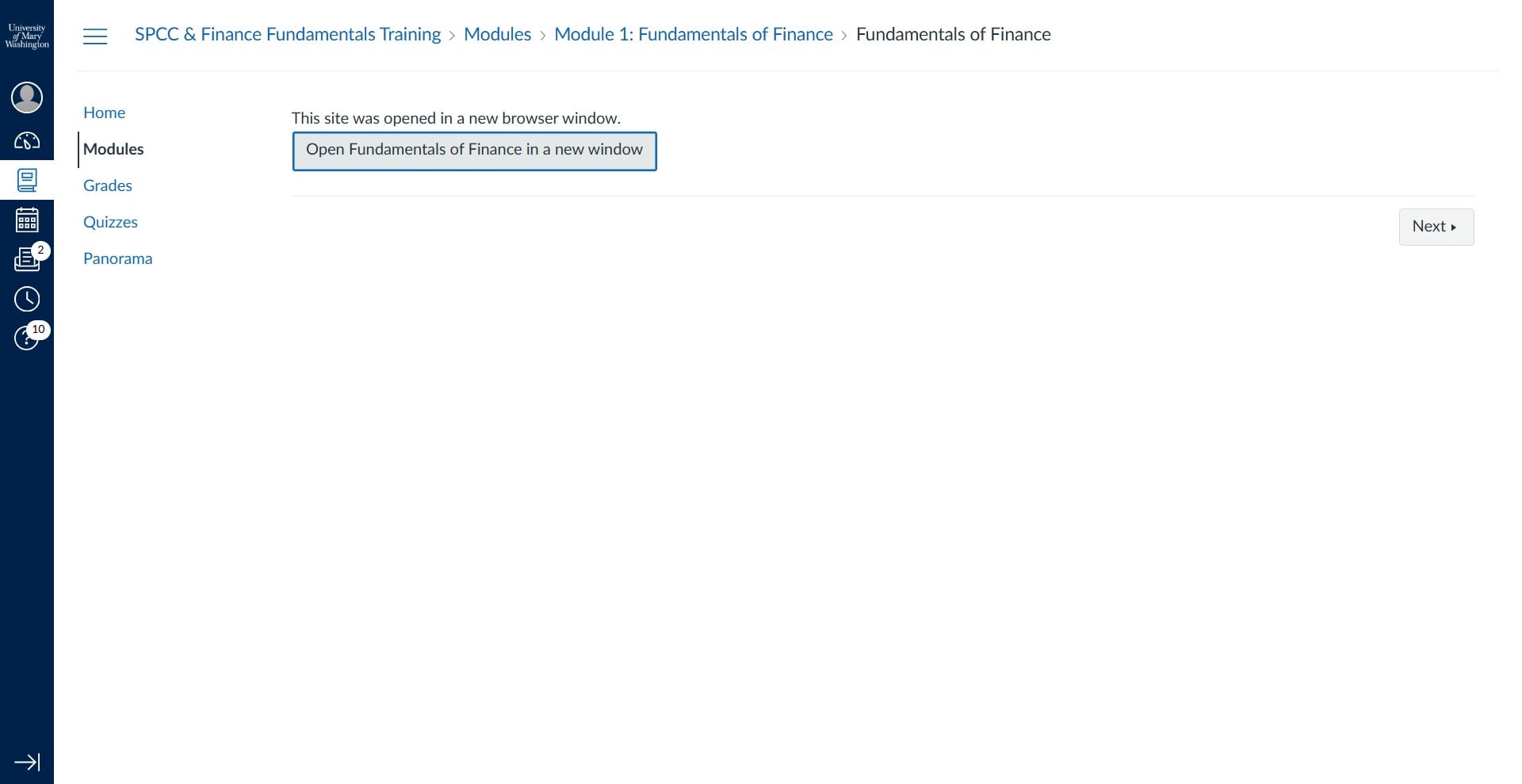
It is easiest to navigate through the course training by opening the content in a new window. That way, once completed, you can close that browser window or tab and easily move to the next requirement. *** Please be aware that if your browser has a pop-up blocker, it may not open in a new window. You will need to remove the pop-up blocker or allow the browser to accept pop-ups from this site in order to continue. Contact the Help Desk if you need assistance.***
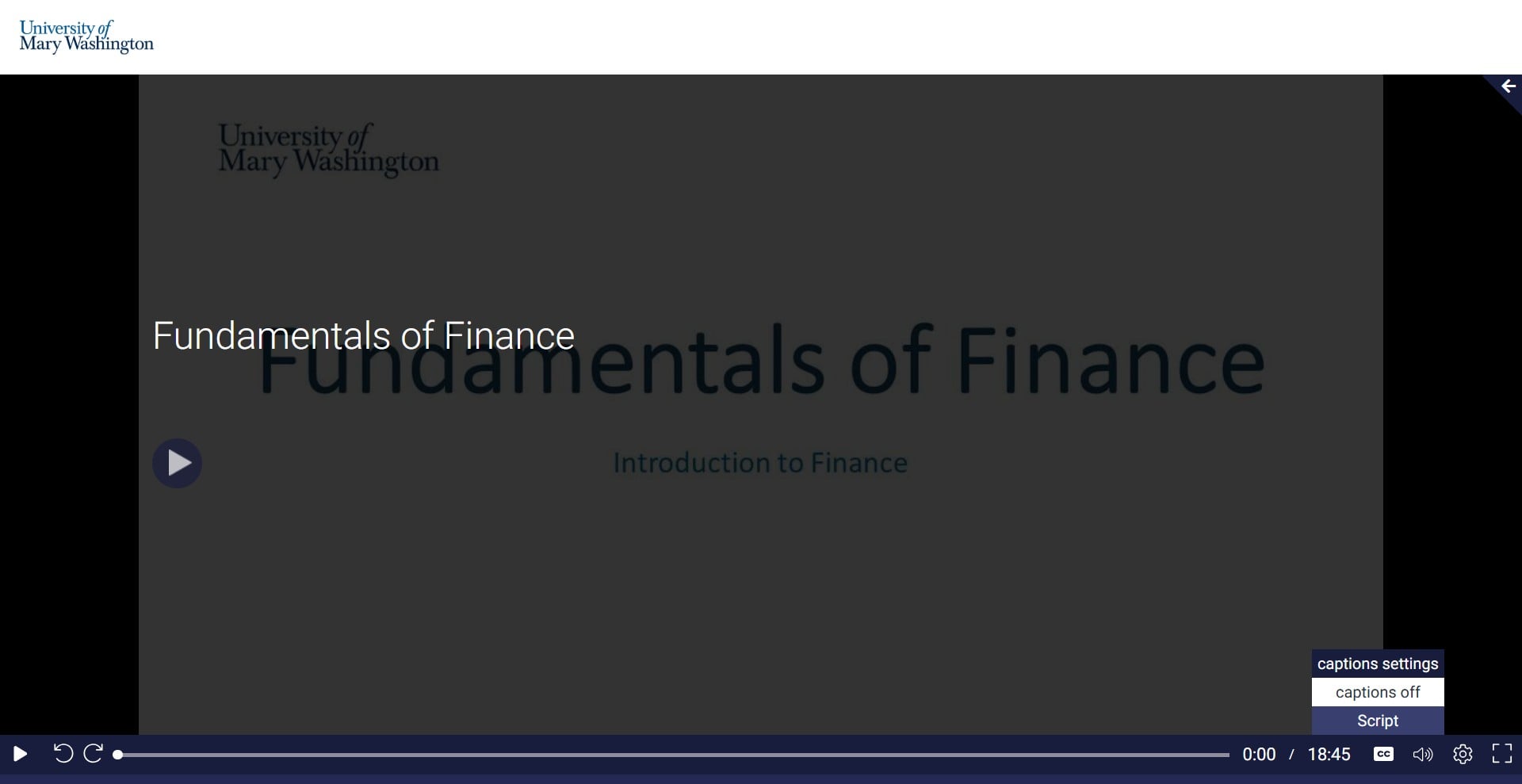
The course content should pop up in a new tab or window. To begin, hit play. You can toggle the closed captioning on by using the CC button on the bottom right and clicking on Script.
When you complete the module content and exit the window or tab, you can click on Next to access the module quiz.
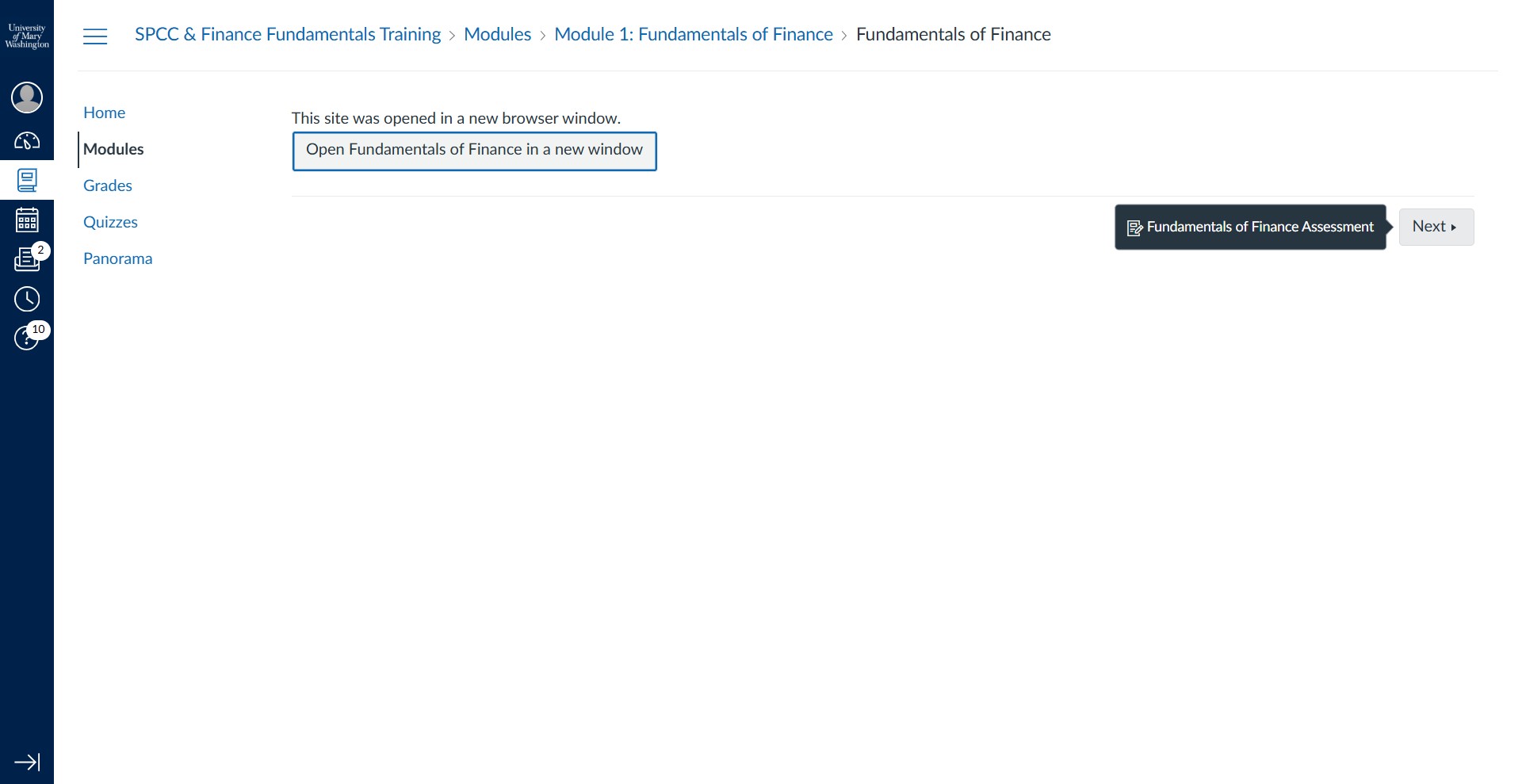
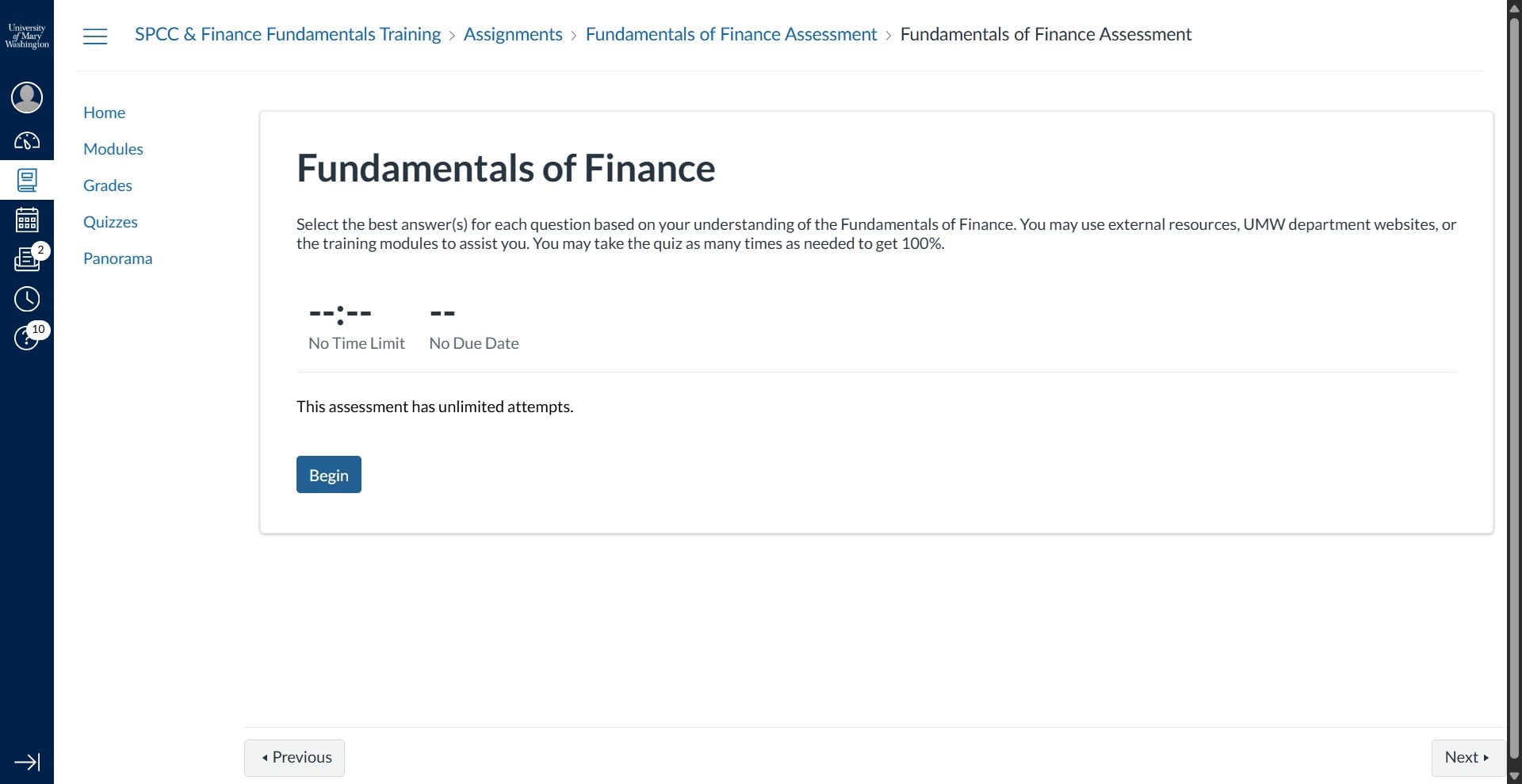
To begin the quiz, click on "Begin"
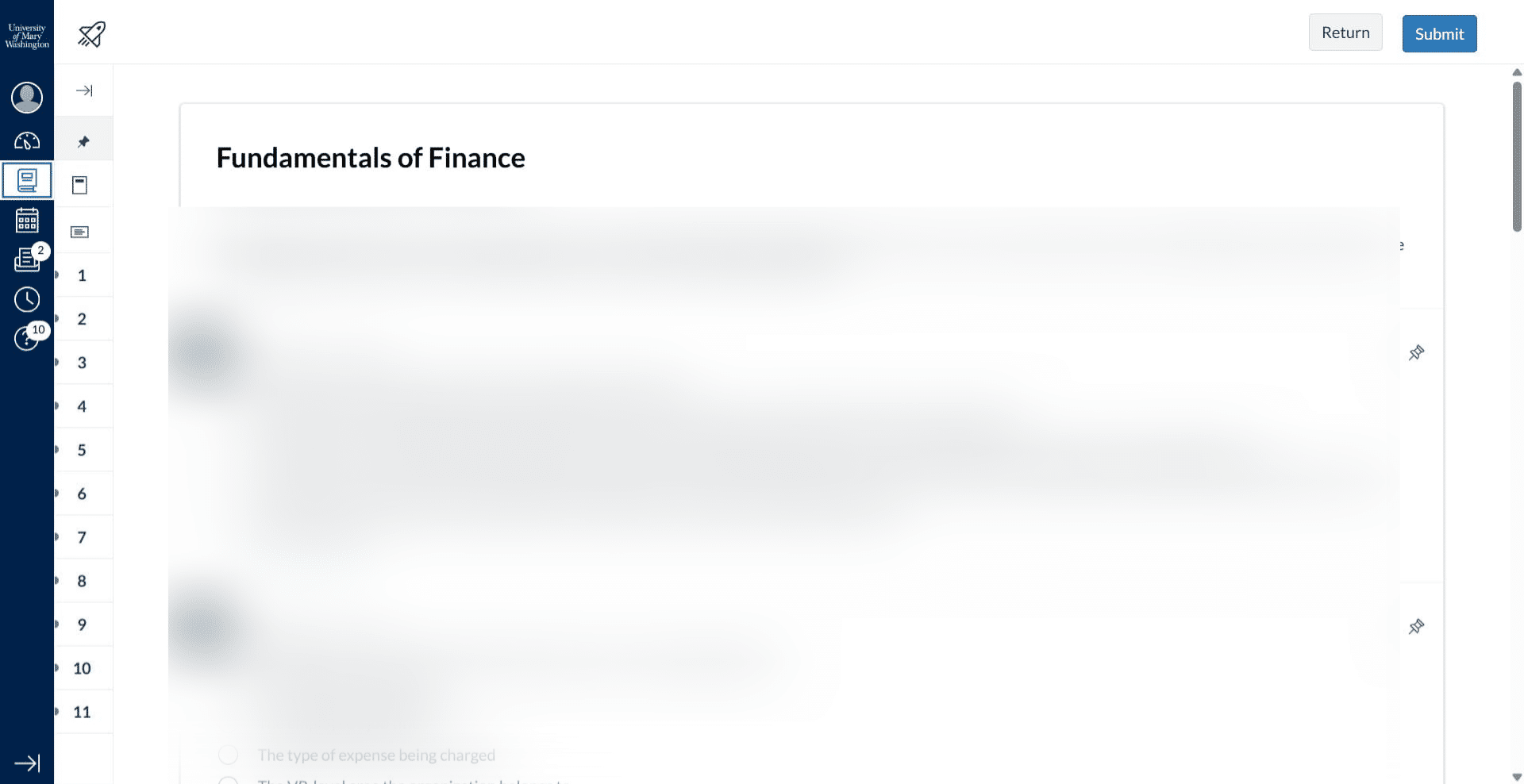
If at any time you need to navigate to the course's main menu to see the modules, click on the book icon on the left menu screen.
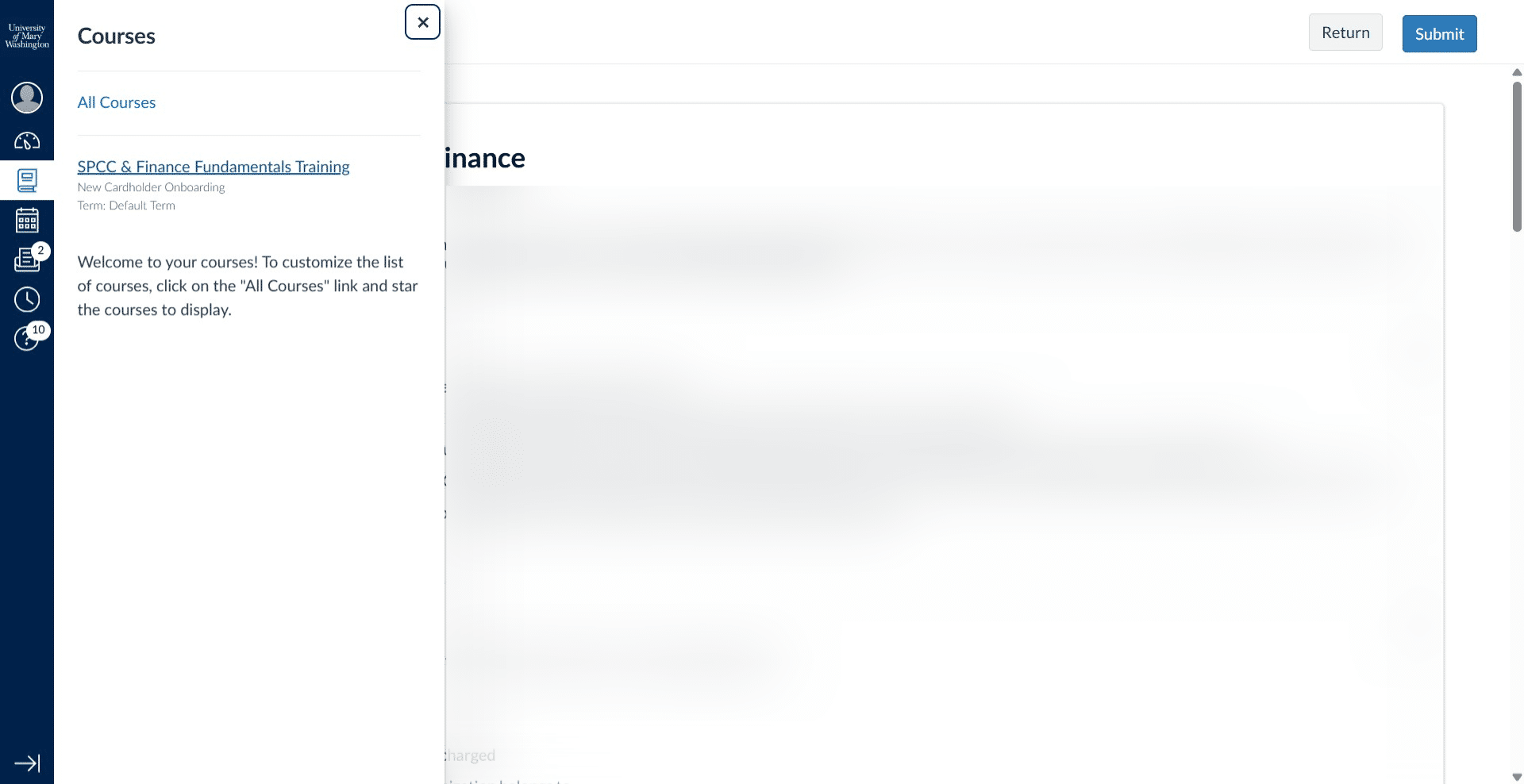
Click on "SPCC & Finance Fundamentals Training"
Within the course home screen, any course module or individual content you have completed will show up with a green check mark. This is one way to track your progress.
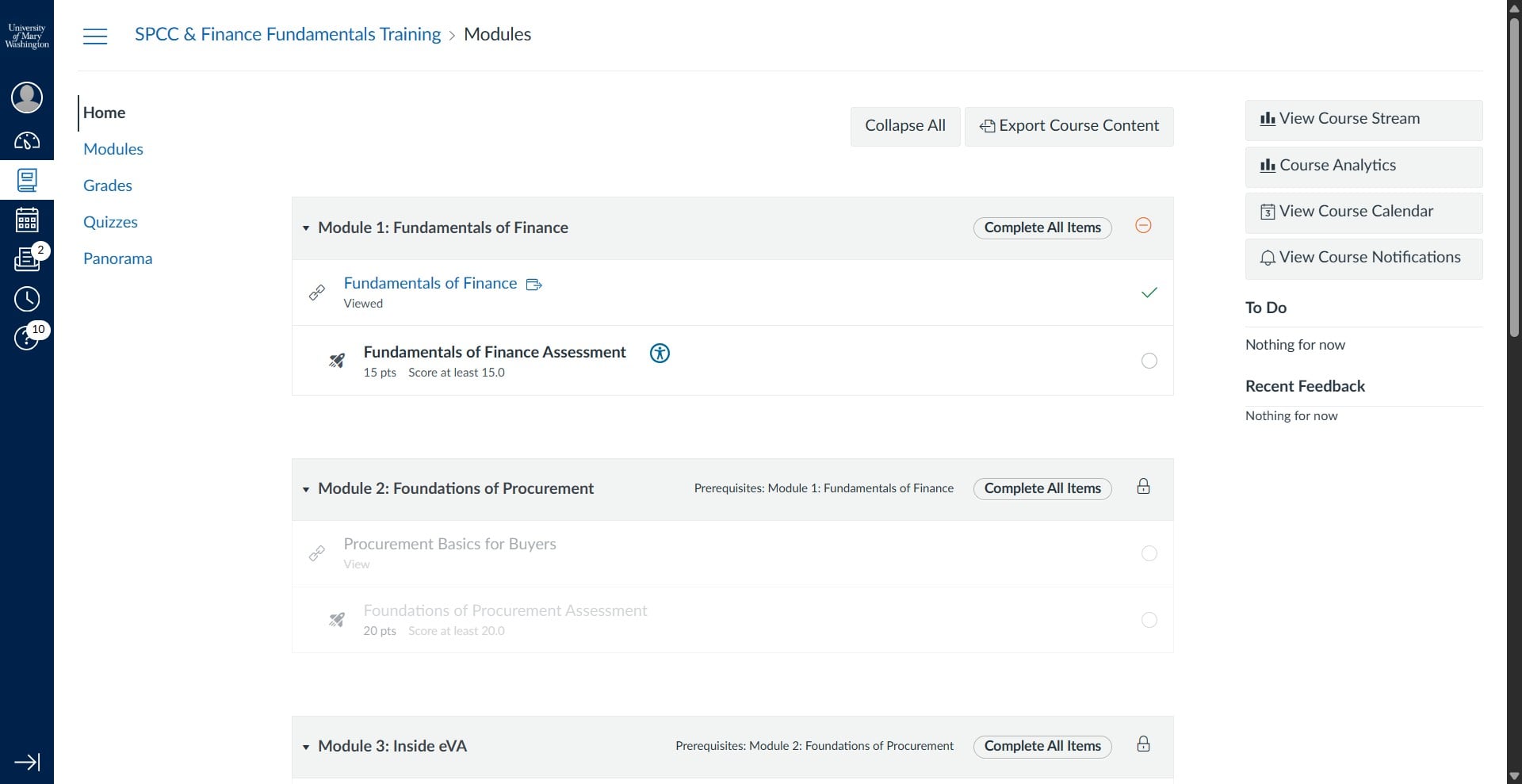
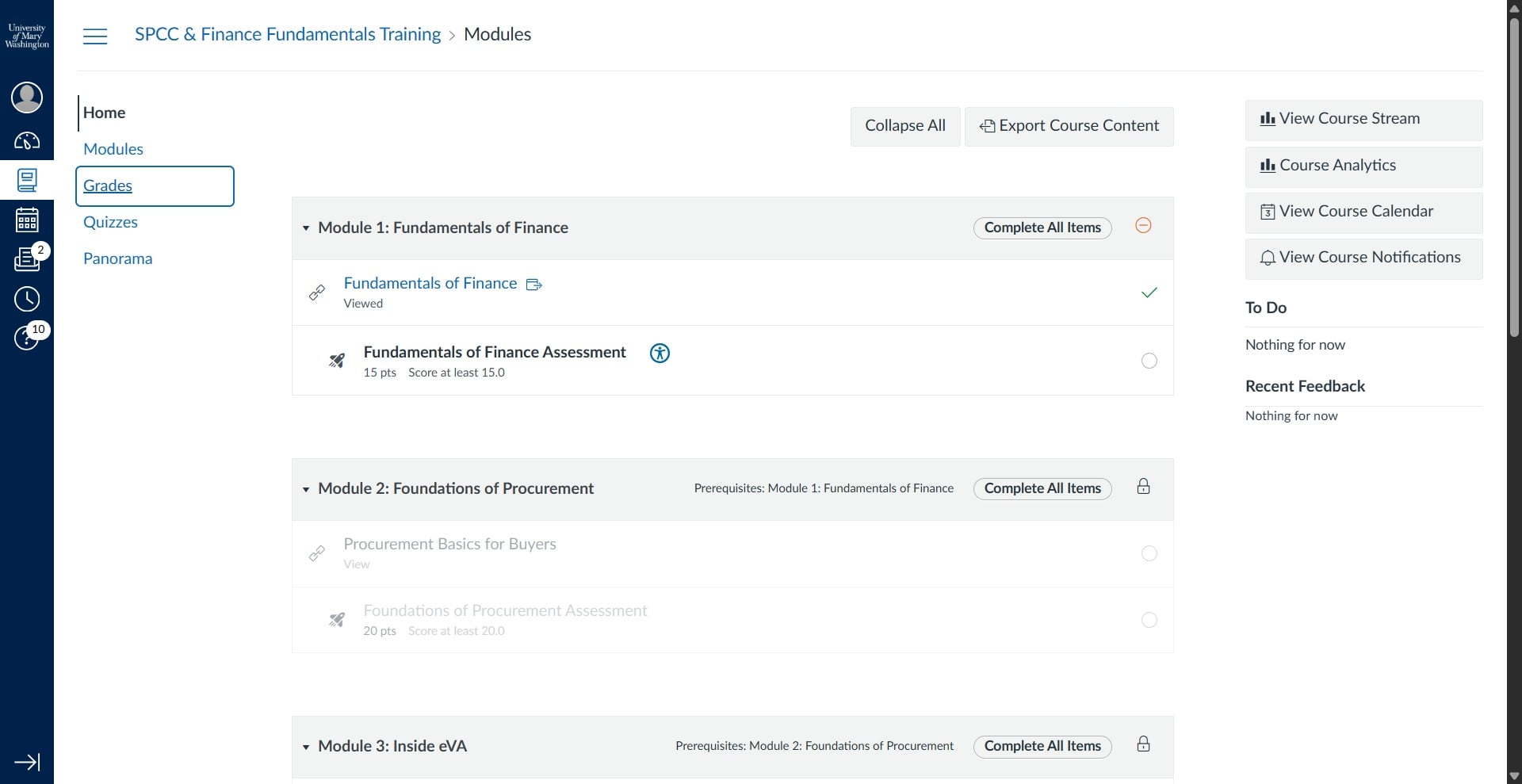
To access your quiz grades, you can click on Grades on the left menu screen.
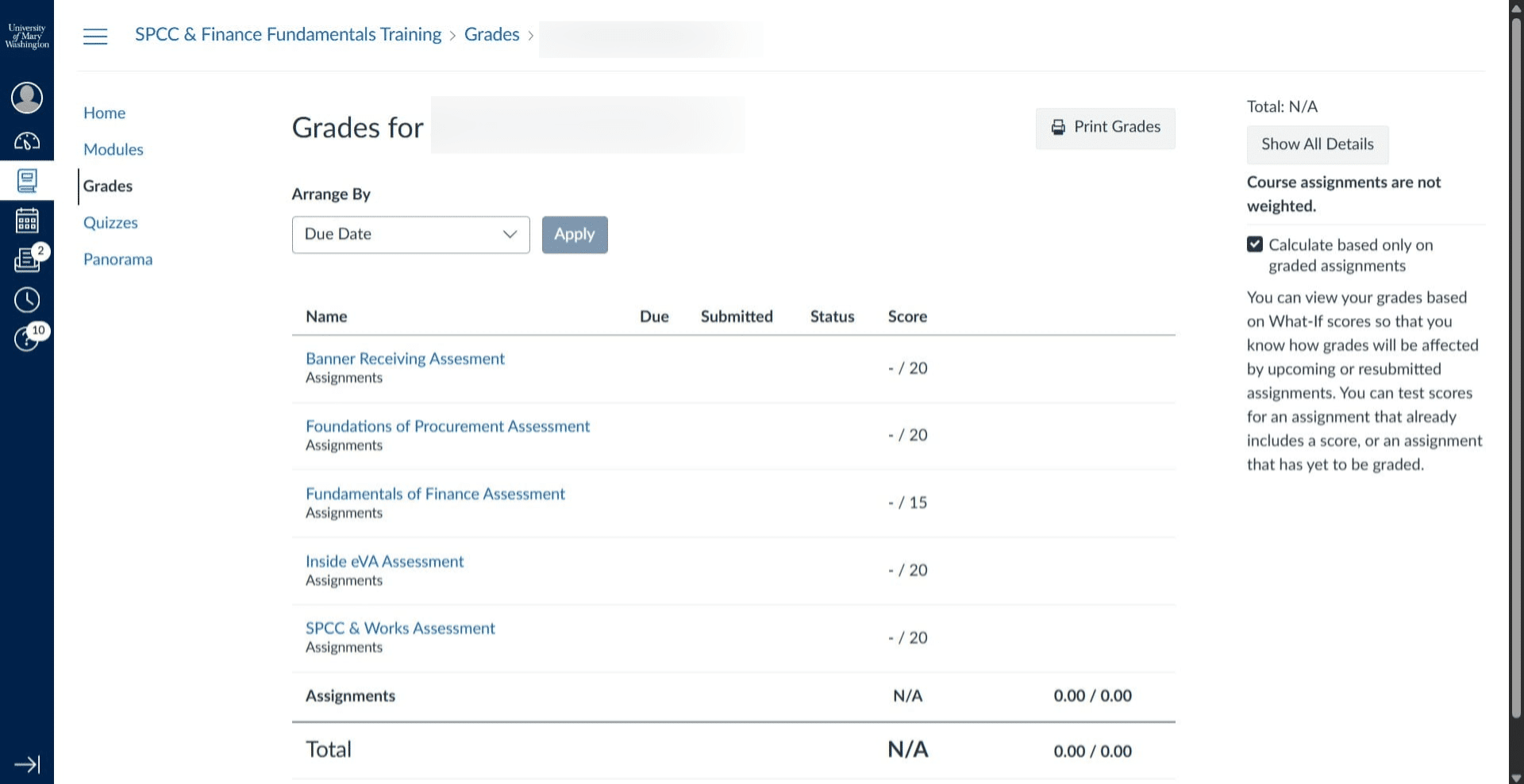
This will show all of the grades for the quizes you have taken.
If you have any questions or need assistance navigating Canvas, please contact TCSS or the SPCC Program Administrators.