Setup a Knowledge Base data source
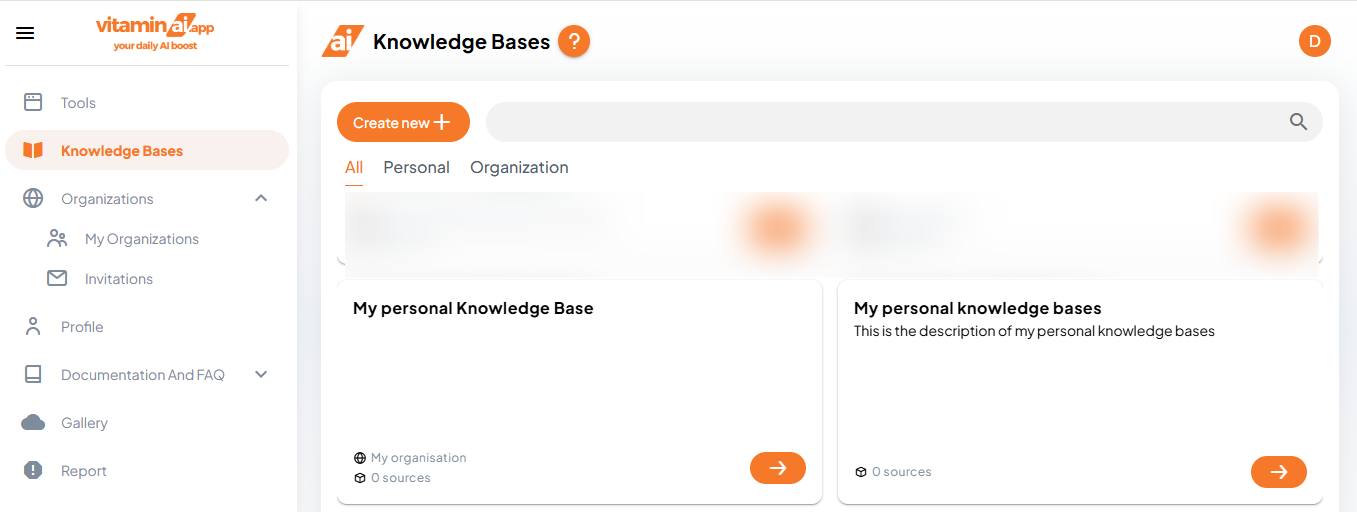
Click on "Knowledge Base"
Click here to access the knowledge base's page
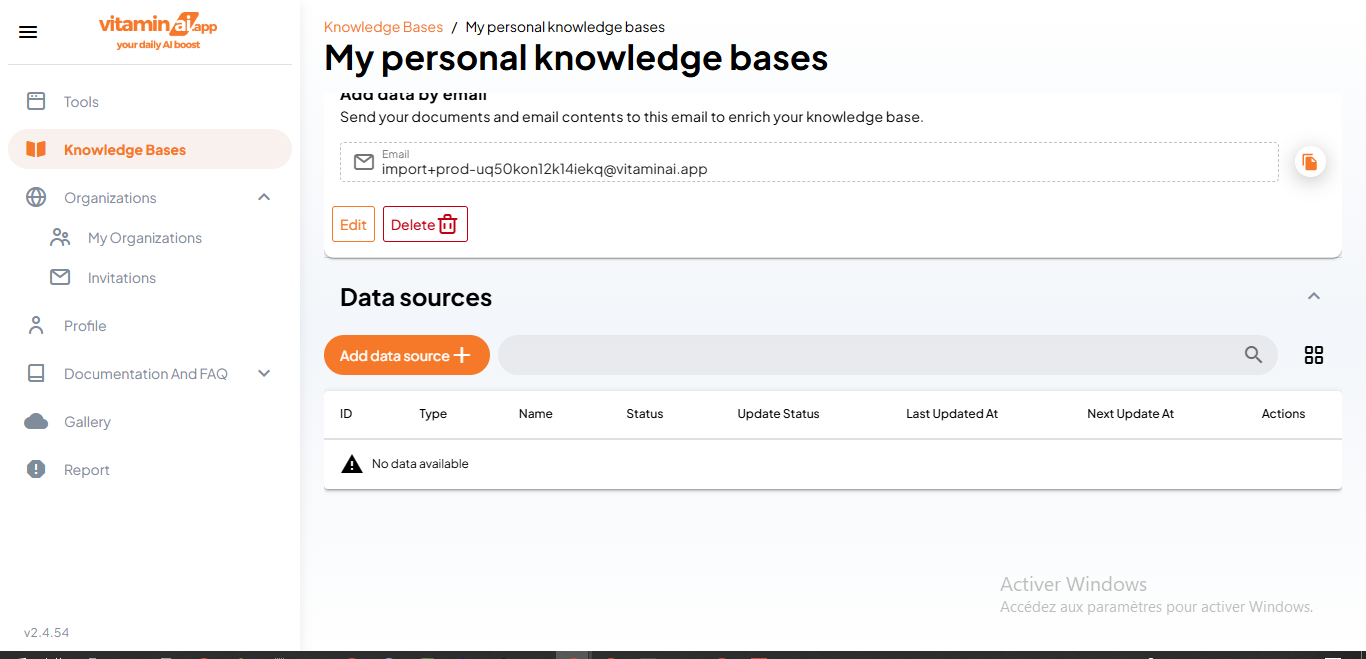
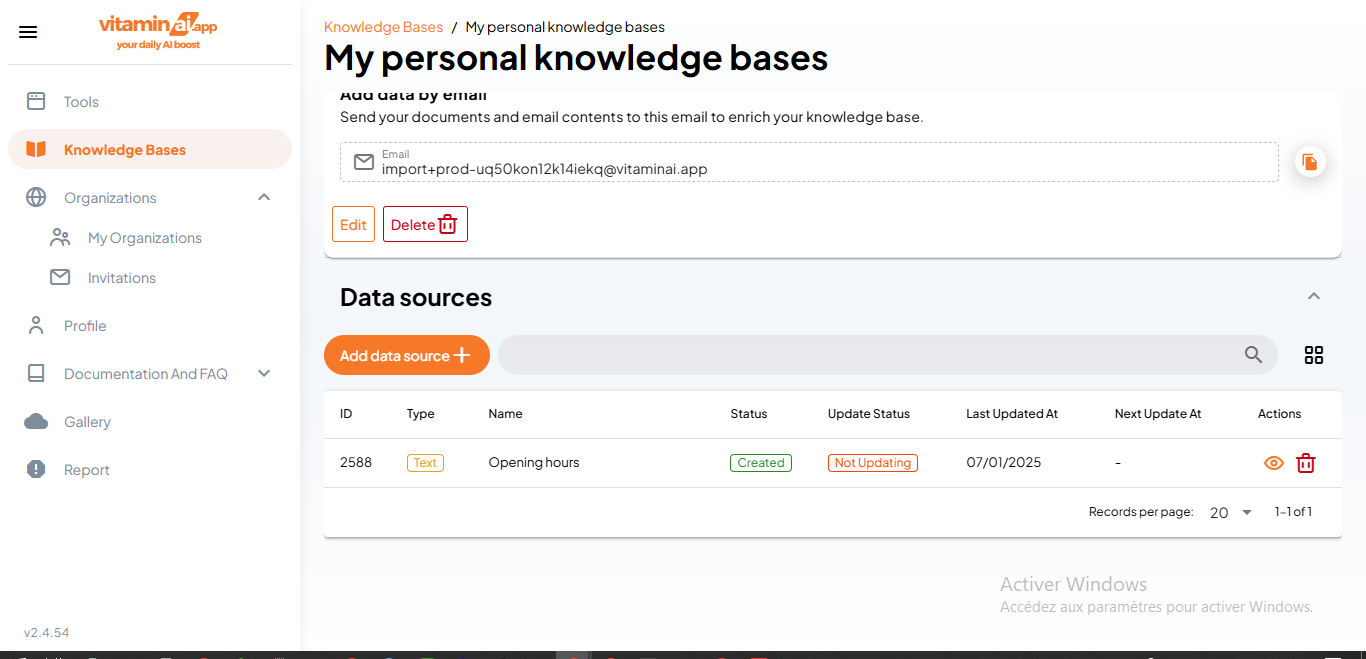
Click on "Add data source"
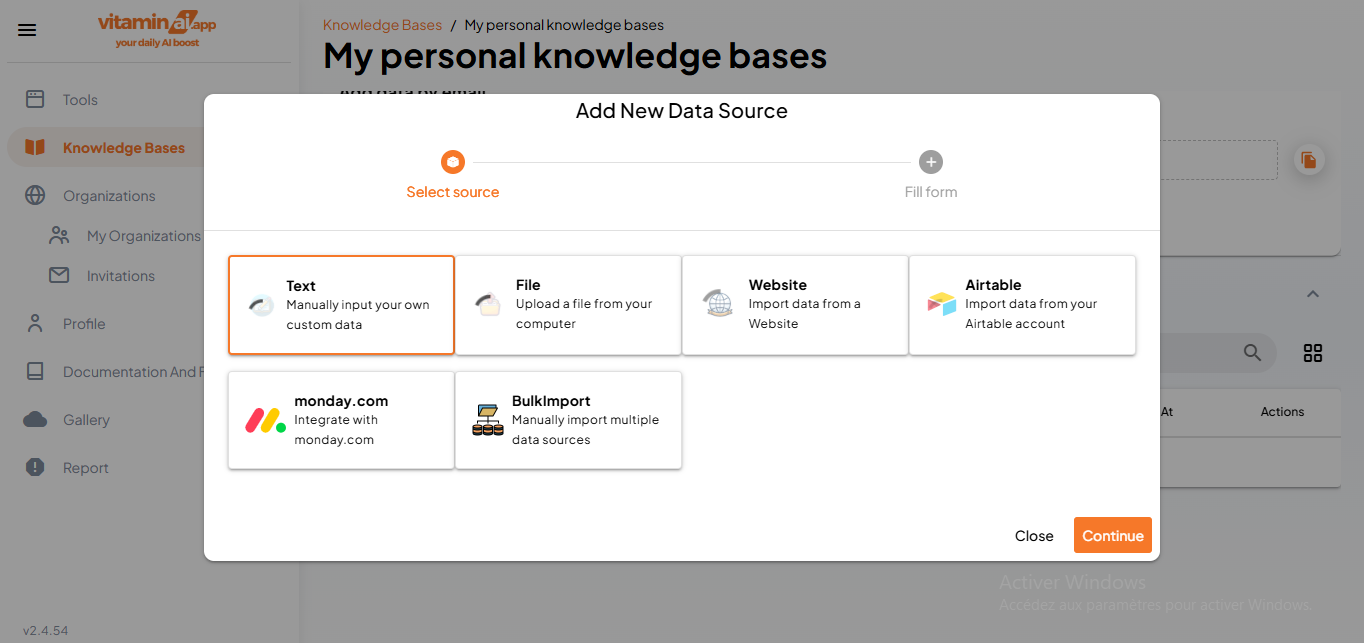
You can choose between different data sources. Choose the one you want and hit "Continue". Here we are going to look a ''text'' data source first
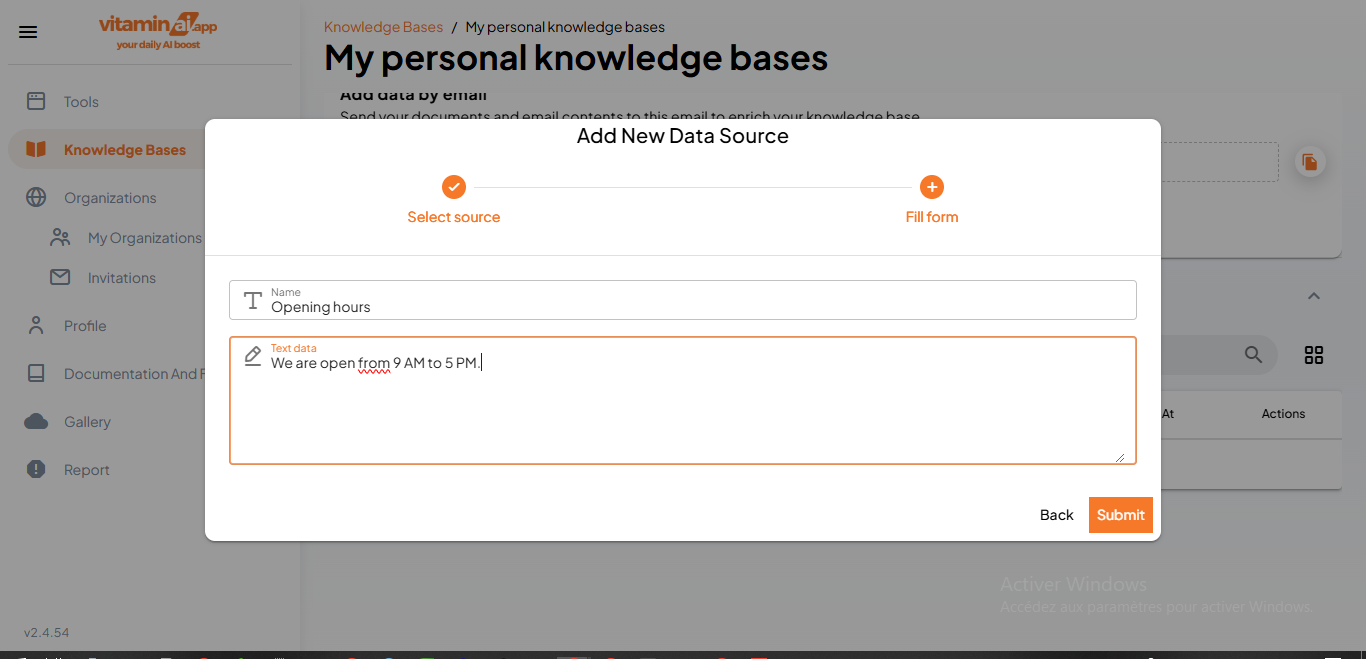
Fill in the name,and you can give instructions directly to your chatbot by giving him instructions and/or informations
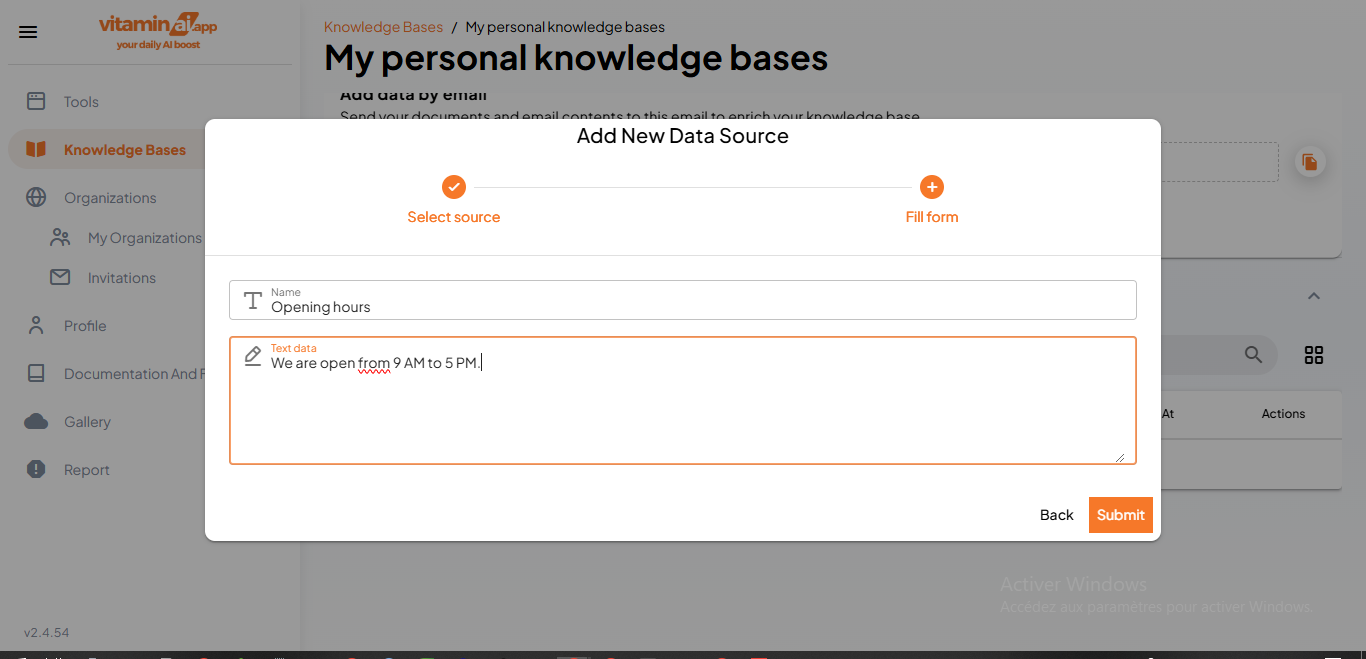
Click on "Submit"
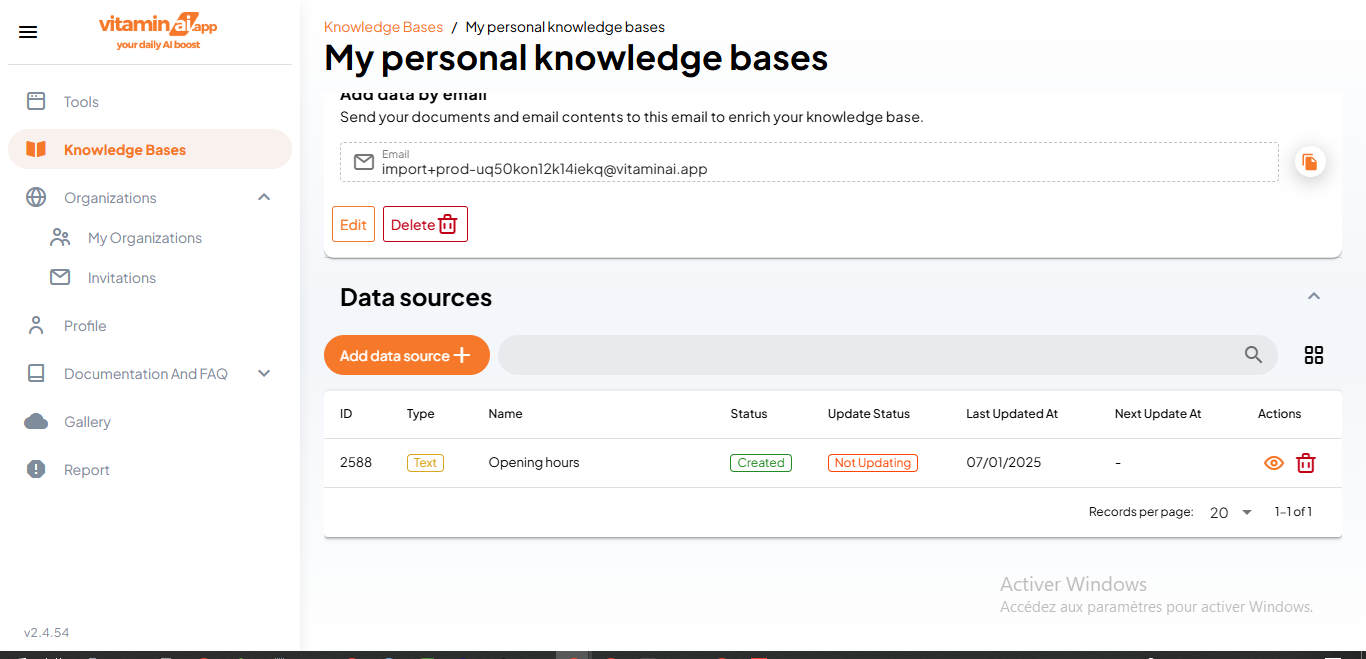
To add another data source, click on "Add data source" one more time
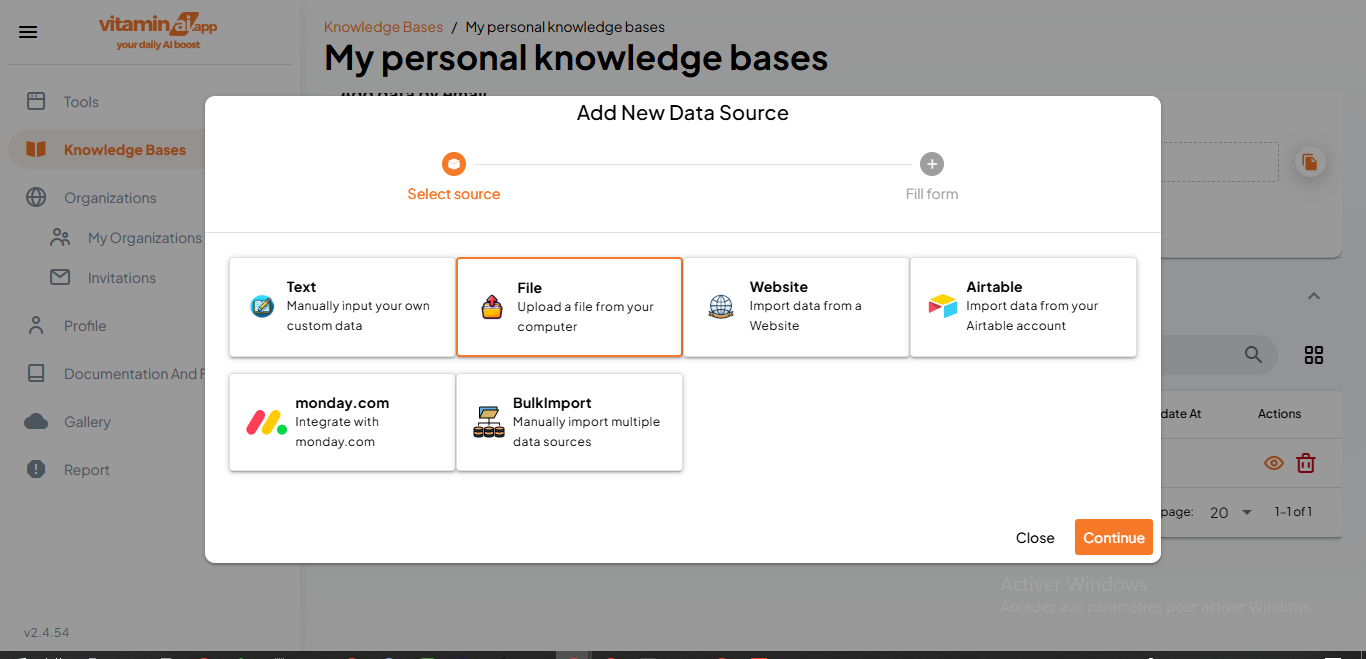
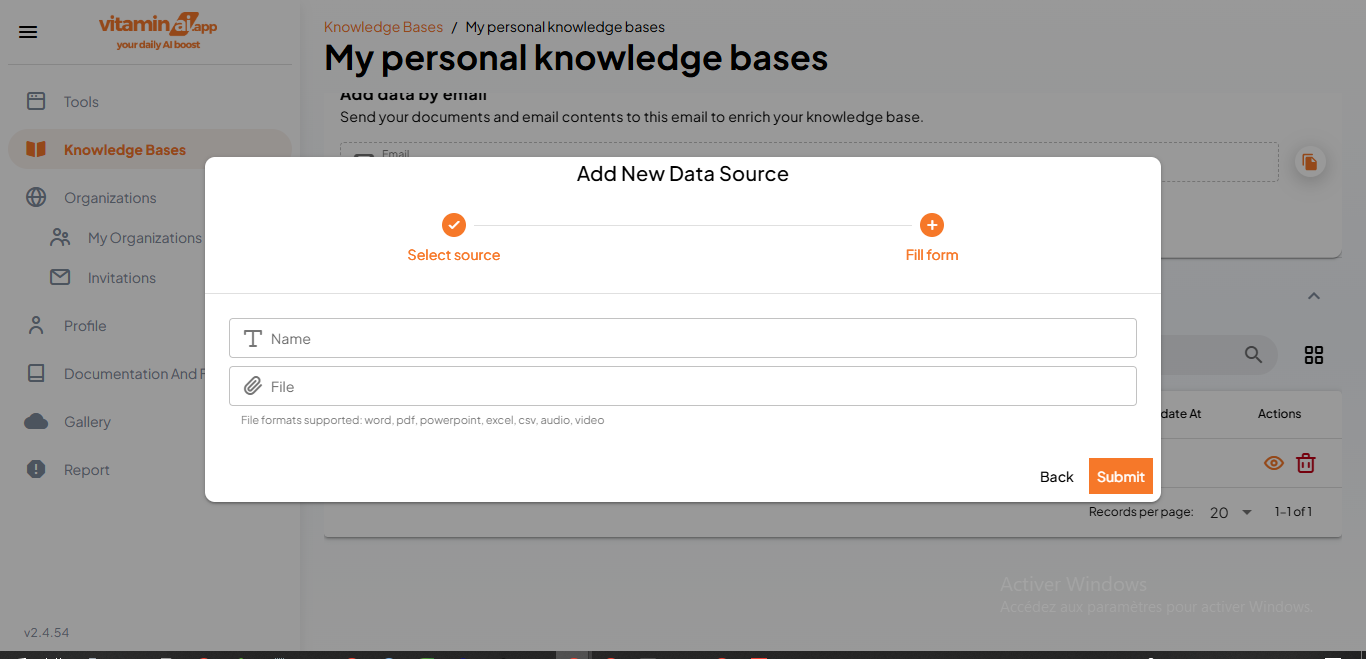
You can also upload files as data sources. Supported types are word, pdf, excel, csv and audio files.
Same as with text data sources, fill in the different fields, choose your files and hit submit.
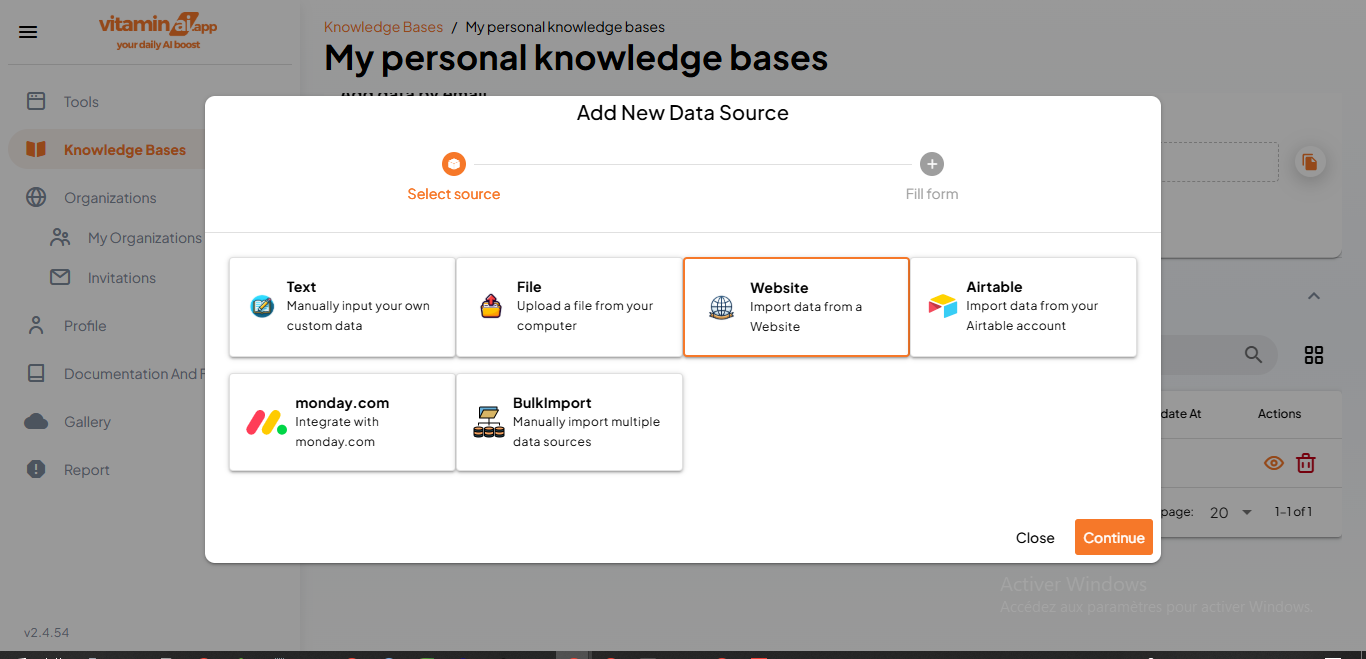
You can also choose a Website as data source
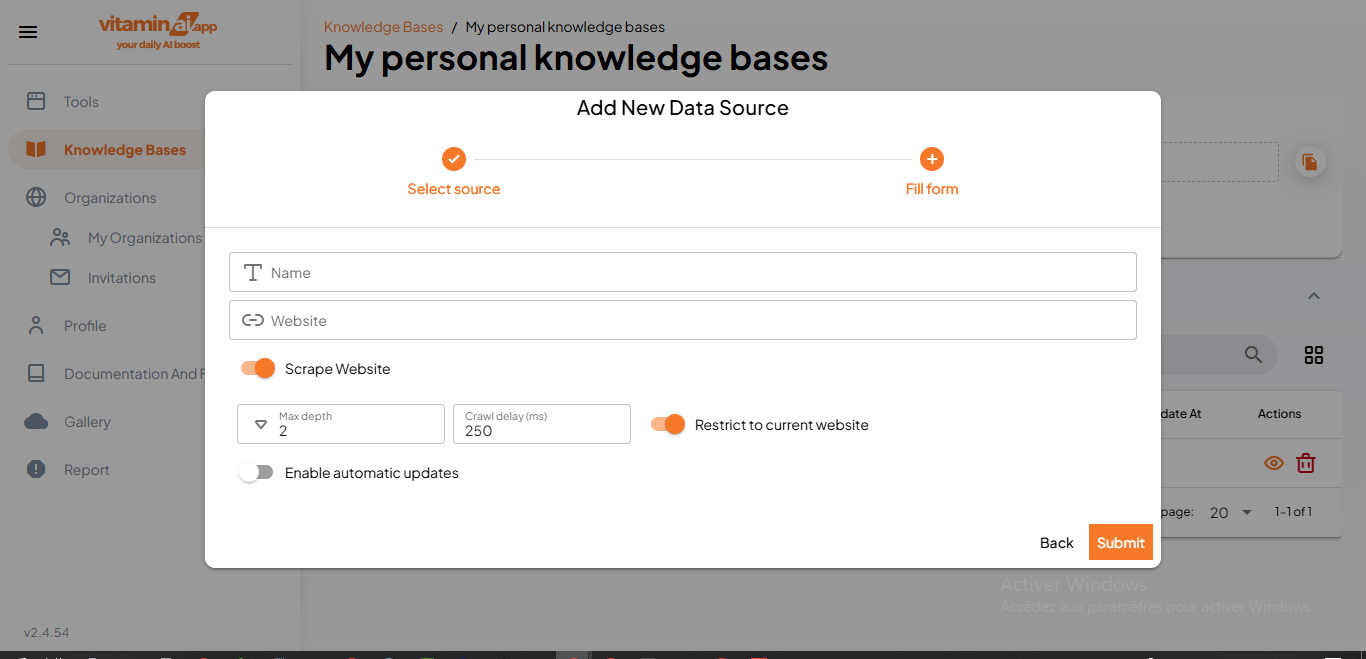
If you desire, you can choose to web scrape the provided url
 the provided url](https://assets.guidejar.com/uploads/4c860f80-9512-4612-a283-7d31256a8974/9sjOSLrwnQanrtlDDiNBlR1Hzyf2/2ecb06b2-40eb-46e1-bab6-09b7cc3b3e5e/1736259344340.jpeg)
Here you can choose the maximum depth and the crawl delay in milliseconds of the scraping process. You can also choose to restrict the scraping to the current website or have no restrictions.
Airtable is also a supported data source
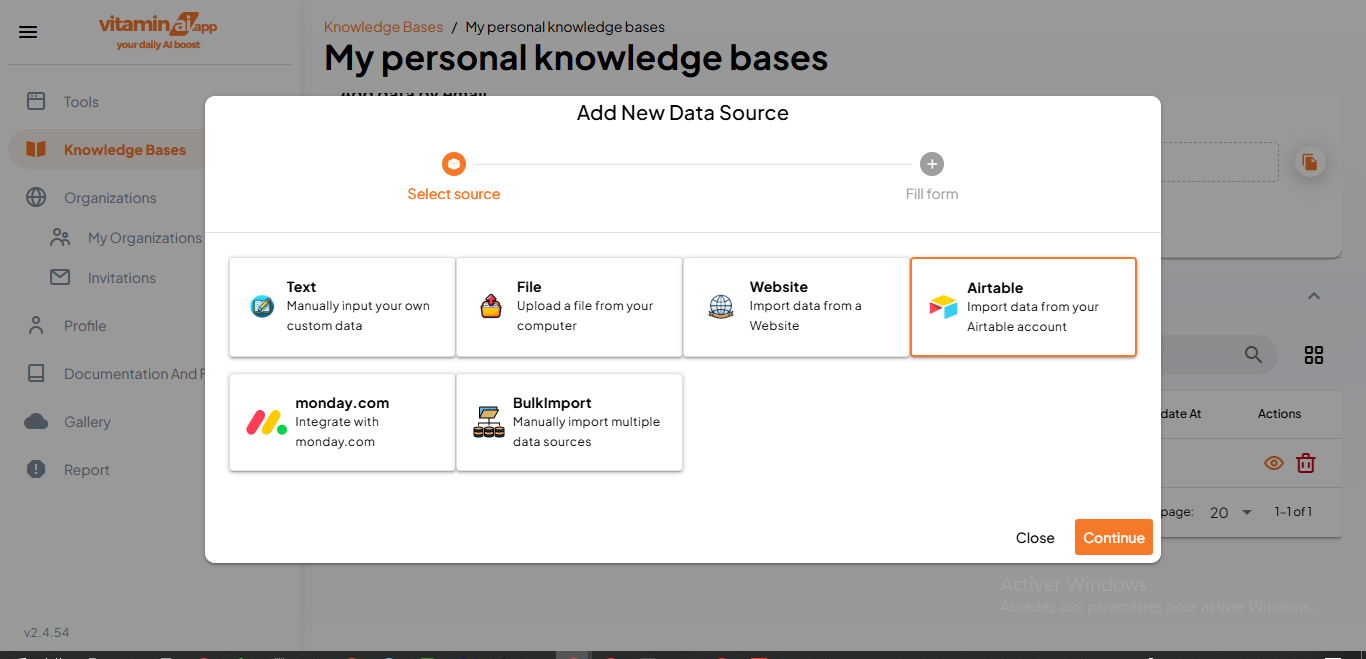
Simply fill in the different fields with your Airtable credentials. Click here to read about where to find them.
 to read about where to find them.](https://assets.guidejar.com/uploads/4c860f80-9512-4612-a283-7d31256a8974/9sjOSLrwnQanrtlDDiNBlR1Hzyf2/3eefd5e3-14fc-4559-9268-5e425fef2e85/1736259480214.jpeg)
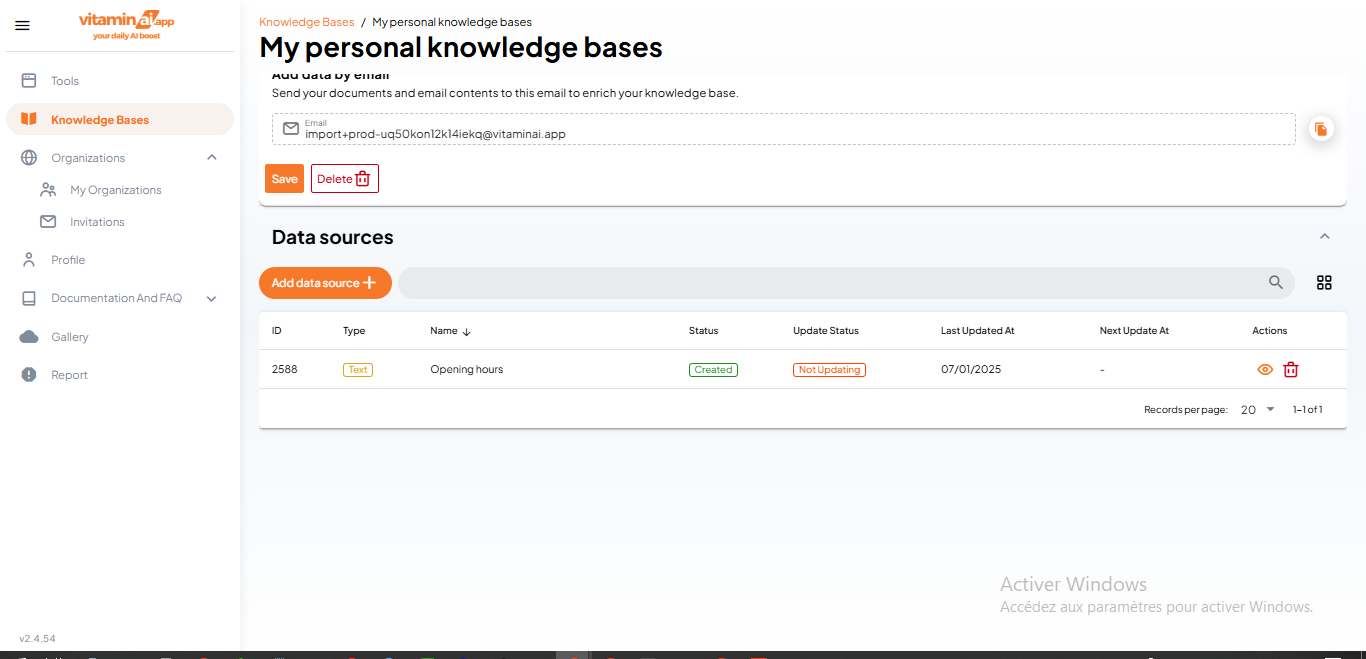
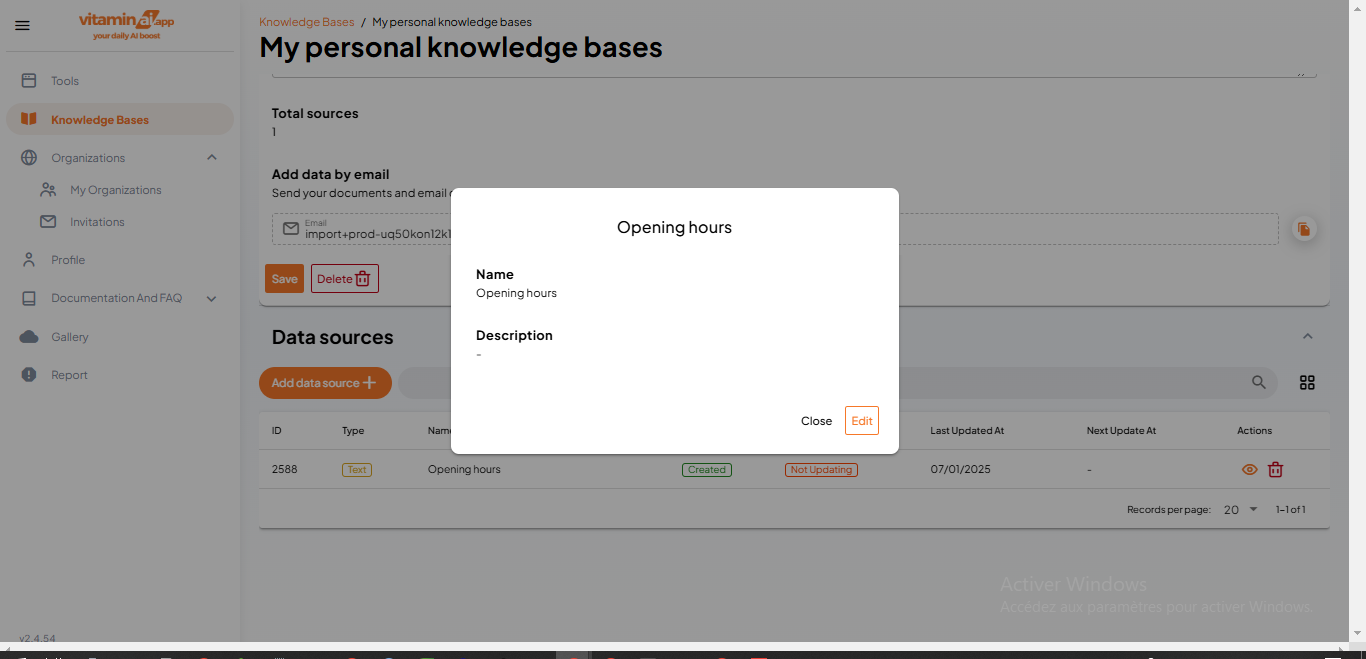
You can click on the eye icon to view the data source's details
You can also edit those details if you so desire
To view all your data sources in a grid-like view, simply click on this icon button
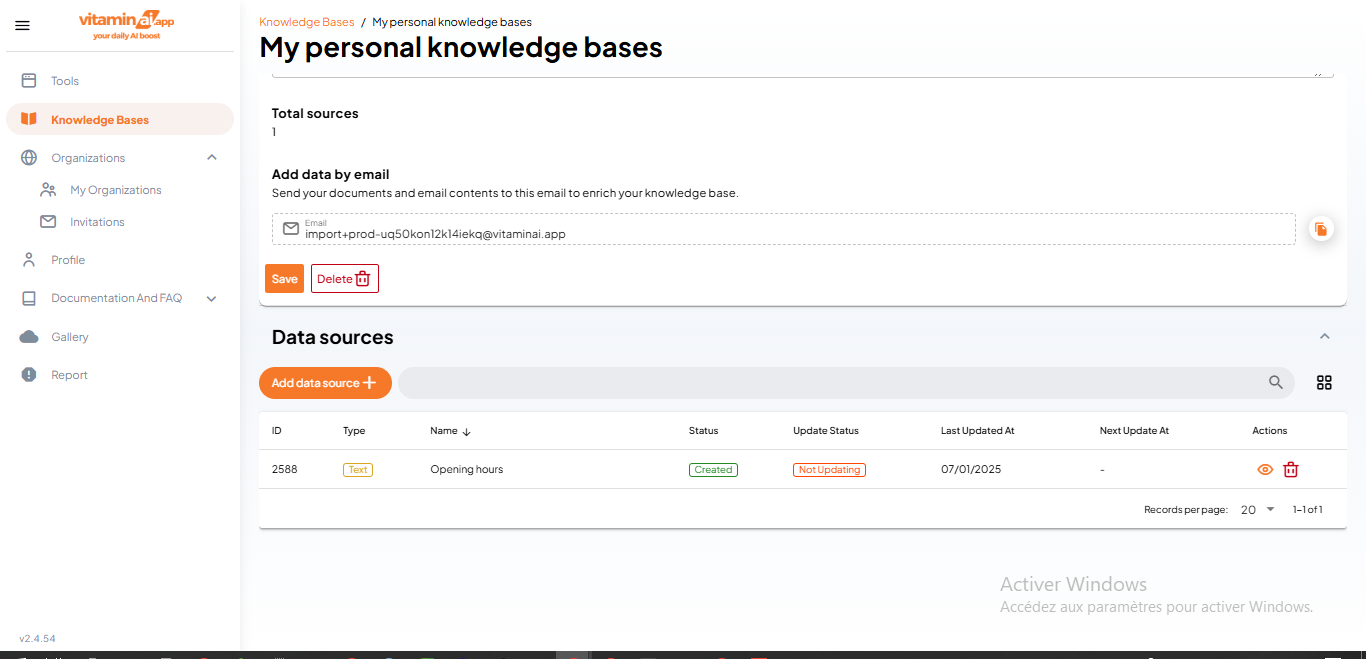
To bring it back to list view, click on this icon button
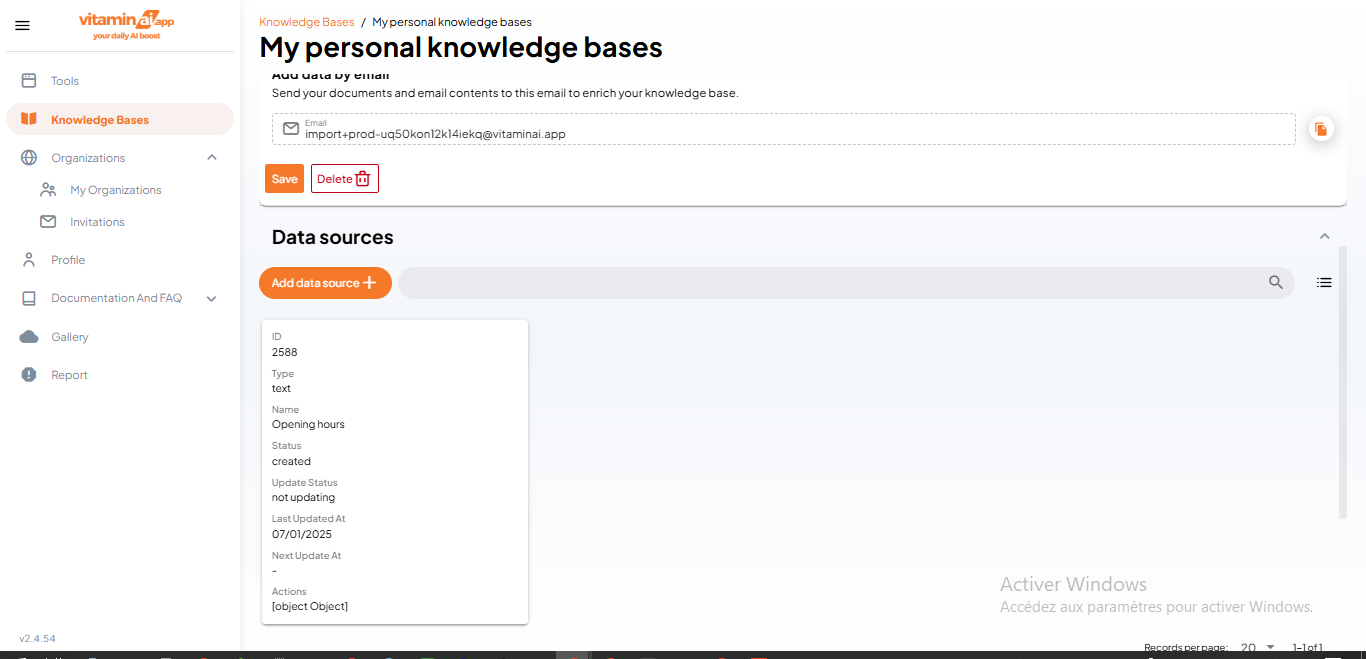
Click here to delete a data source