GuildLink - Printing SOPs
This guide shows how to print SOPs and some of the options available such as including the staff SOP review logs for auditors
Navigate to AuditLink > SOPs > View Standard Operating Procedures
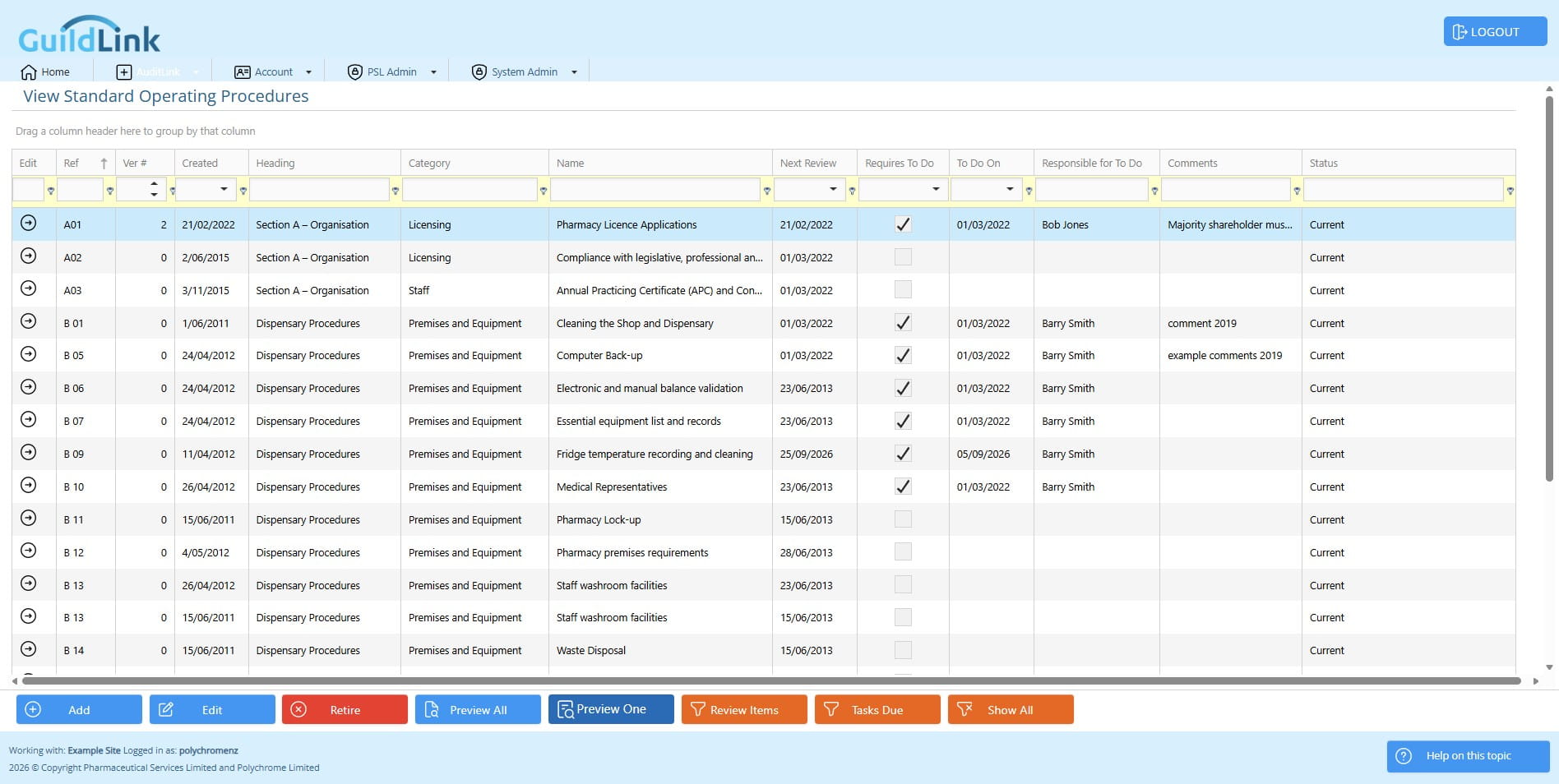
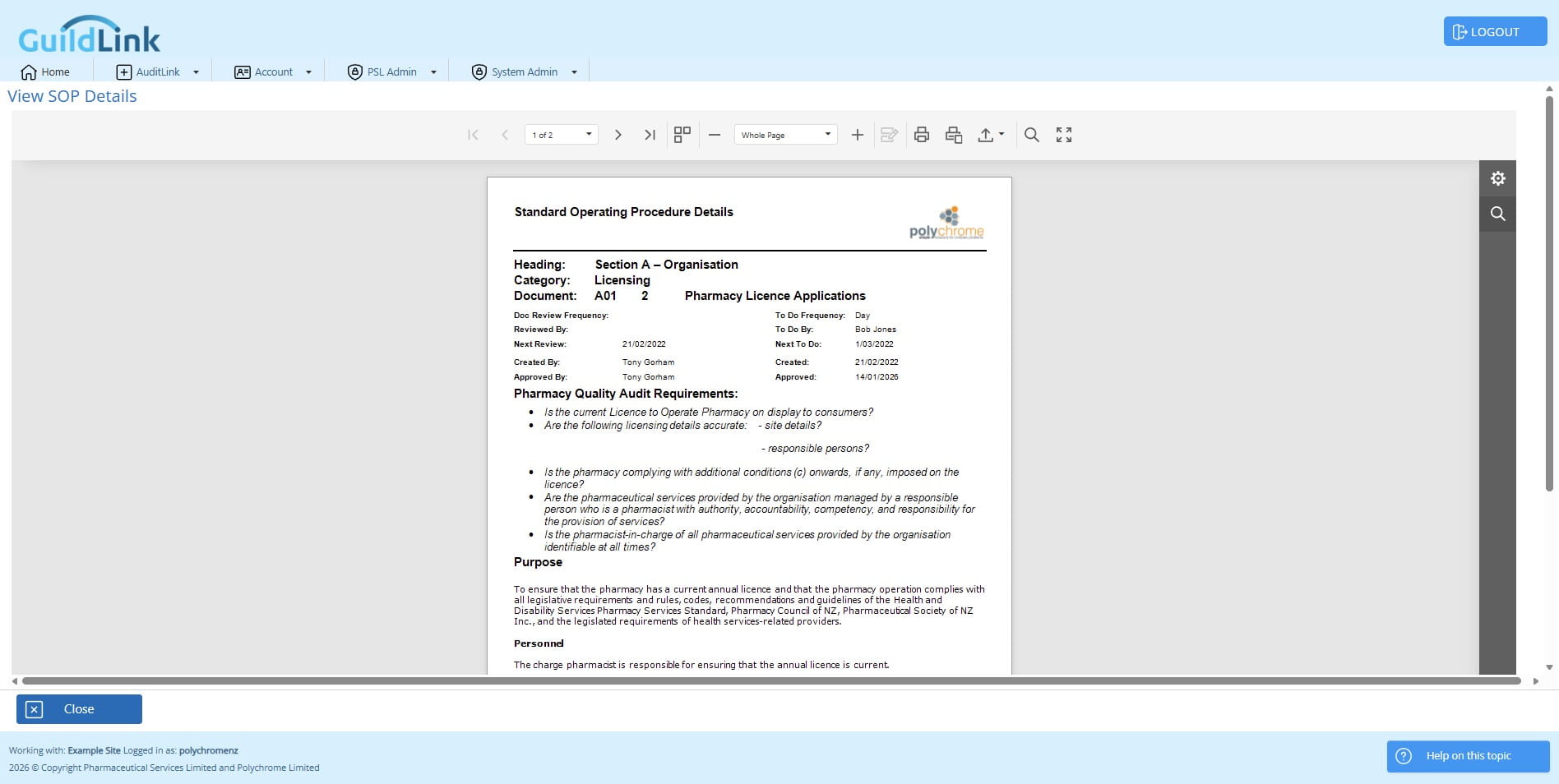
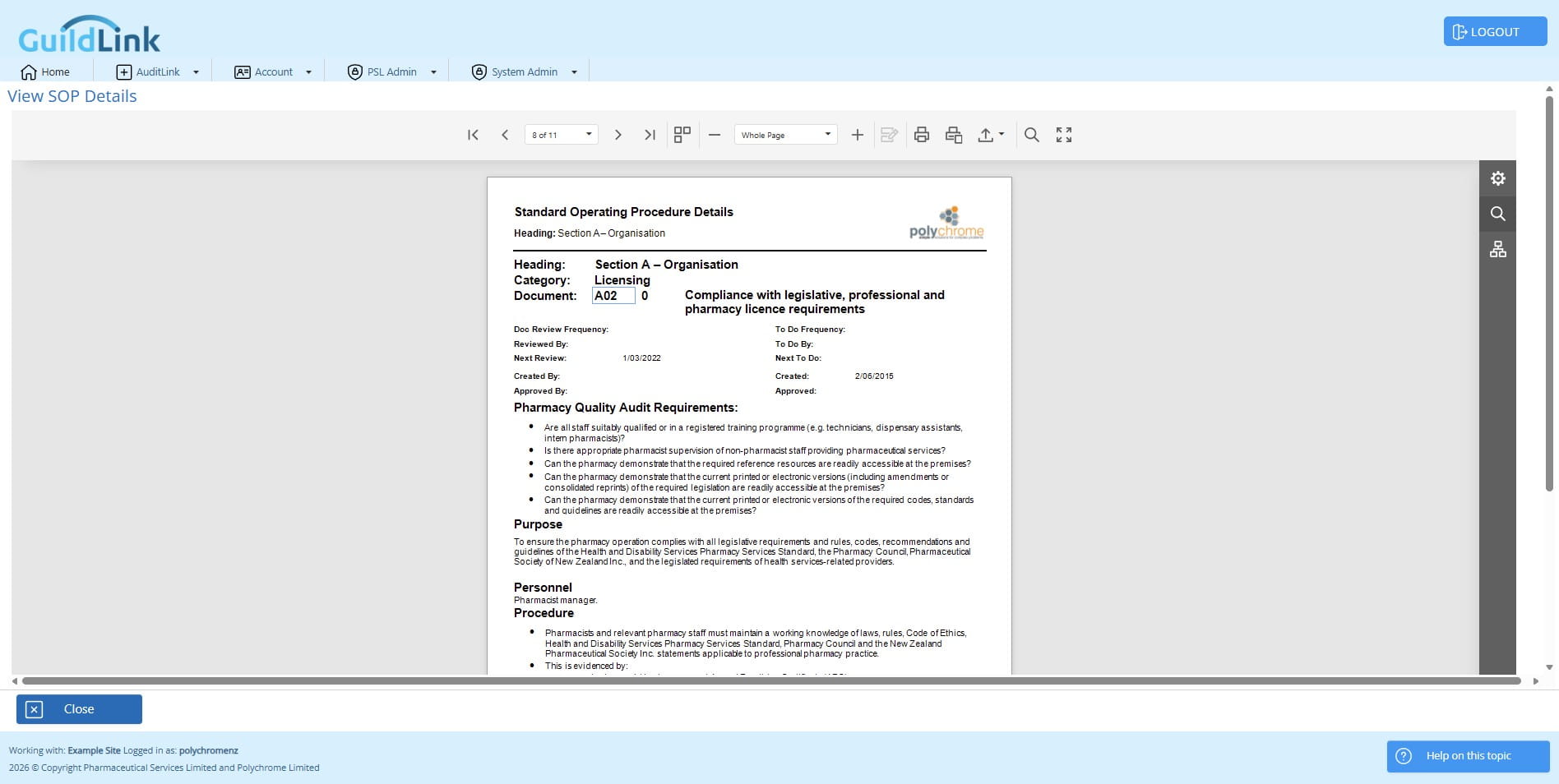
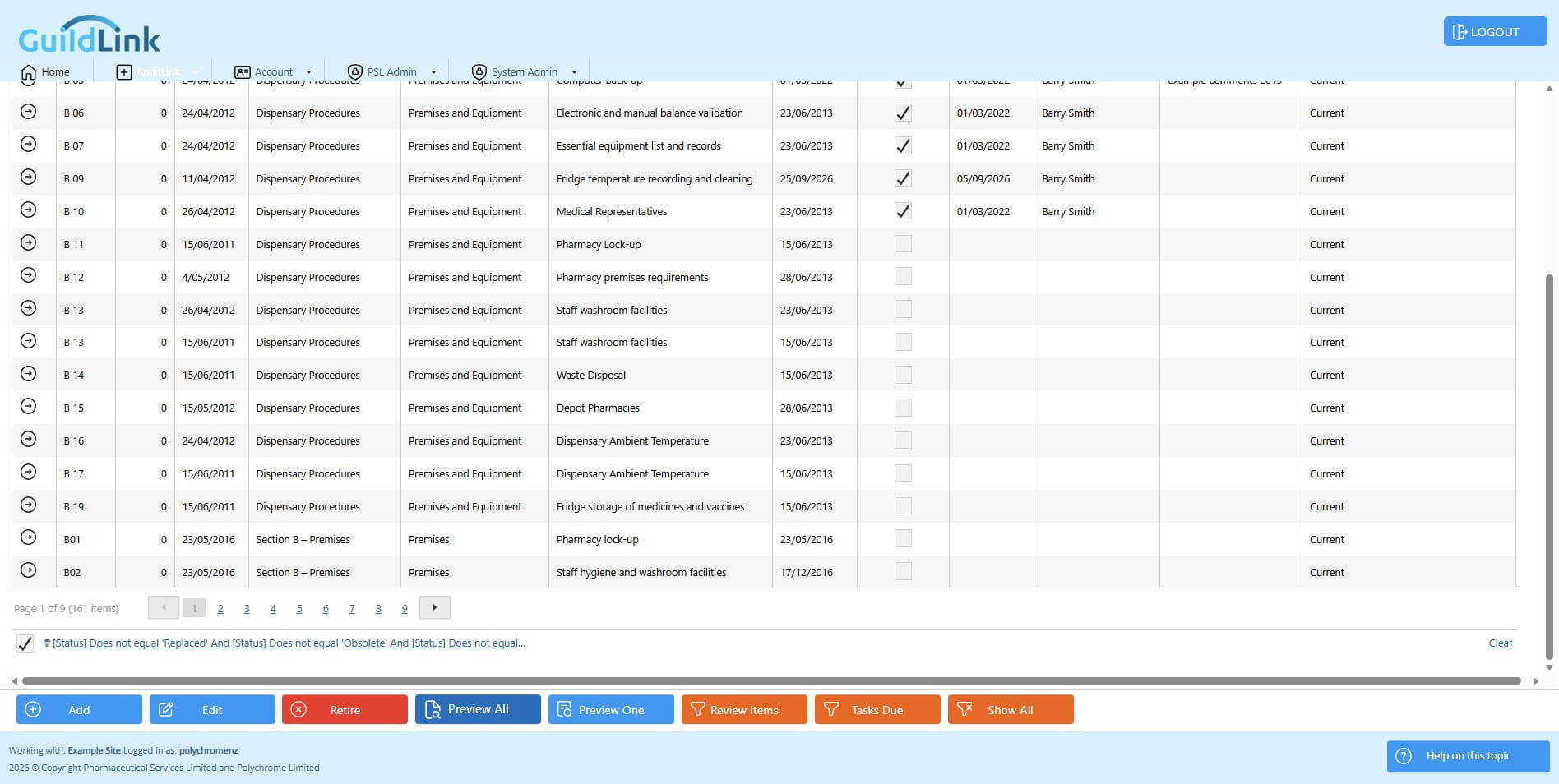
Choose any SOP and click Preview One to view that SOP
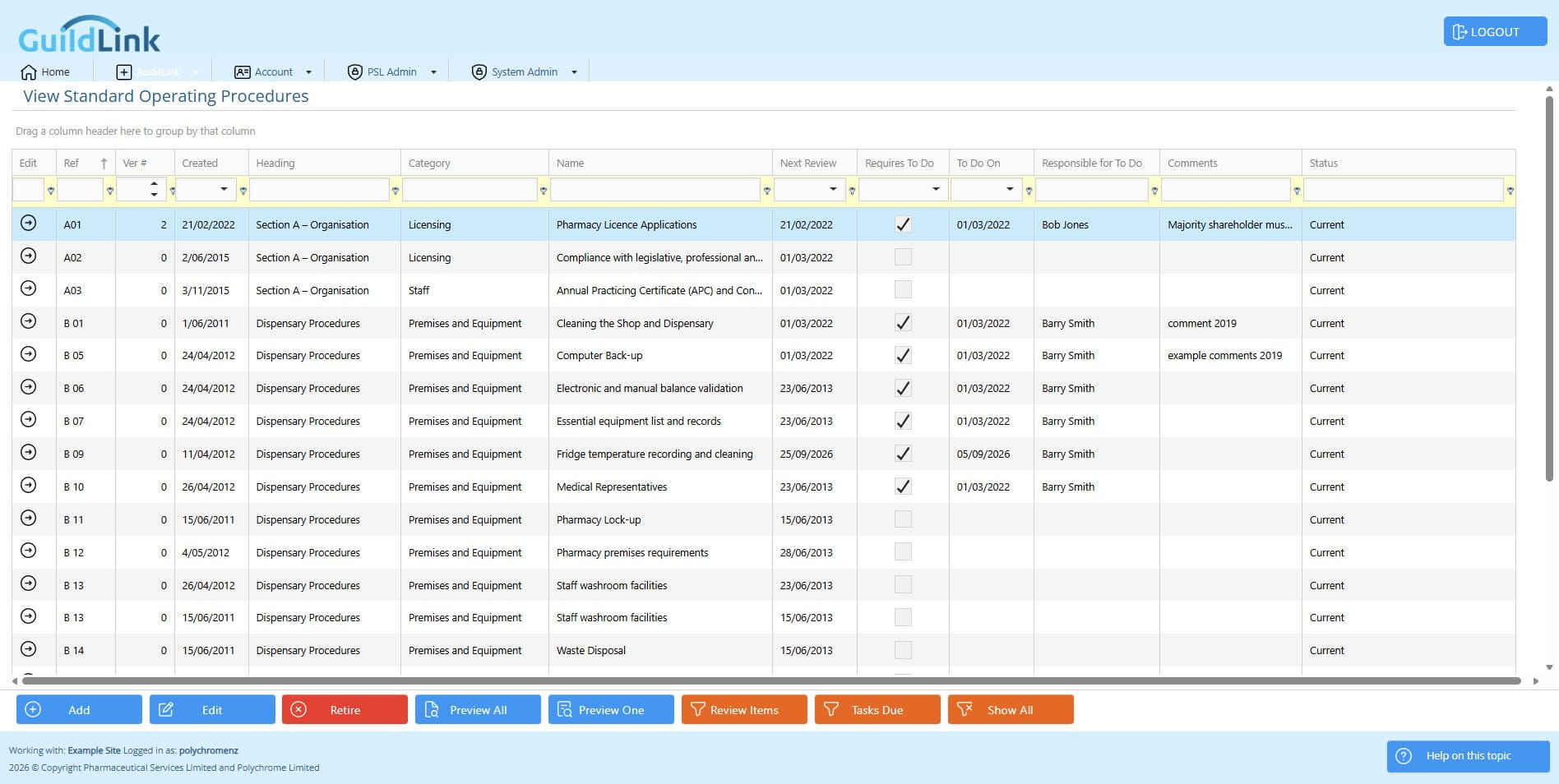
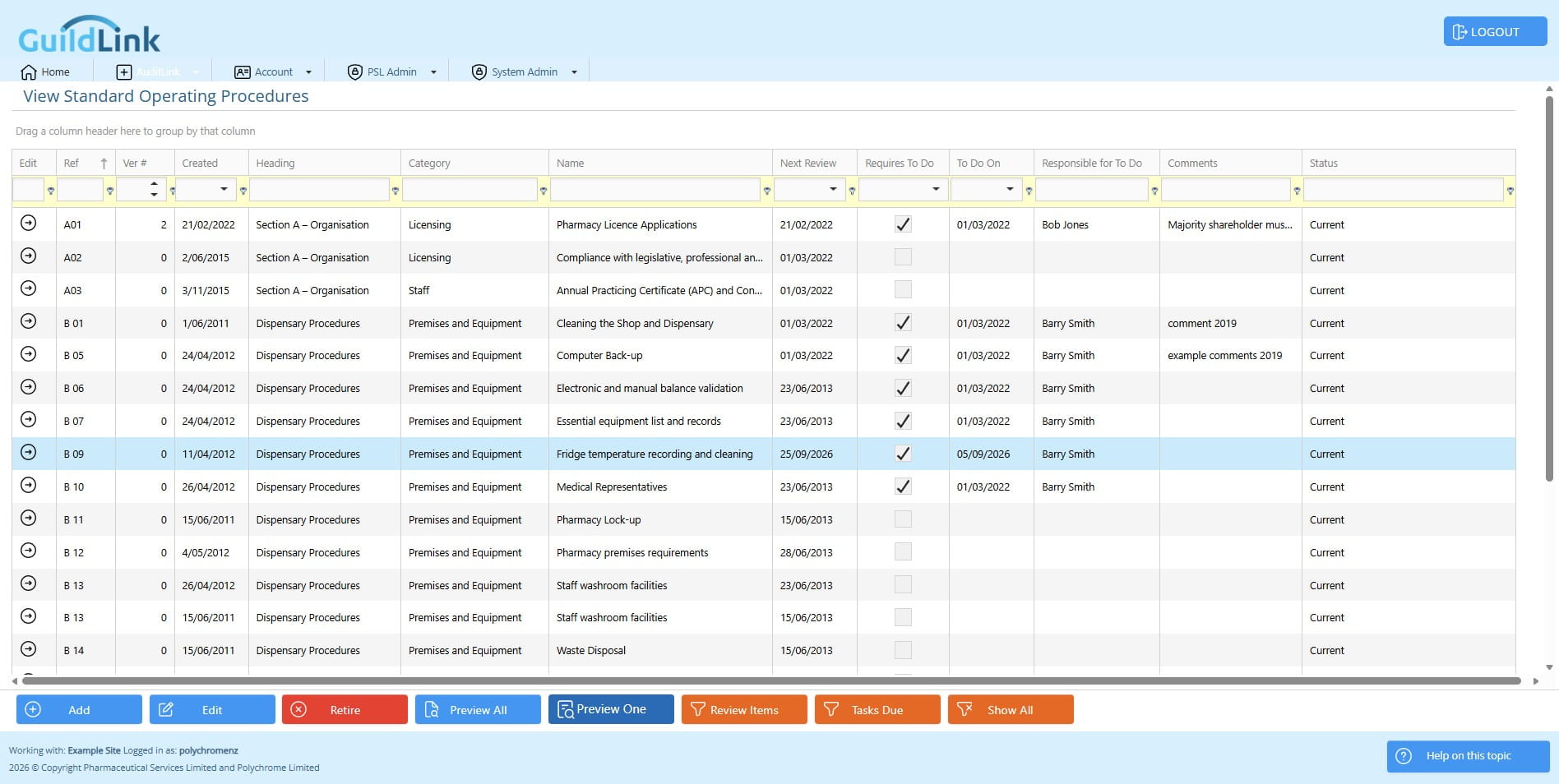
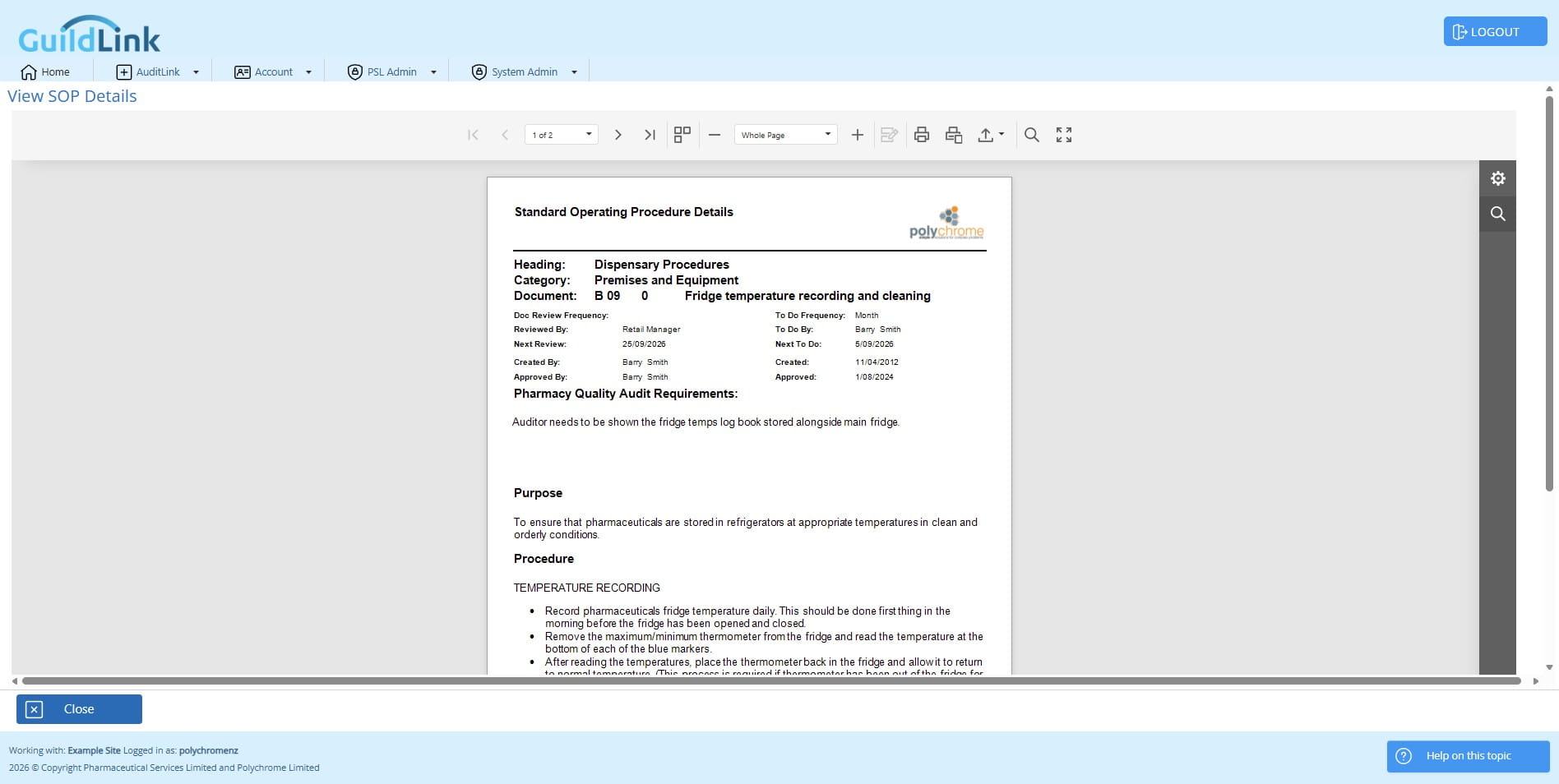
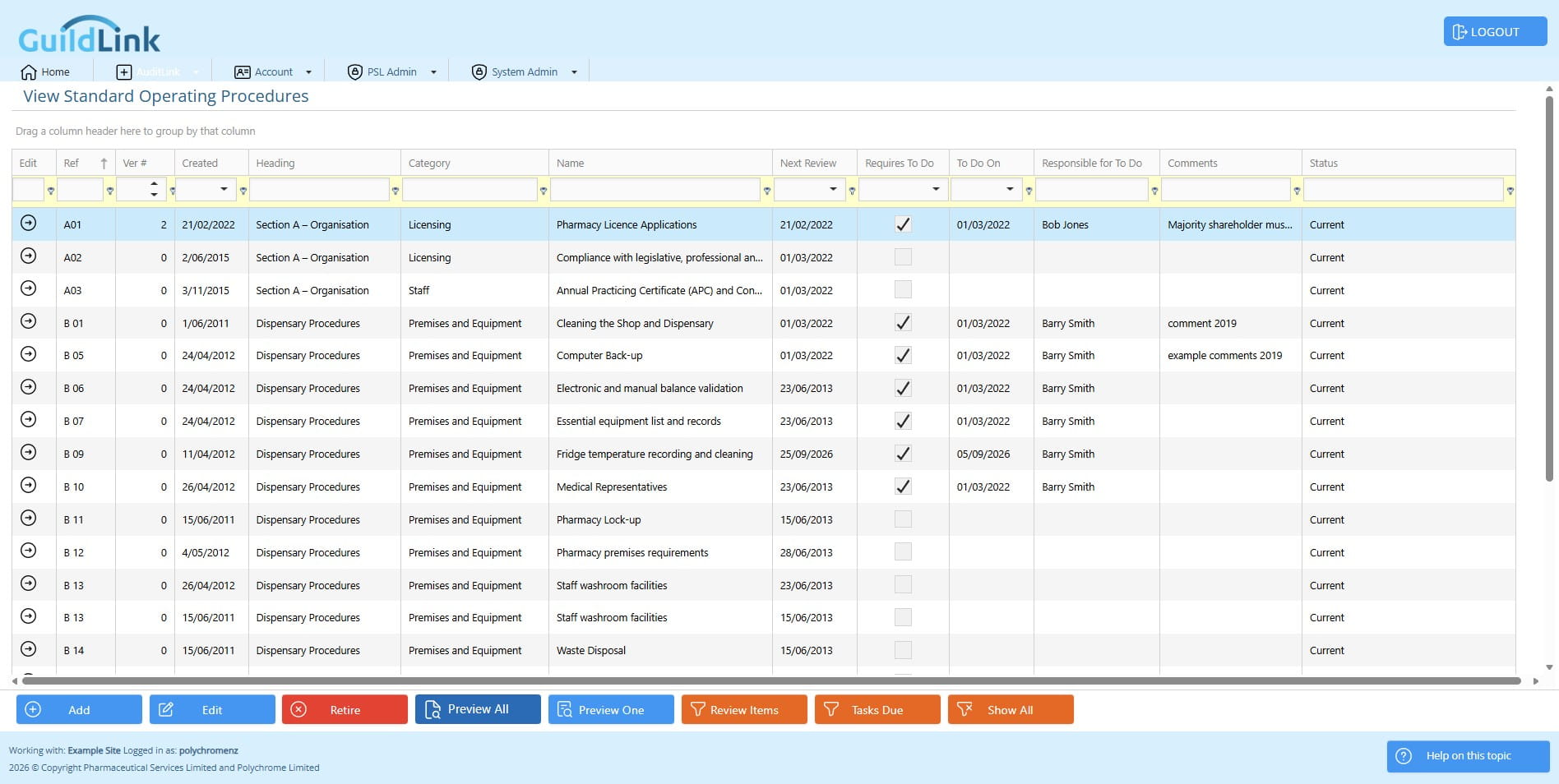
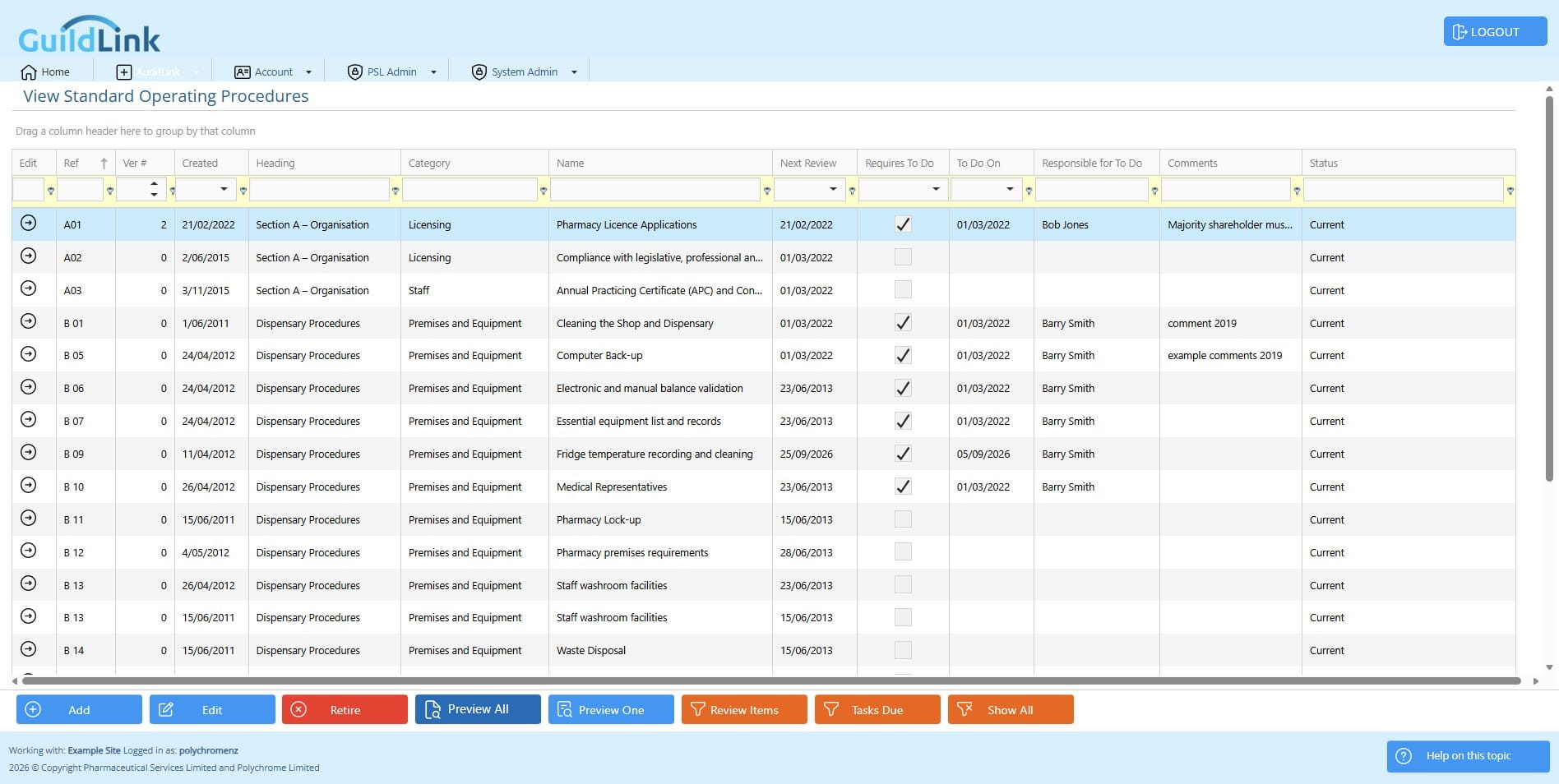
Click on "Preview All" to view all SOPs
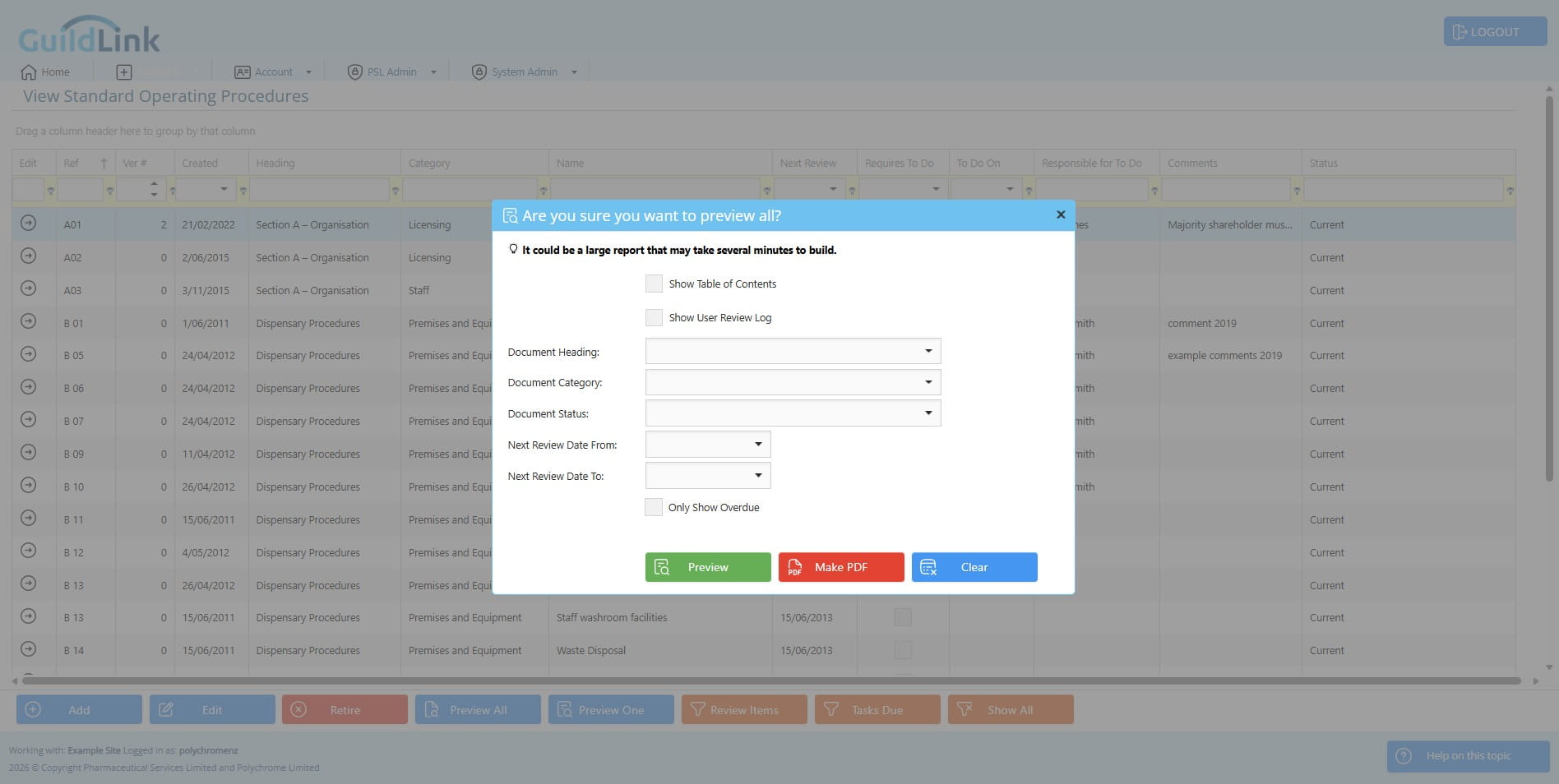
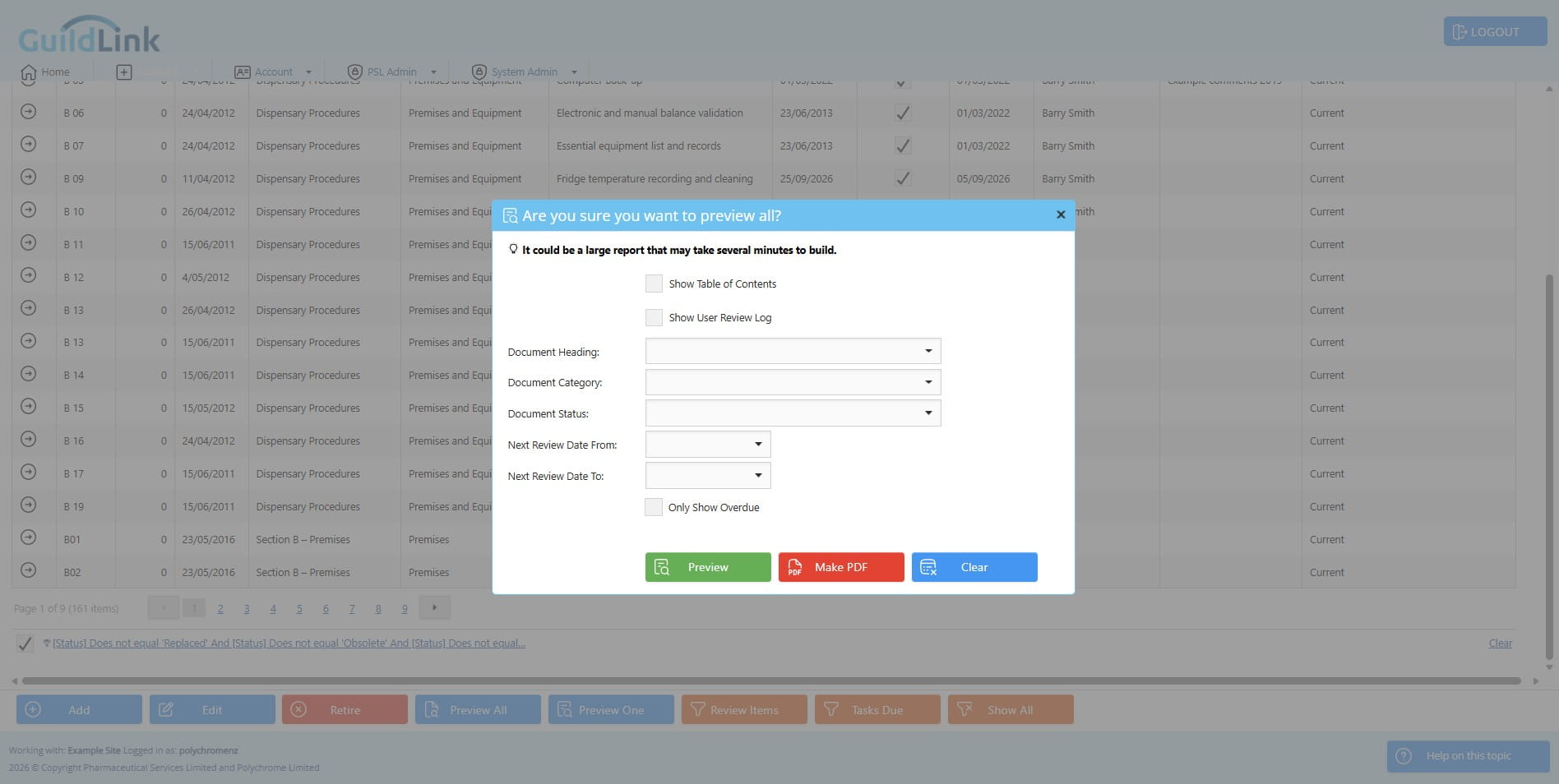
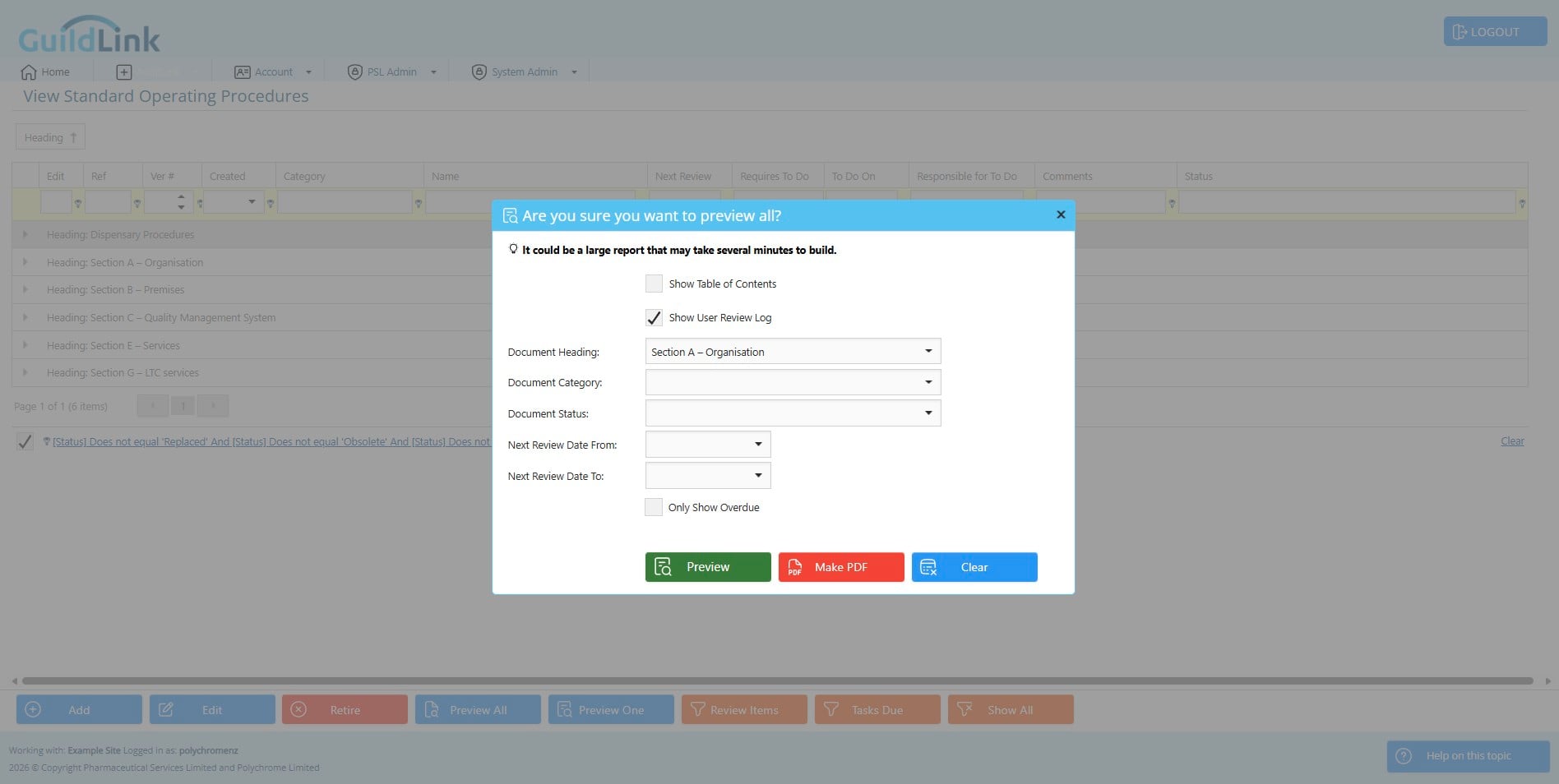
Click on "Show Table of Contents" if you want to have a clickable Table of Contents at the start of the report.
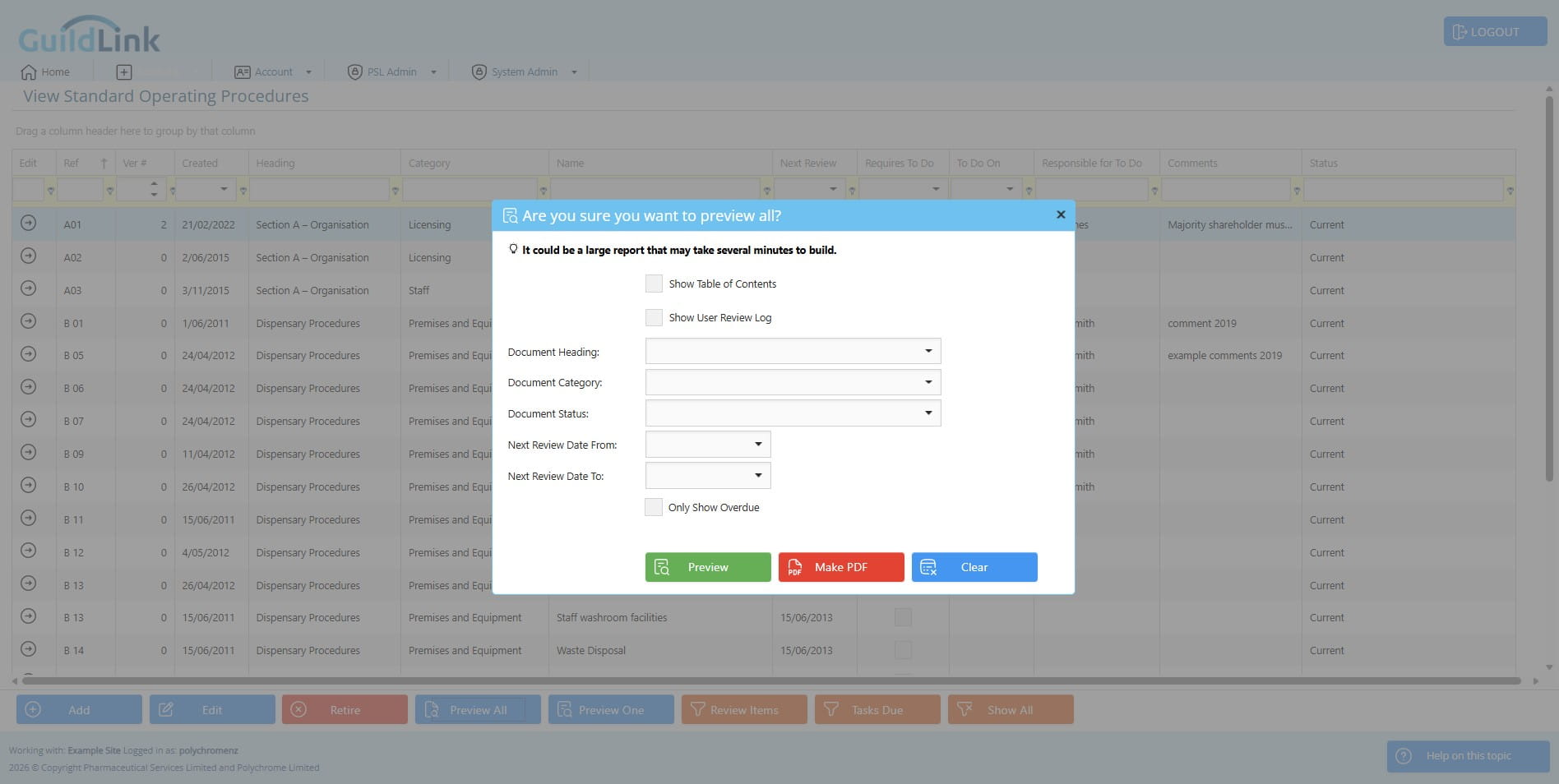
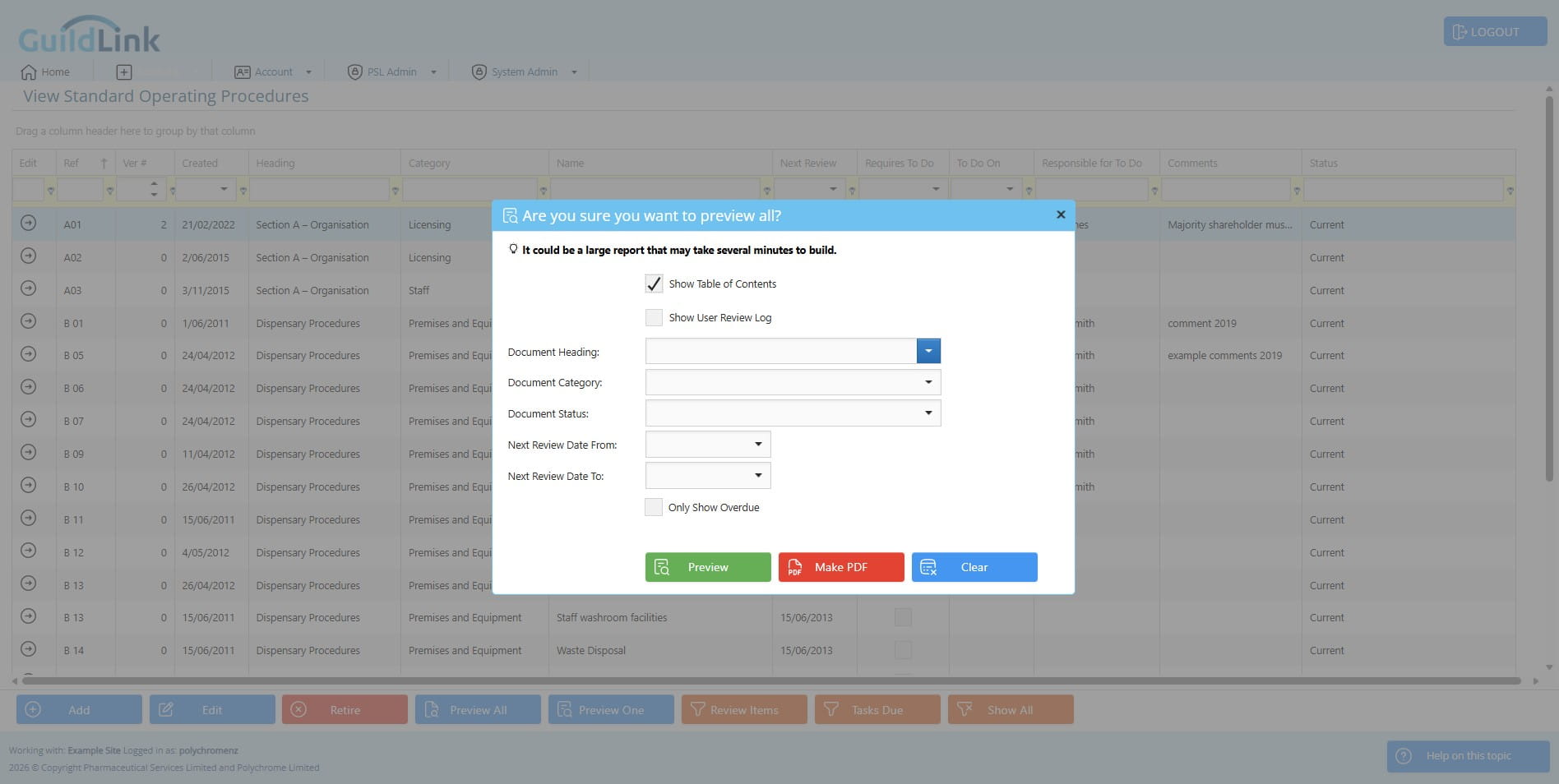
You can optionally filter by document heading, category, statis and review dates.
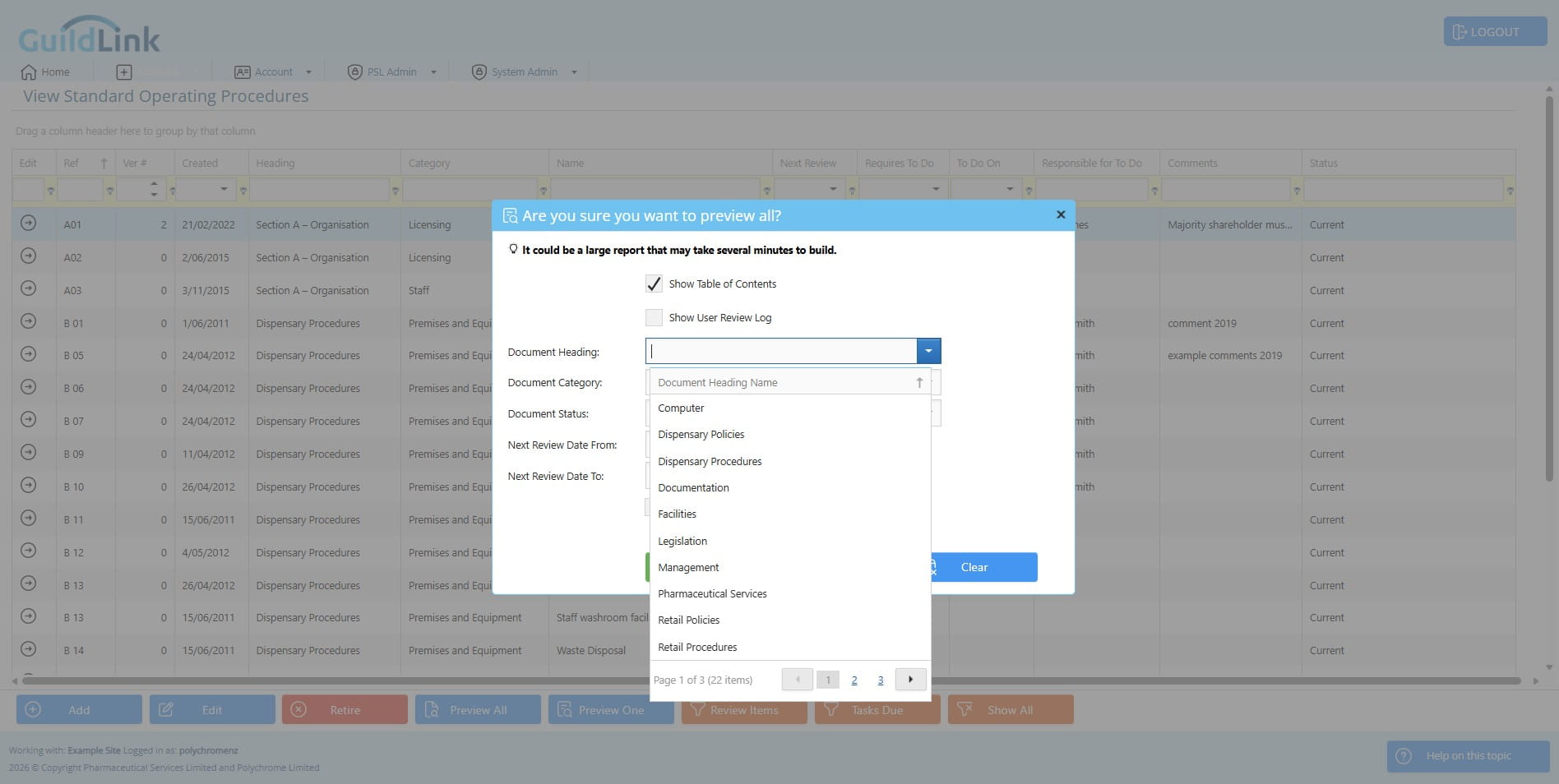
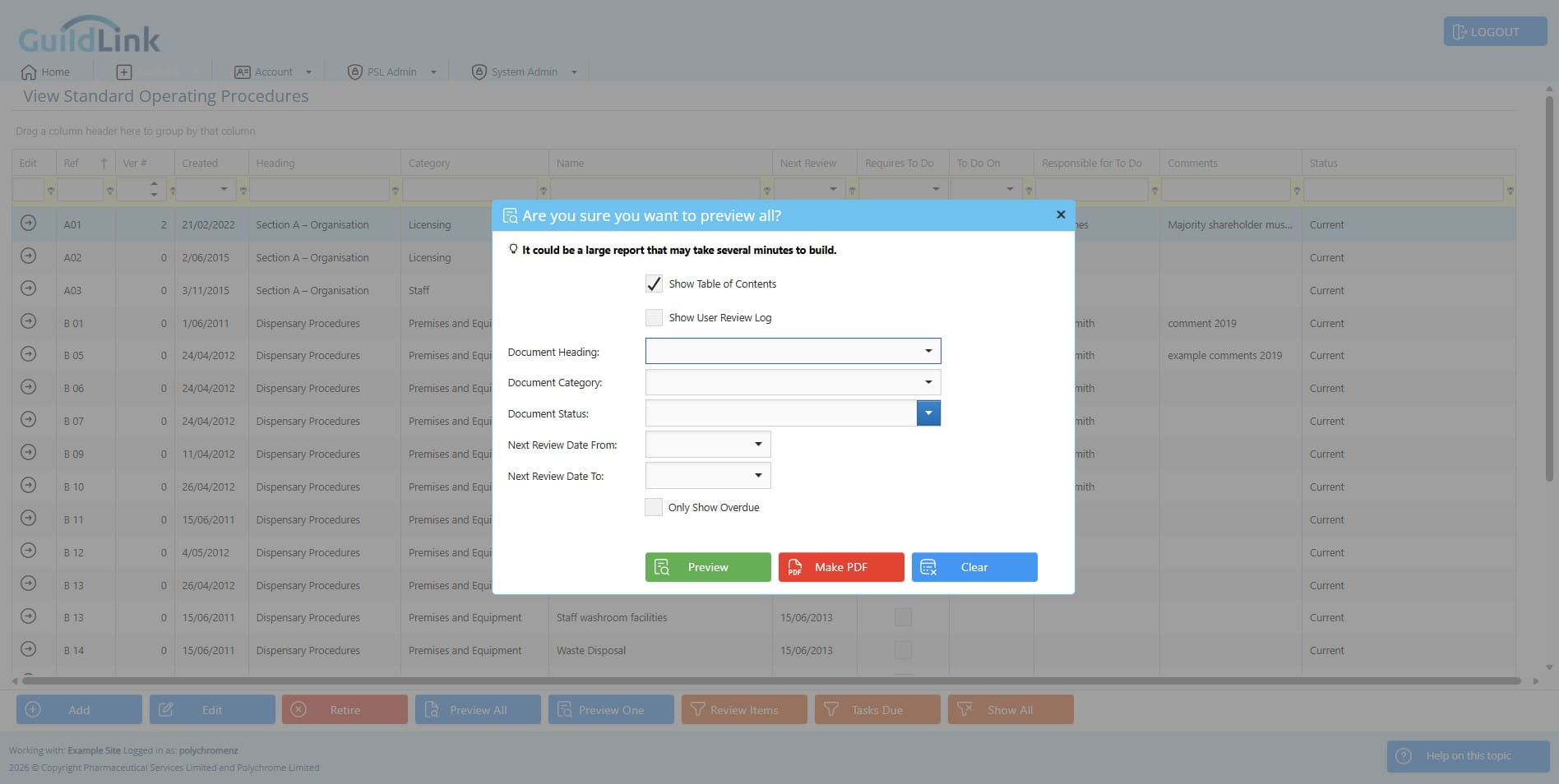
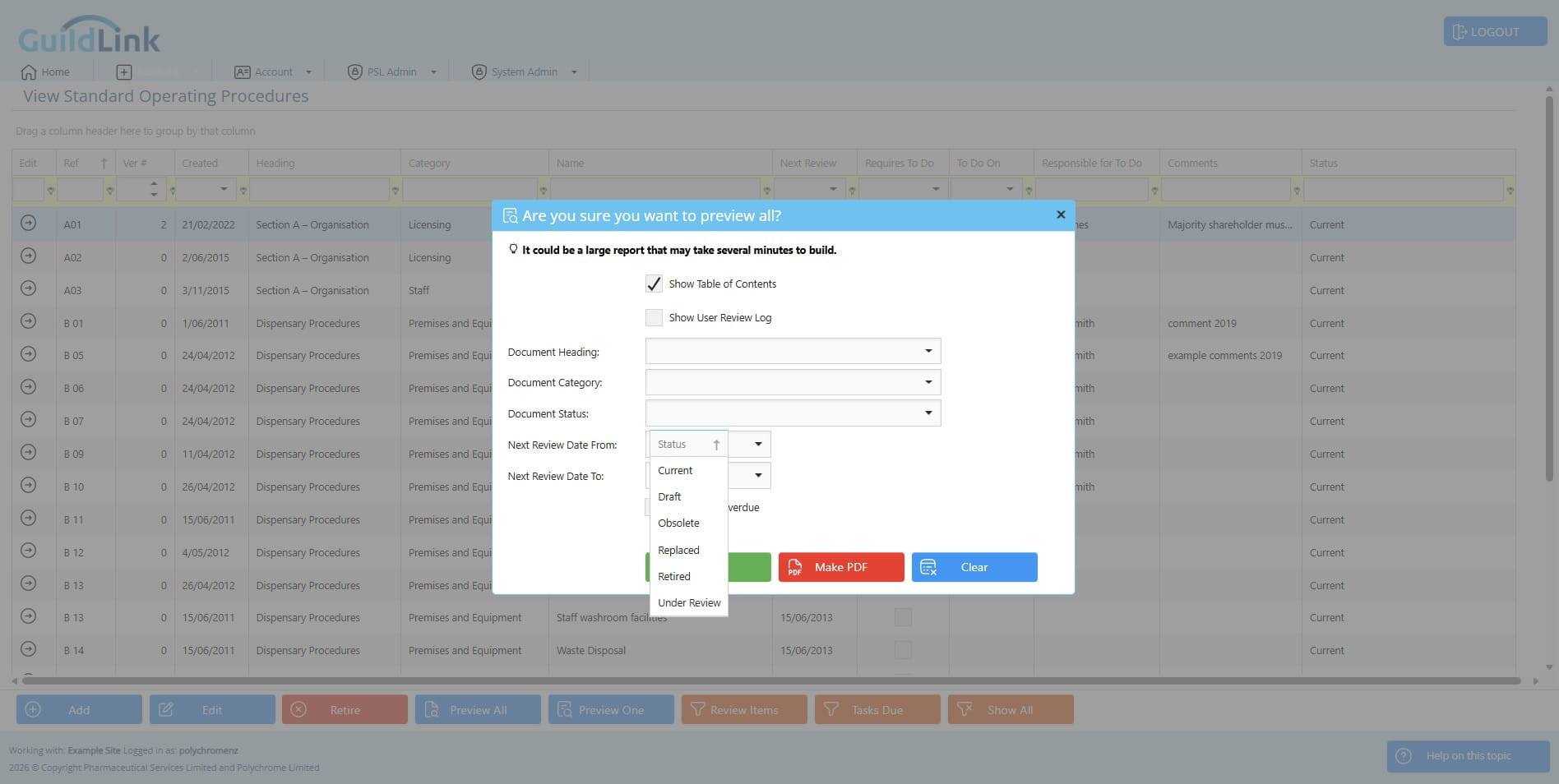
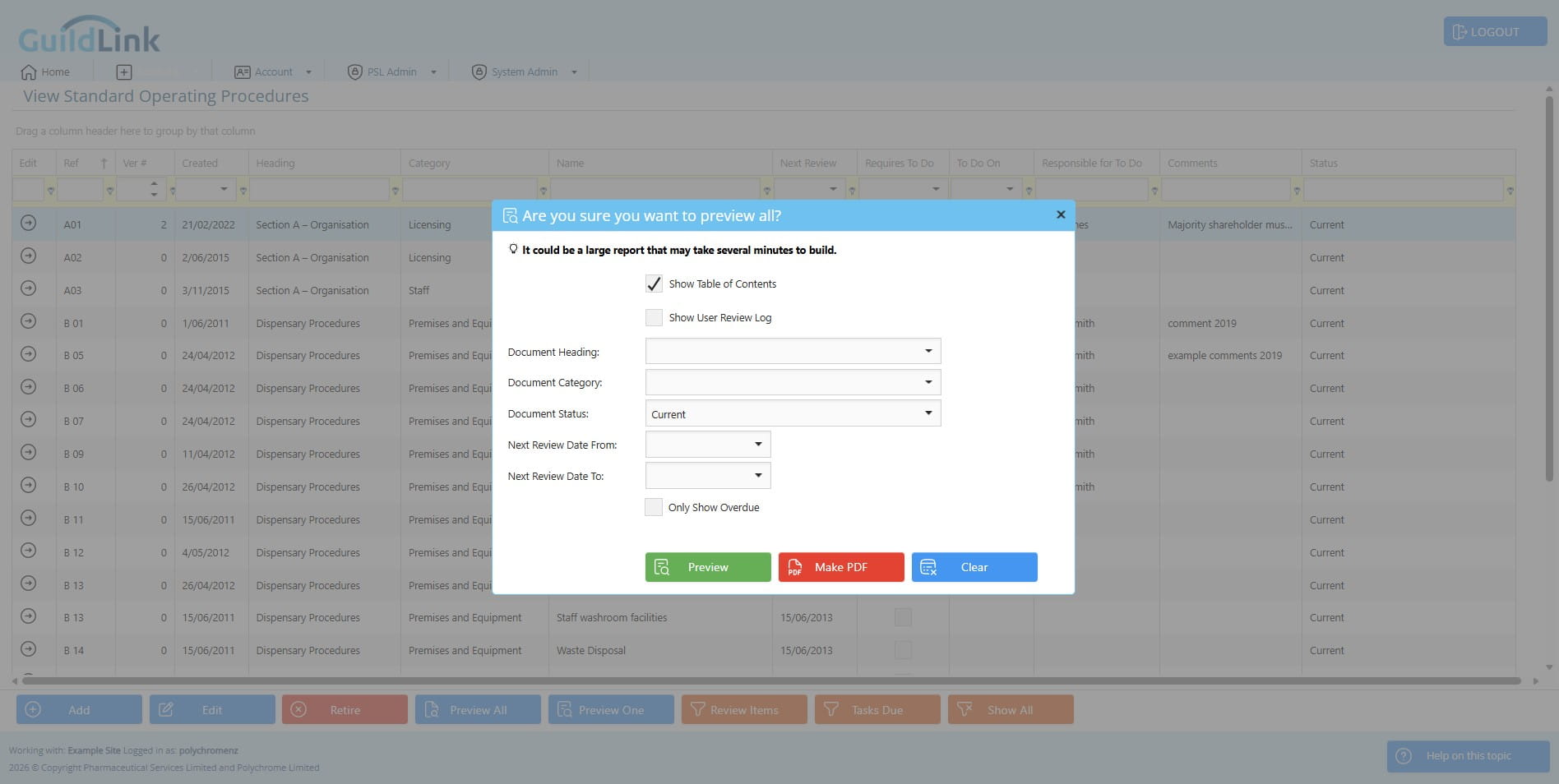
Click on "Only Show Overdue" to see only SOPs that are overdue for review
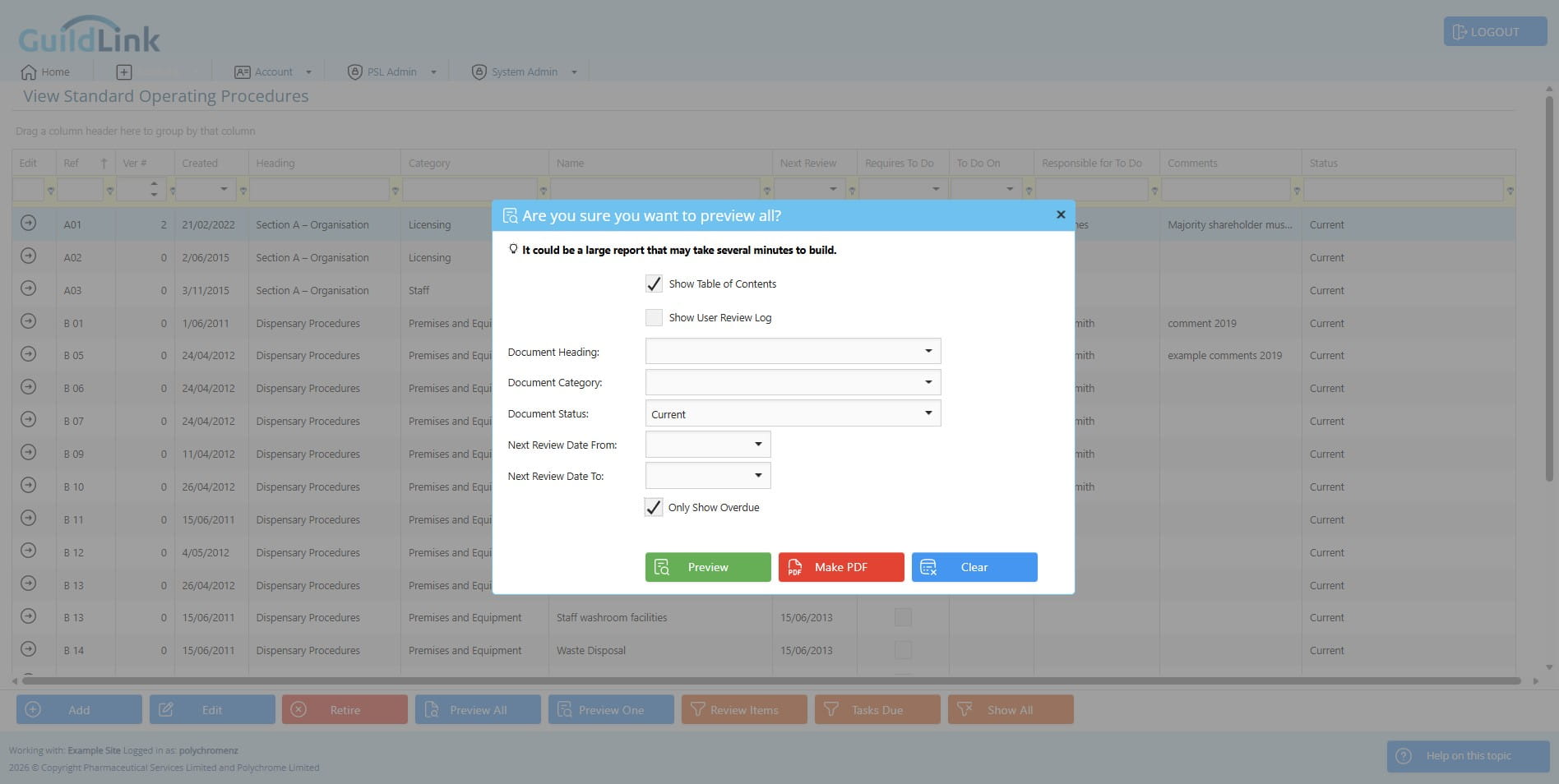
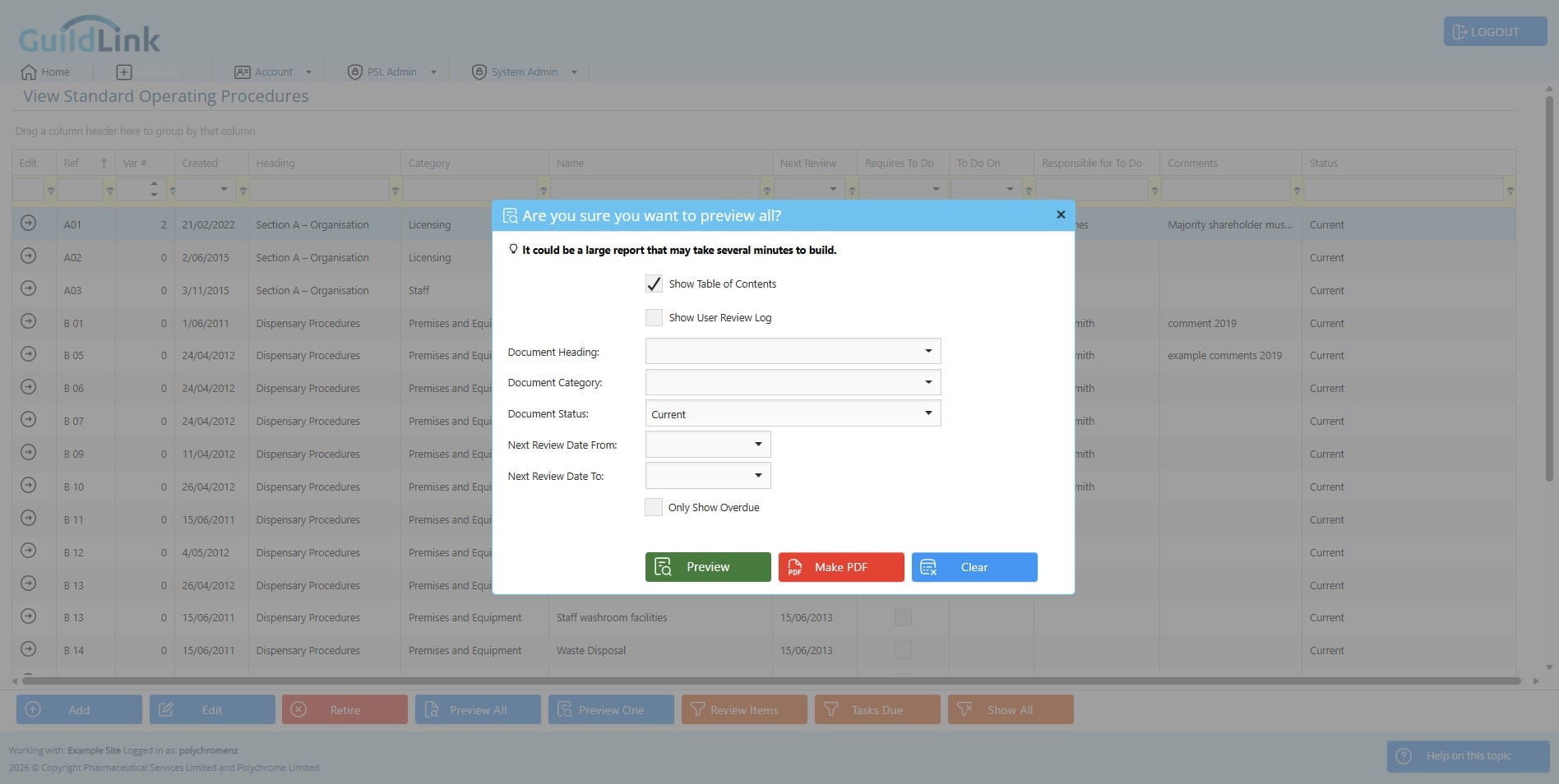
Click on "Preview" to see the report
With the table of contents, you can click on any item to jump to that part of the report.
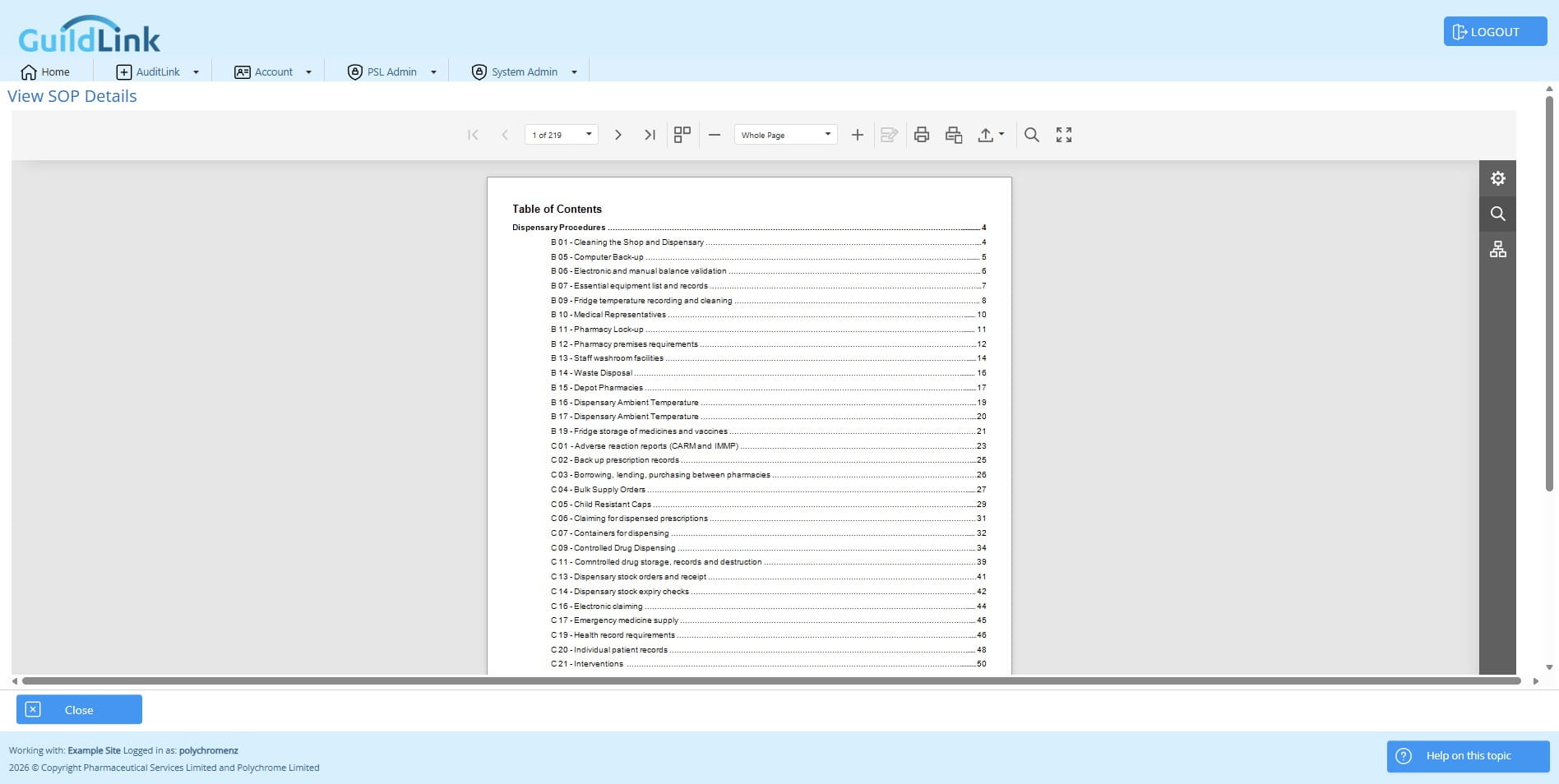
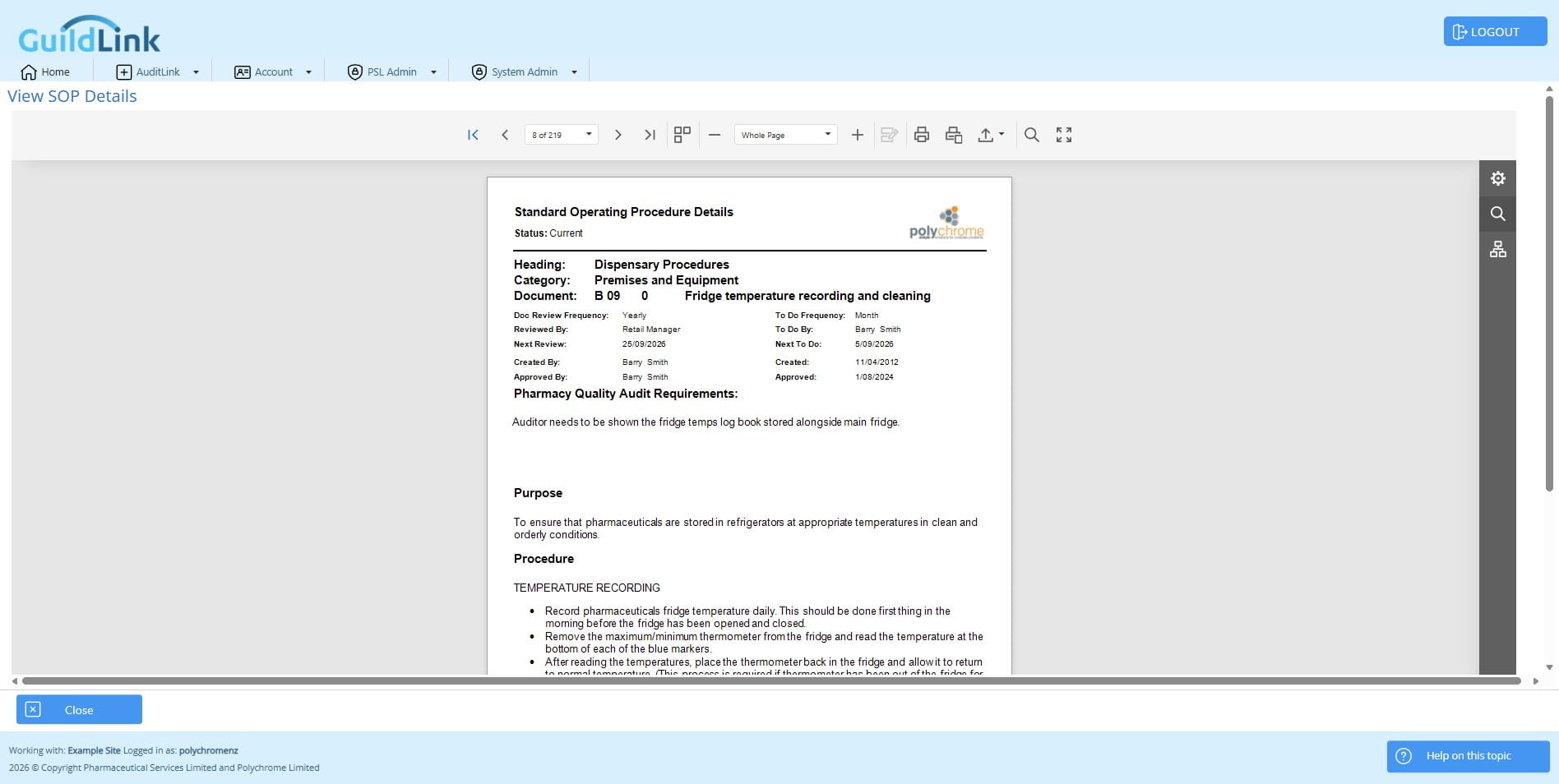
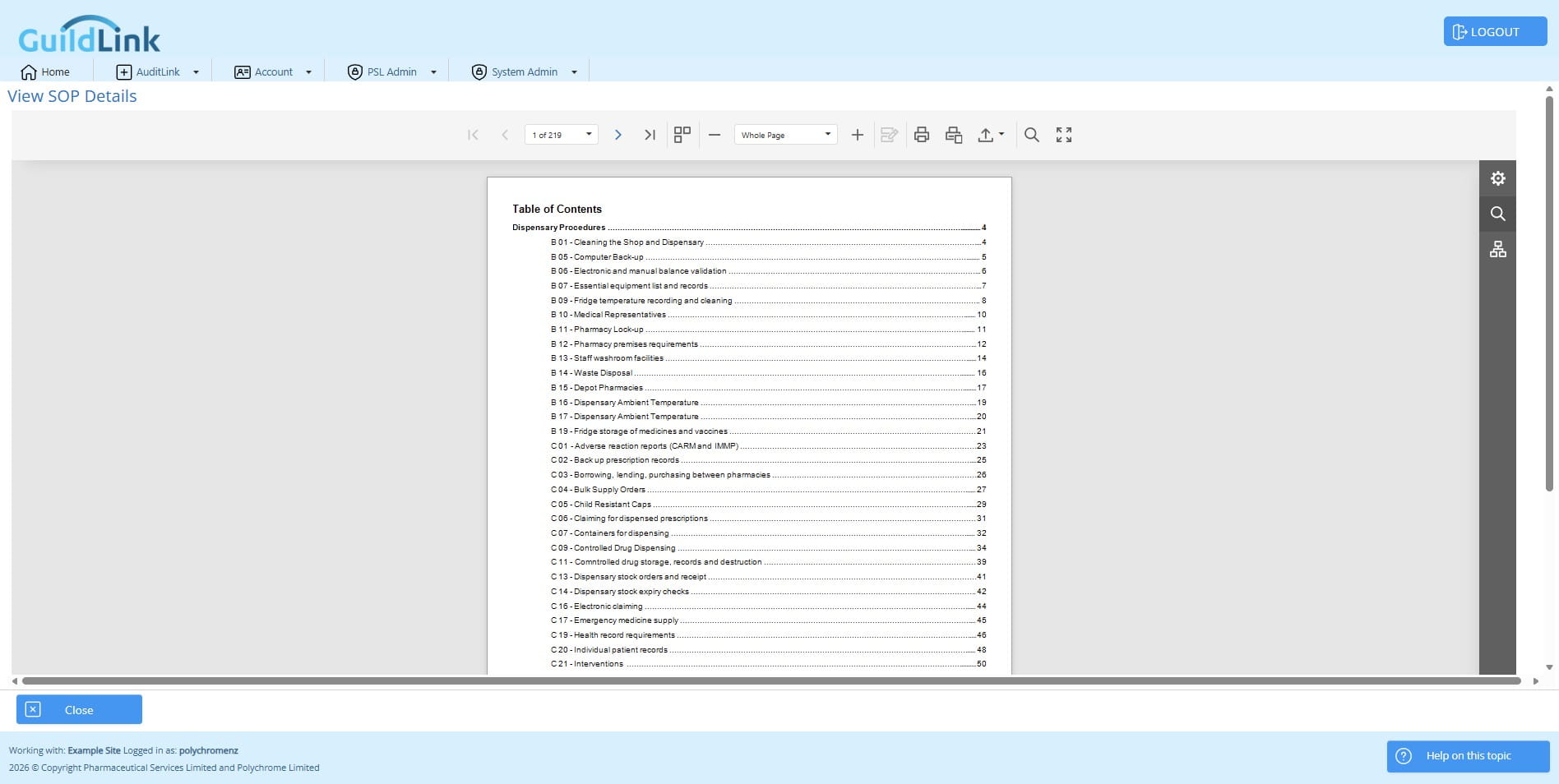
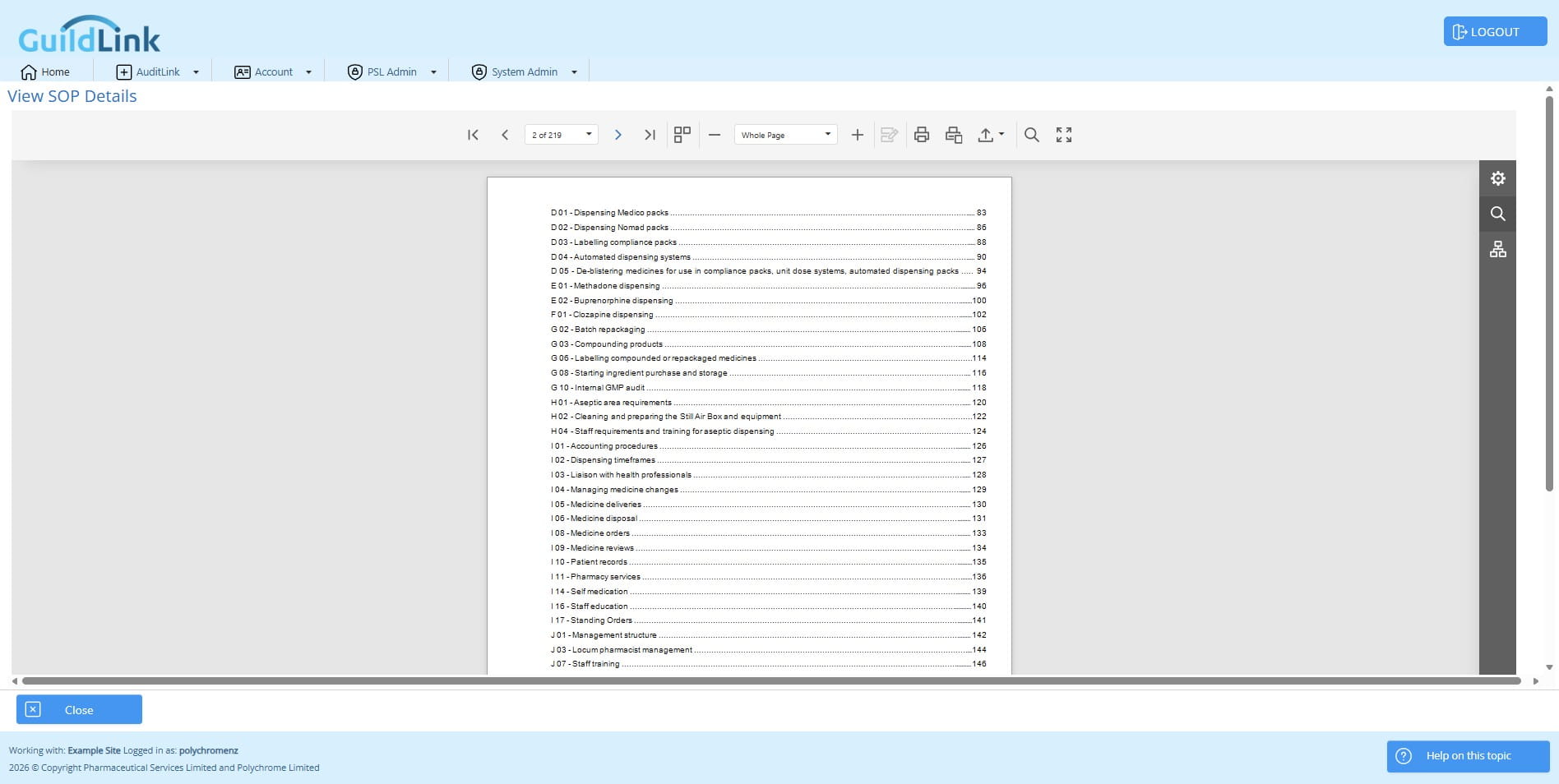
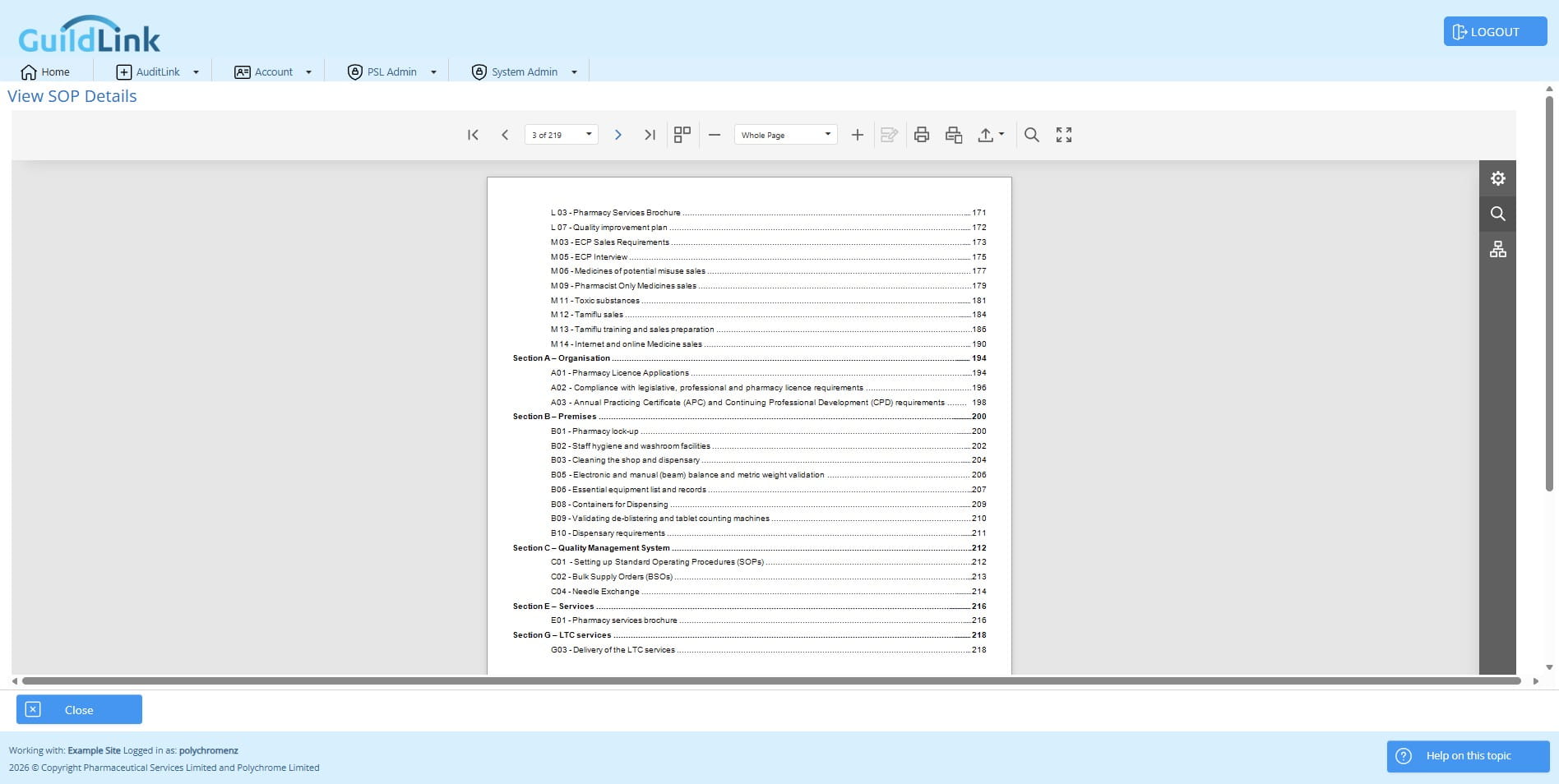
Click left and right arrows to navigate through the report
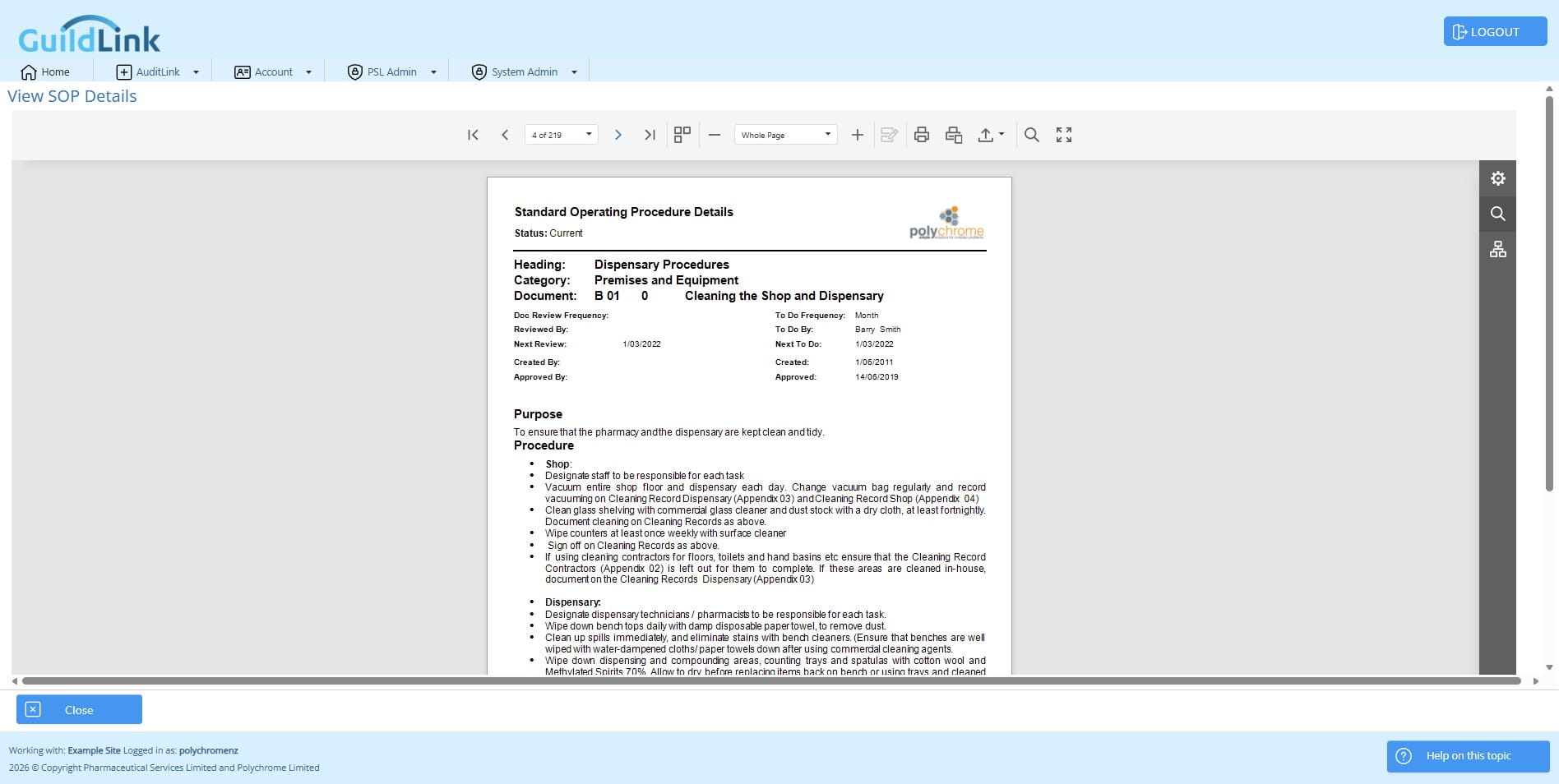
Click on "Preview All" to try another selection.
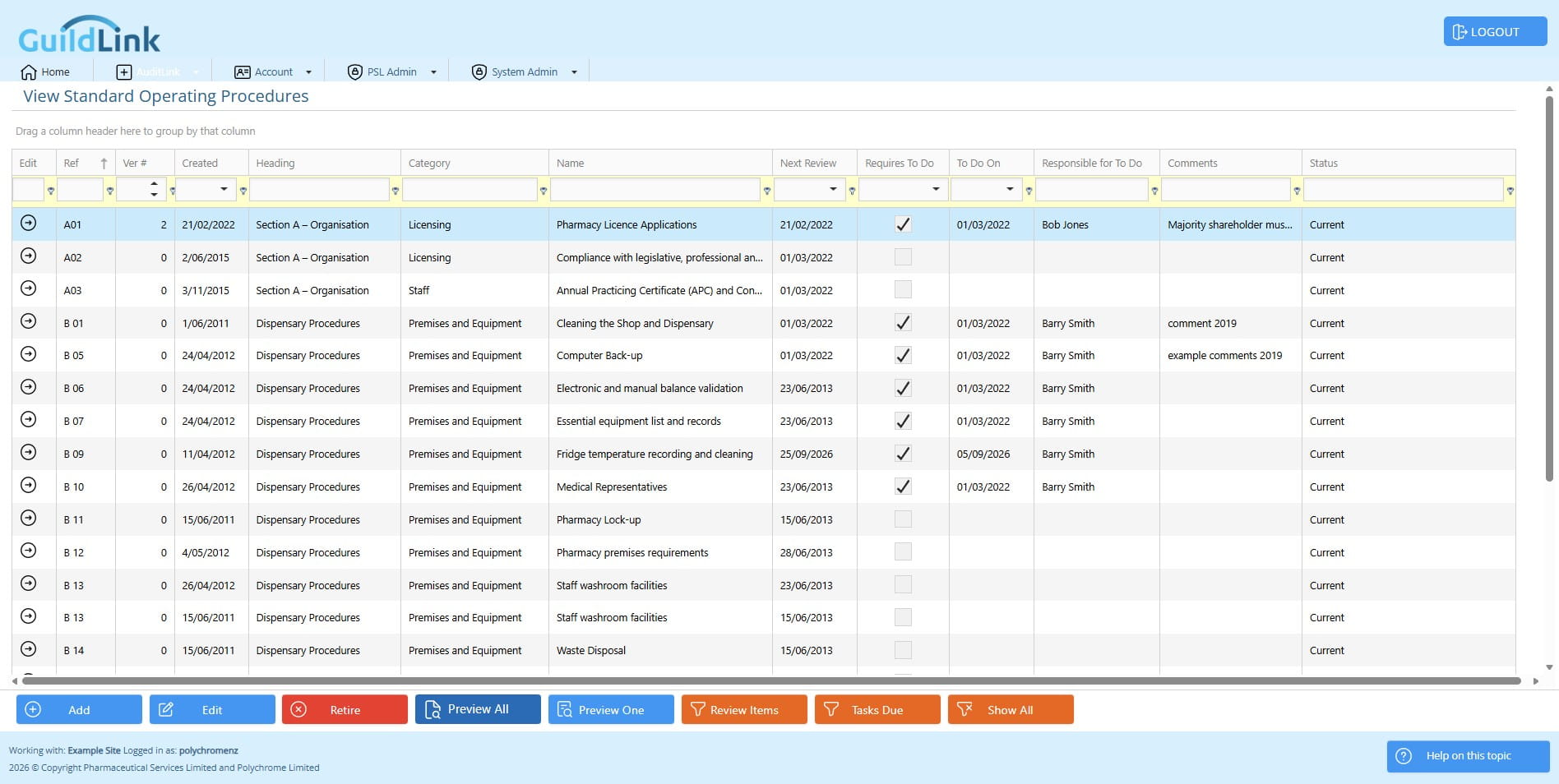
Click on "Preview All"
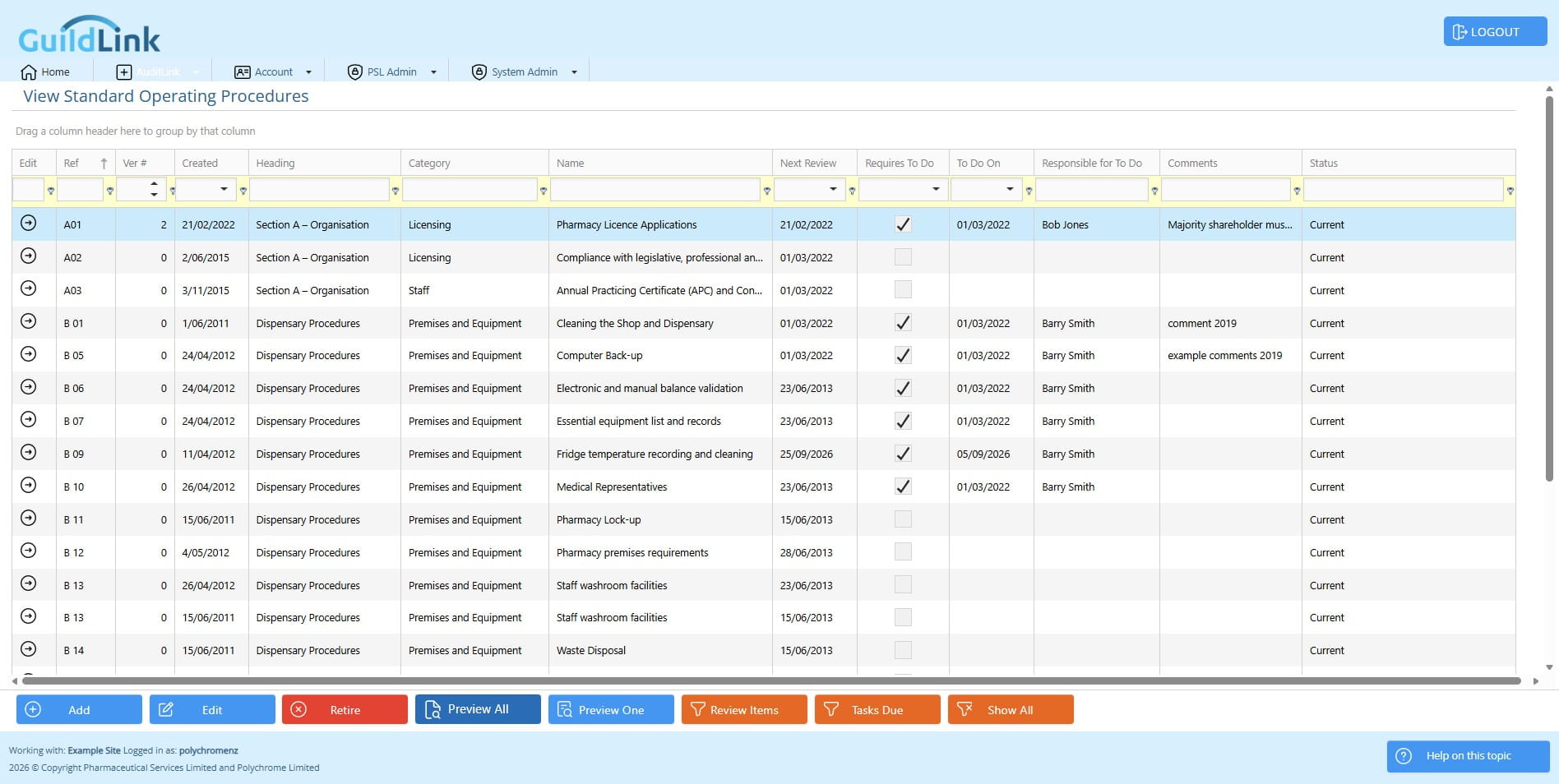
Now let's filter by Heading
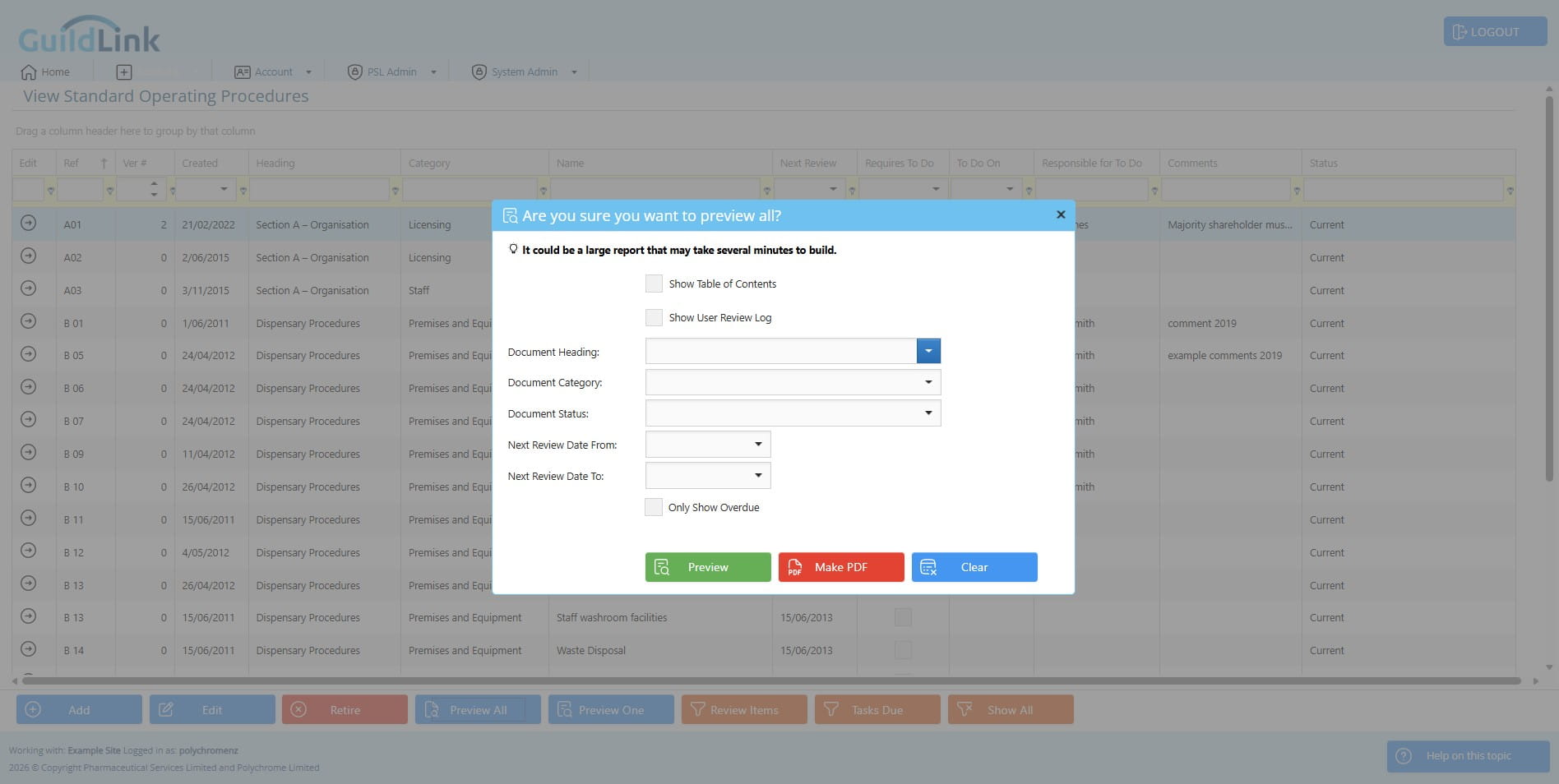
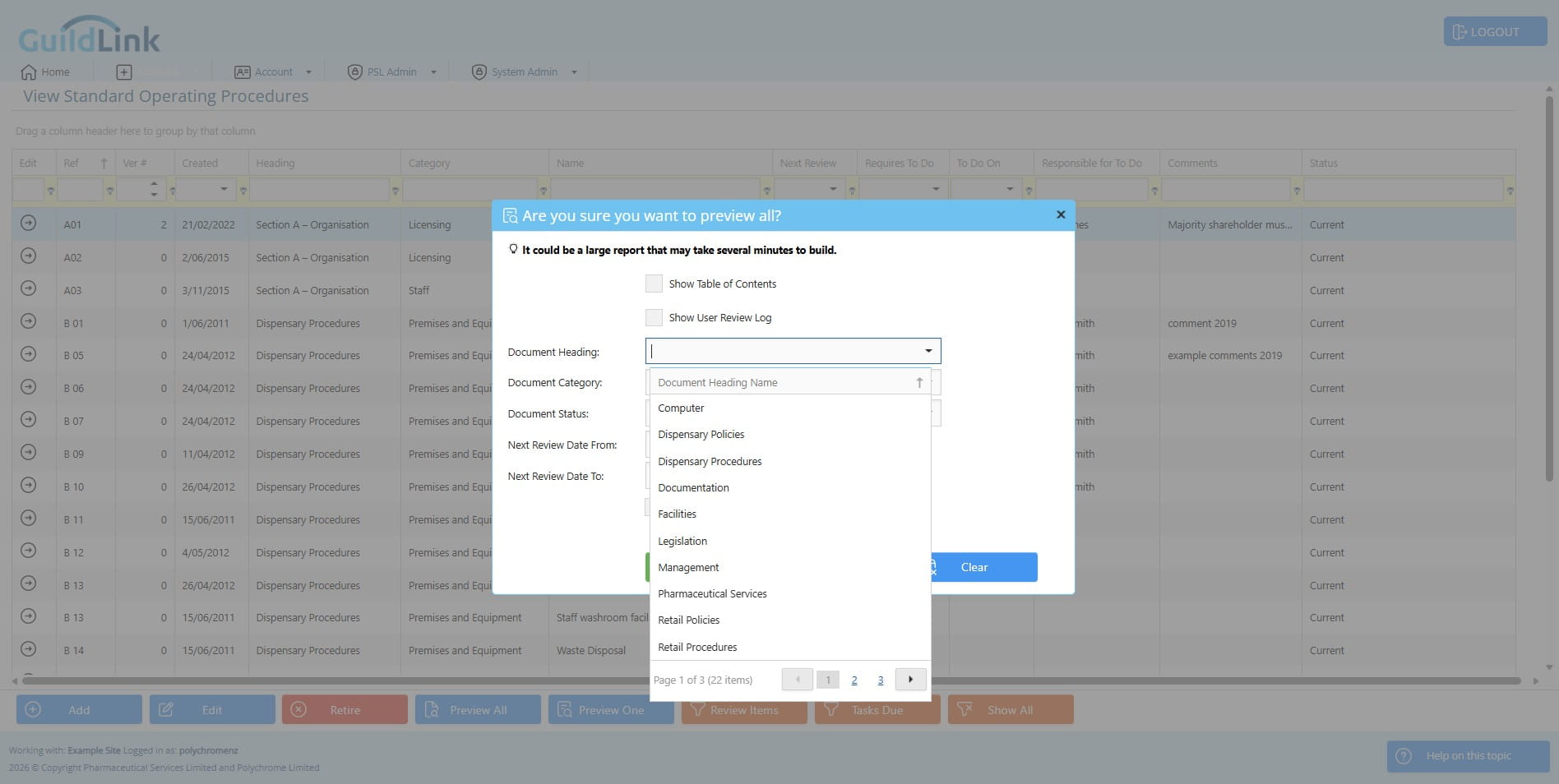
Click on "Section A – Organisation"
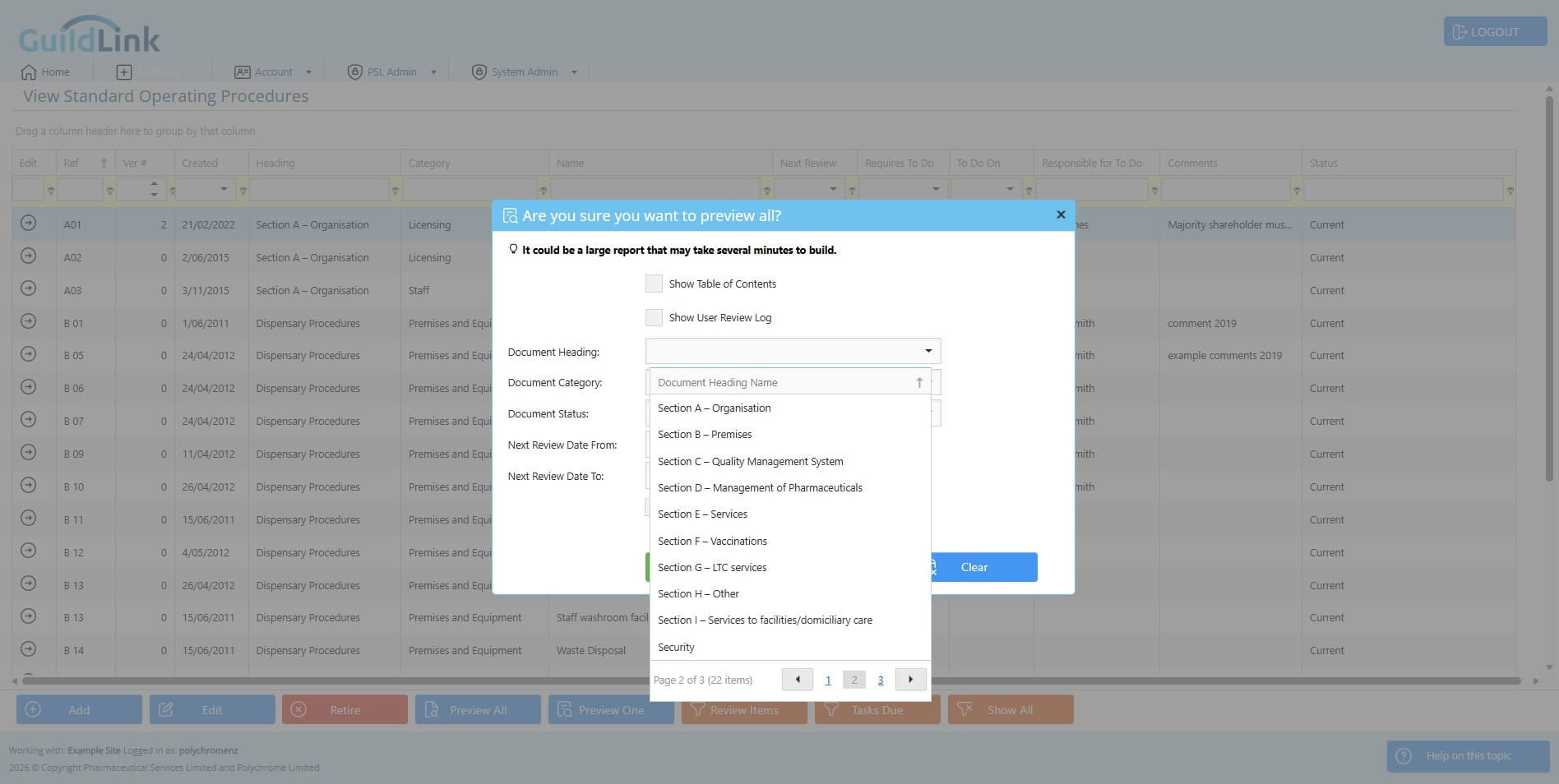
Click Preview All
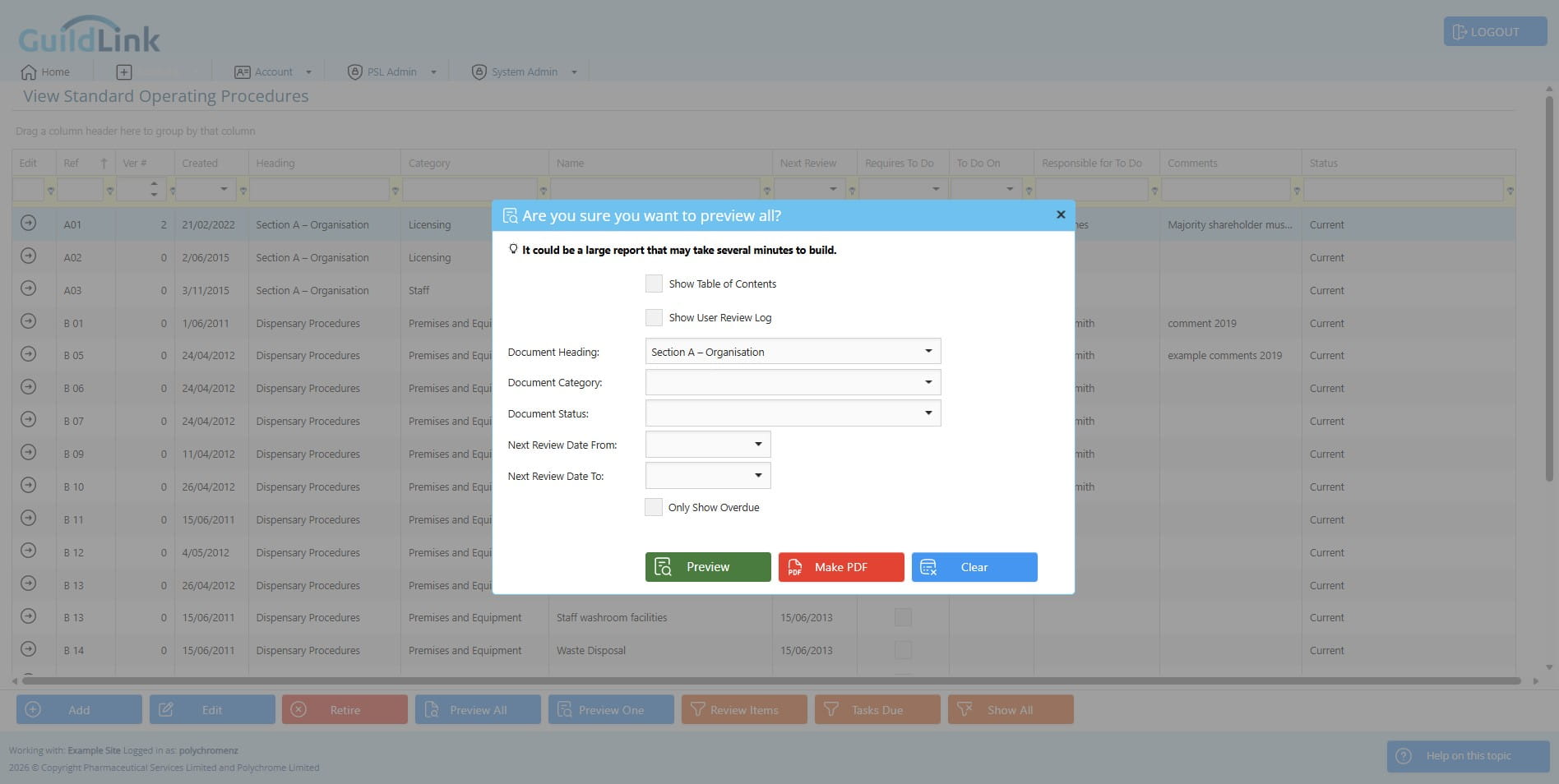
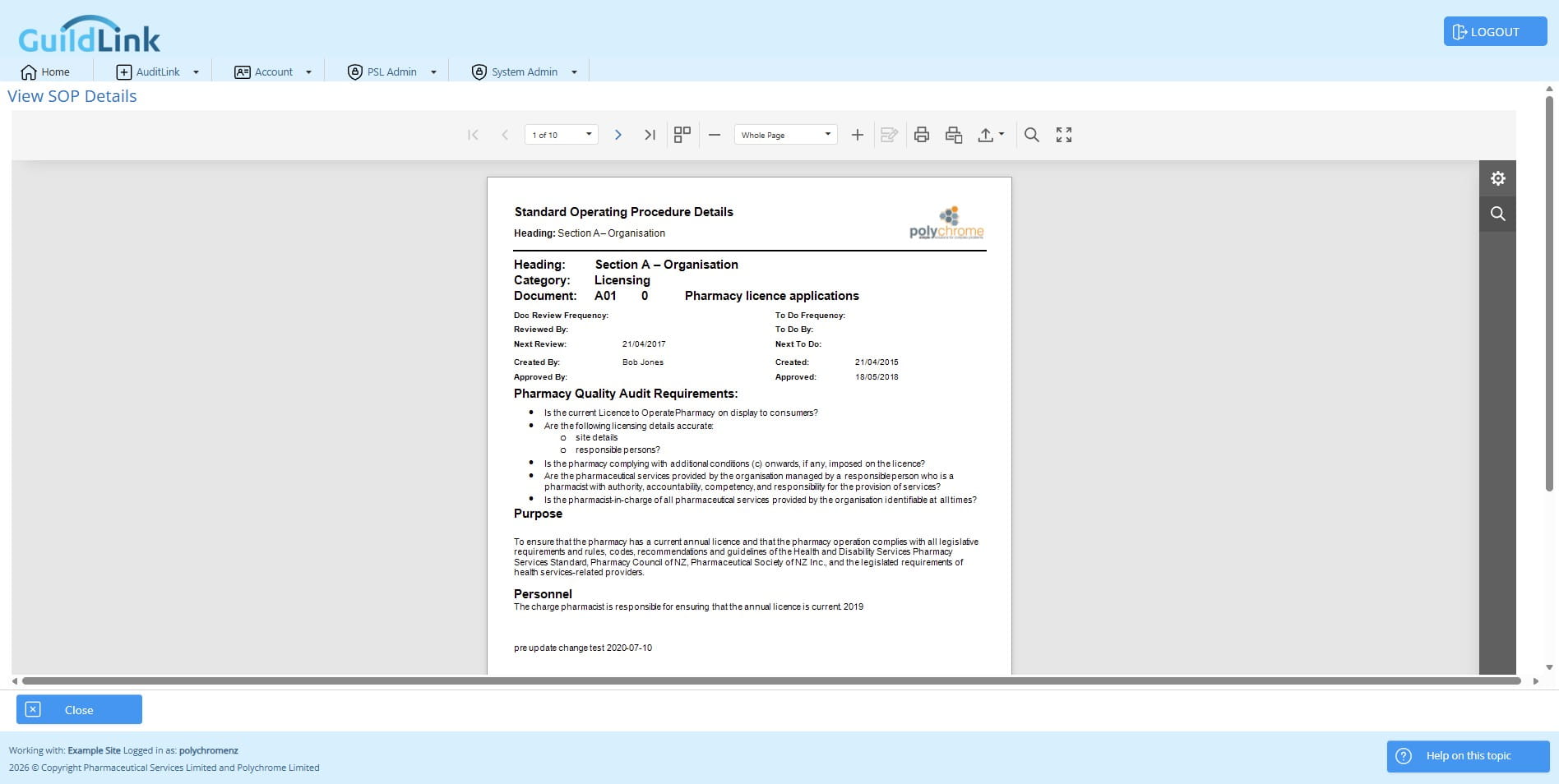
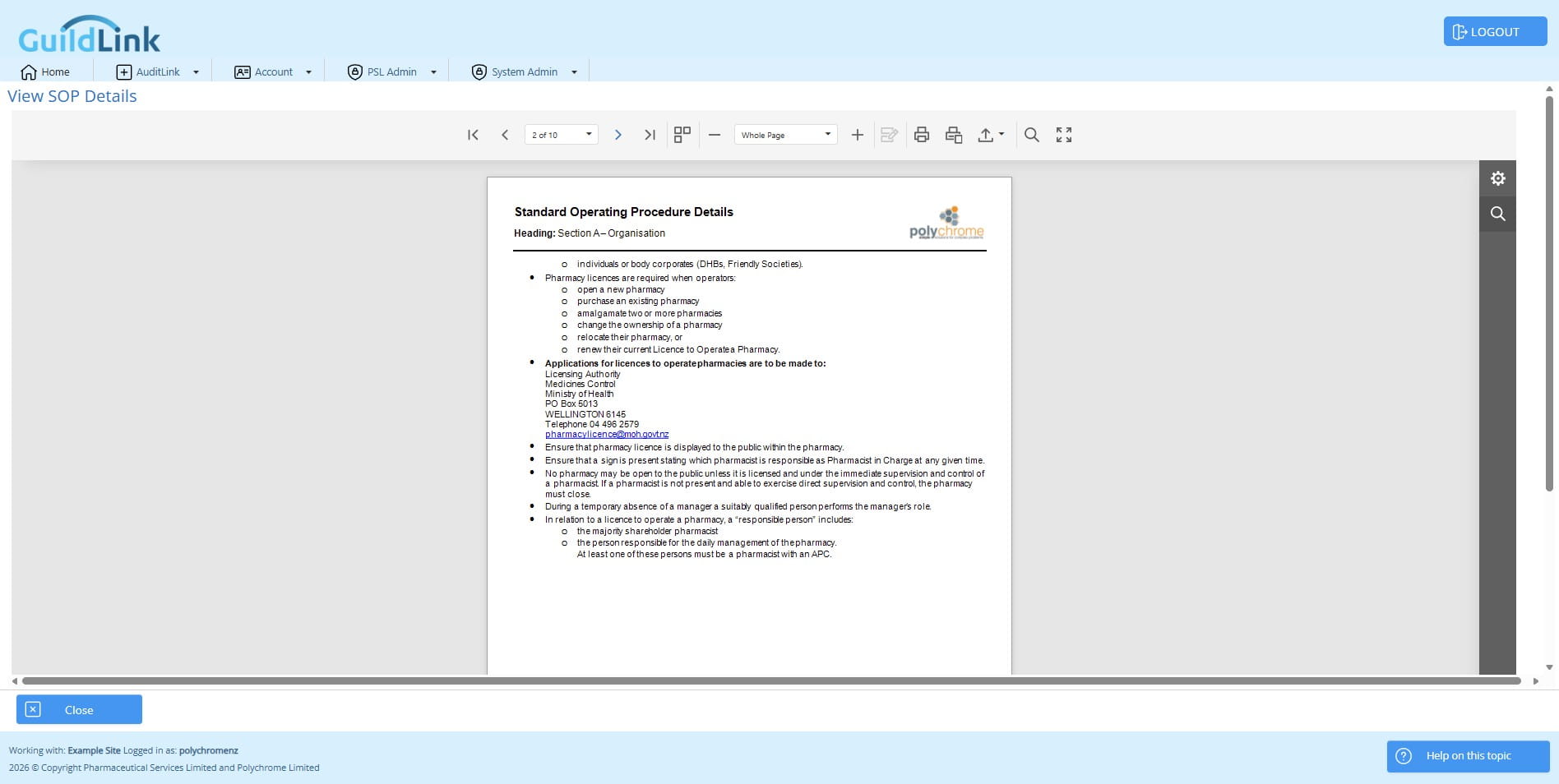
You can combine settings to show just one heading and also get a table of contents, it doesn't only have to be used if you print all SOPs
Click on "Show Table of Contents"
Choose a heading
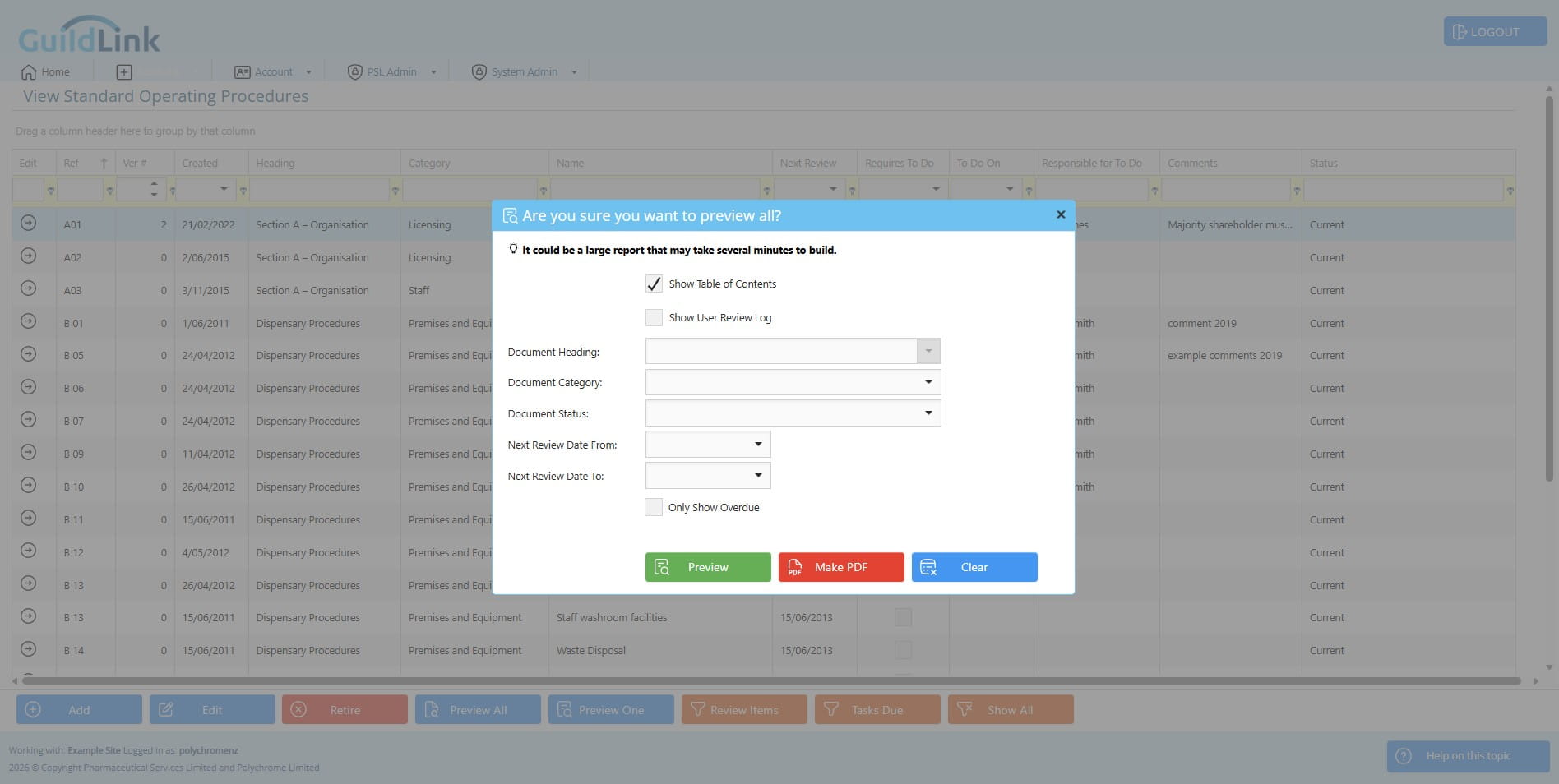
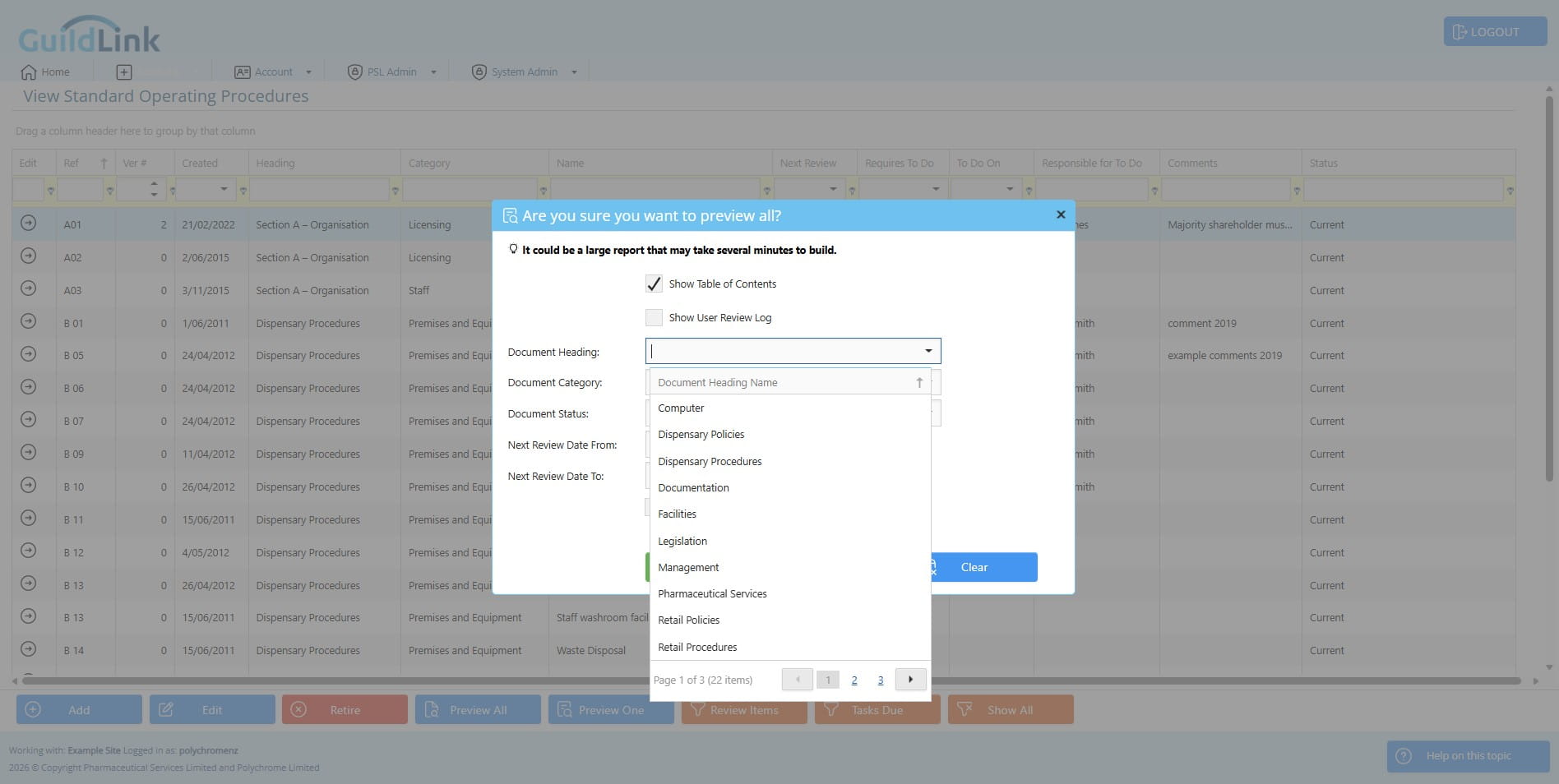
Click on "Section A – Organisation"
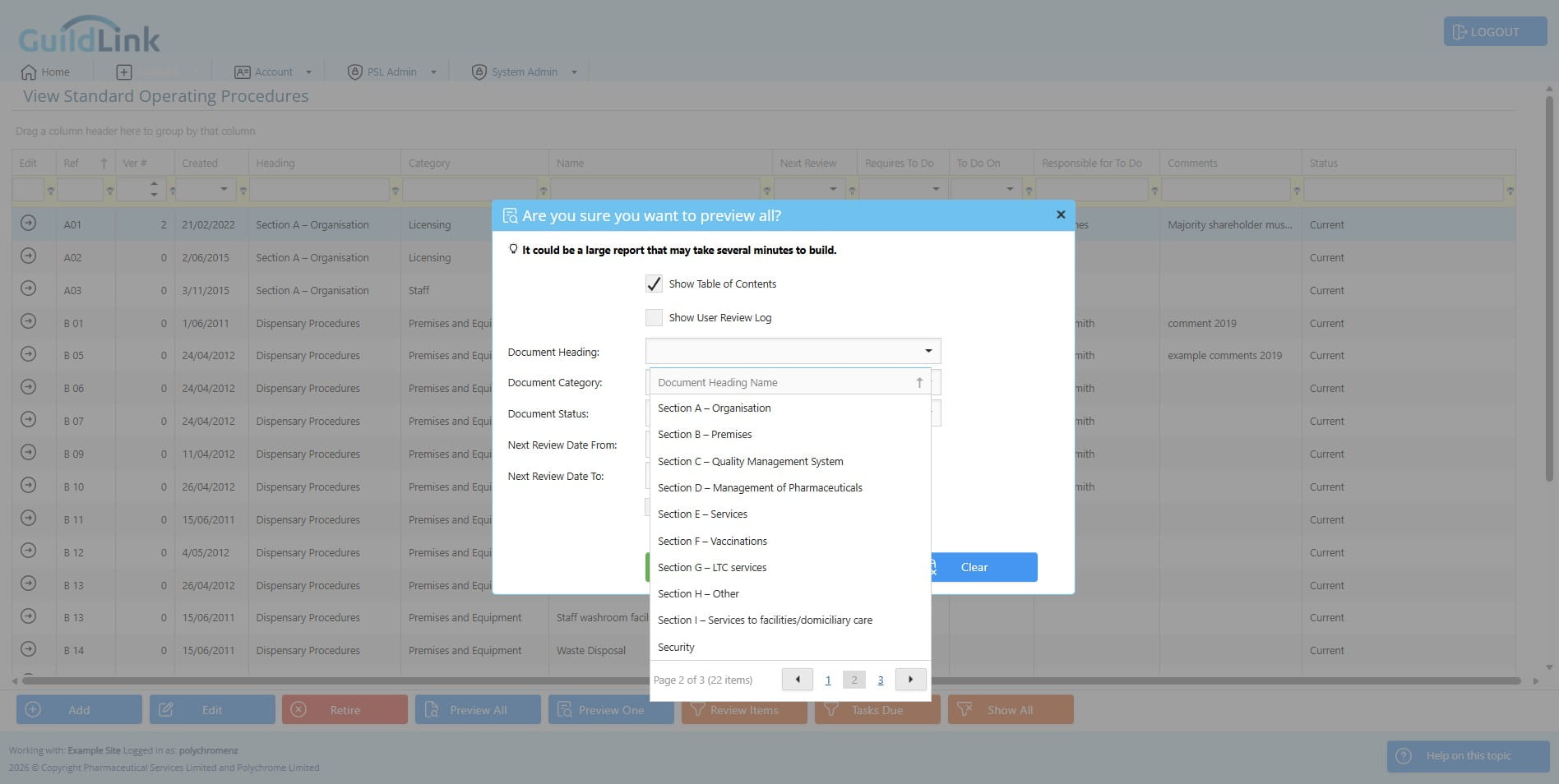
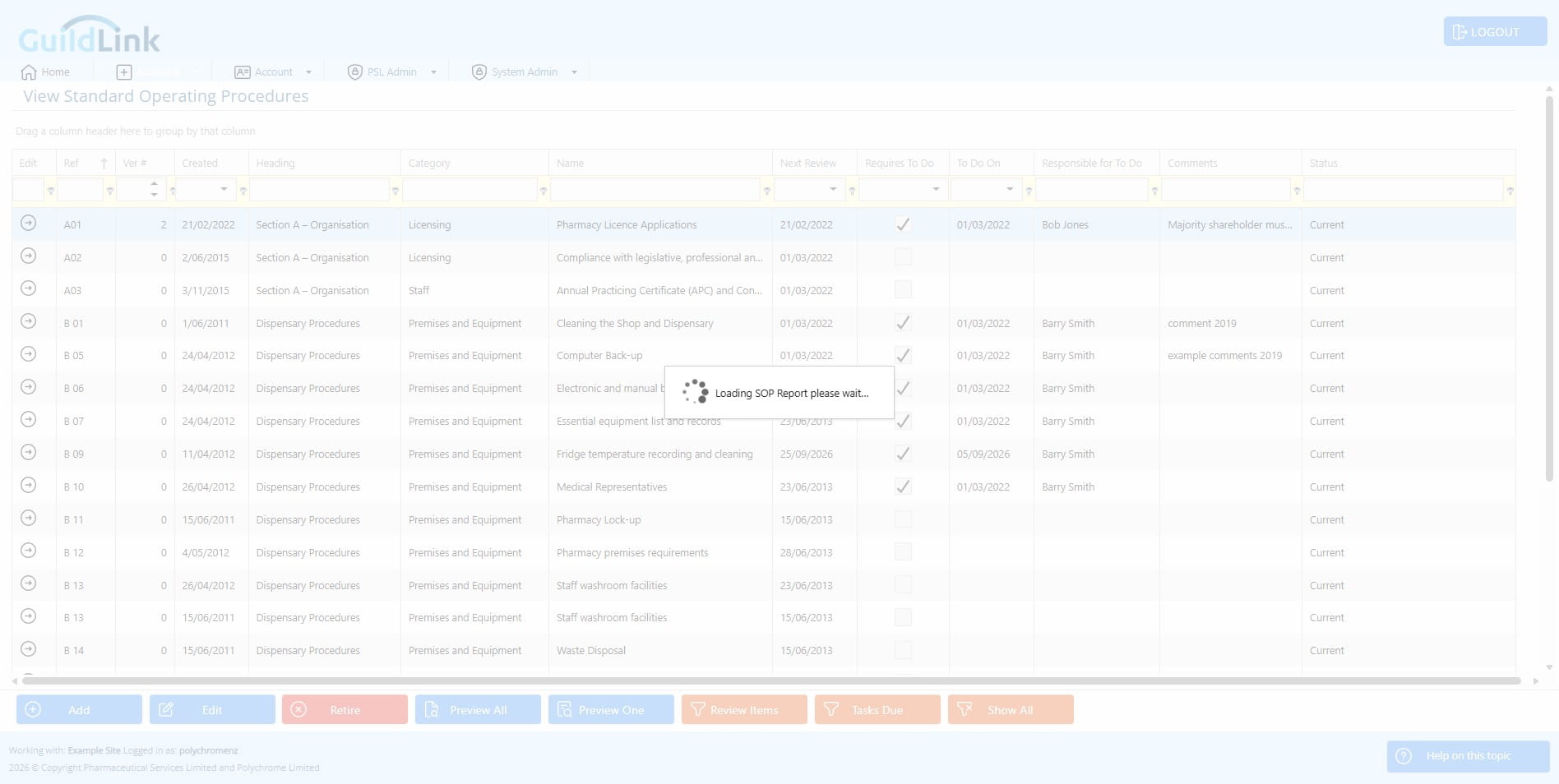
Click on "Preview"
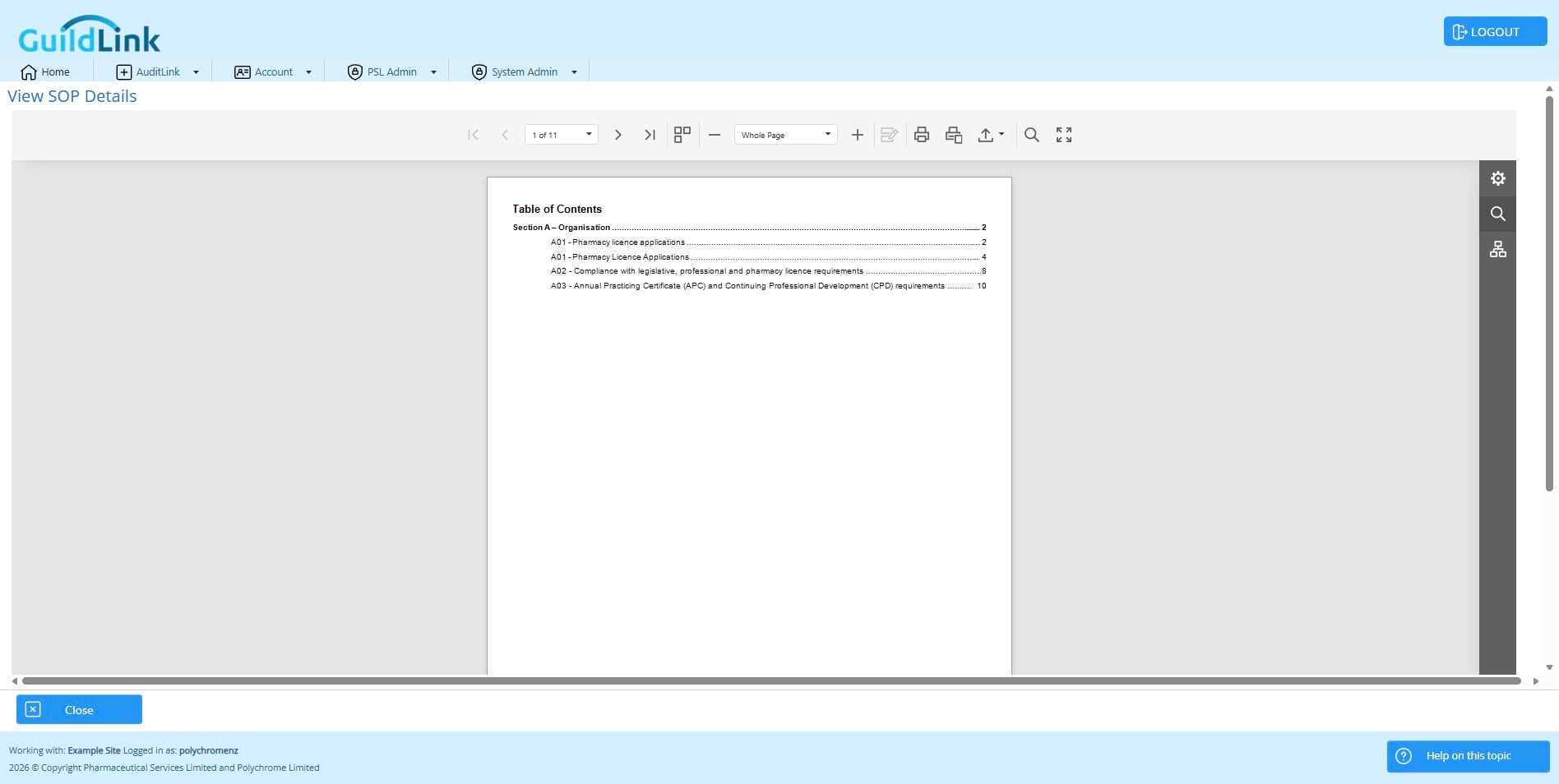
Now we have just that heading and a table of contents as well - this makes navigation easier
Click on "Close"
Click on "Only Show Overdue"
Click on "Preview All"
You can choose to include a log of staff reviews for SOPs. This is only relevant if you are NOT using the paper based tracking options. This option is for when staff are recording that they have read and understood SOPs using GuildLink.
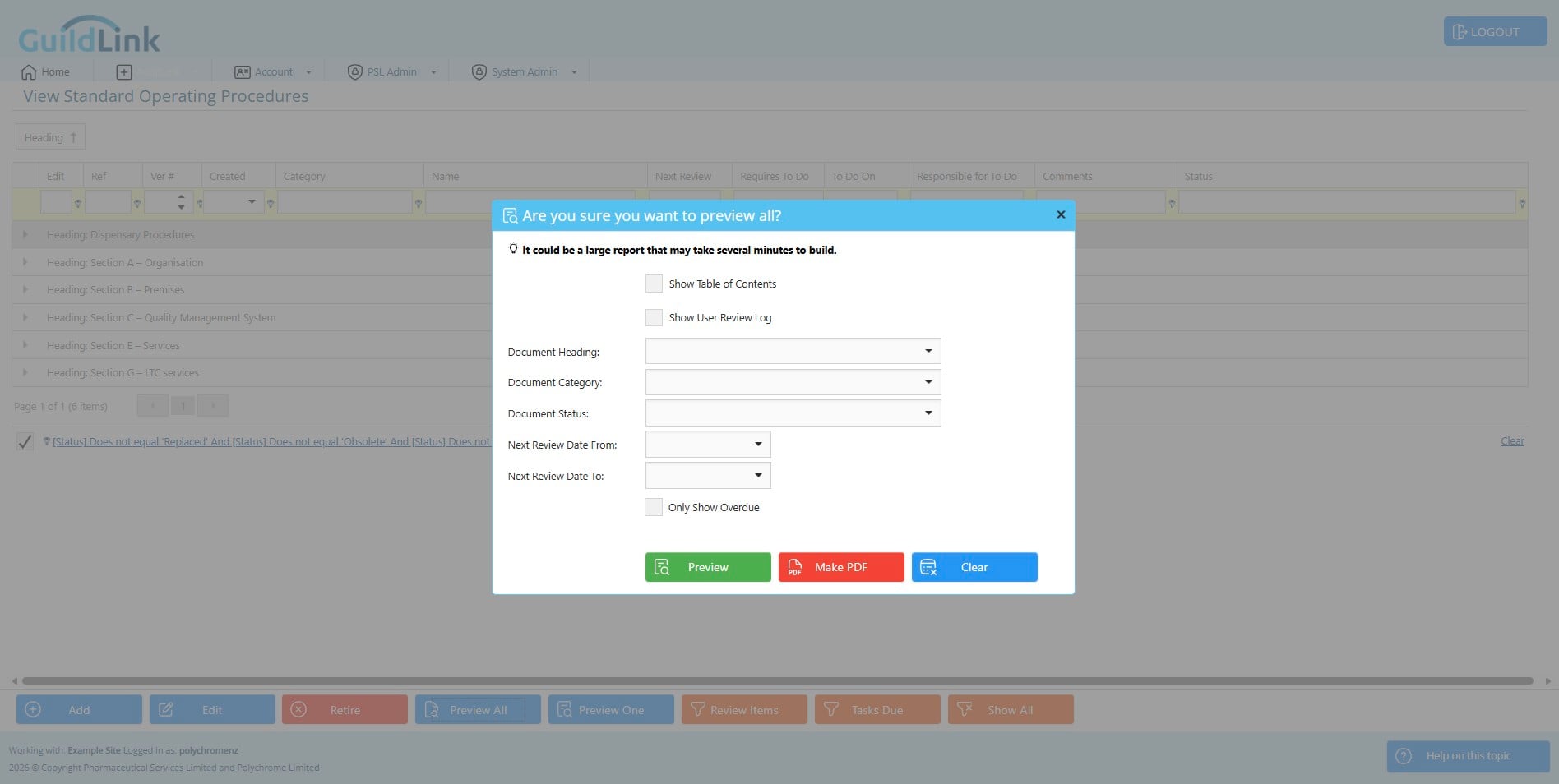
Click to Show User review Log
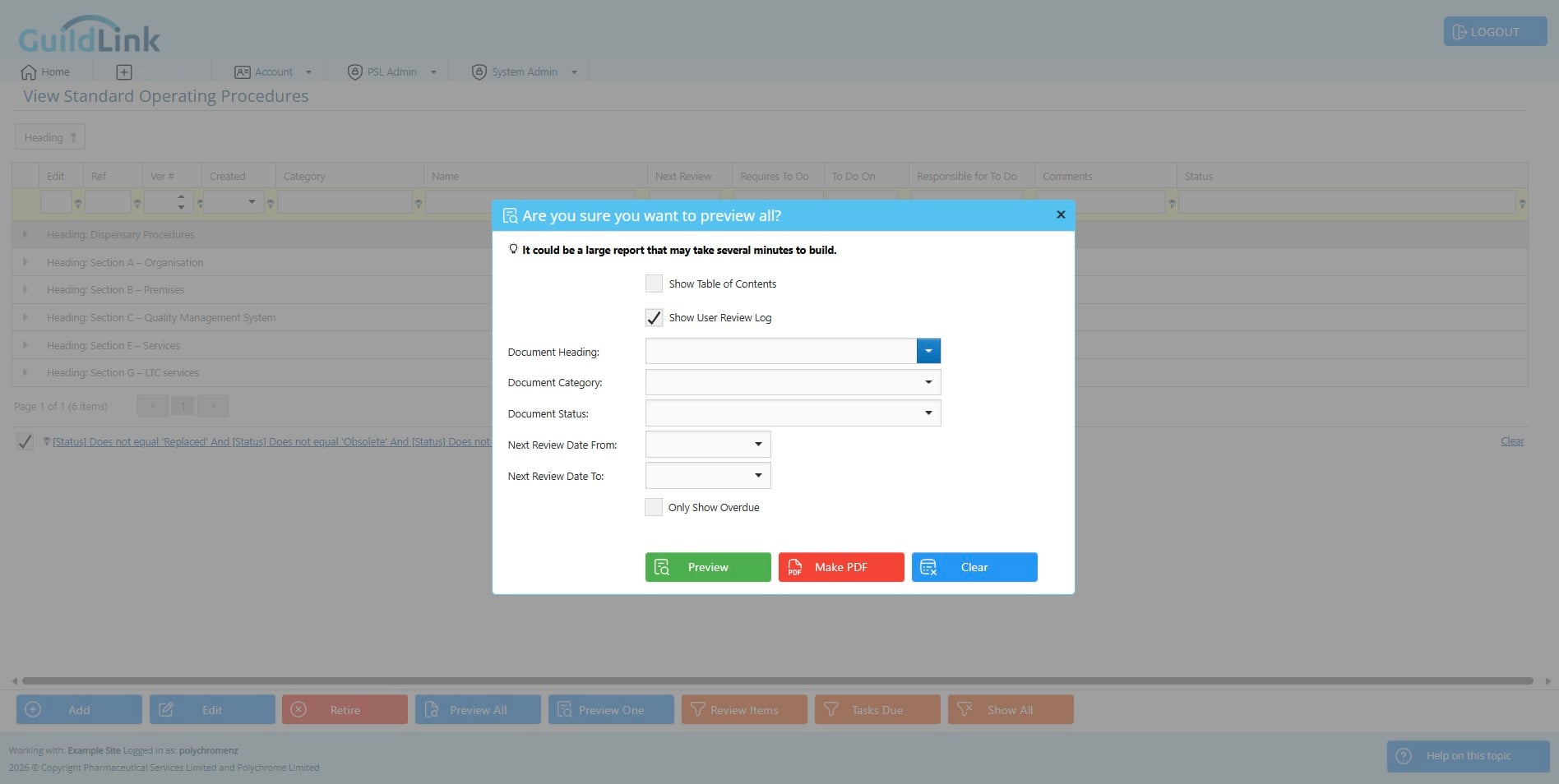
Here I am also filtering to a specific heading
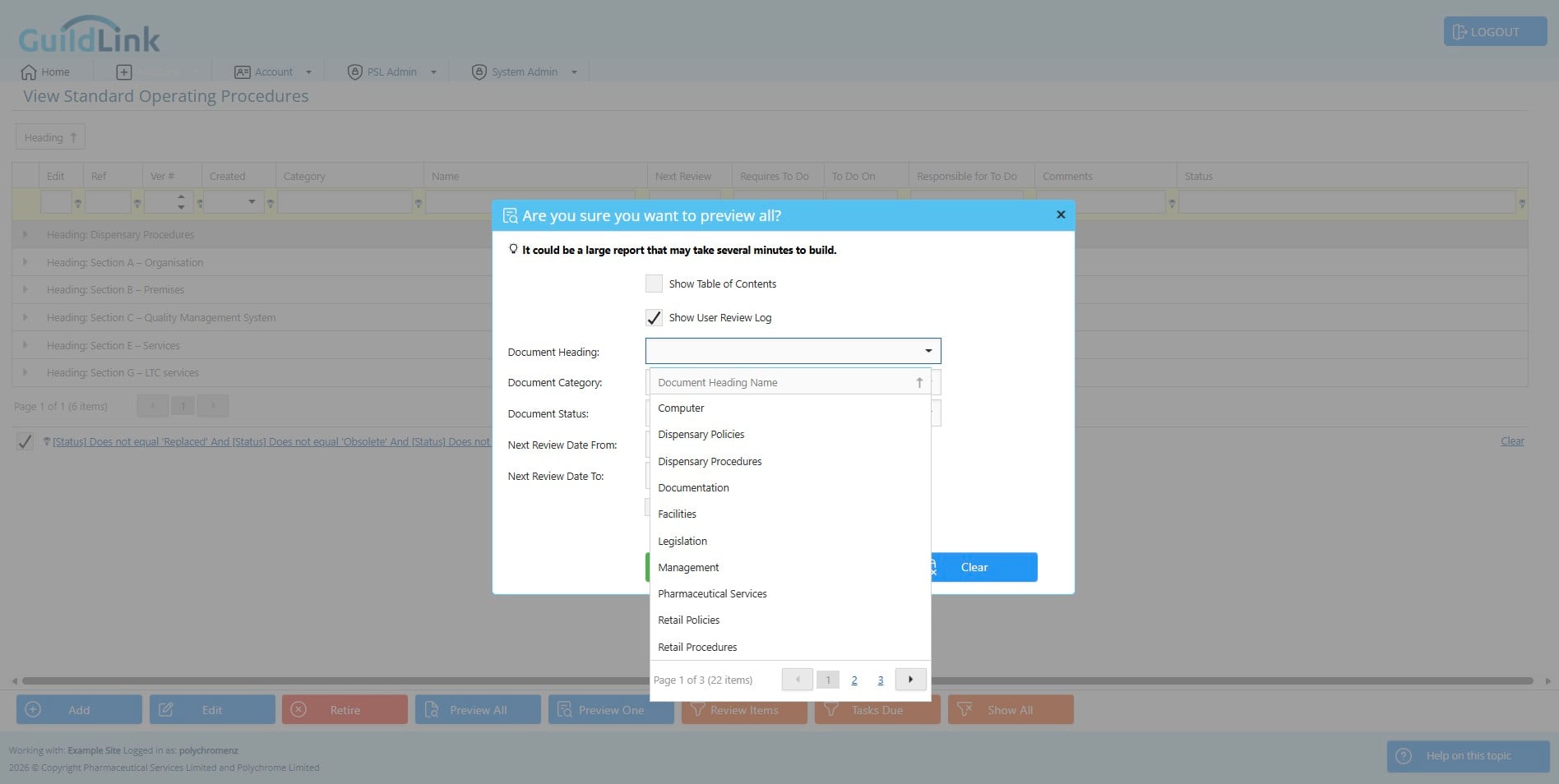
Click on "Section A – Organisation"
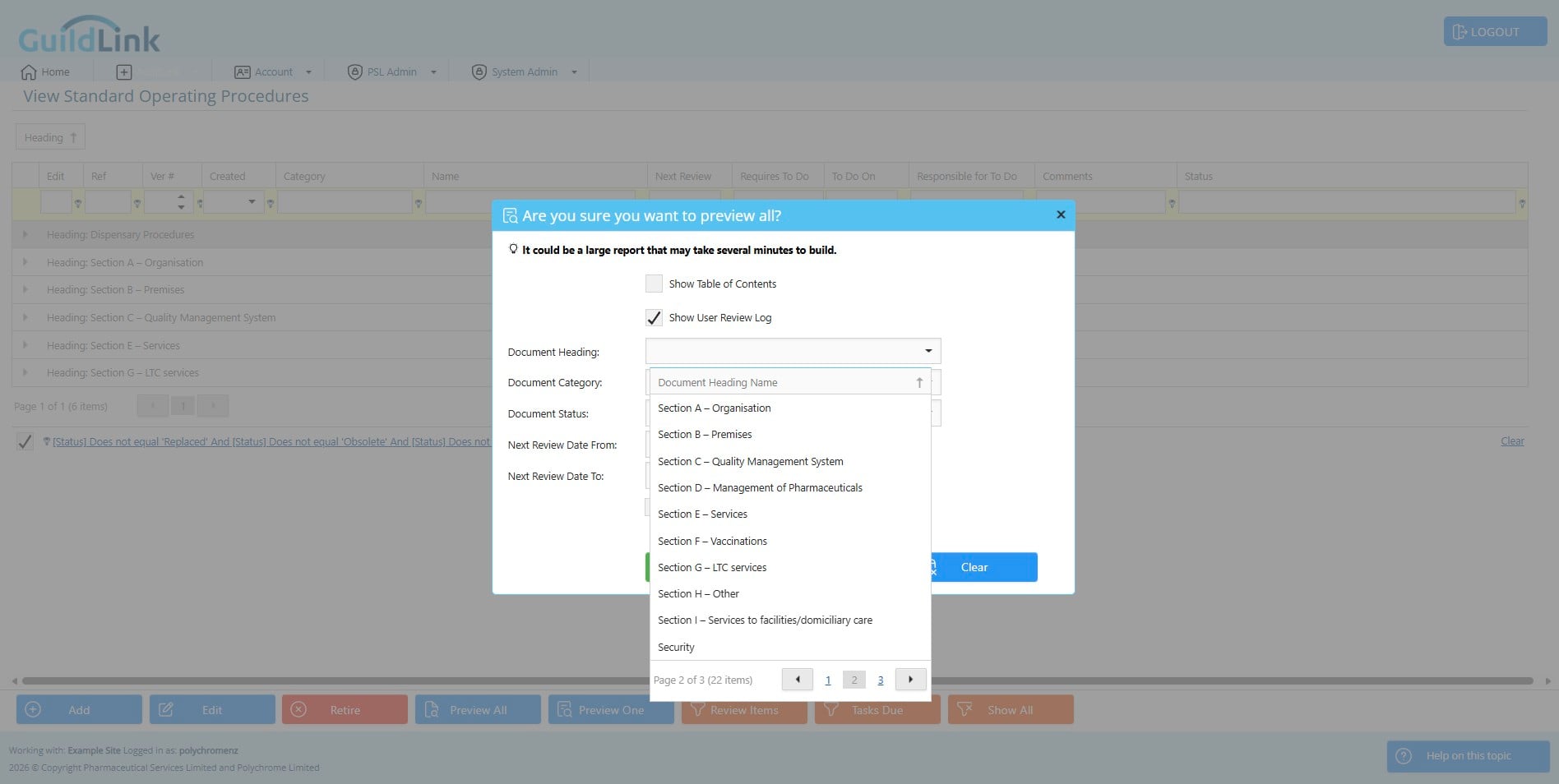
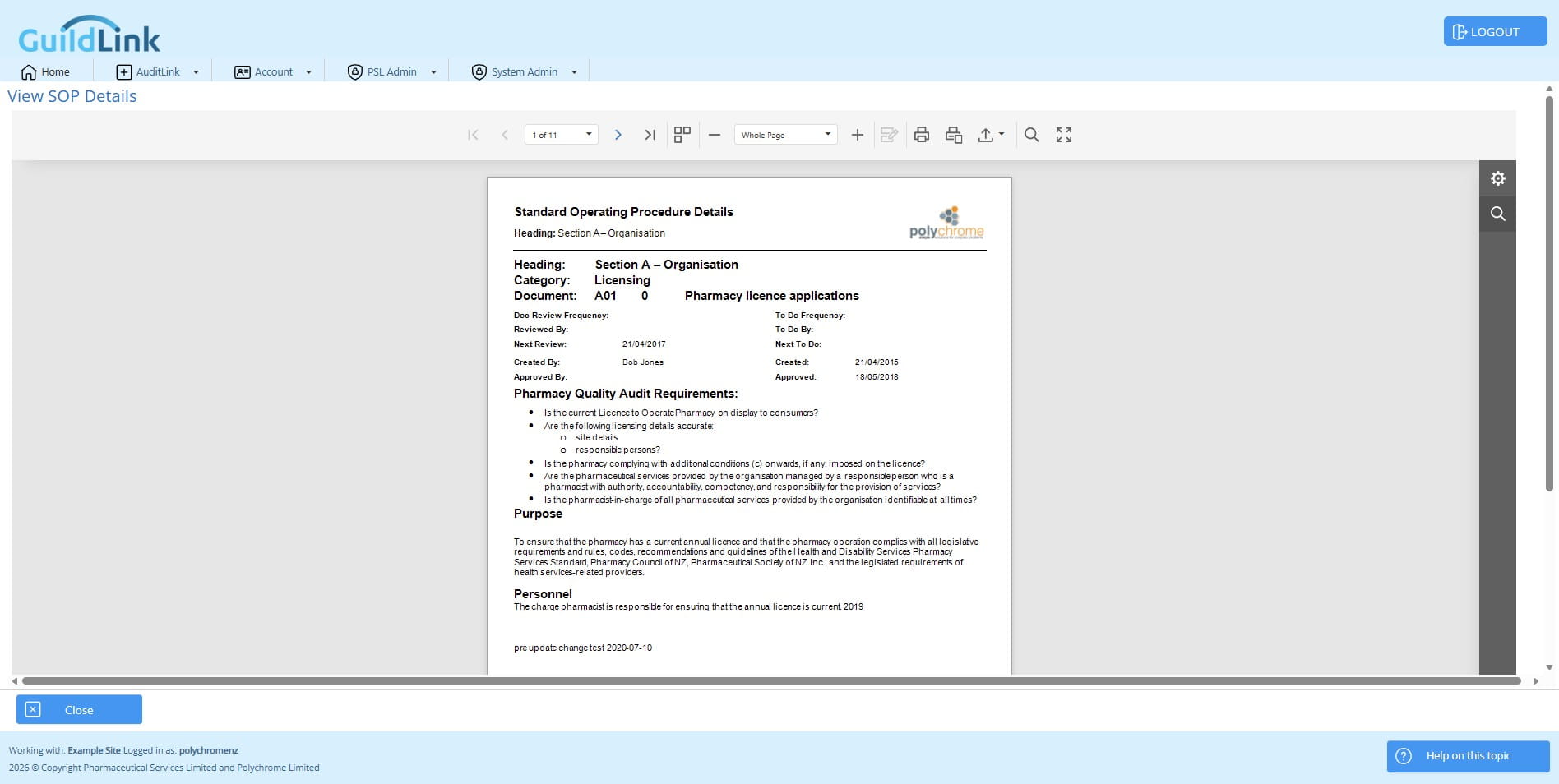
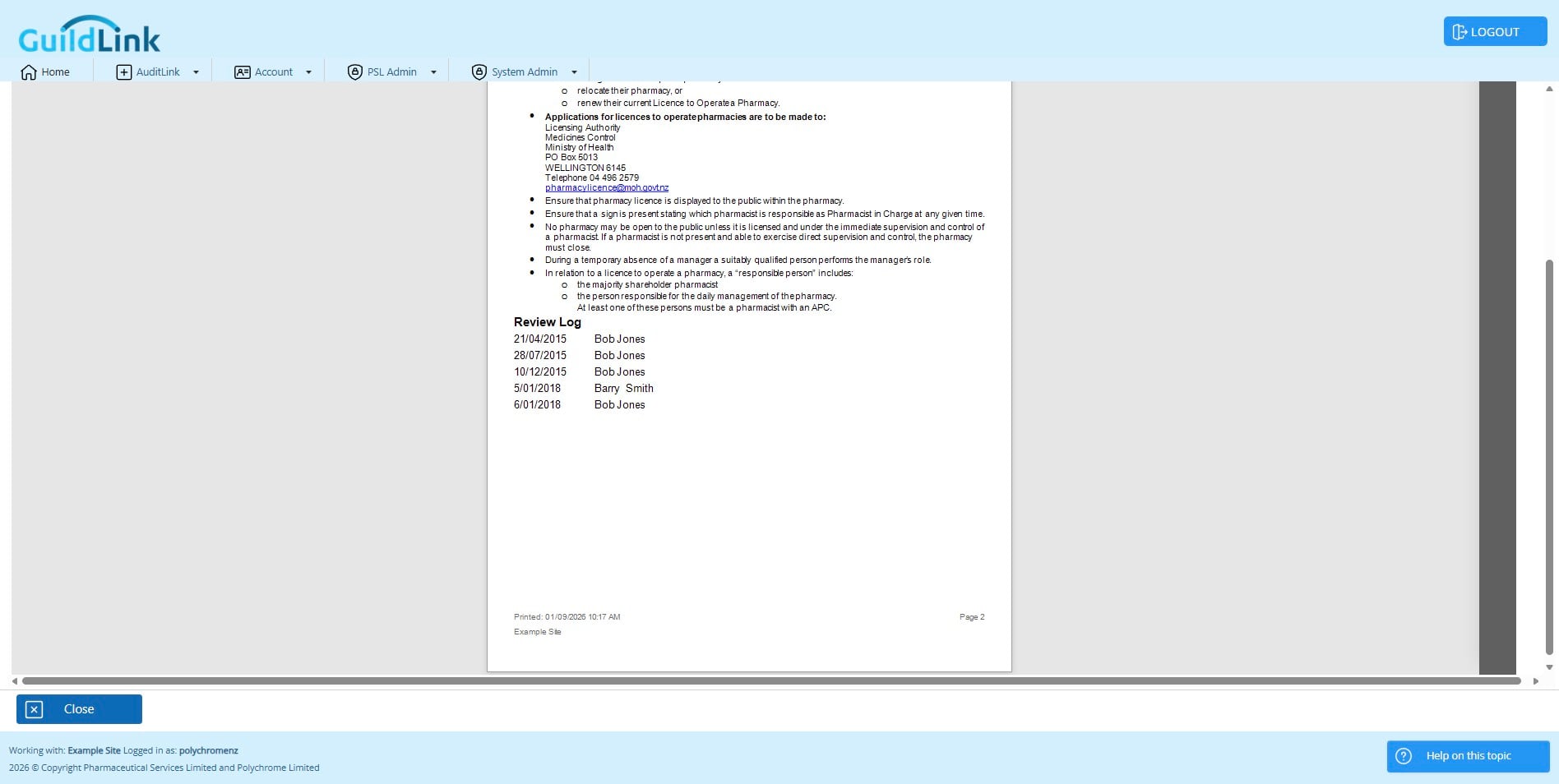
Now we can see the log at the end of each SOP. ready to show to the auditor.