GuildLink - Editing SOPs
Navigate to AuditLink > SOPs > View Standard Operating Procedures
Click on an SOP to edit and then click the arrow to the left or the Edit Button
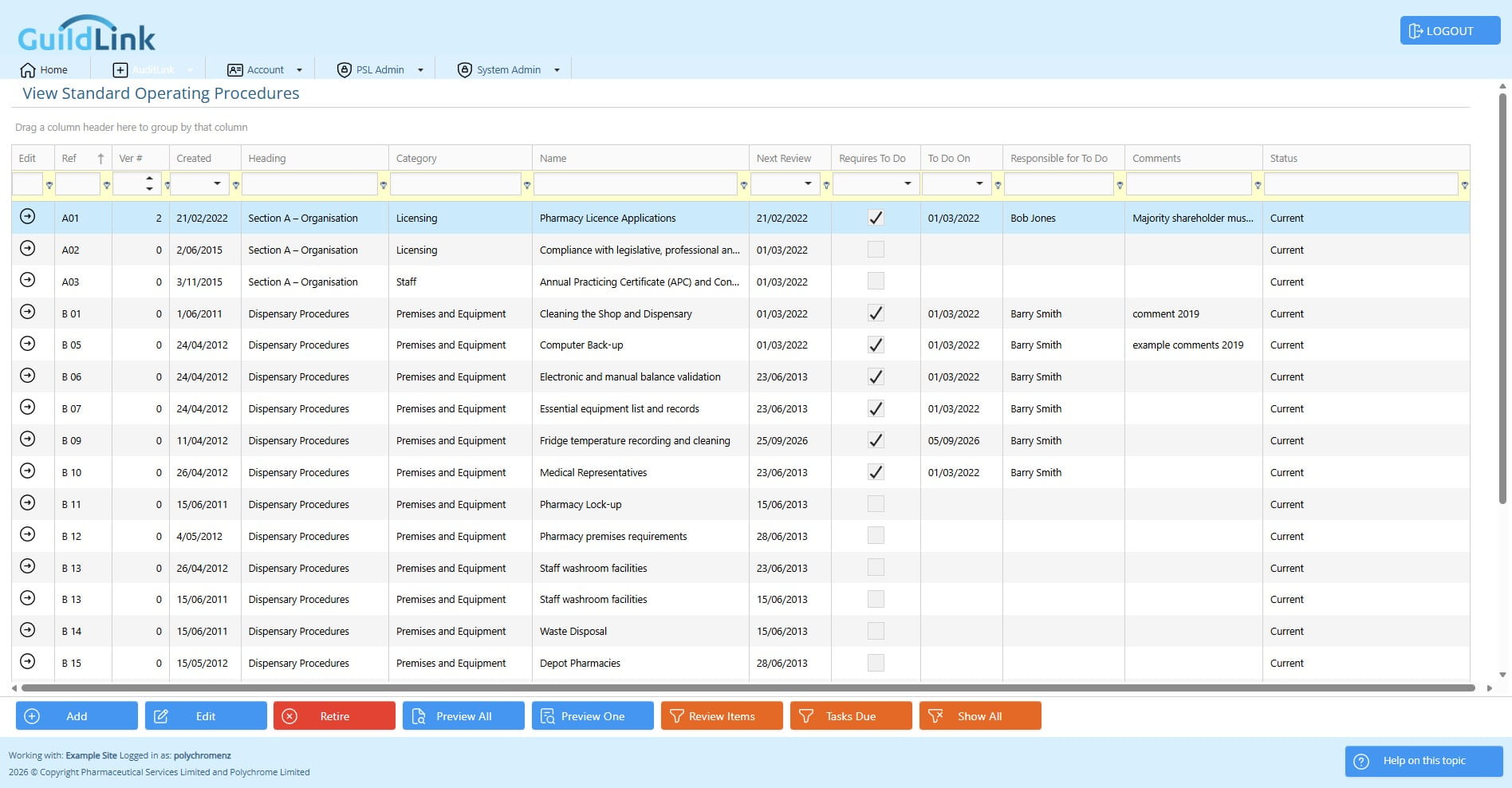
Orange buttons are preset filters for commonly searched SOPs
Click on the "Edit" button
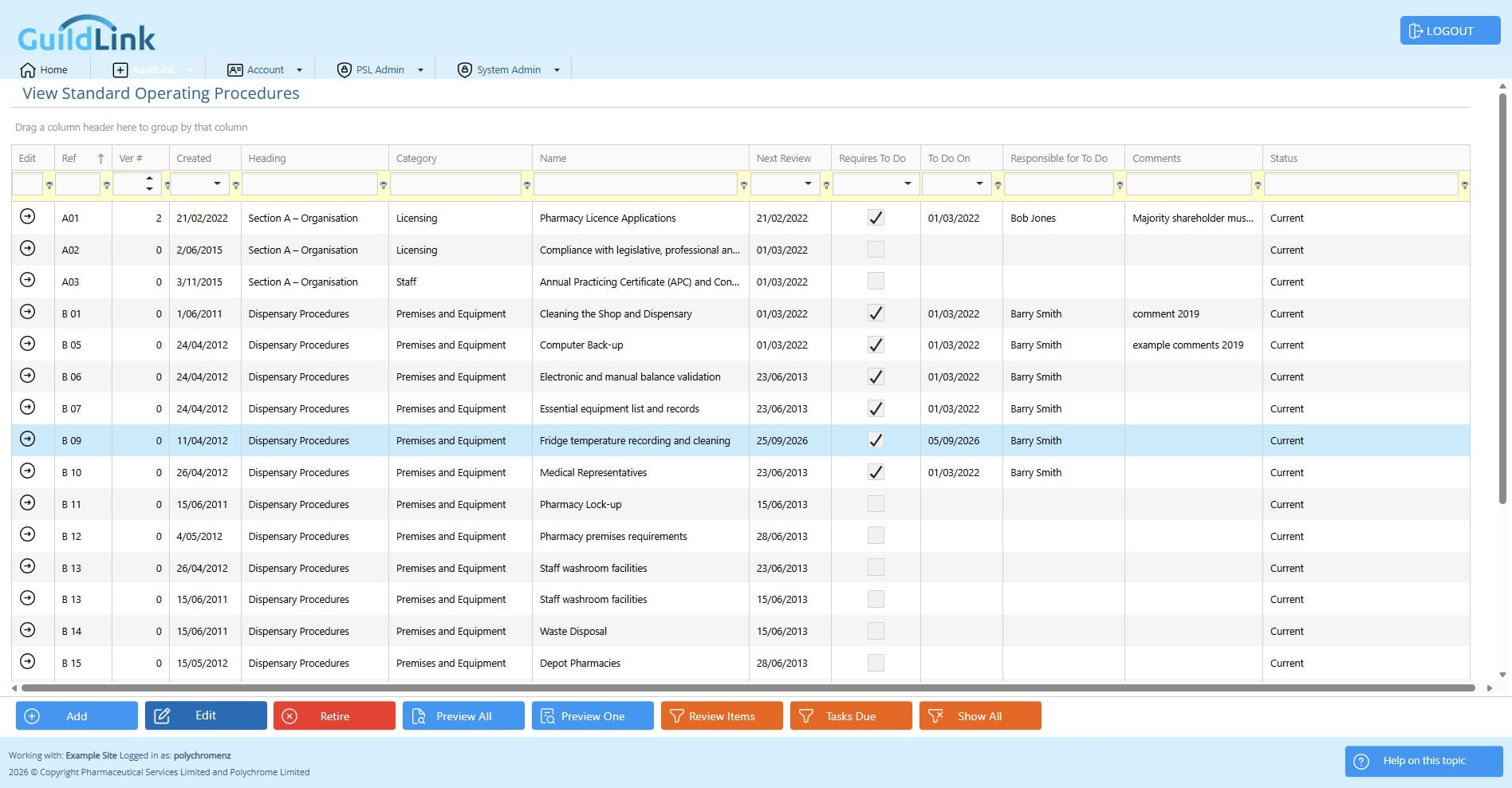
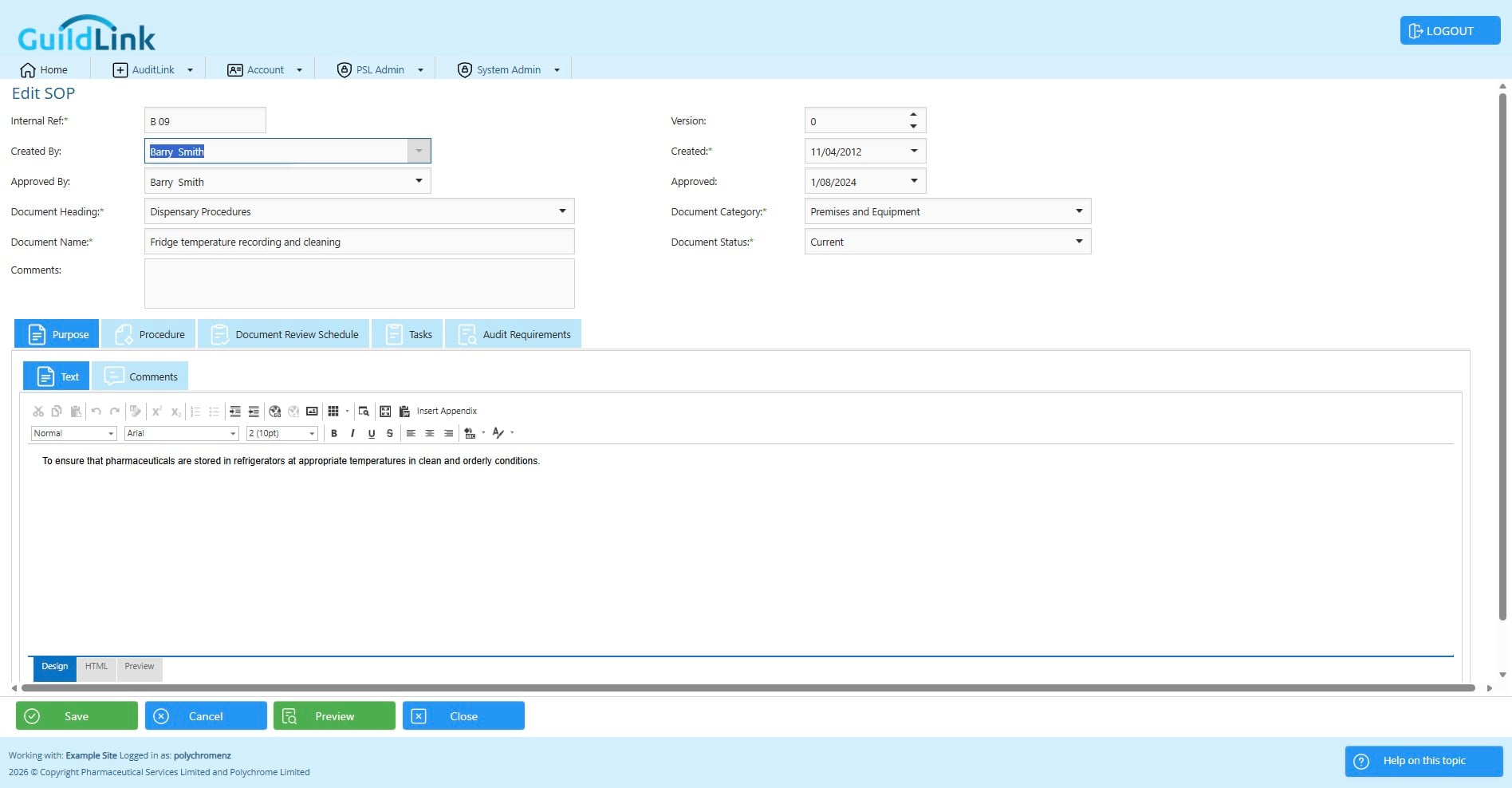
The top part of the screen lets you set the basic information about this SOP. Most of this will be populated before you import it from PSL.
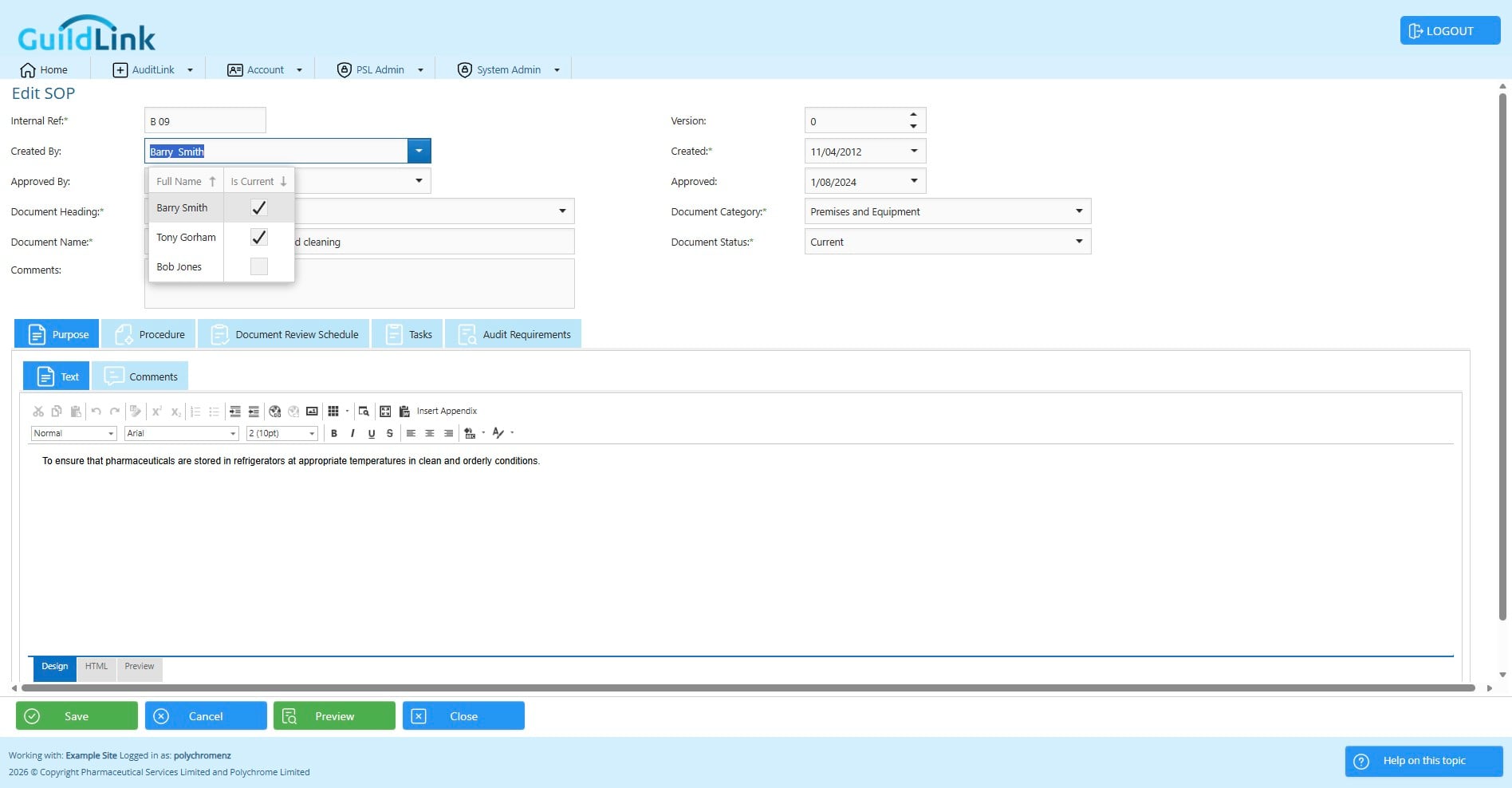
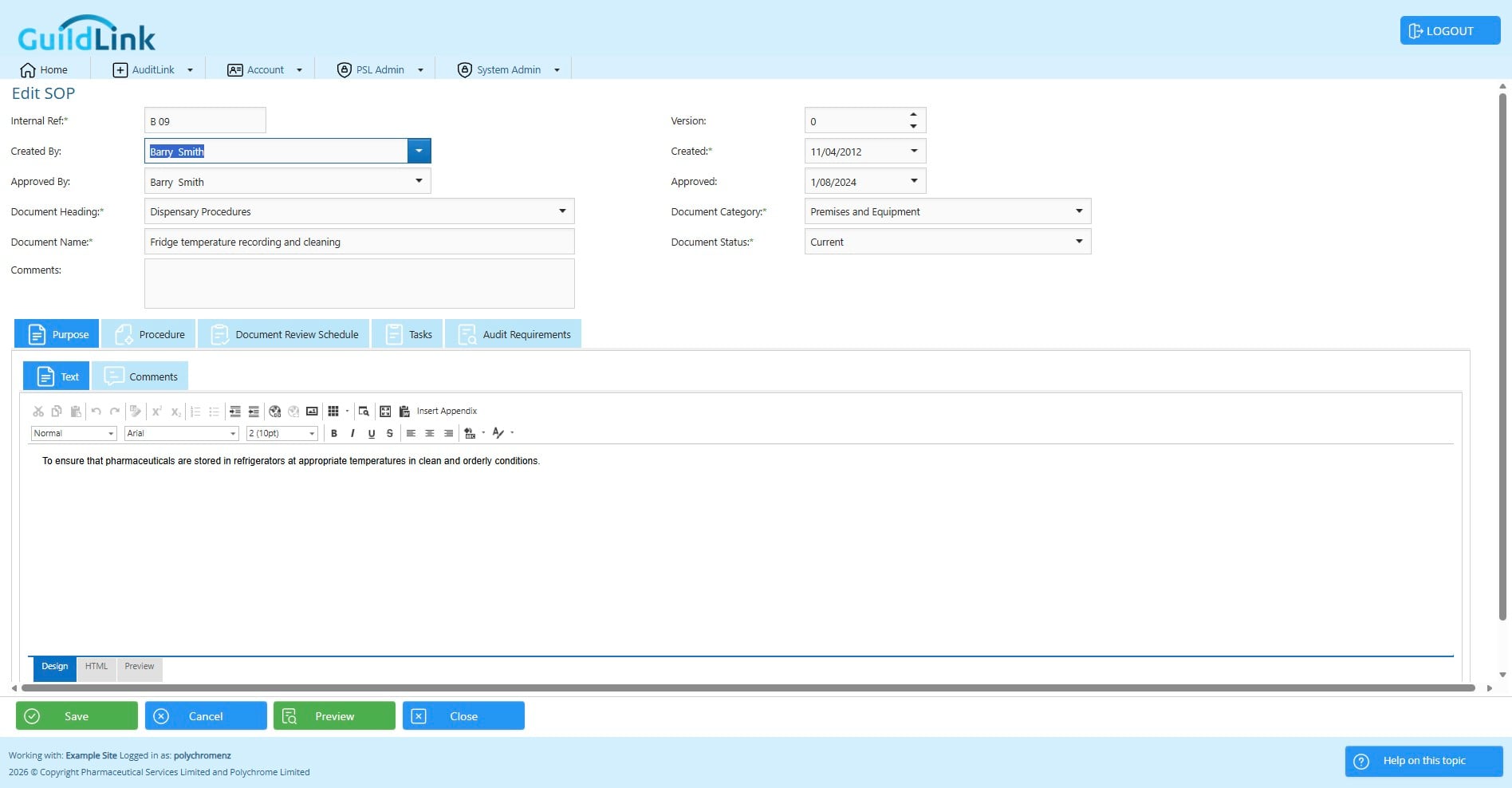
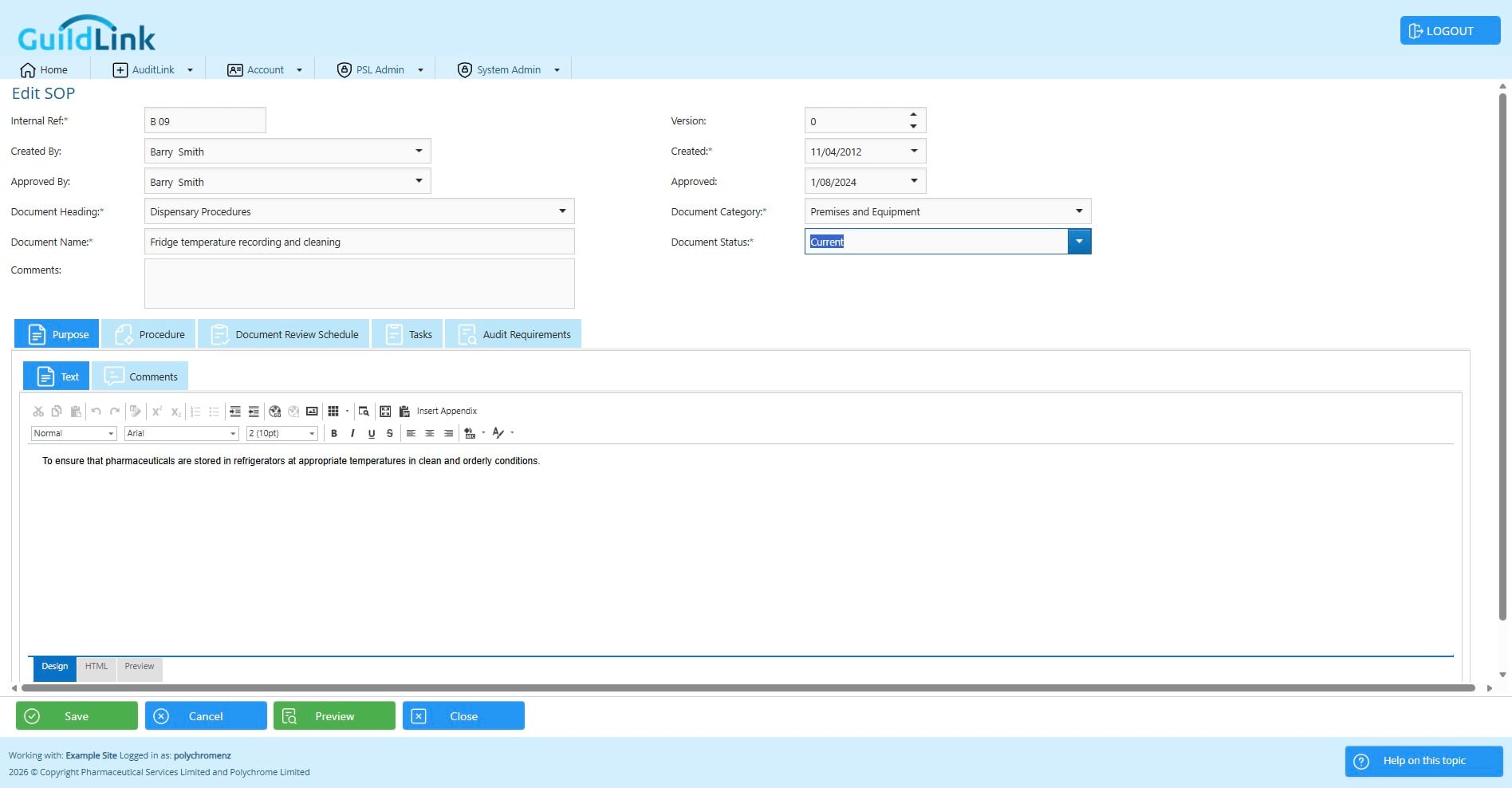
The status can be changed but it's usually best to let the document life cycle handle that. For example, when you retire and SOP the status is updated and it isn't shown by default in the main list of SOPs. That screen starts by only showing current and draft. Similarly, if you replace an SOP with a new one i.e. PSL issue an updated version, then the SOP is marked as replaced. That life cycle lets an auditor see that an SOP got updated. This is important as the auditor may want to know that in case of a dispensing error, lessons were learned and a new SOP was implemented. The ability to see this progress is important.
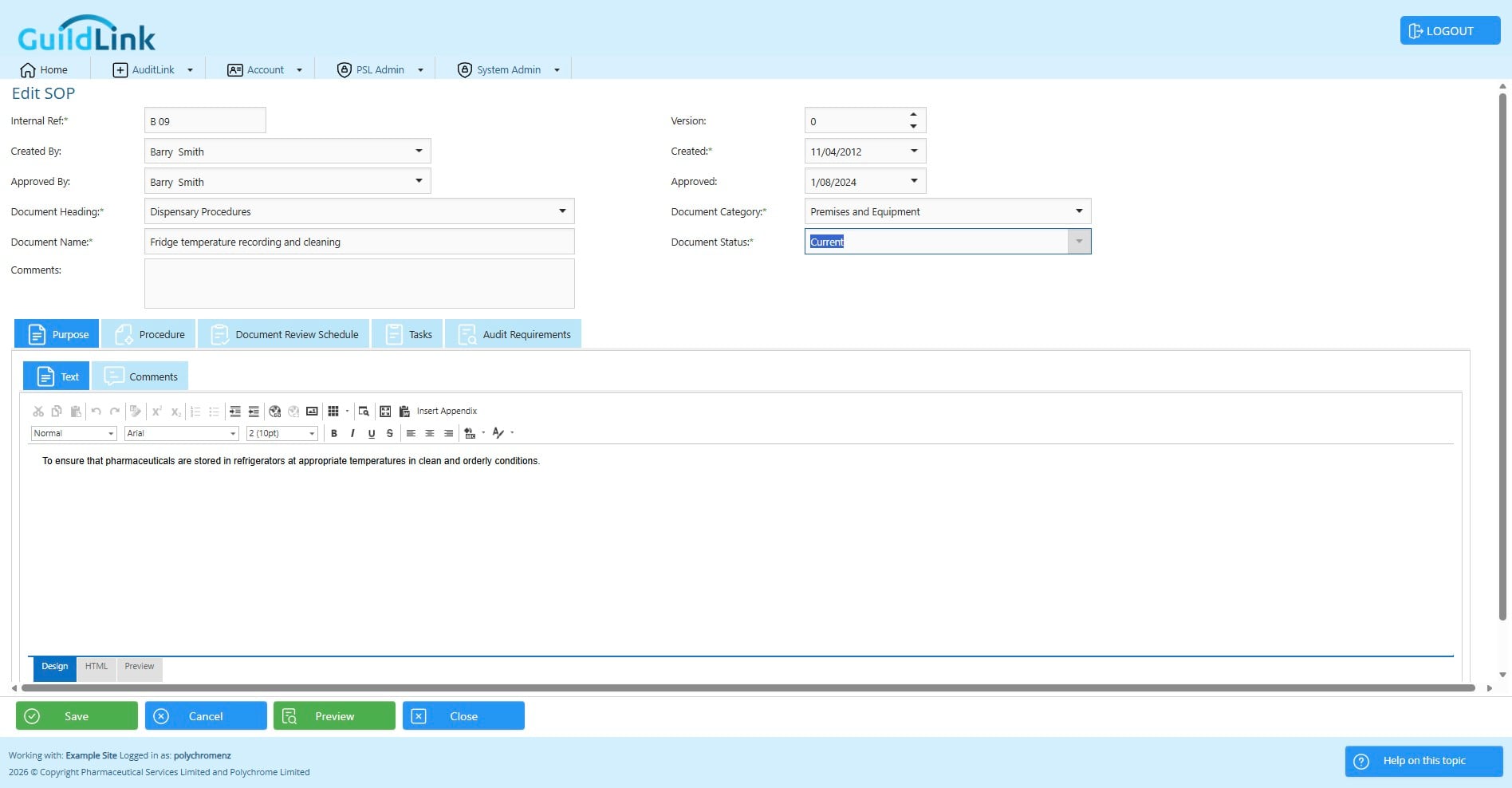
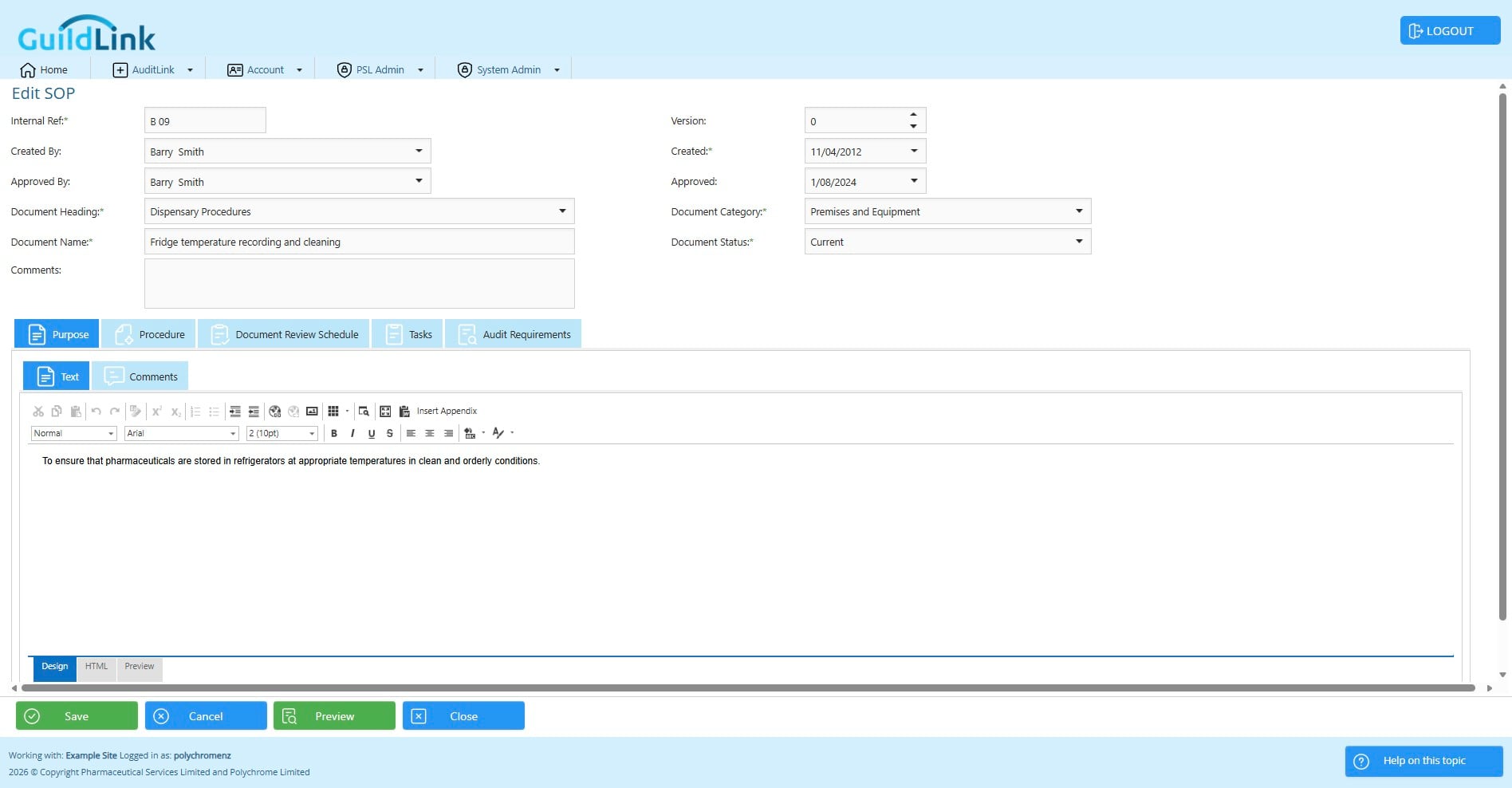
The purpose tab lets you add text that sets the context of an SOP. Think of it as the we need this SOP section.
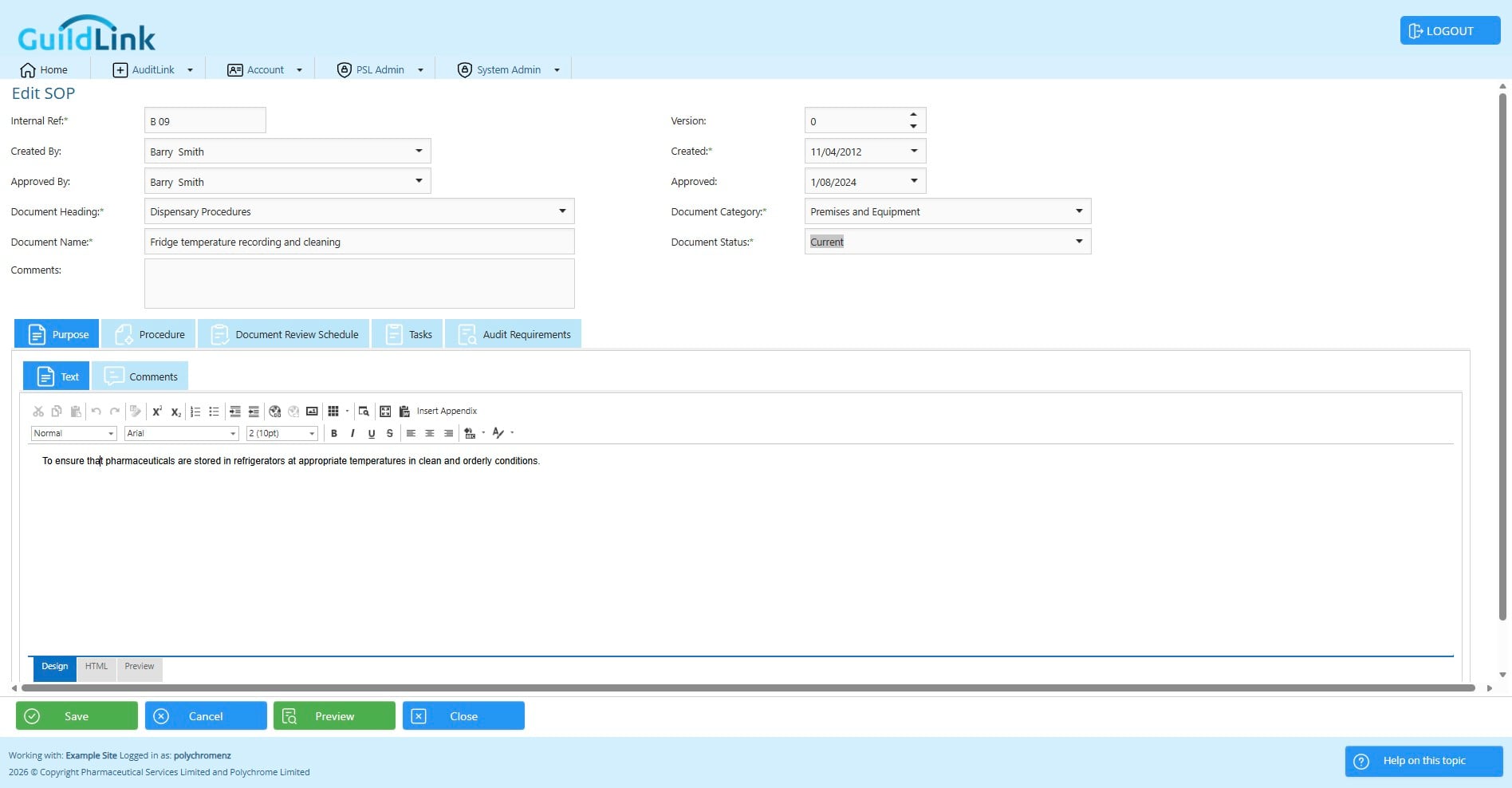
If you need to add comments for staff that don't get printed on the SOP details report, add them here.
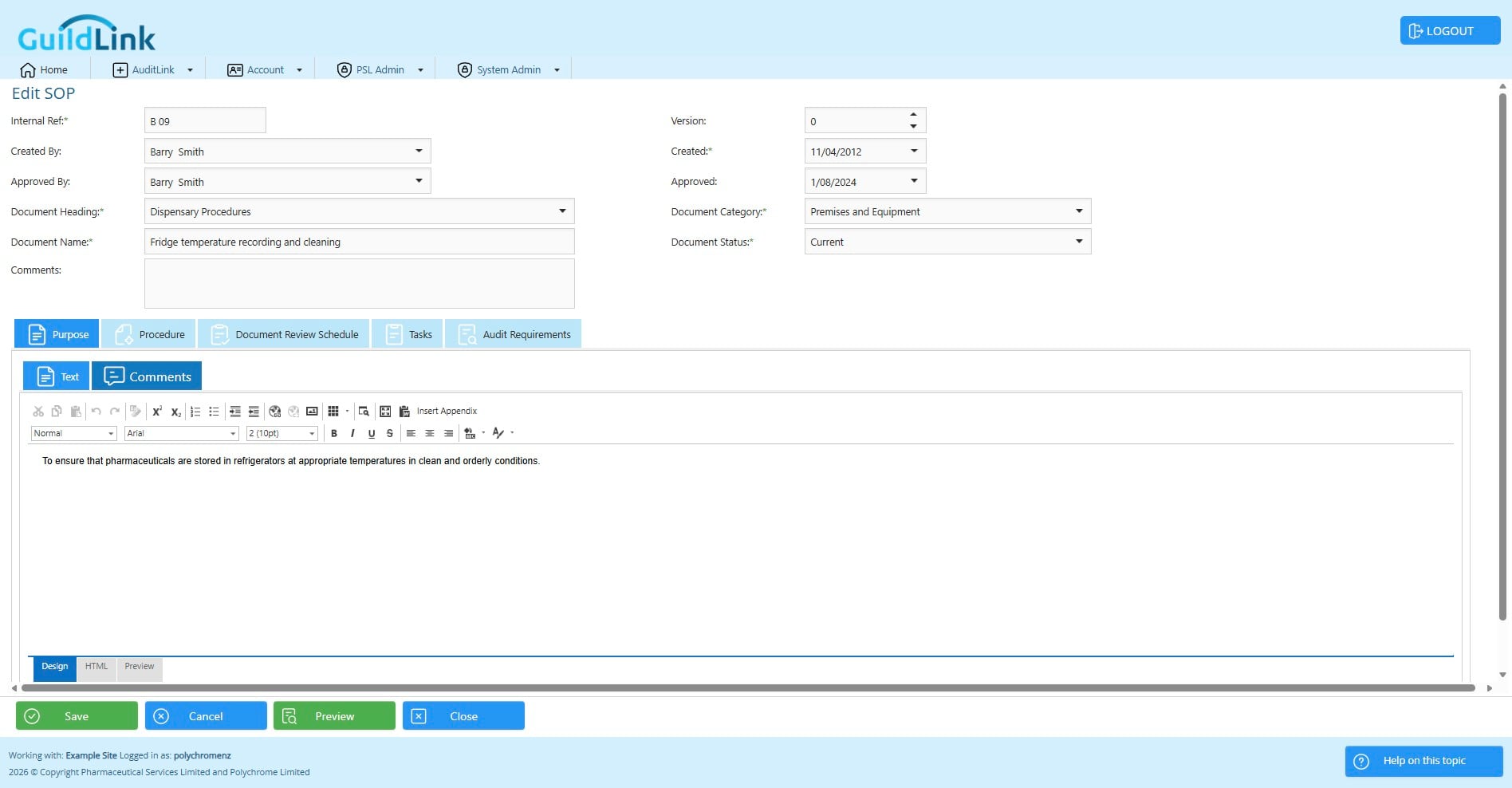
The Procedure
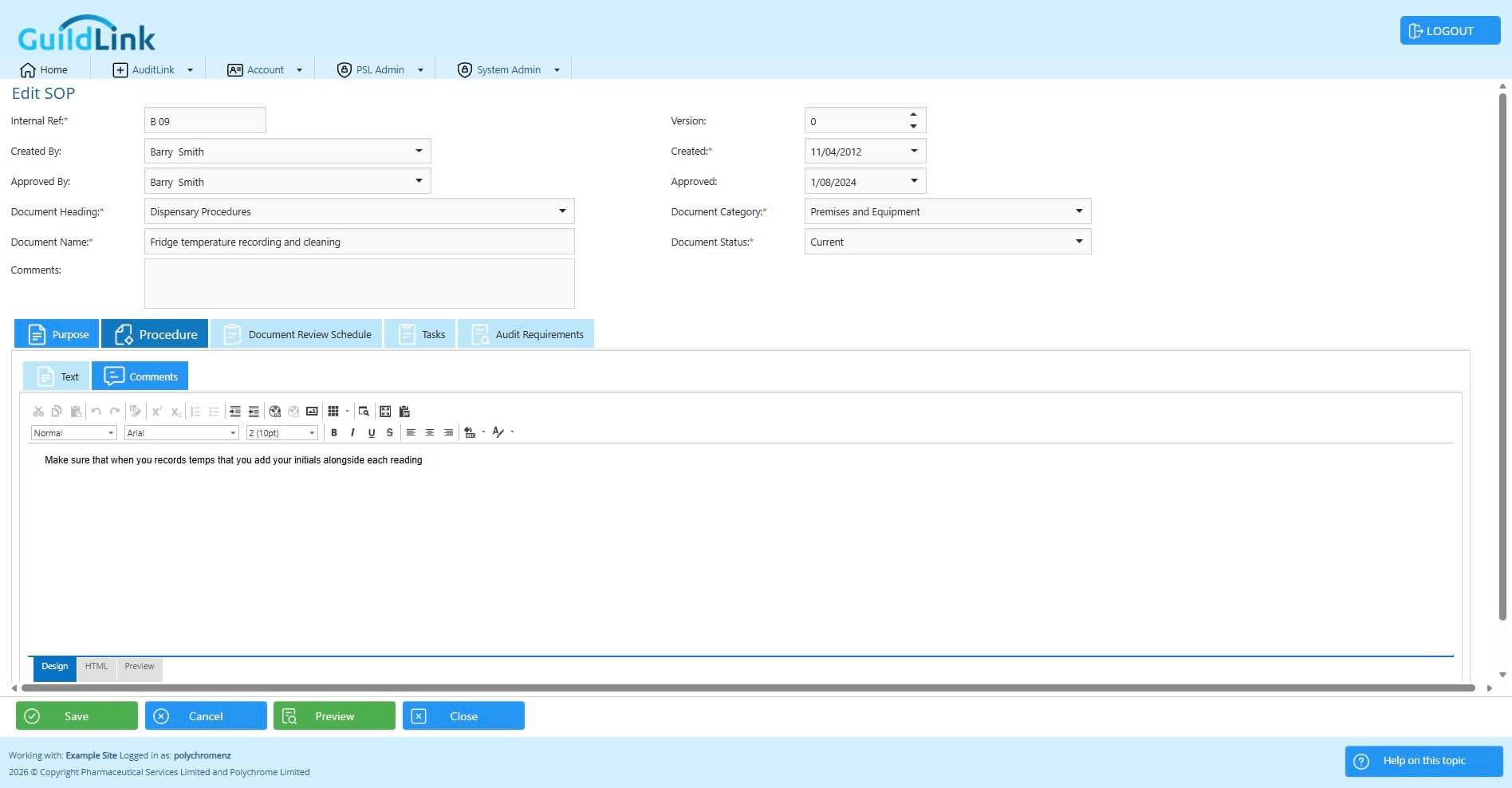
This is a rich text section where you will type the procedure.
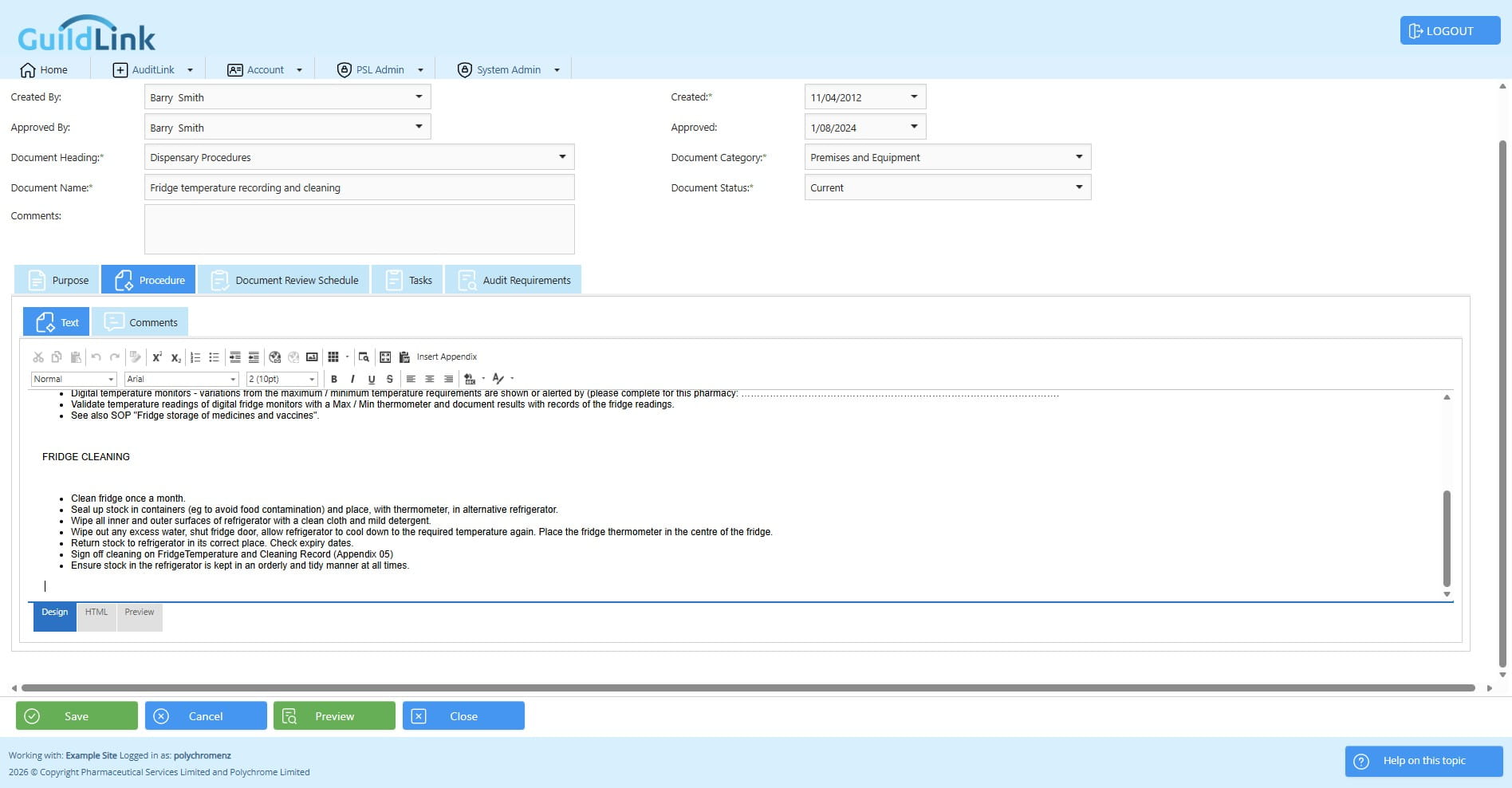
Typically, these are coming from PSL pre-populated. However, it is really important to note that in most cases, an Auditor will want to see that you have personalised these to suit your pharmacy. PSL leave some sections highlighted in yellow to draw your attention to areas where this is vital. You should not be simply importing the template SOPs and then using them as is.
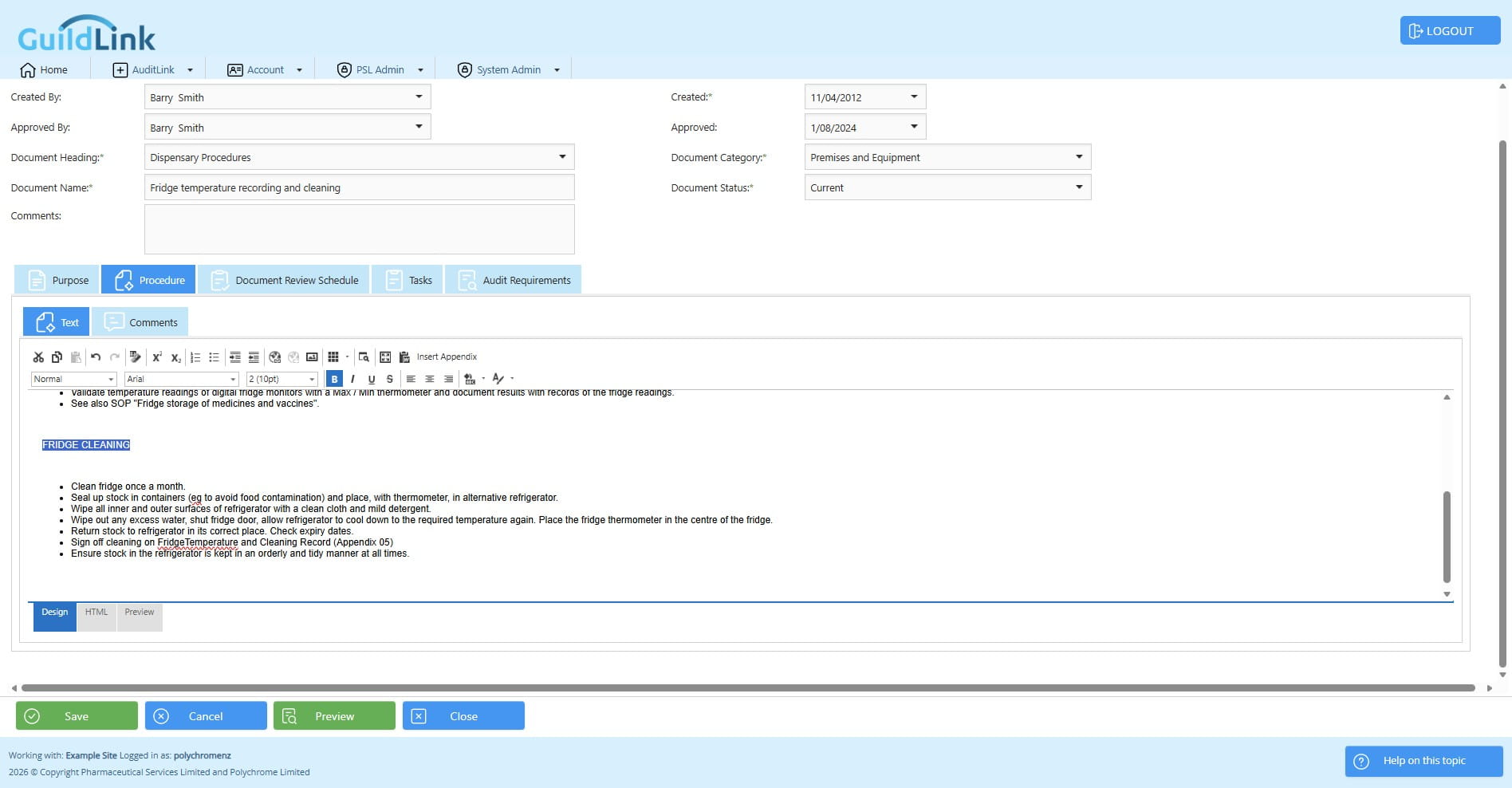
You can edit and format text similar to MS Word, for example use Bold
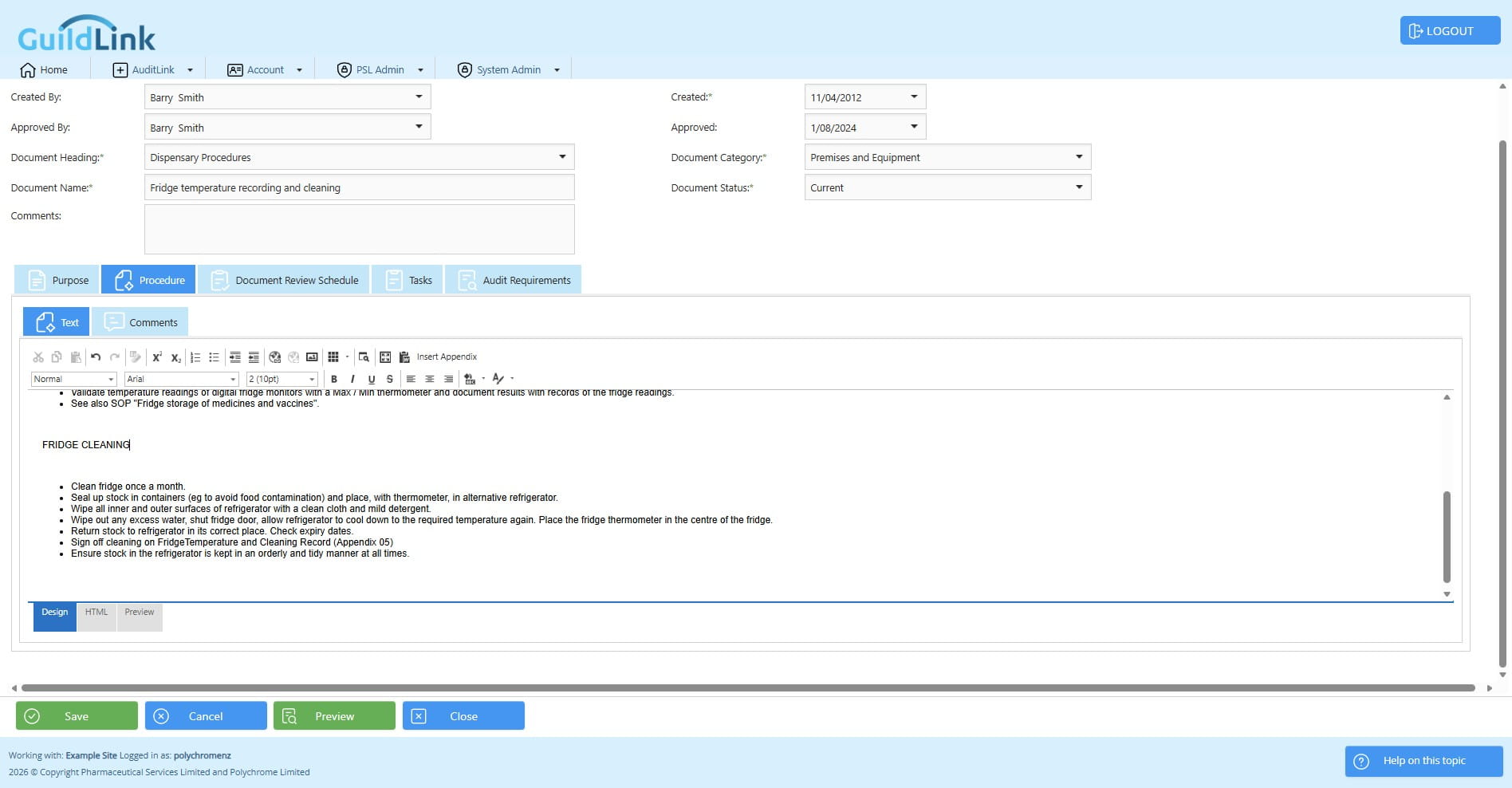
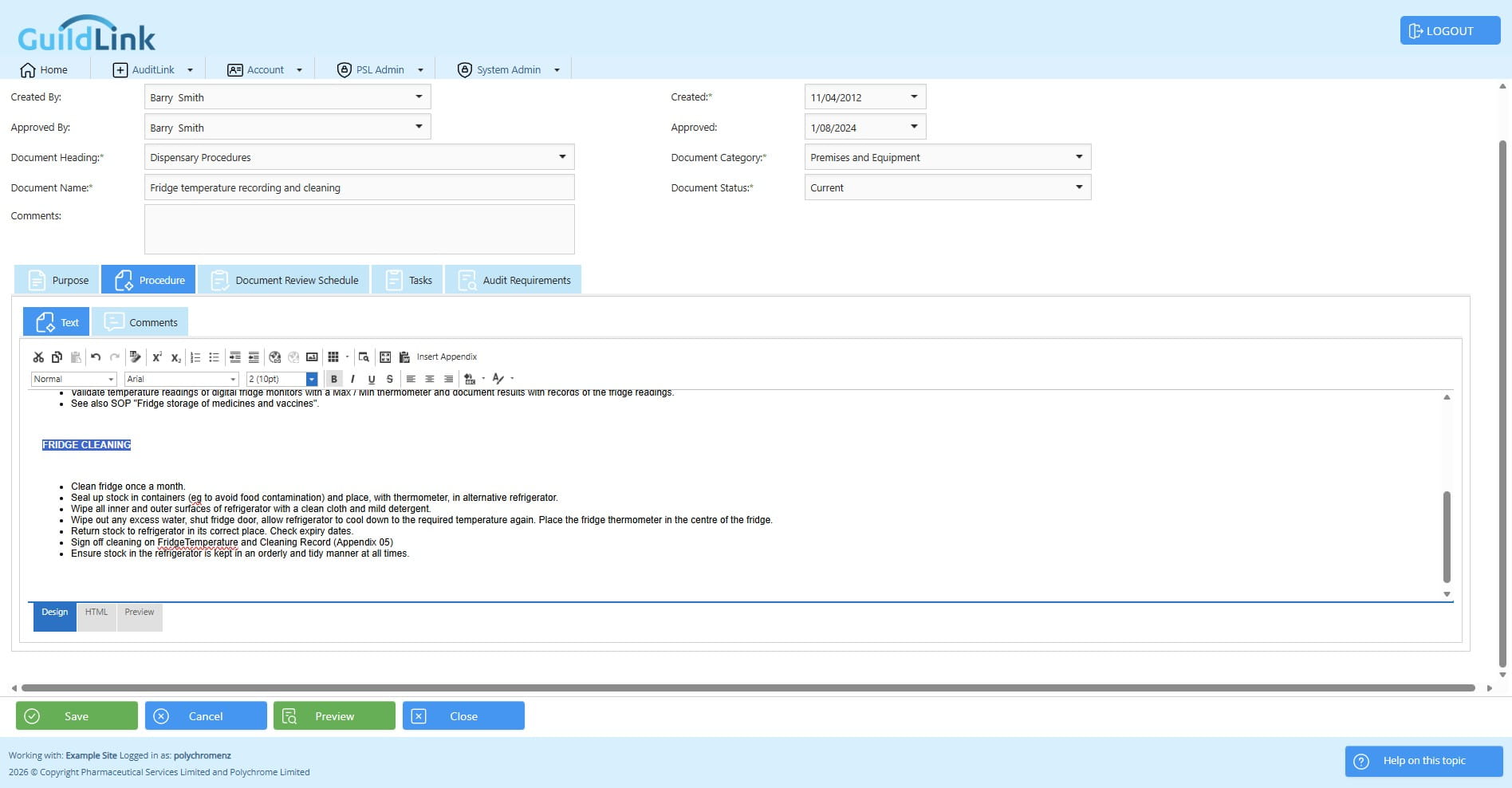
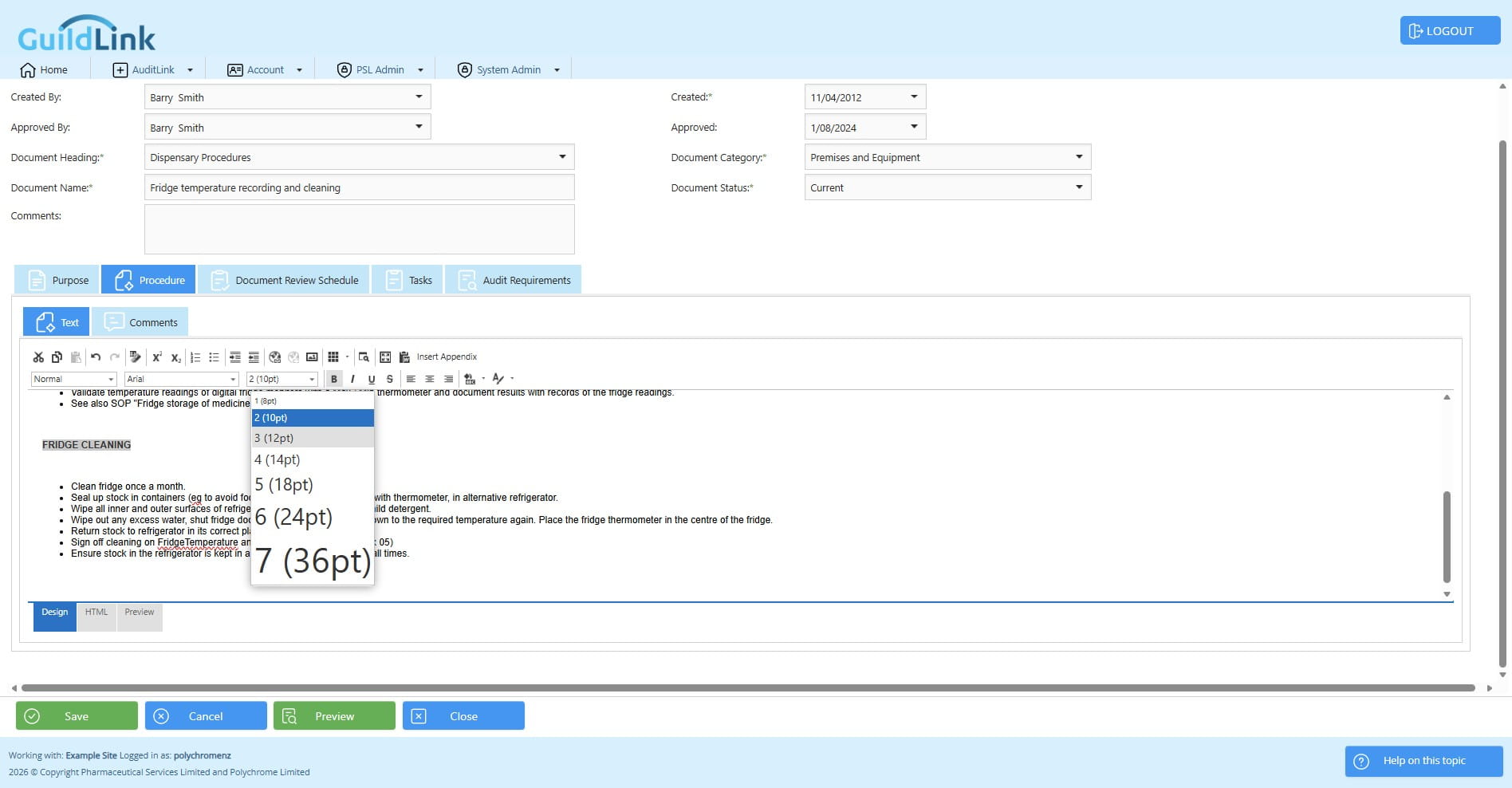
Change the font size
You can make text bold or change the colour just like using MS Word. You can paste text from Word but us ethe special Word paste button as some Word formatting needs to be removed.
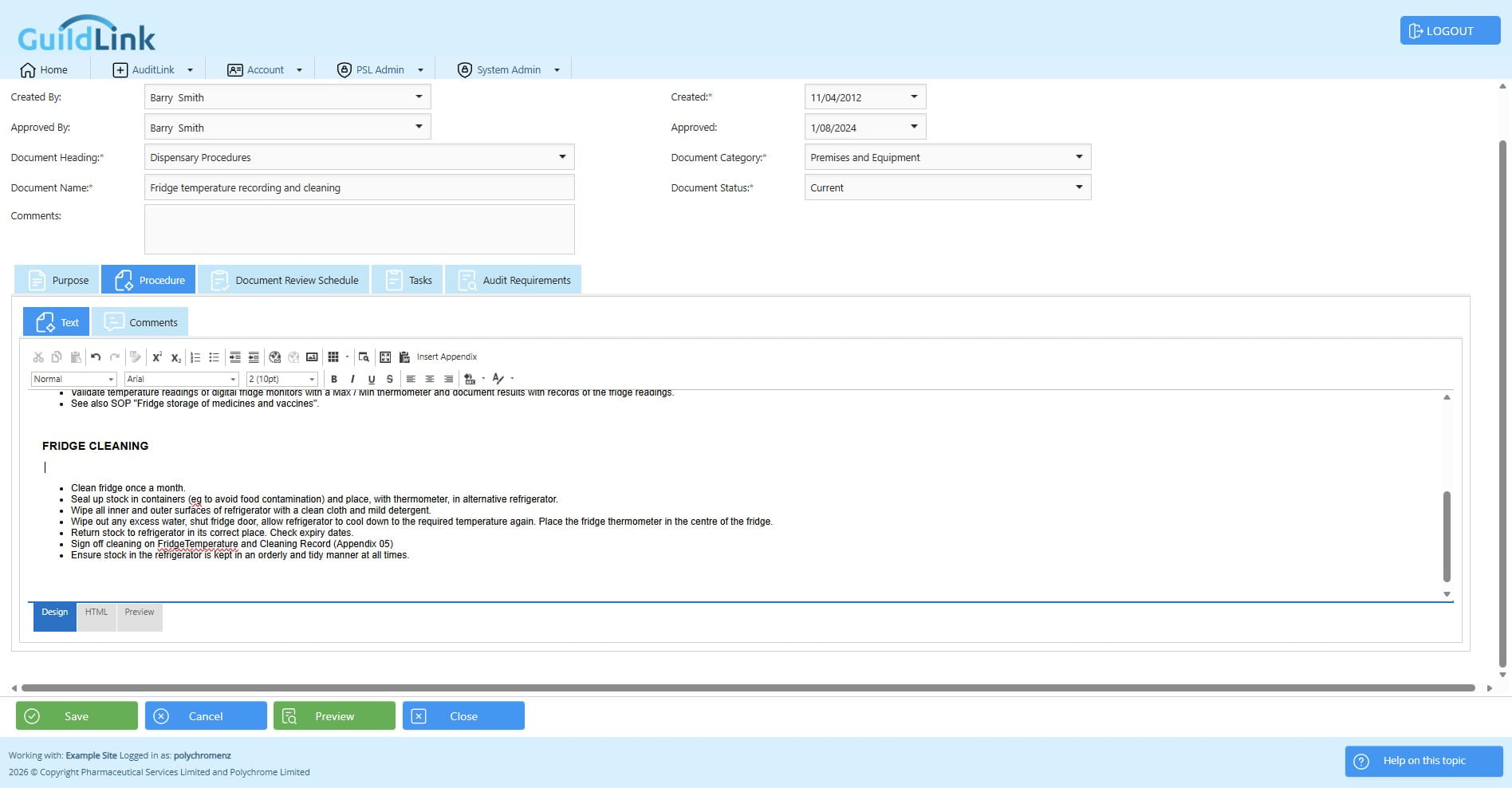
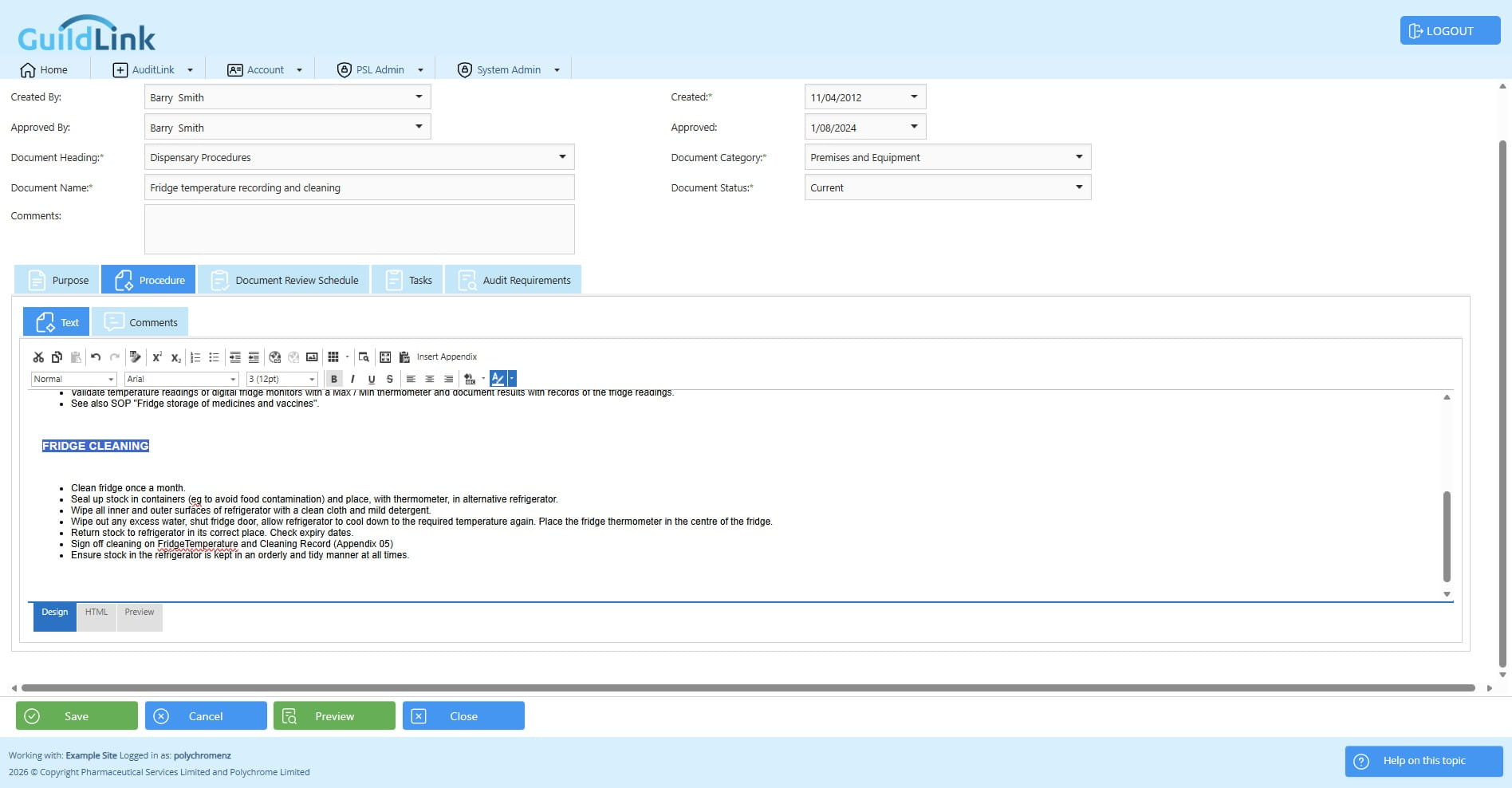
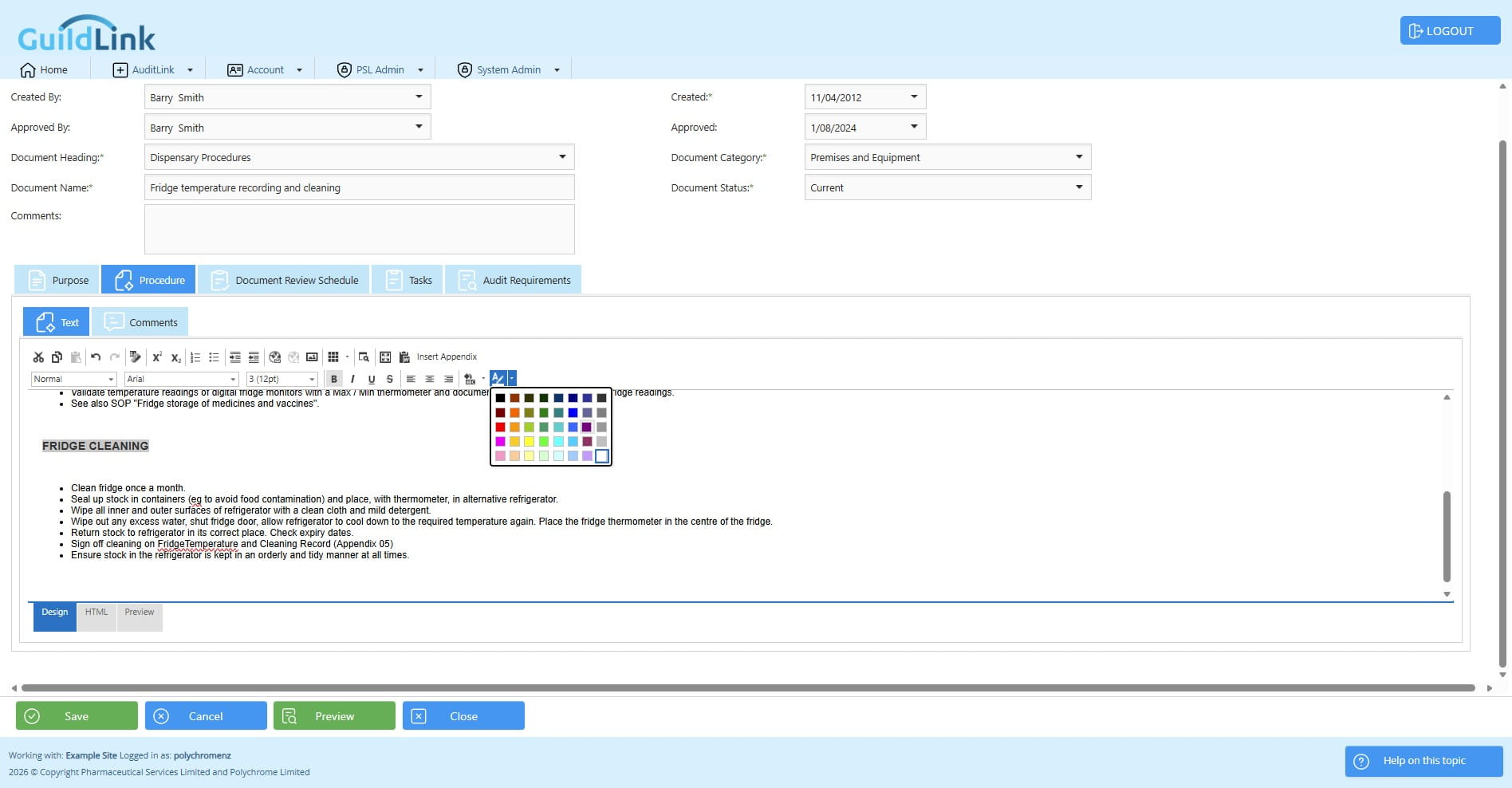
You can change the font colour
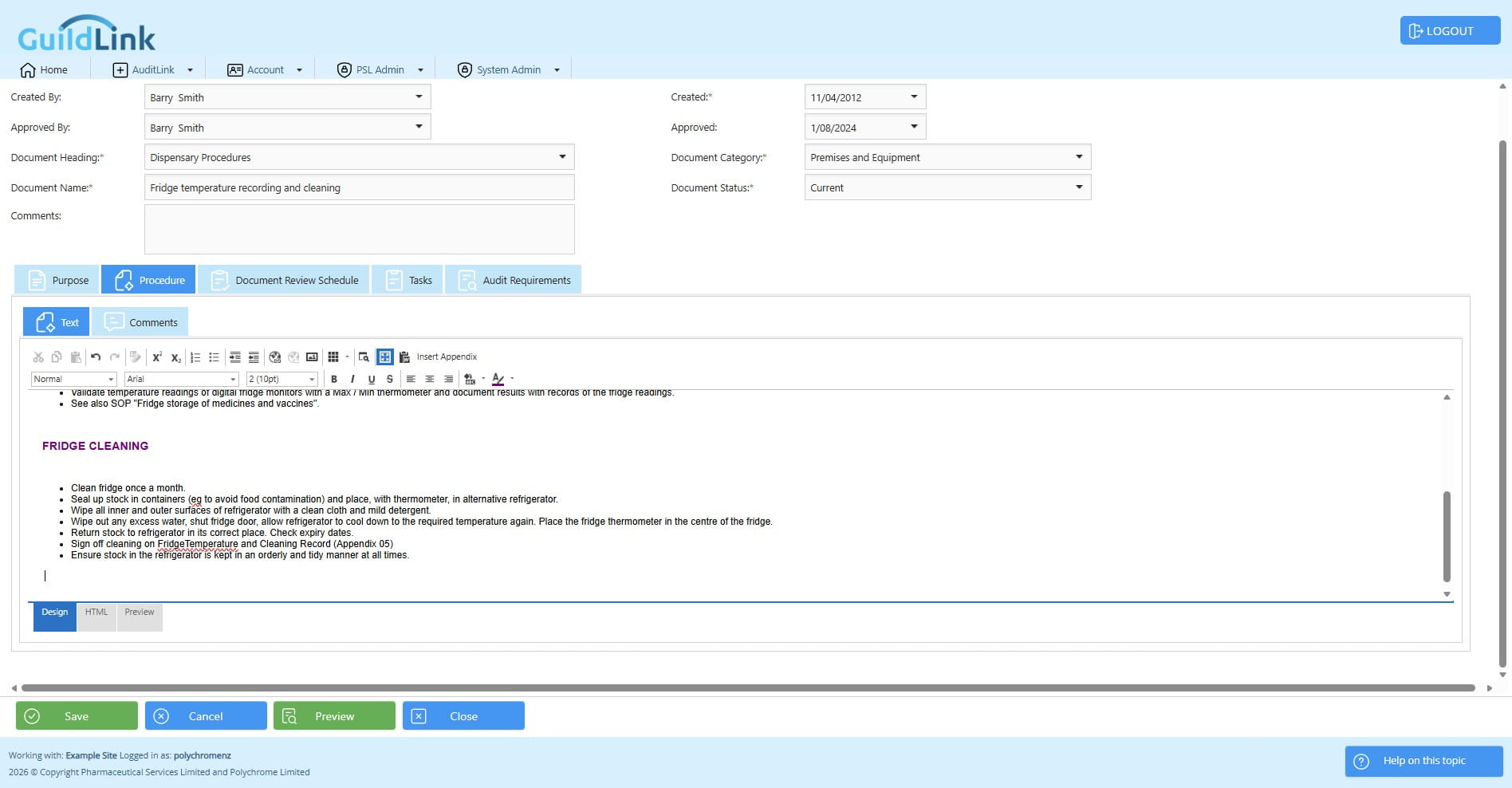
Press this button or F11 to enter full screen mode so you have more space to see what you are editing.
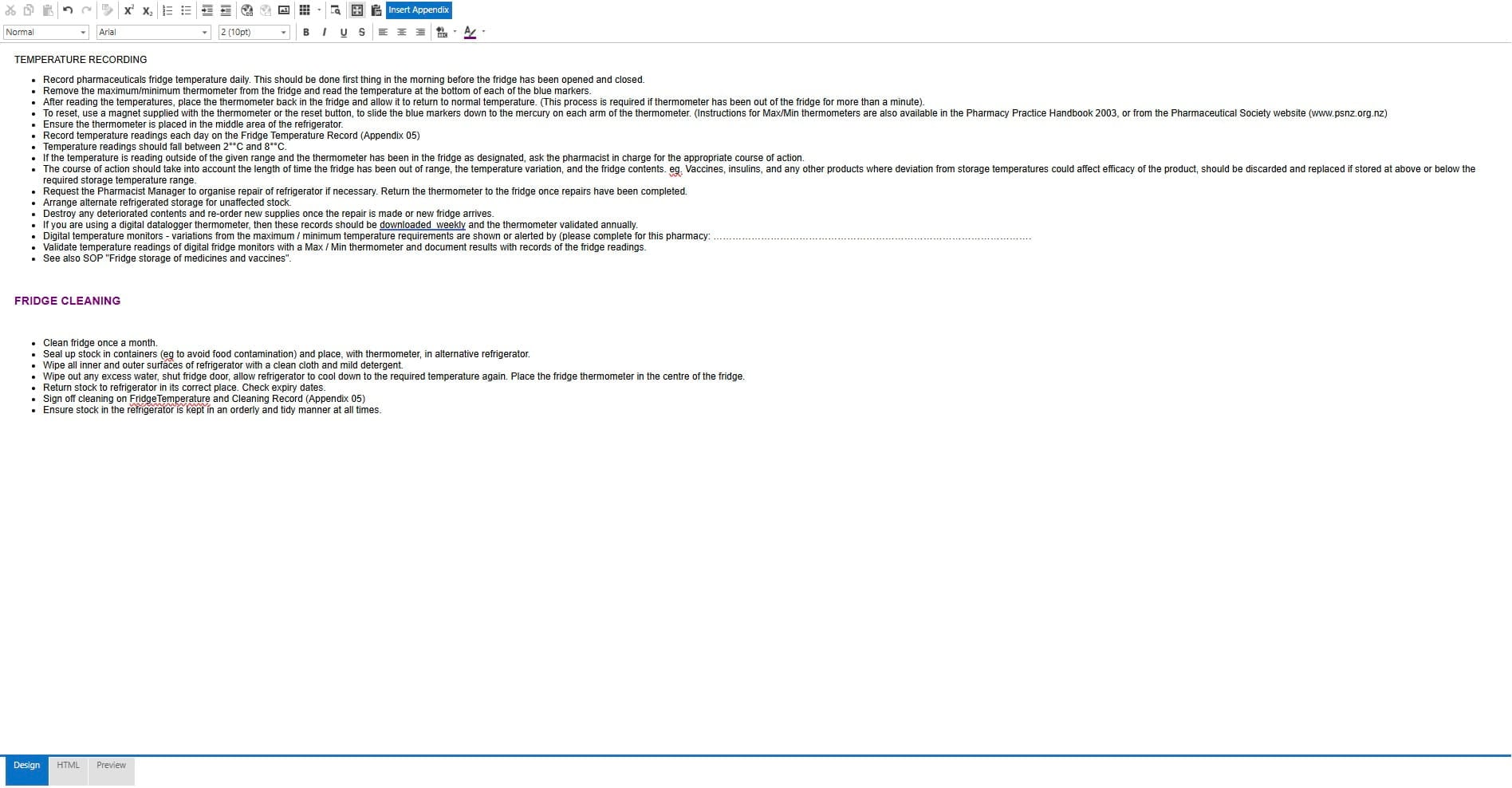
Click on "Insert Appendix" to add a link to n existing Appendix
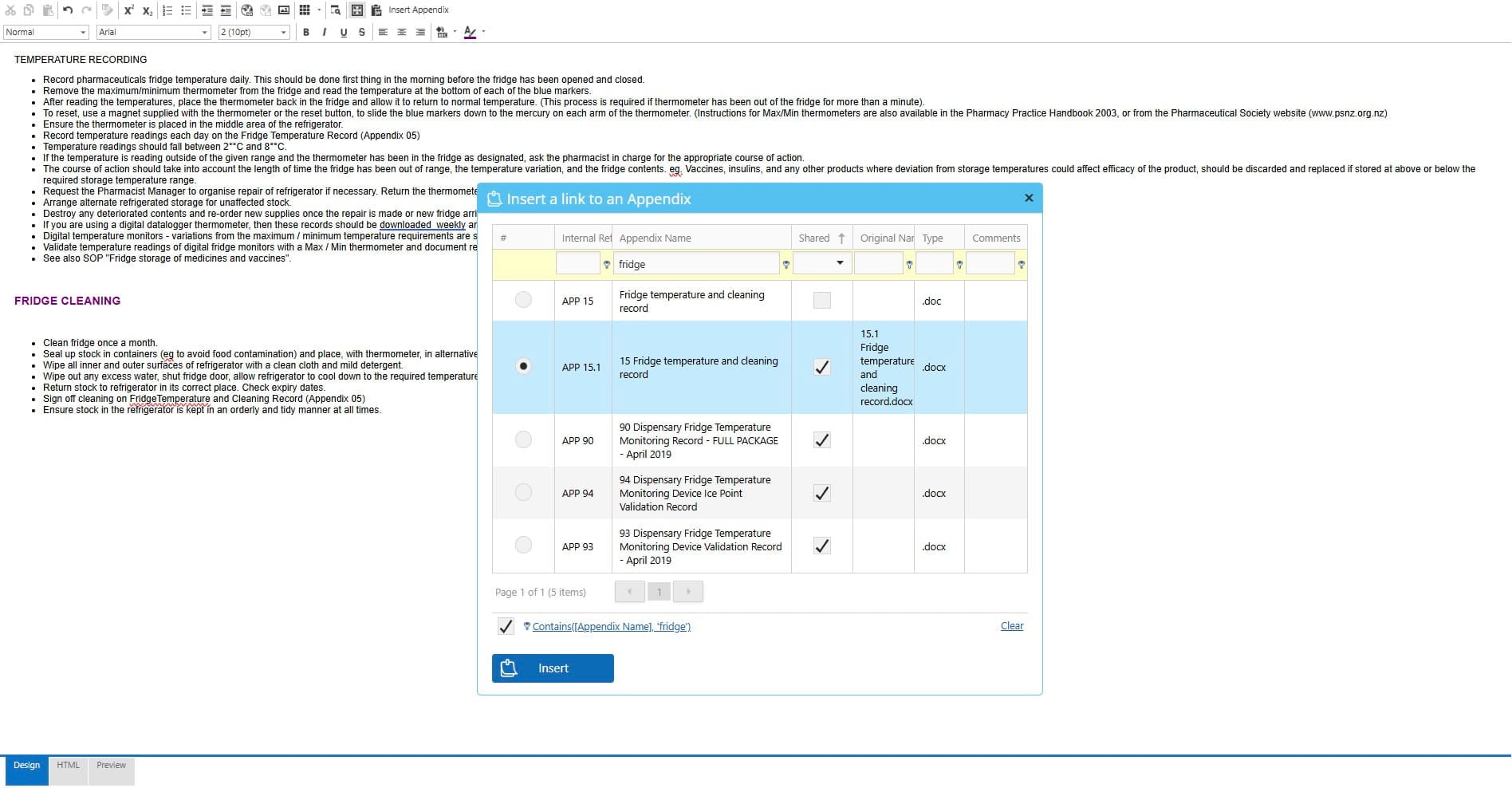
you can search and filter to find the appendix you want to add
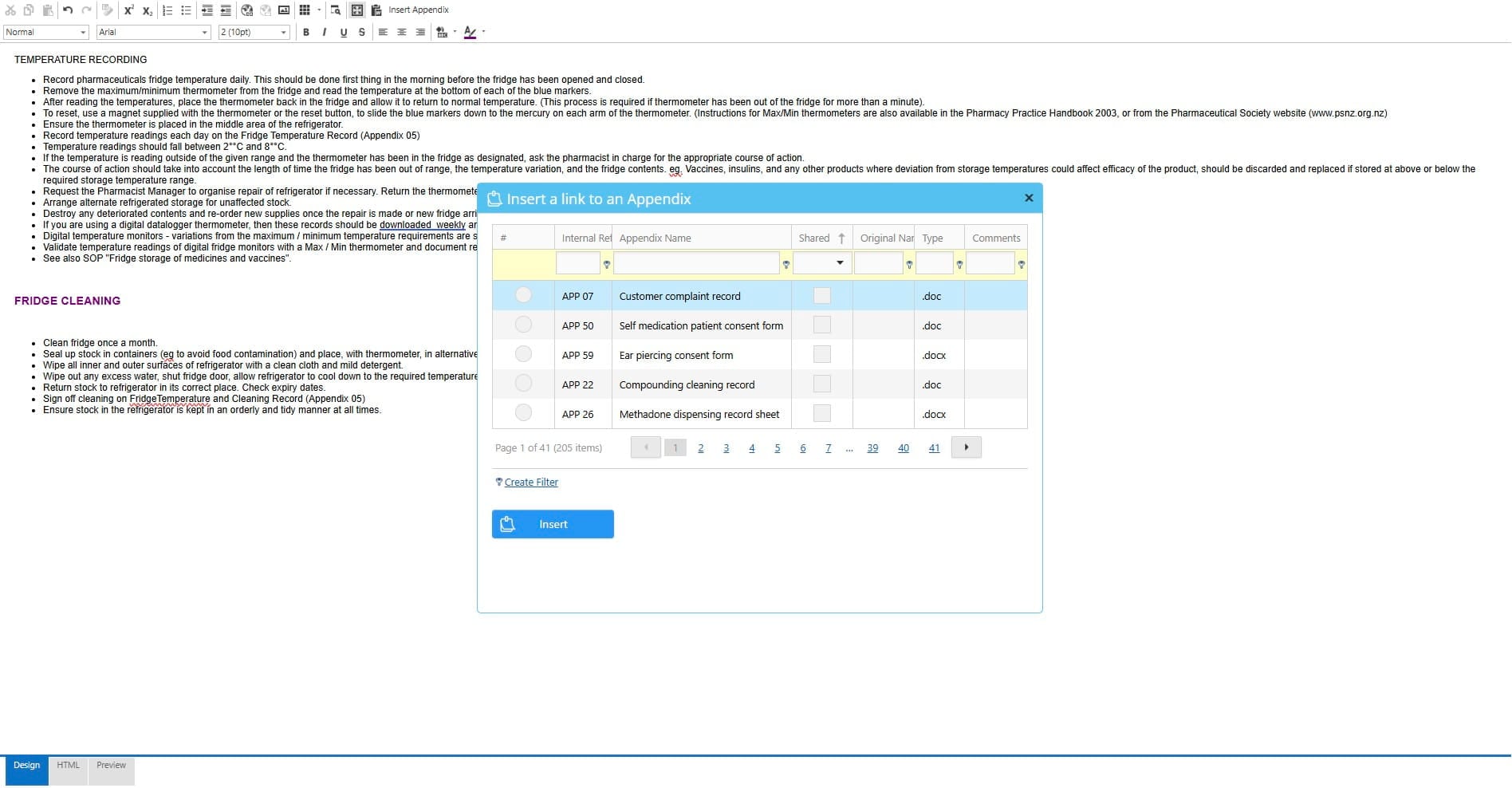
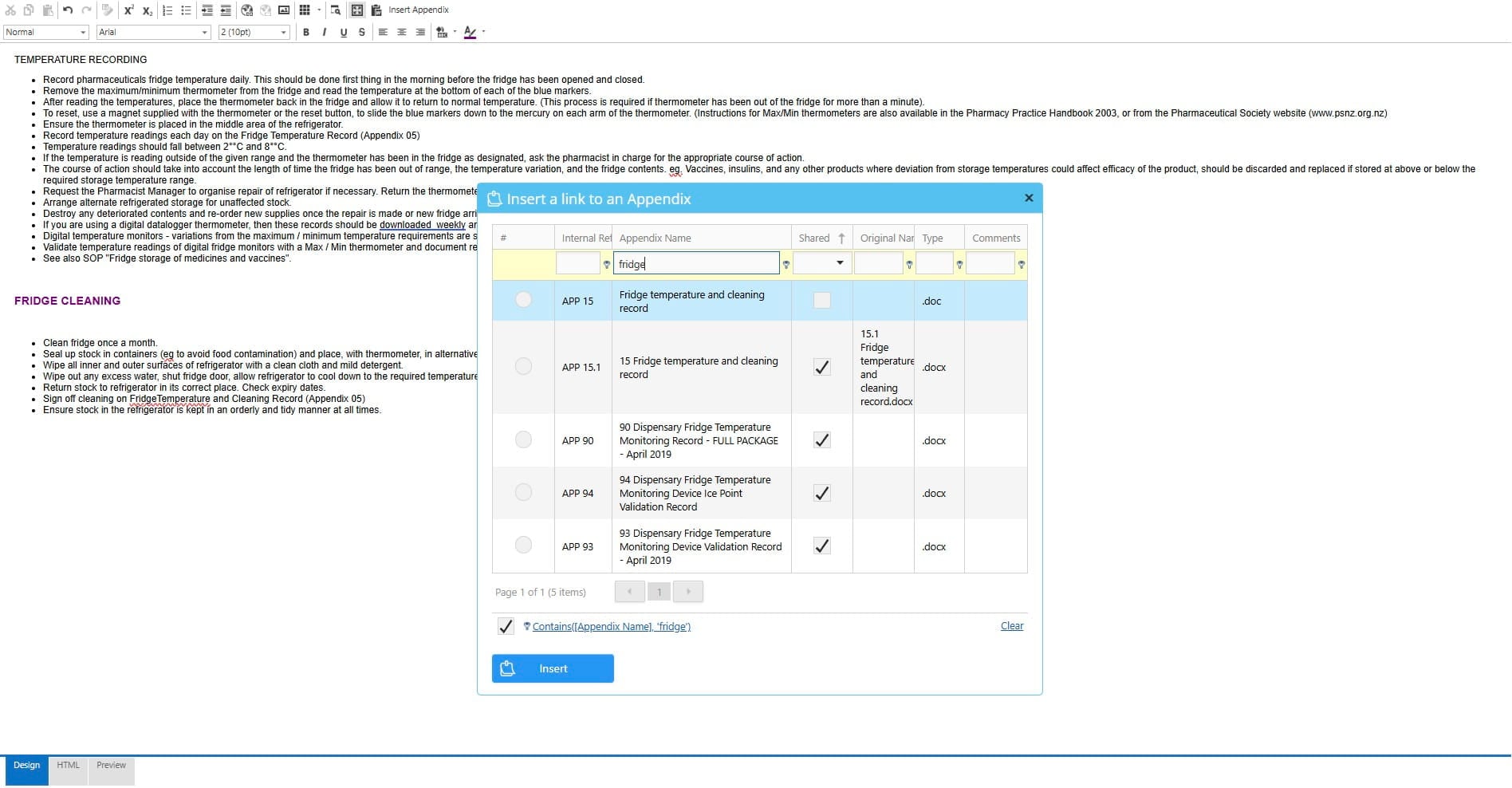
Click on "Insert"
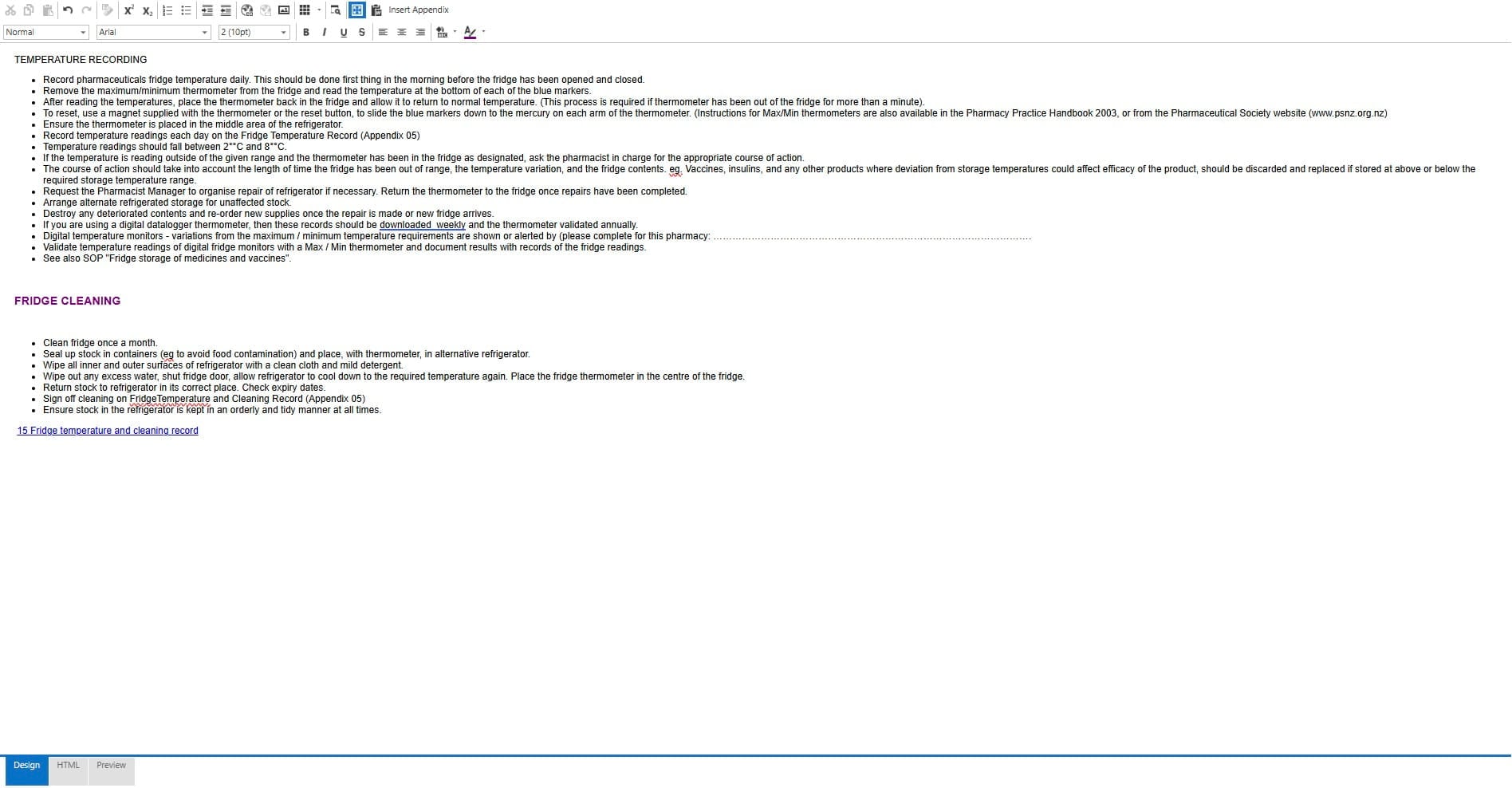
Add any comments here
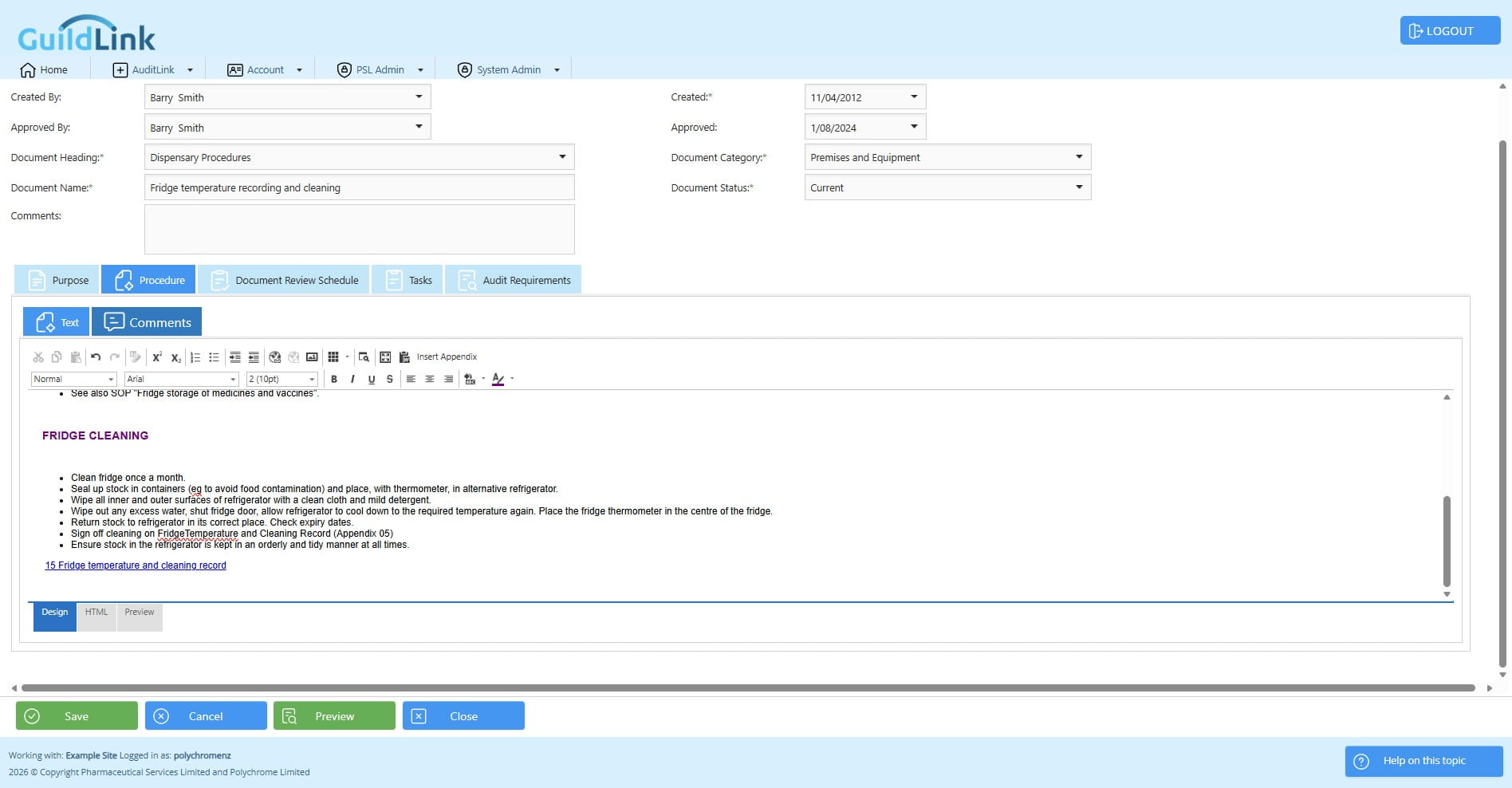
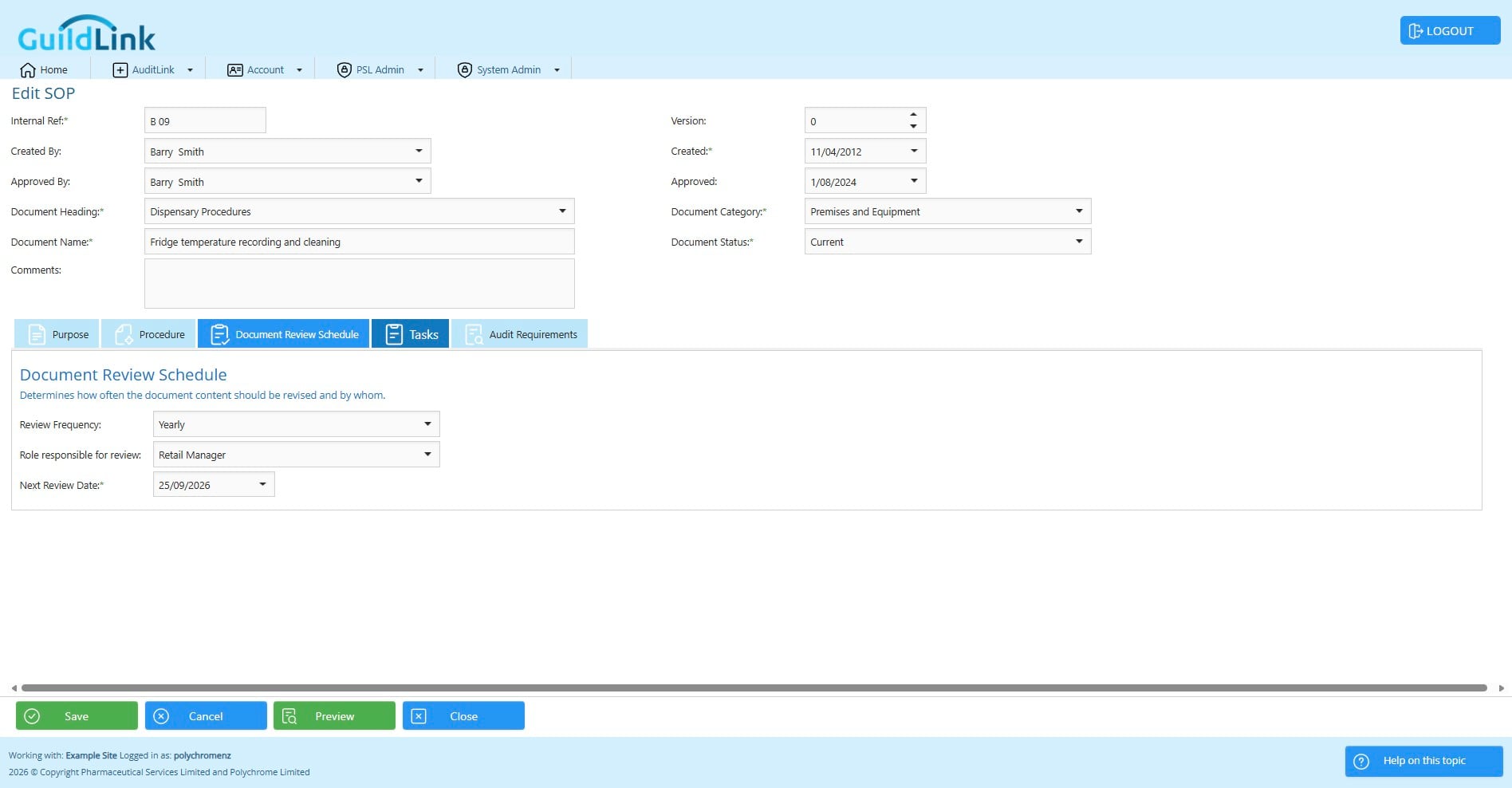
Click on "Document Review Schedule"
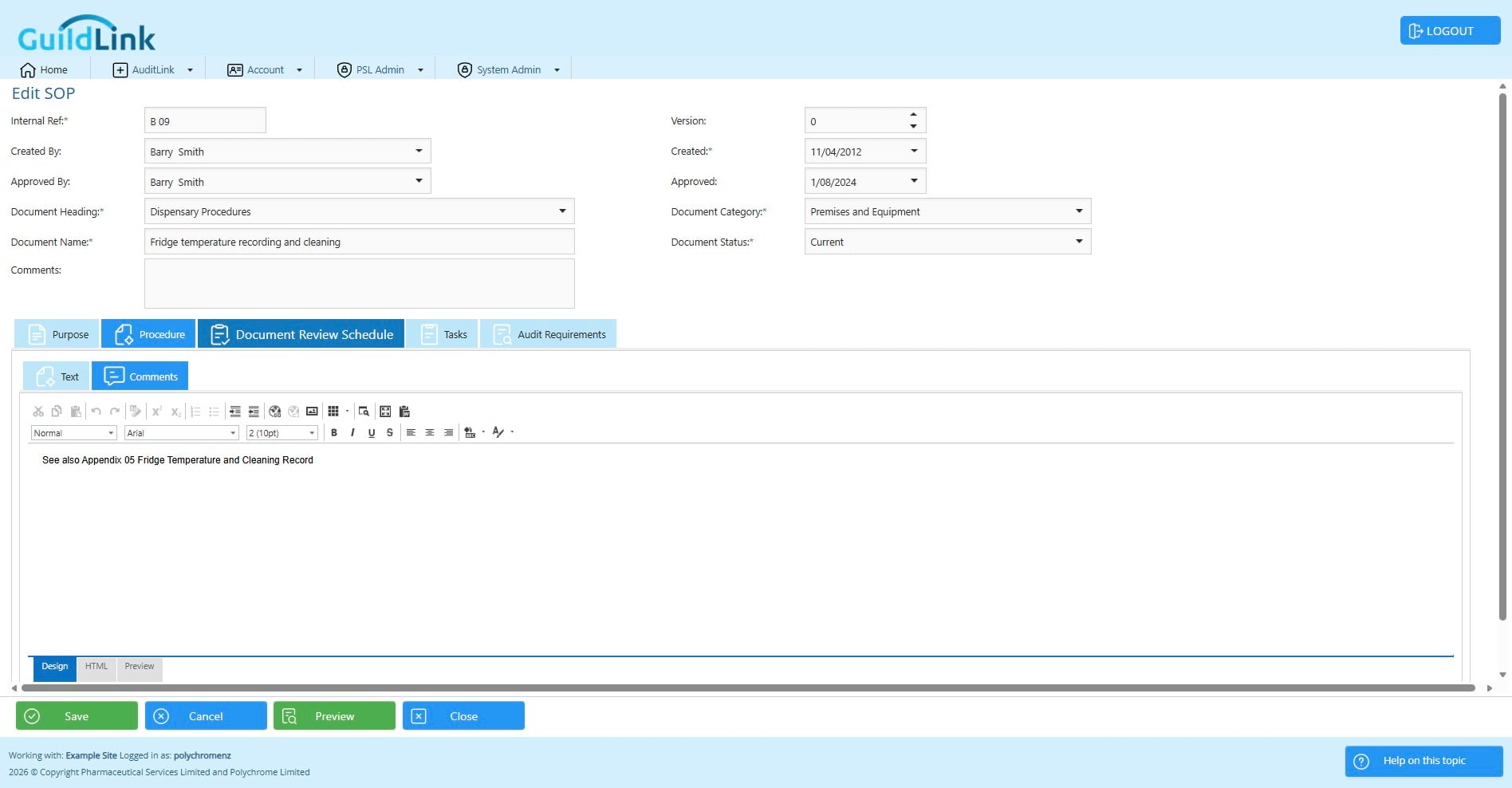
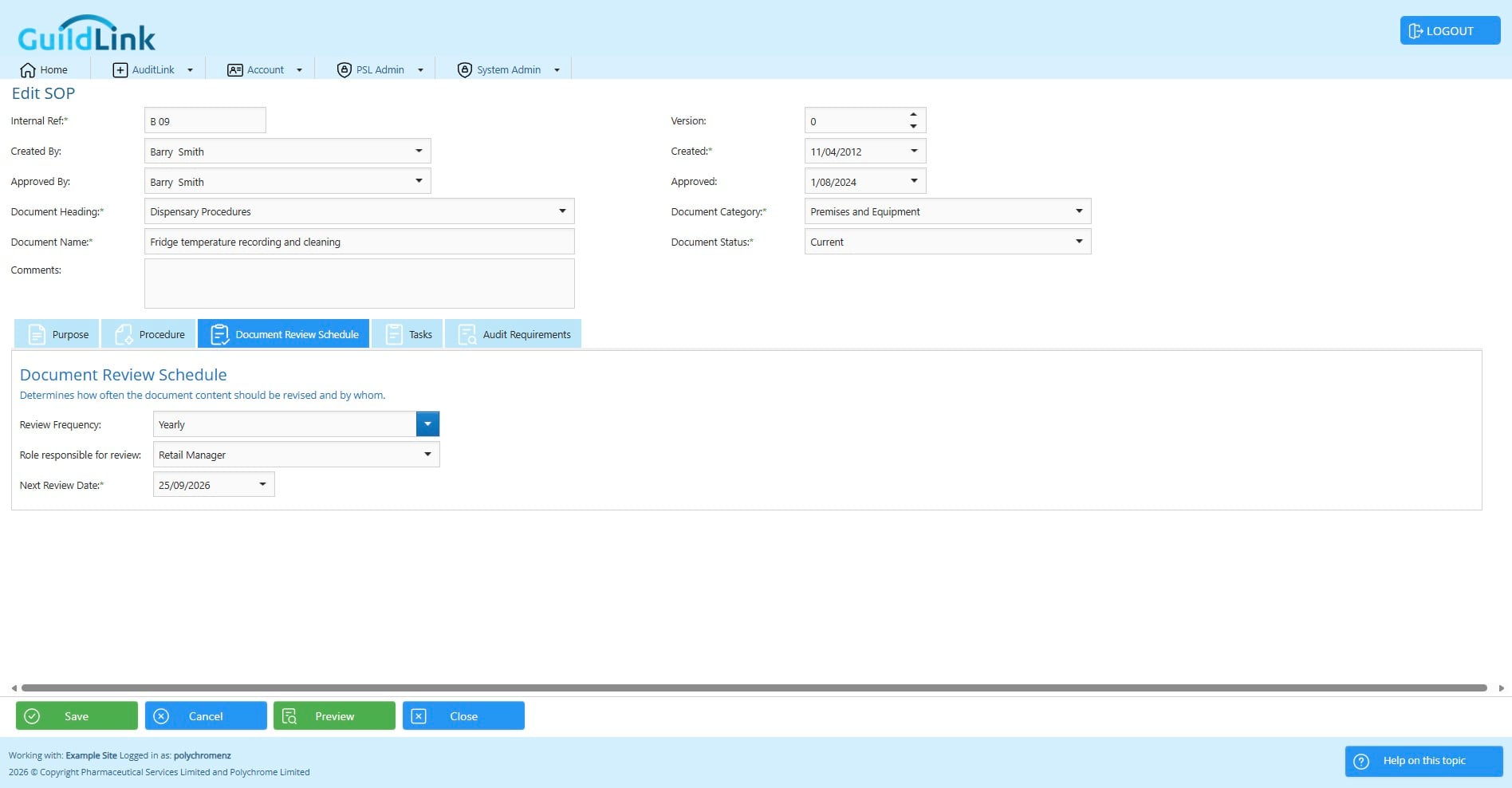
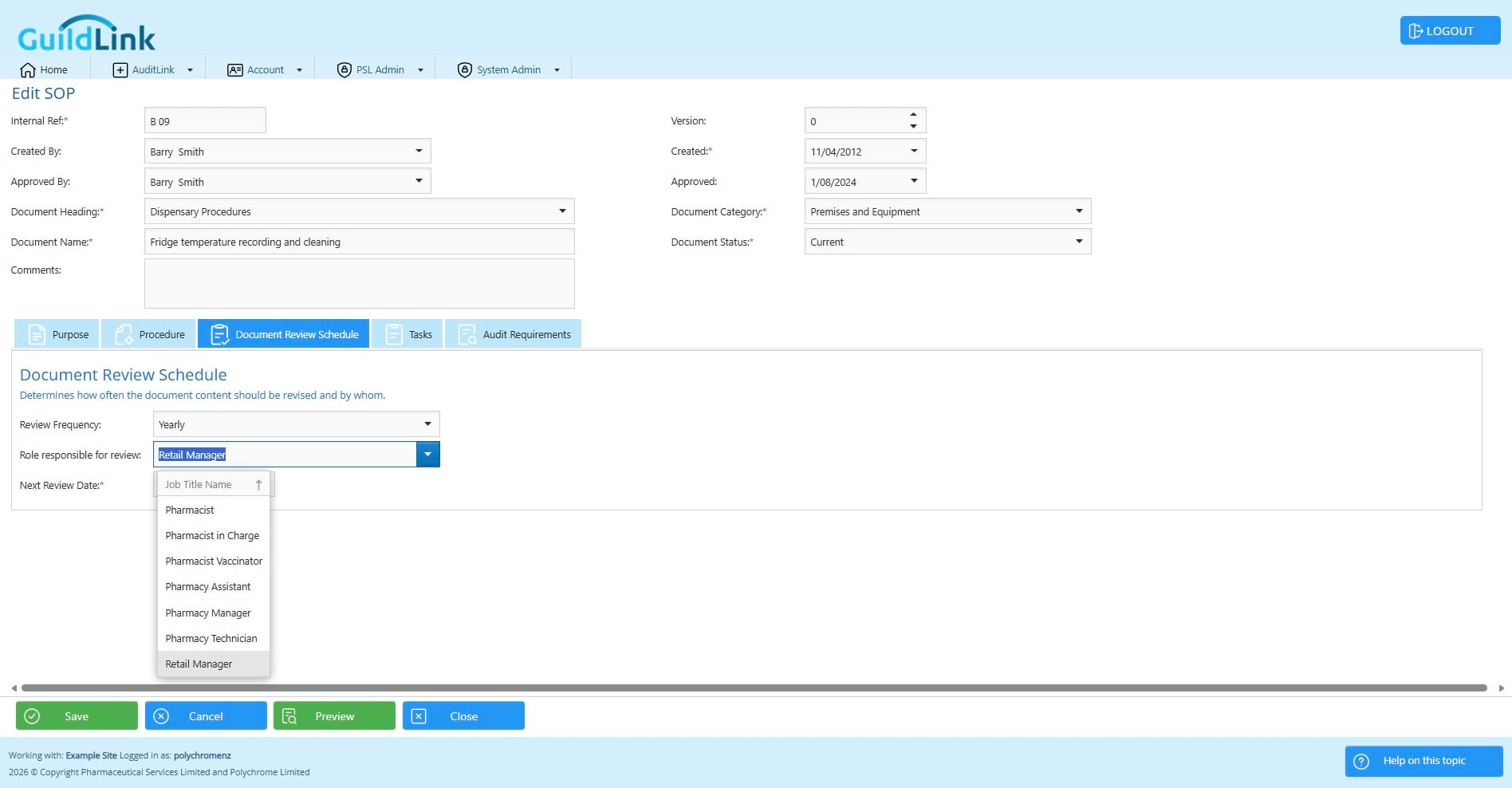
The document review schedule is to allow you to have reminder to review the content of the SOP. This is different from recording that staff have read an understood an SOP for audit. That's shown later on and this setup is for when the pharmacy chose a paper based tracking model. The document review schedule is based on a role so that it doesn't stop working when staff change.
Click this image
Tasks
Some SOPs have task associated with them.
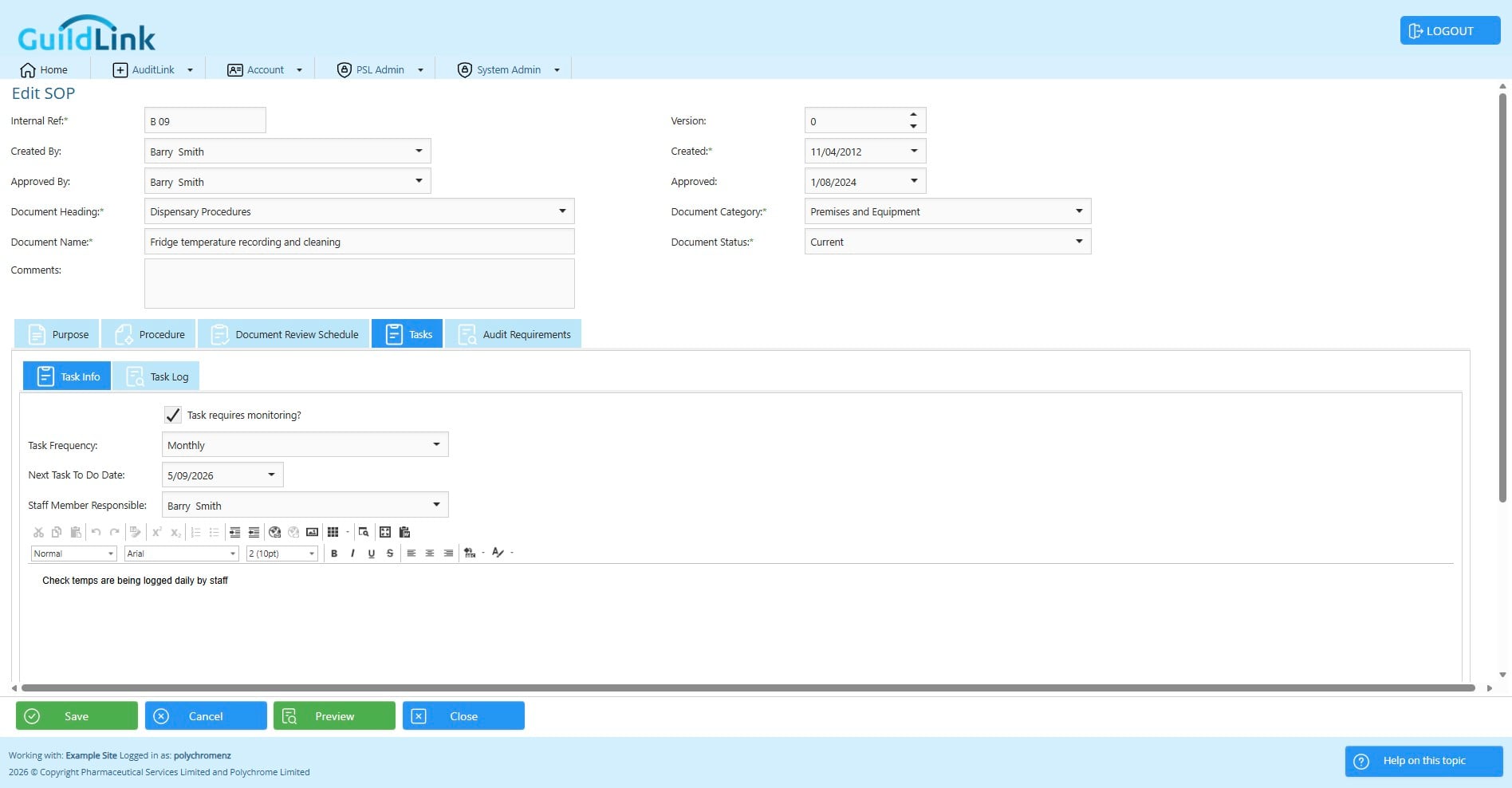
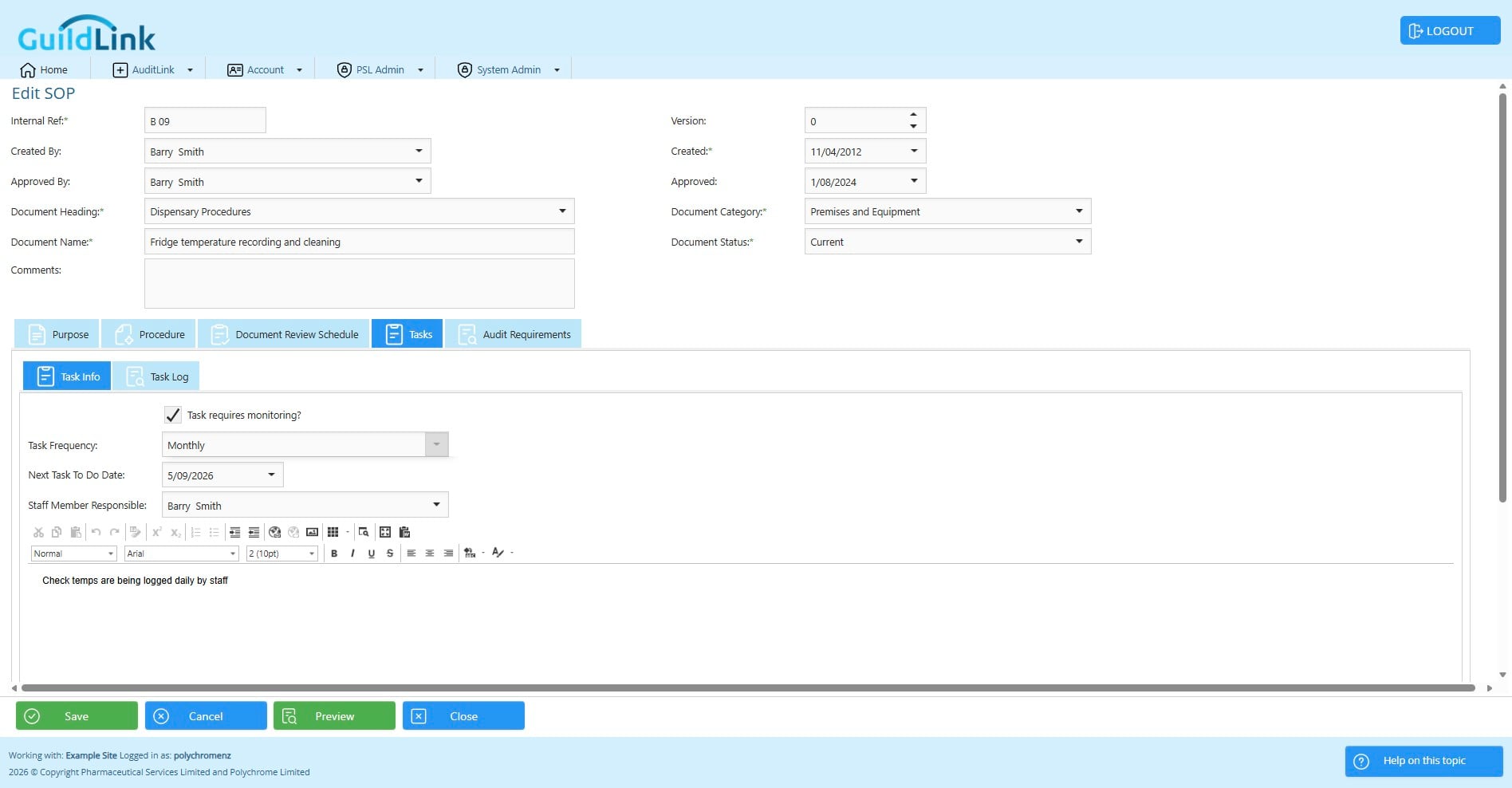
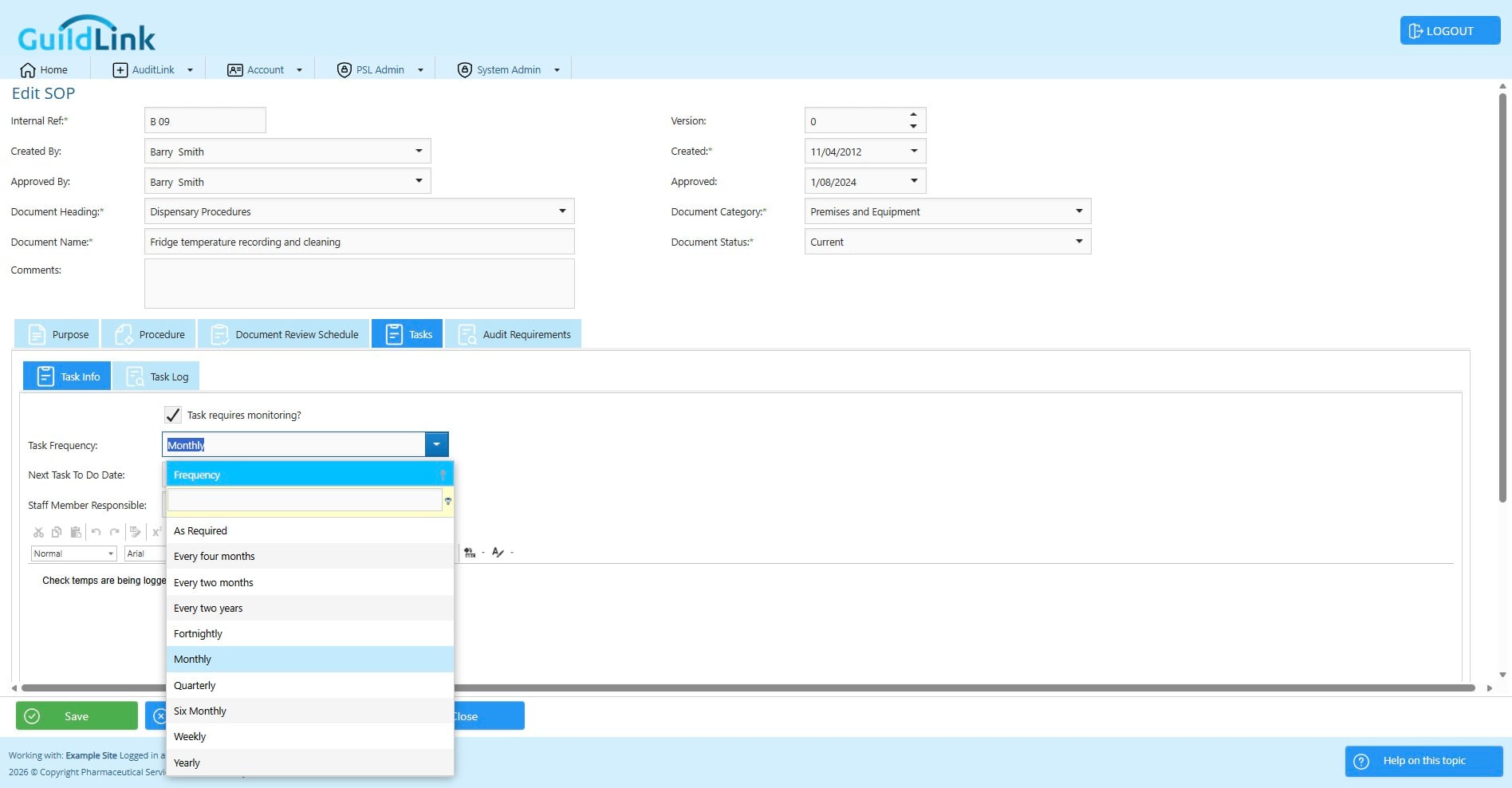
GuildLink lets you set a frequency and a person to remind to carry out the task.
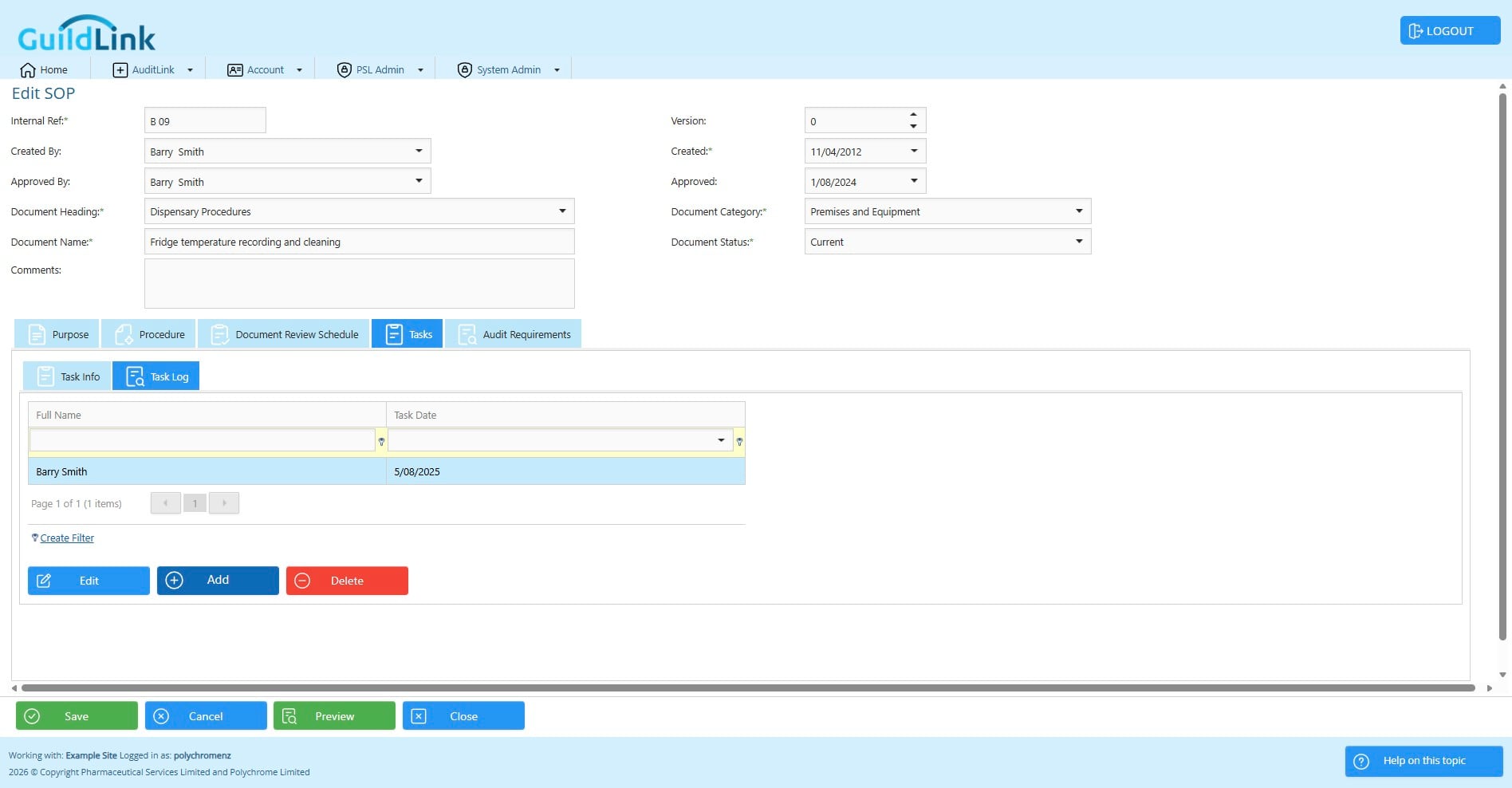
You can also record that task in a Task Log
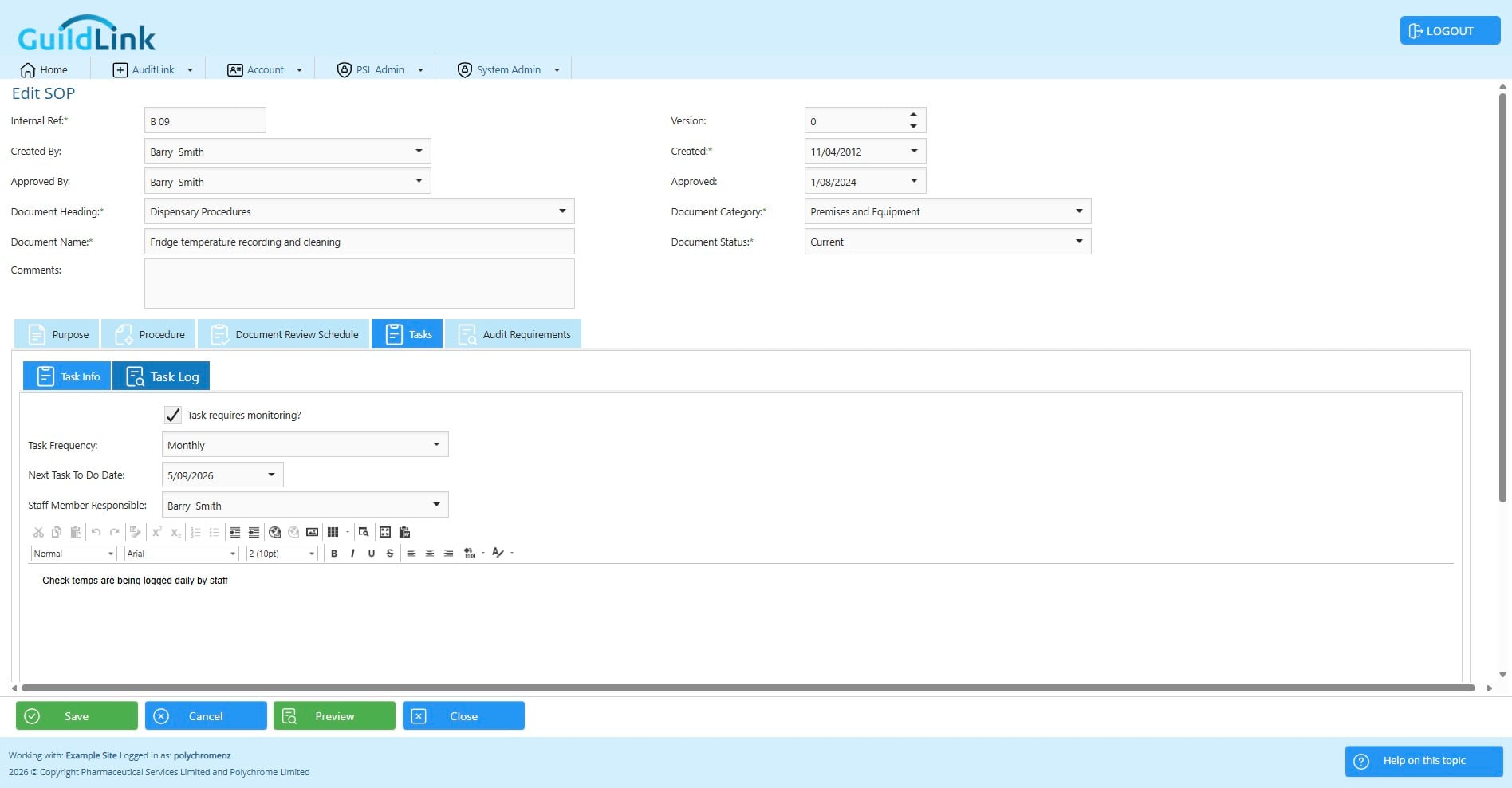
Click on "Add"
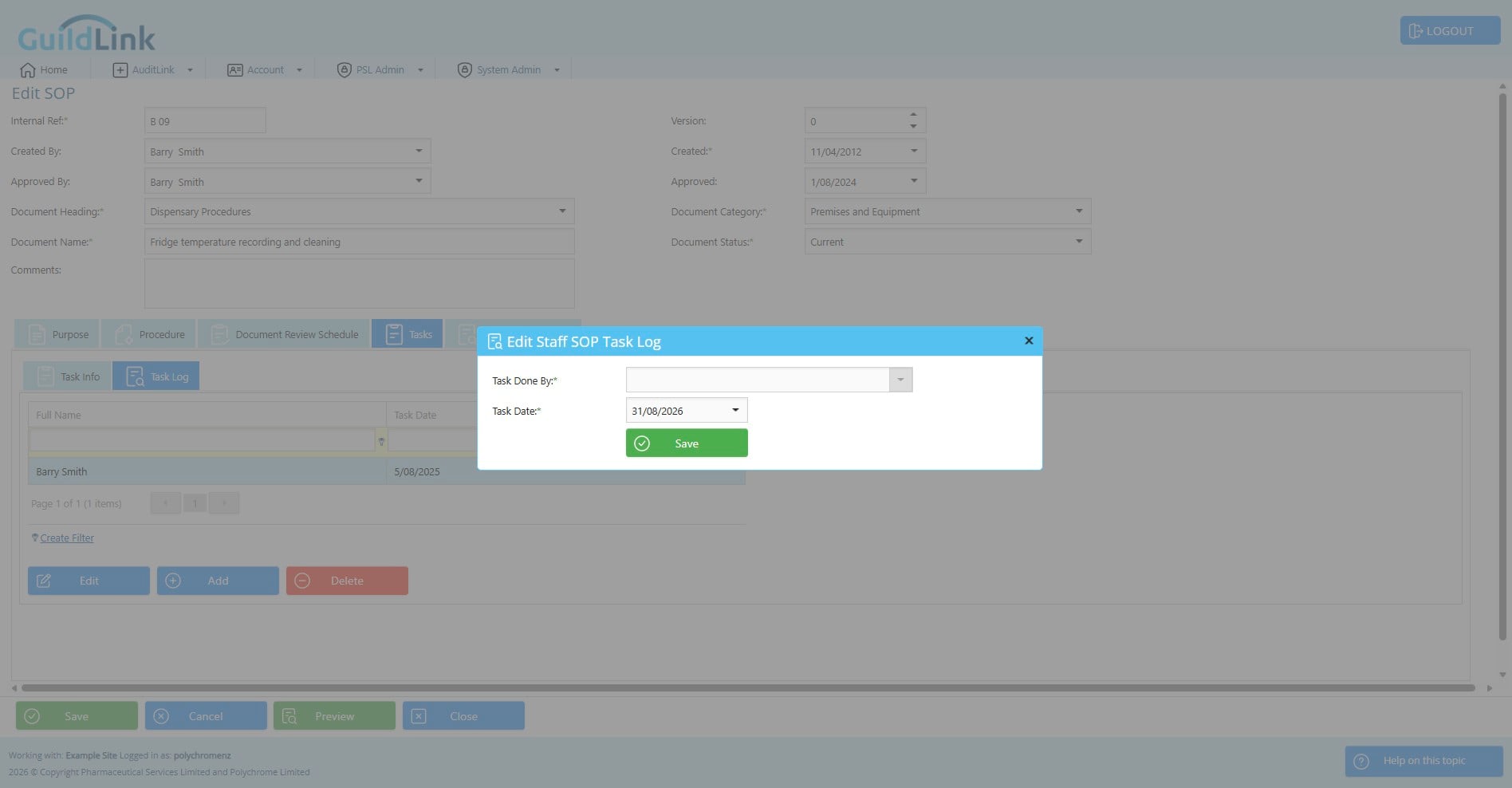
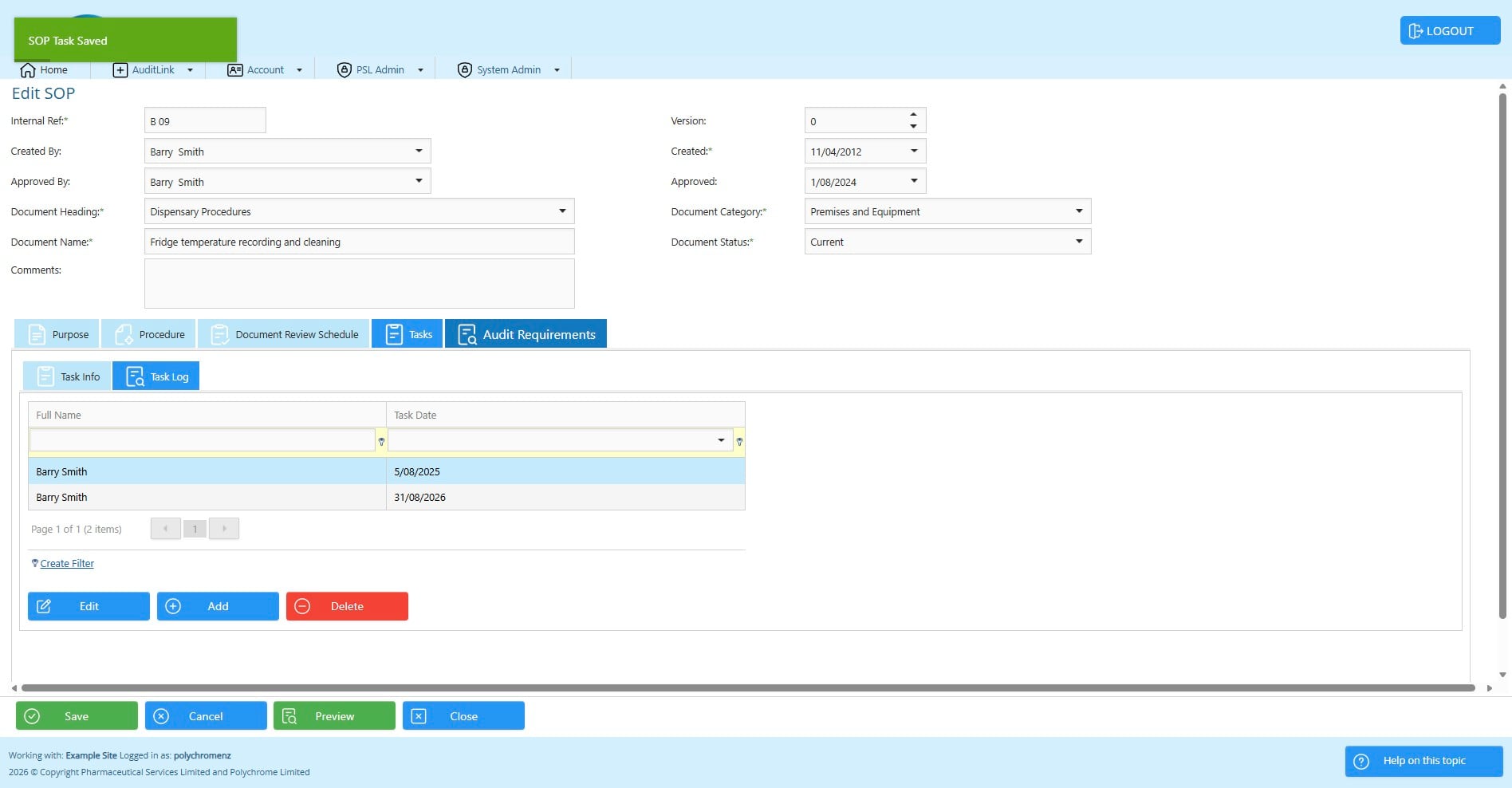
Click on "Save"
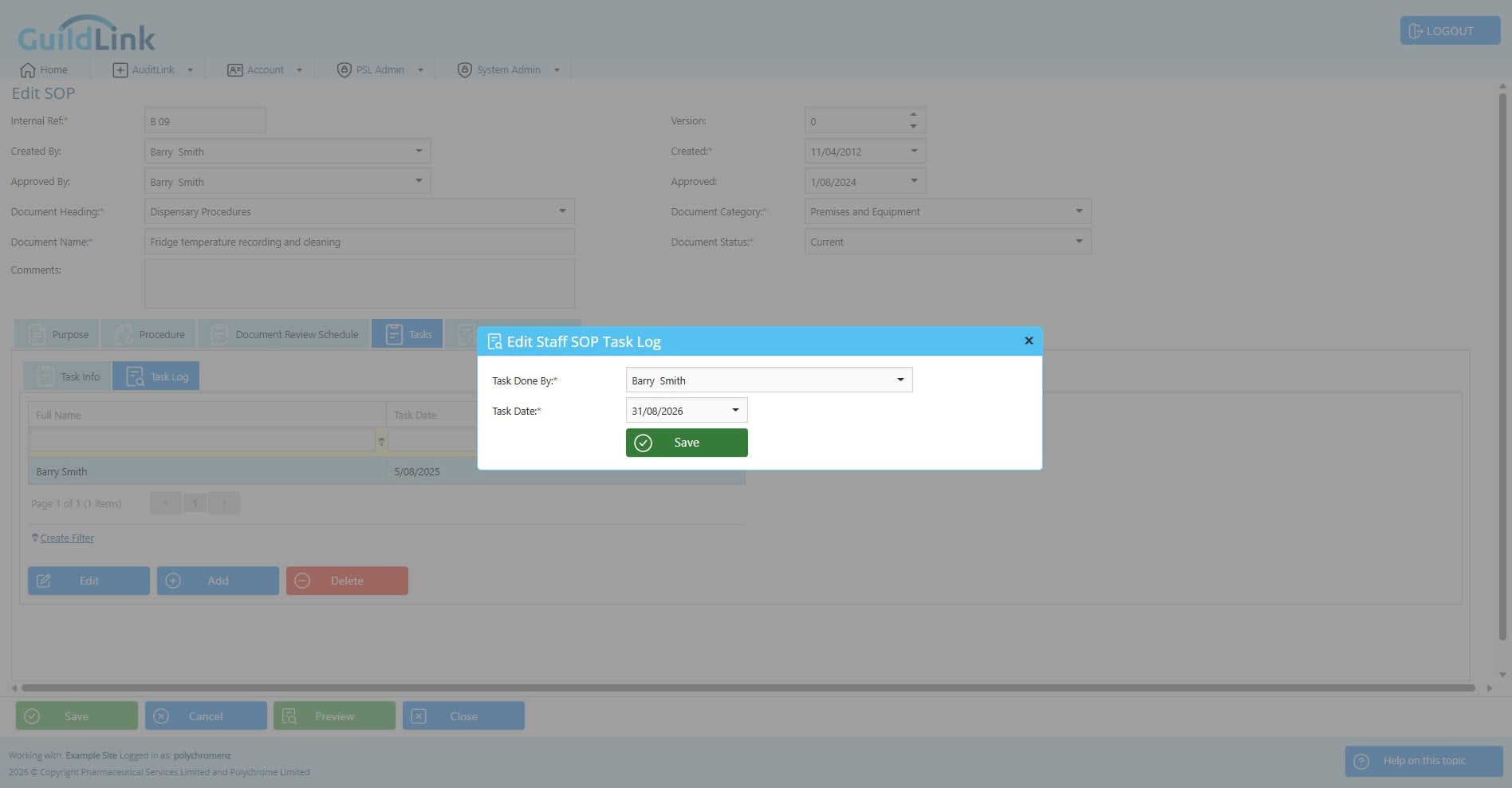
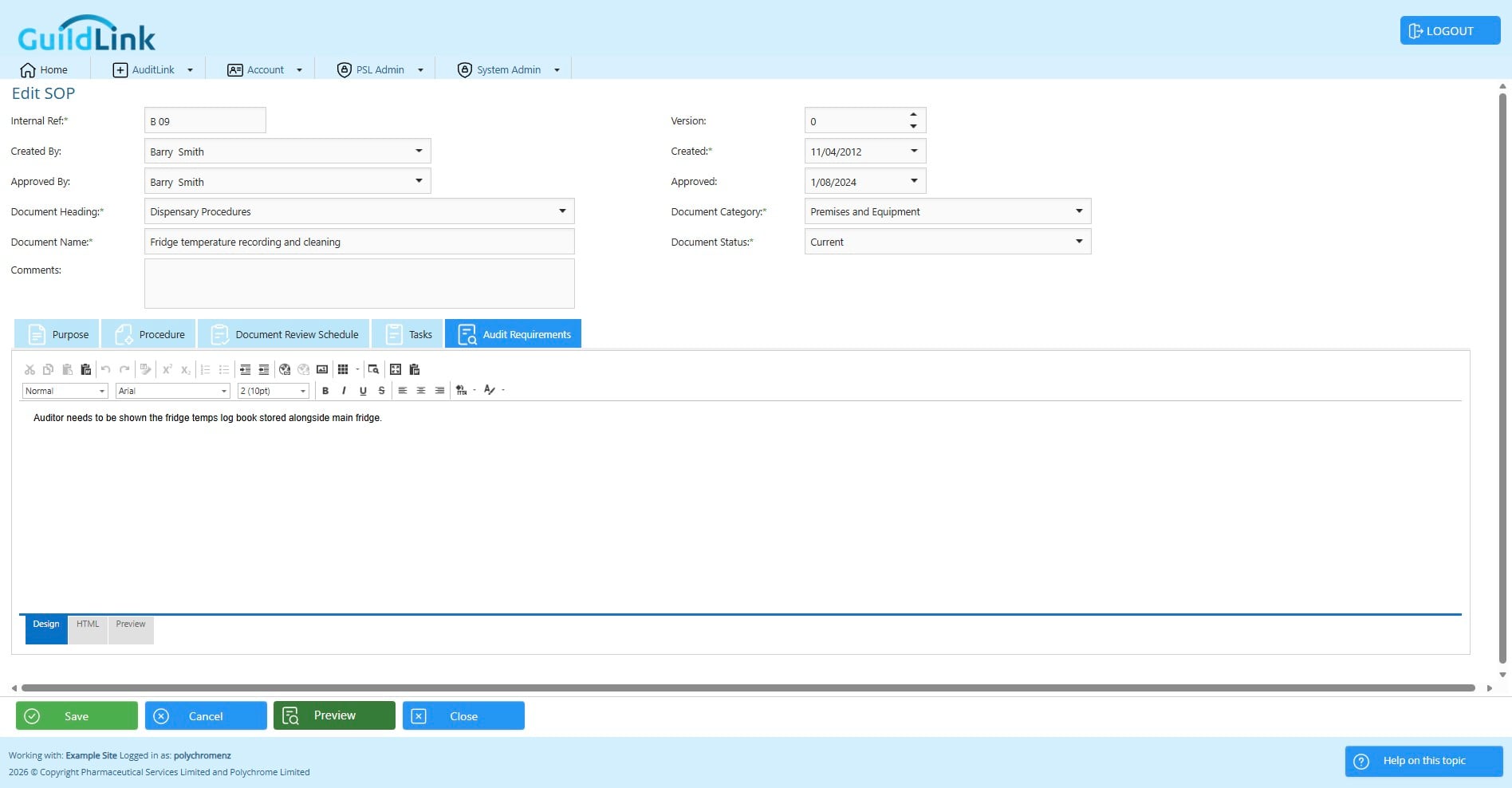
Click on "Audit Requirements"
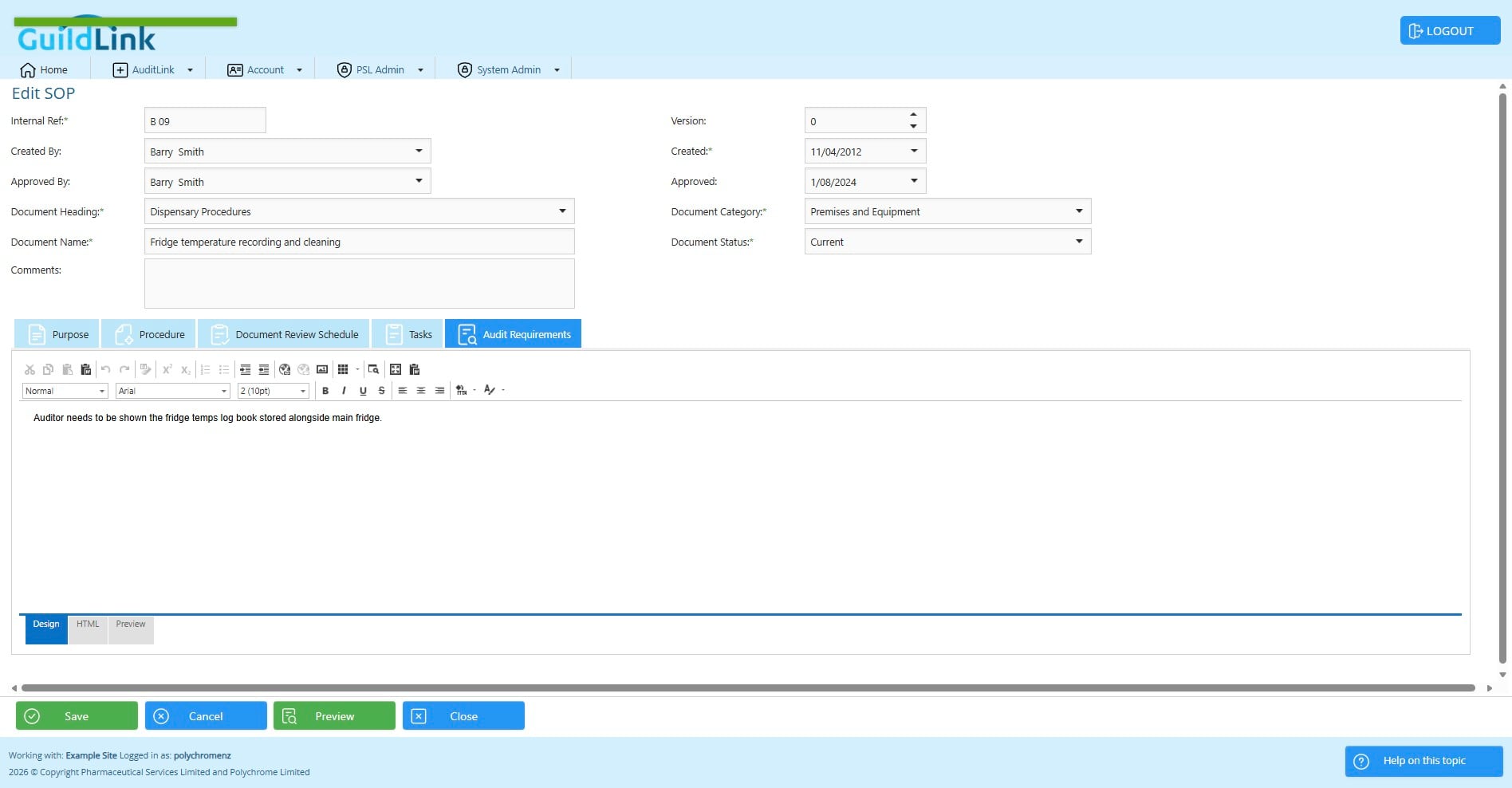
Here you can add any comments for things you need to have done prior to an audit.
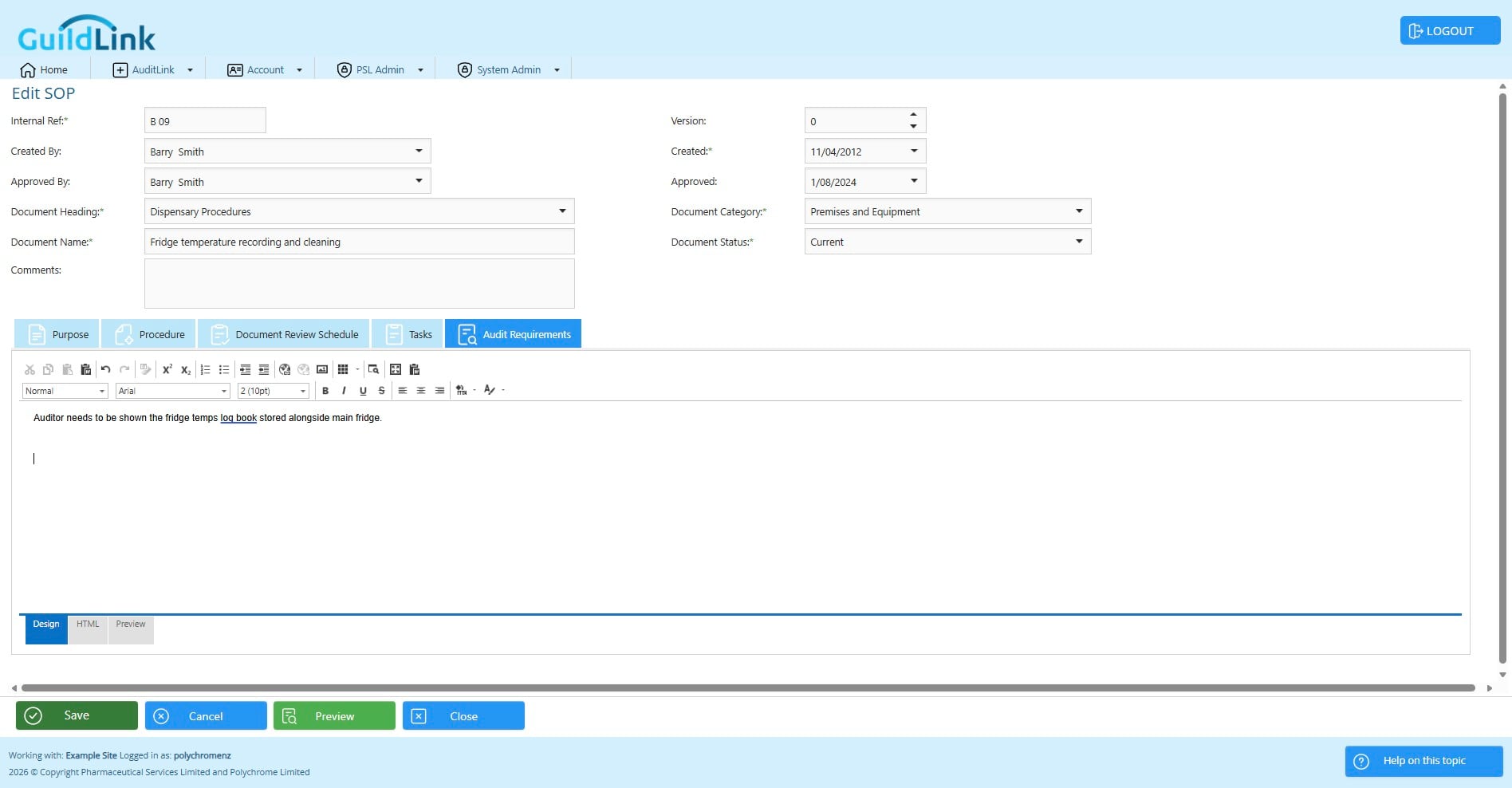
Click on "Save"
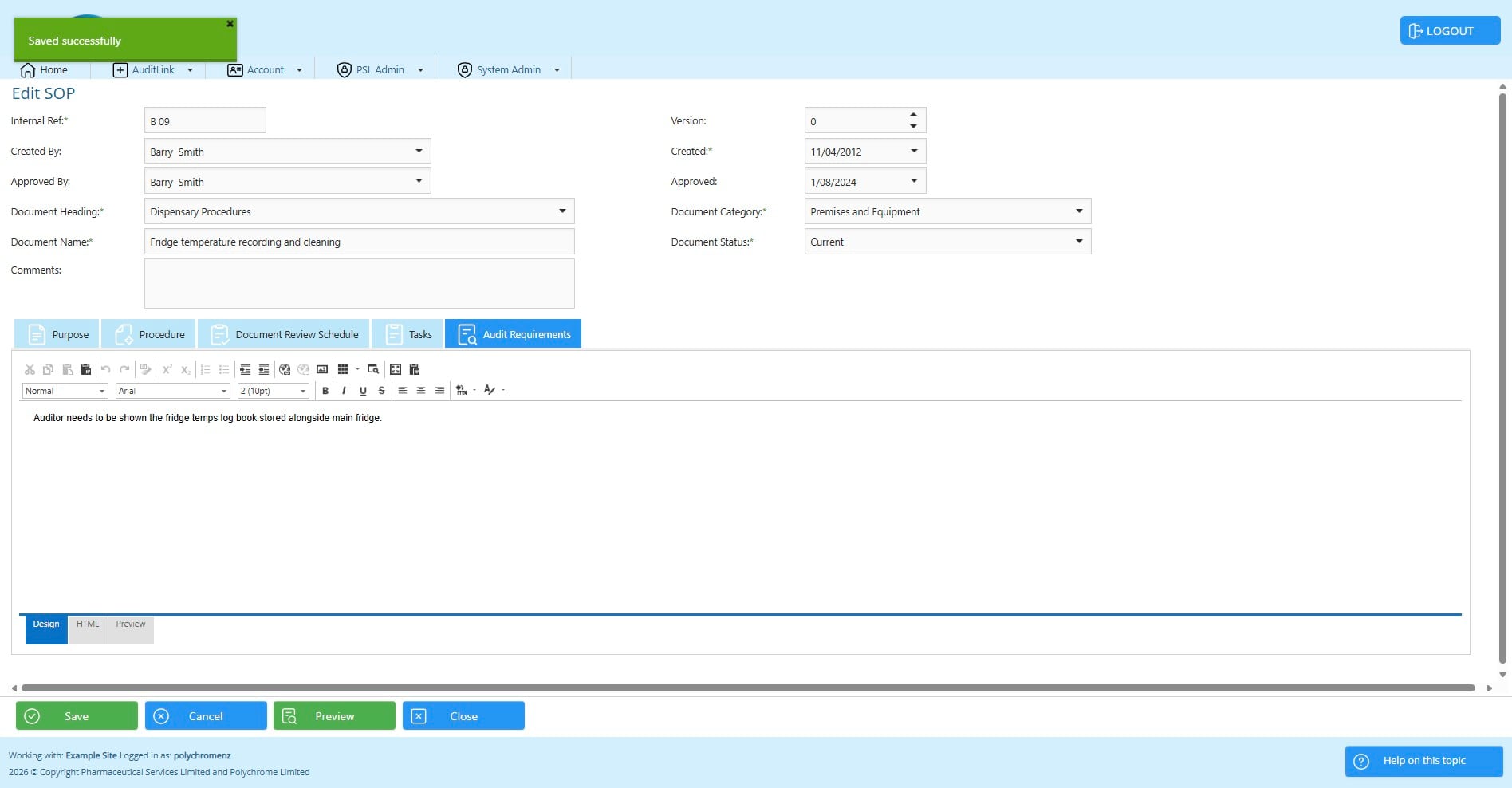
You can always preview your changes but be sure to save any changes first so they are shown in the report.
Click on "Close" when you are done
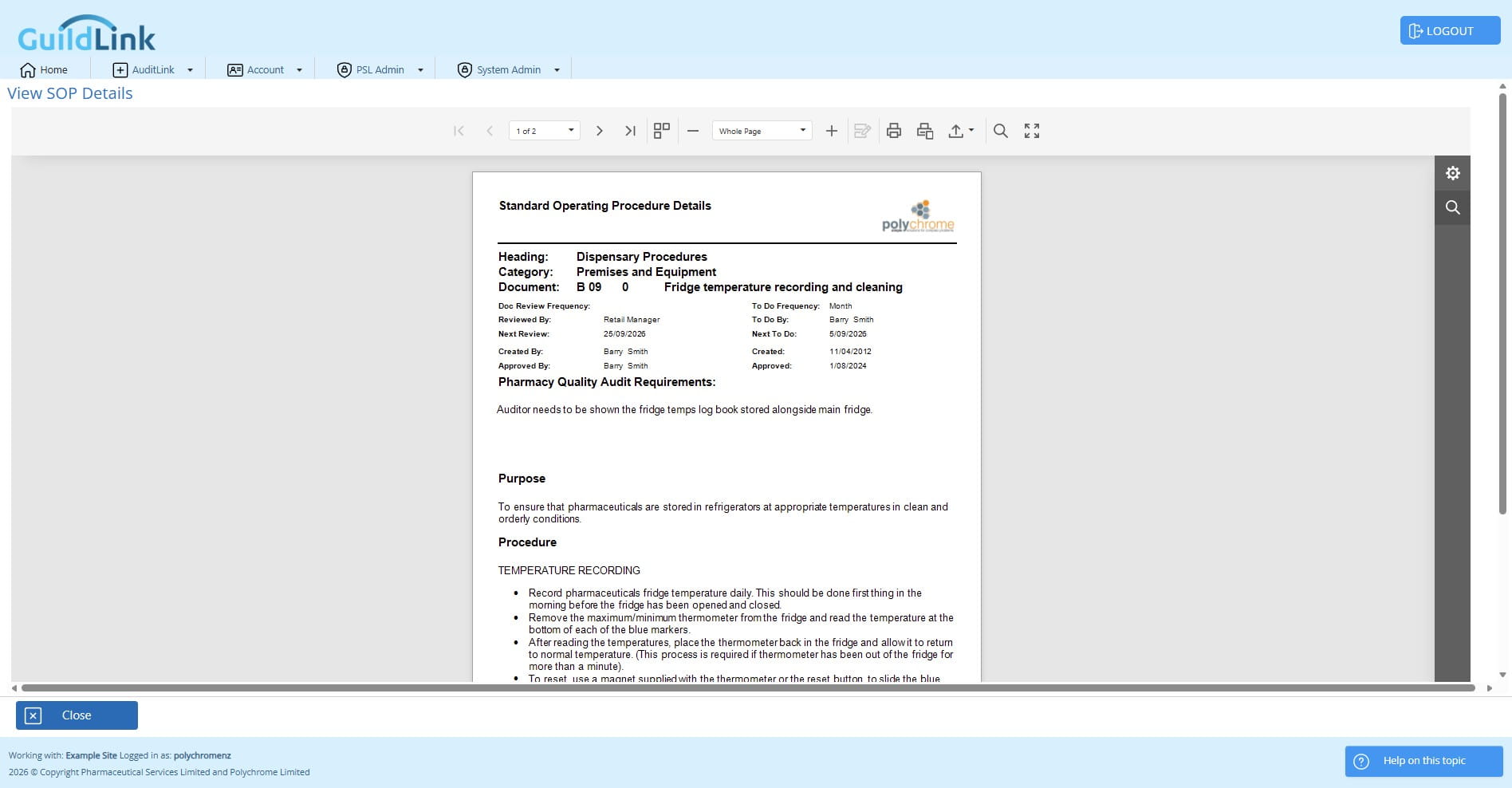
Now lets look at the same SOP when the pharmacy is not setup to use paper based staff review
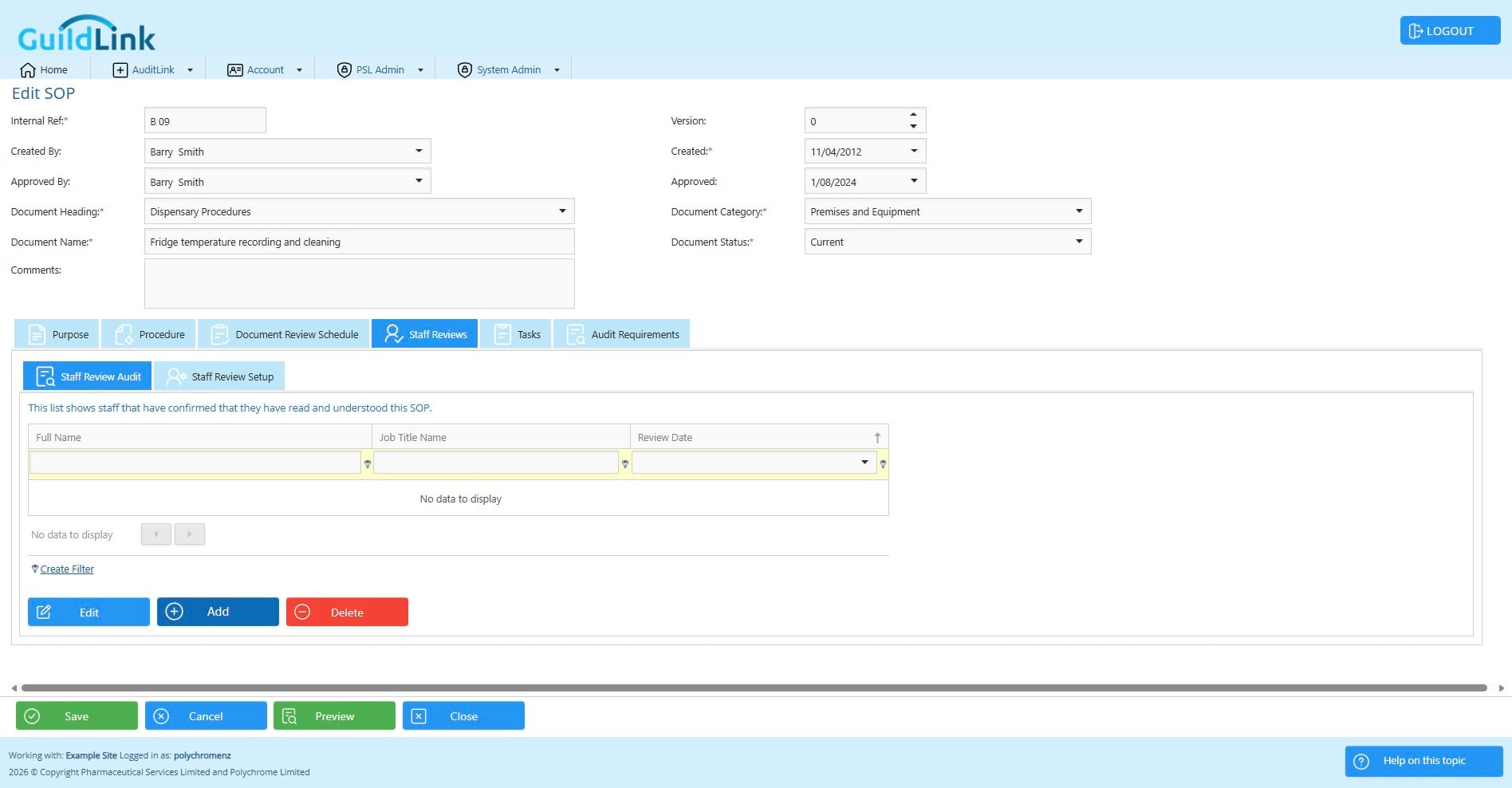
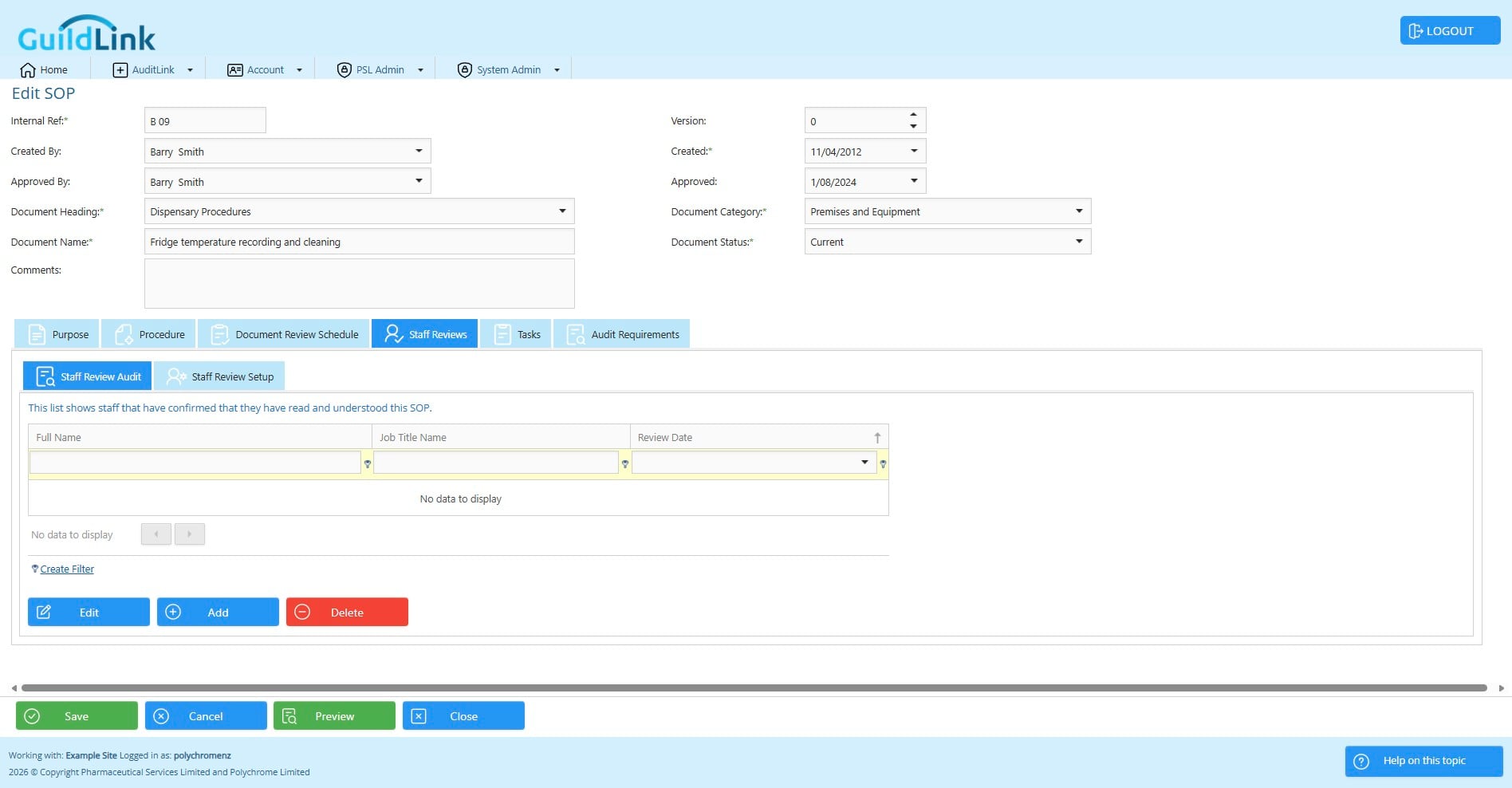
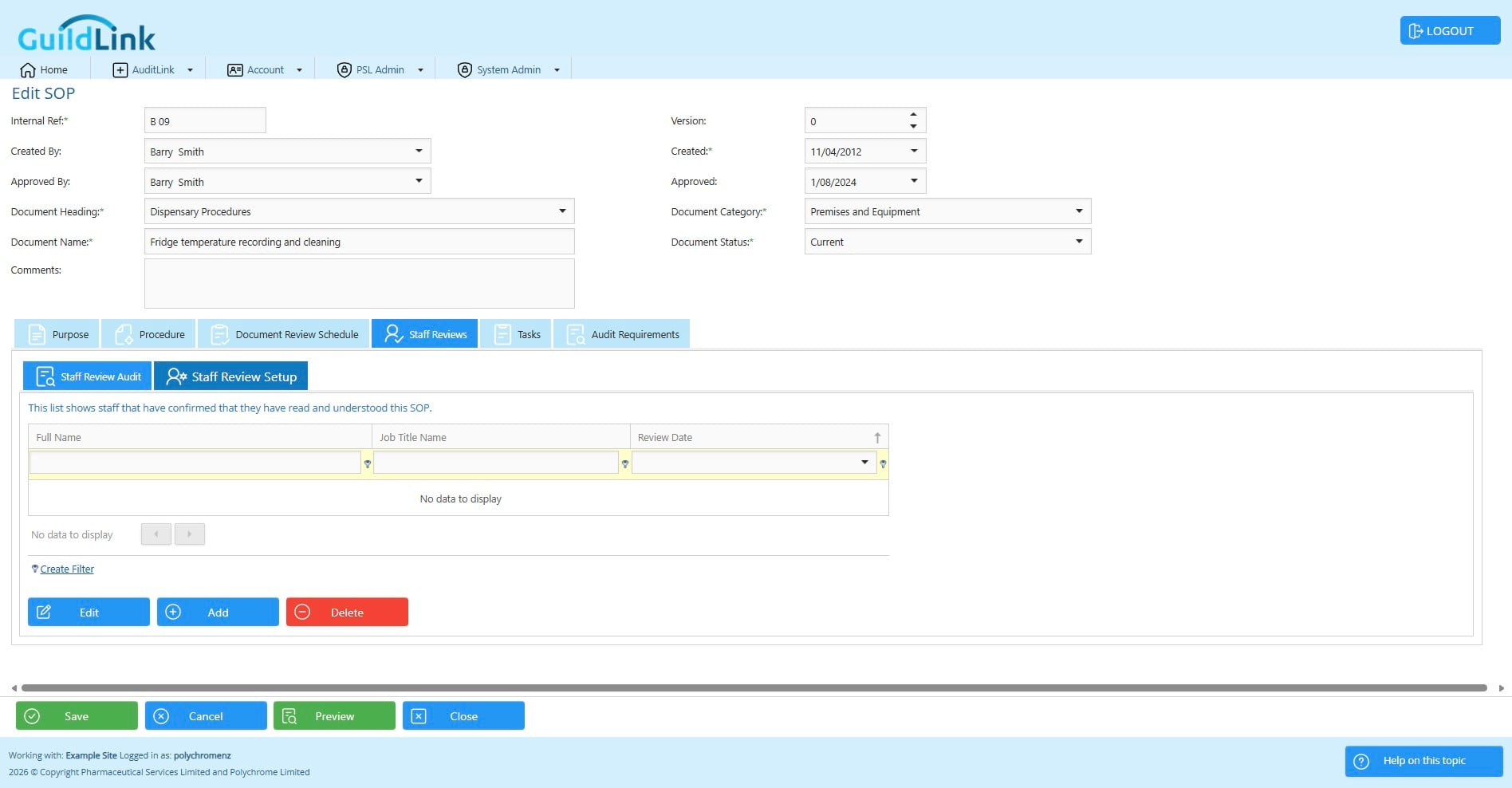
Click on "Staff Reviews" to see the audit log of staff who have confirmed that they have read and understood this SOP. This log can be included when printing the document.
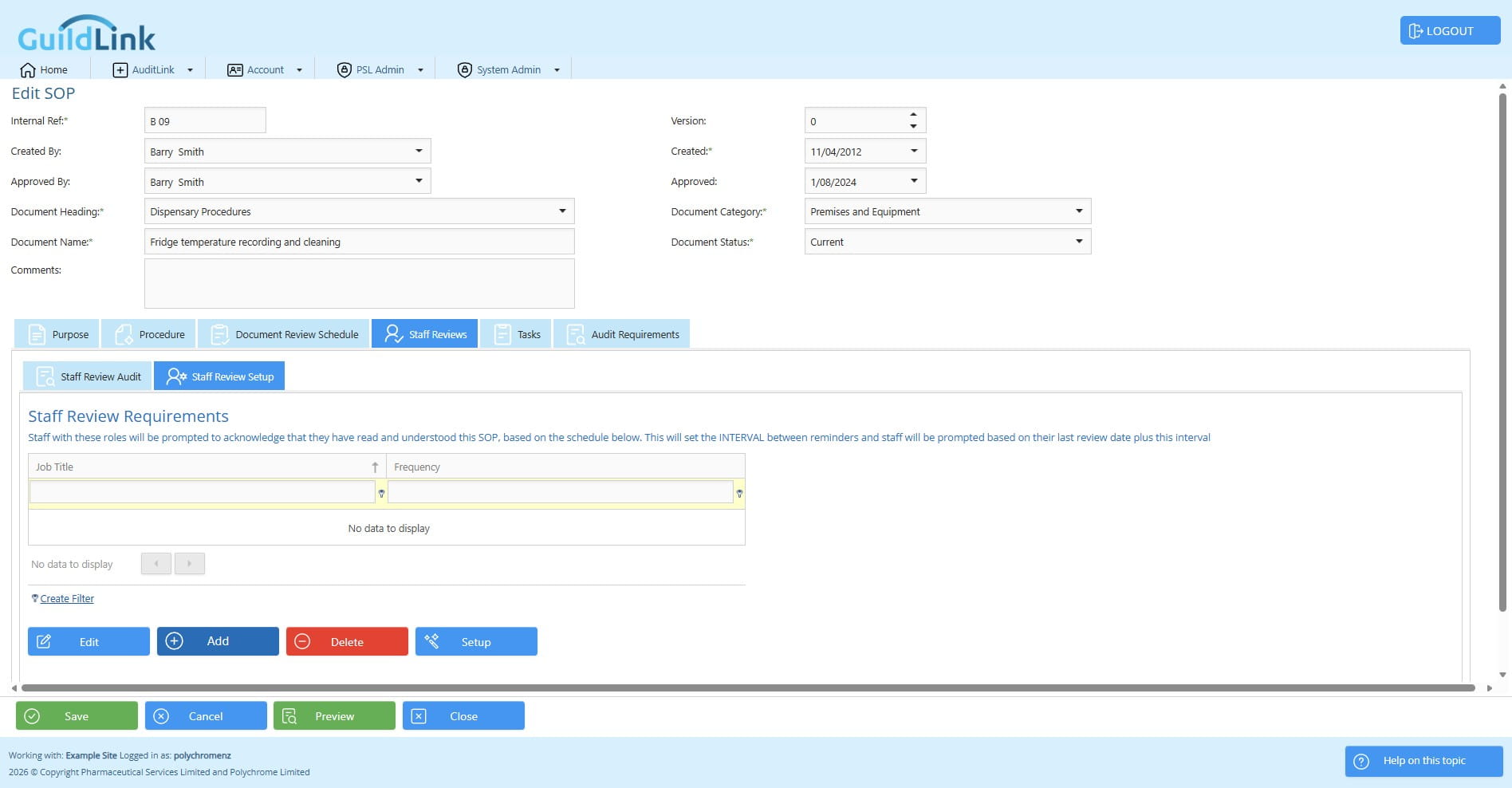
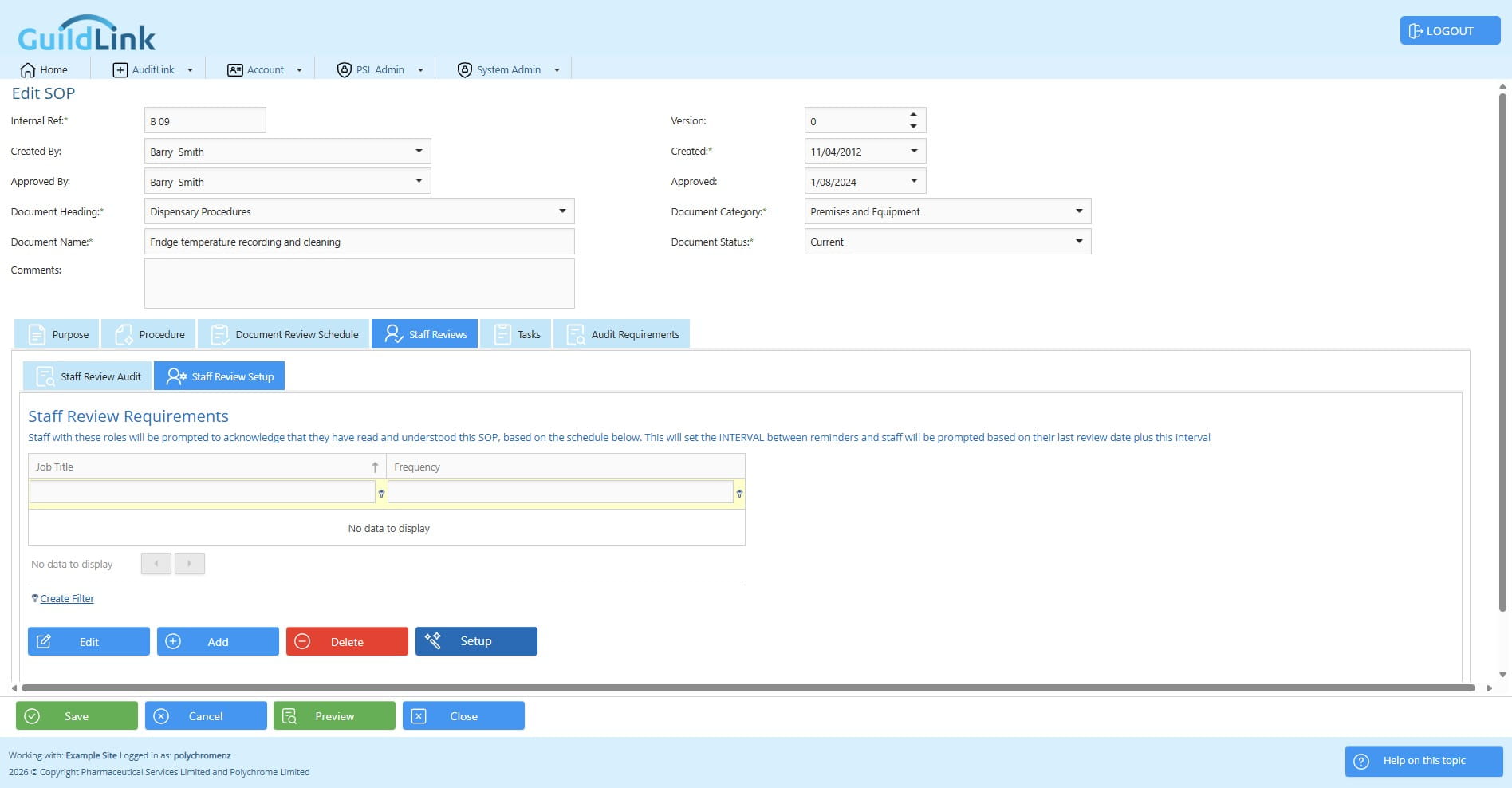
Click on "Staff Review Setup". this is where we set up which job titles will need to review this SOP
Click on "Add" to add these individually for each job title
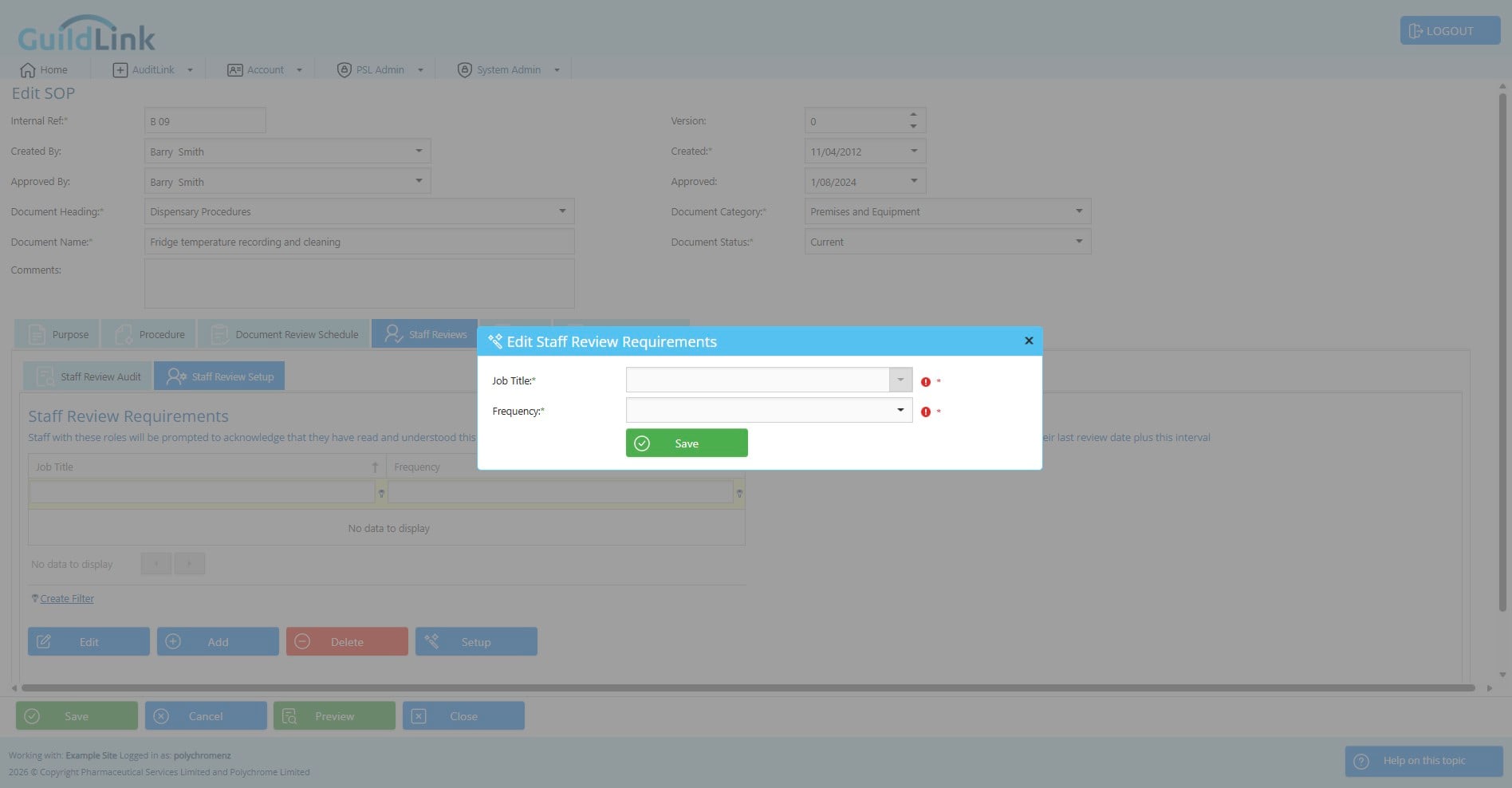
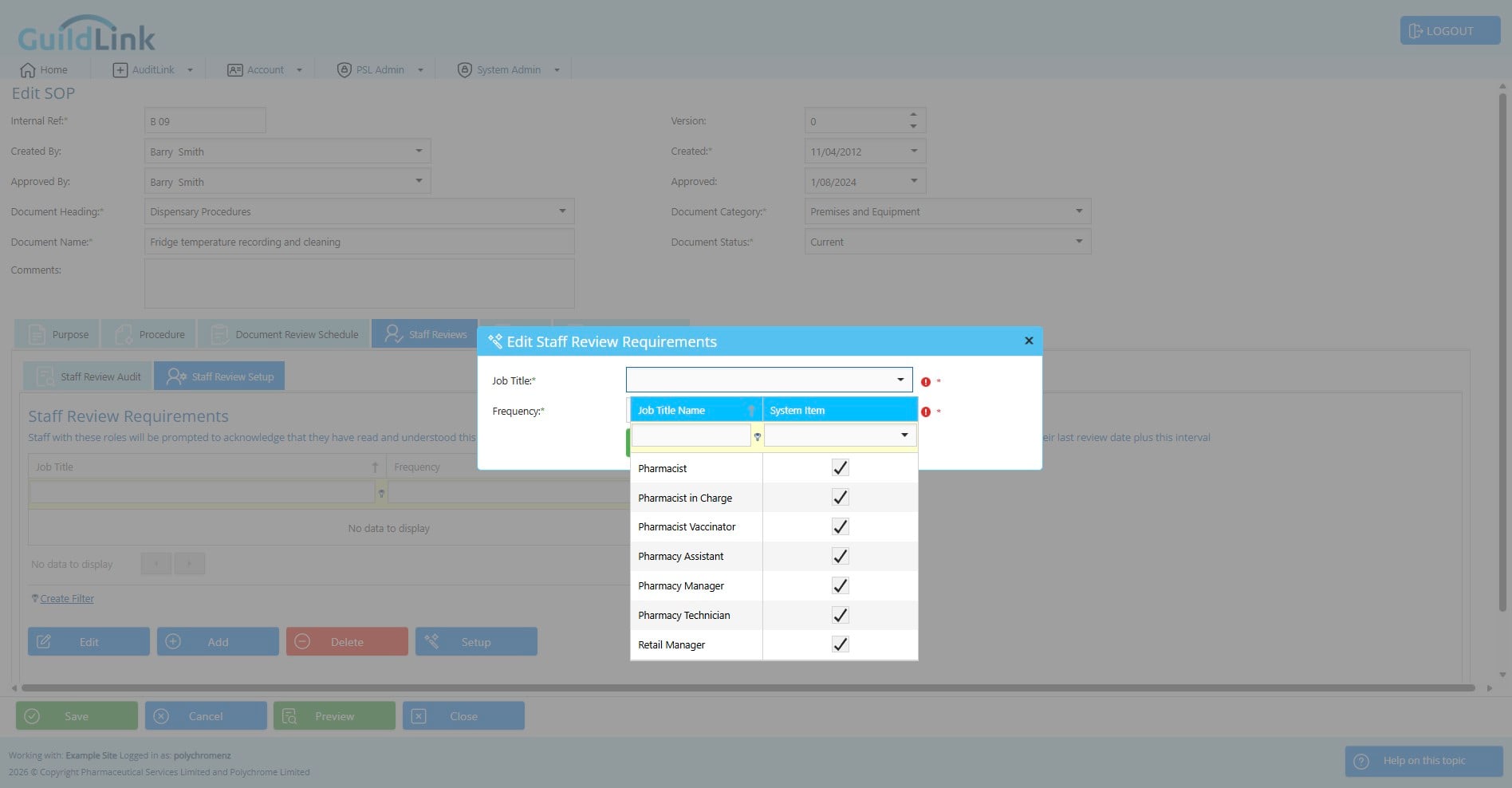
Choose a job title.
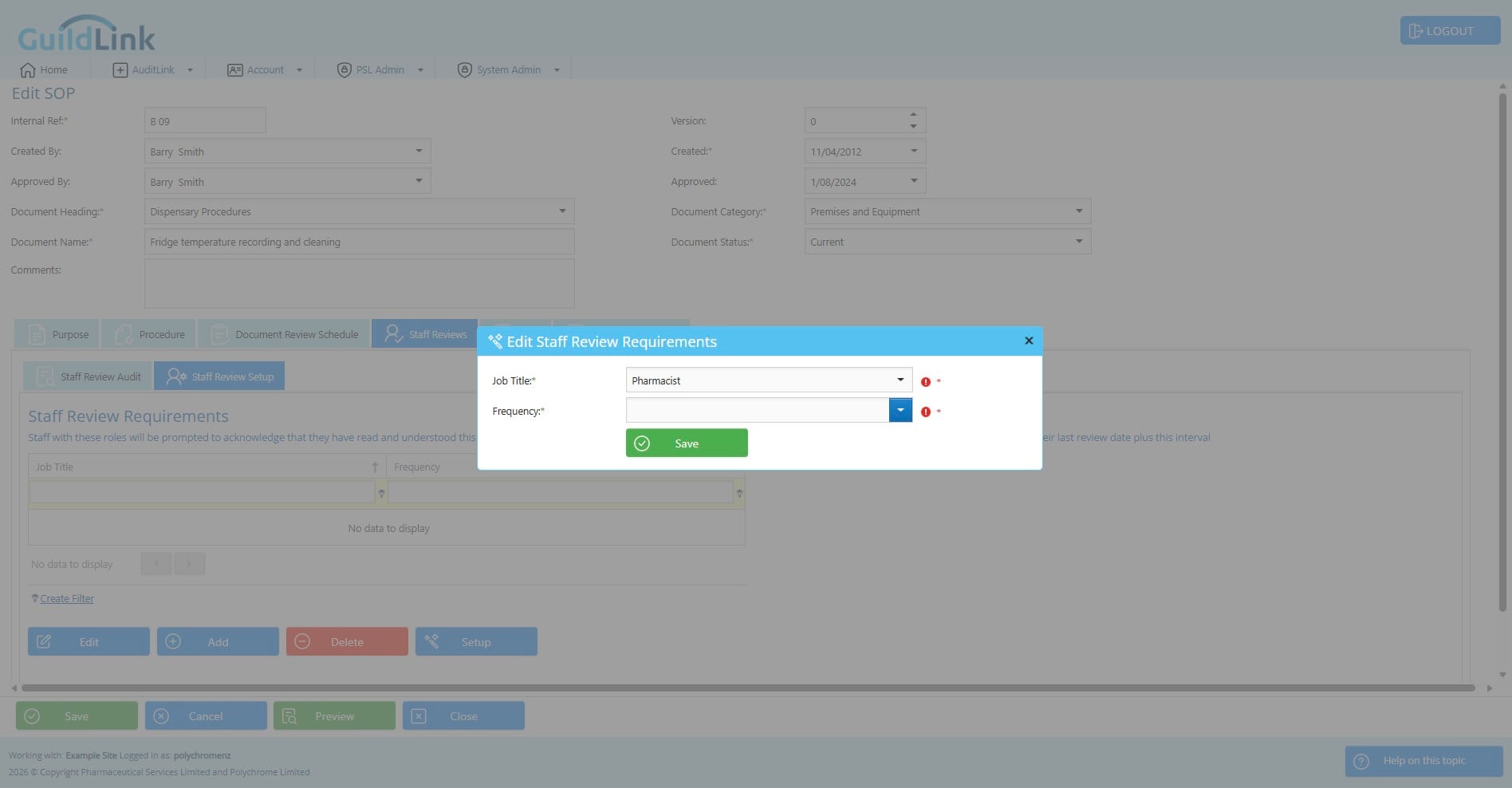
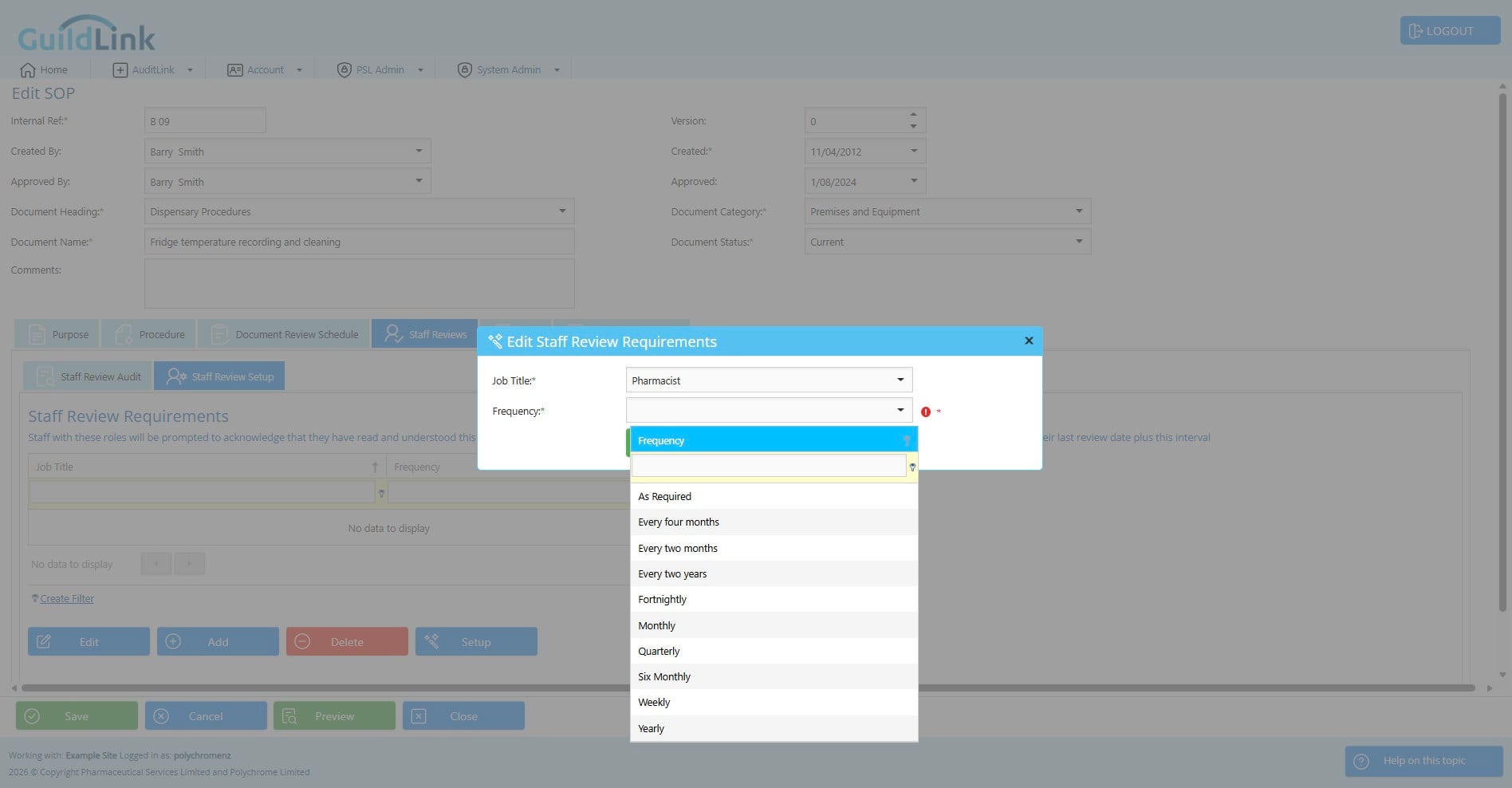
Choose an interval
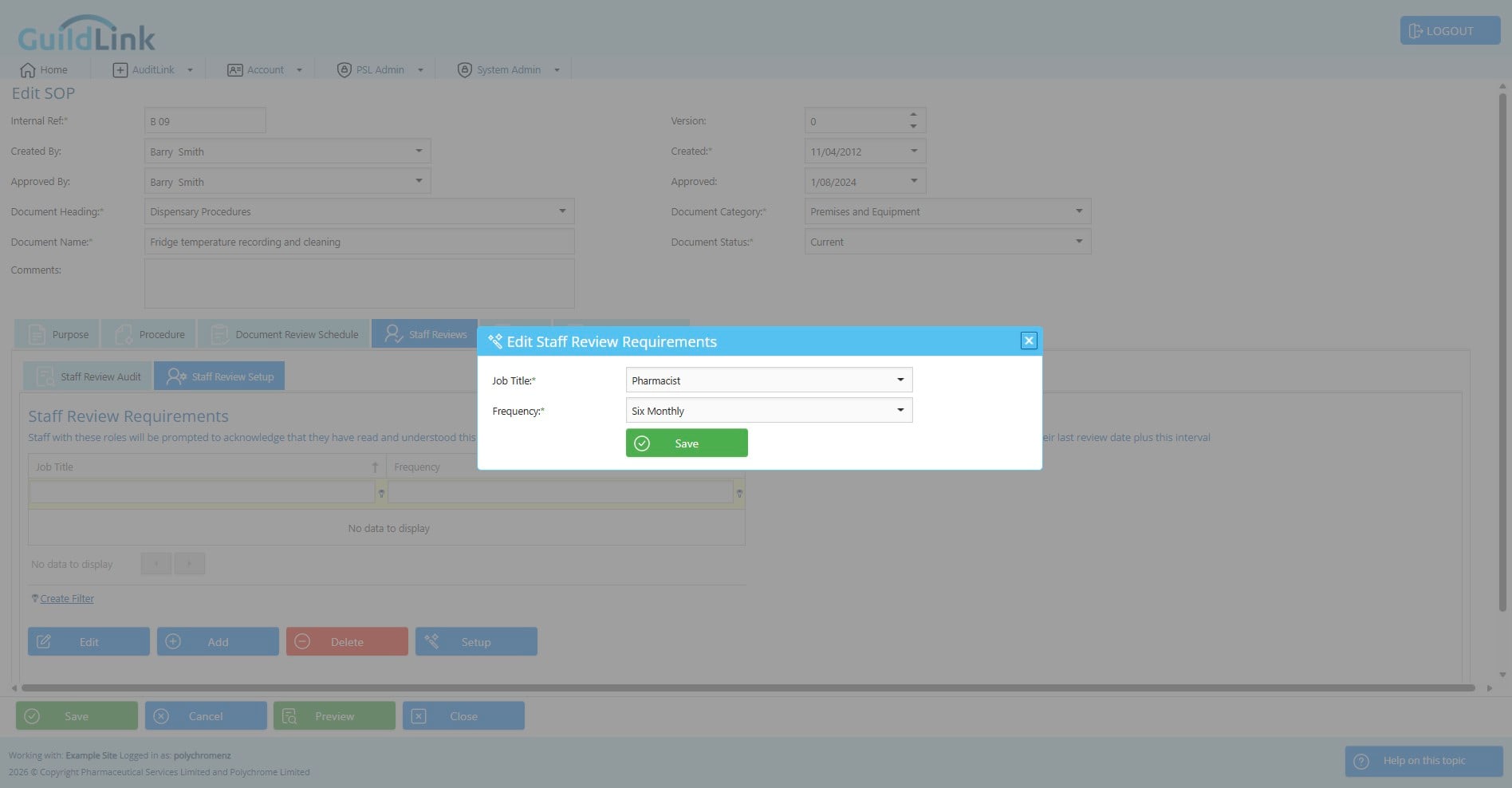
Click save when done
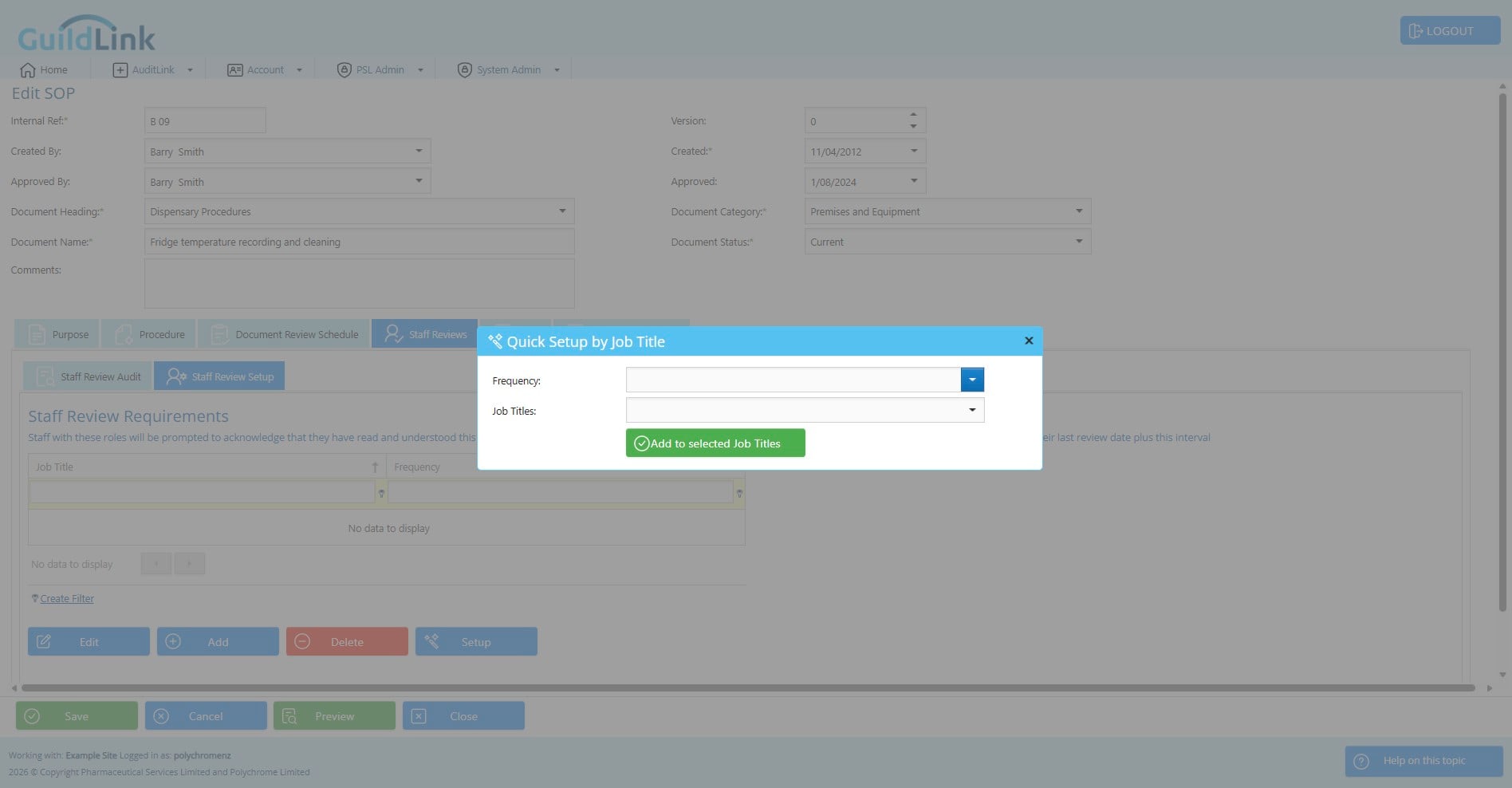
Alternatively, you can use the setup wizard to set them up in one pass if the interval is the same for all roles that will review this SOP.
Choose a frequency - this is the same for everyone in this tool
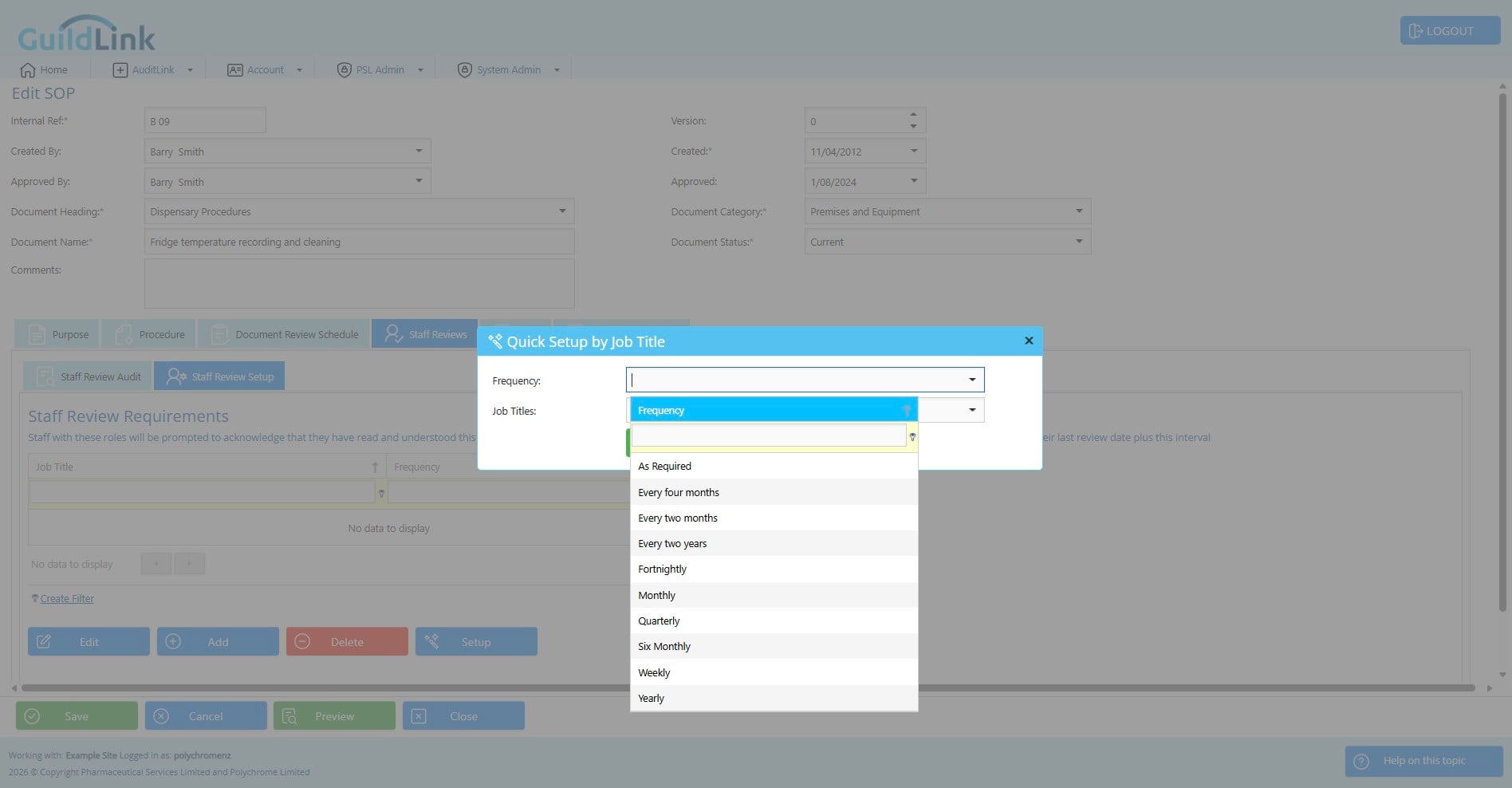
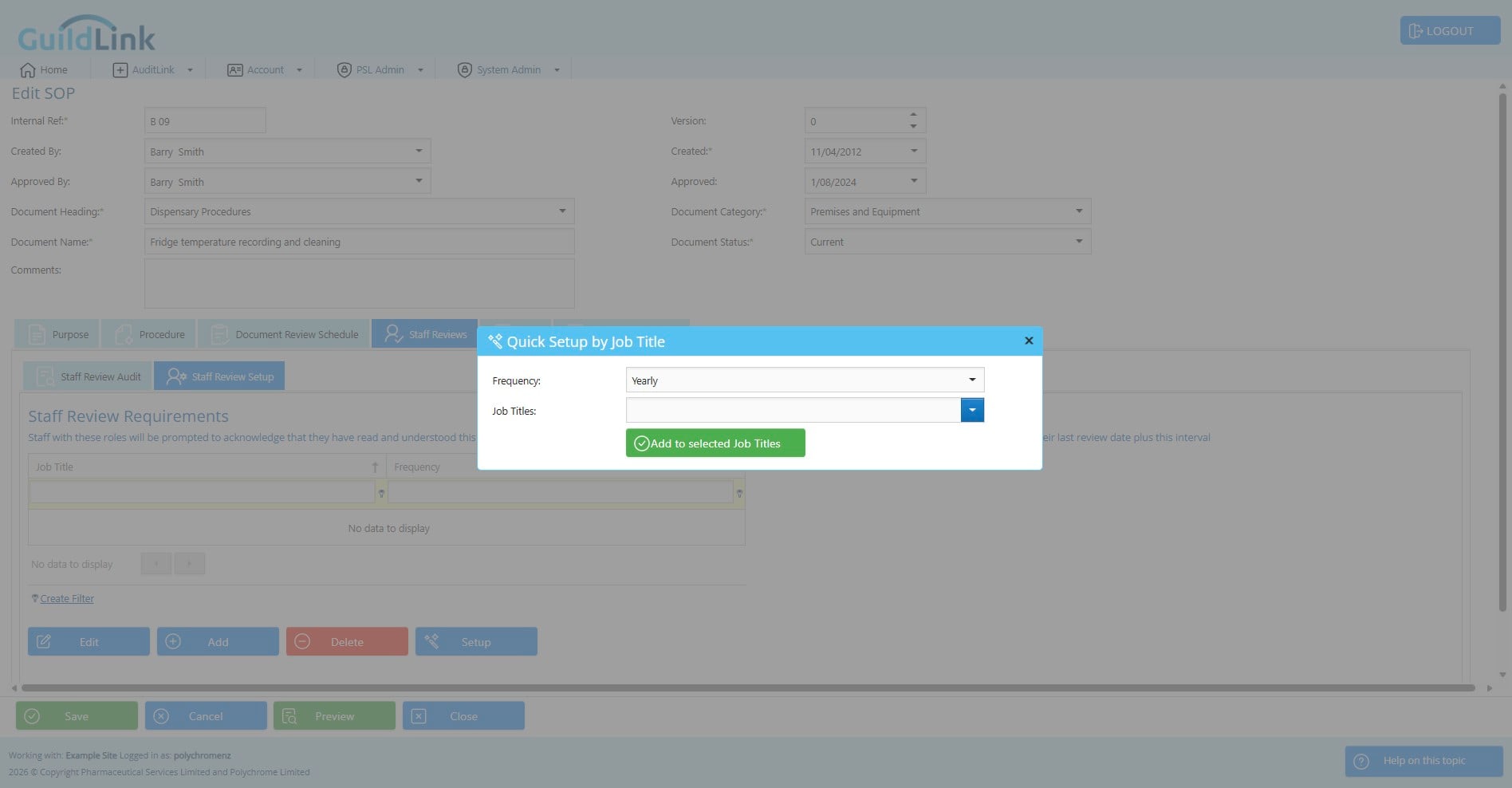
Choose which roles need to review this SOP. Not all staff will review every SOP as they vary based on their role.
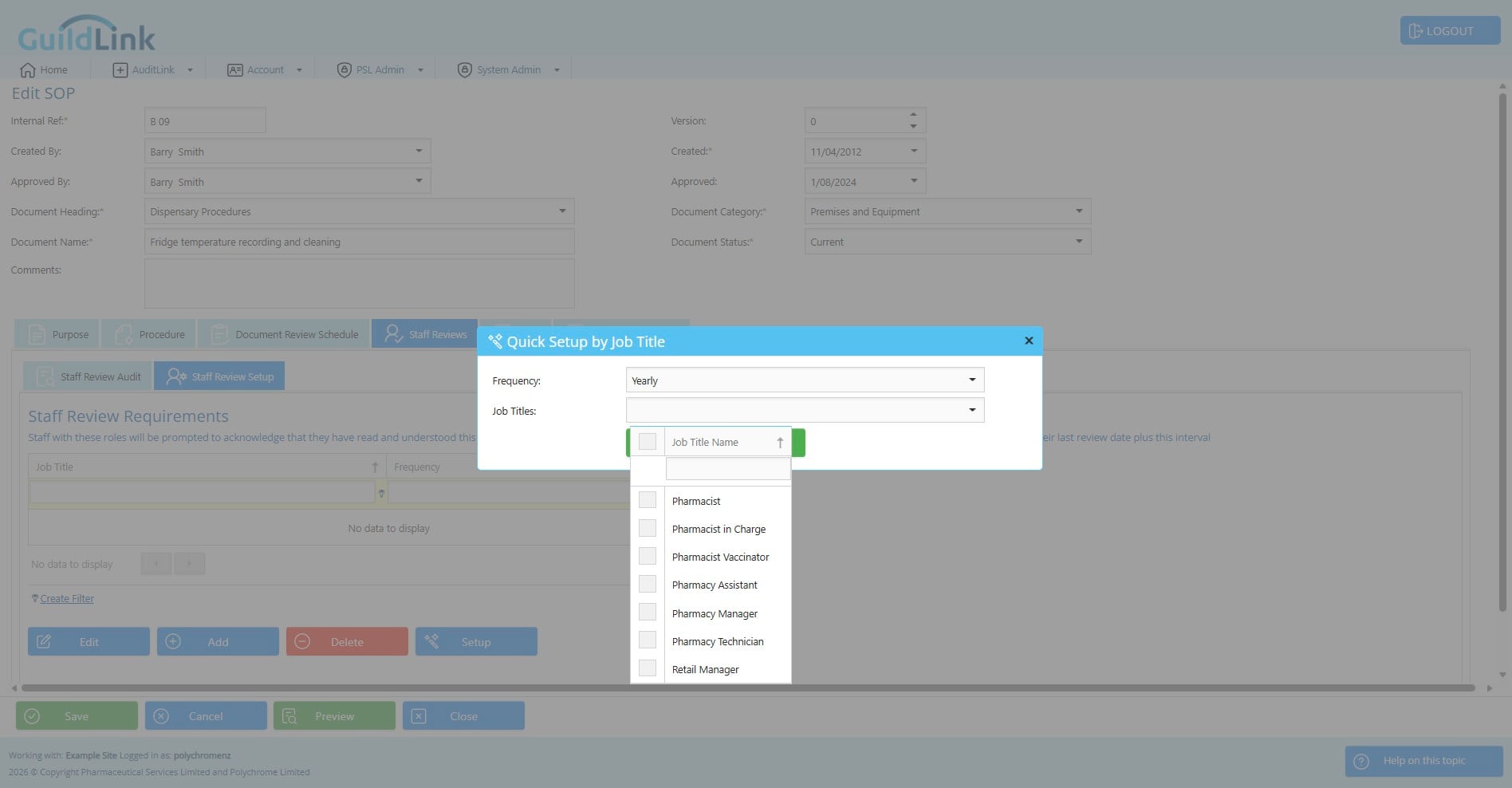
Click here to choose all if everyone must review this SOP
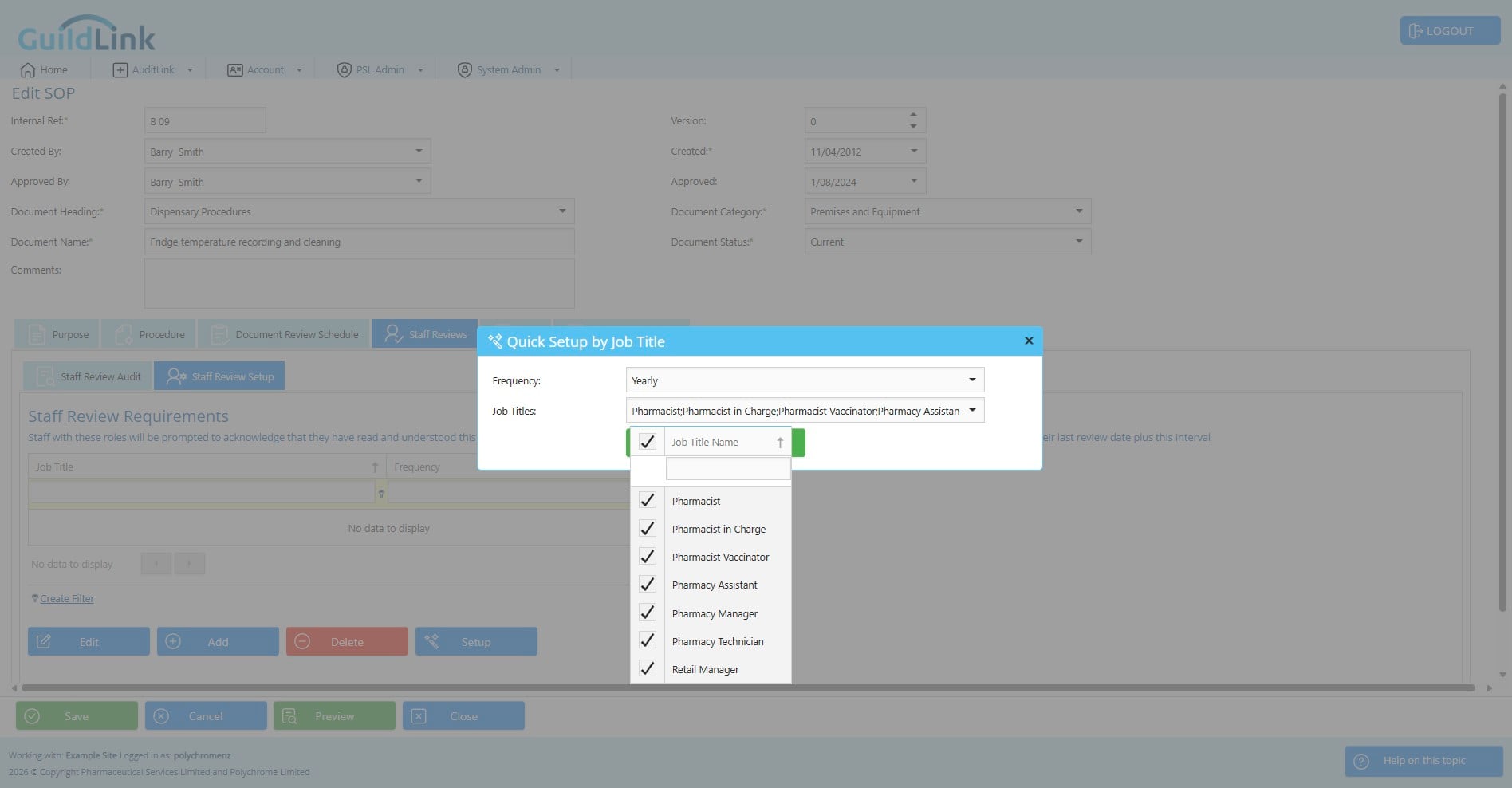
Or tick one or more roles
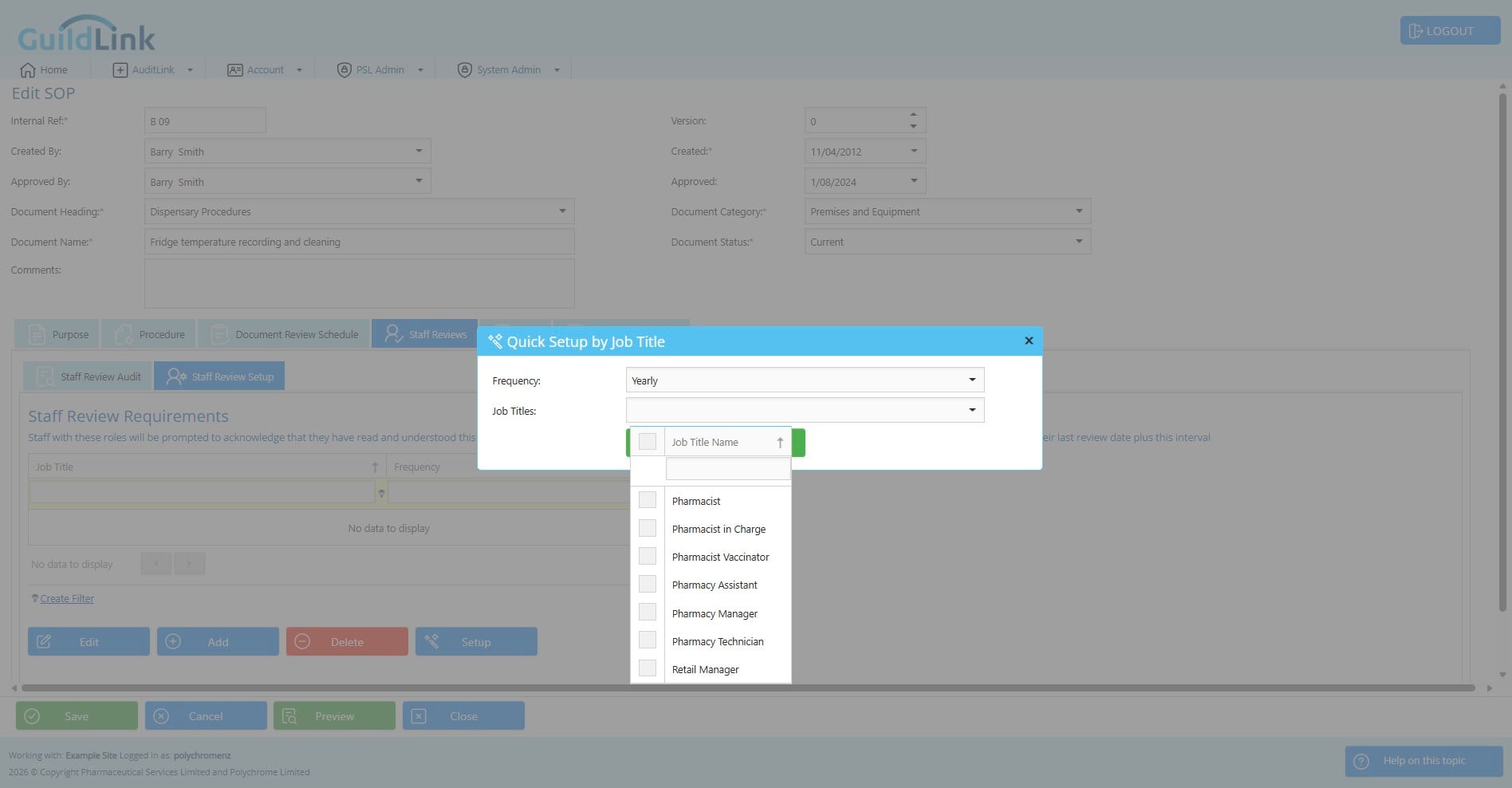
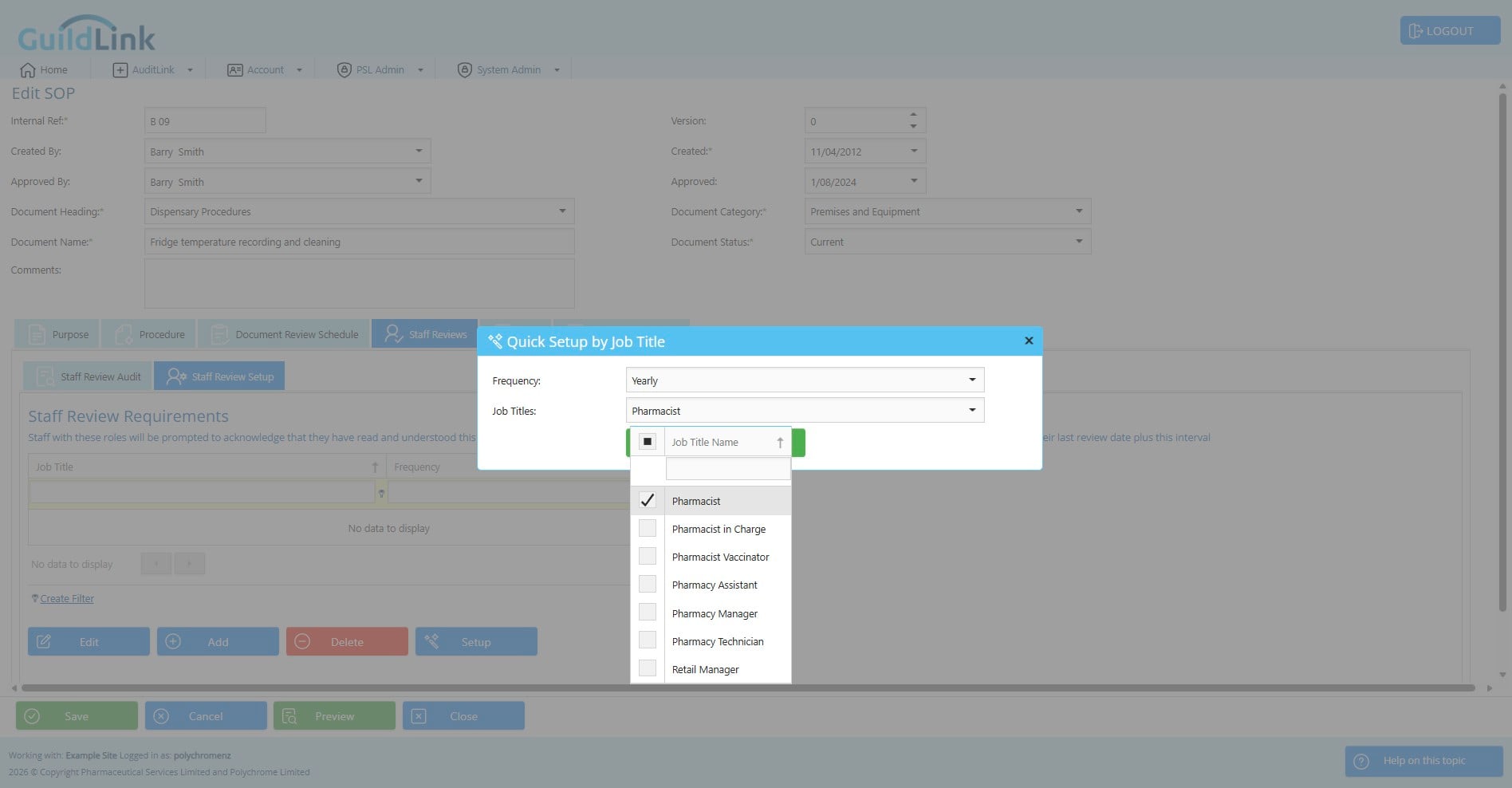
Click here
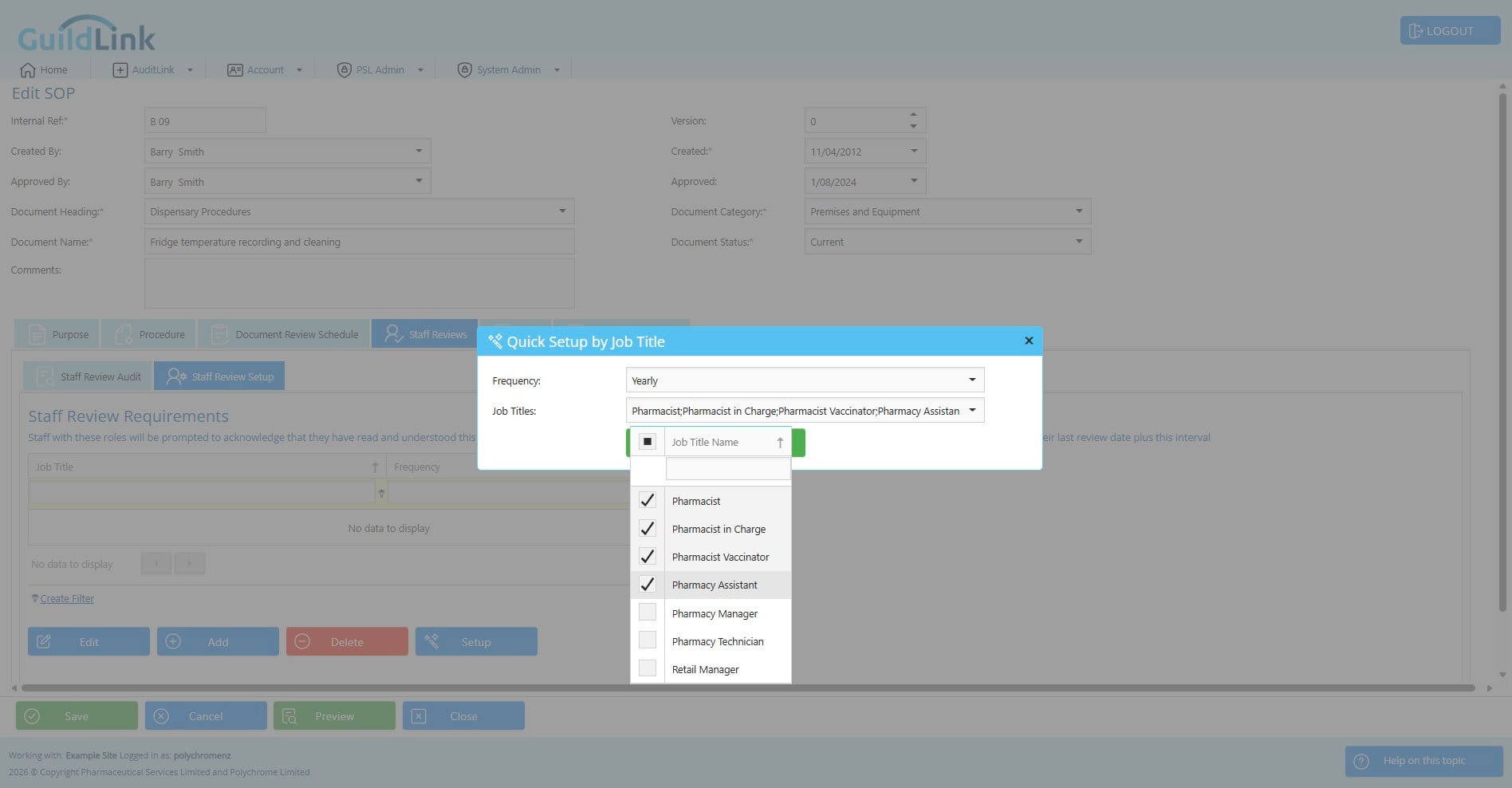
Click here
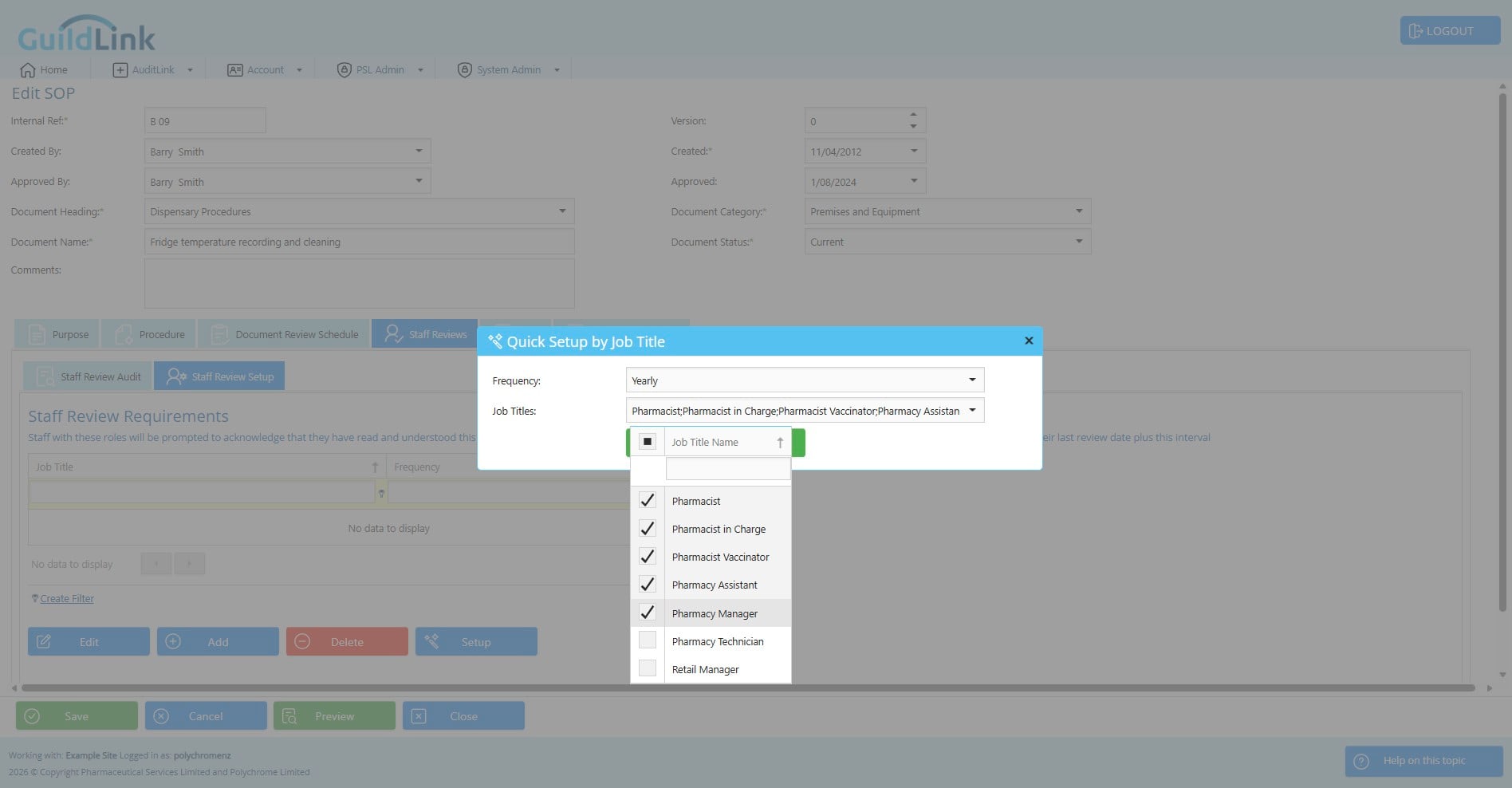
Click on "Add to selected Job Titles"
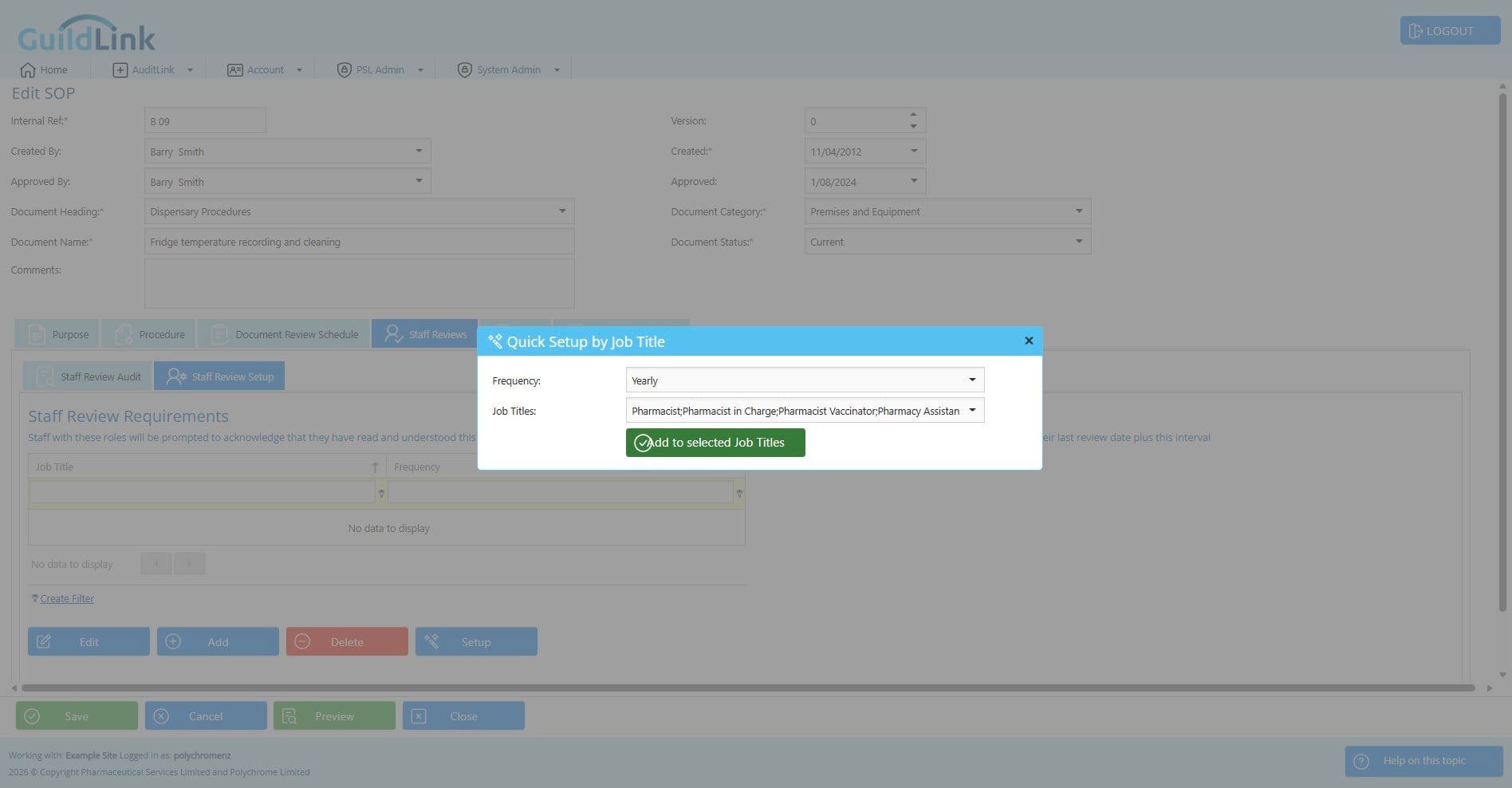
The wizard runs and the review requirements are made
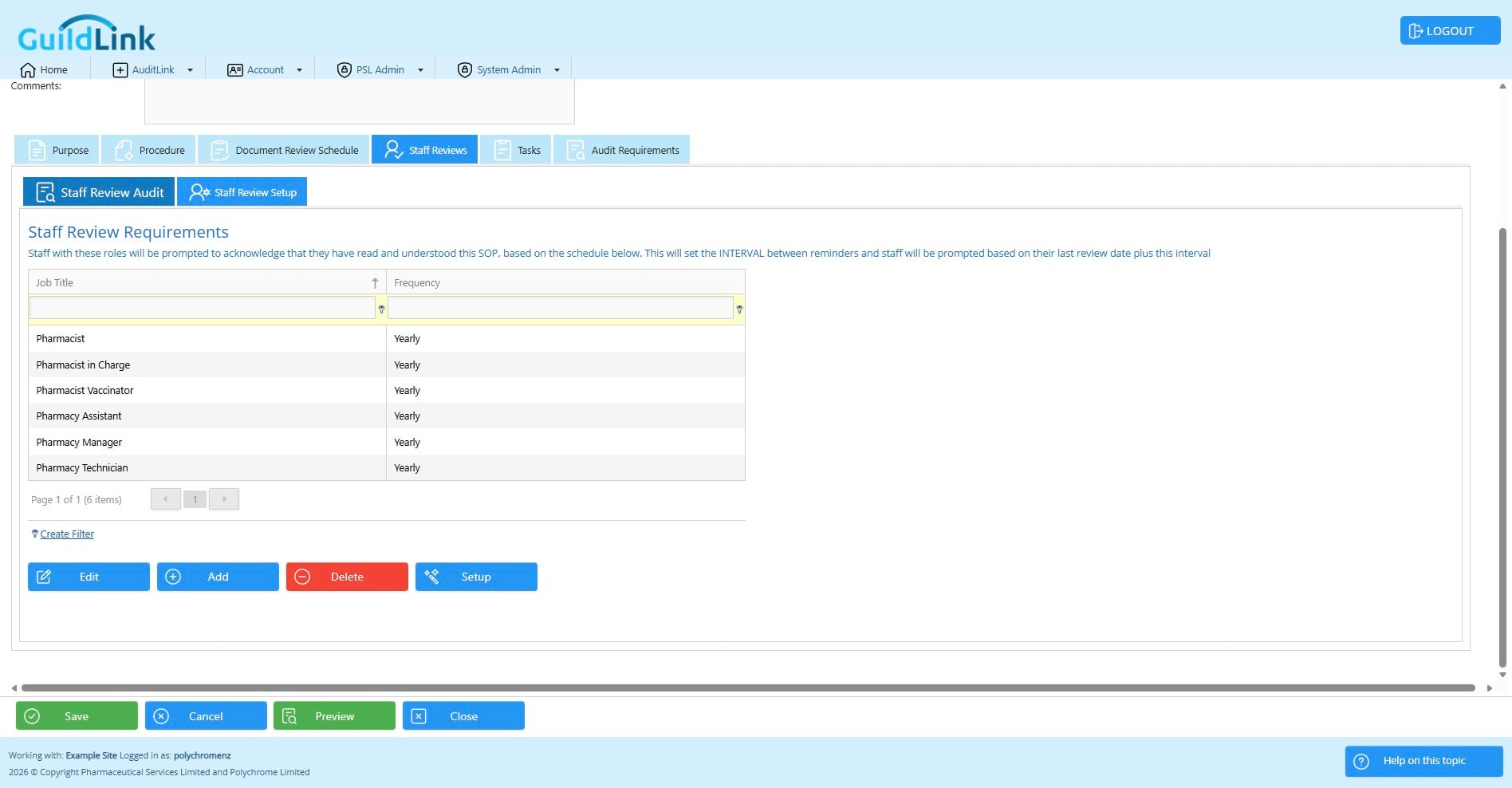
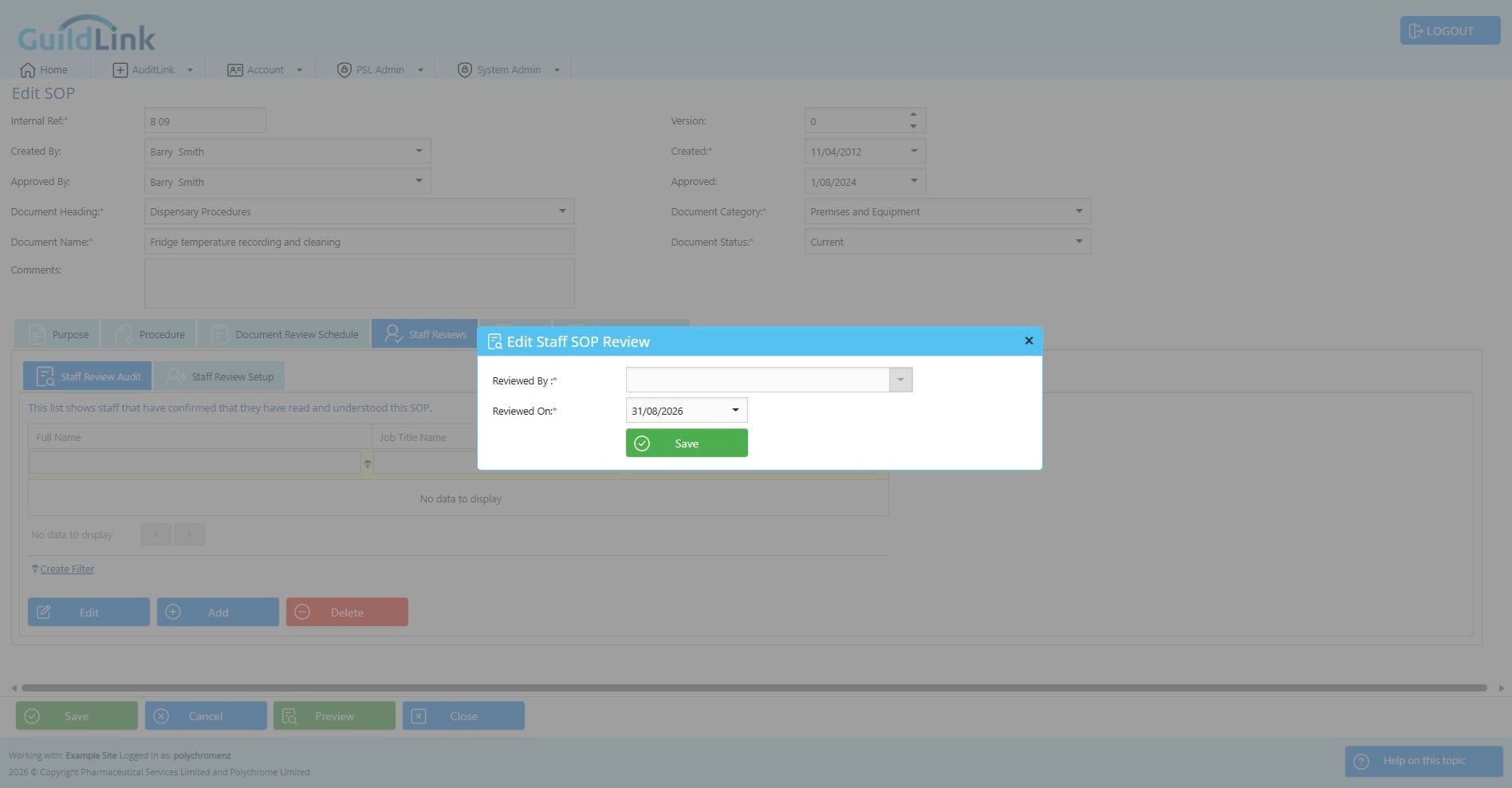
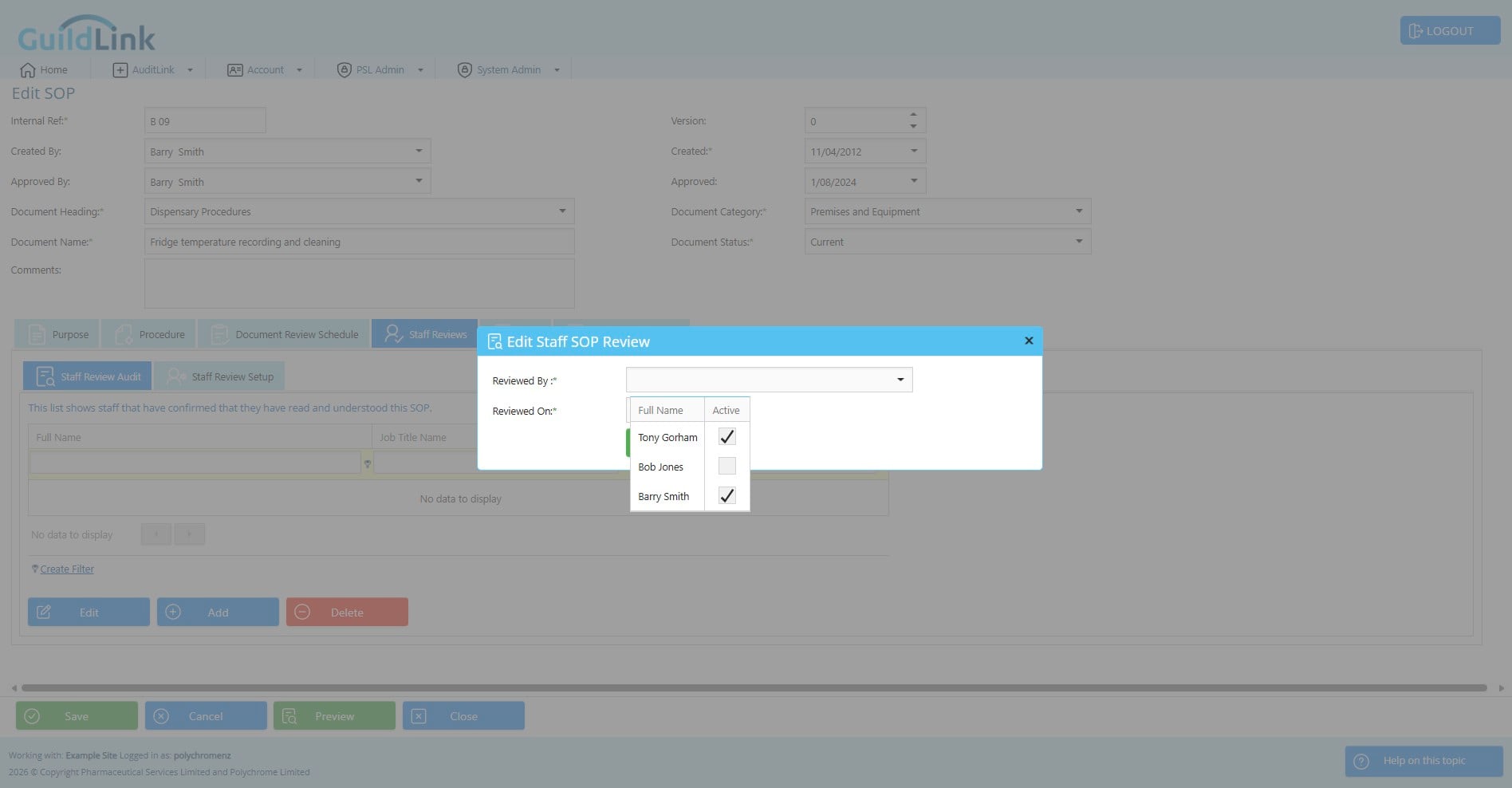
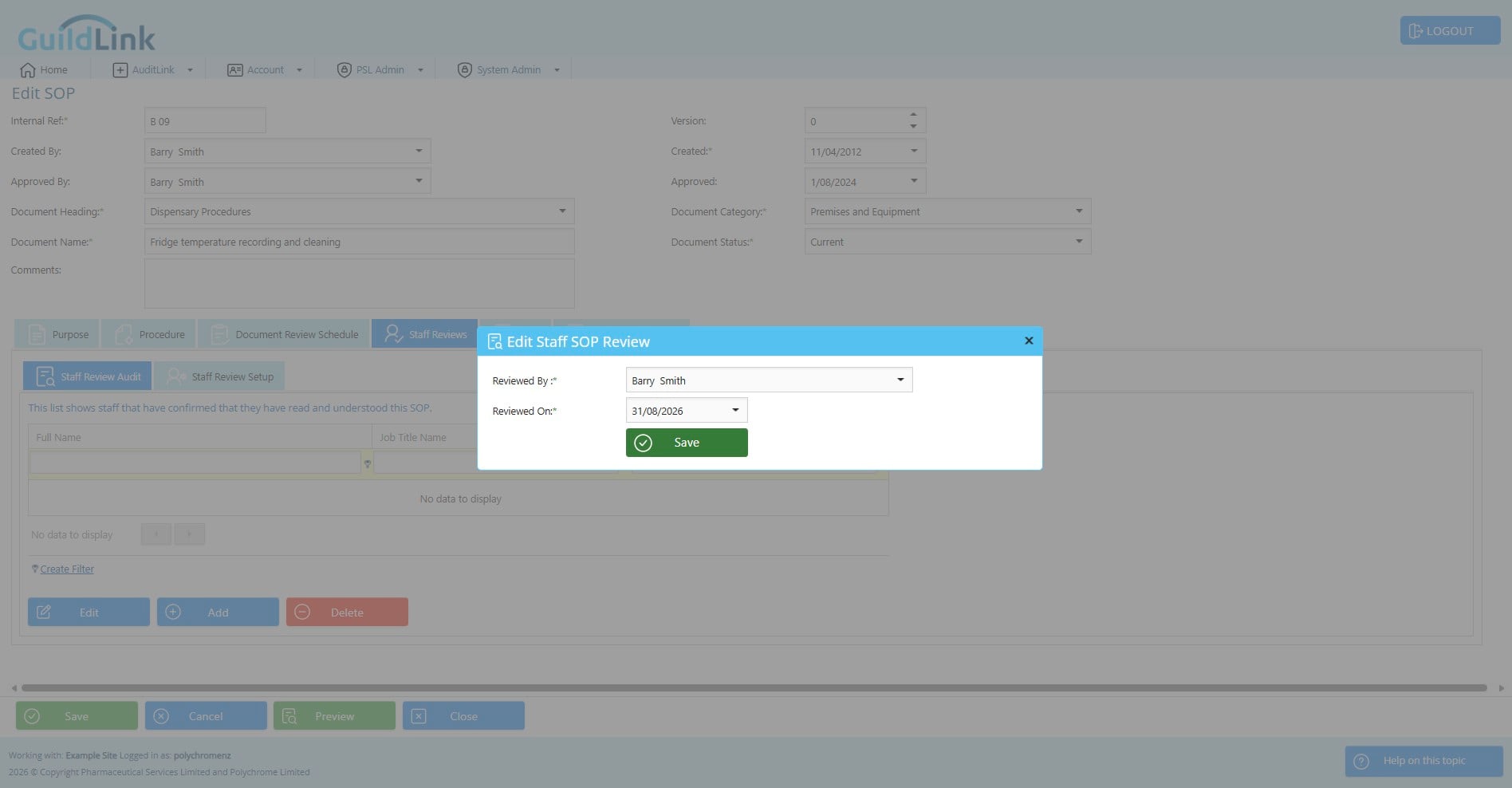
Usually, staff will click on a list of SOP they need to review and work their way through them, reading and then confirming them. However, not all staff will have a GuildLink login (there are no limits so it's recommended that they so - we have a special user type who can only review SOPs). If you need to manually record a staff review, just click add here and enter the details.