ECE383 - Microblaze ICE 1 Part 1
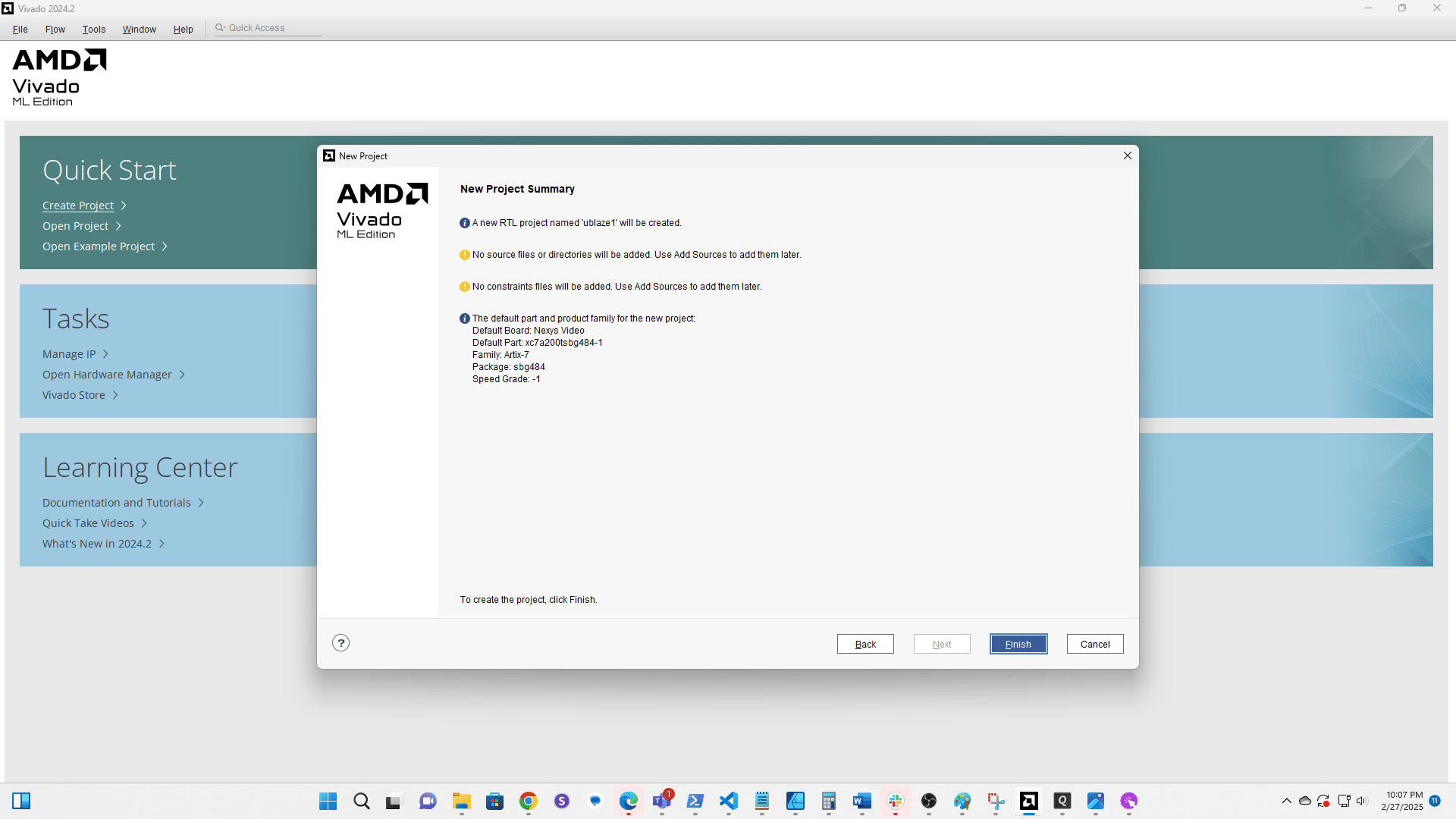
Create a New Project
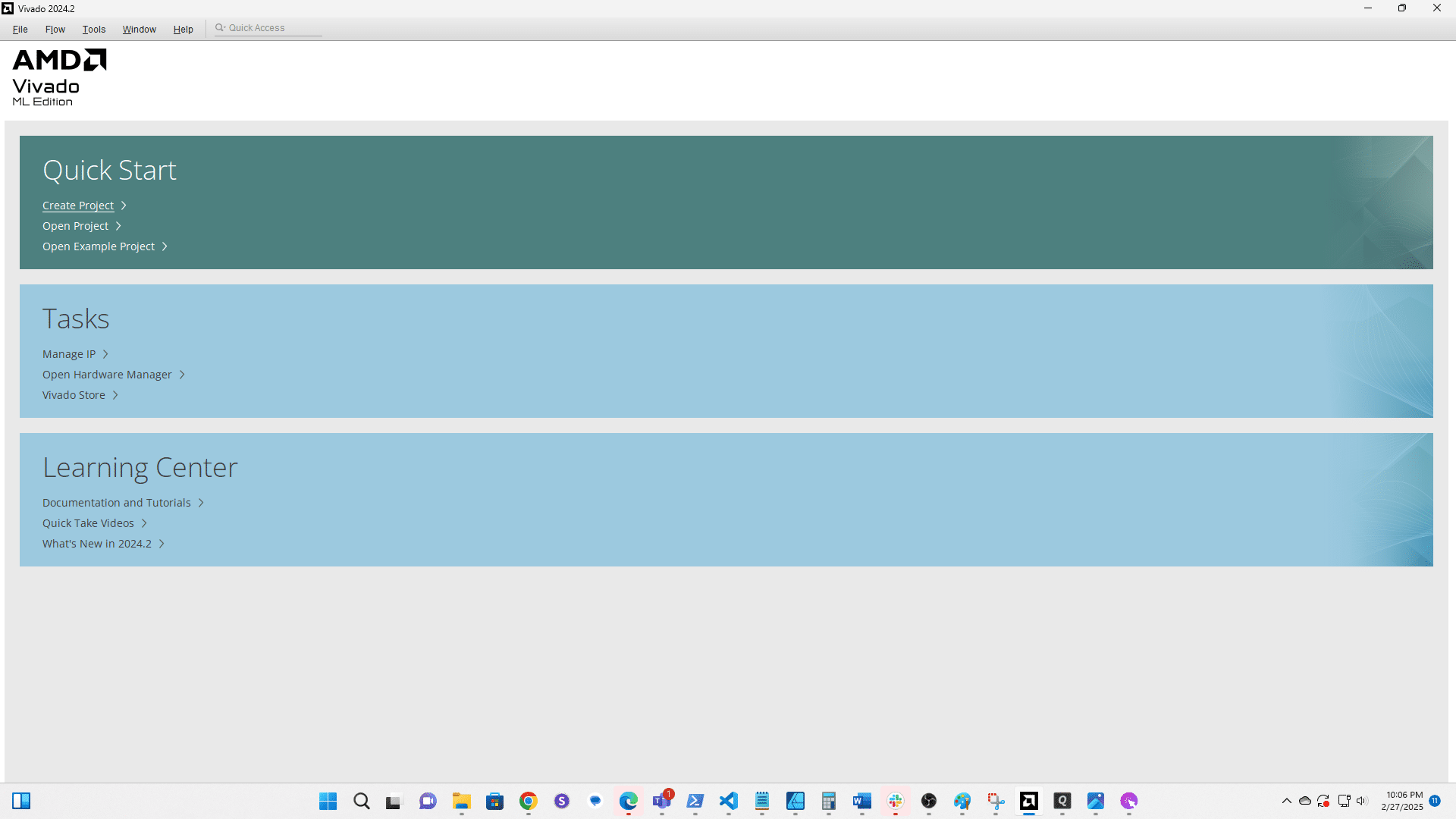
Click here
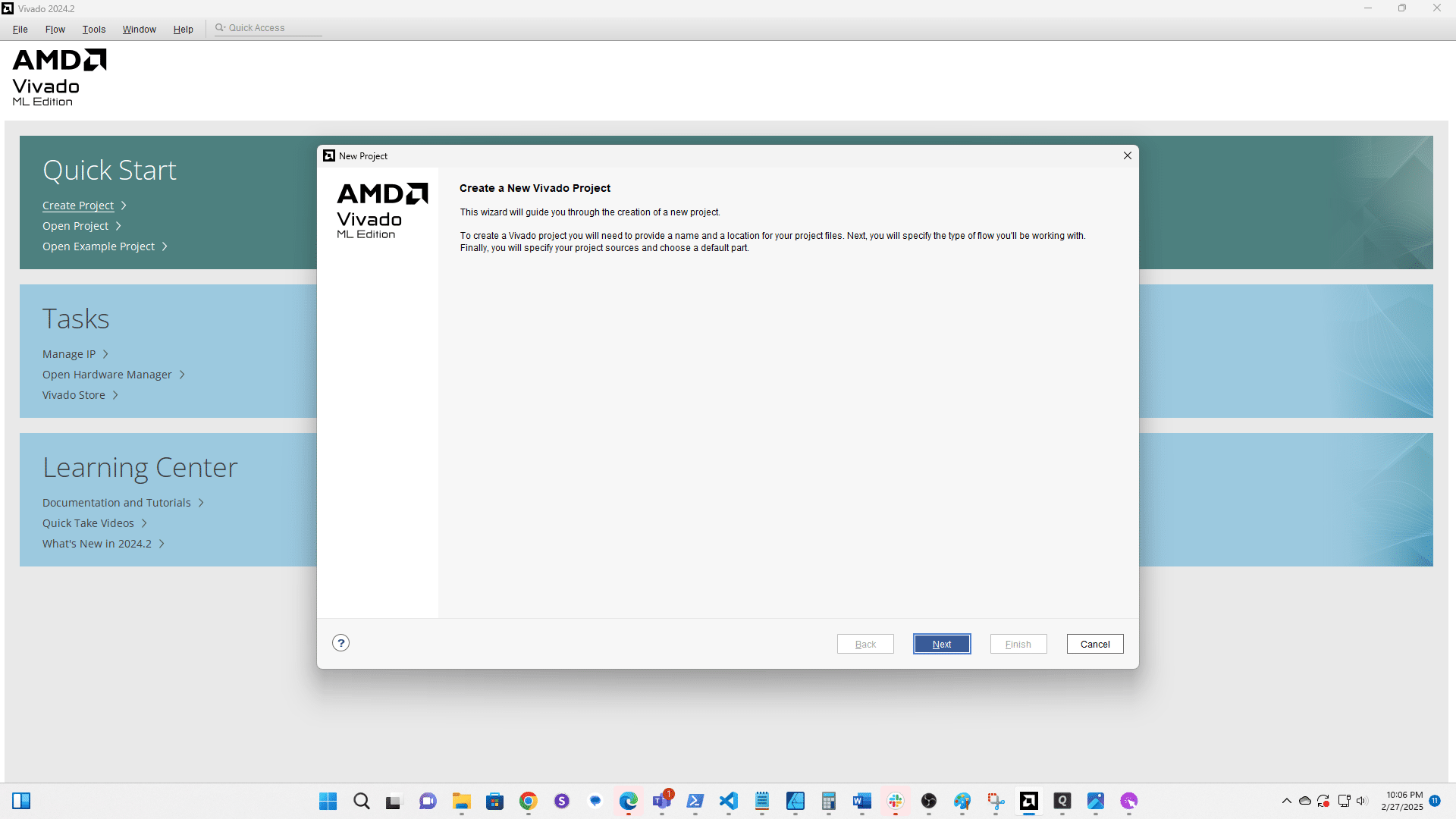
Rename your project.
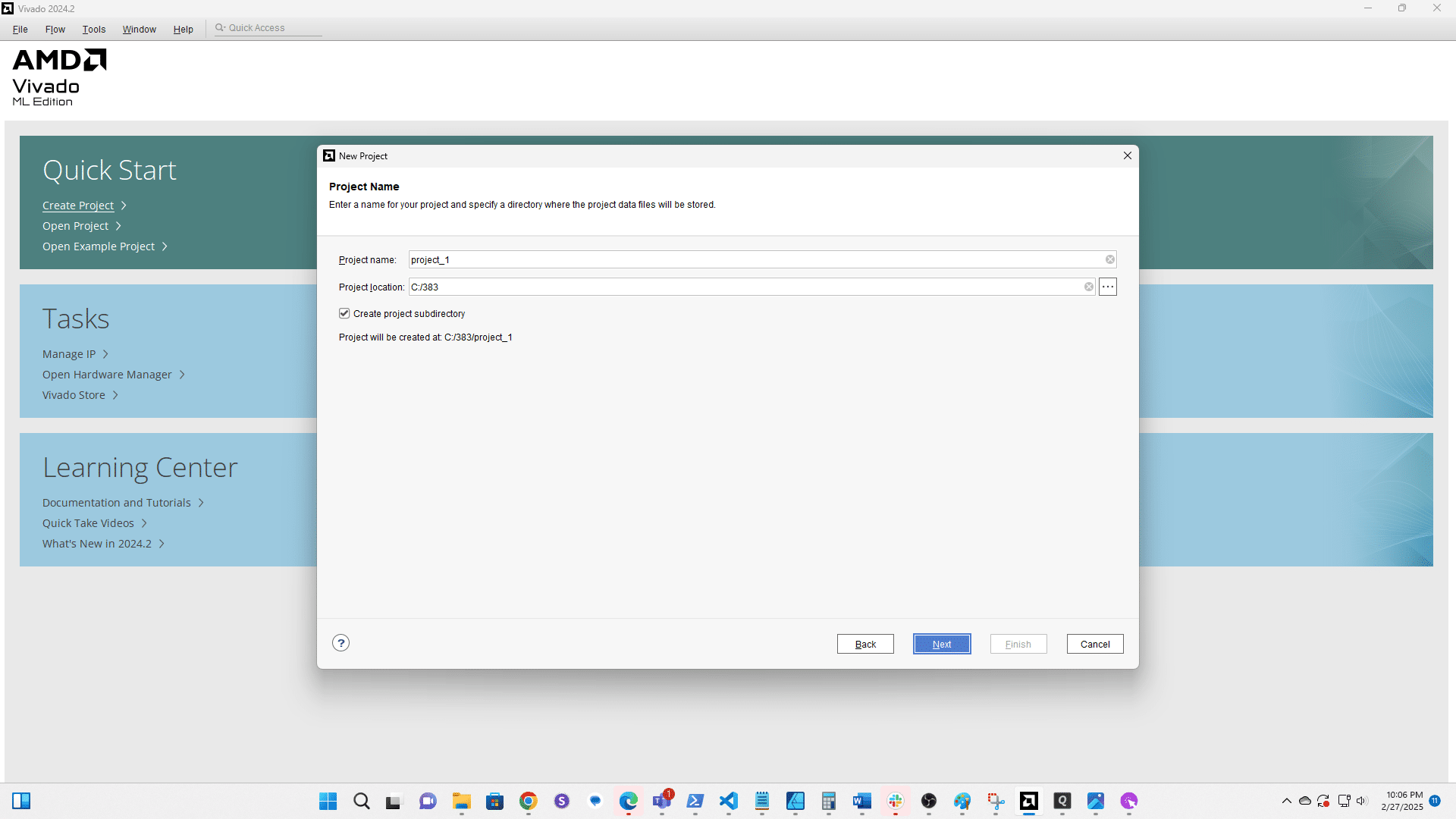
Click here
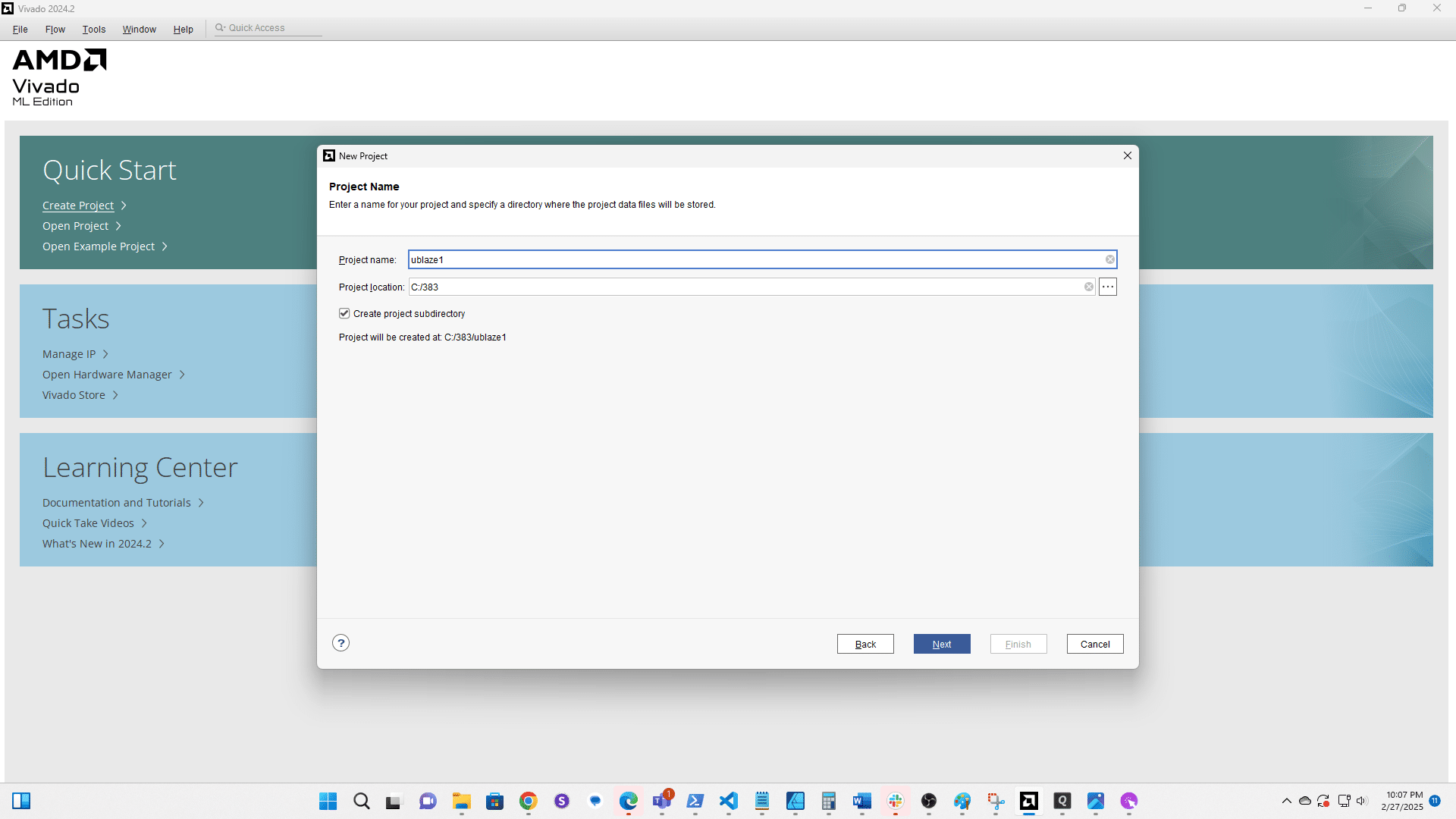
Click here
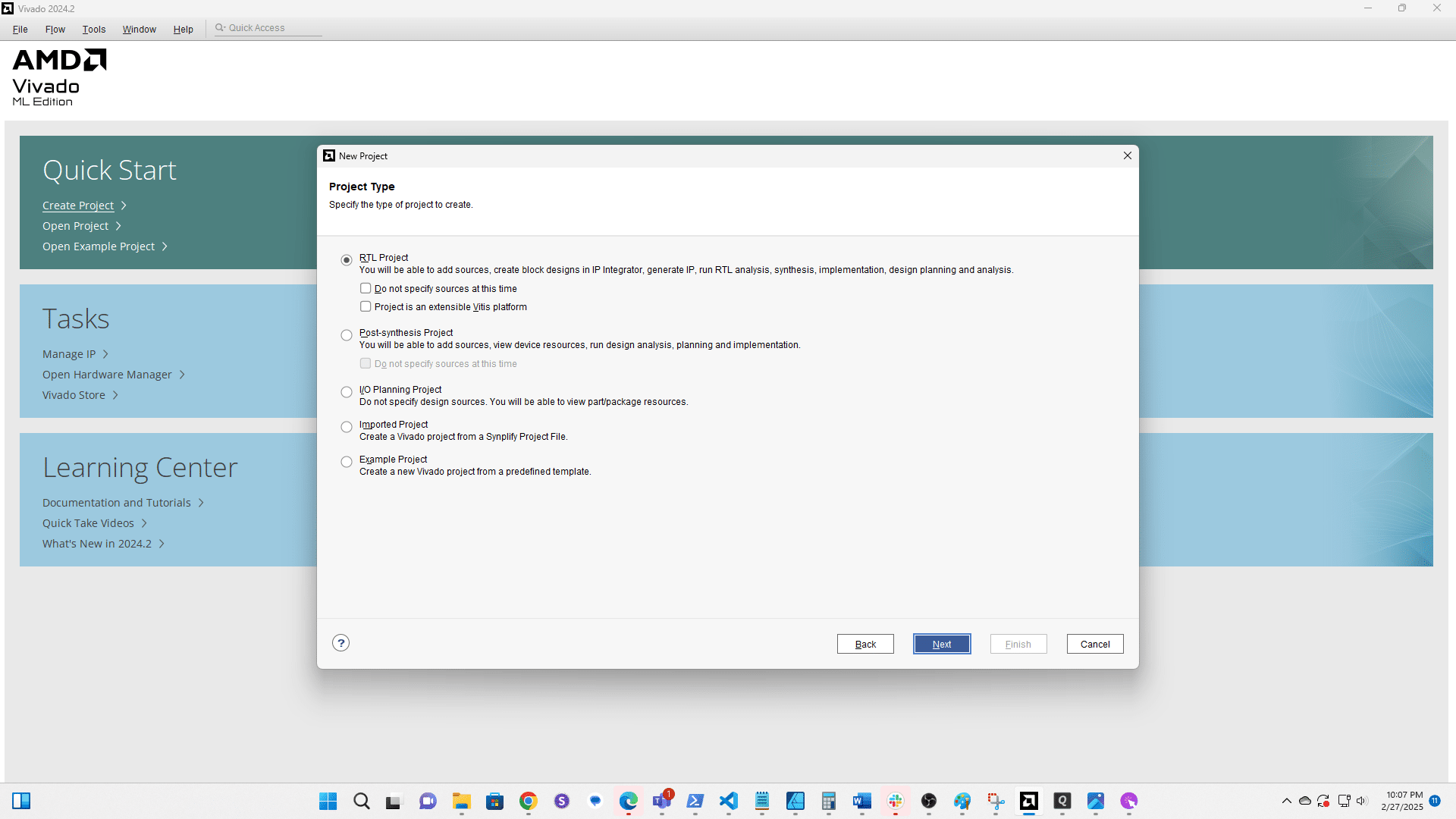
Click here
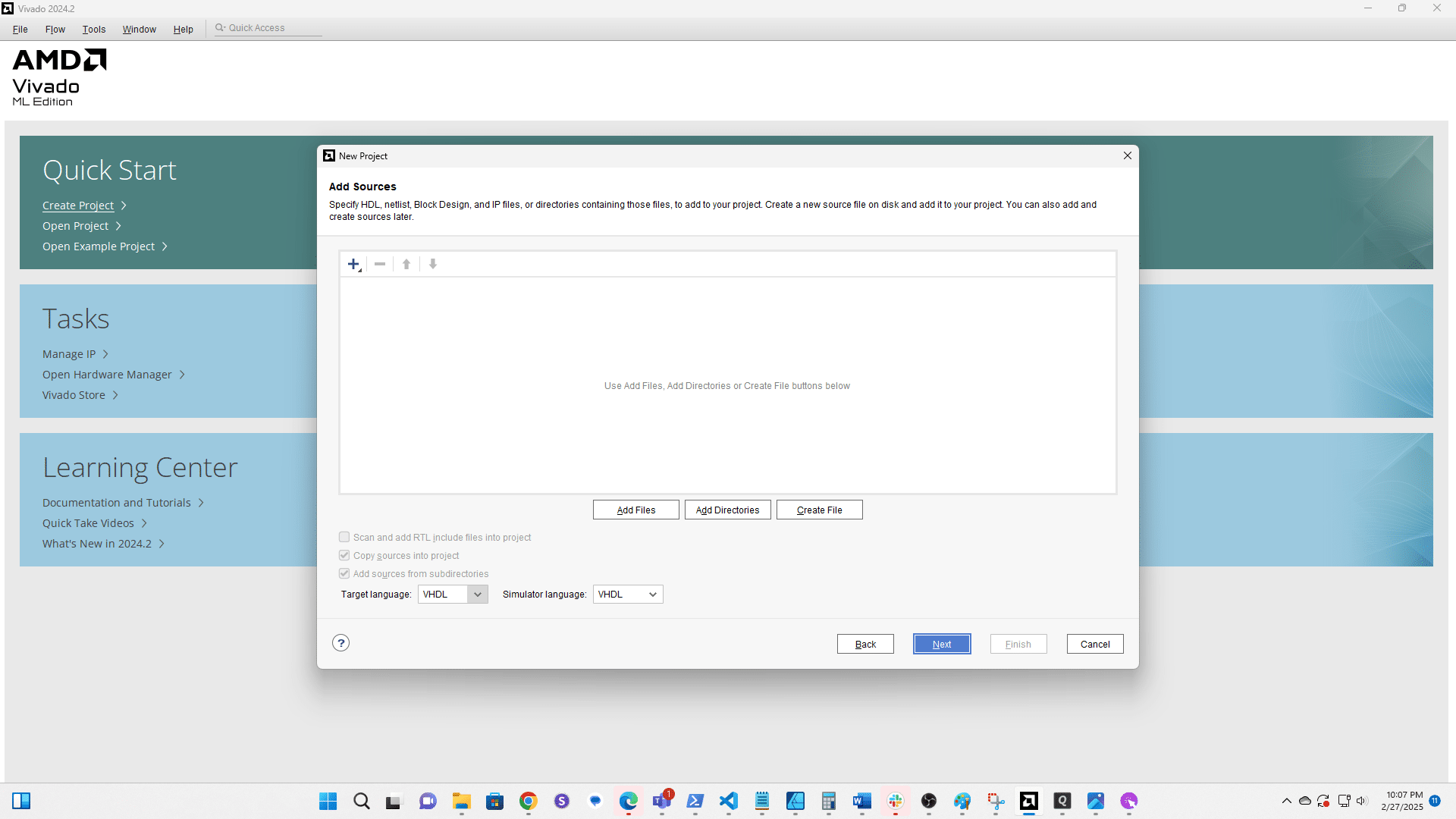
Click here
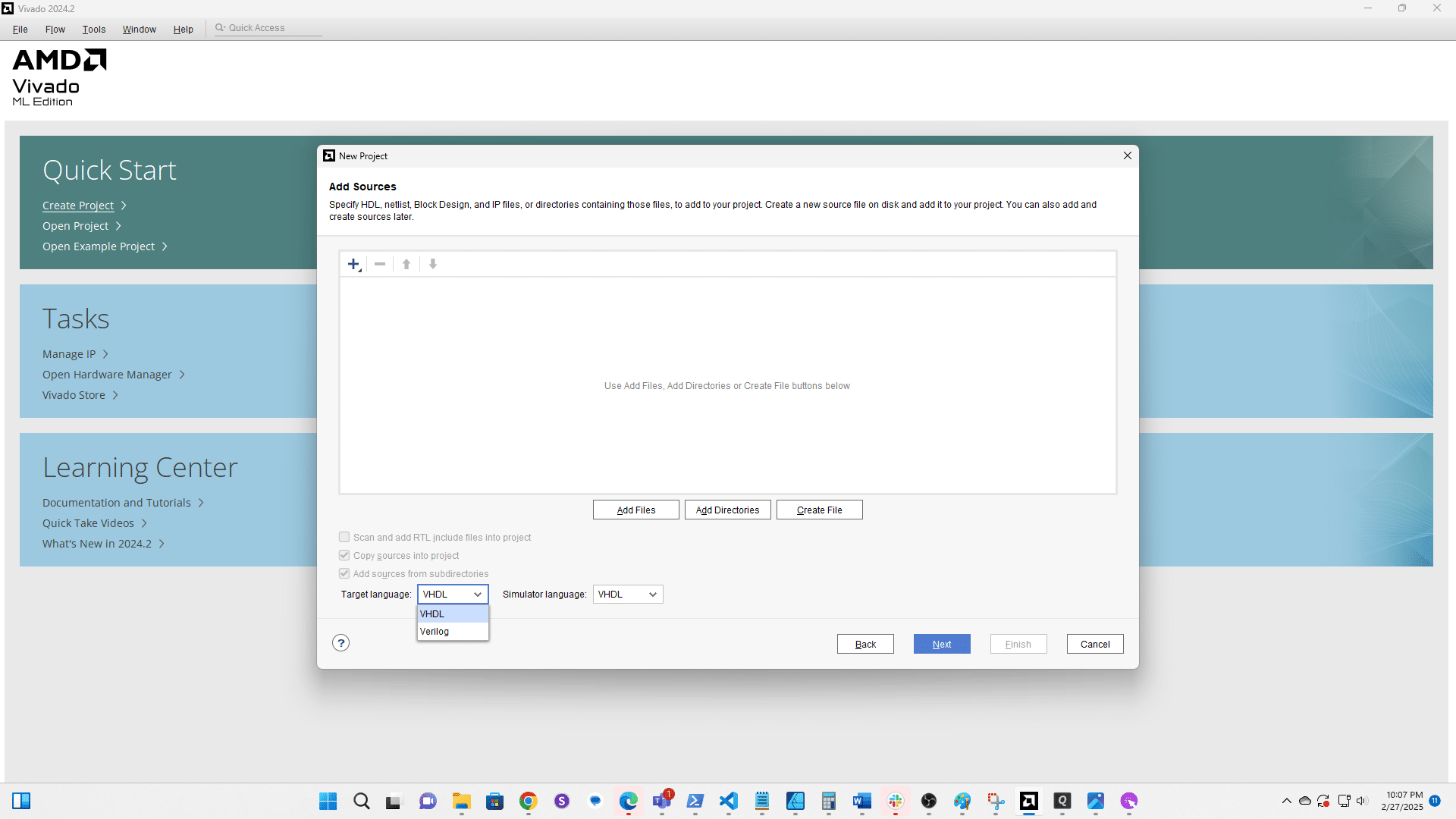
Click here
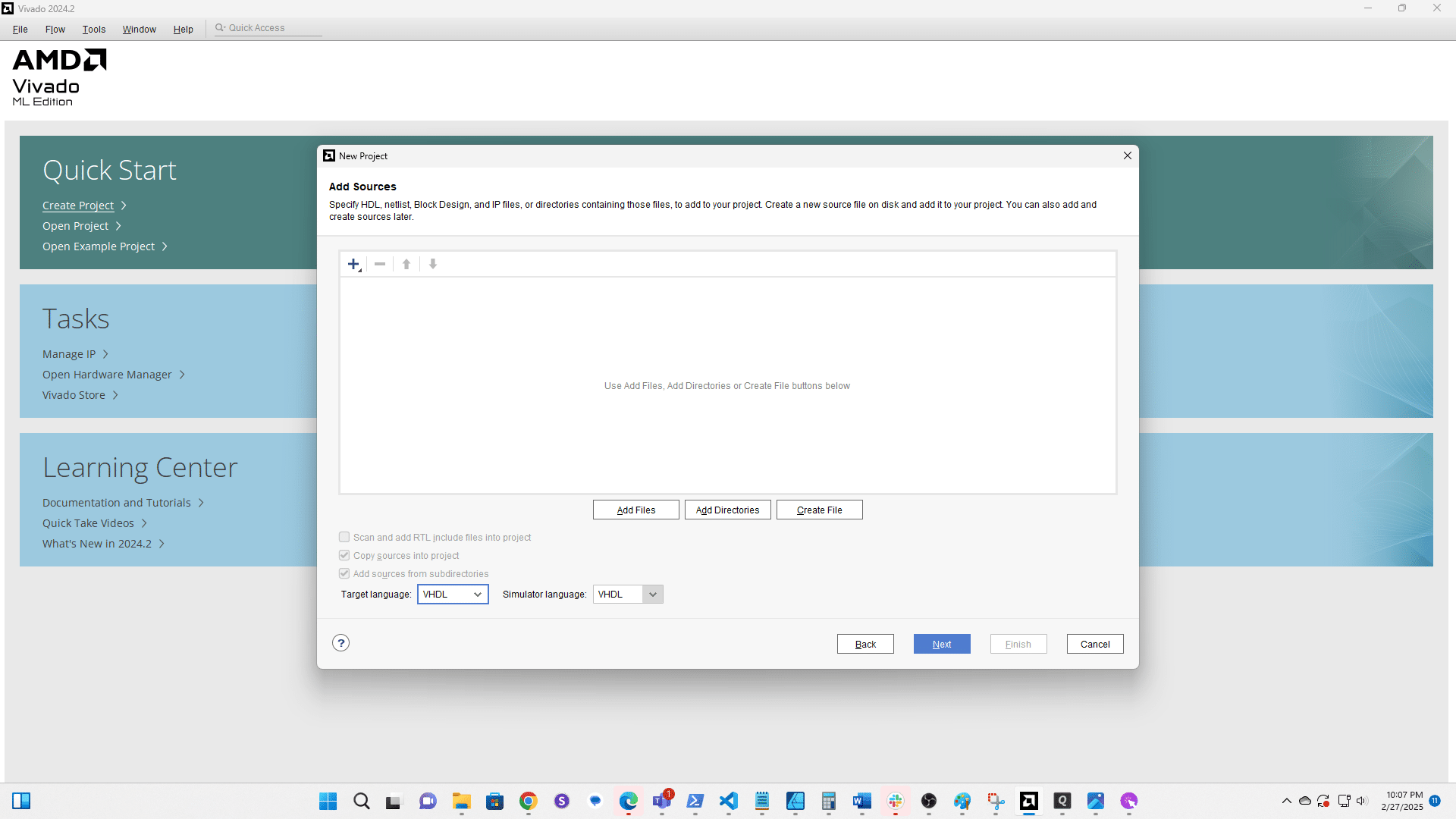
Click here
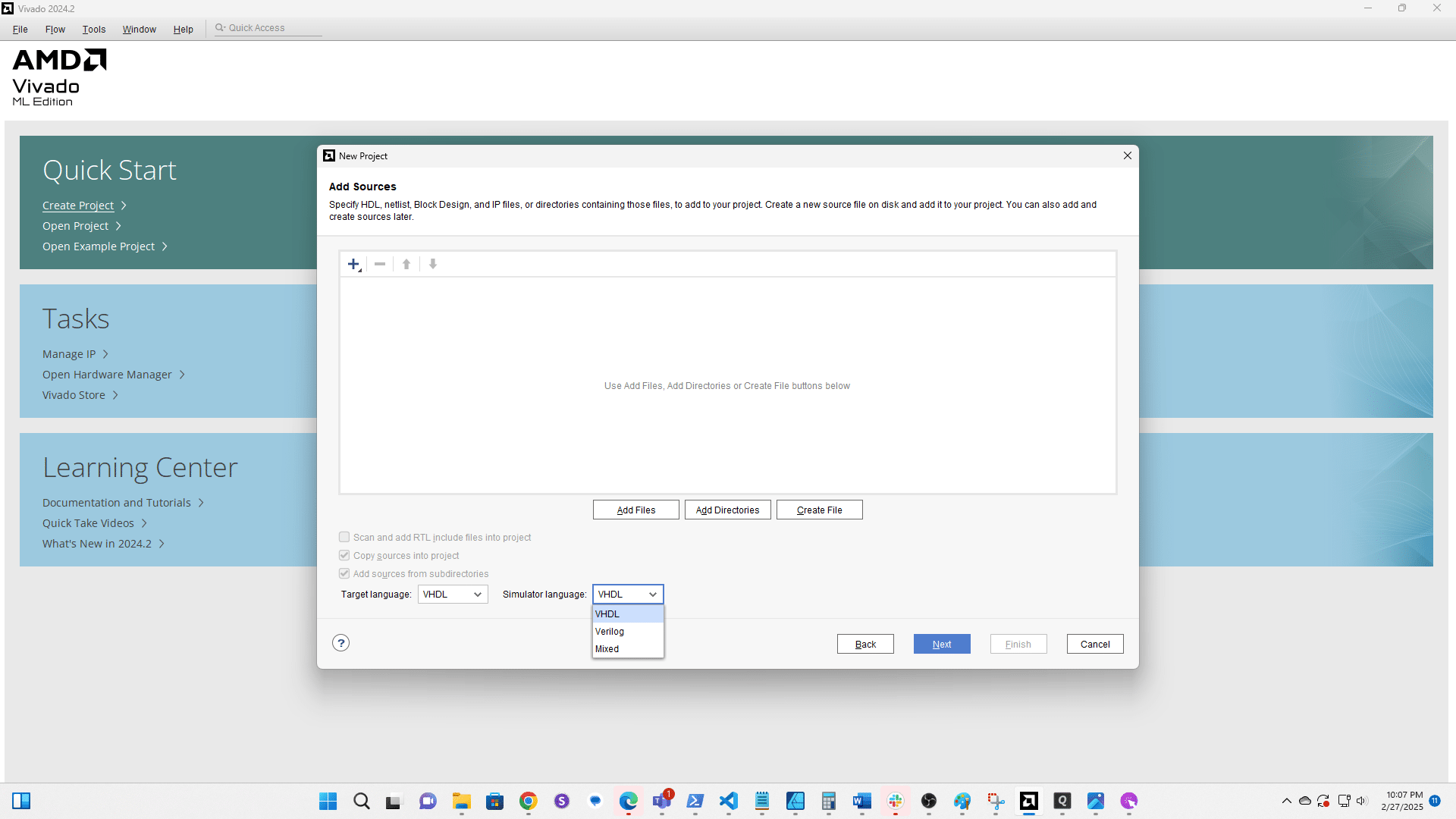
Click here
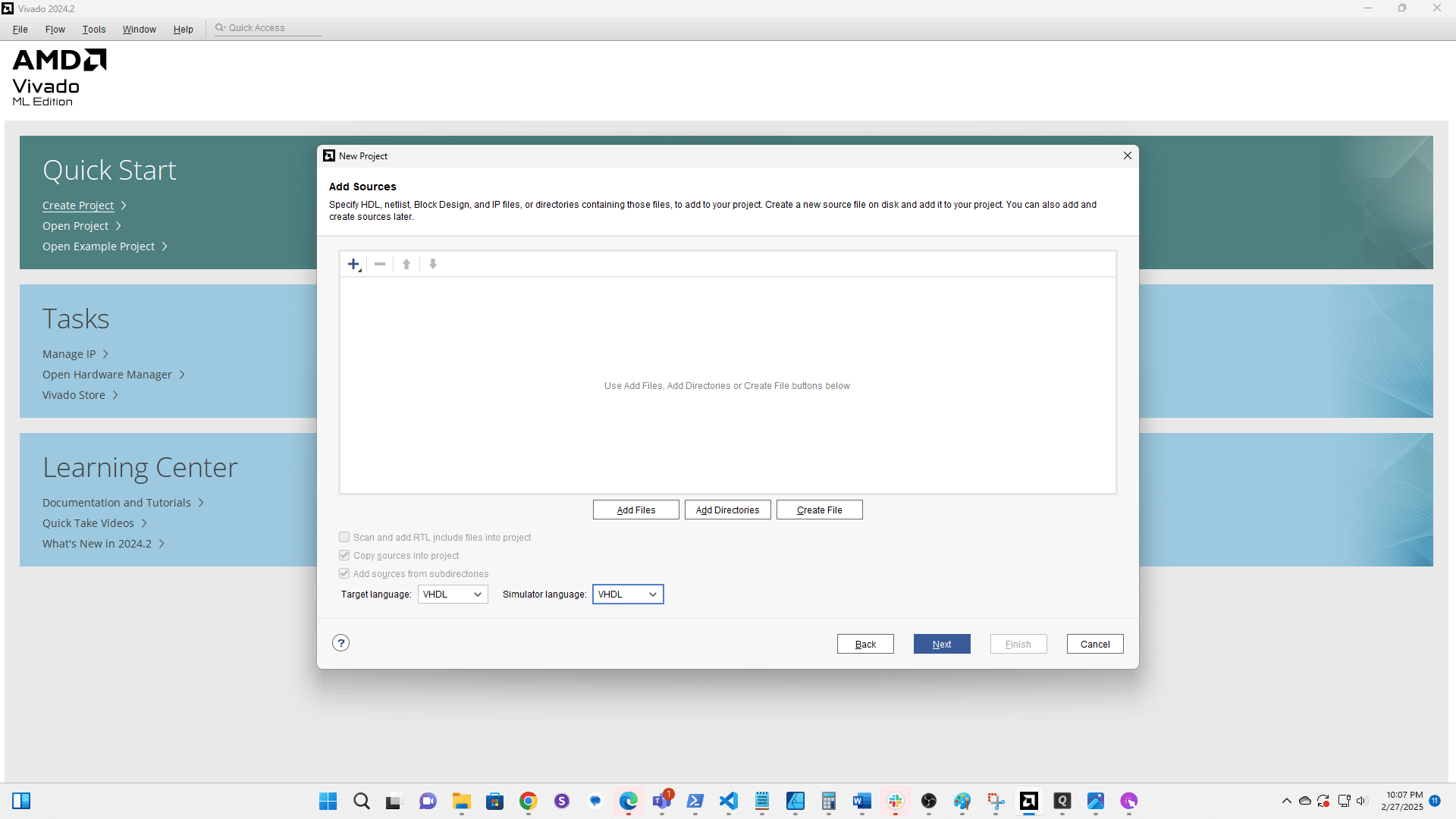
Click here
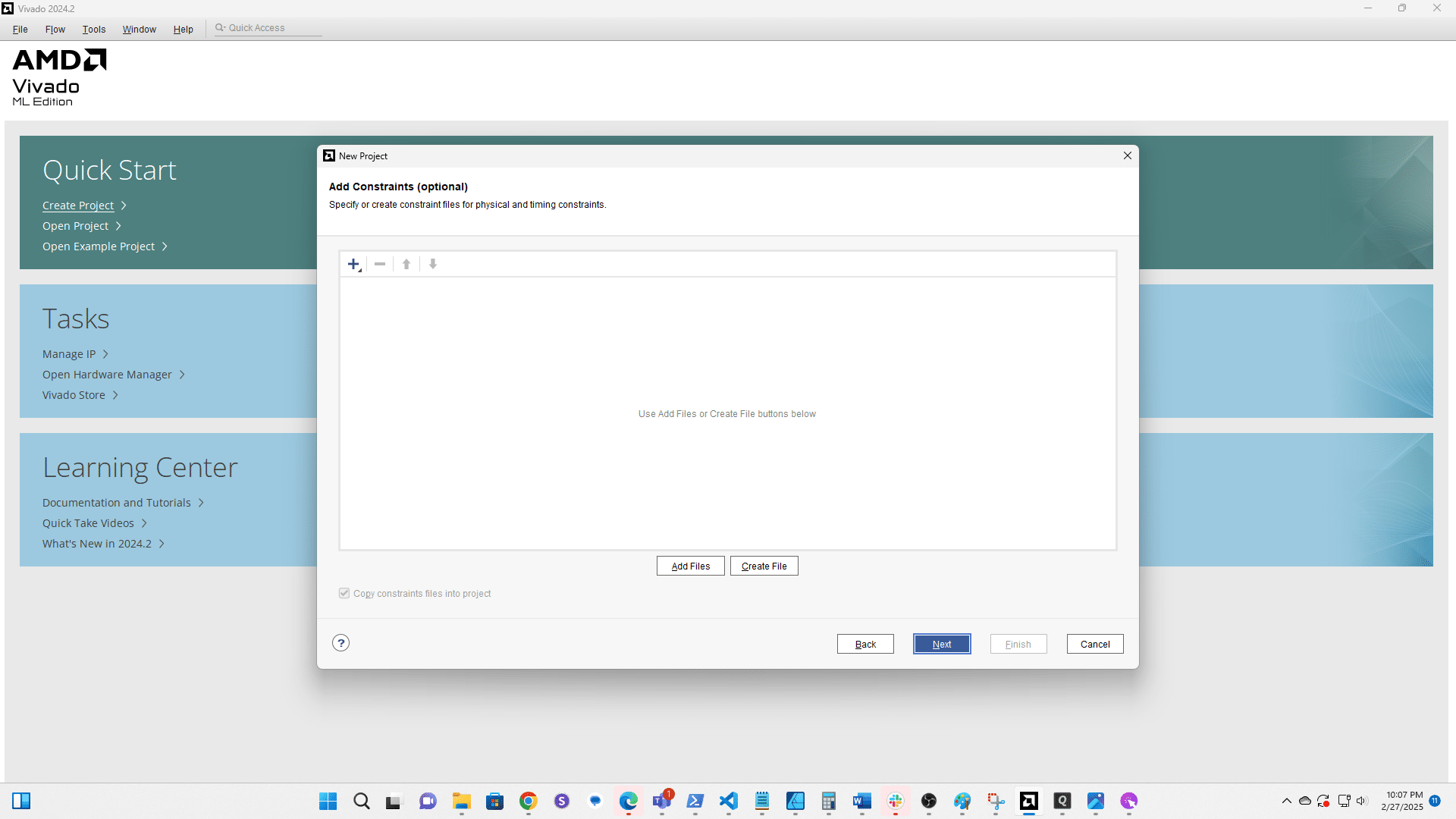
Click here
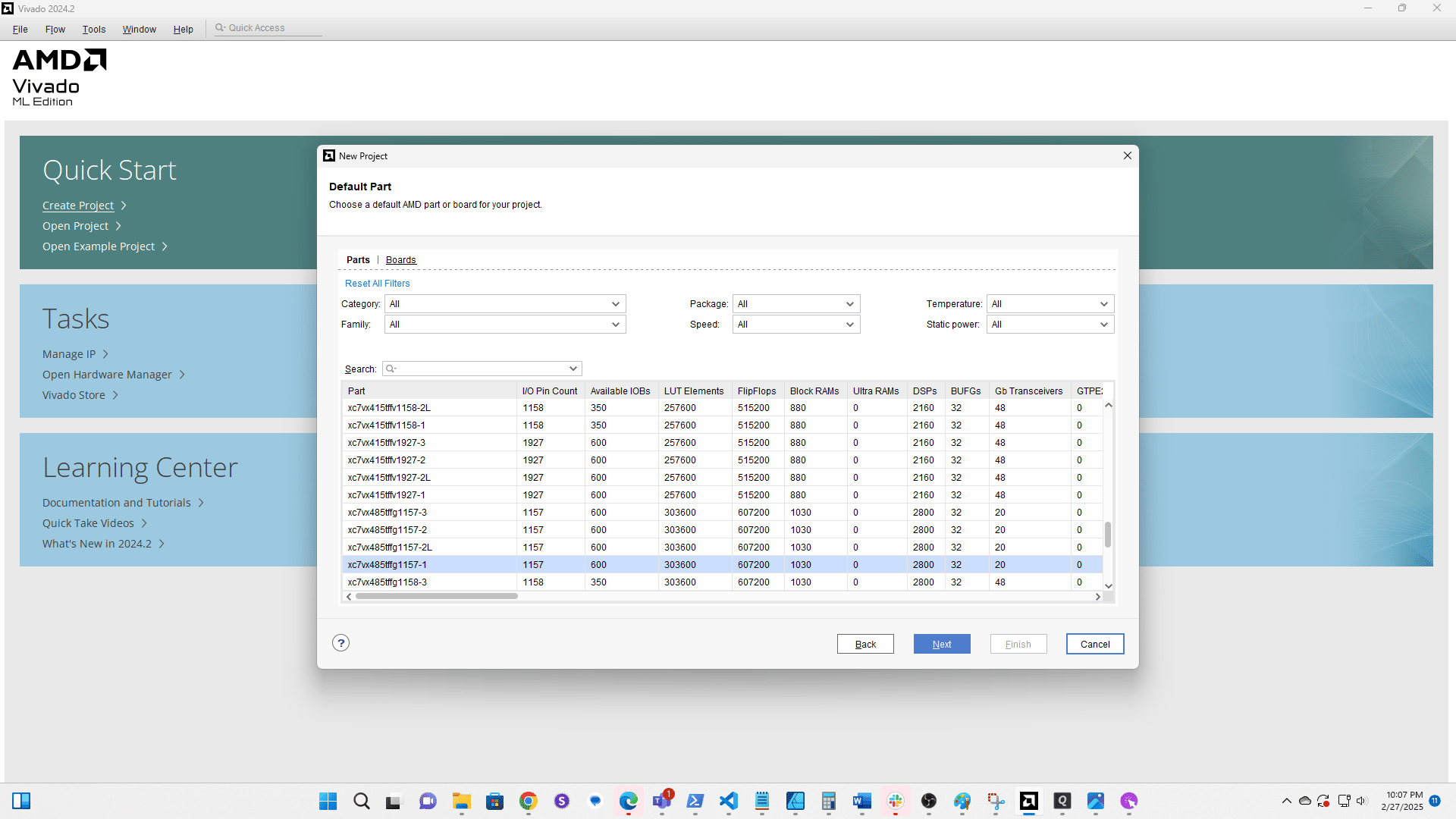
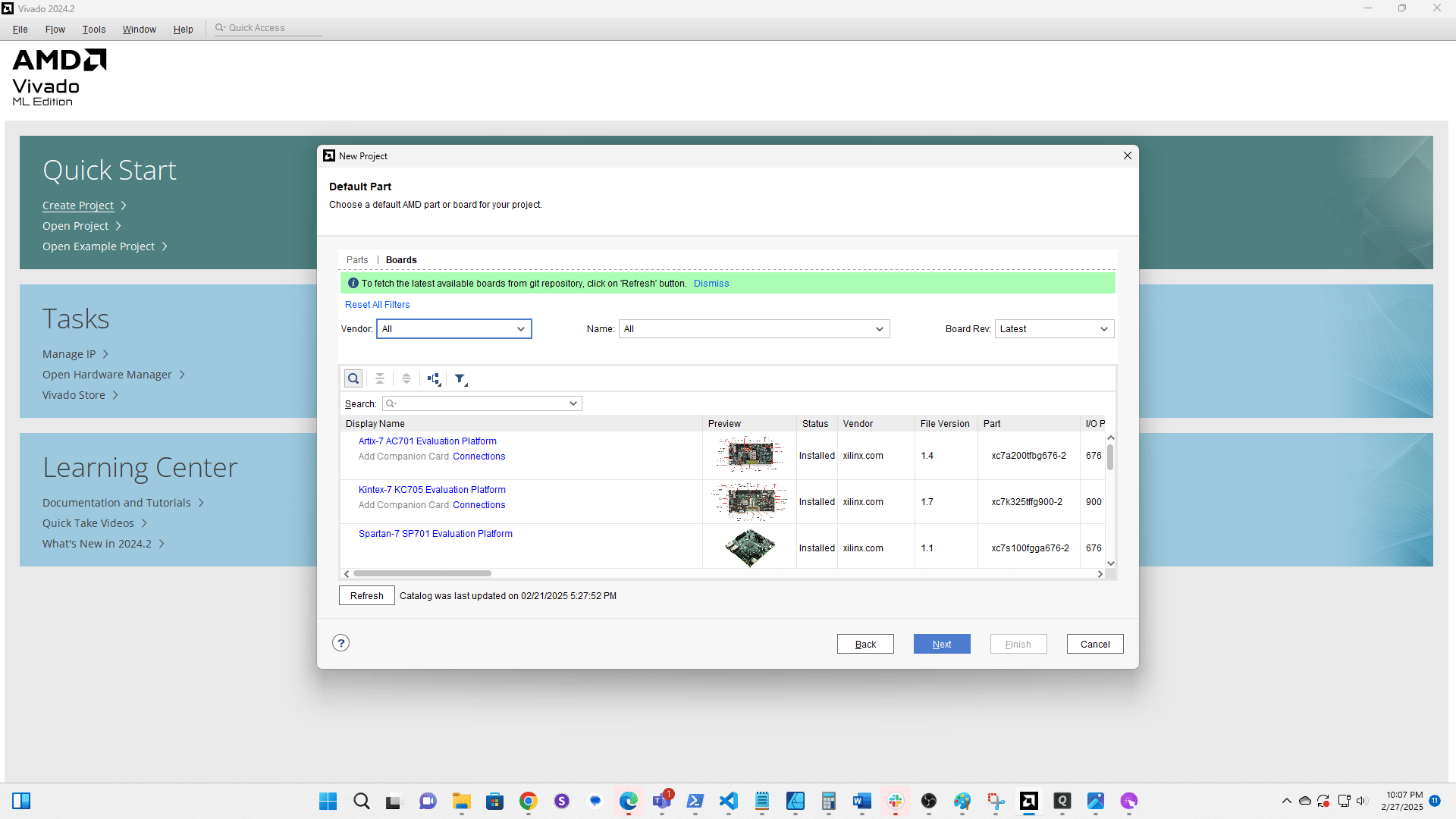
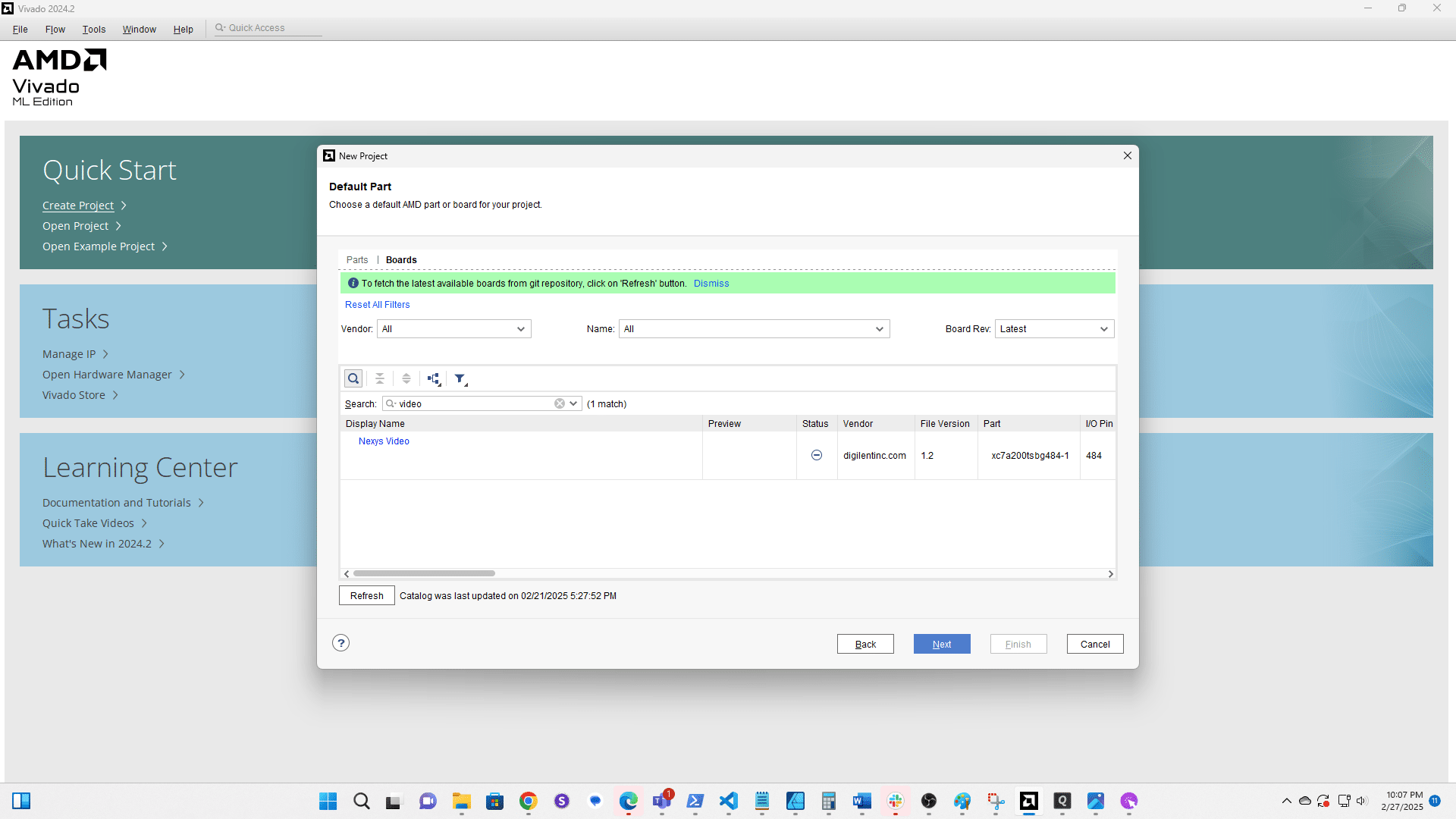
Search for "video"
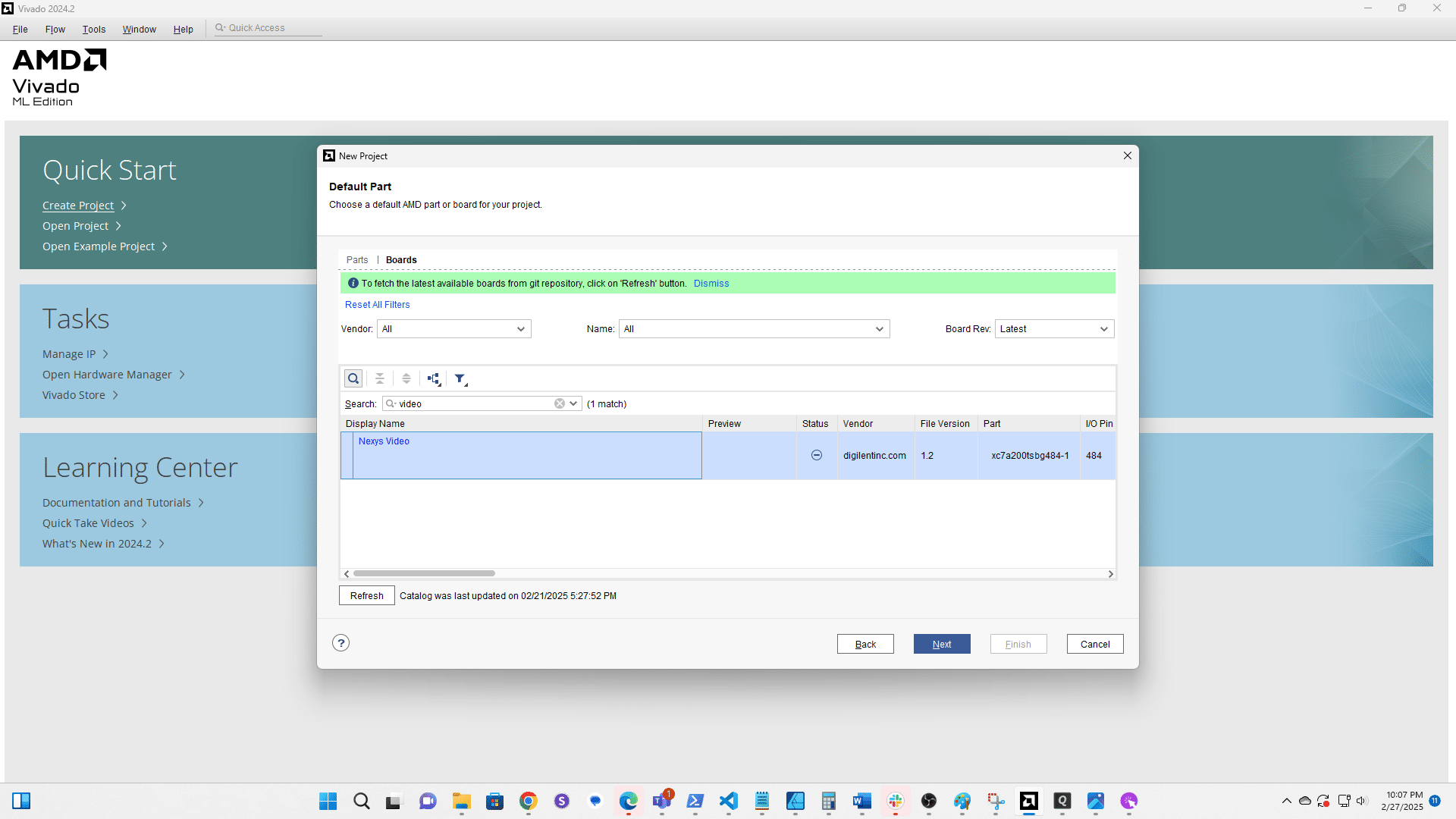
Select the Nexys Video
Click here
Click here
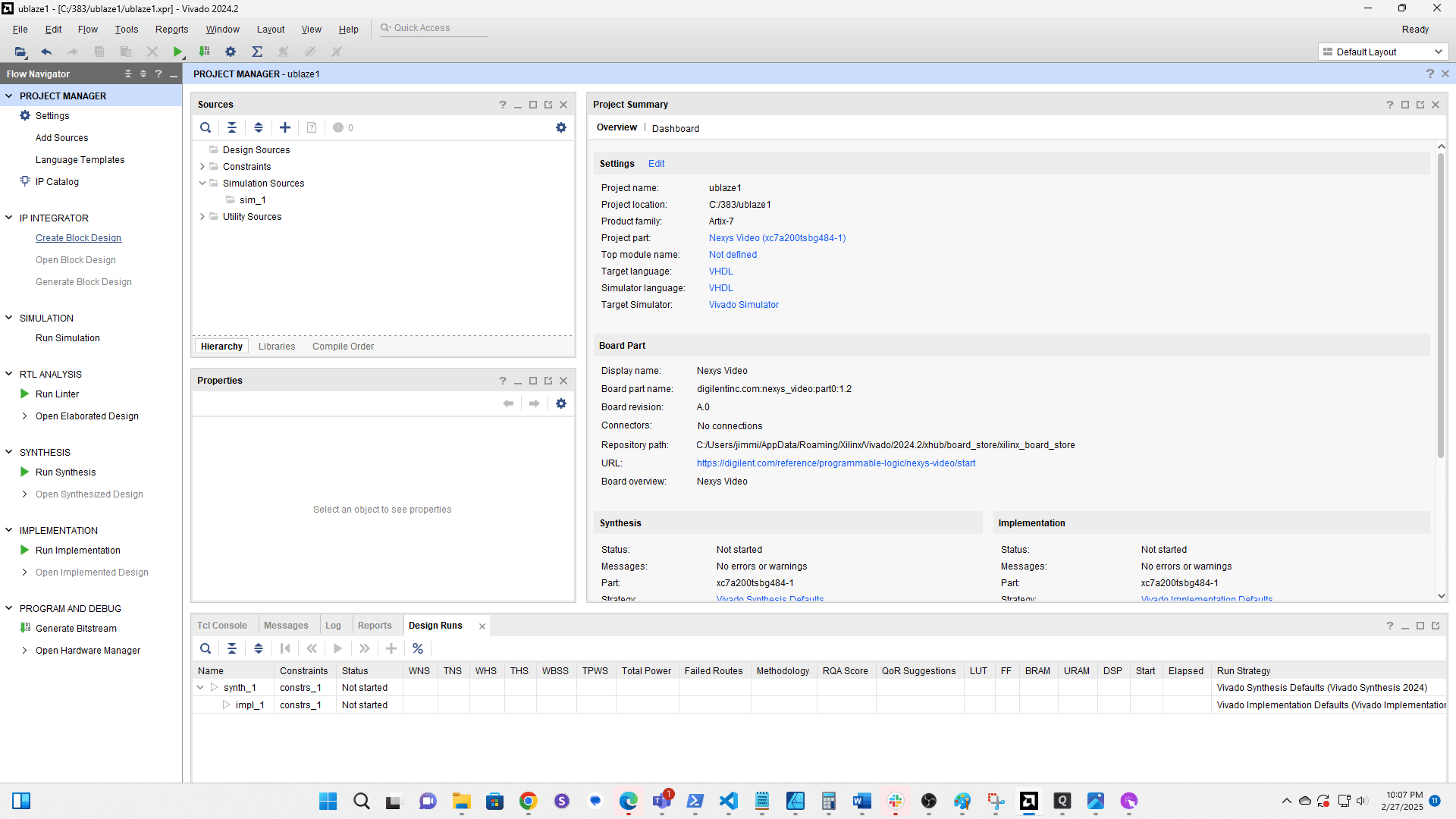
Click Create Block Design
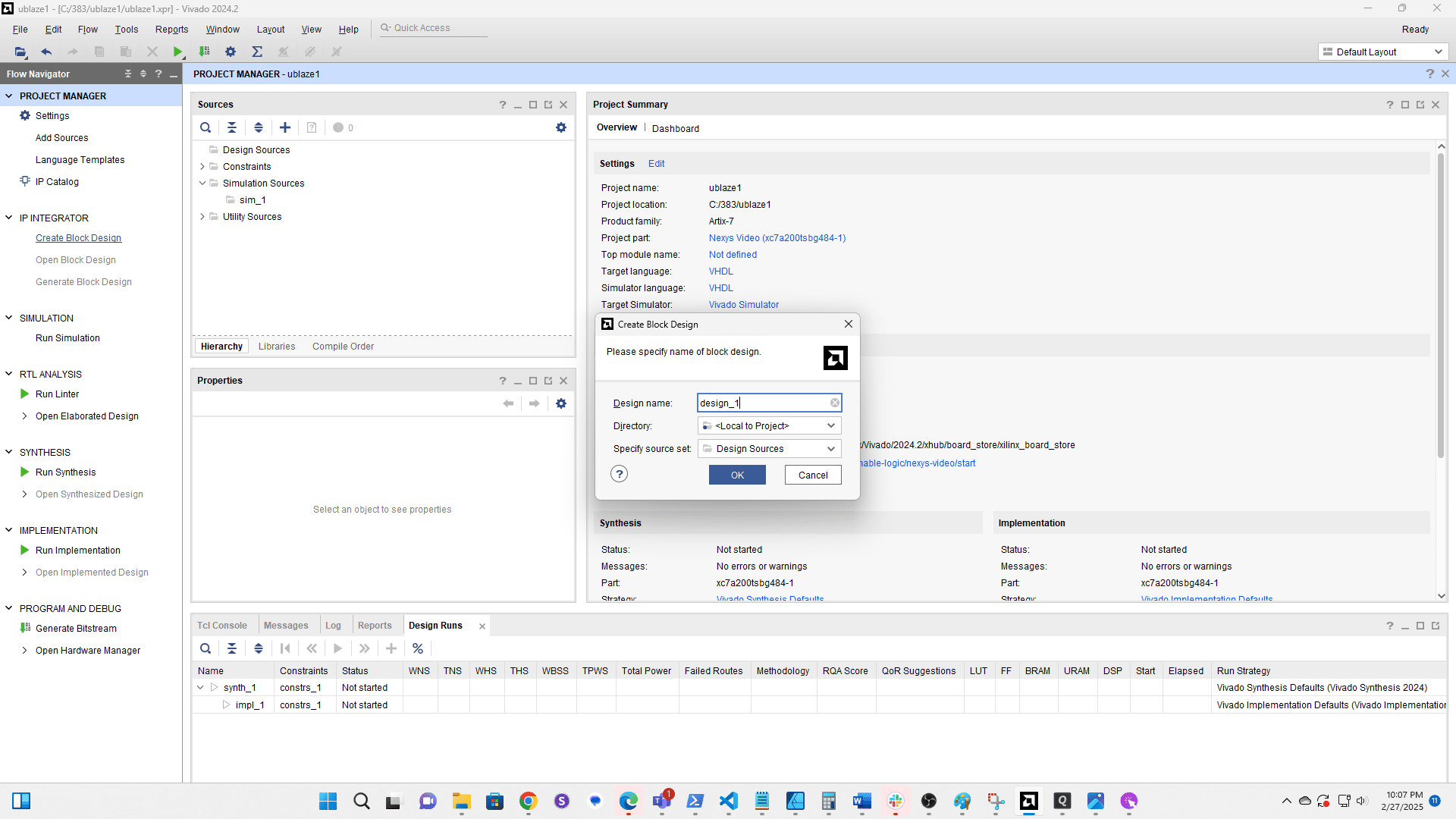
Accept the default name
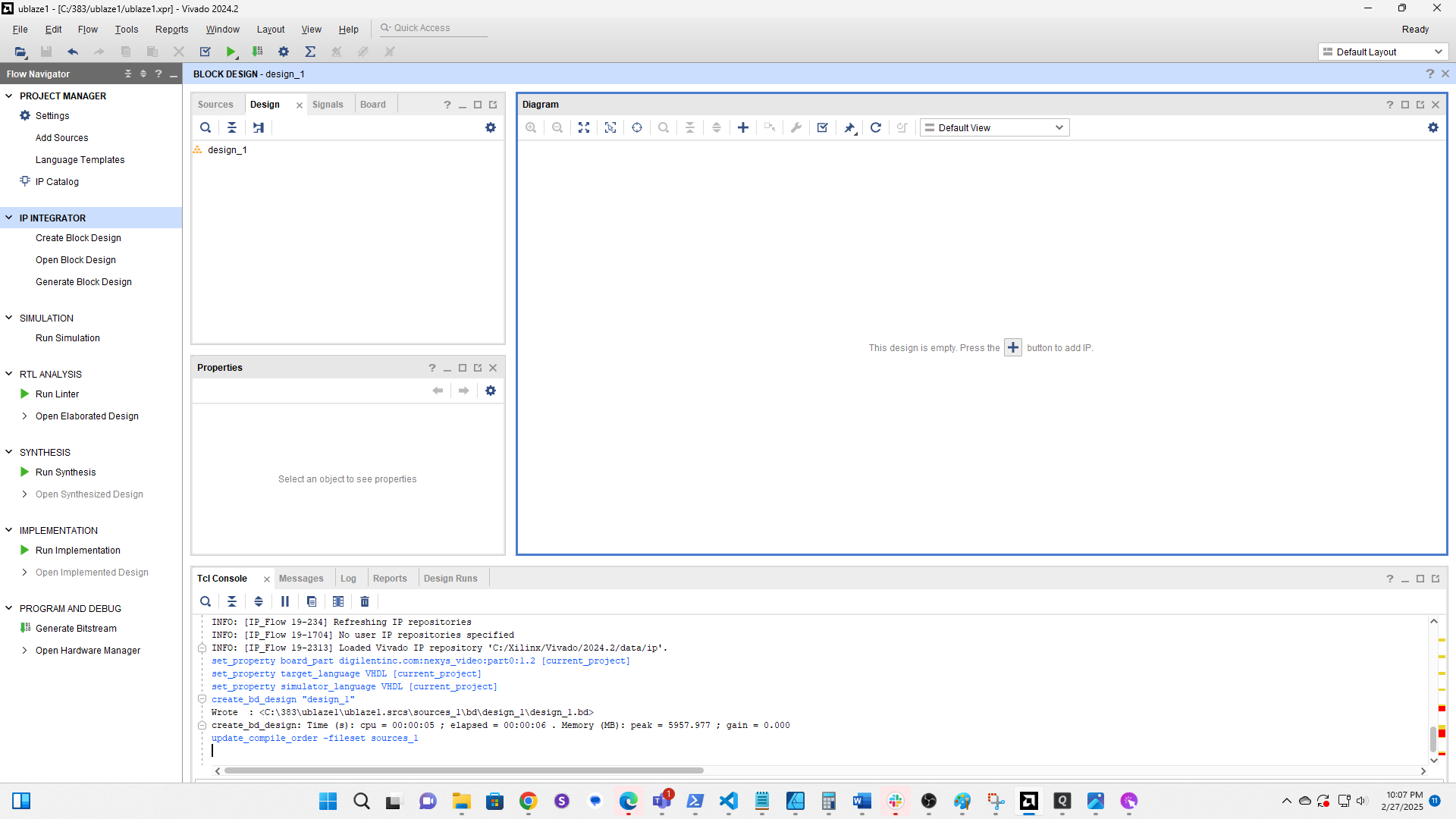
Click the plus to add a component
Search for Microblaze and double click it
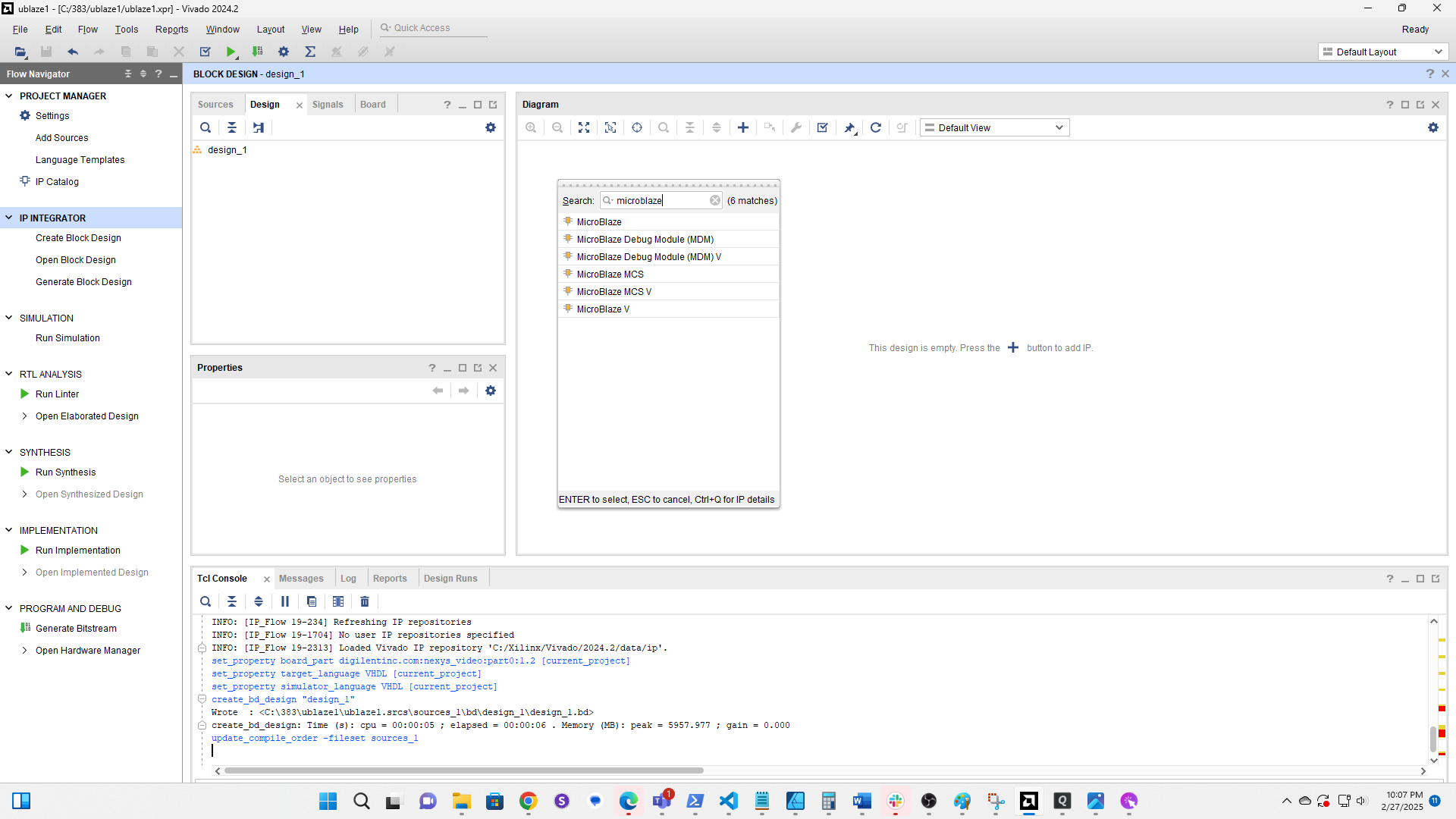
Click Run Block Automation
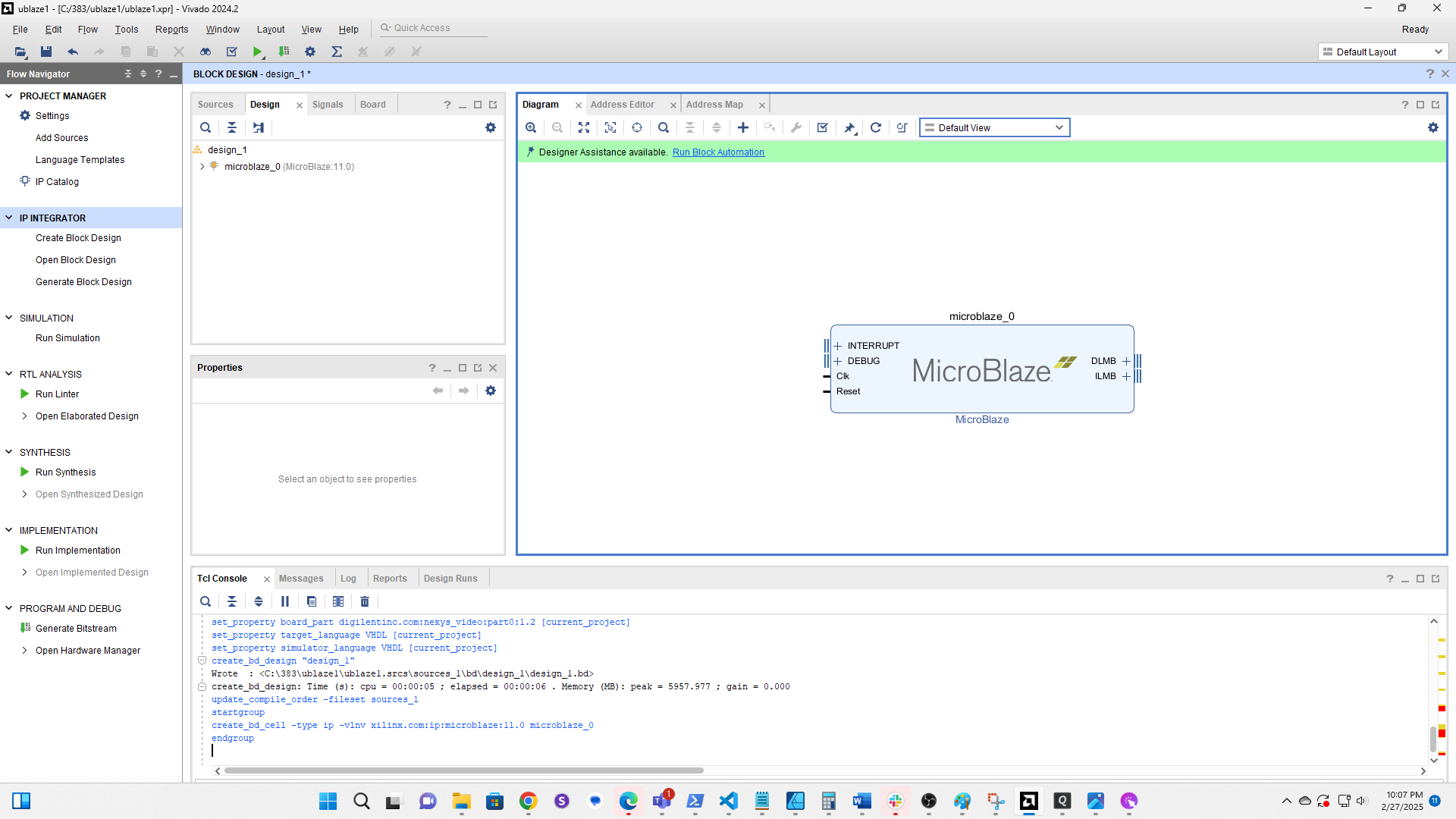
Change Local Memory to 32KB
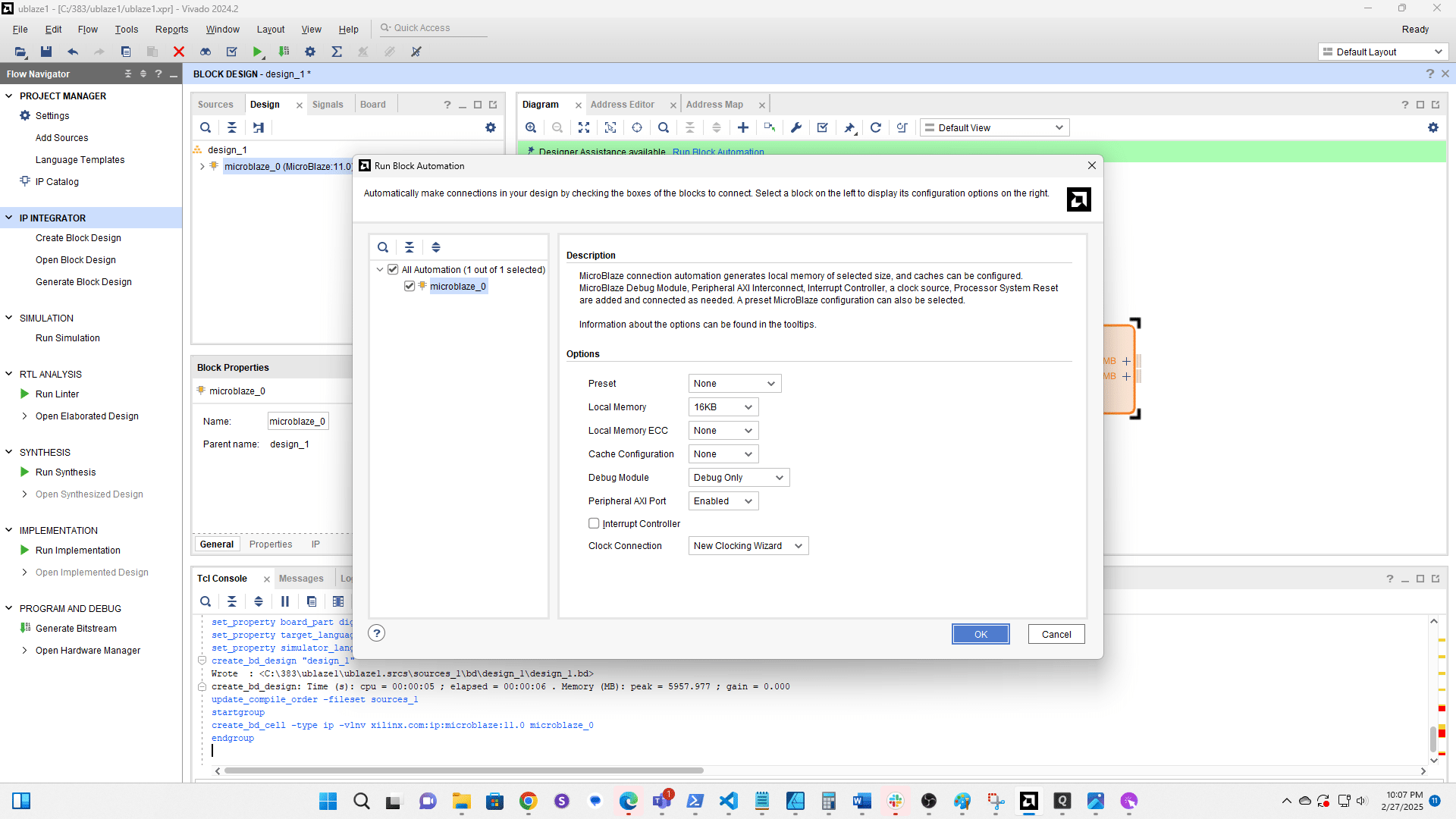
Change Cache Configuration to 16KB
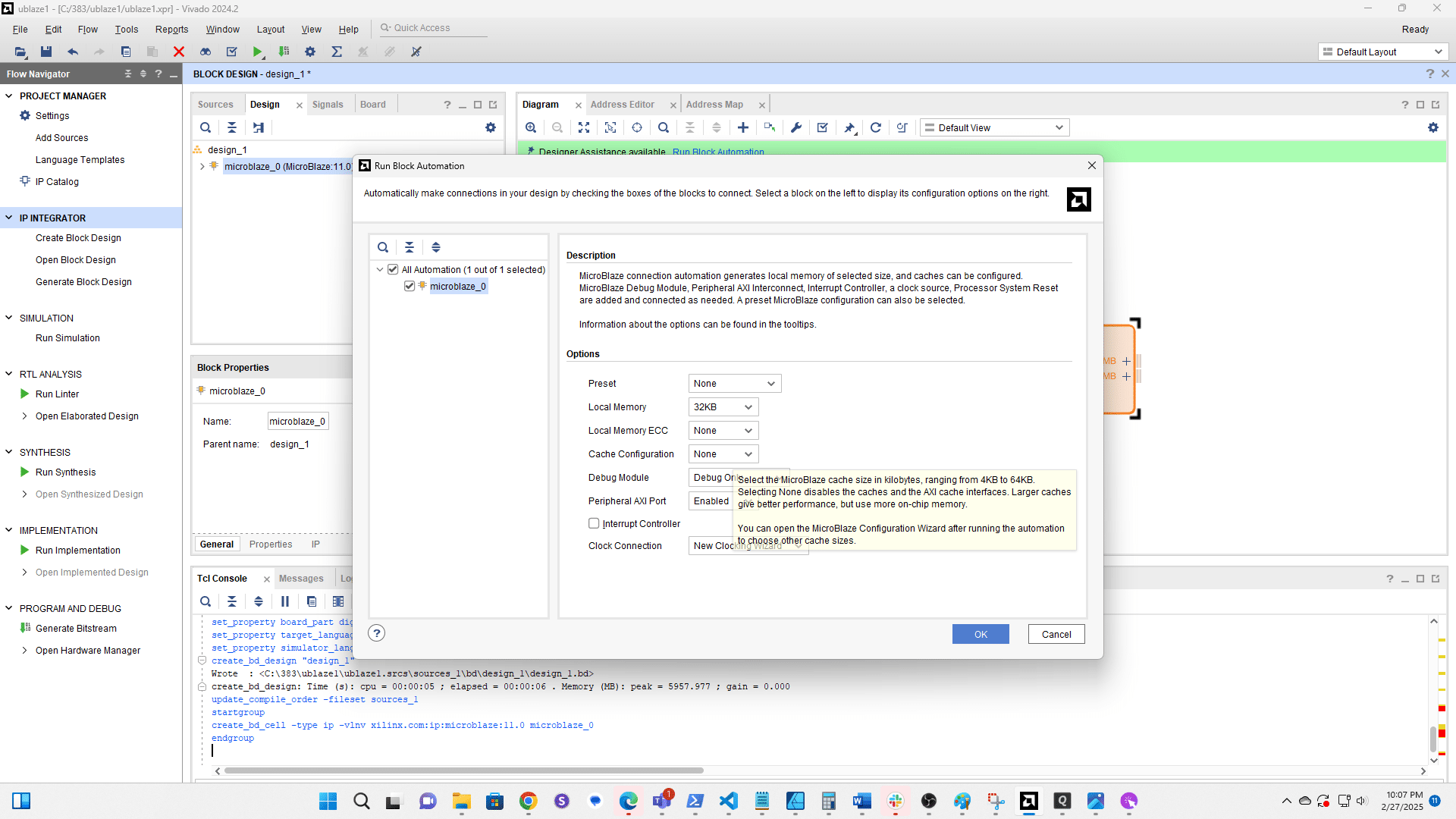
Click OK
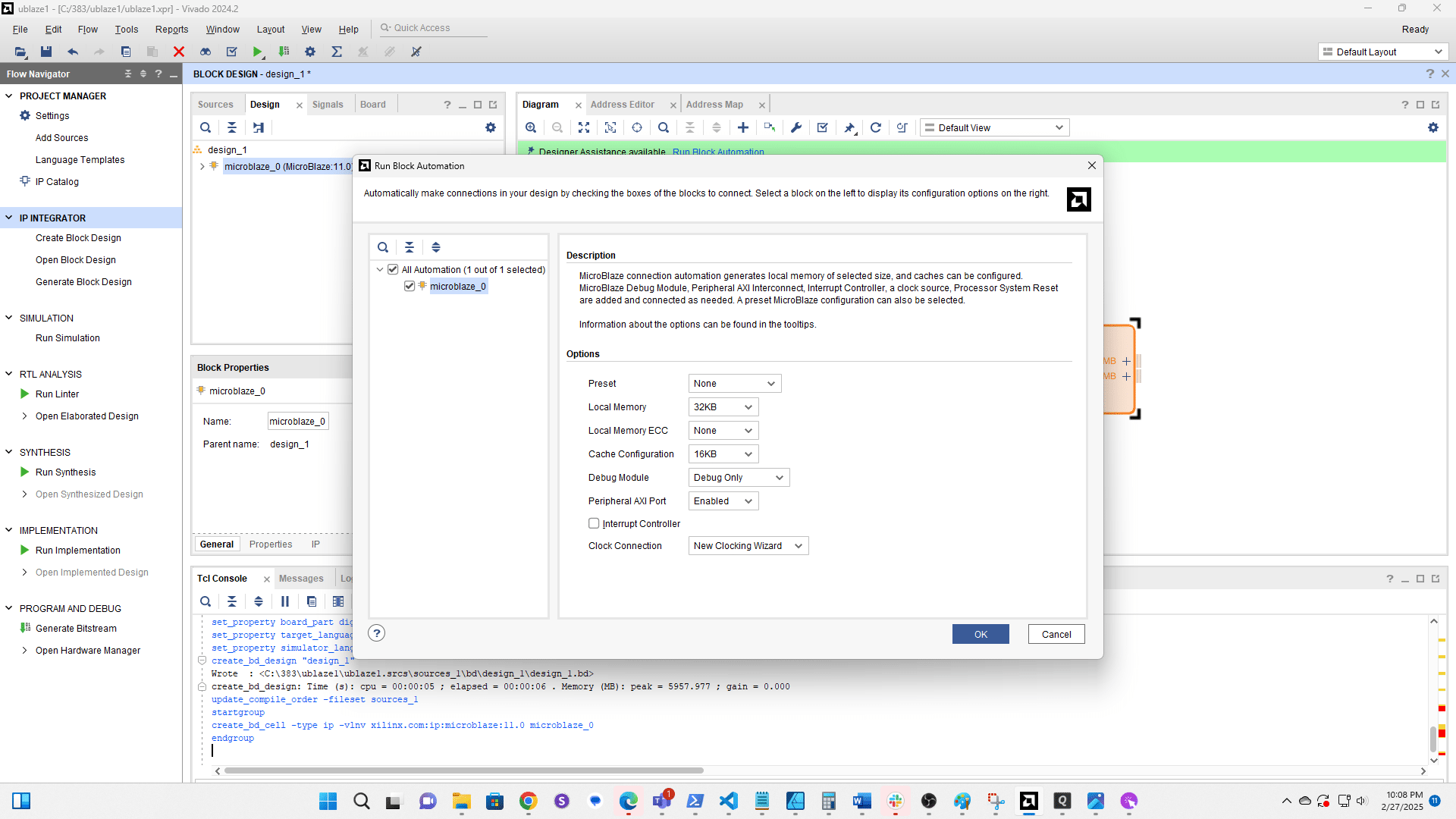
Click + to add a new component
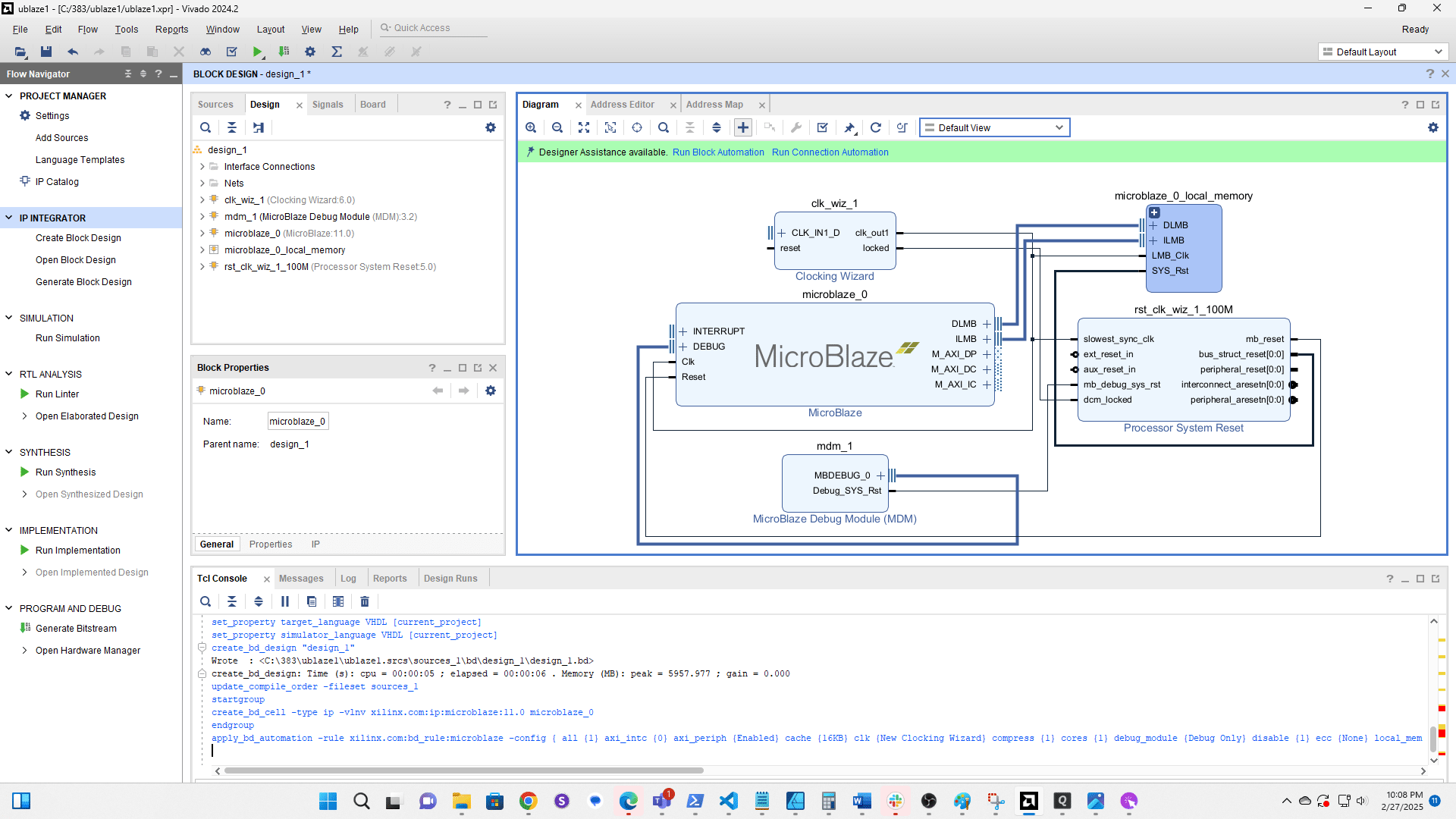
Search for MIG
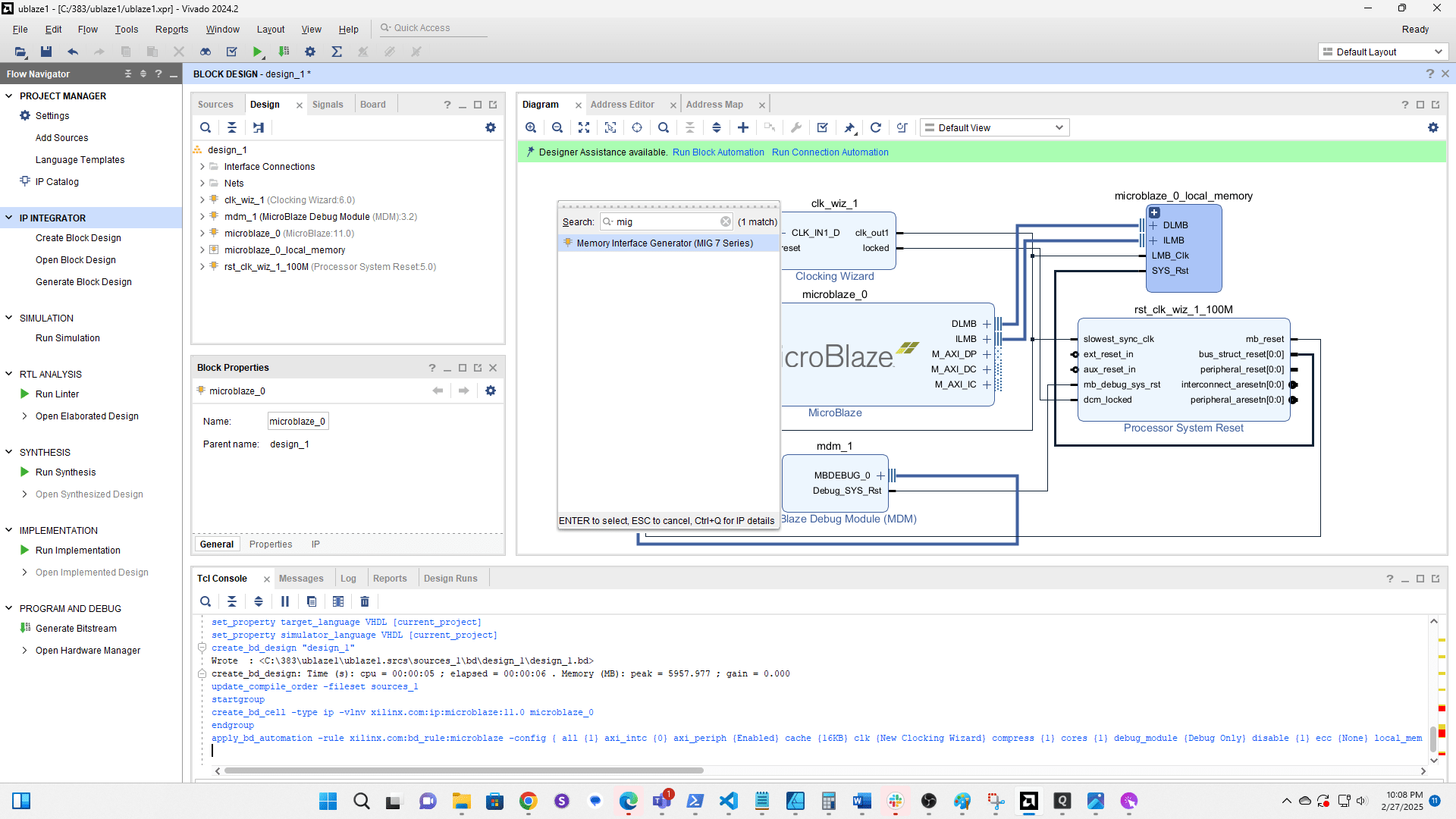
Double click to add Memory Intergace Generator (MIG)
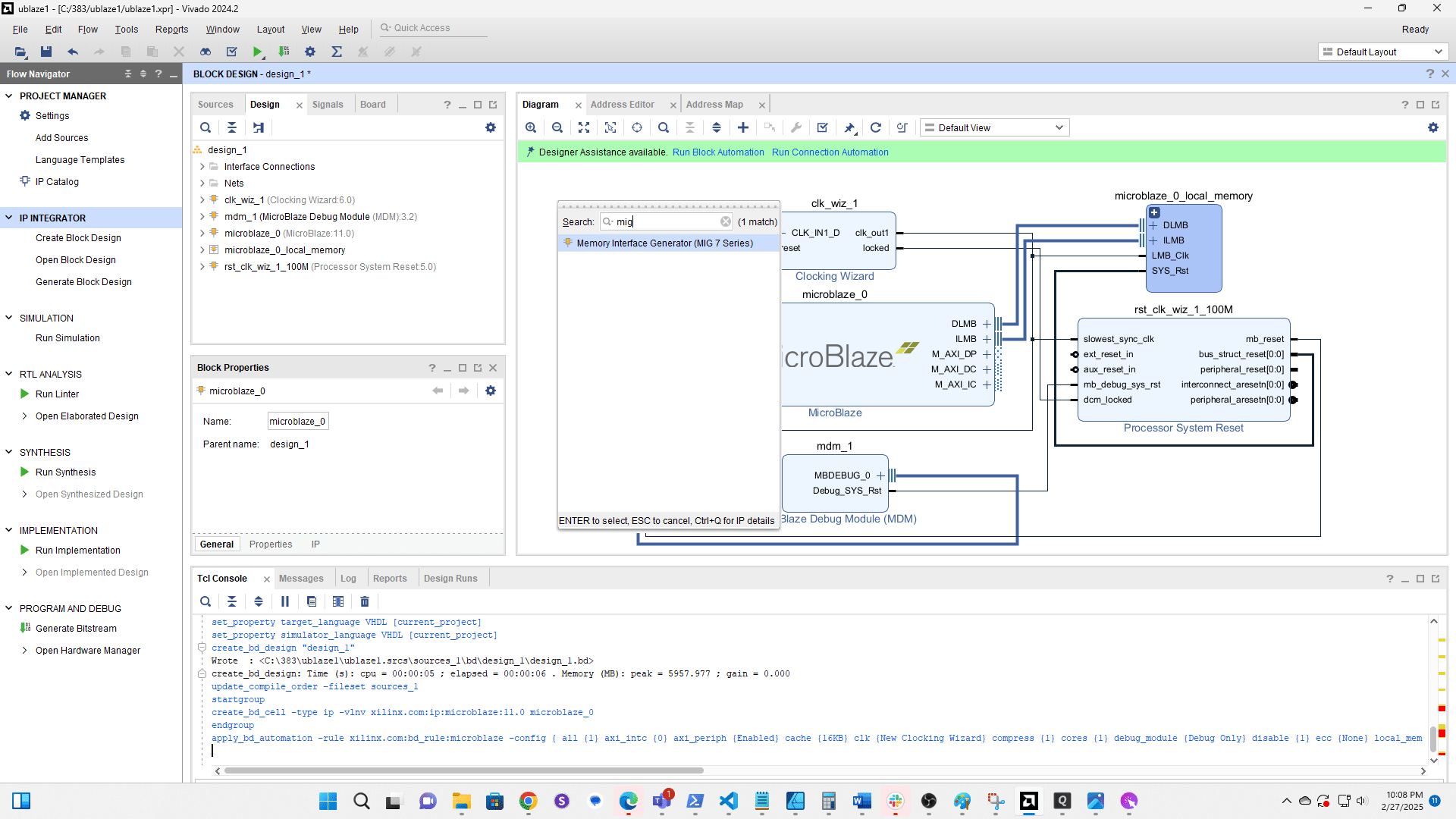
Click Run Block Automation
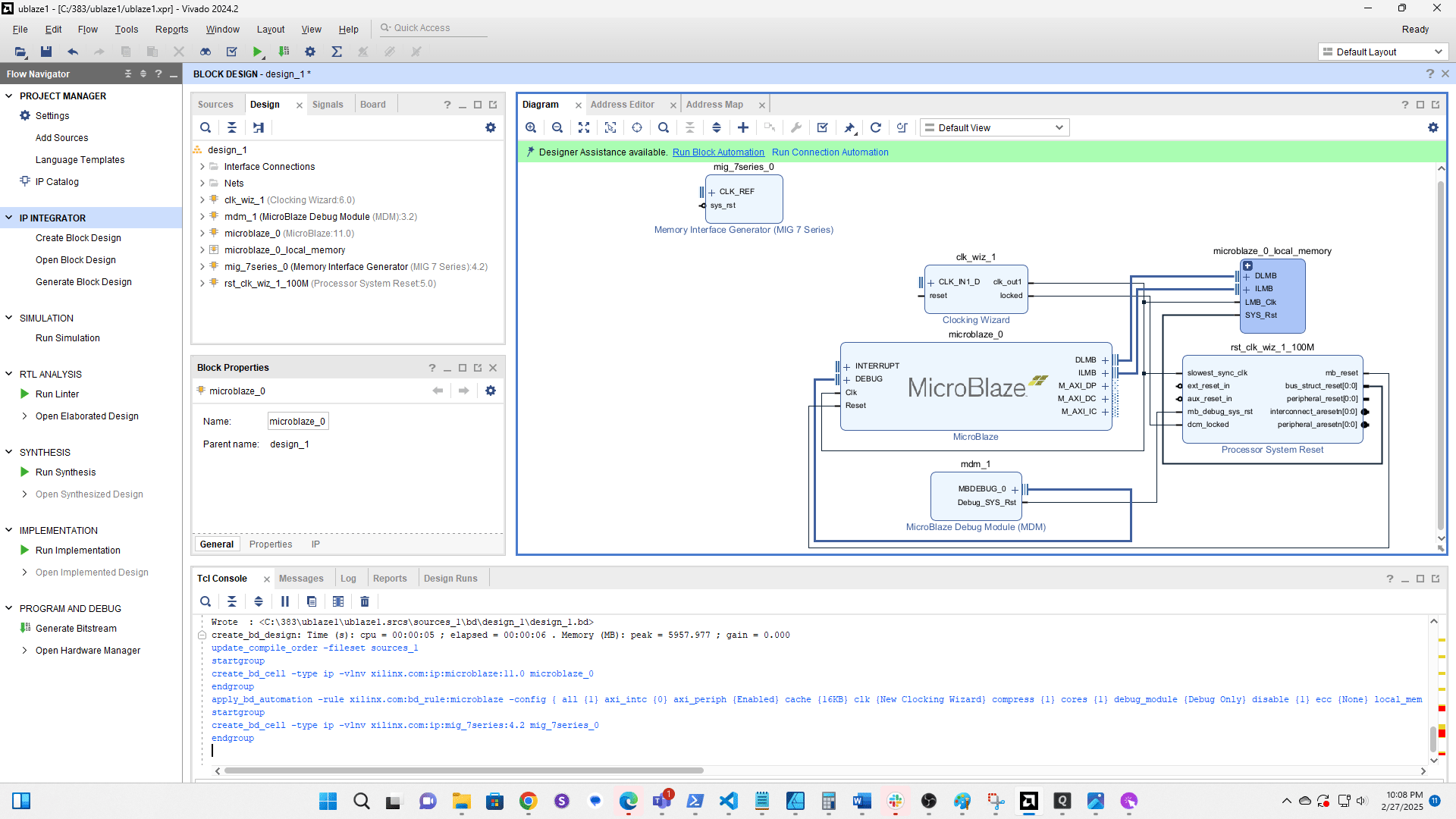
Select mig 7series 0
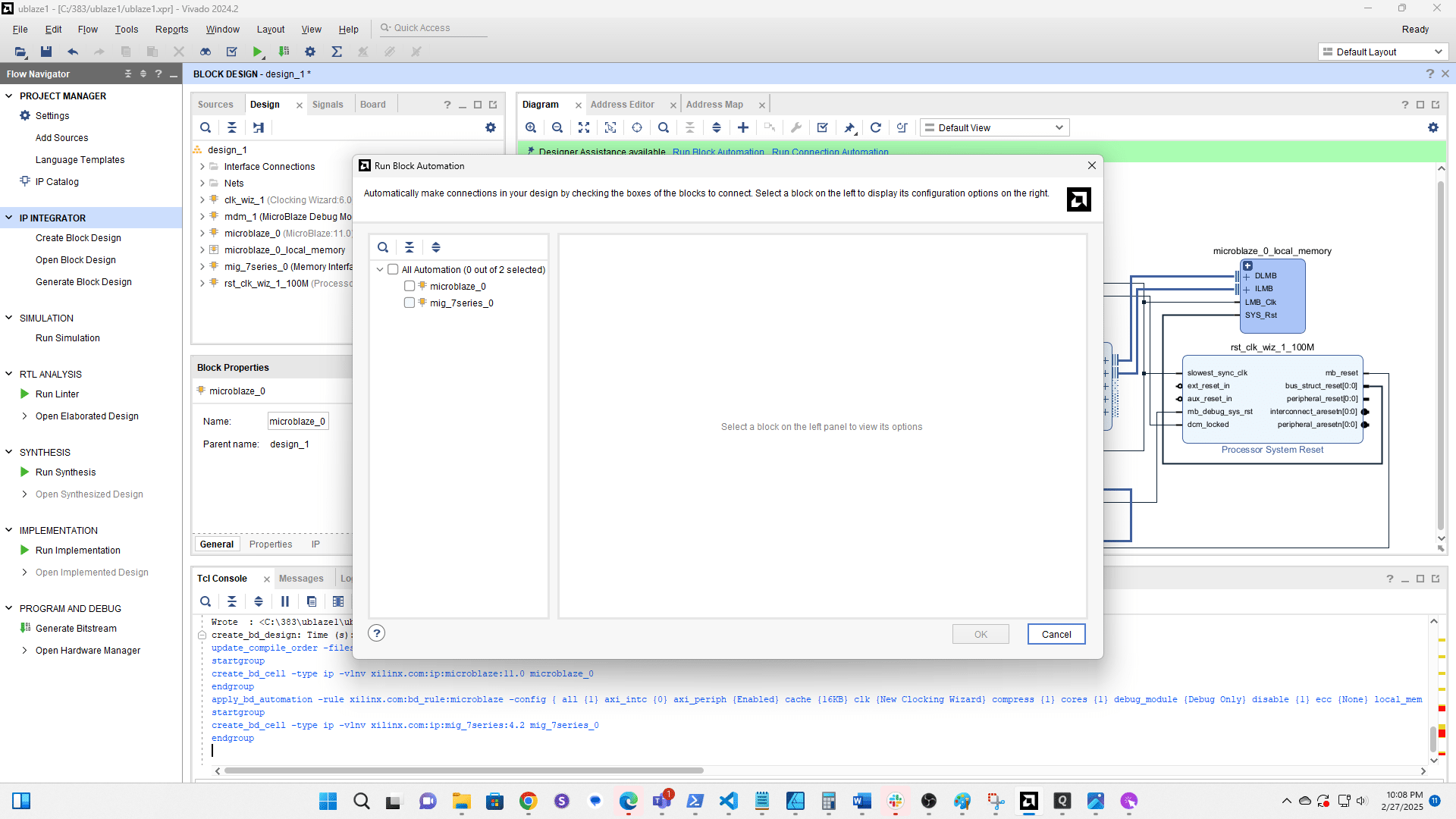
Click here
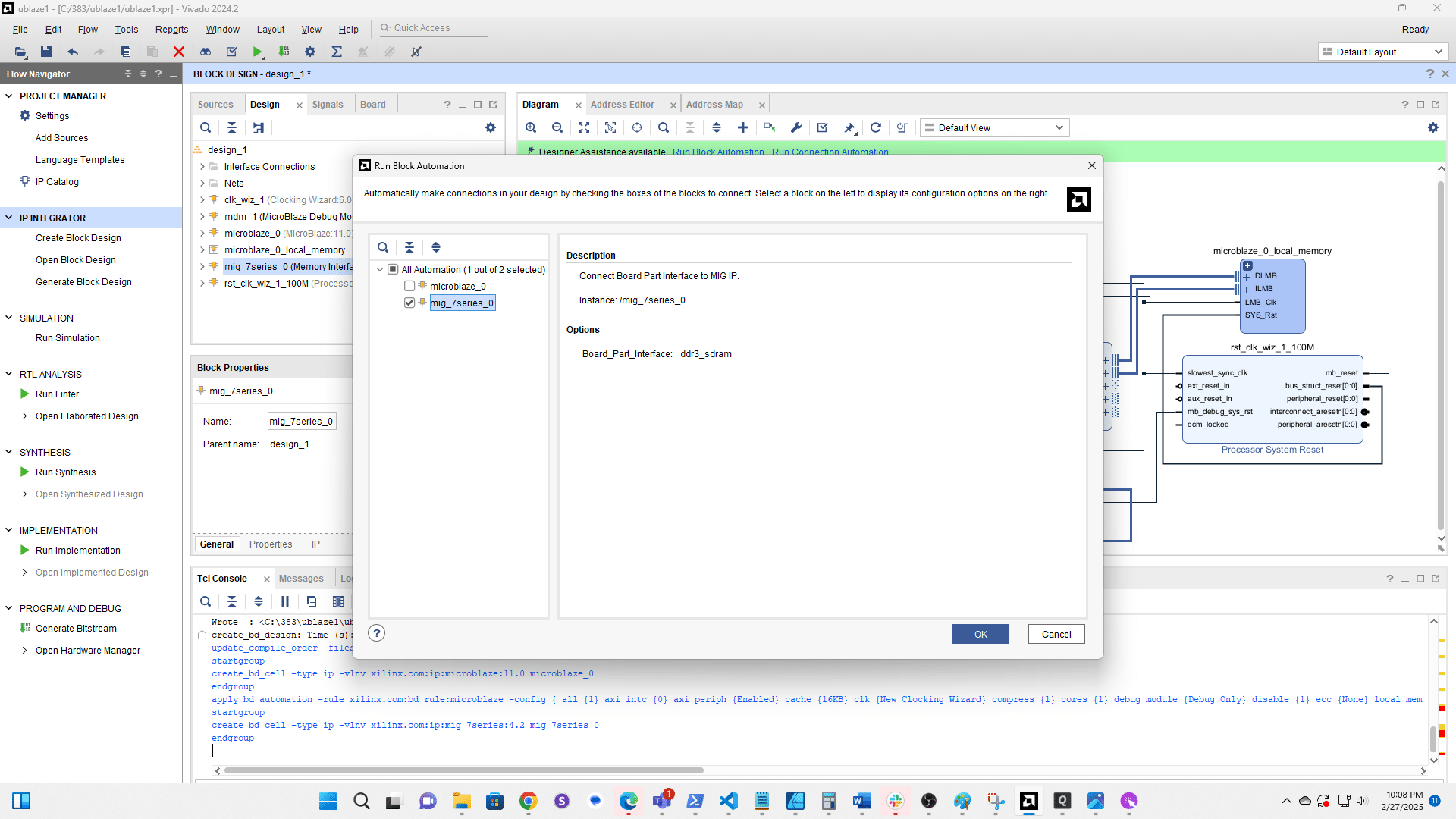
Error [BD 41-1273] is expected and is OK.
![Error [BD 41-1273] is expected and is OK.](https://assets.guidejar.com/uploads/bbe34535-a15e-40f9-a605-2fbcf9e5a050/EEETTDLl5bSGK1be8wWFsic8V683/1cfacf65-e02a-409b-a54c-f403cc525227/1740719349864.png)
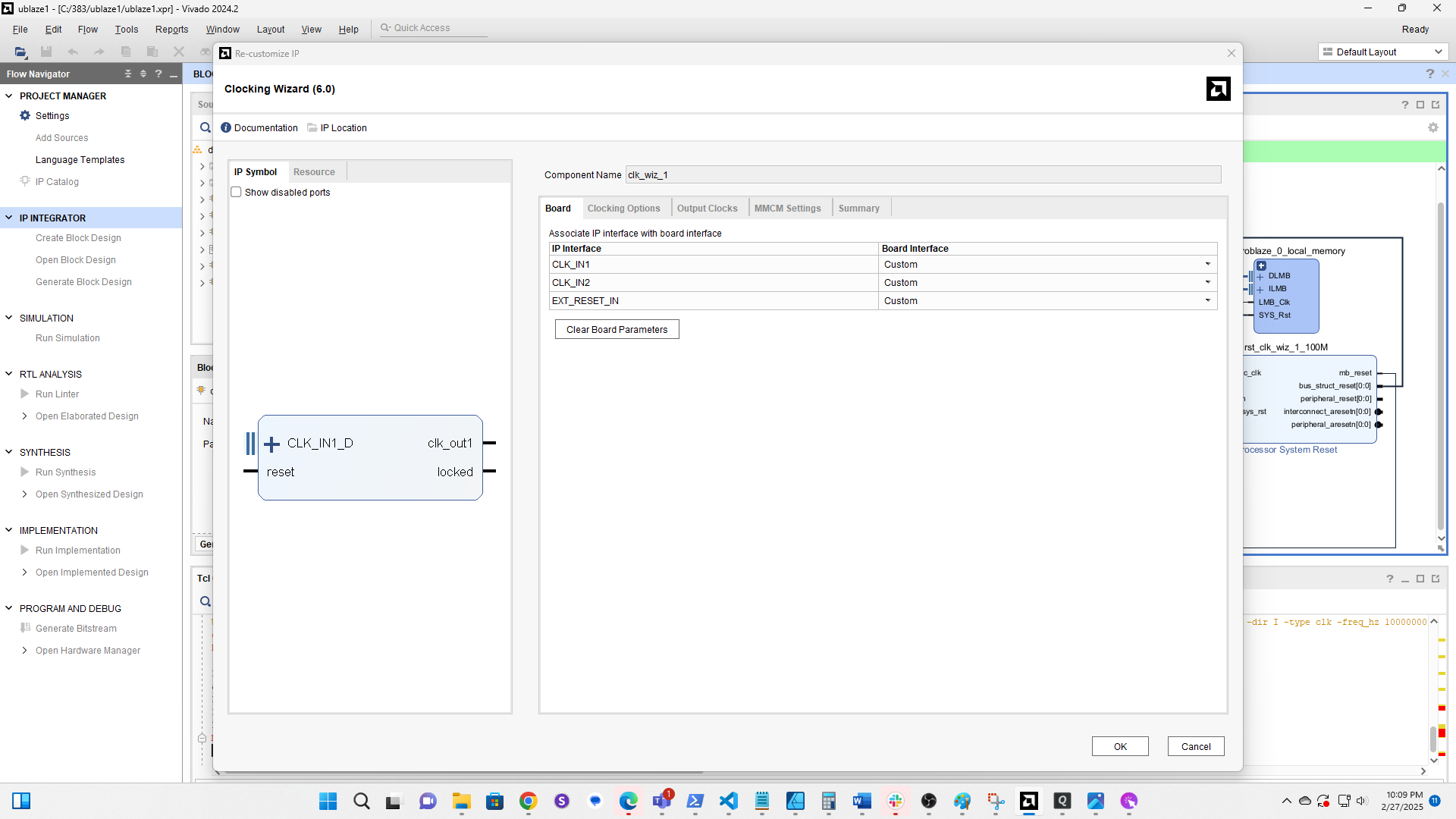
Double click the Clock Wiz component
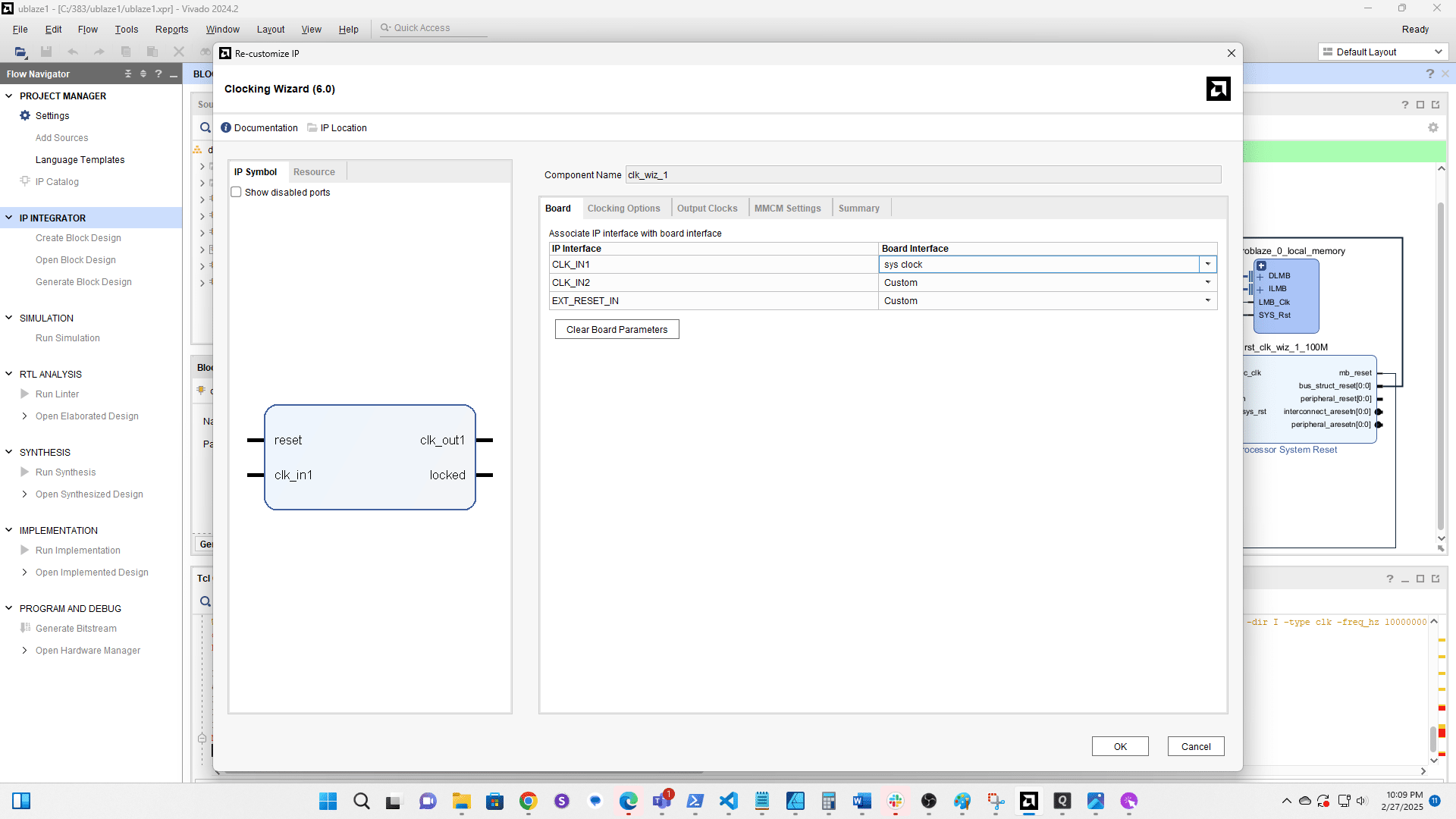
Set CLK_IN1 to sys clock
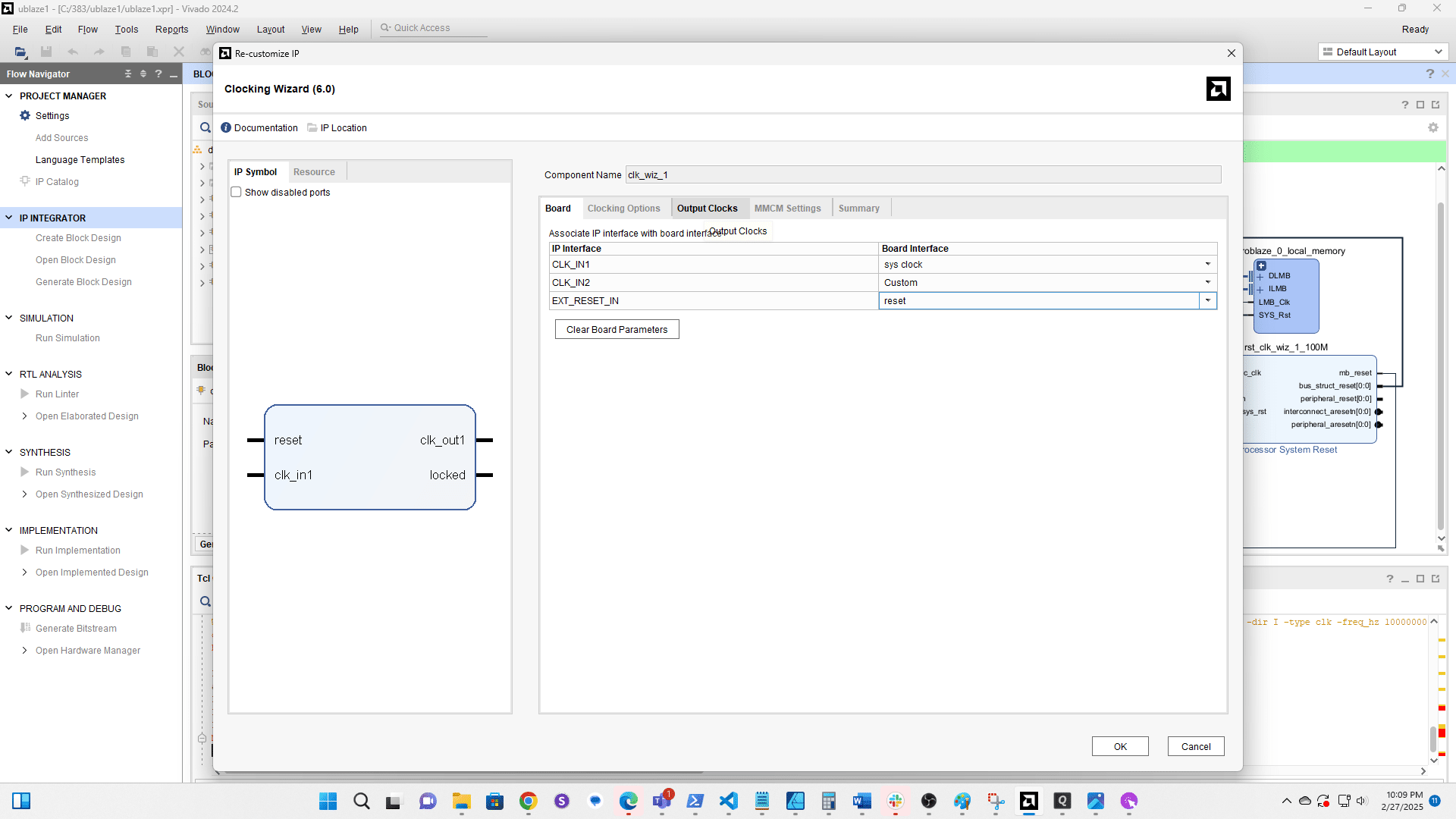
Set EXT RESET IN to reset
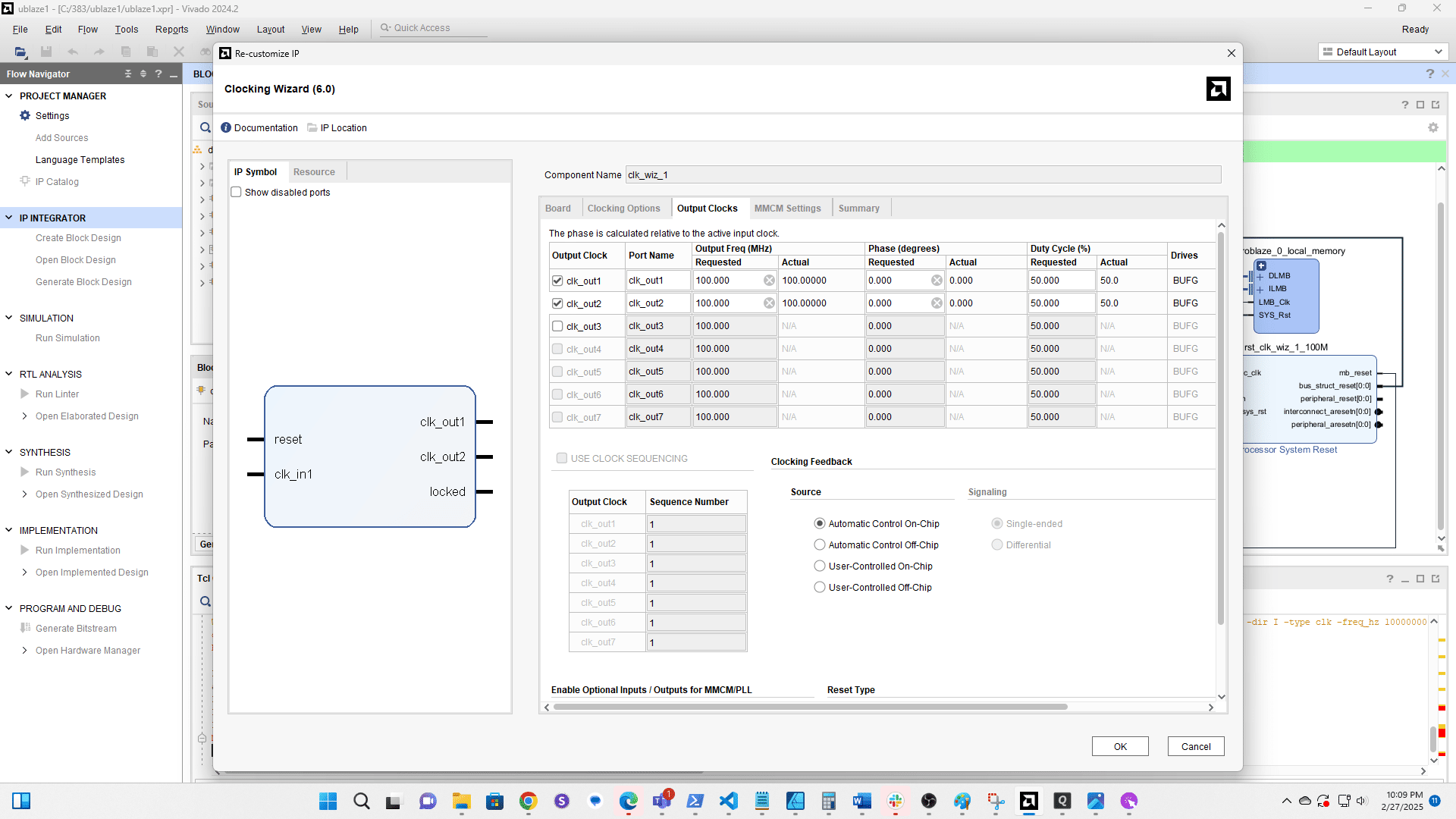
Click here
Enable clk out2
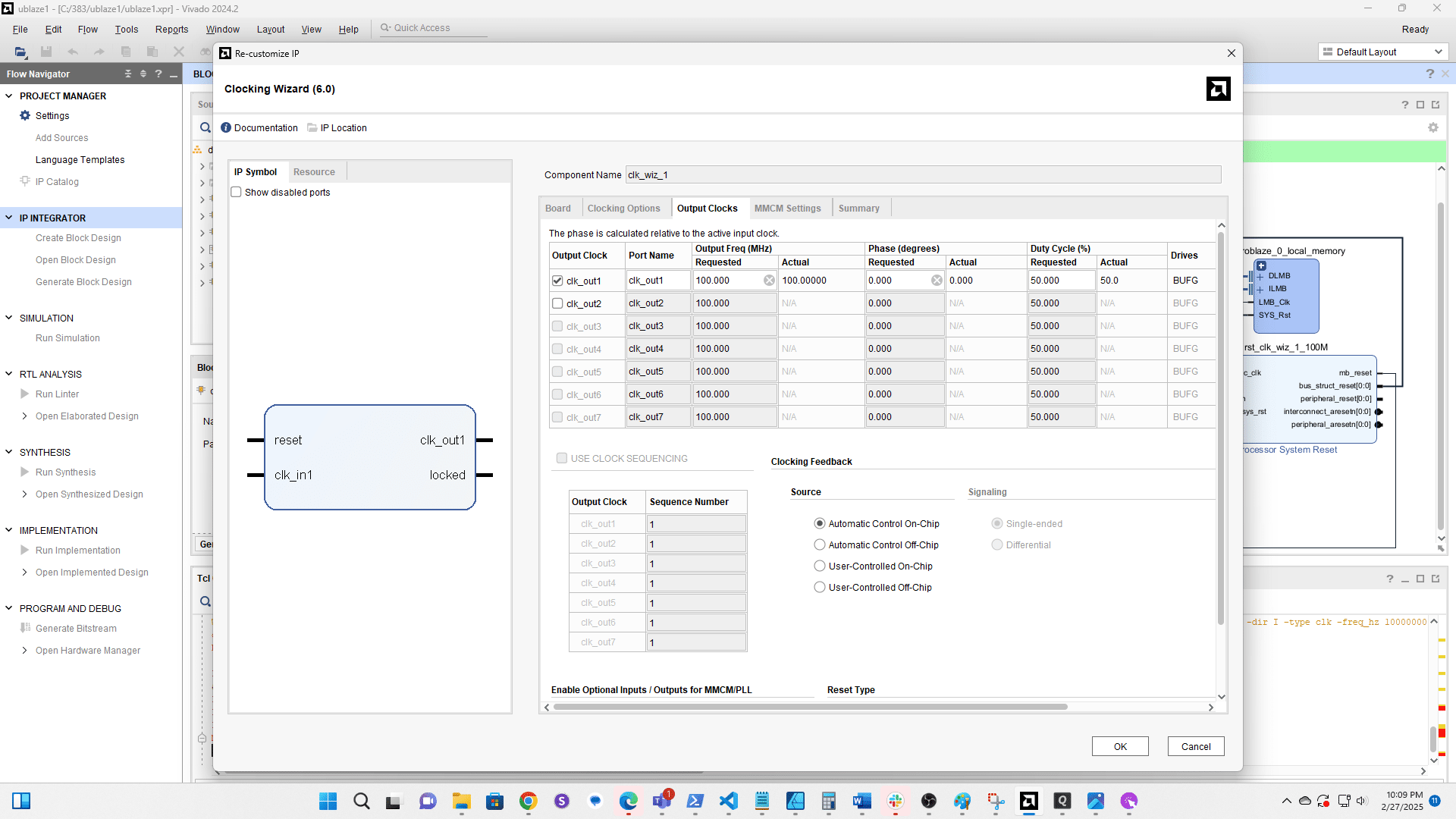
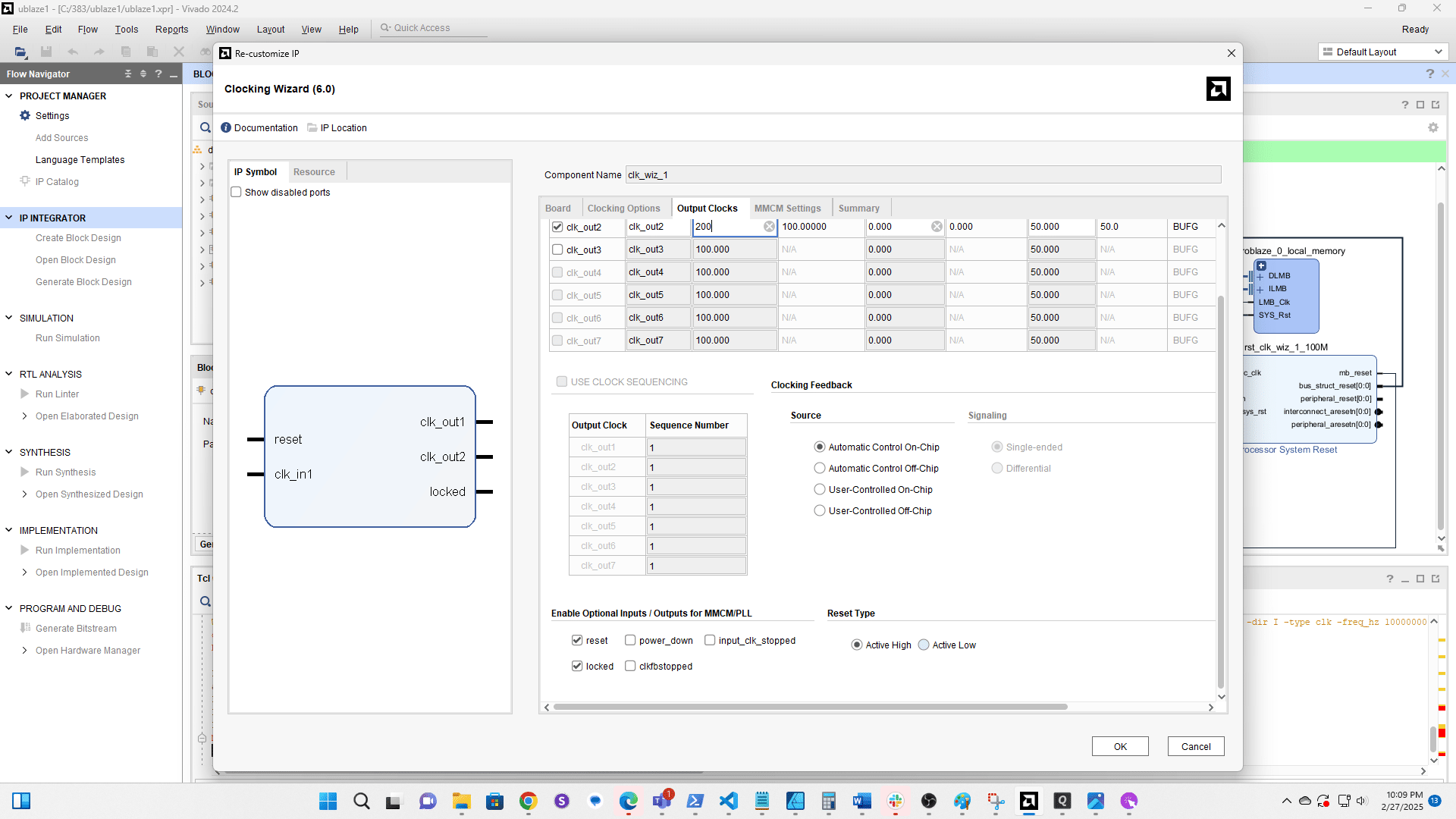
Set the frequency to 200MHz
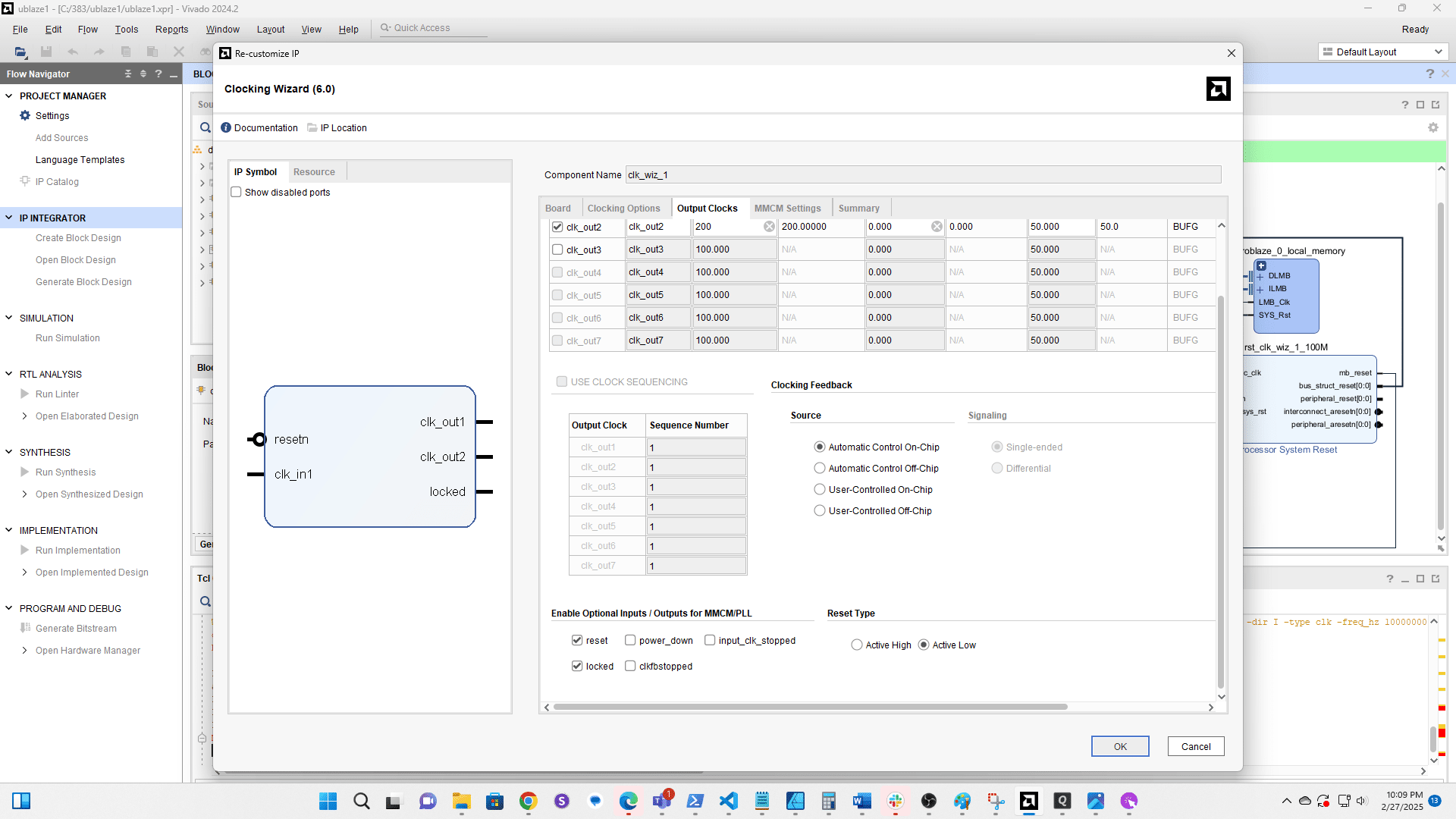
Set the Reset Type to Active Low
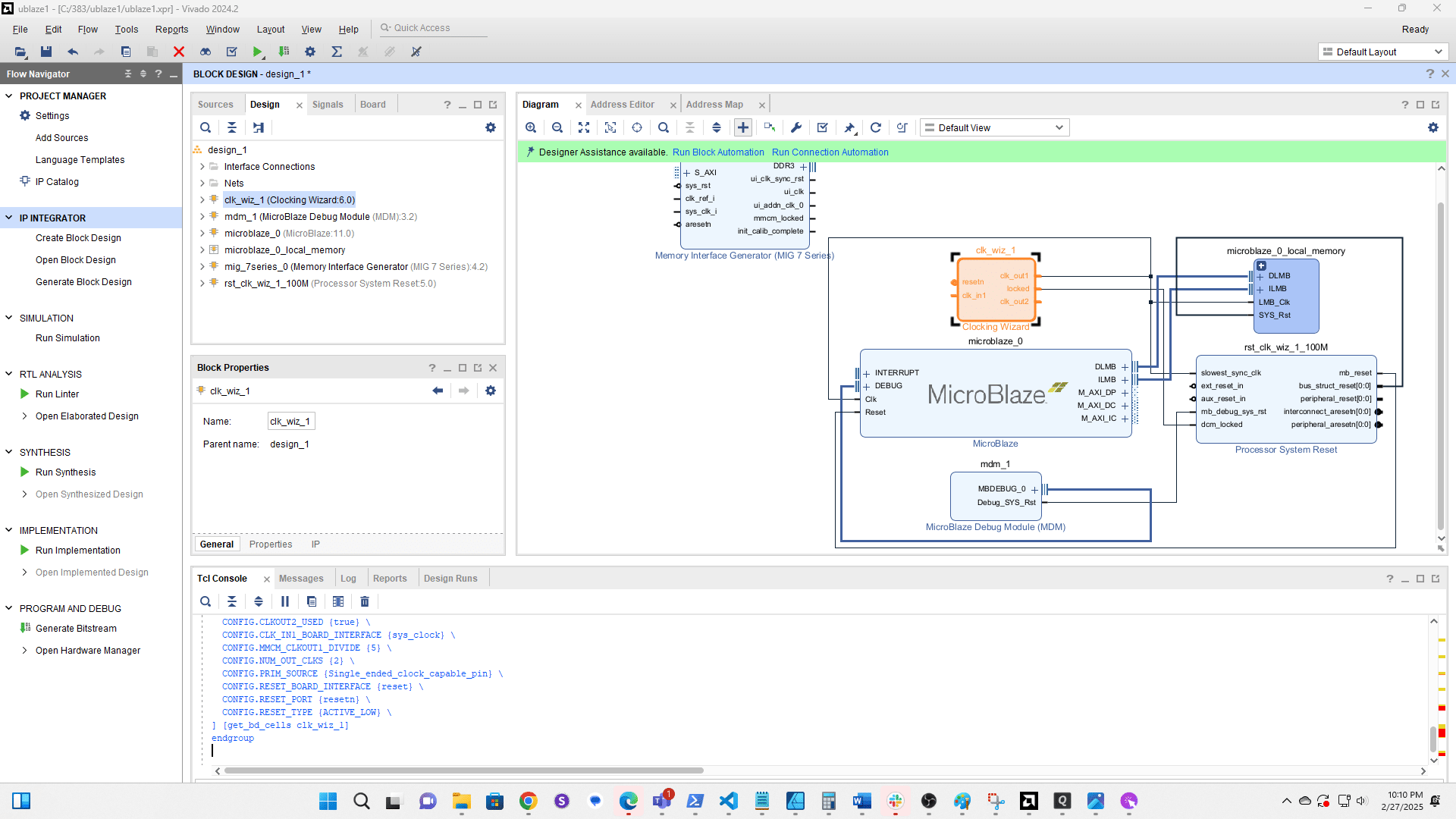
Click here
Click + to add a new component
Search for and add AXI Uartlite
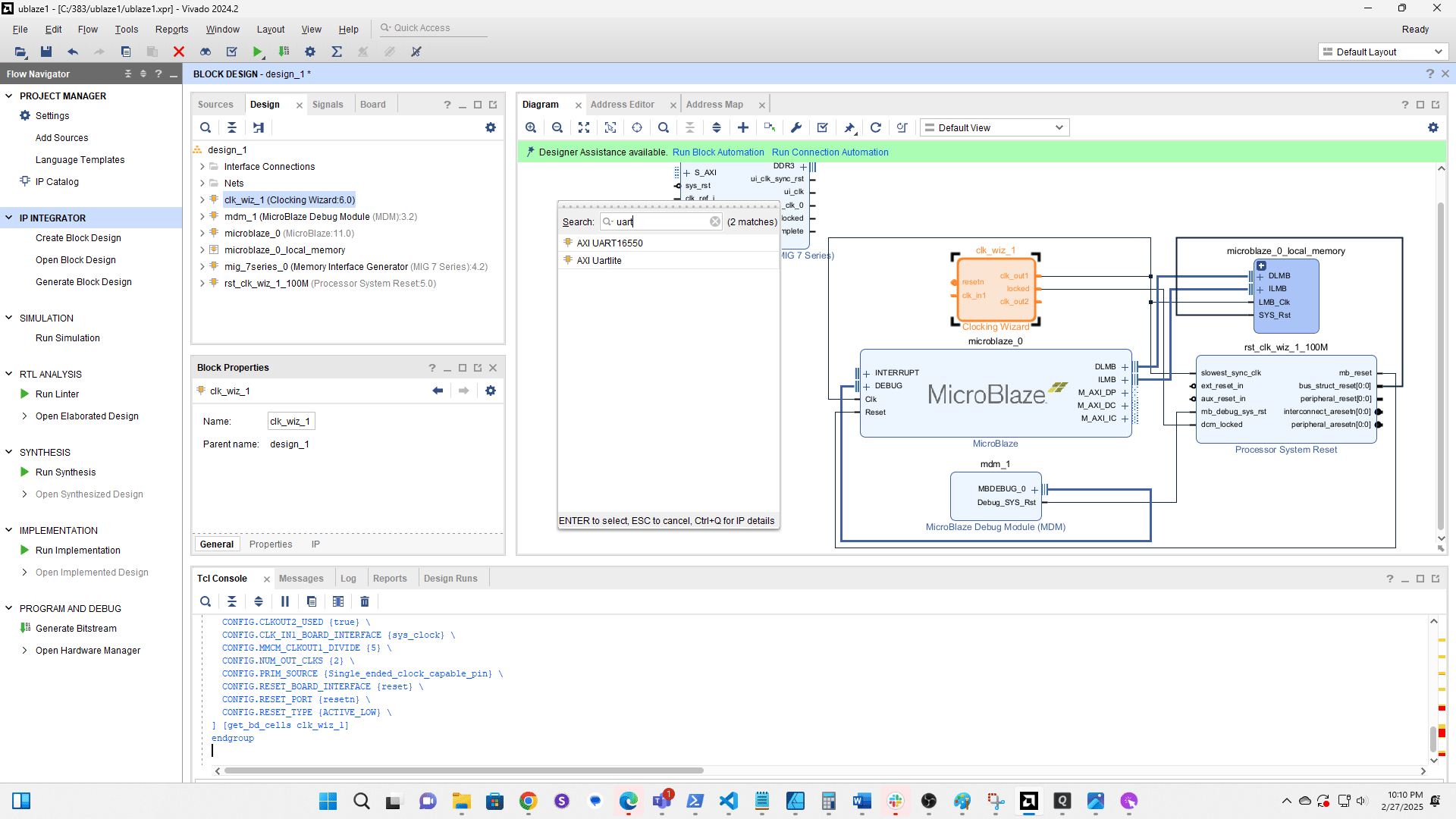
Run Connection Automation
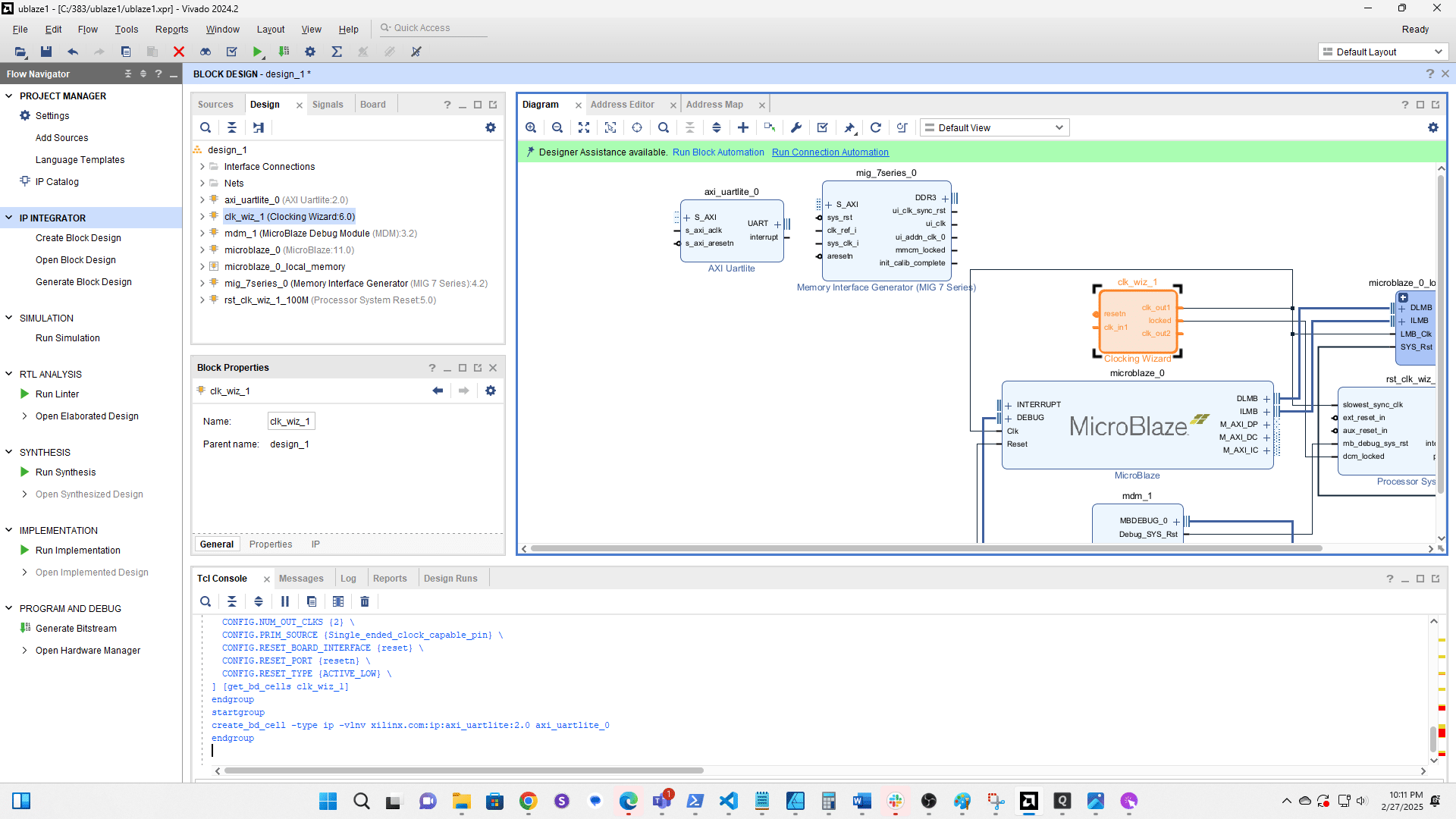
Select all components except the MIG and Microblaze (if visible)
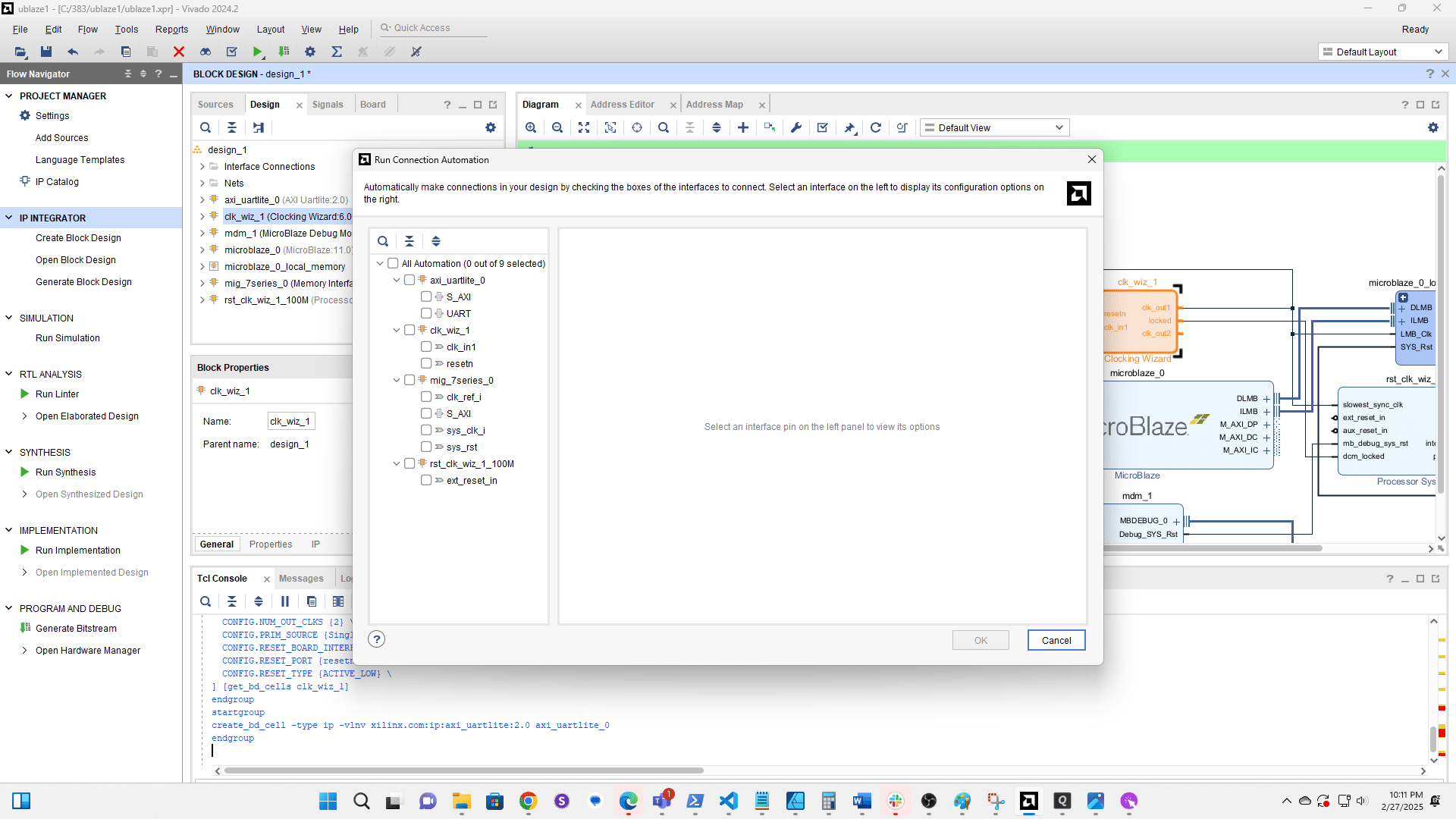
Click here
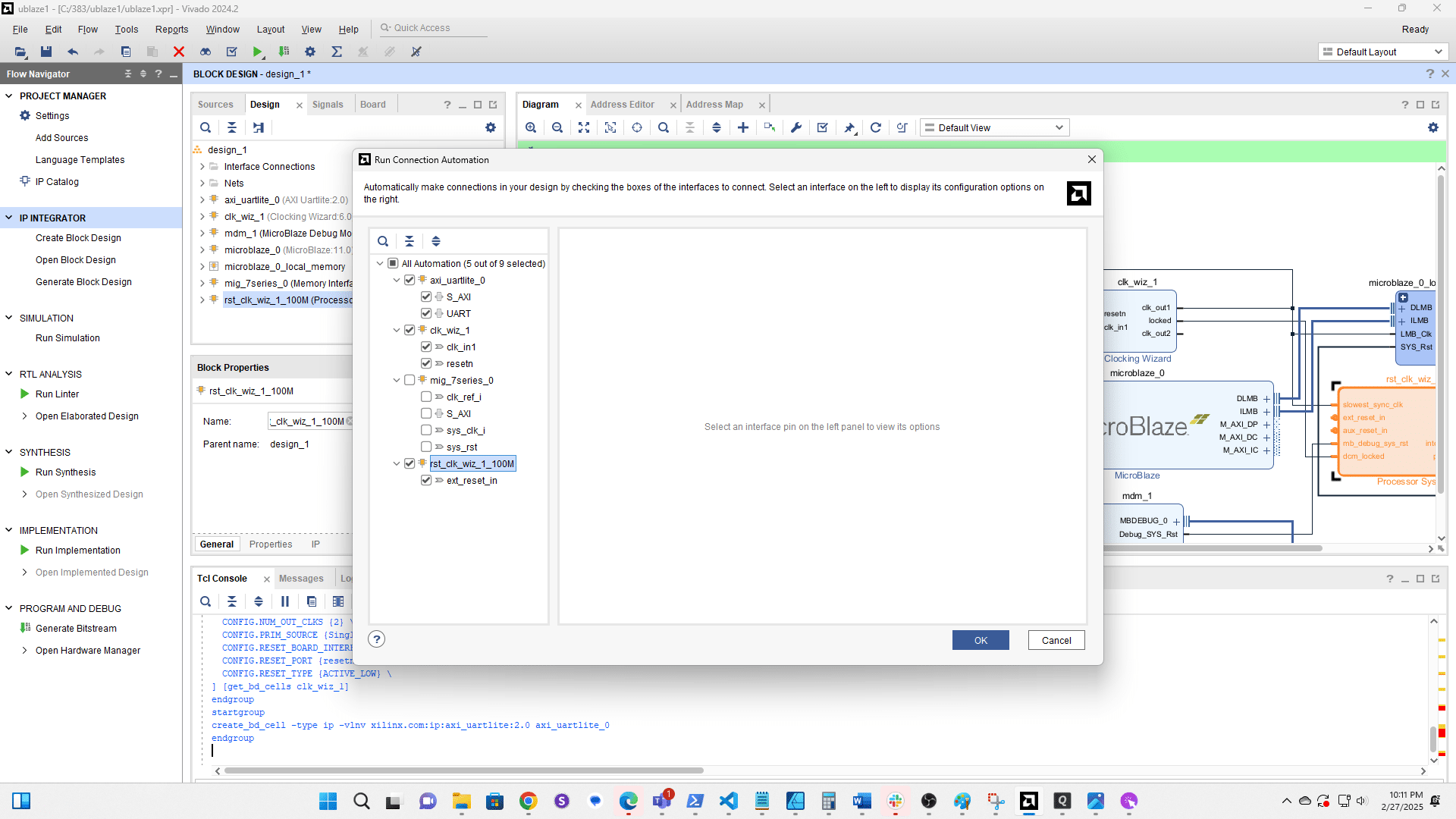
Click the + to add a new component
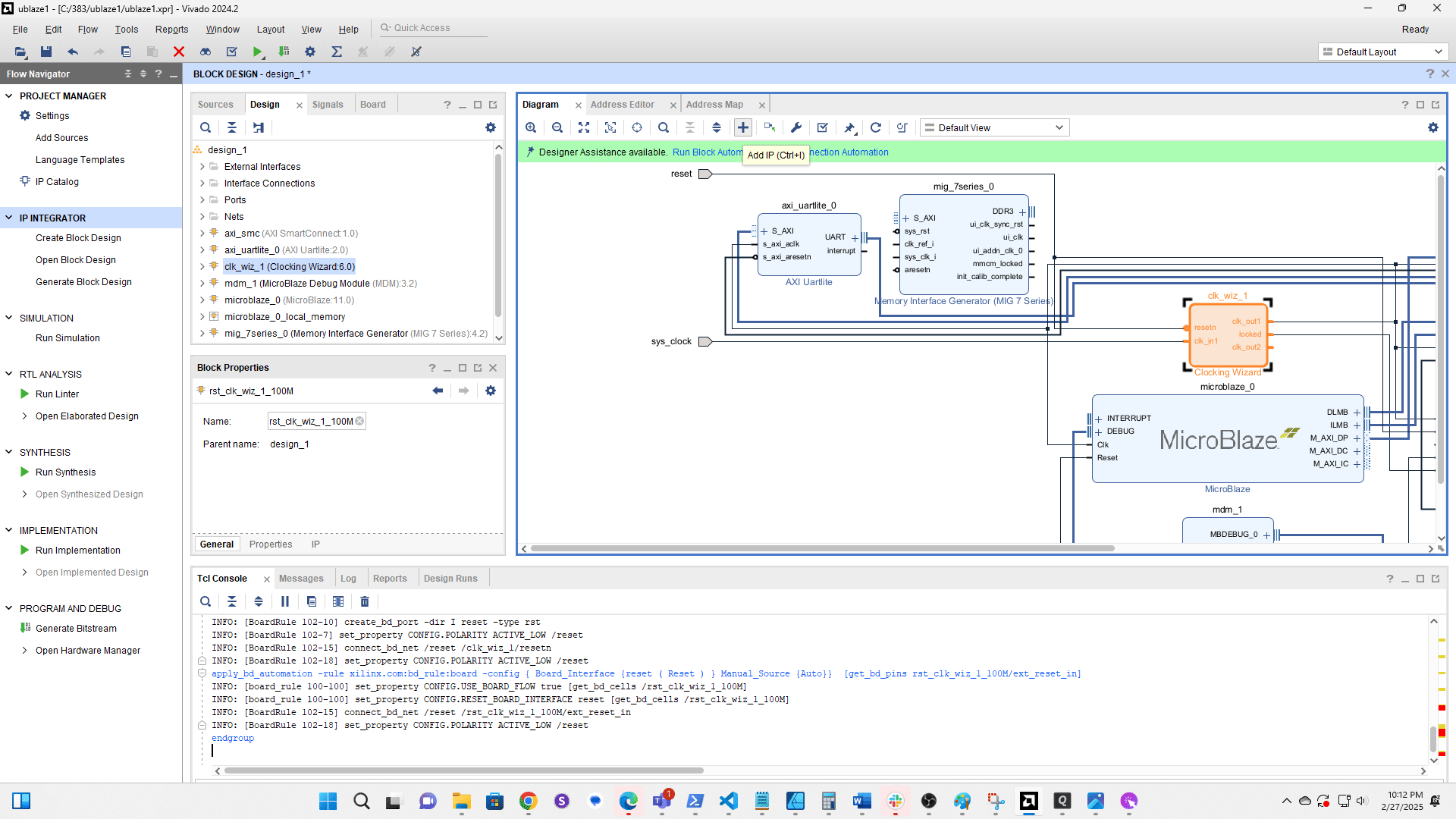
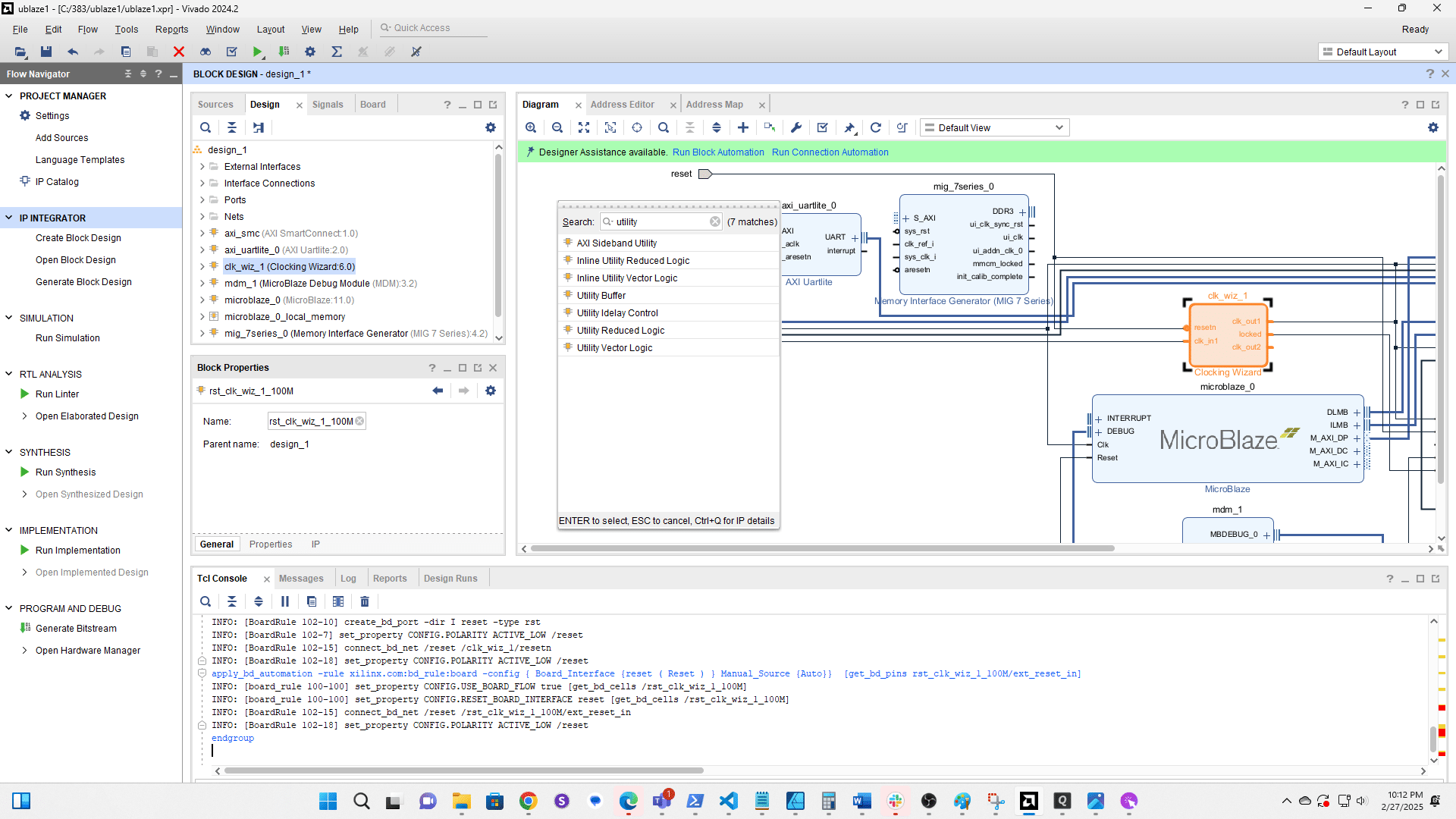
Search for and add the Utility Buffer
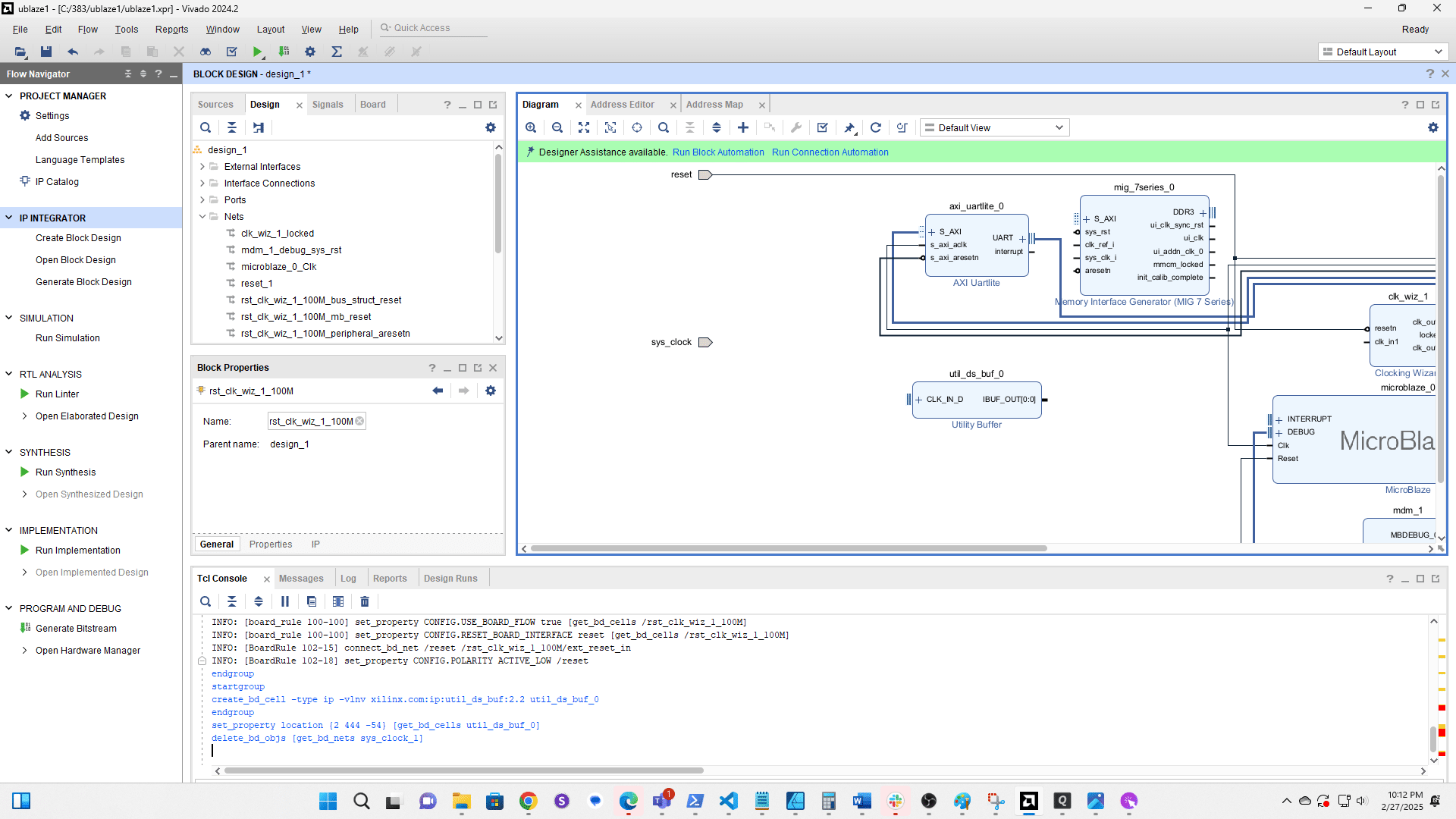
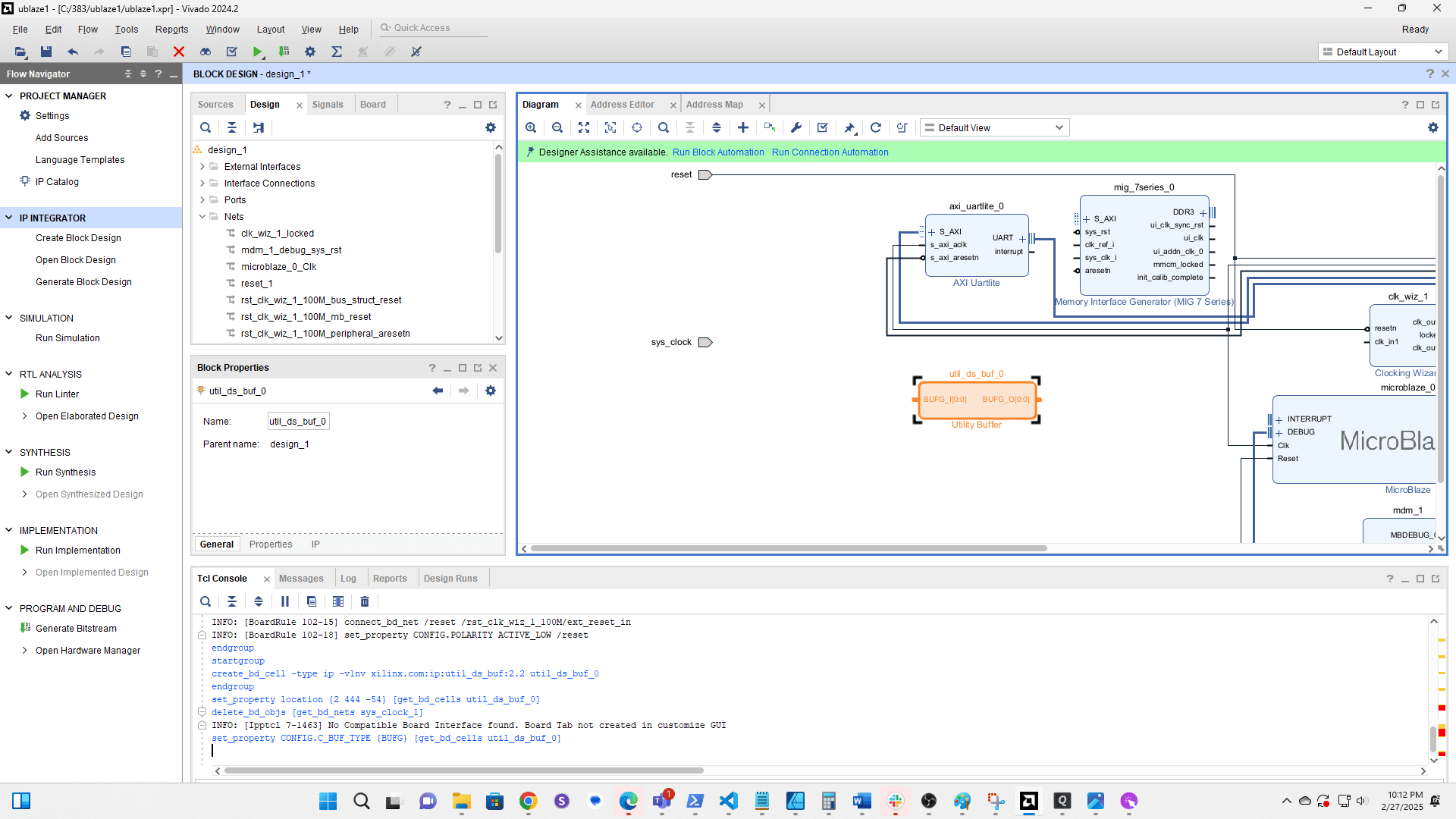
Click the connection from sys clk to clk wiz 1 and delete it
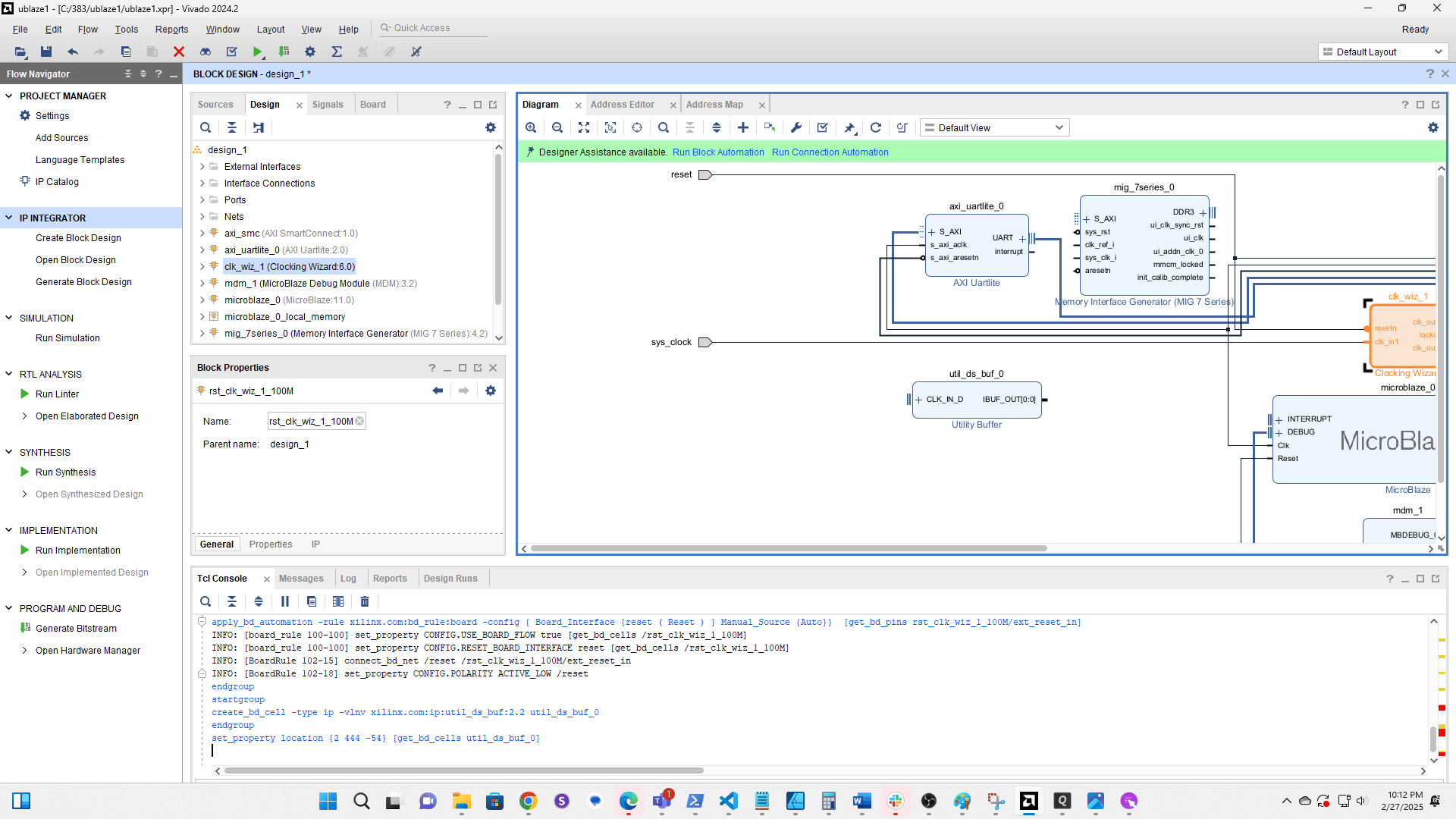
Double click the Utility Buffer to edit it
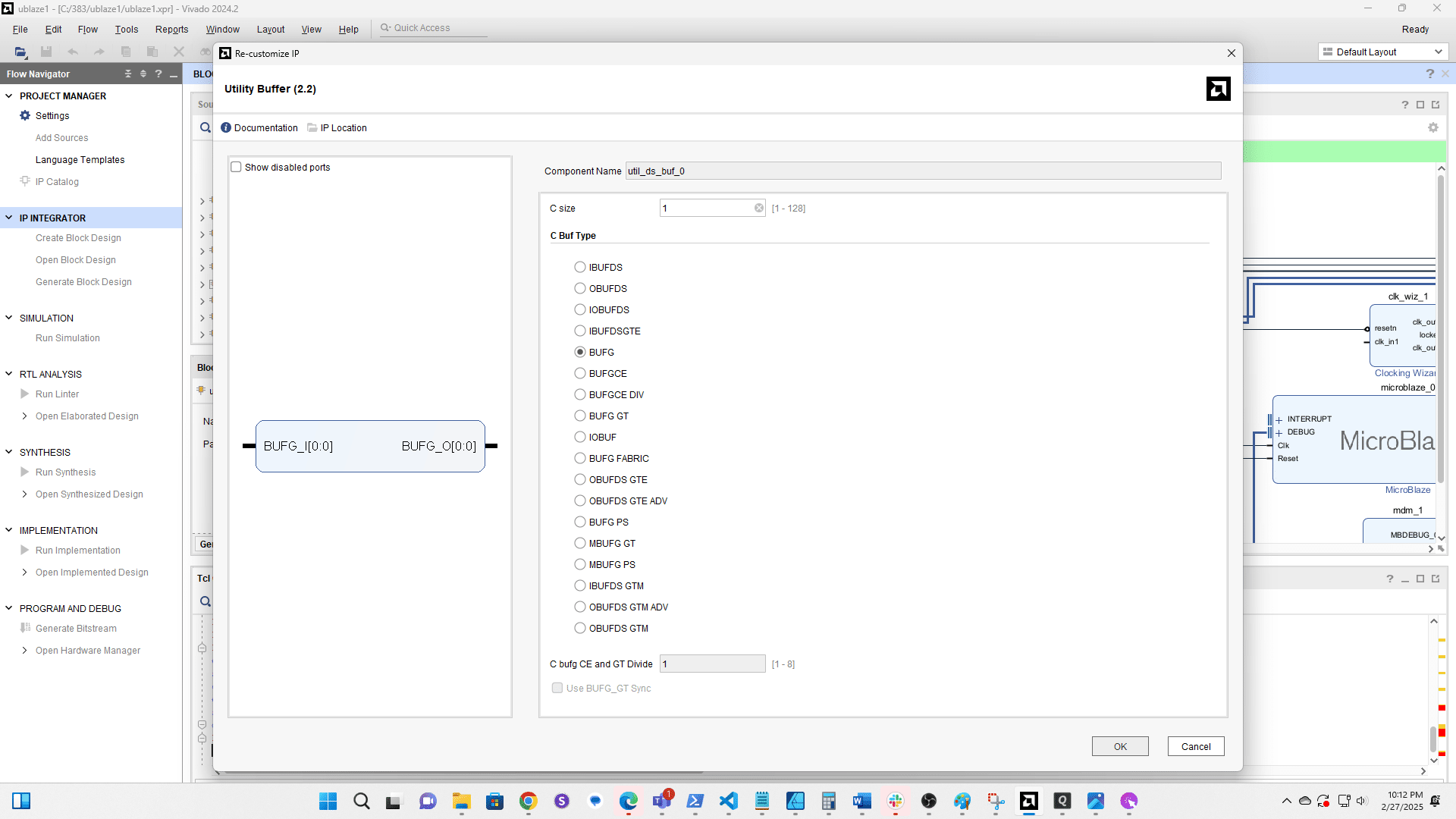
Change the type to BUFG
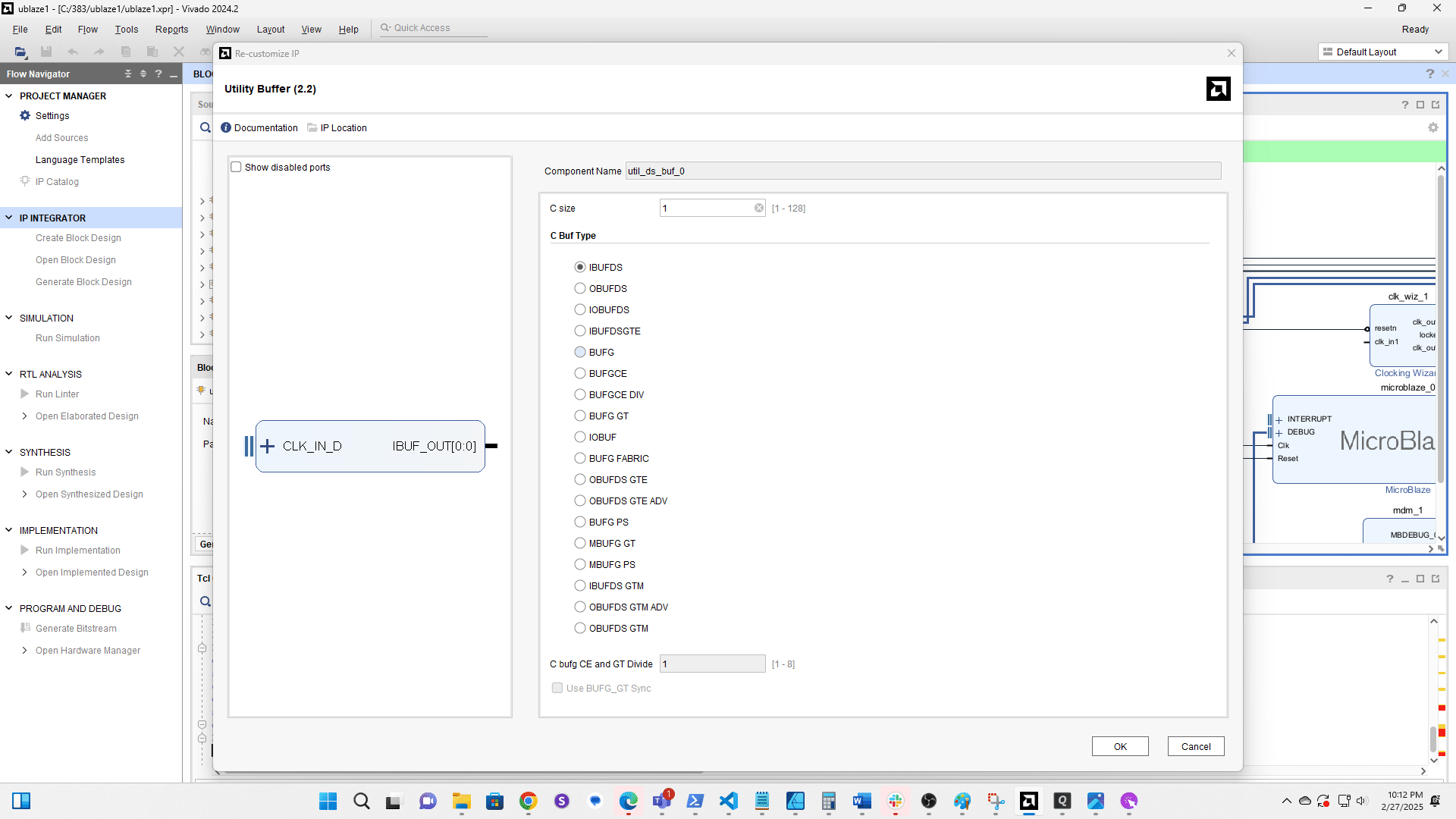
Click here
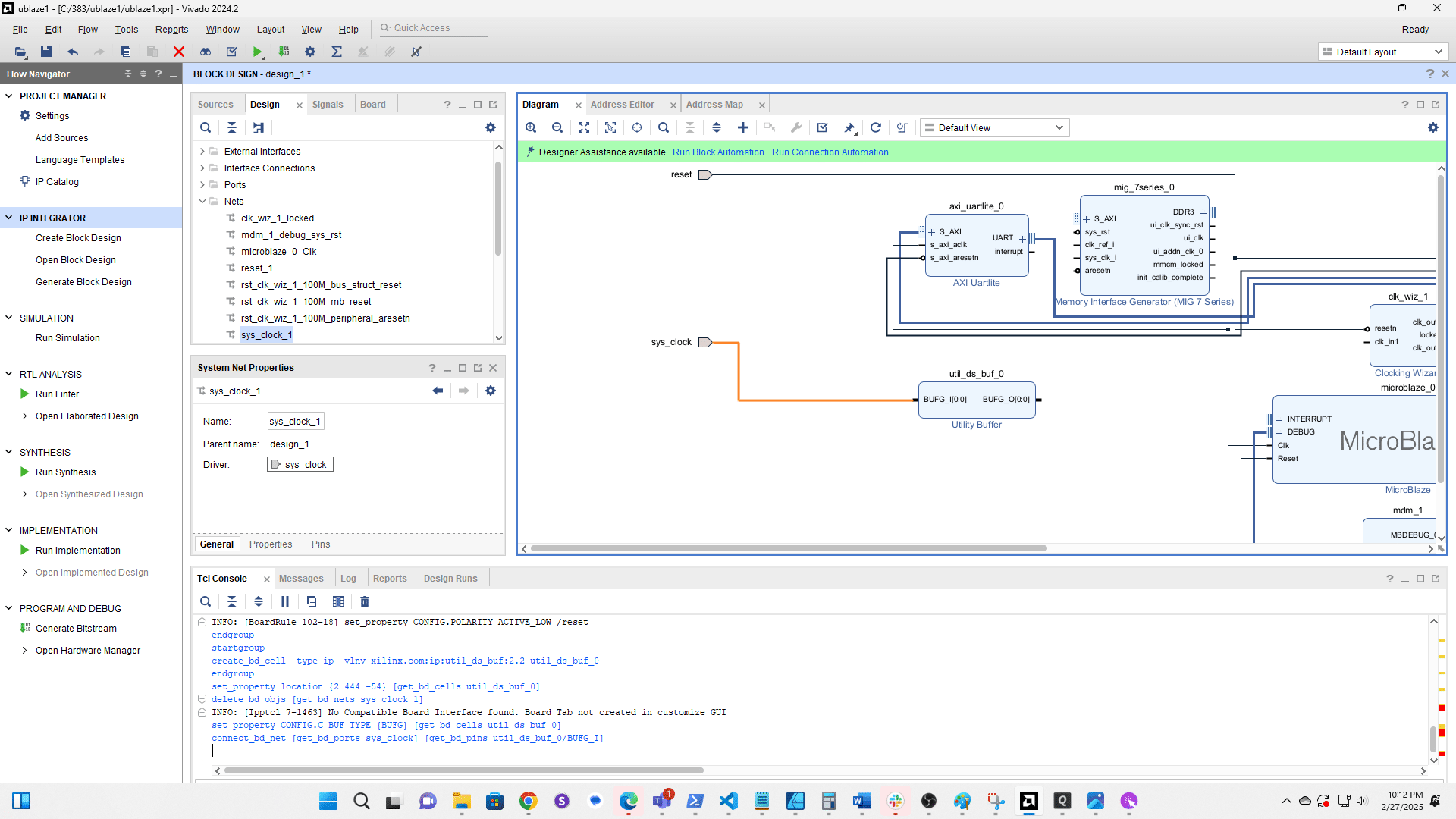
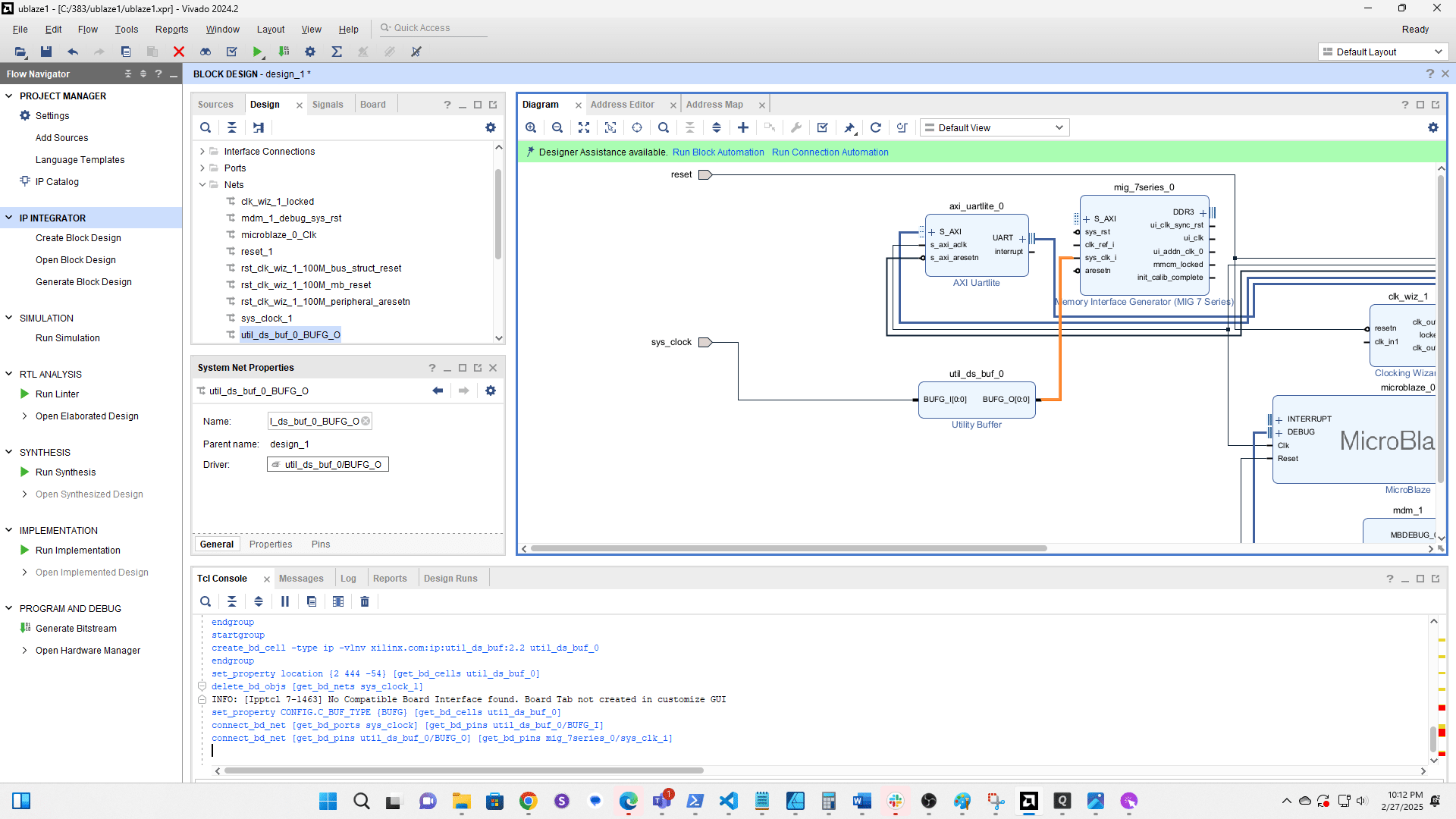
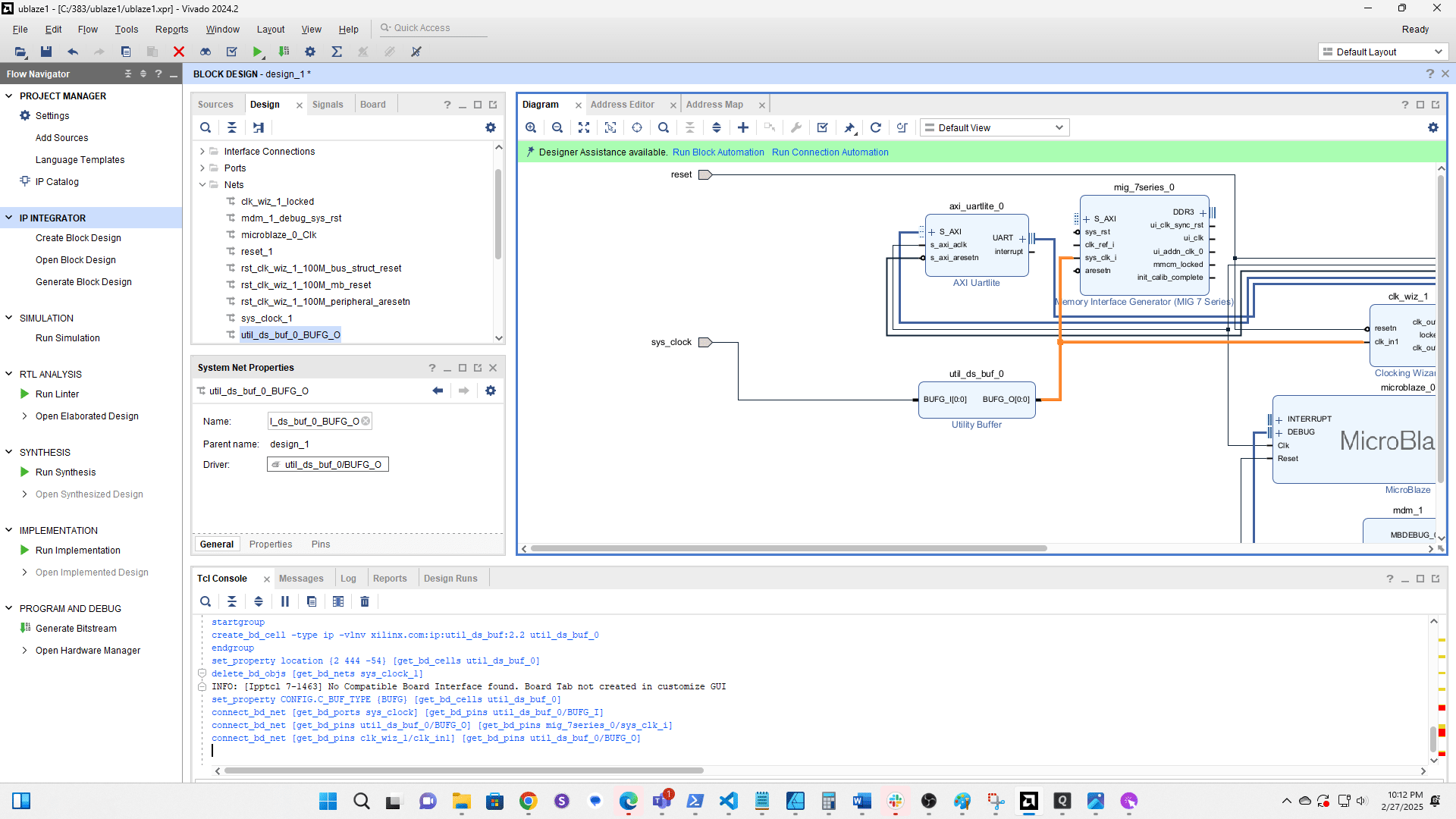
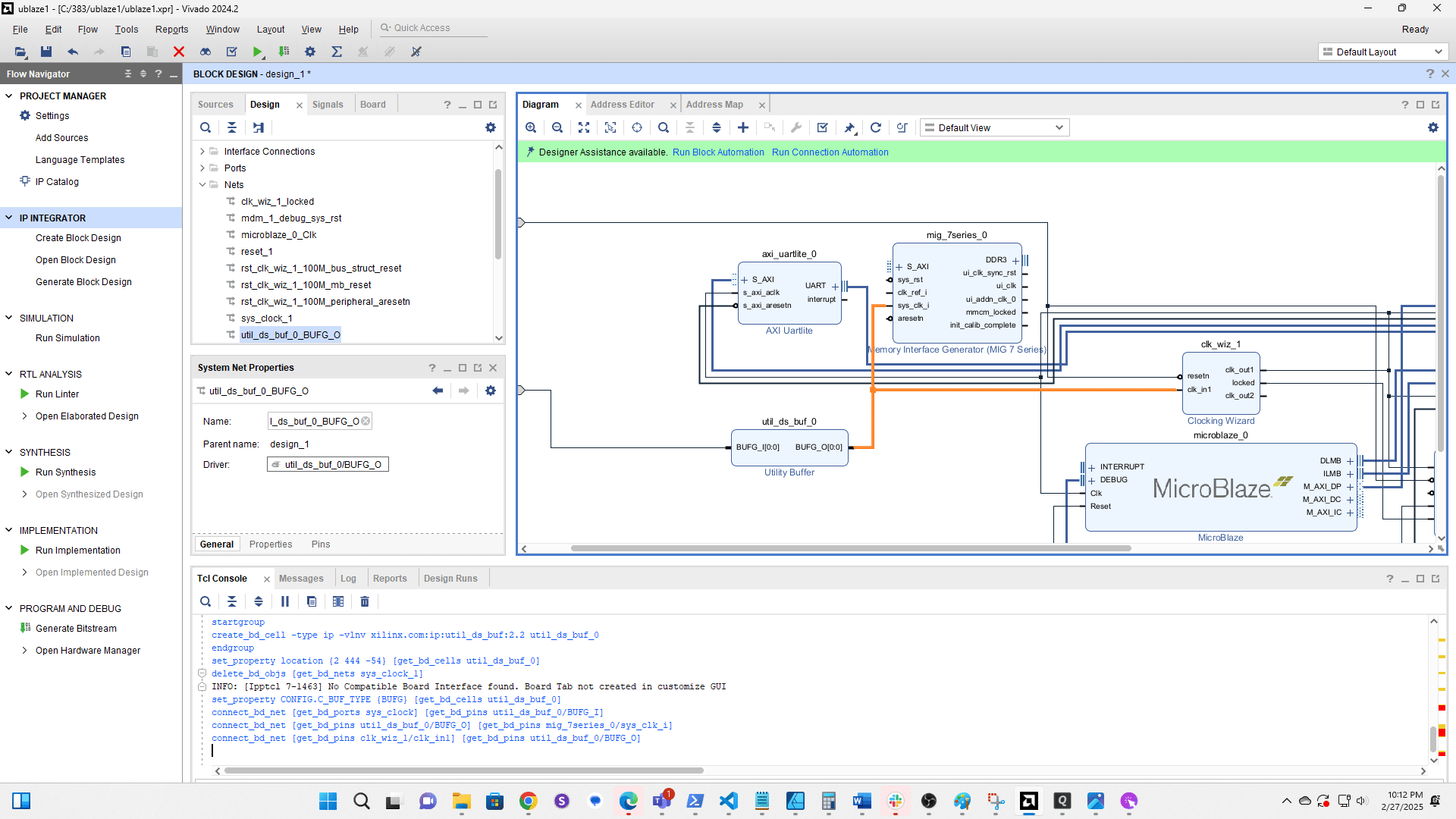
Click and drag a new connection from sys clk to the input on the Utility Buffer
Click and drag a connection from the output of the Utility Buffer to sys clk i on the MIG
Click and drag to create a connection from the Utility Buffer output to clk in1 on Clk Wiz 1
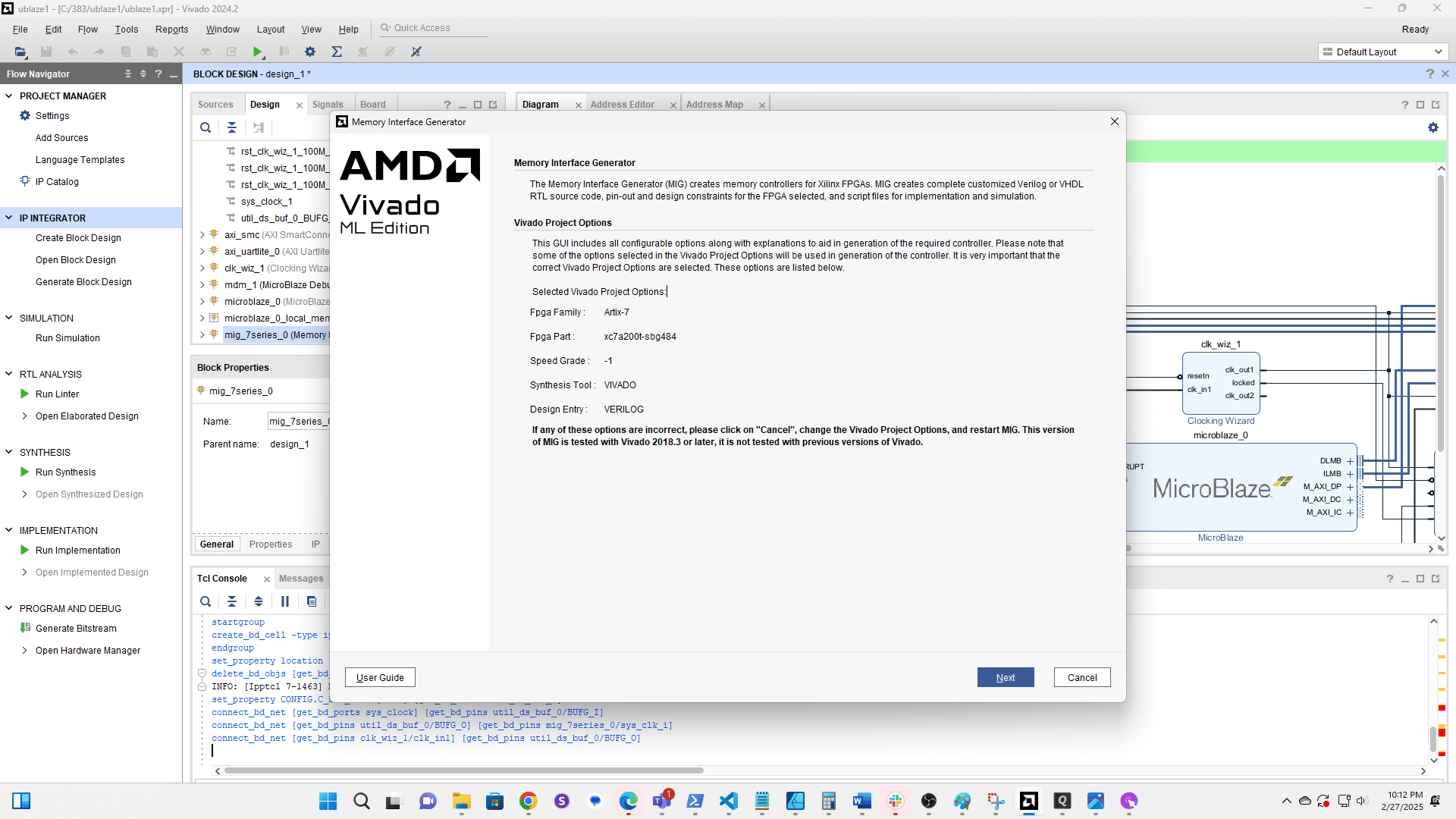
Double click the MIG to edit it
Click here
Click here
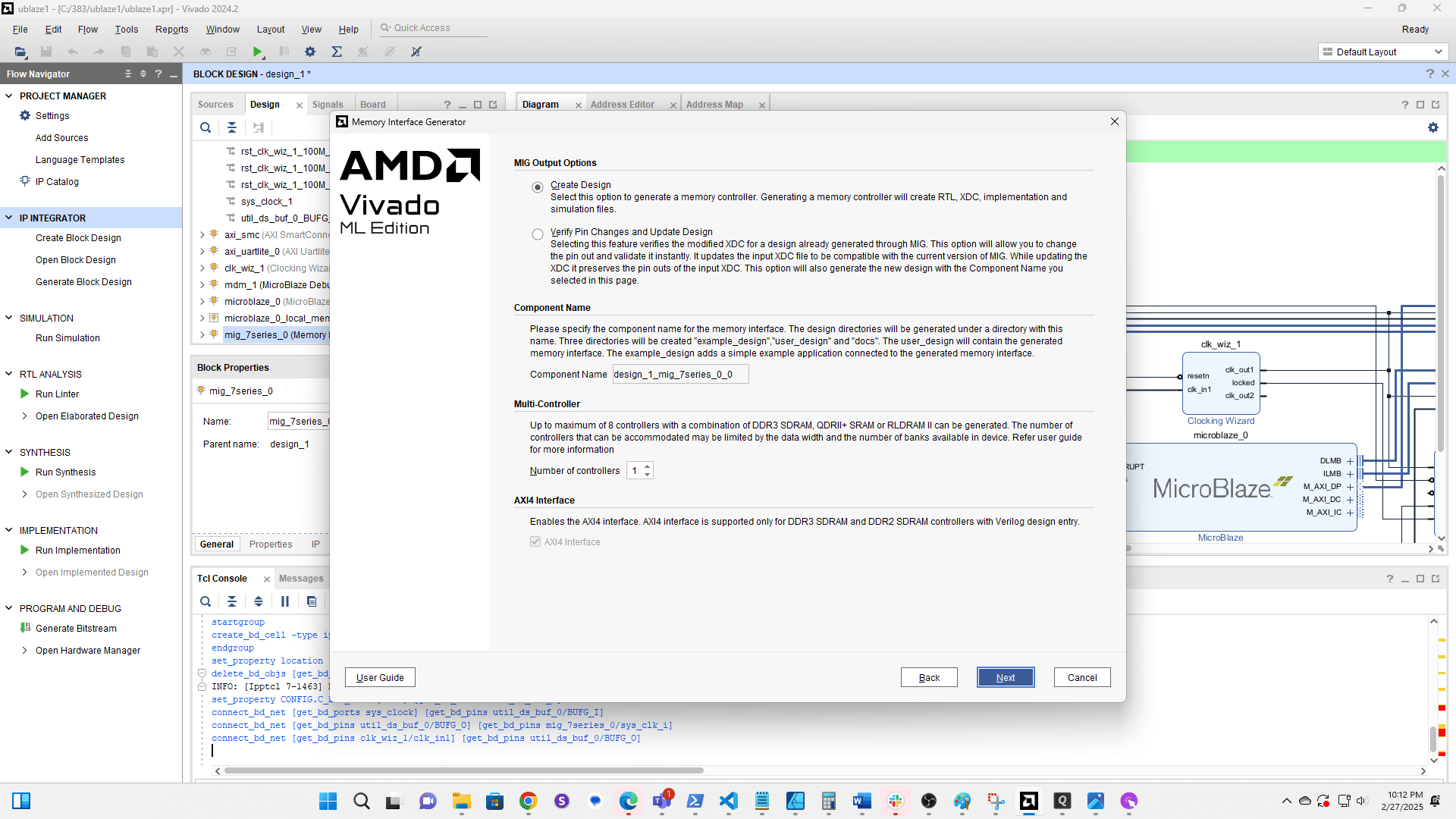
Click here
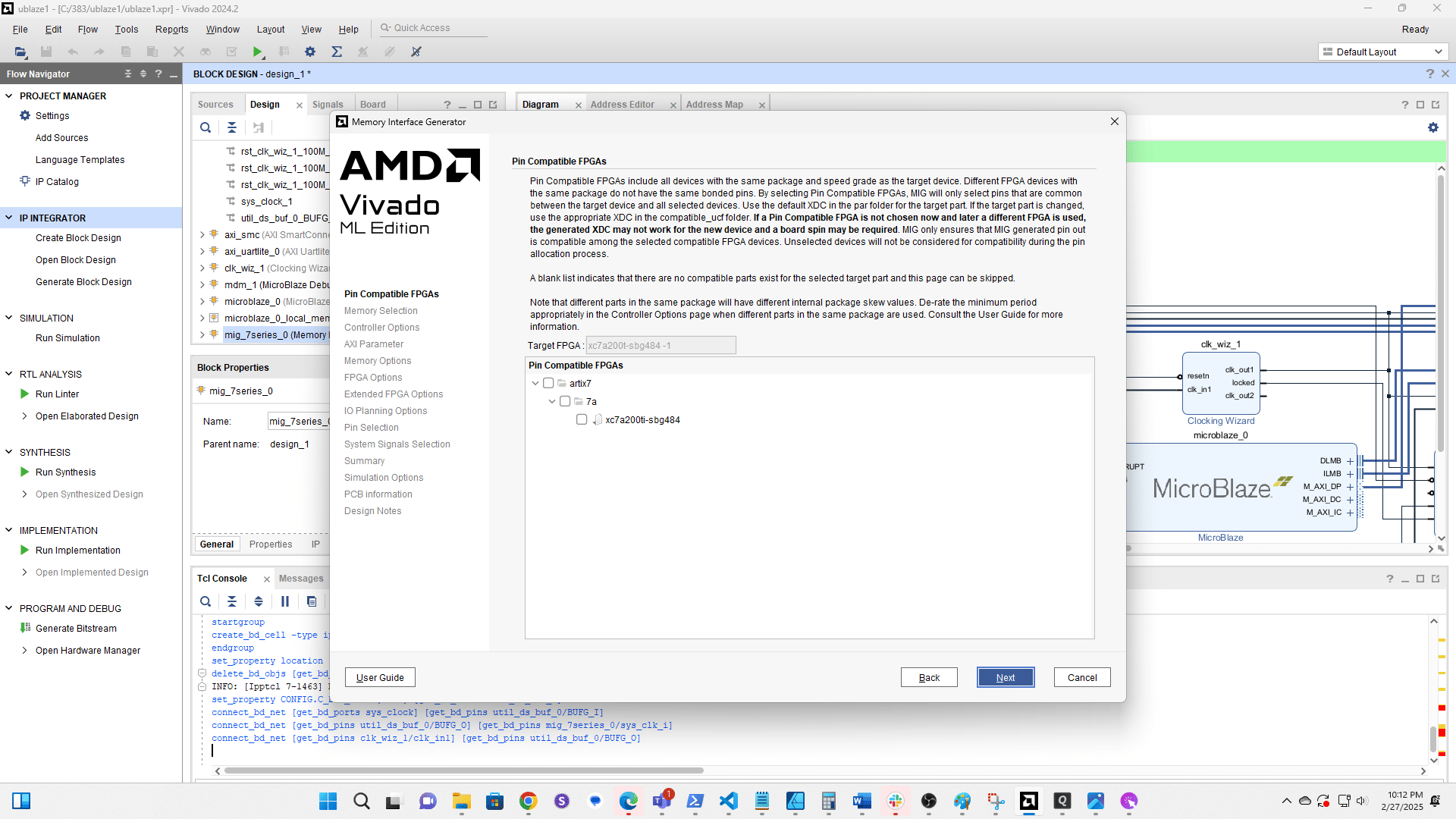
Click here
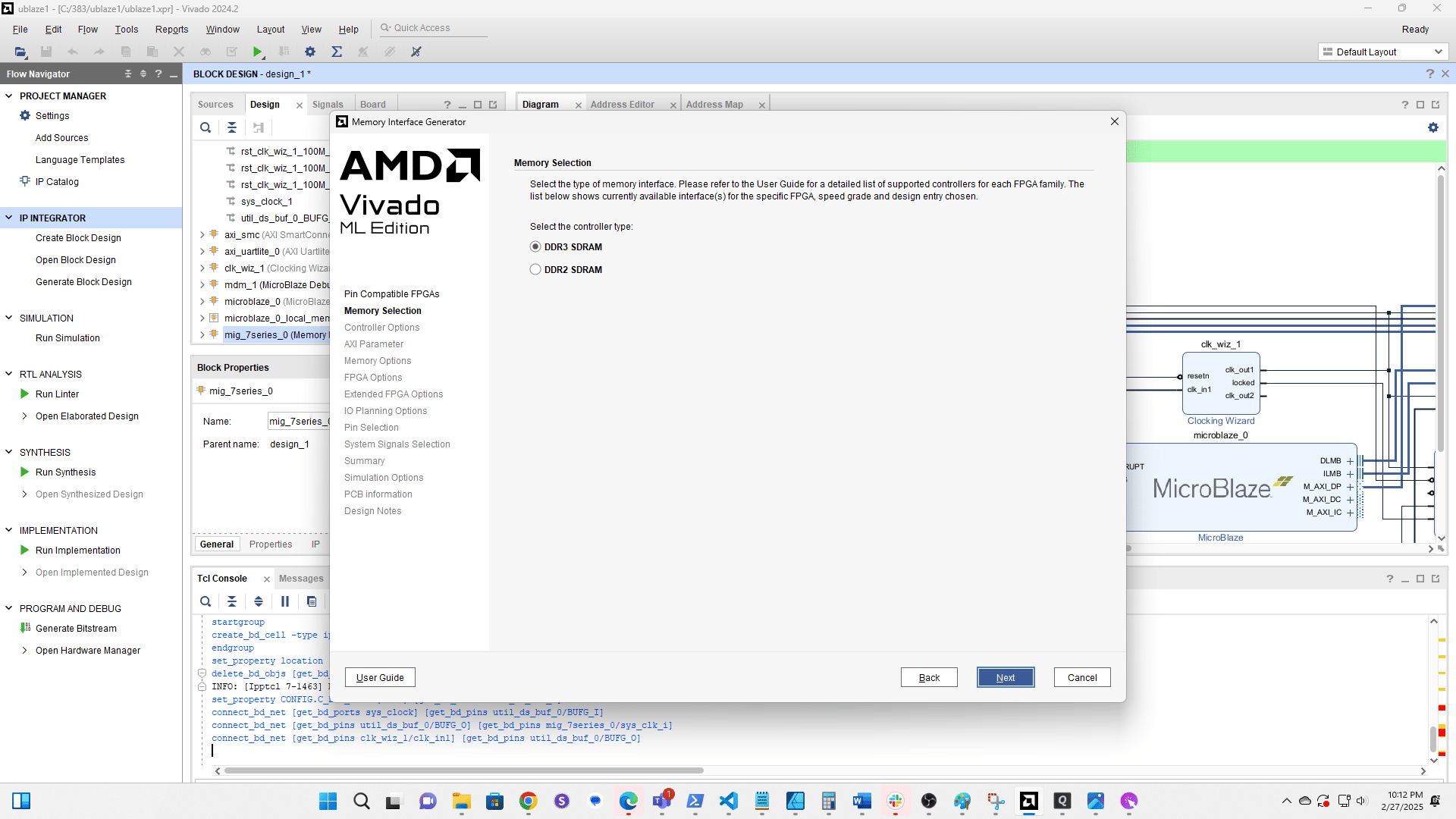
Click here
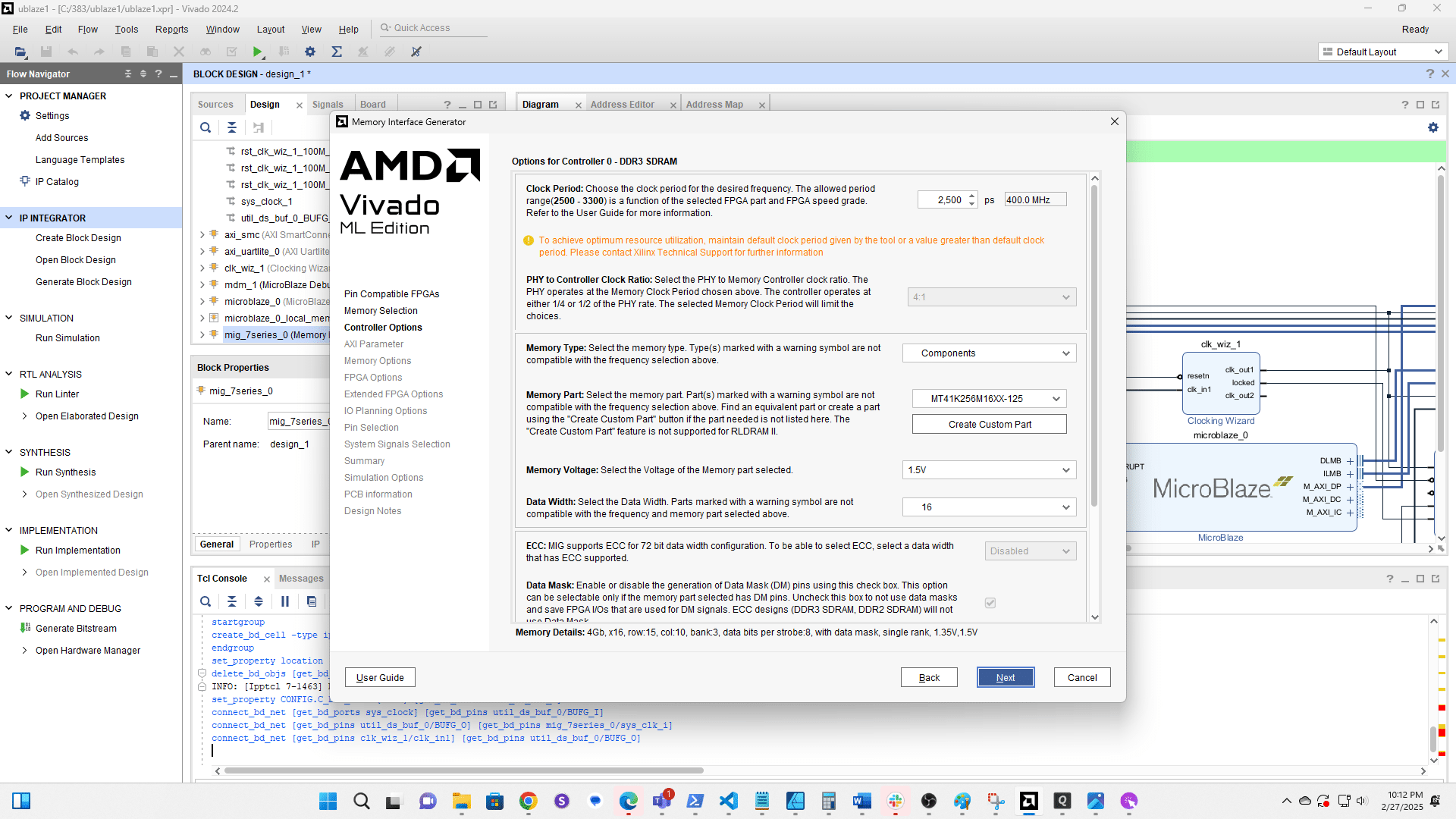
Click here
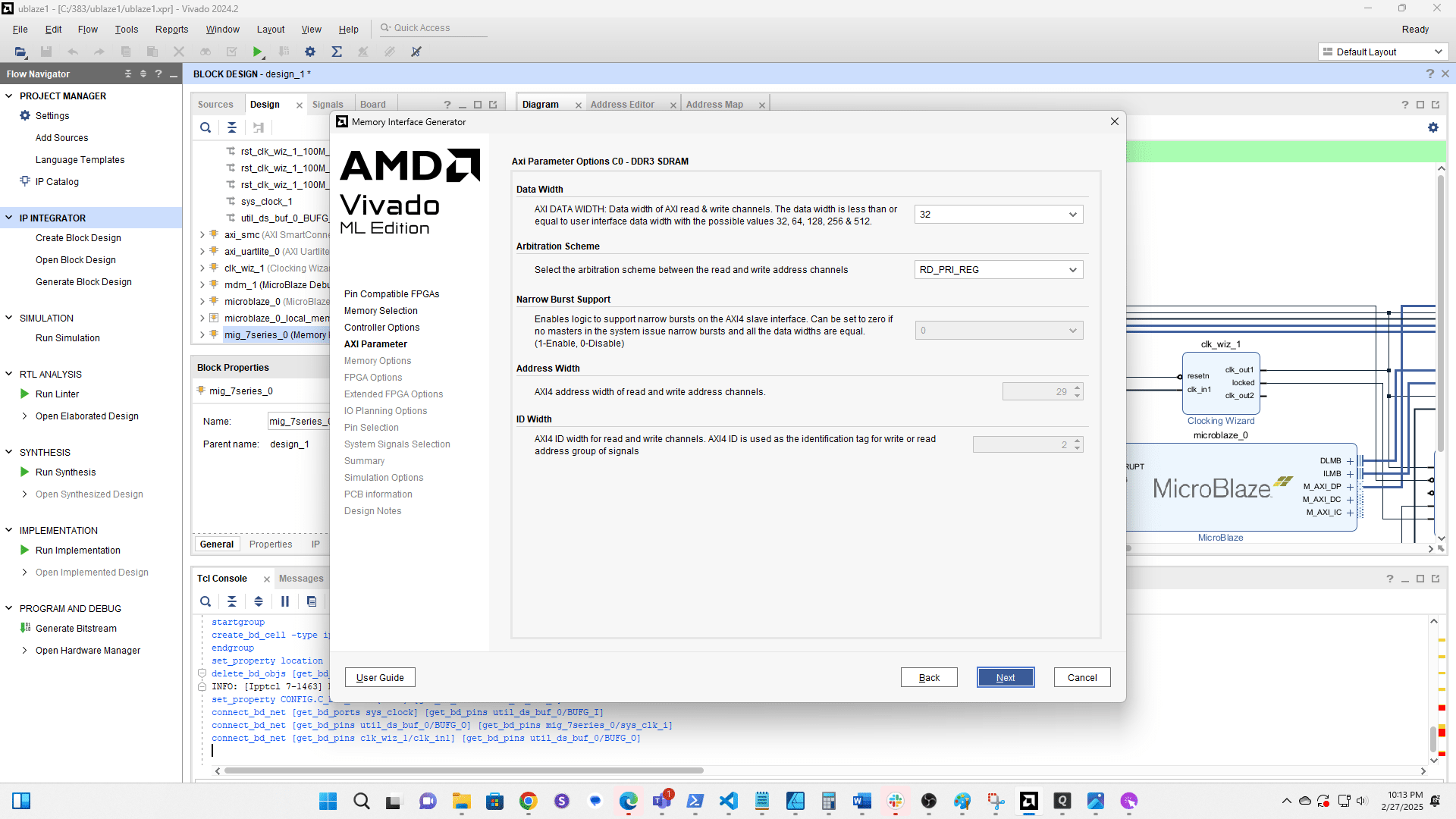
Click here
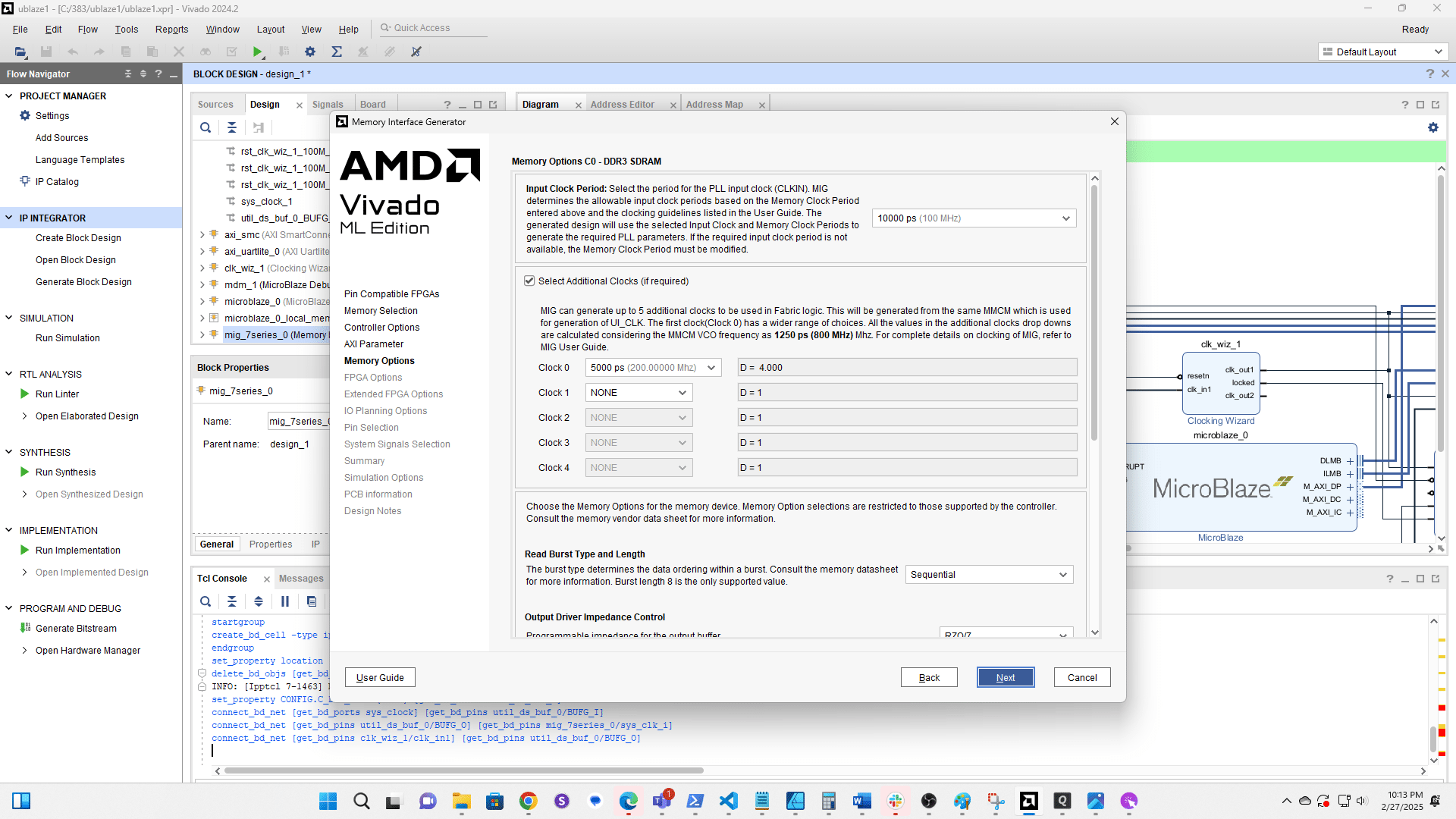
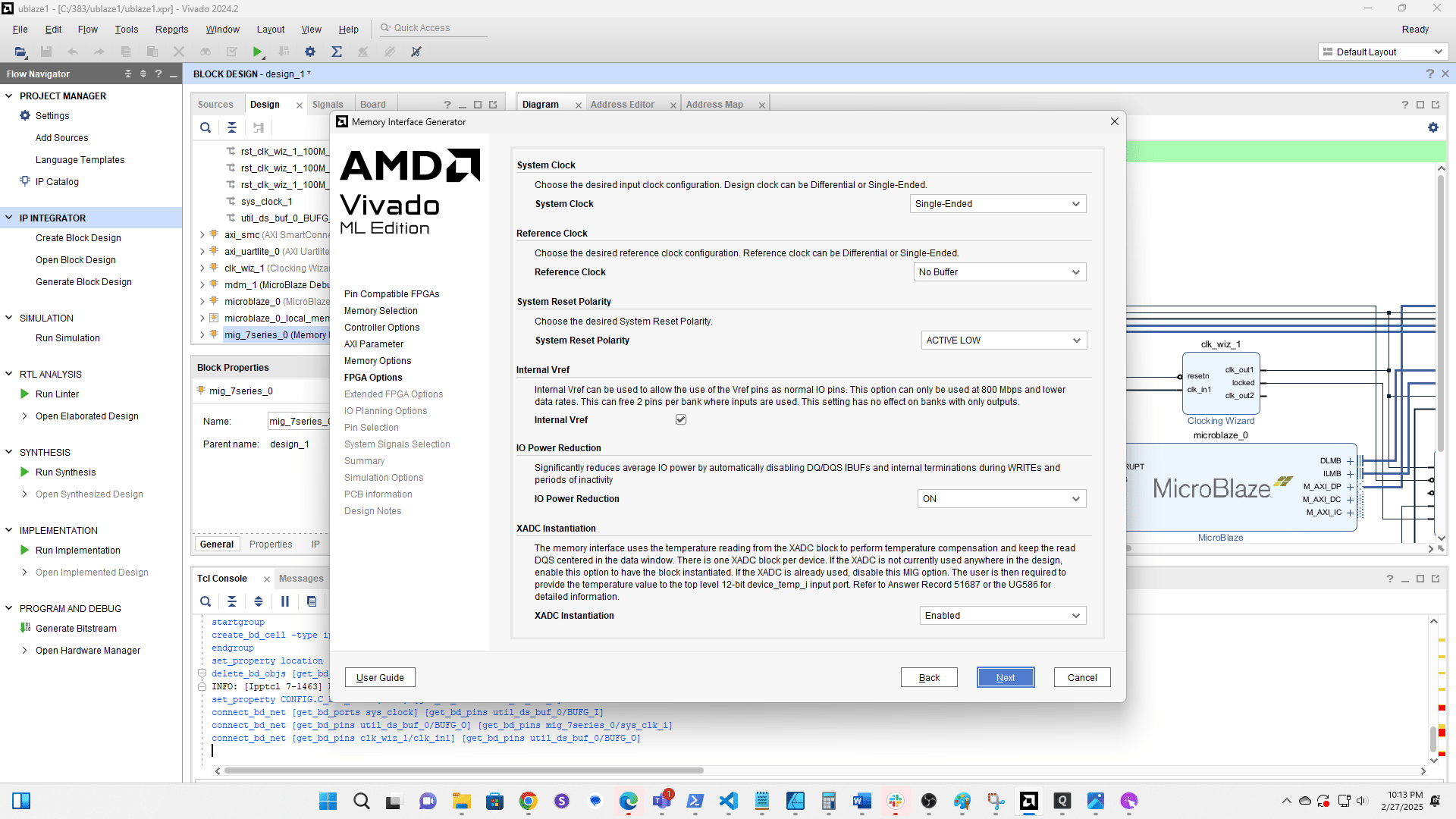
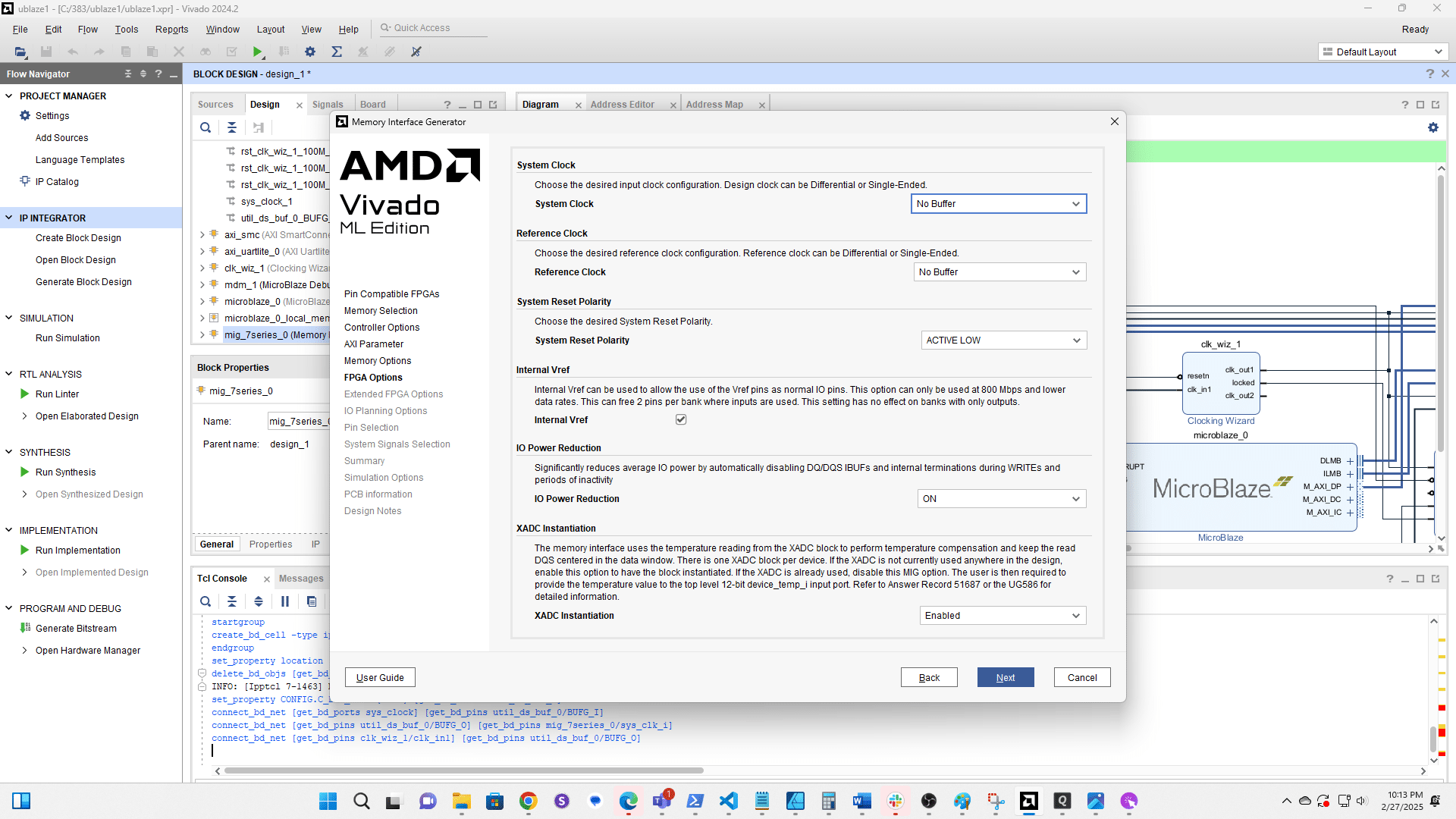
Change the System Clock configuration to No Buffer
Click here
Click here
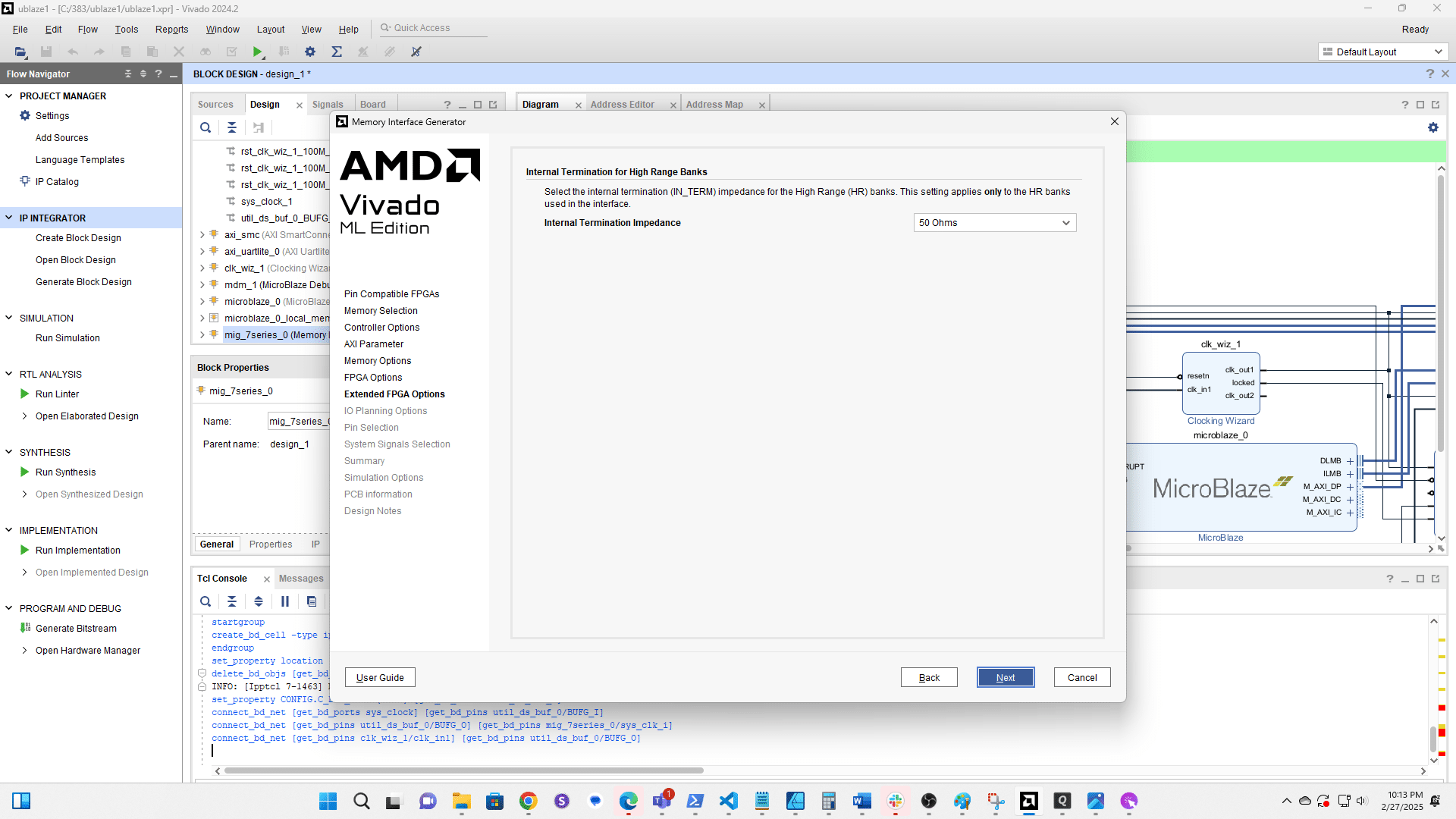
Click here
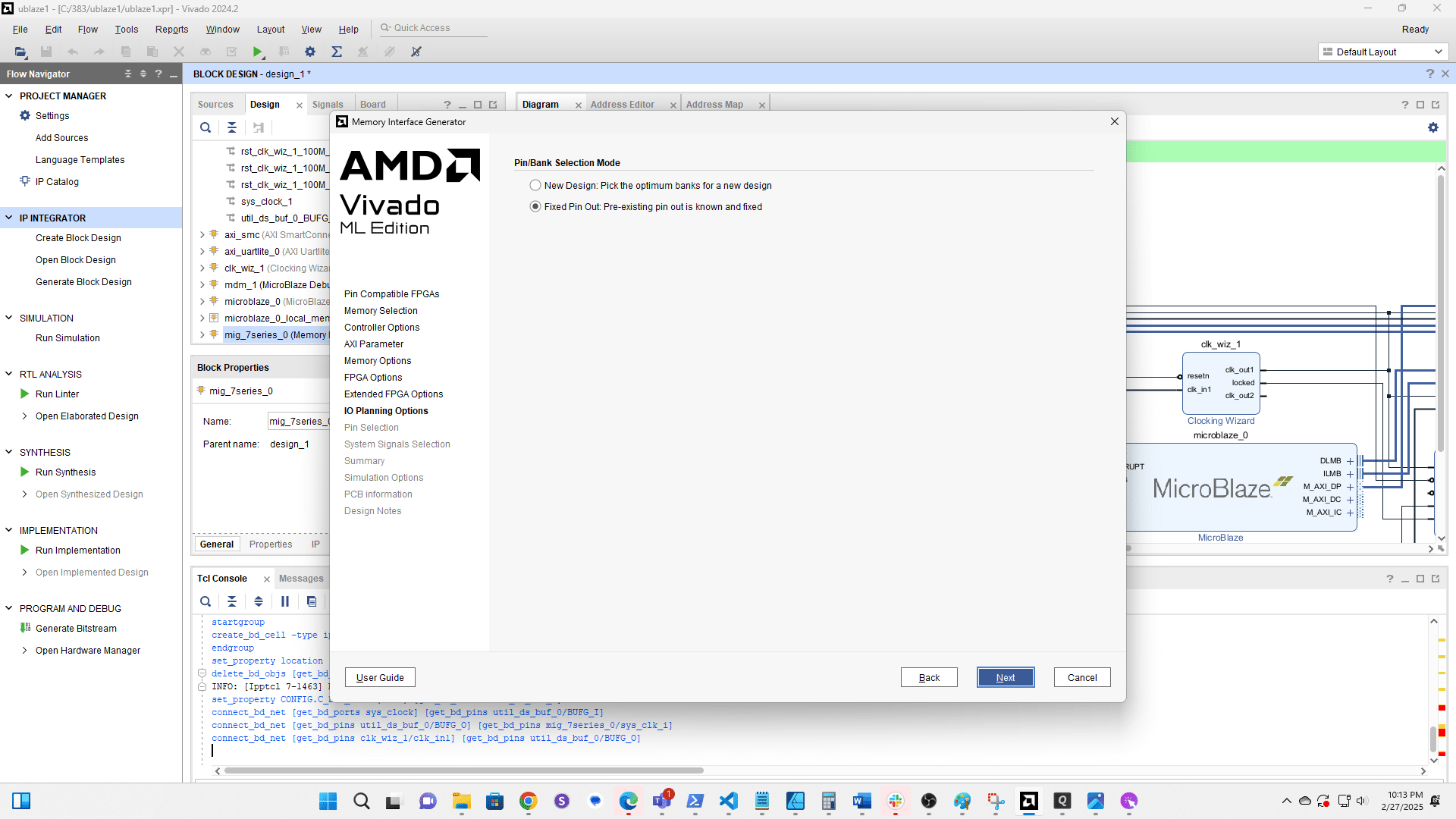
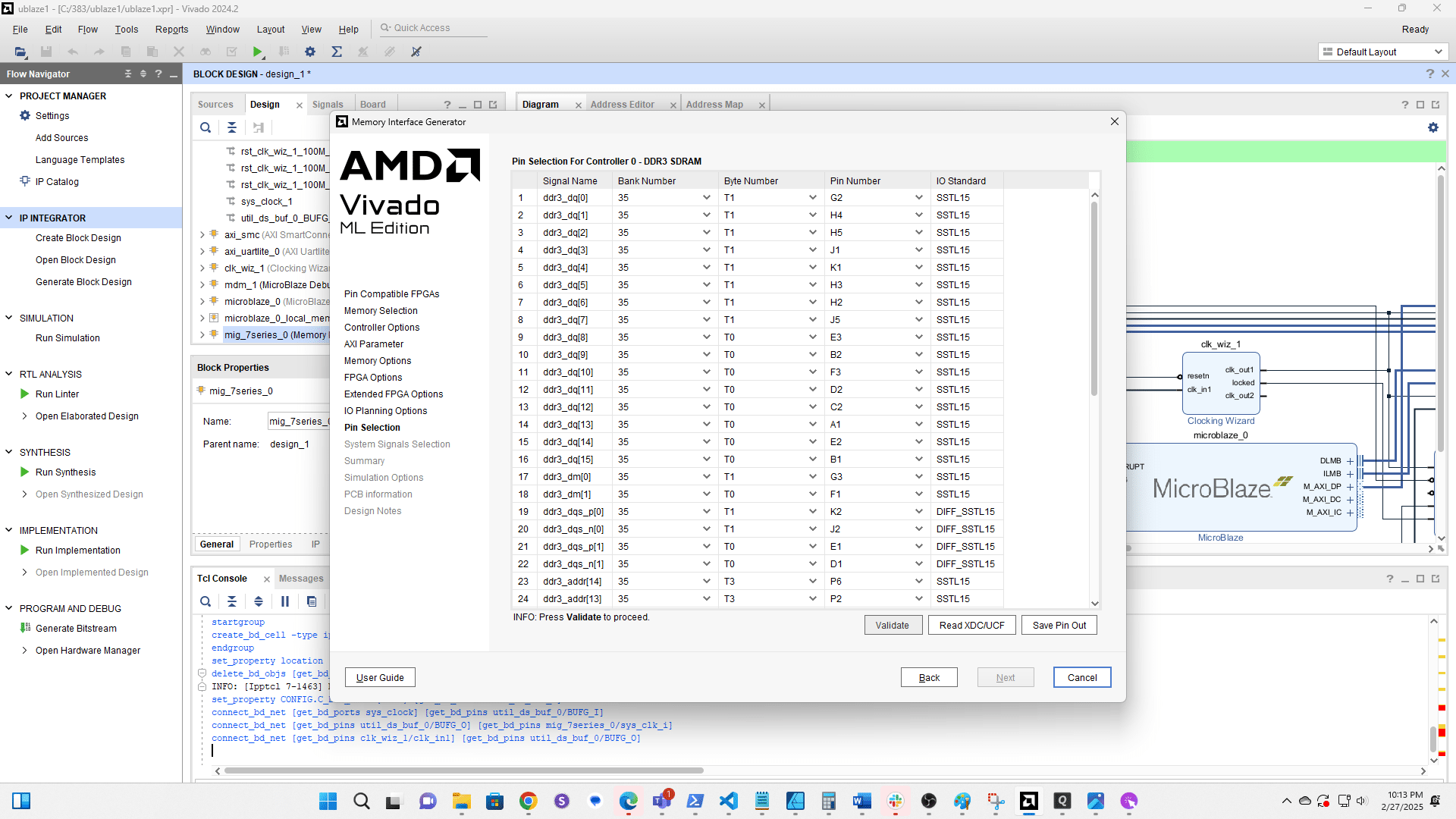
Click Validate
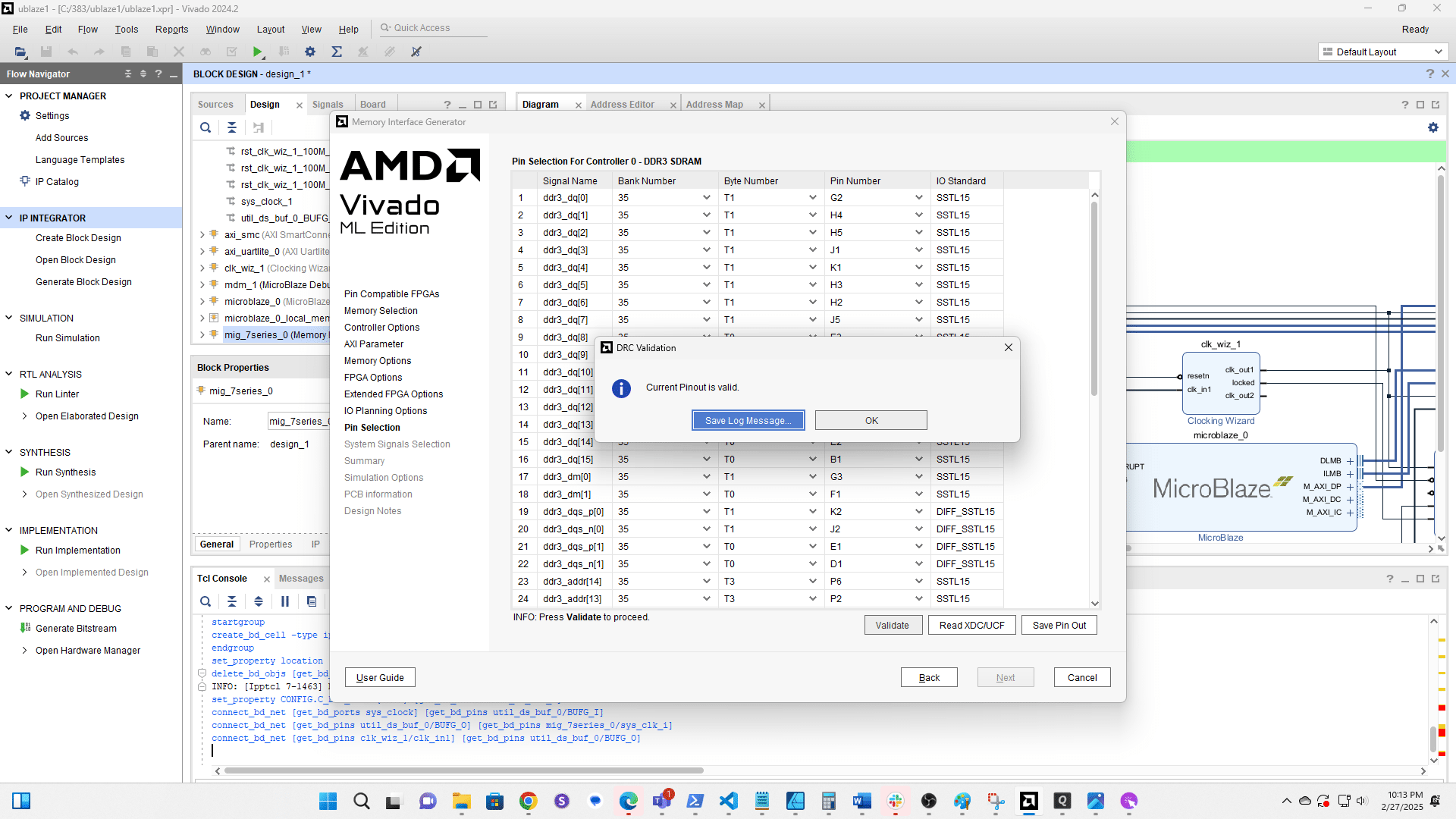
Click OK
Click here
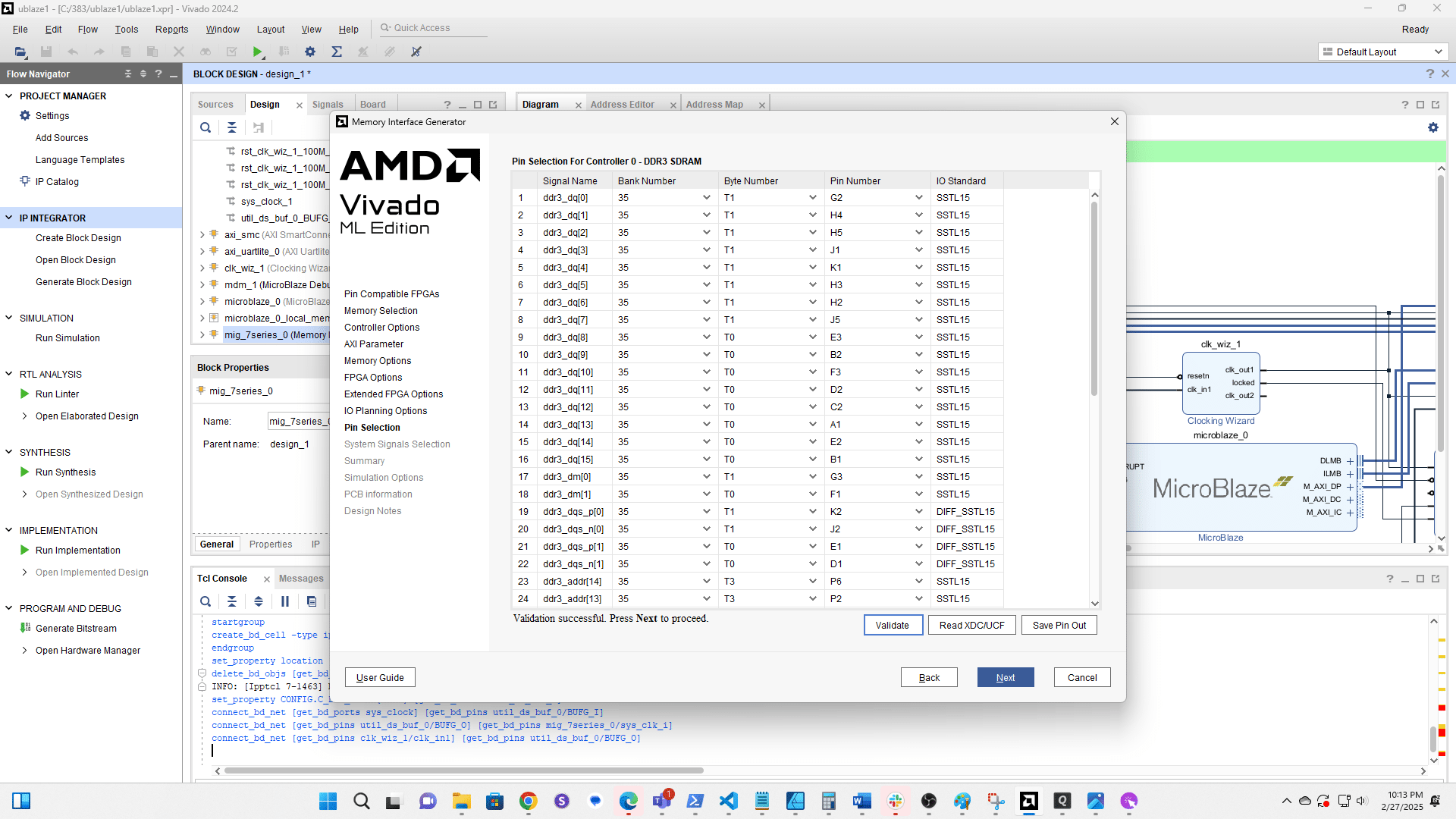
Click here
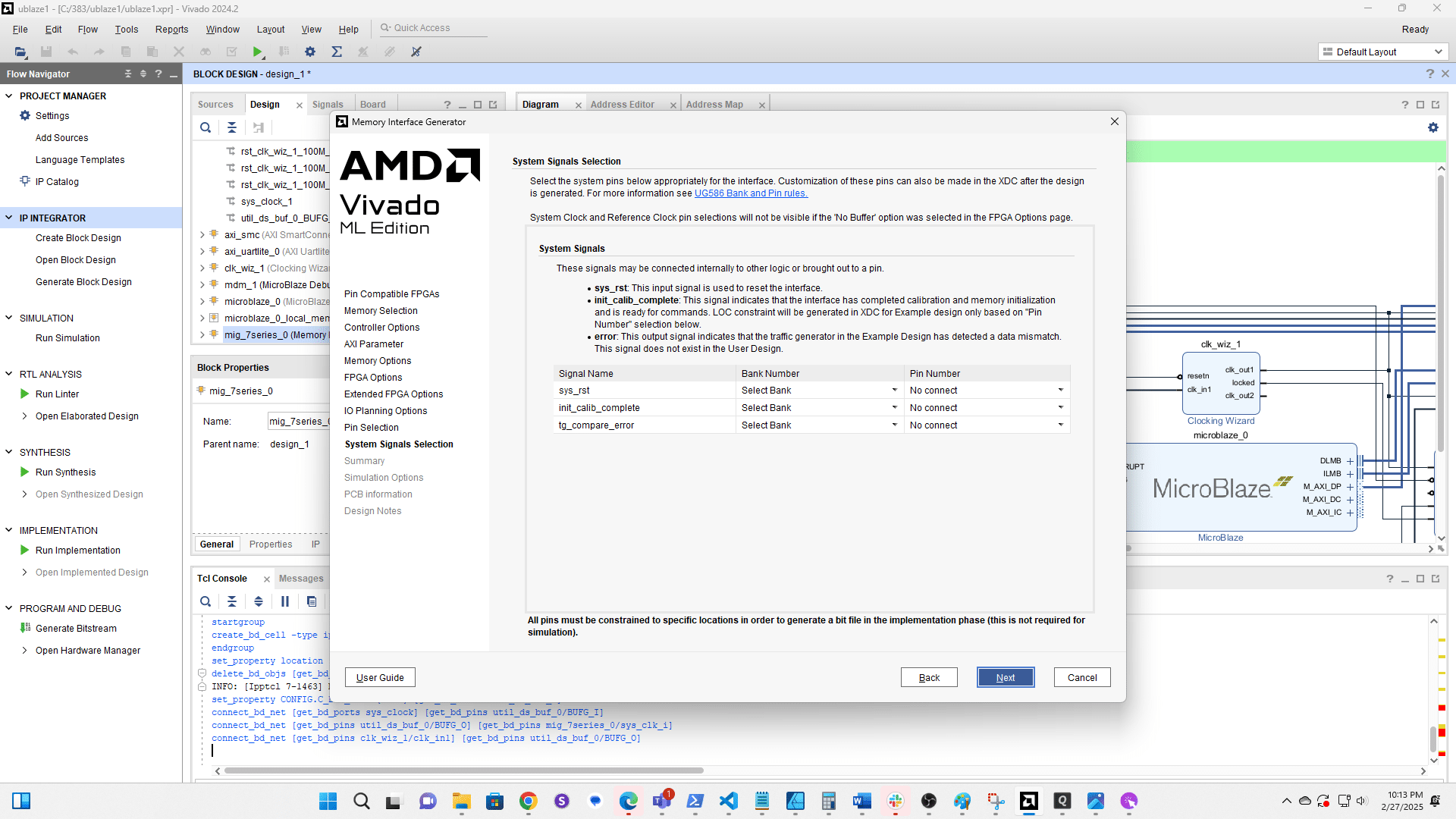
Click here
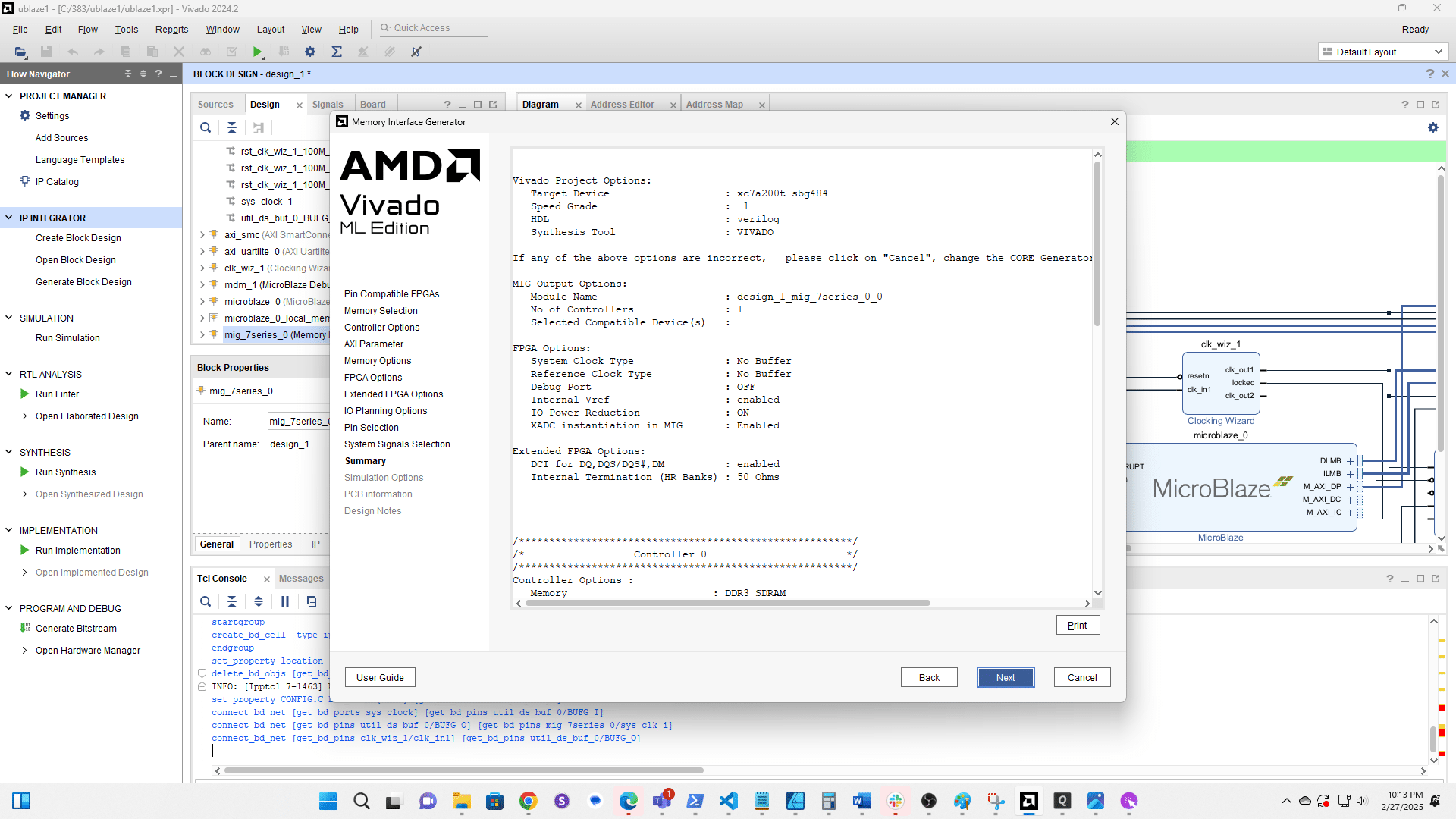
Click here
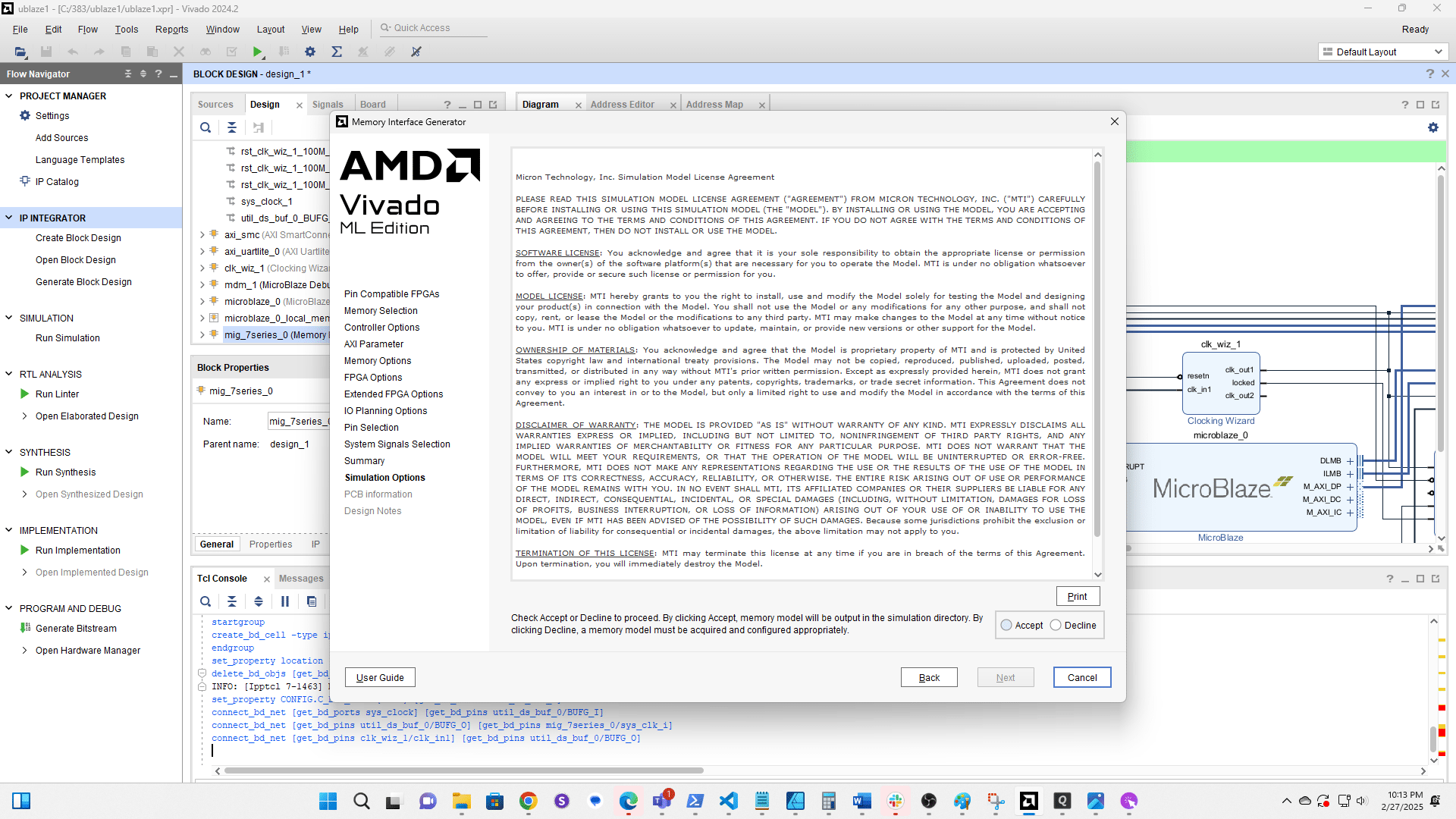
Click here
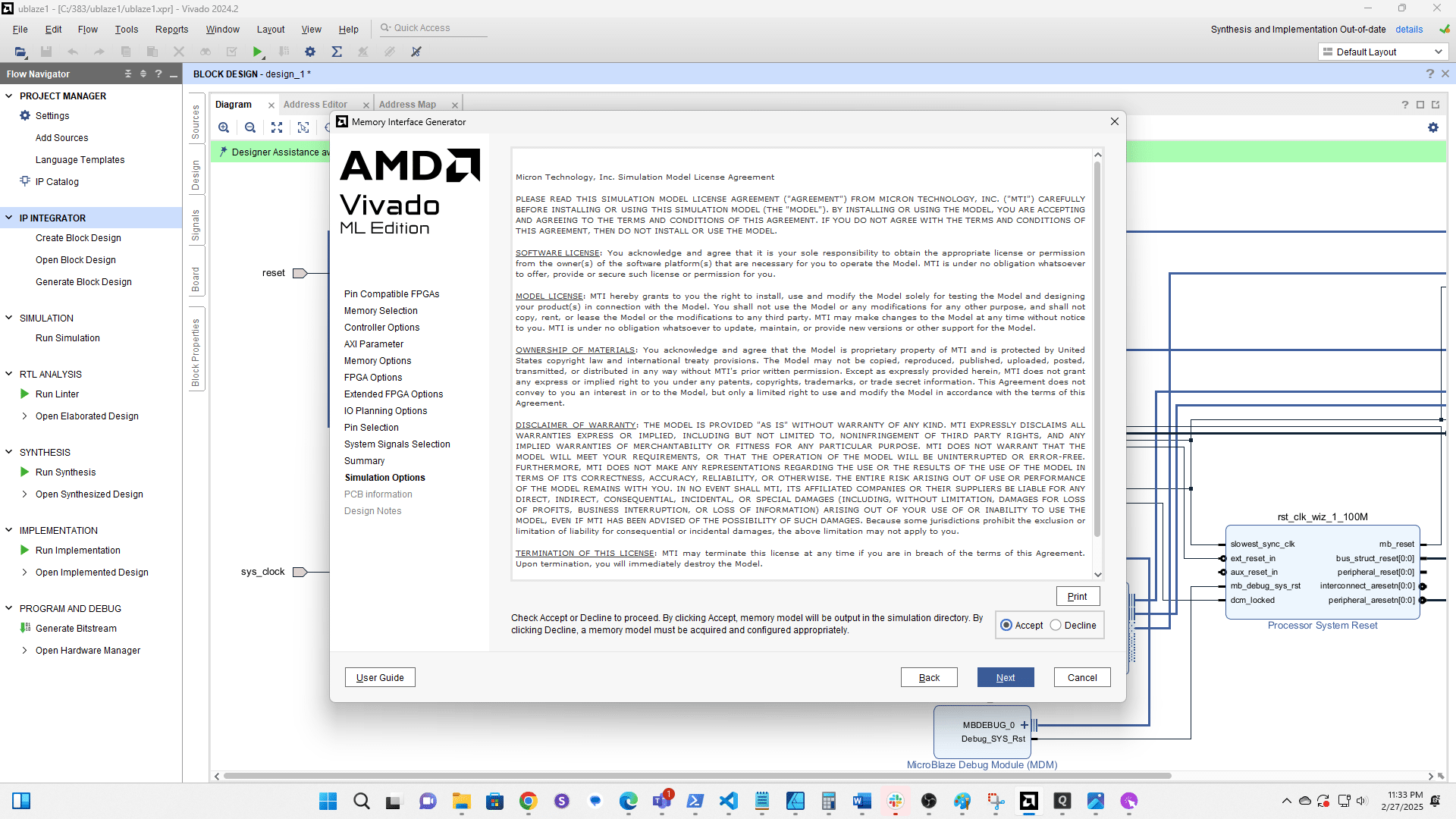
Click here
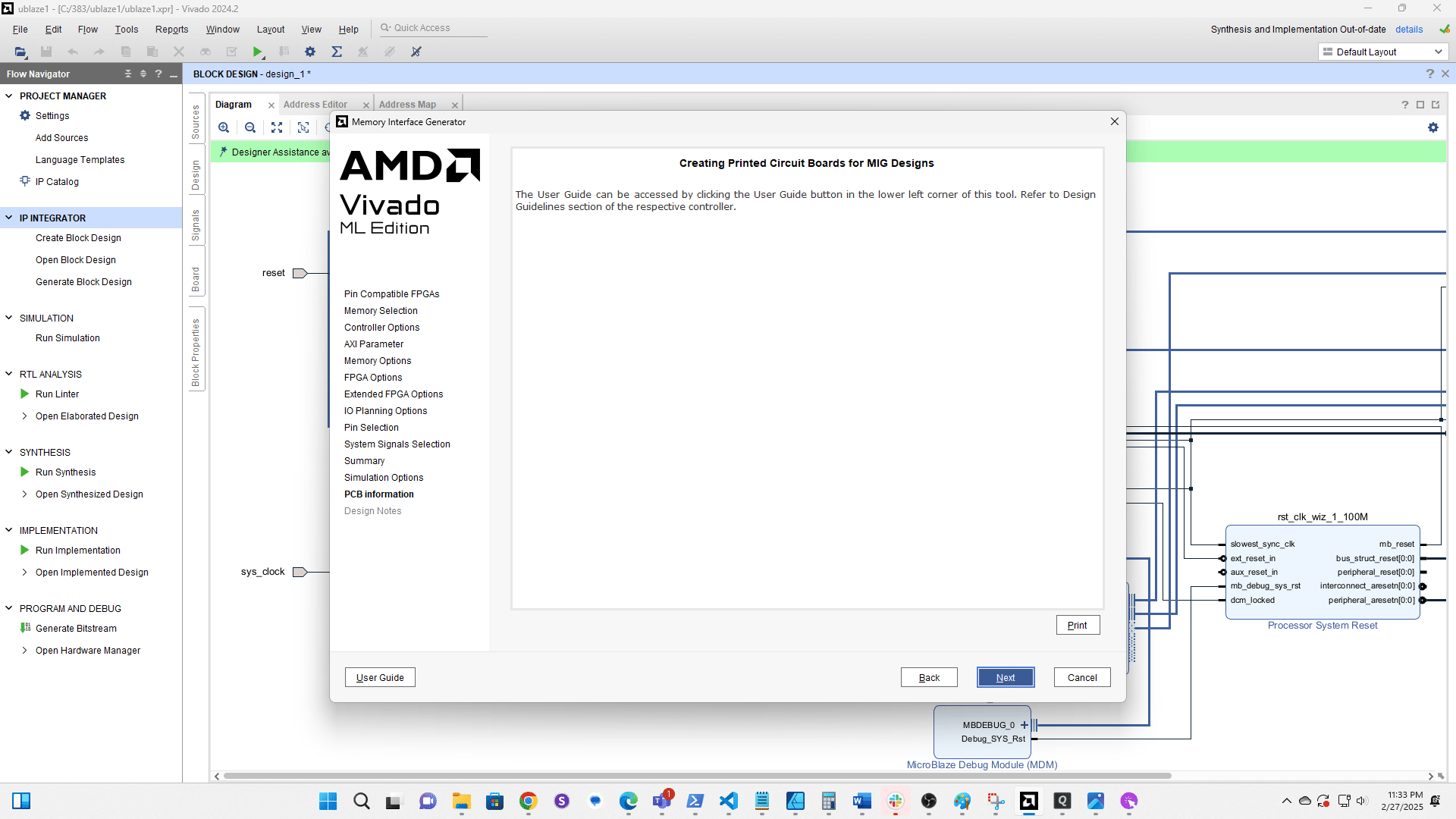
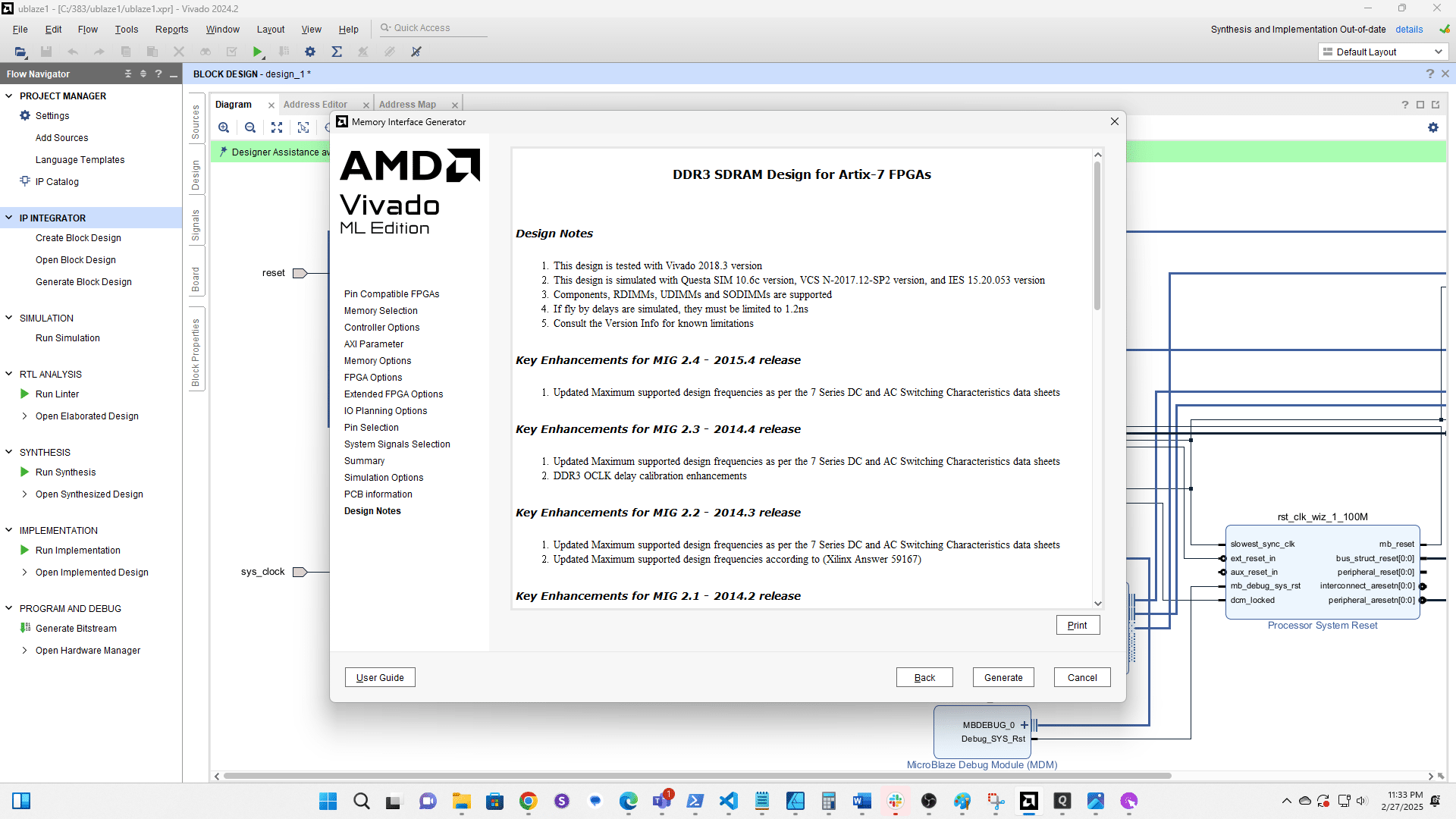
Click Generate
Click Run Connection Automation
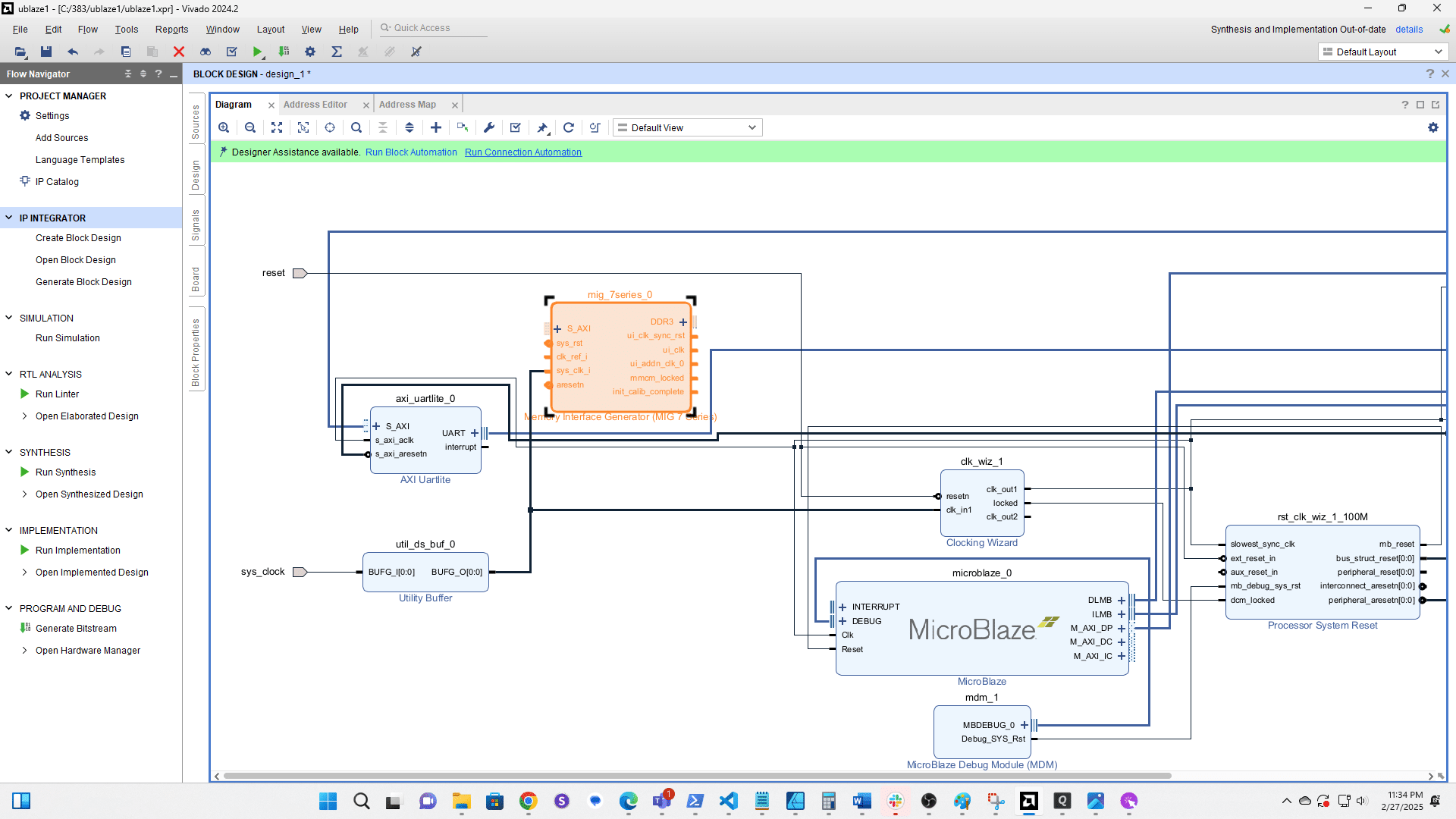
Click clk ref i
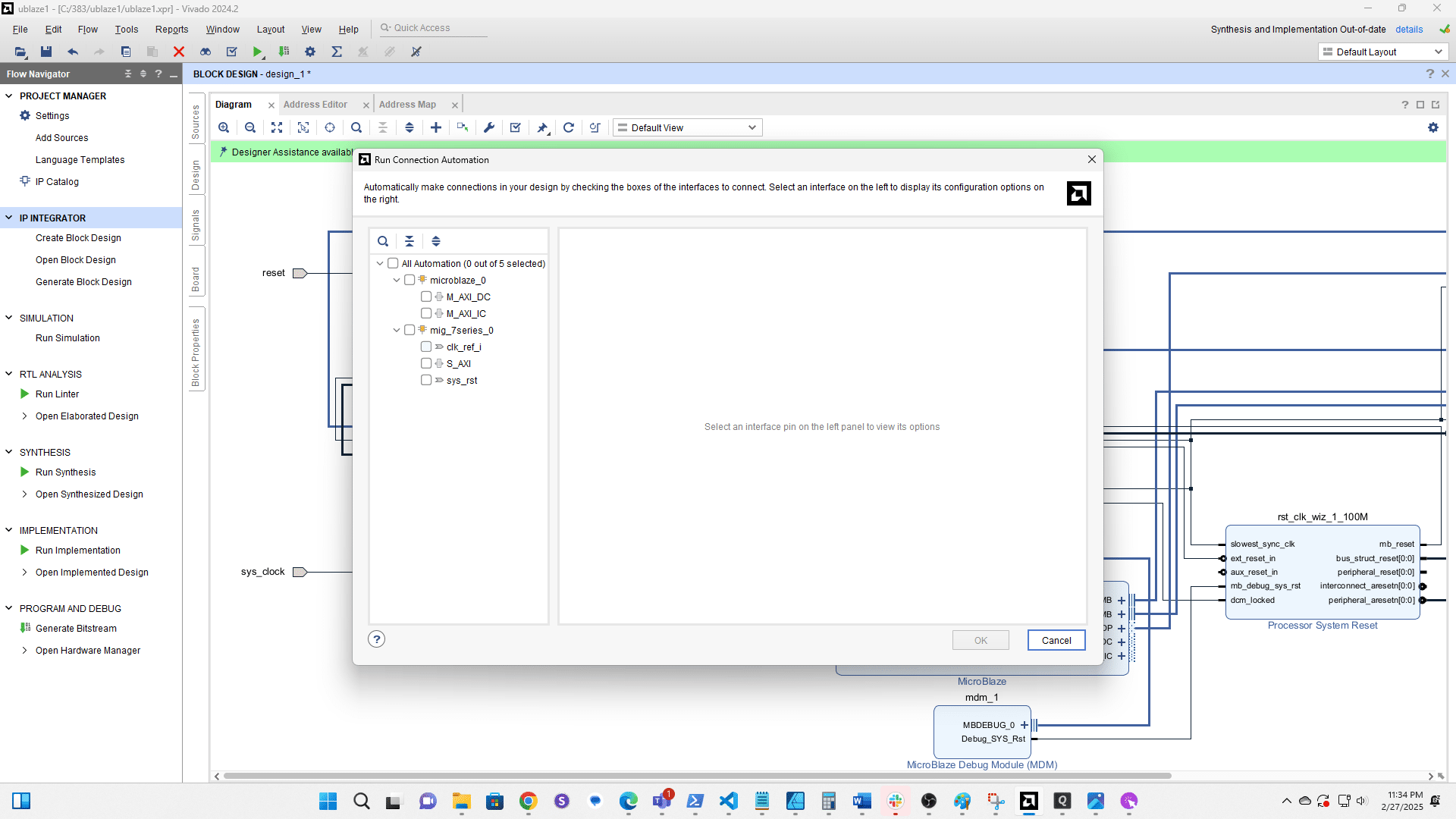
Click here
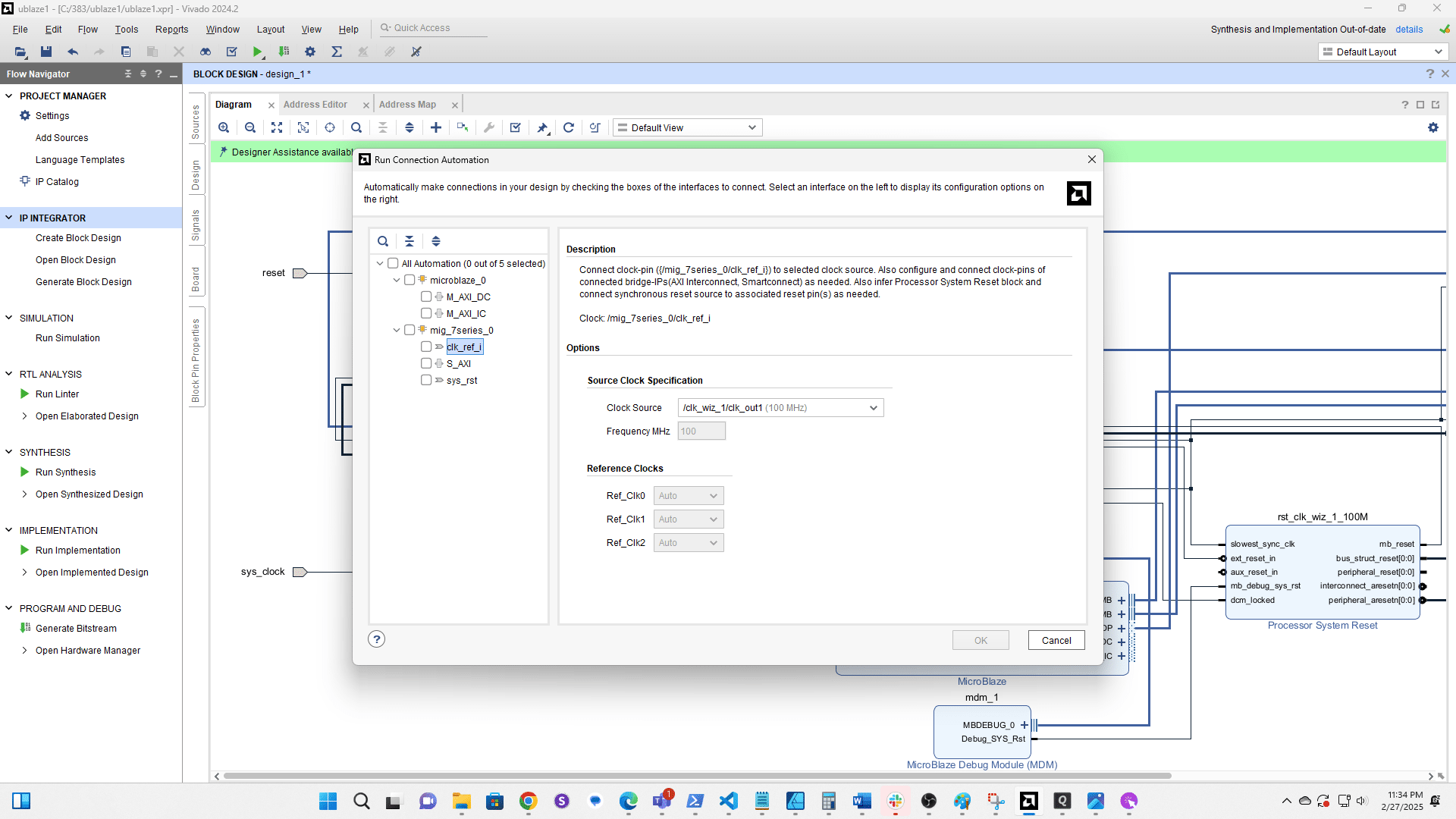
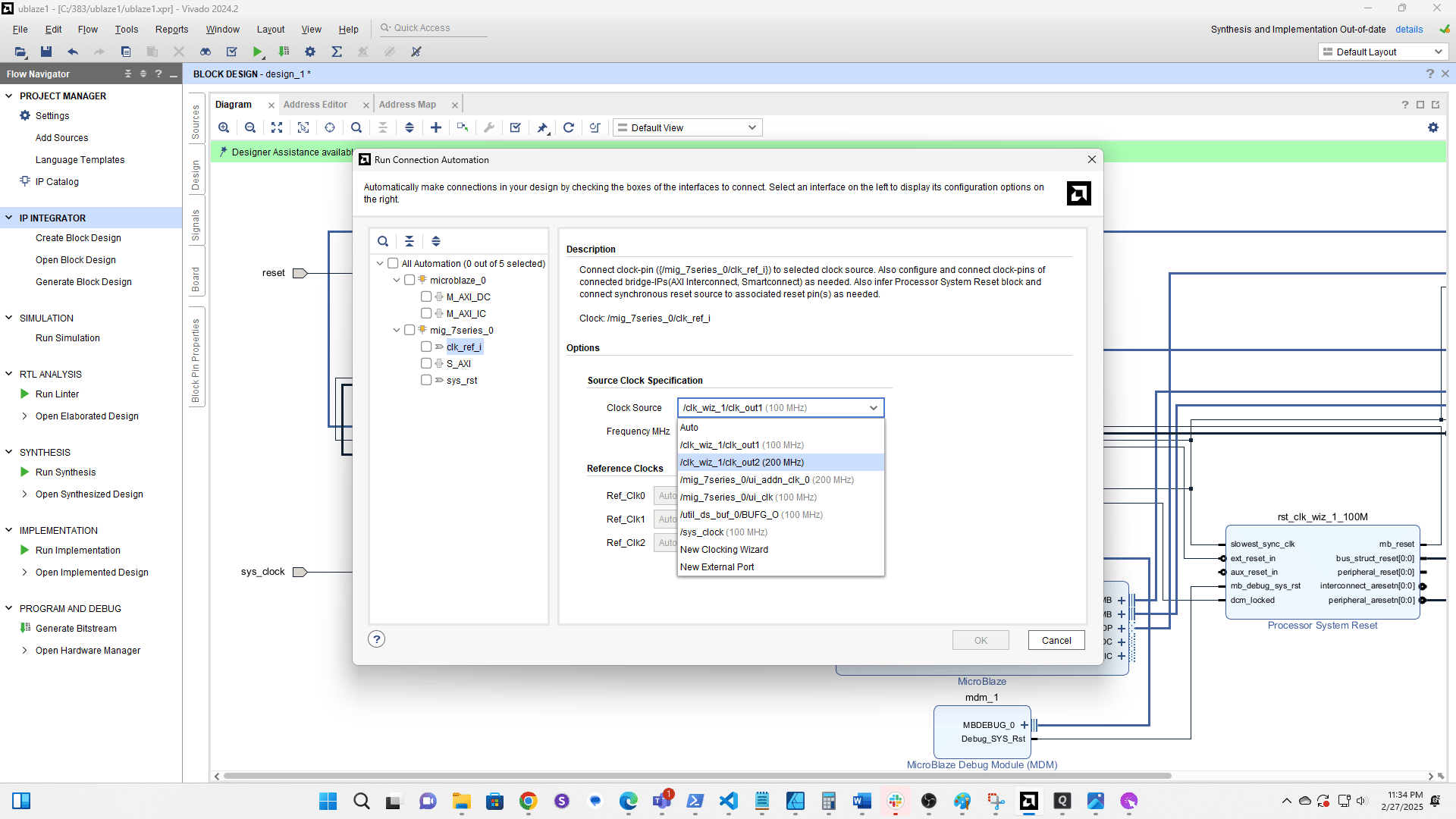
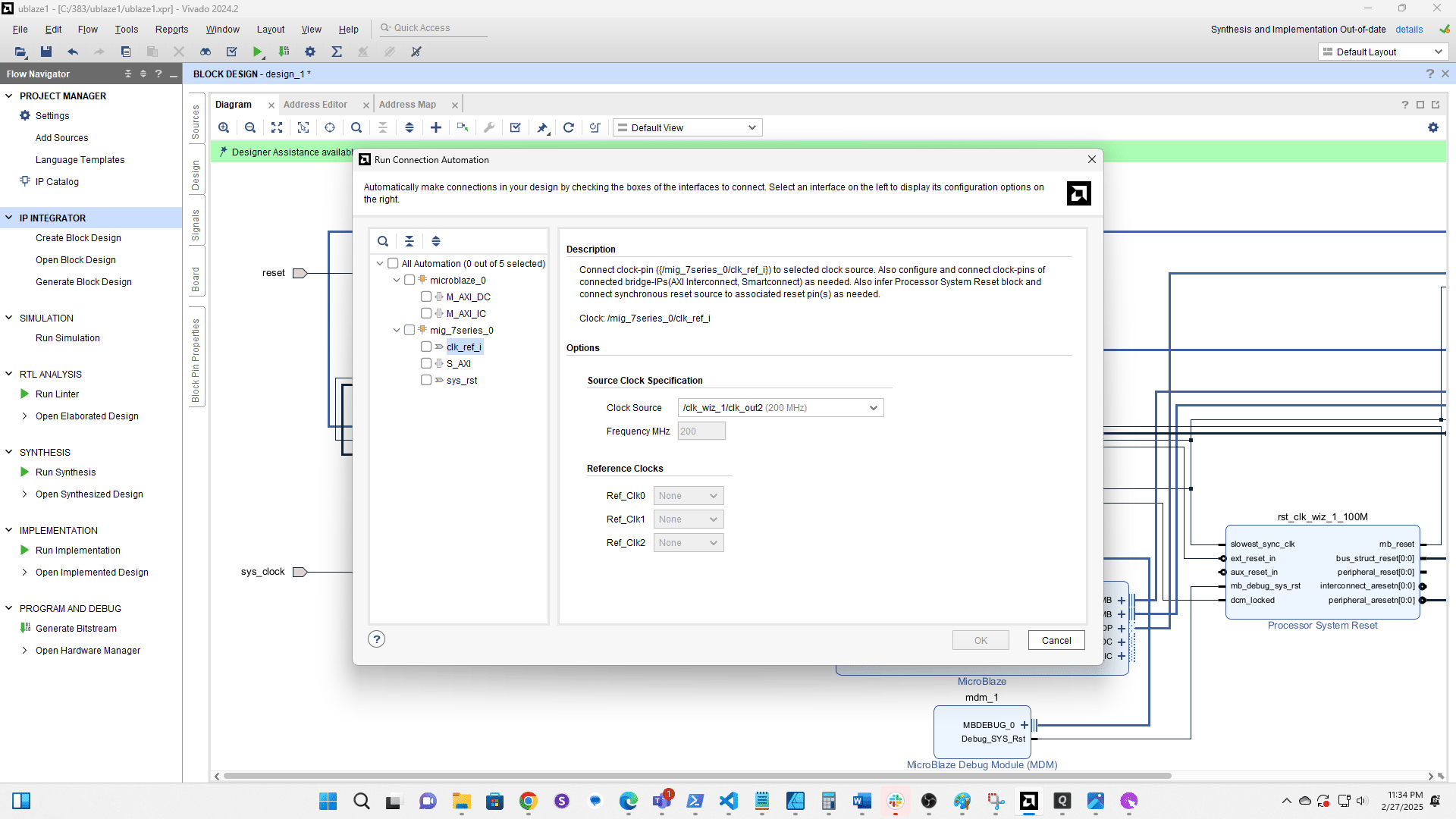
Select the 200 MHz clock from Clk Wiz 1
Click here
Click here
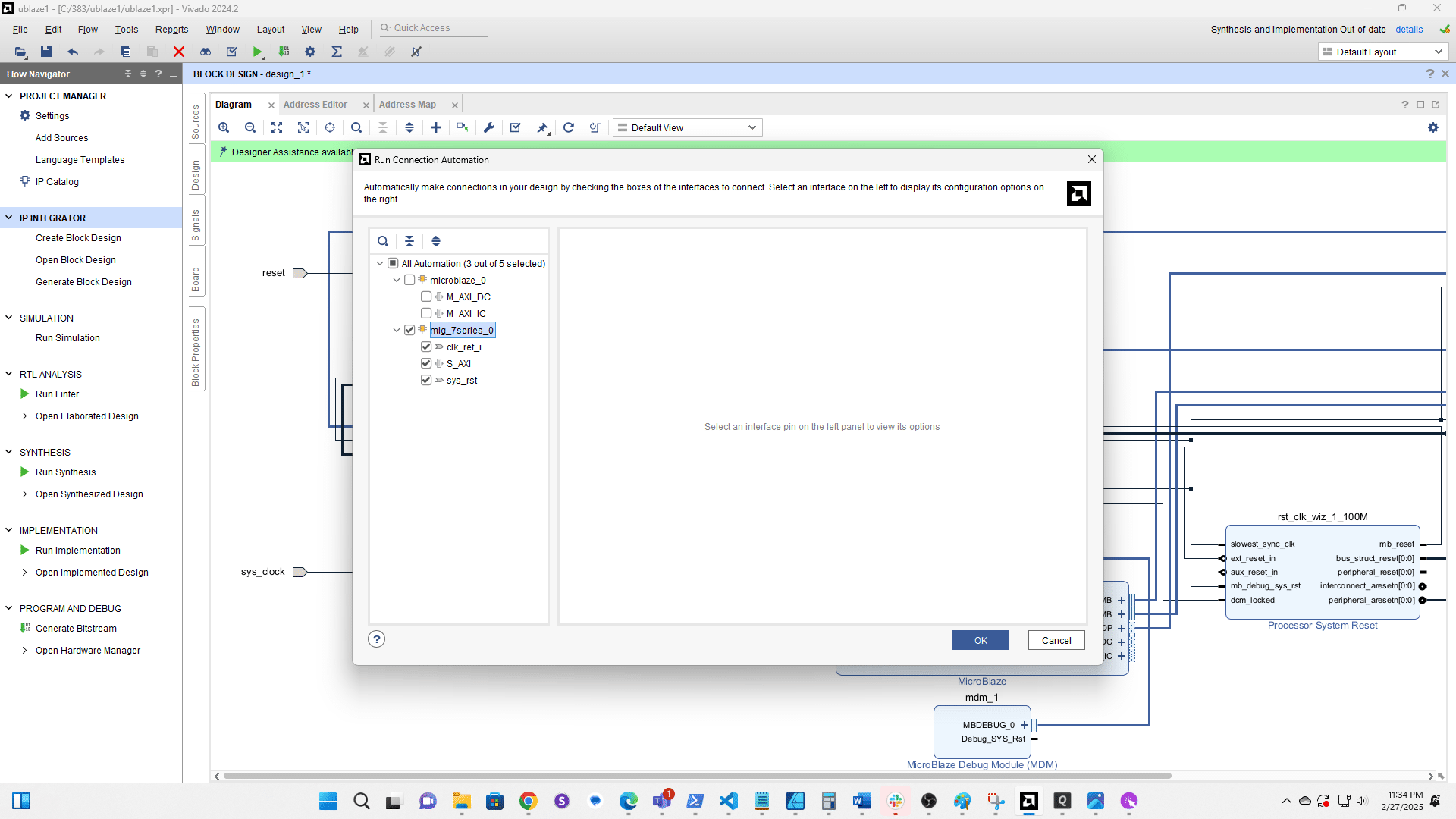
Right click the three vertical lines next to the DDR3 port
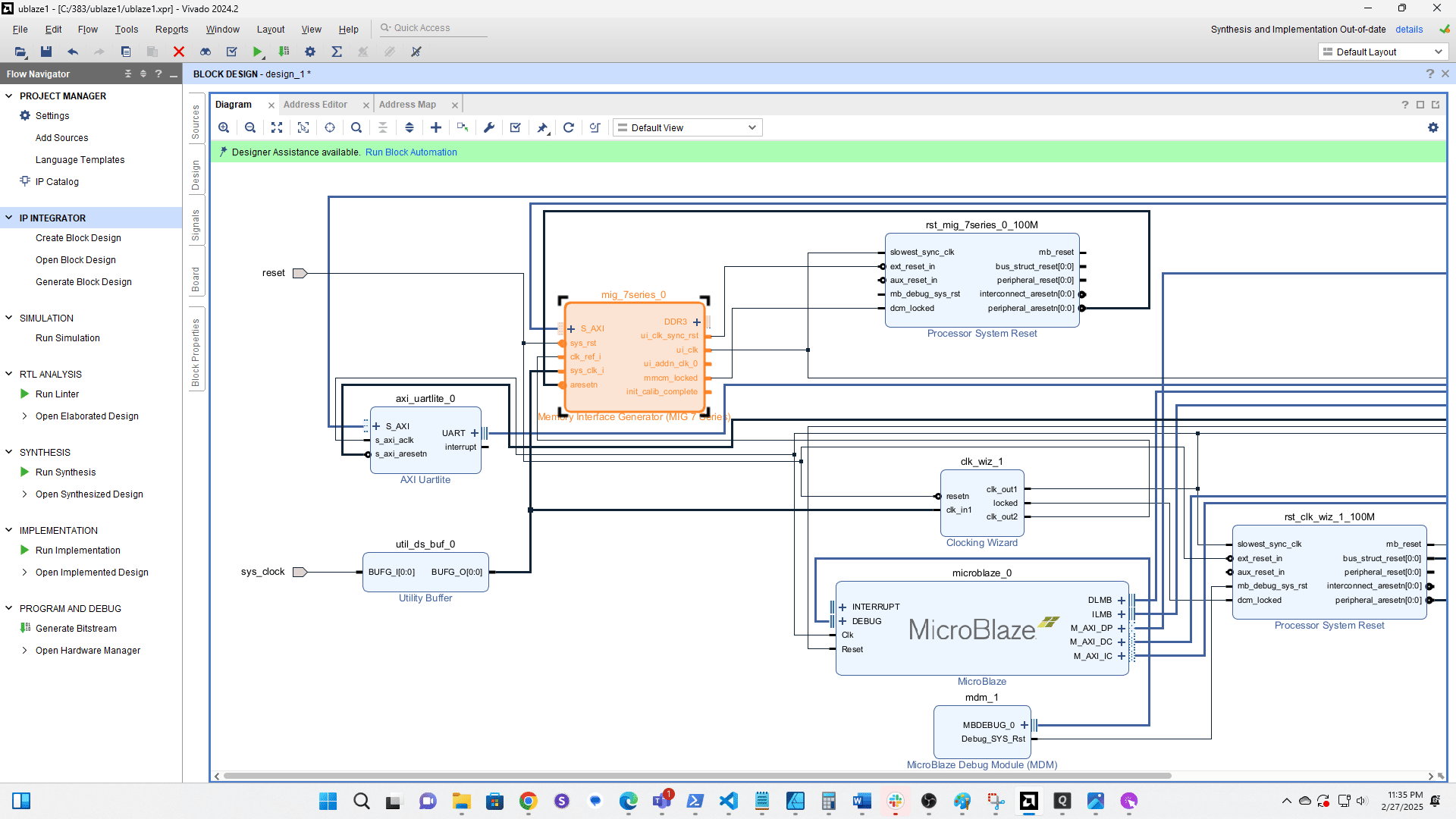
Select Make External
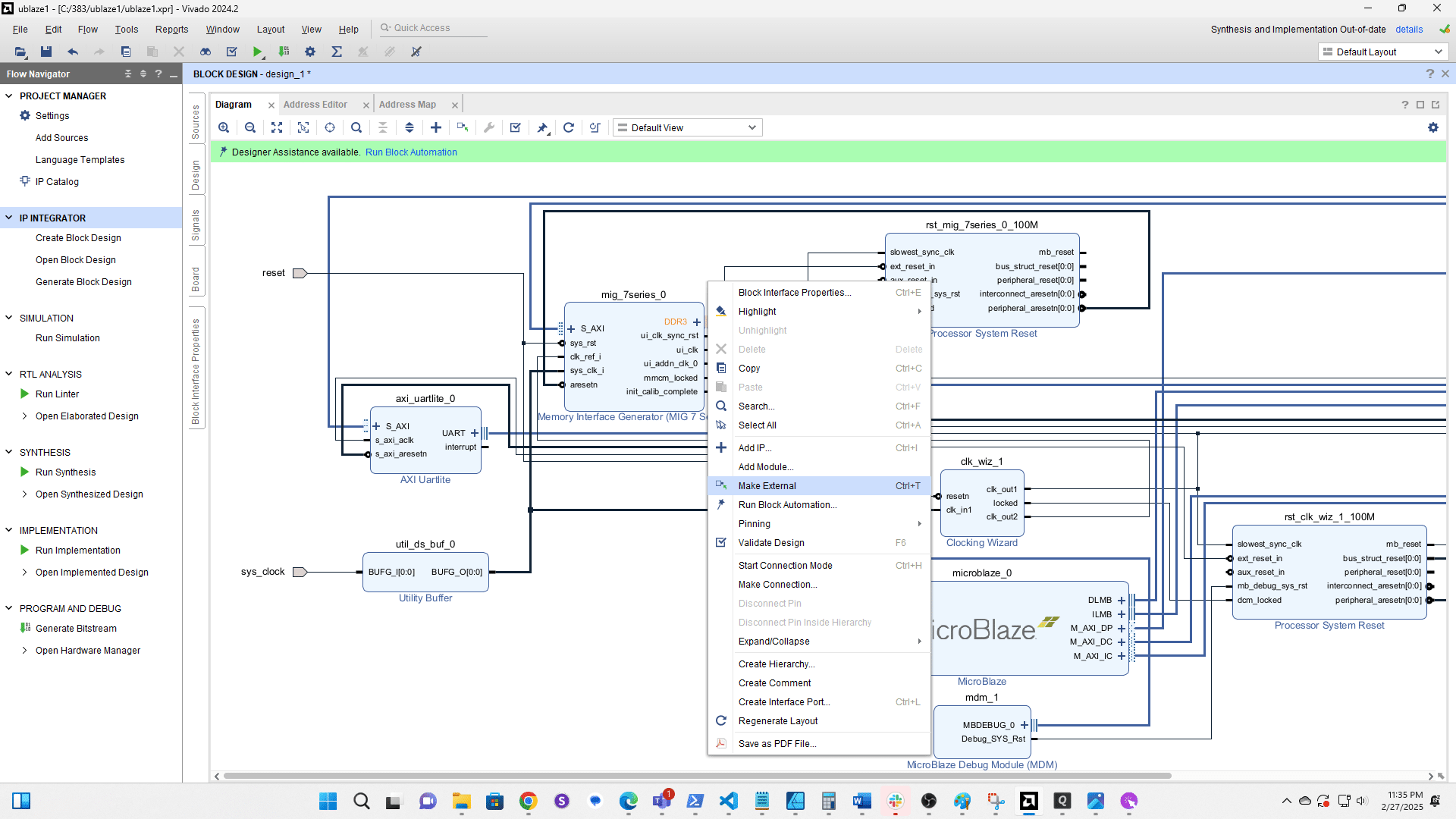
Click the checkbox to validate the design
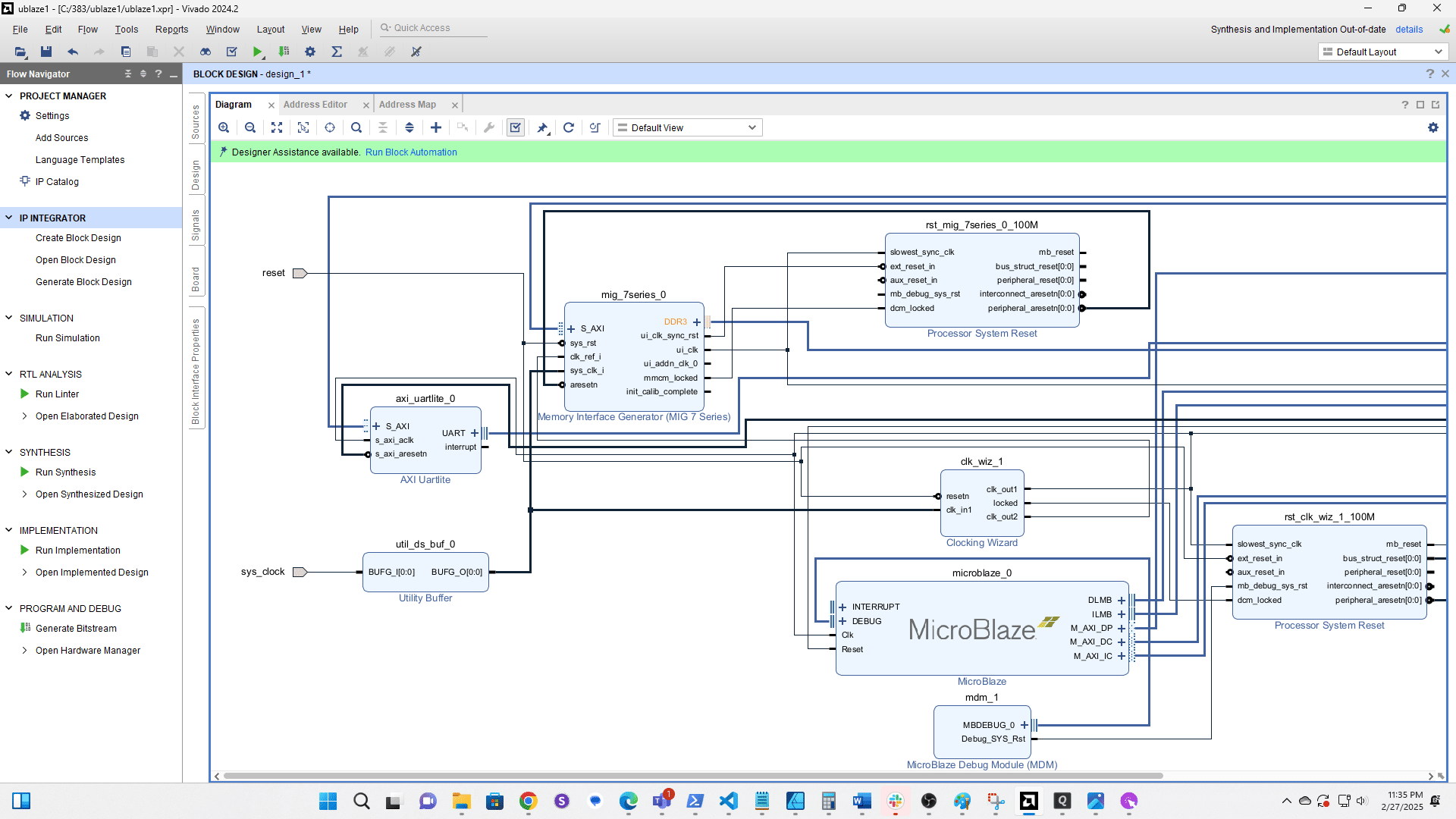
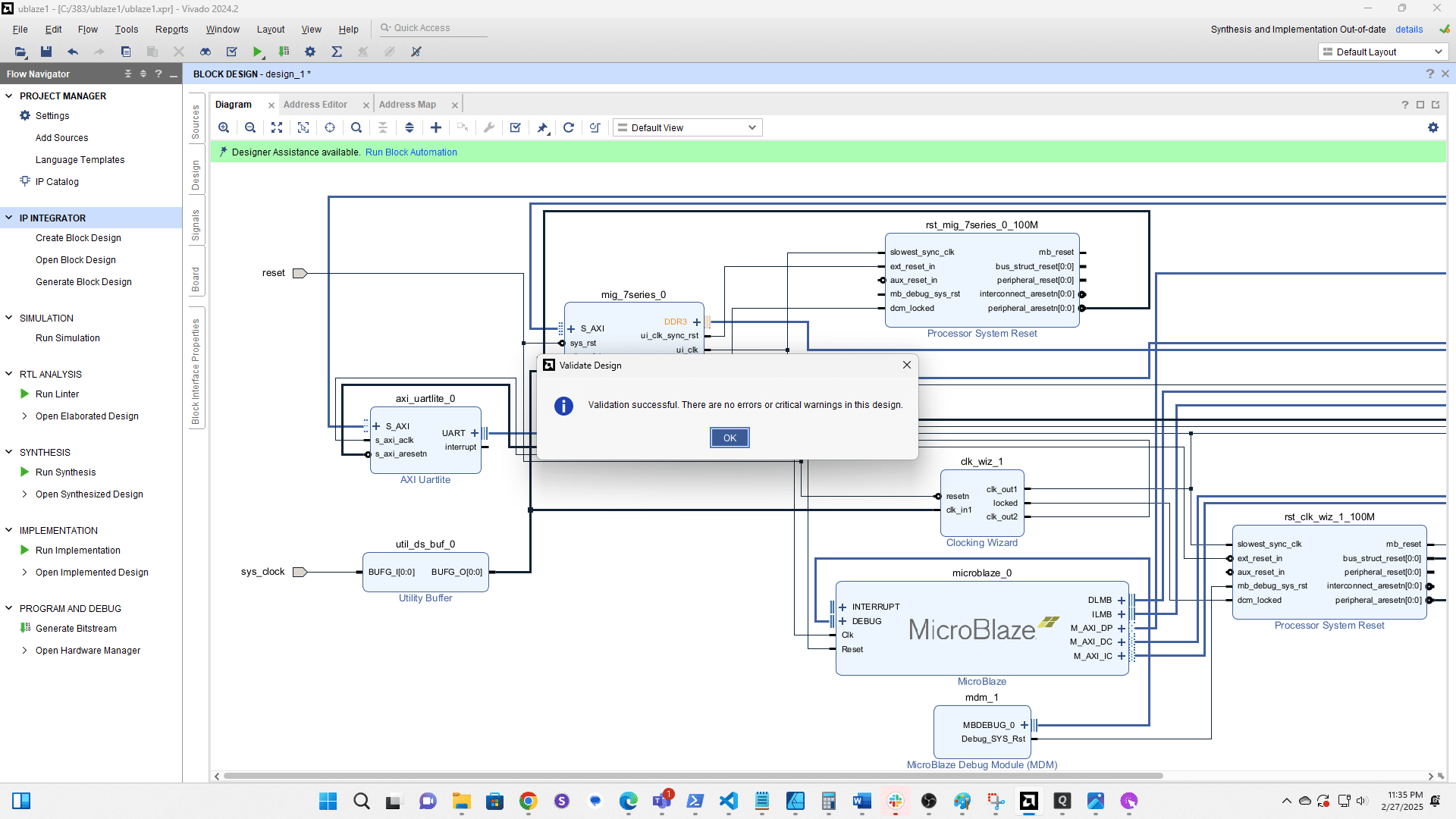
Click Sources
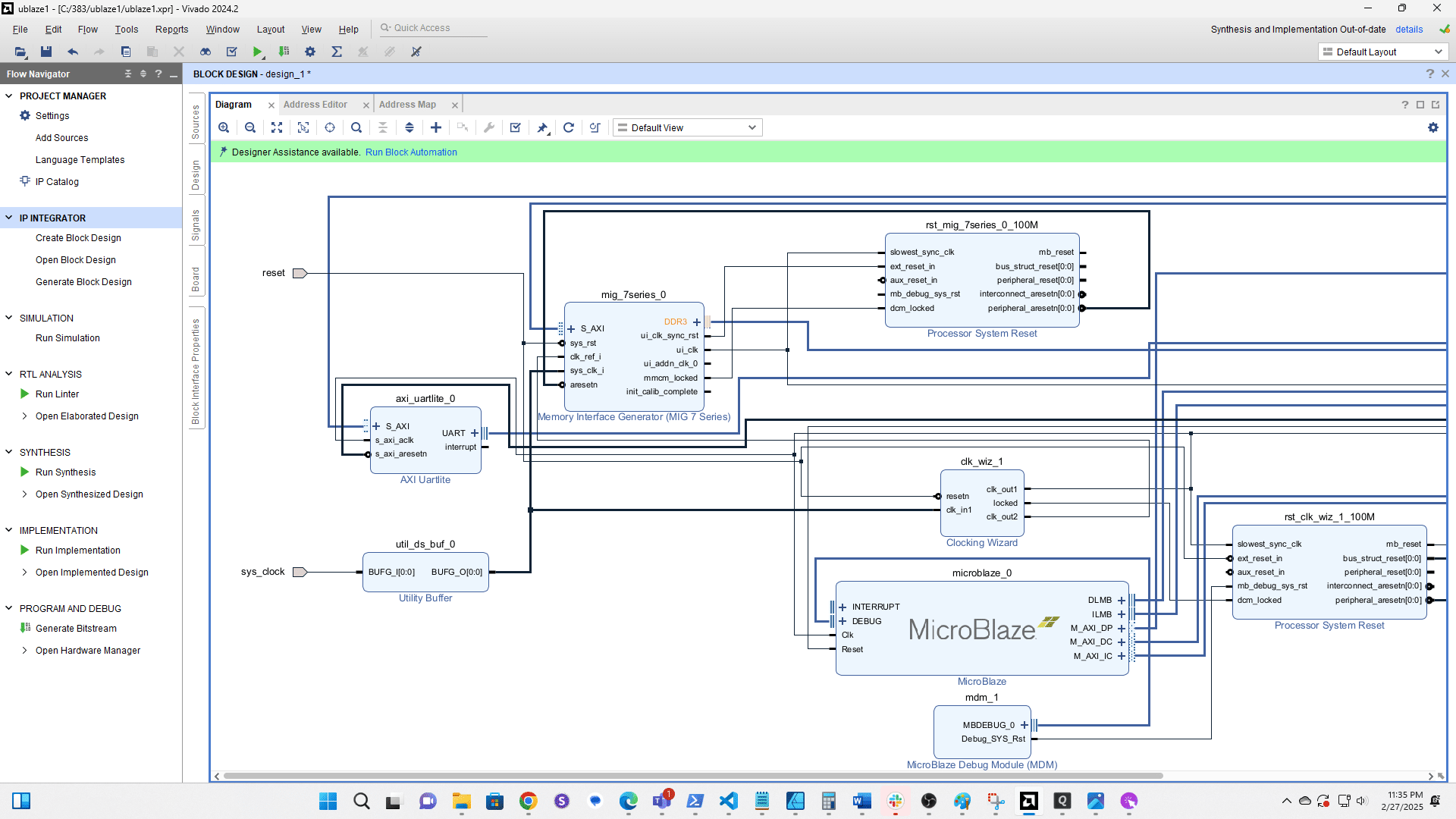
Click here
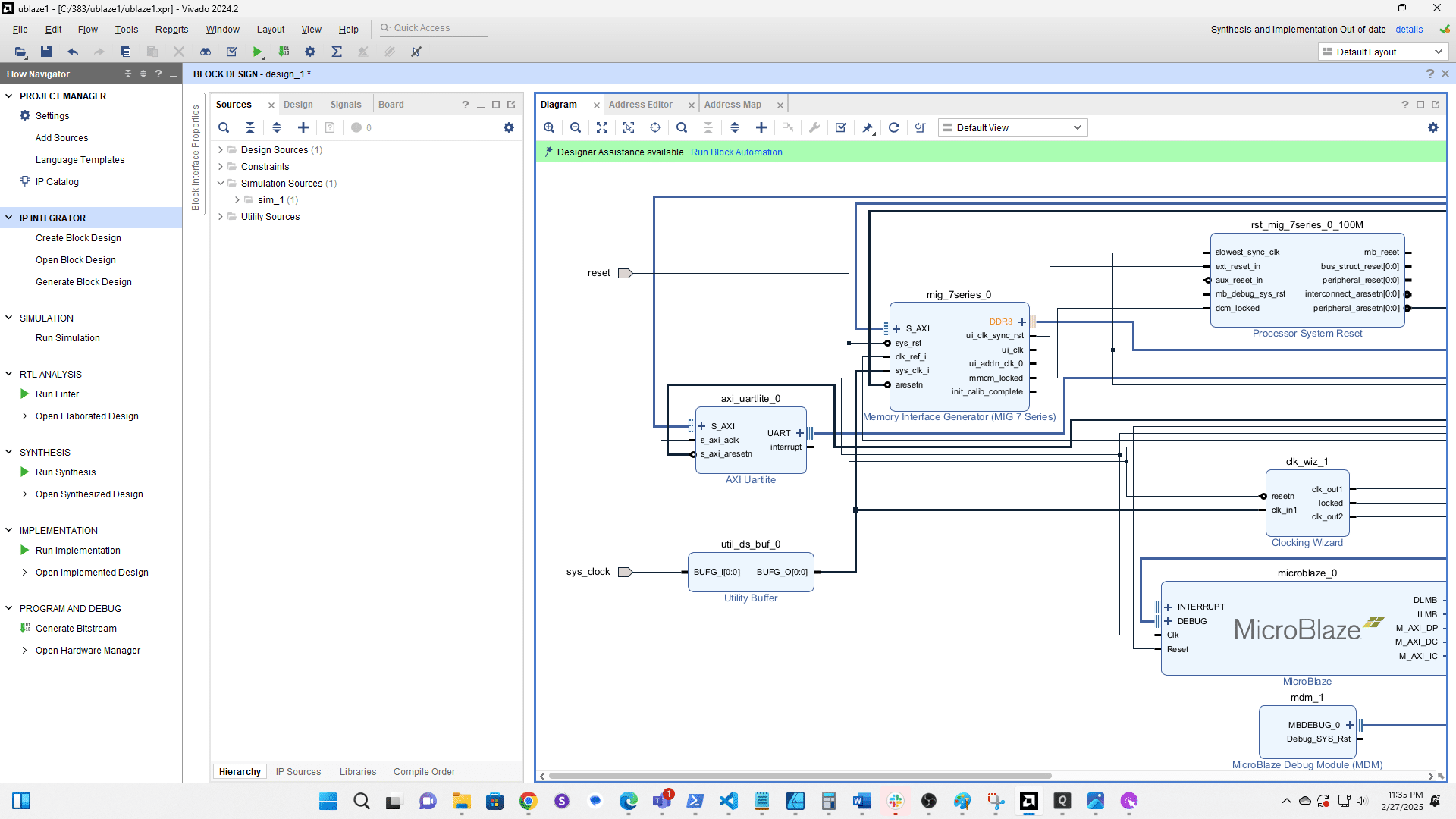
Right click the block design
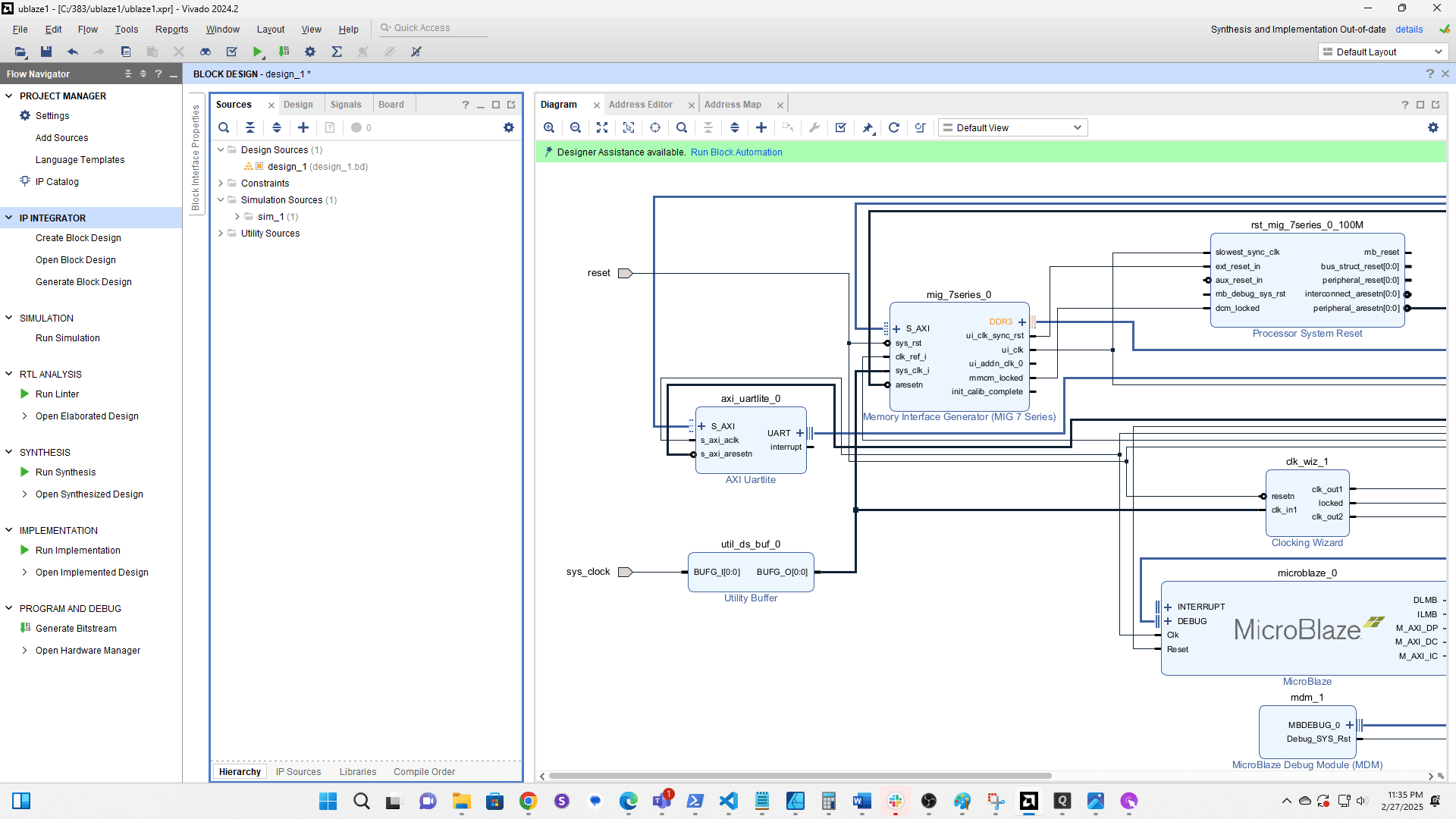
Choose Create HDL Wrapper
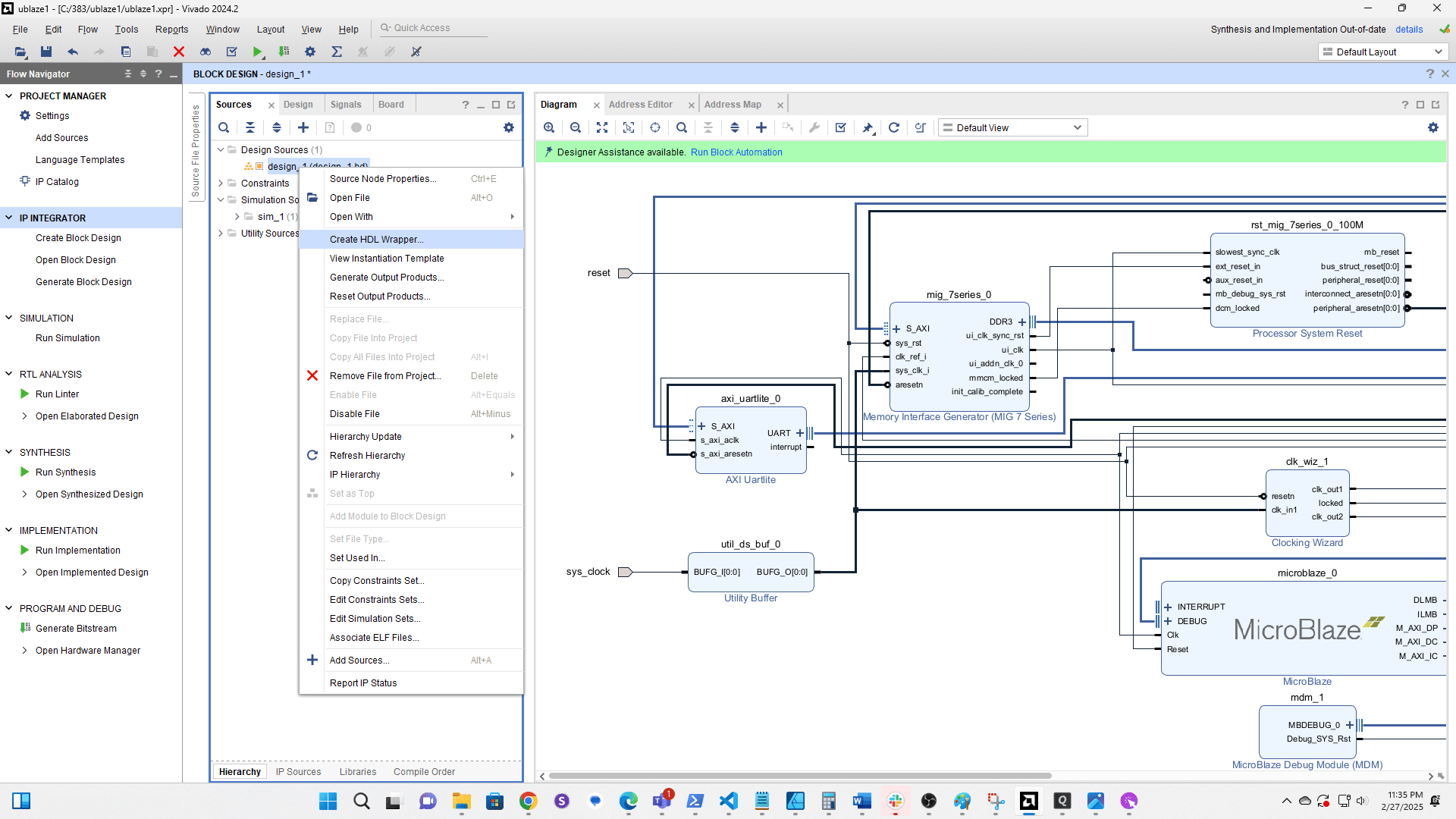
Let Vivado manage it
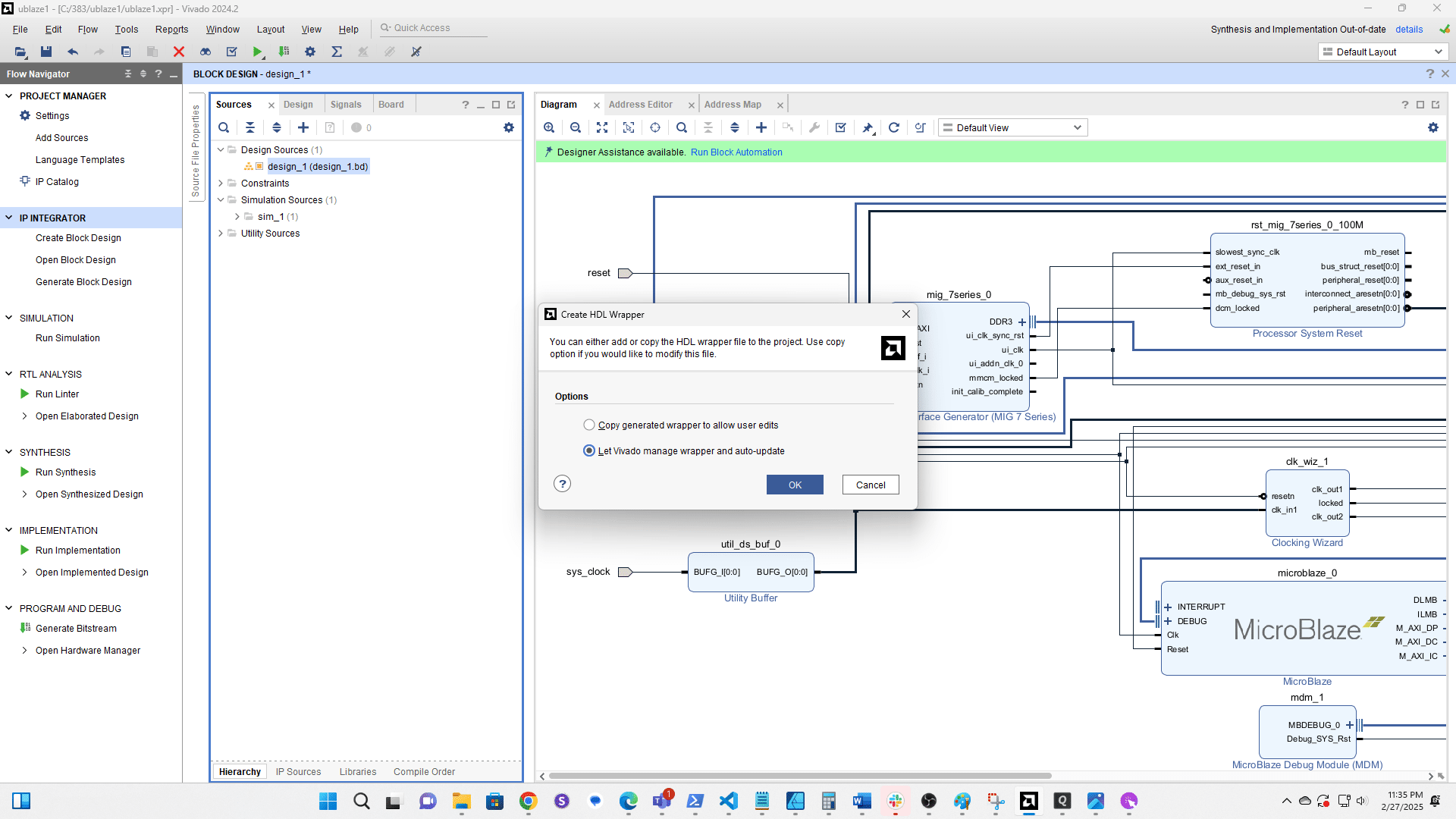
Generate the Bitstream (aka Popcorn Time 🍿). Note: If ui_addn_clk_0 or init_calib_complete on the MIG are wired to external ports delete the ports and wires before generating the bitstream.
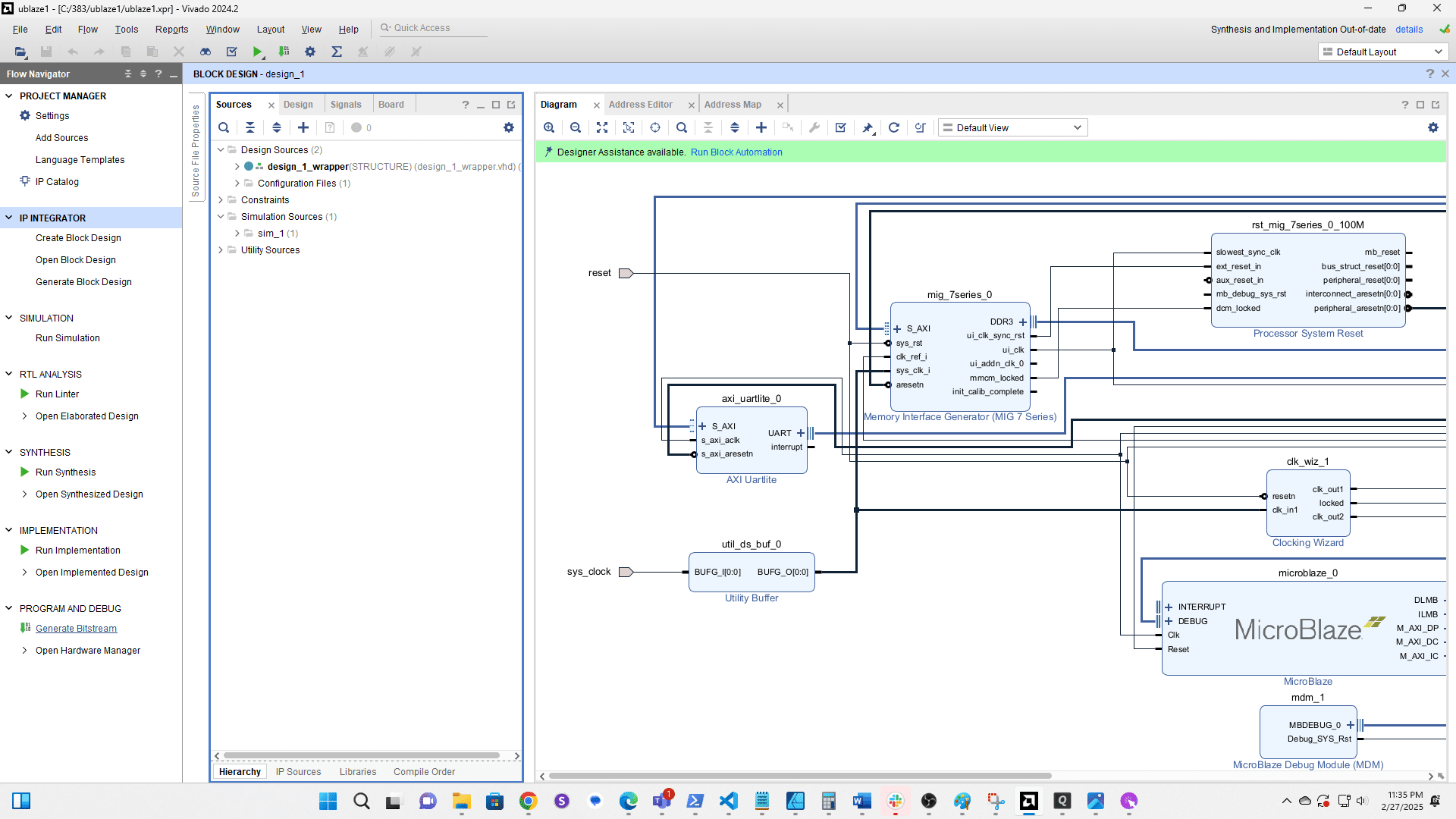
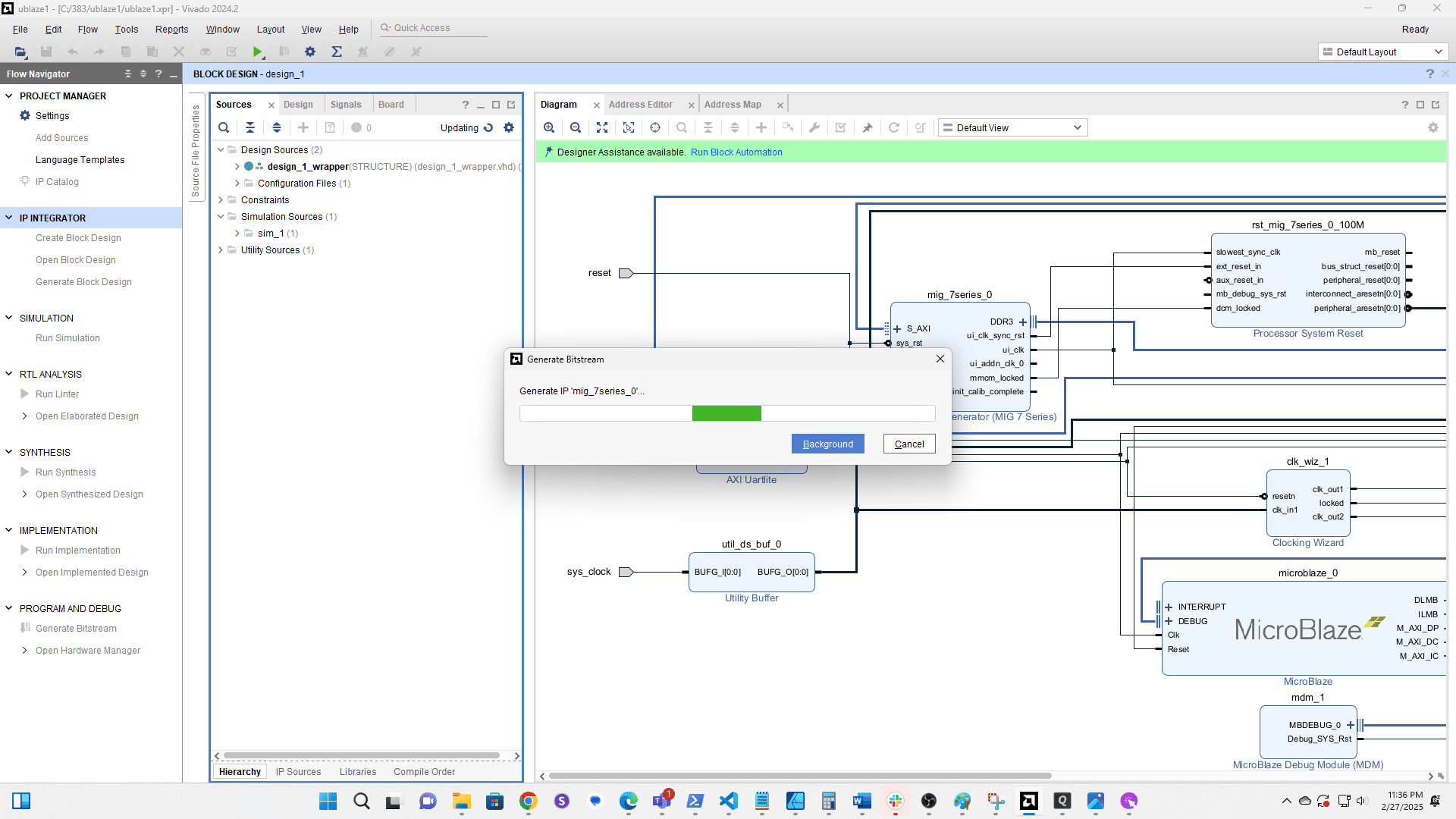
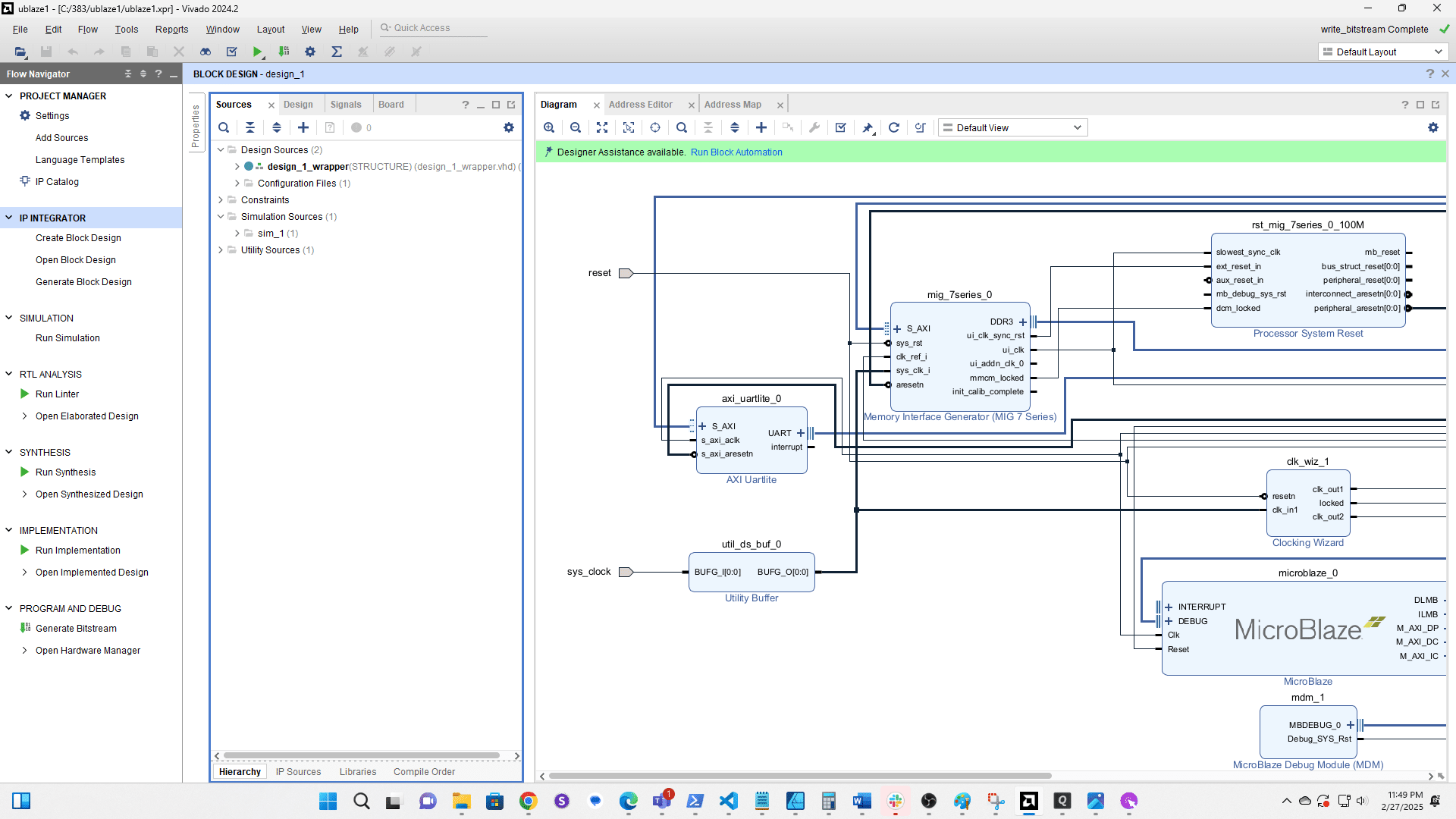
Click File
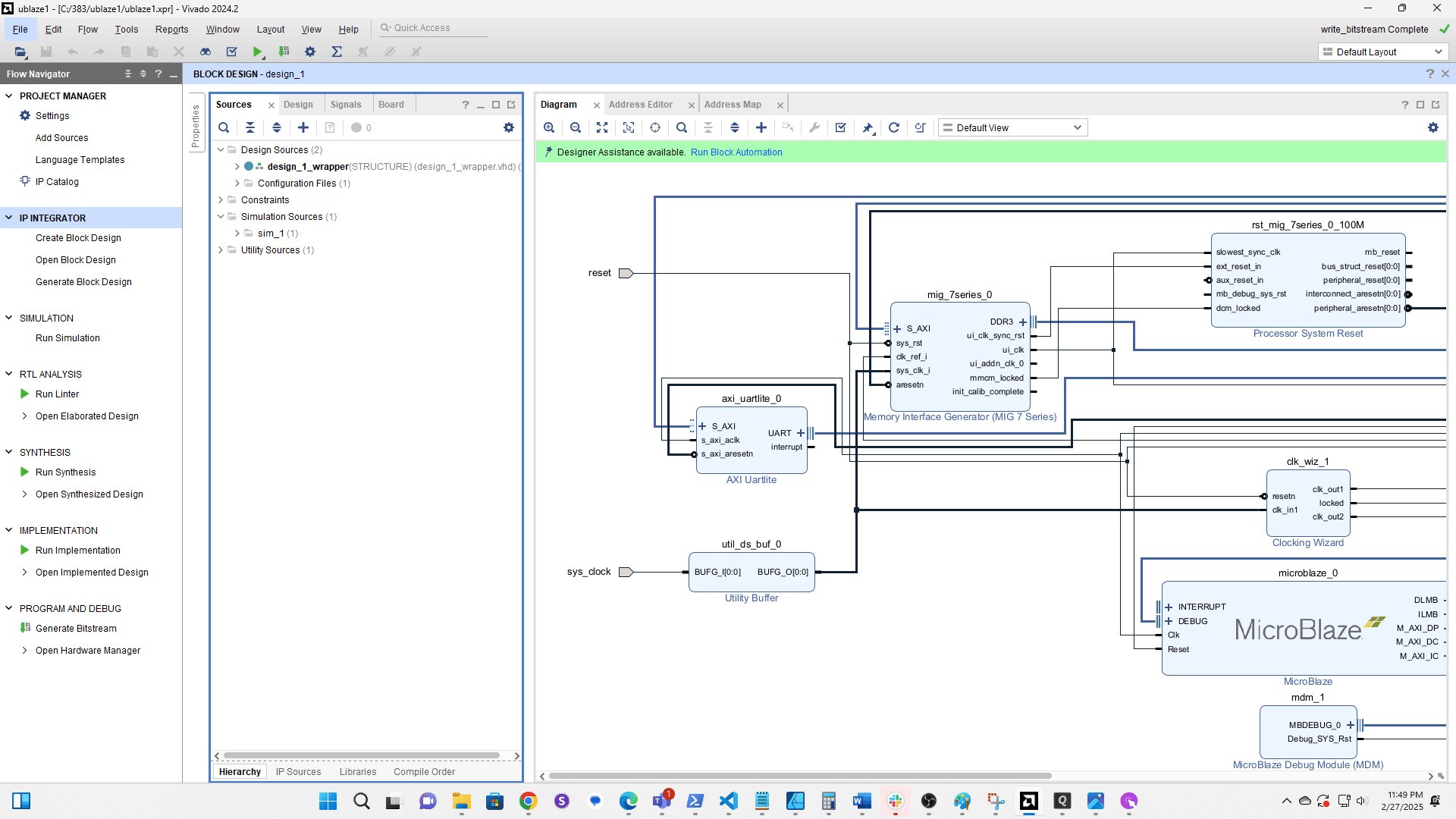
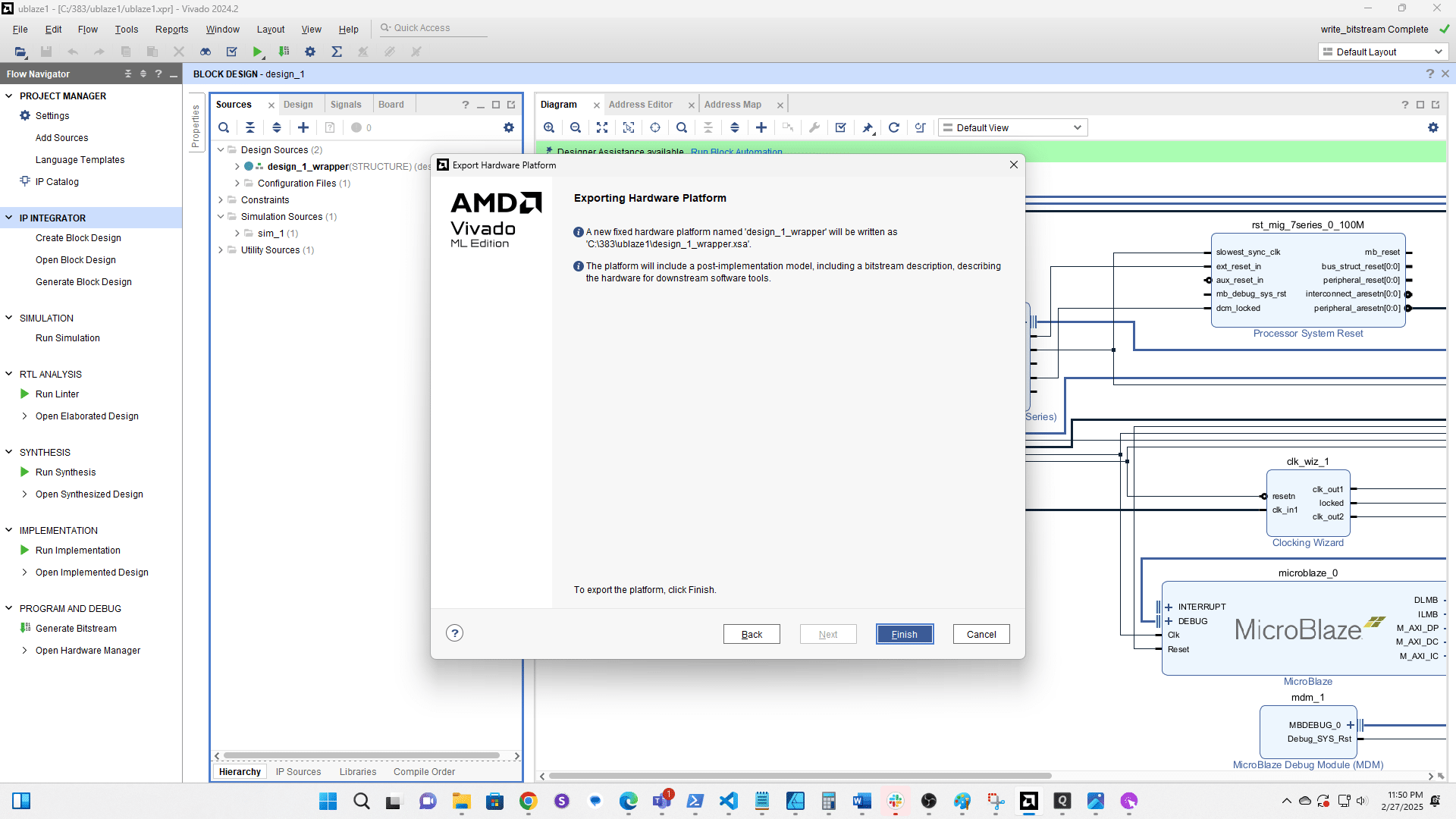
Select Export then Export Hardware
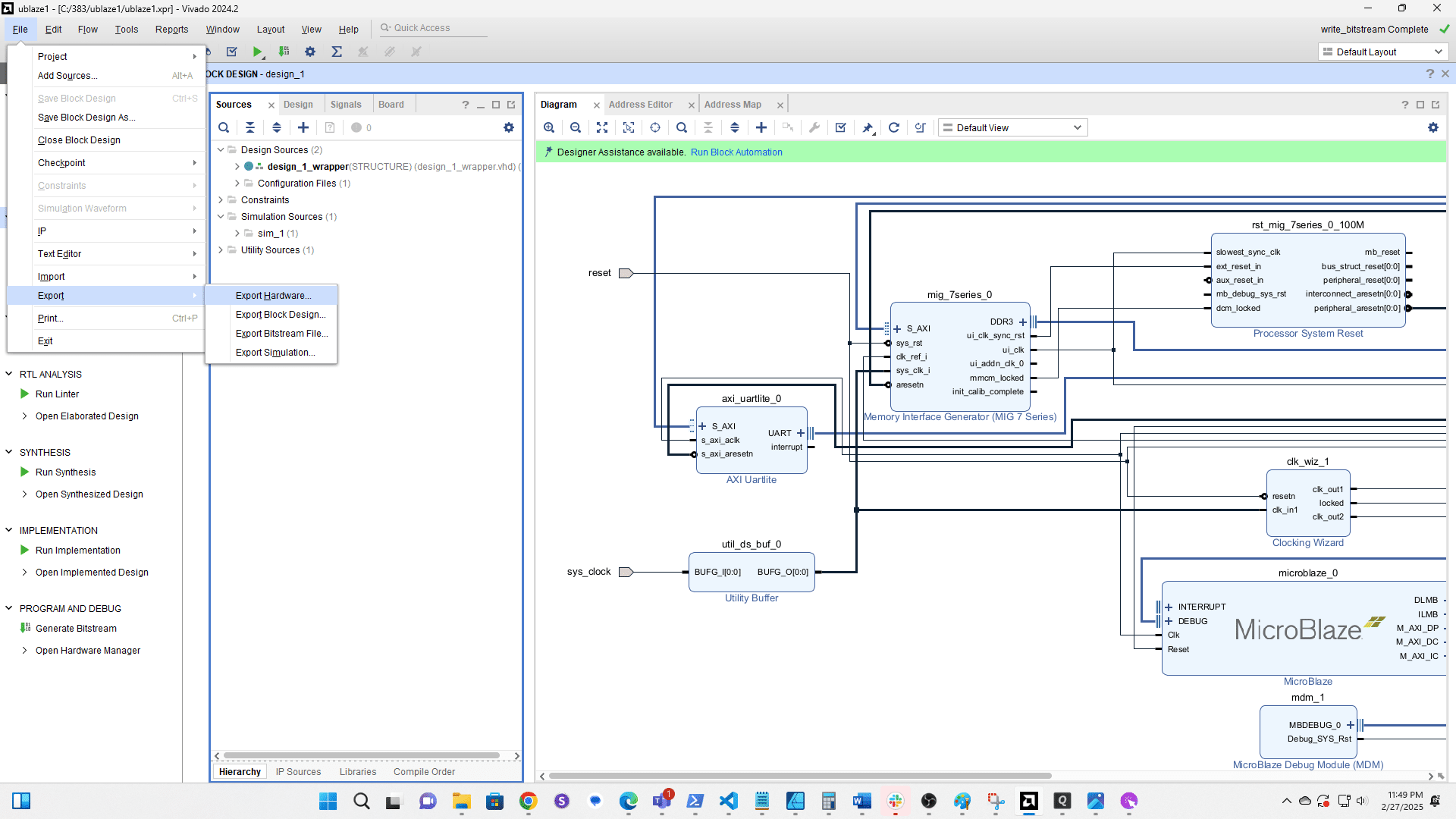
Click here
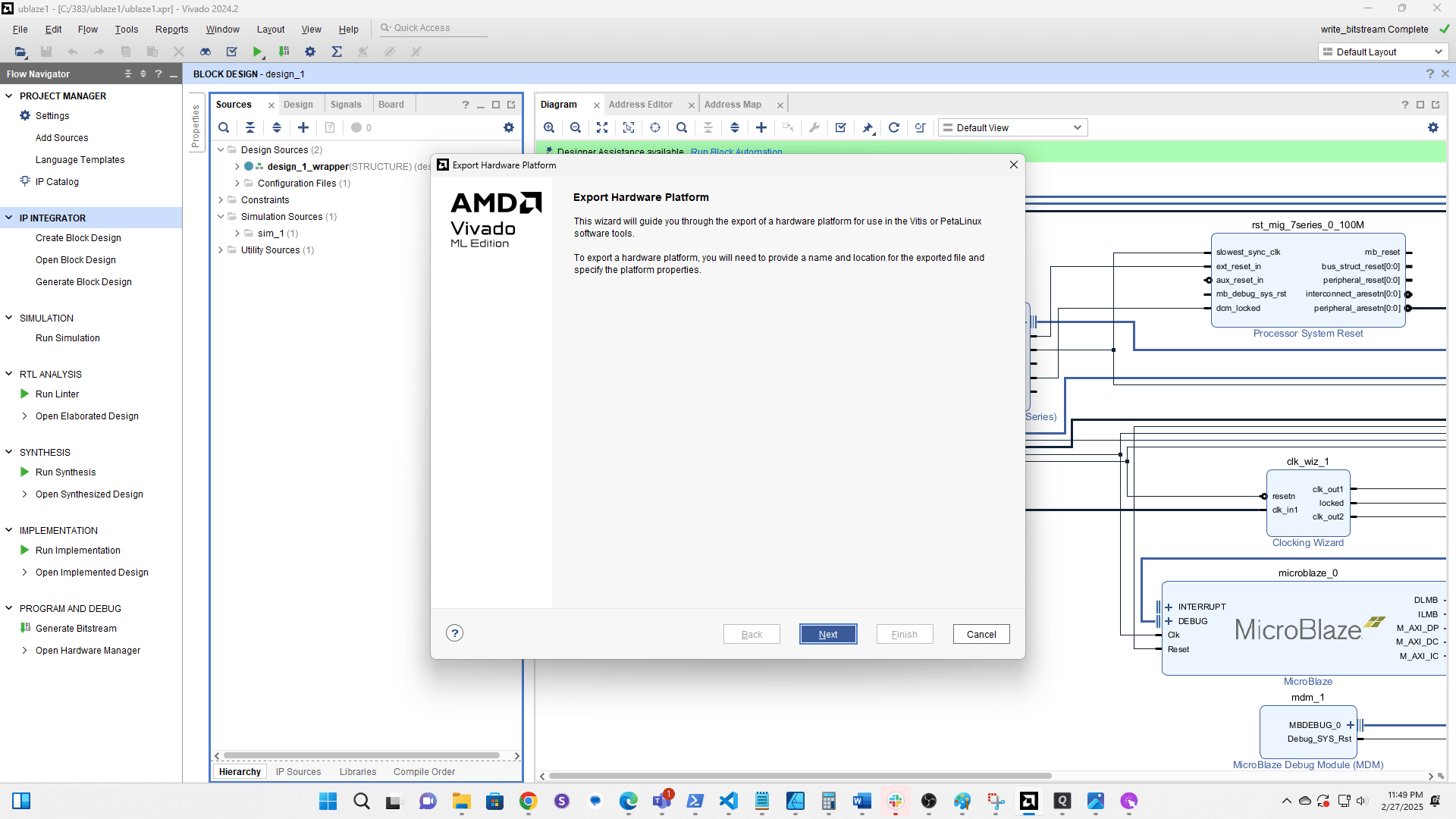
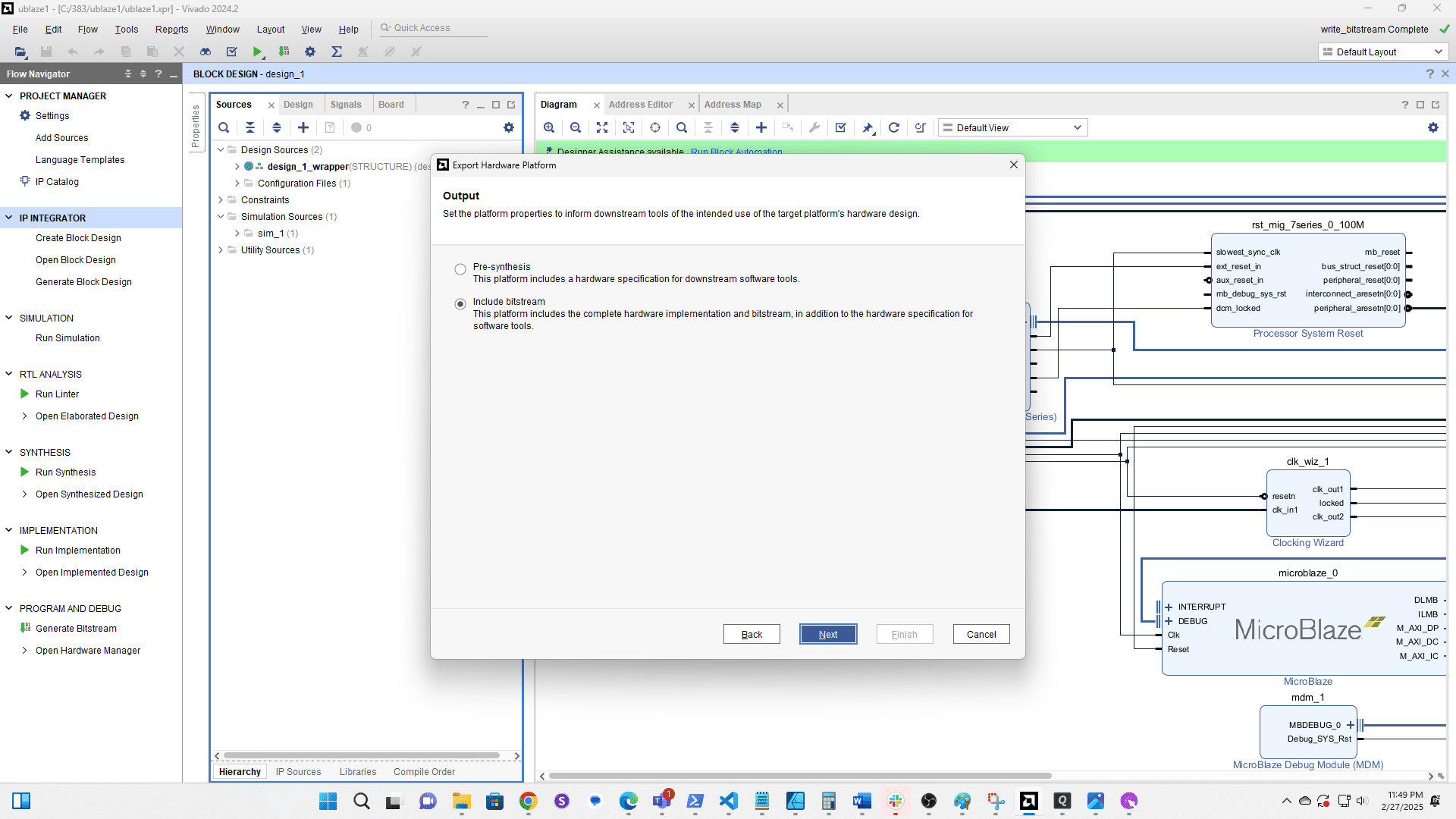
Select Include bitstream then click Next
Click here
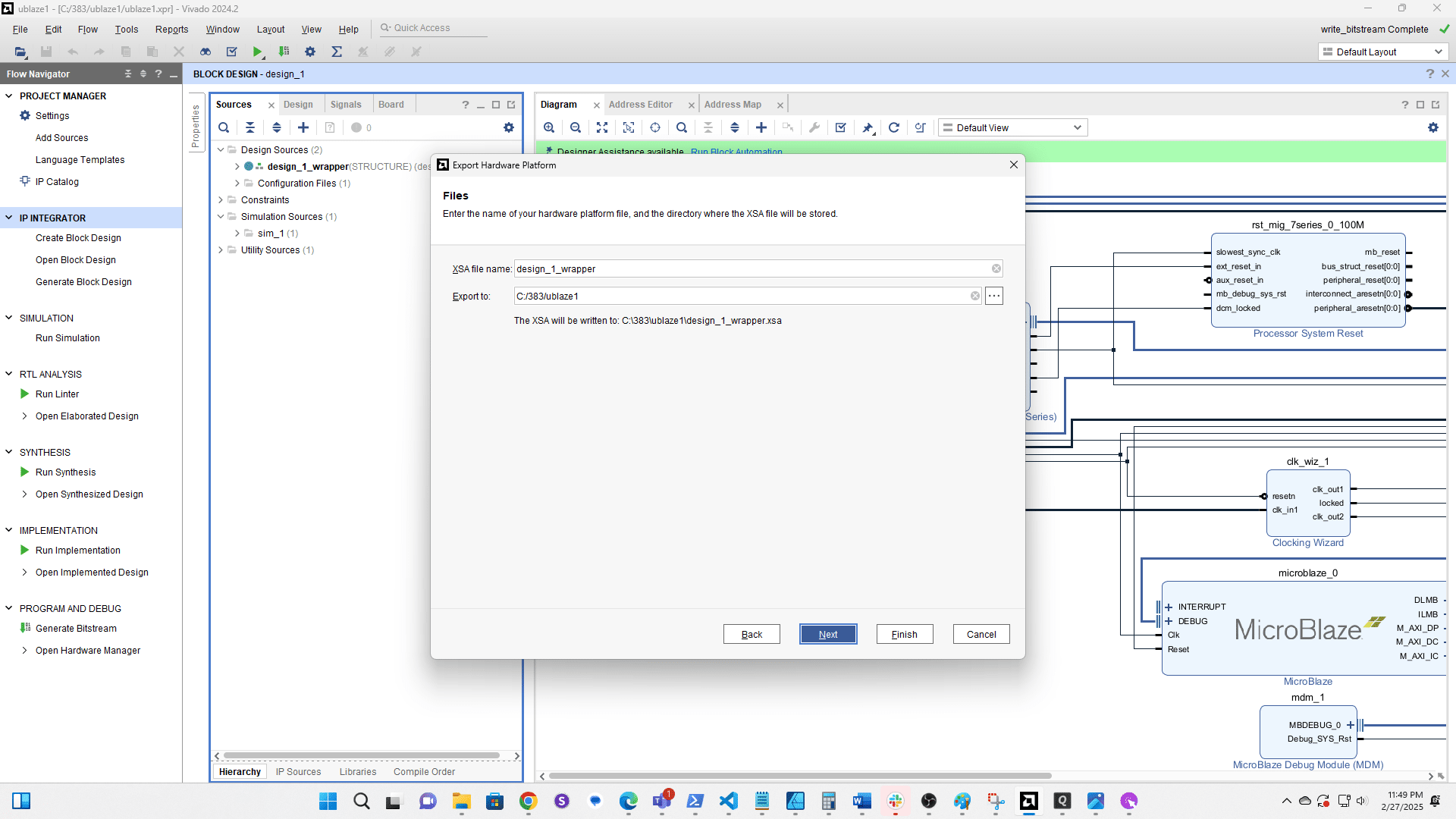
Click here