GuildLink - Site Admin and Edit Users
Site admin options and how to edit staff permissions (security roles) and add new users
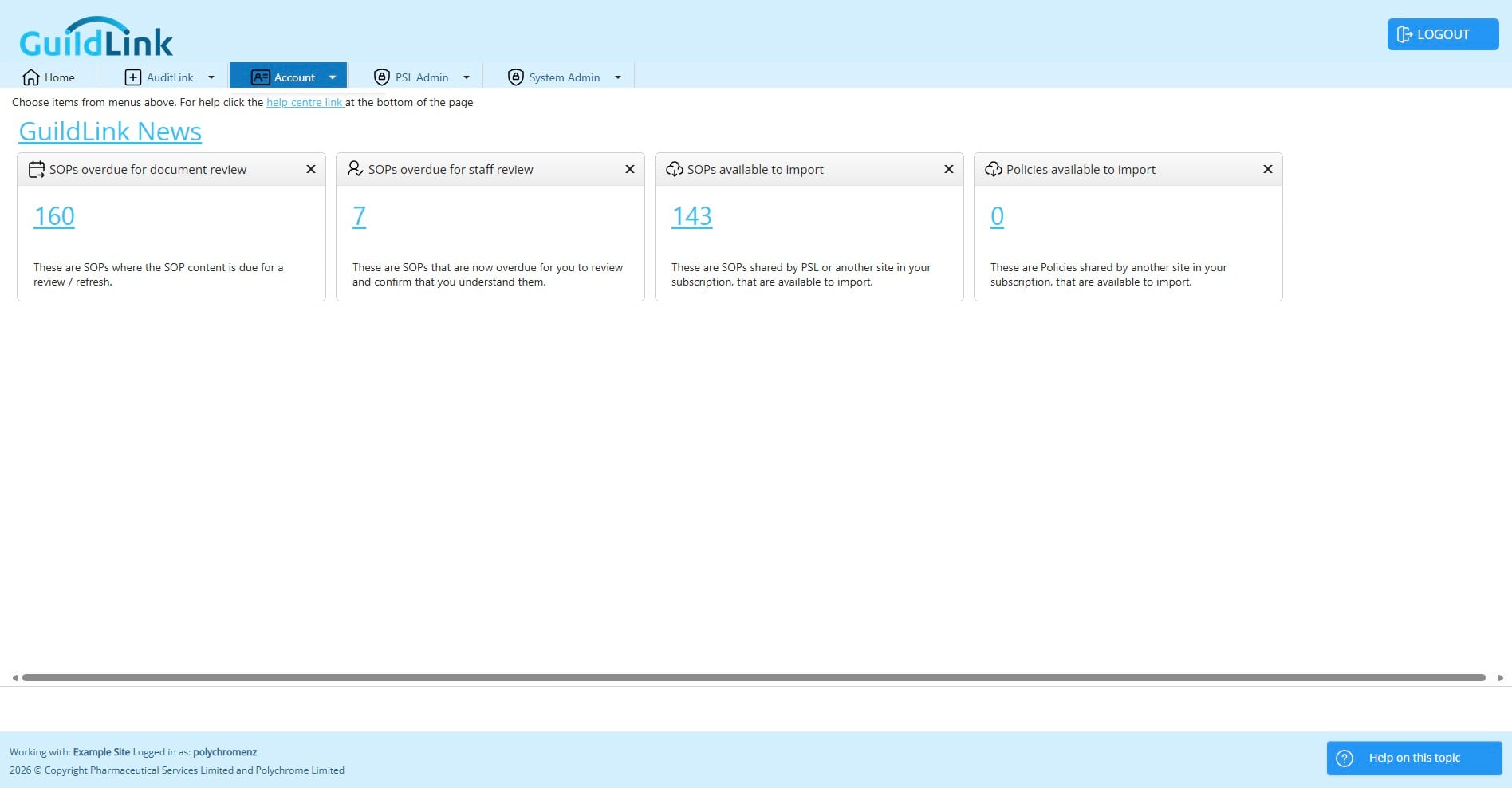
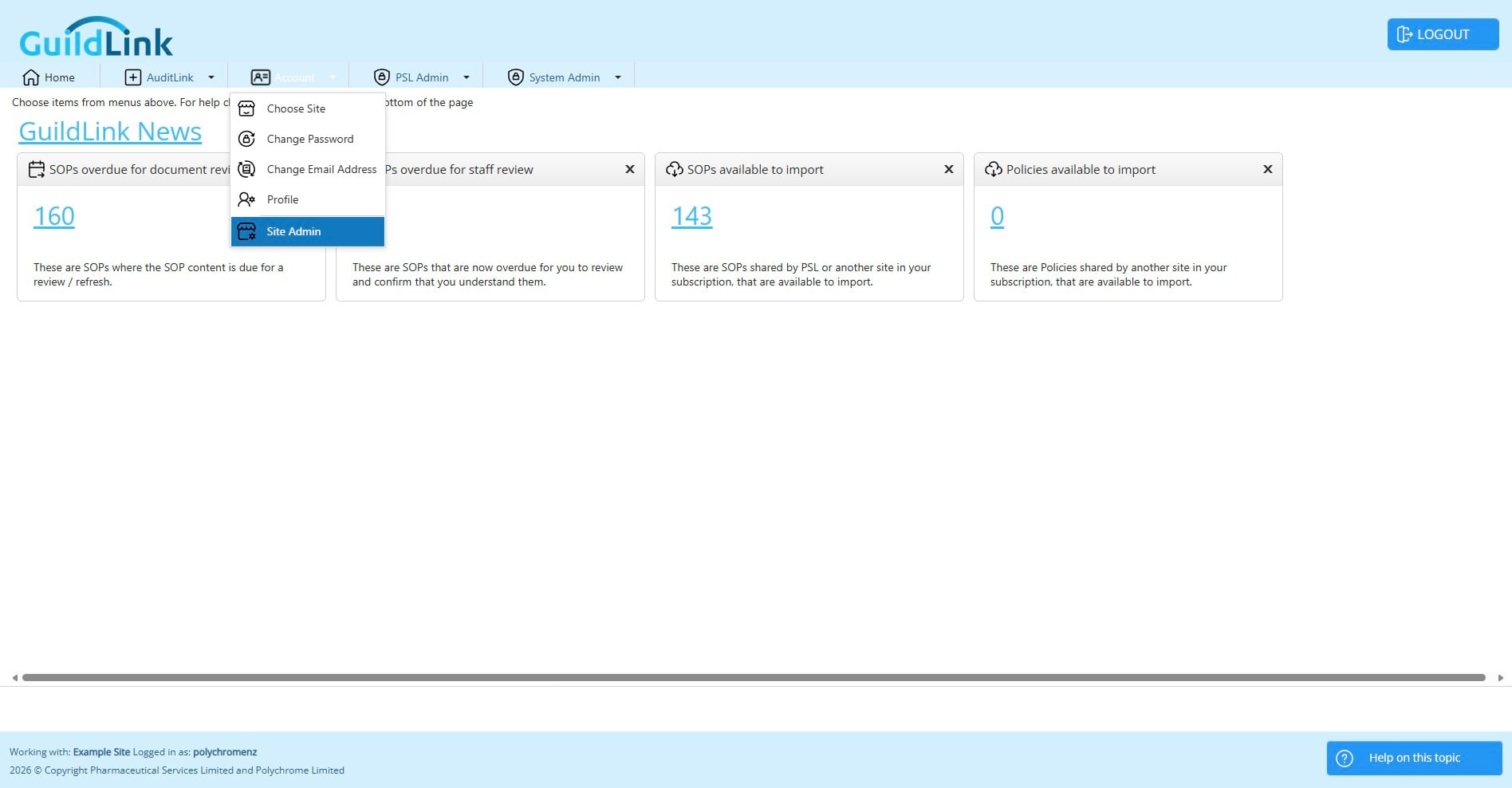
Click Account > Site Admin
Choose a site to work with
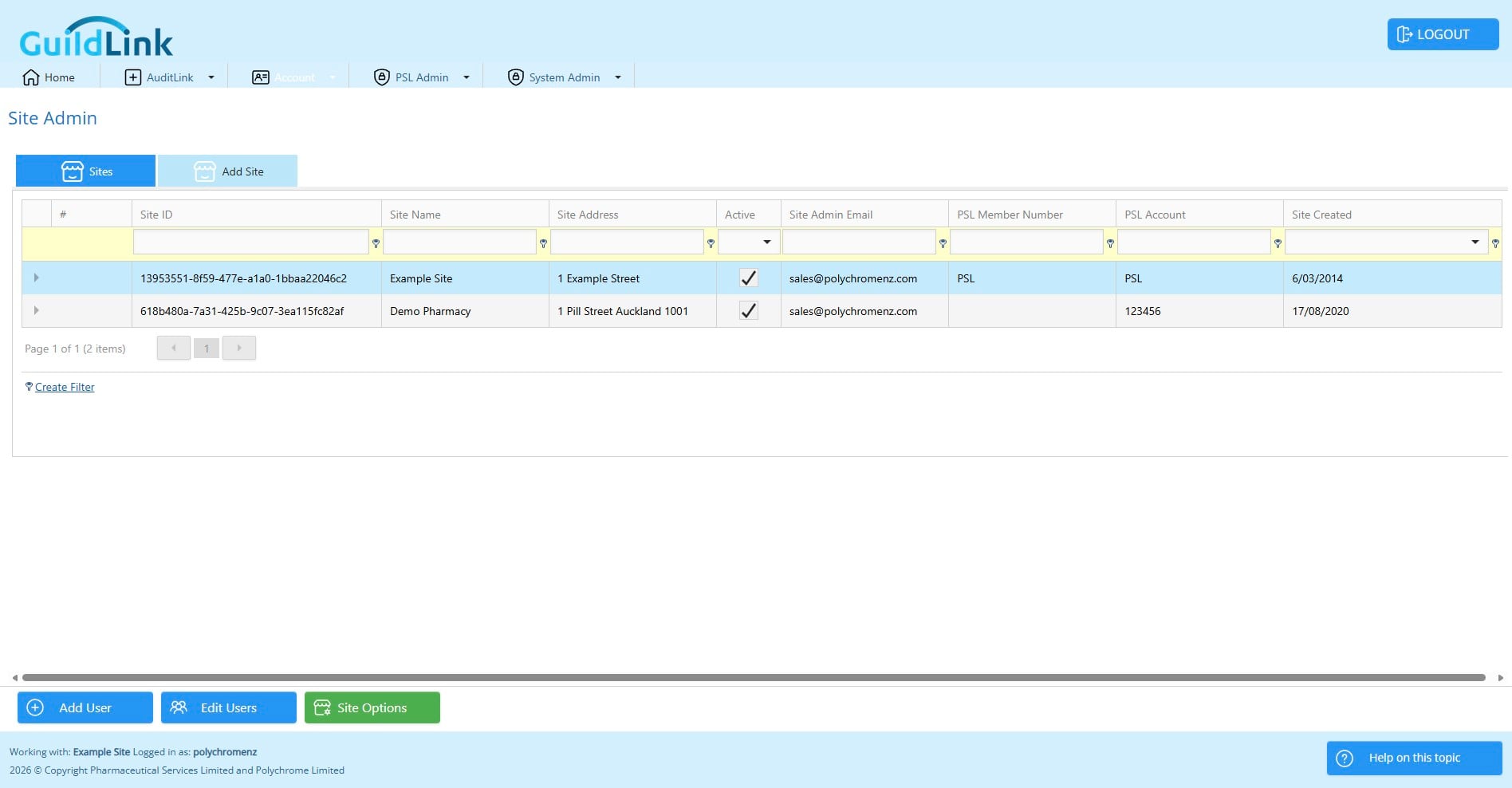
You can expand the row to see a list of users and optionally promote a user to the site admin or remove a user form the site.
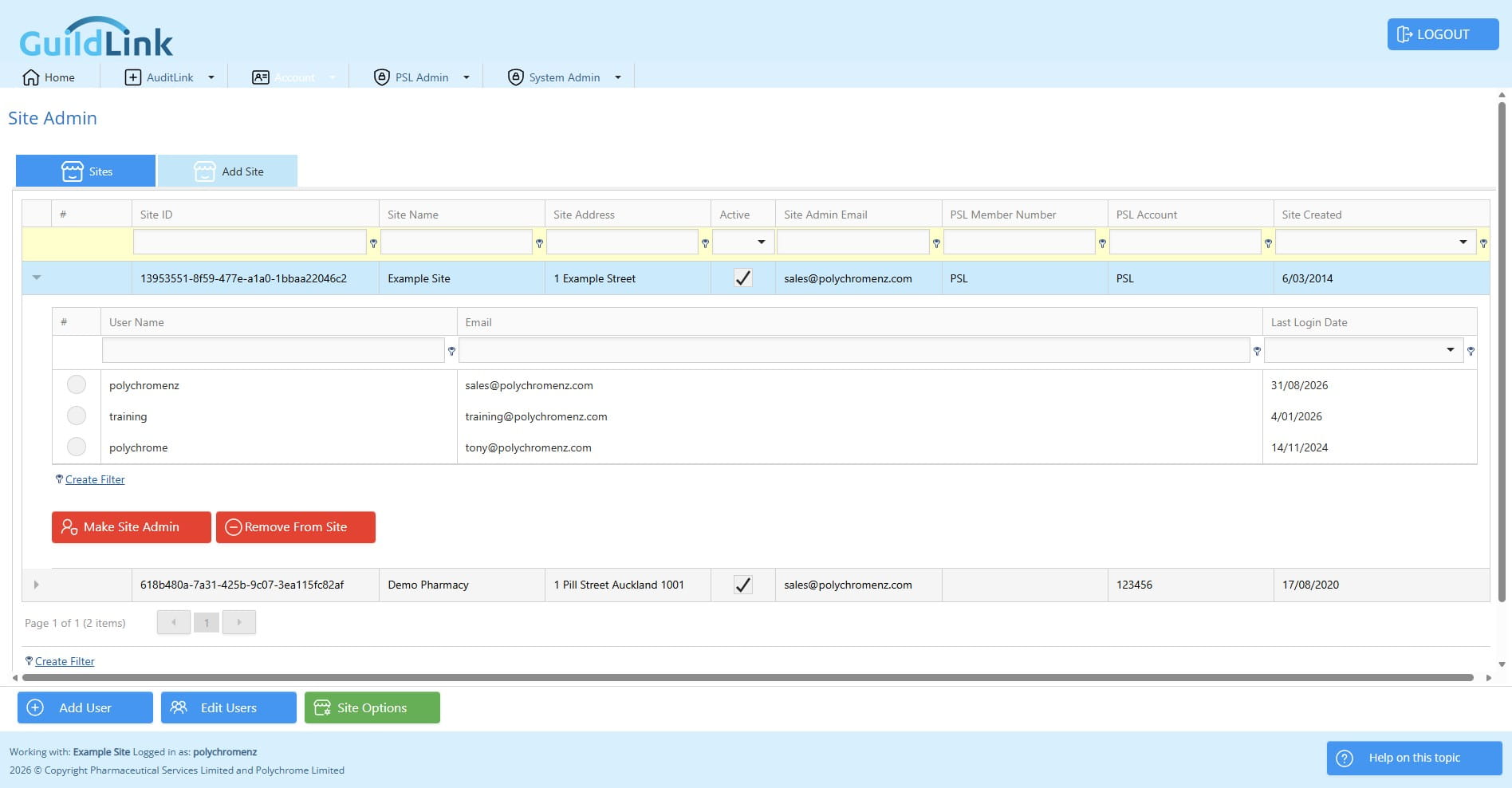
When you promote a user to a site admin, they will be the site admin so you are effectively transferring that role.
Click on "Edit Users"
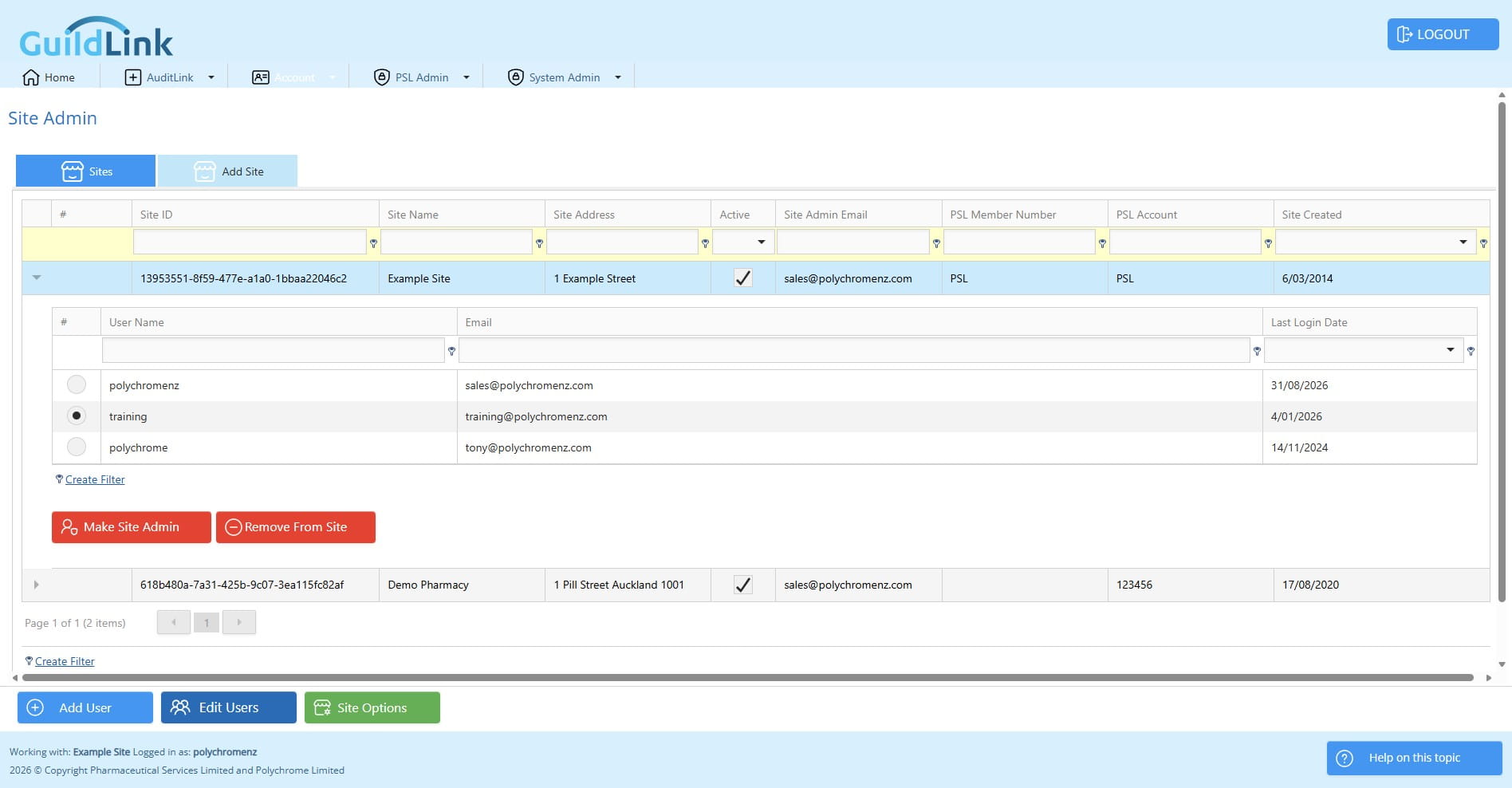
Click on a user
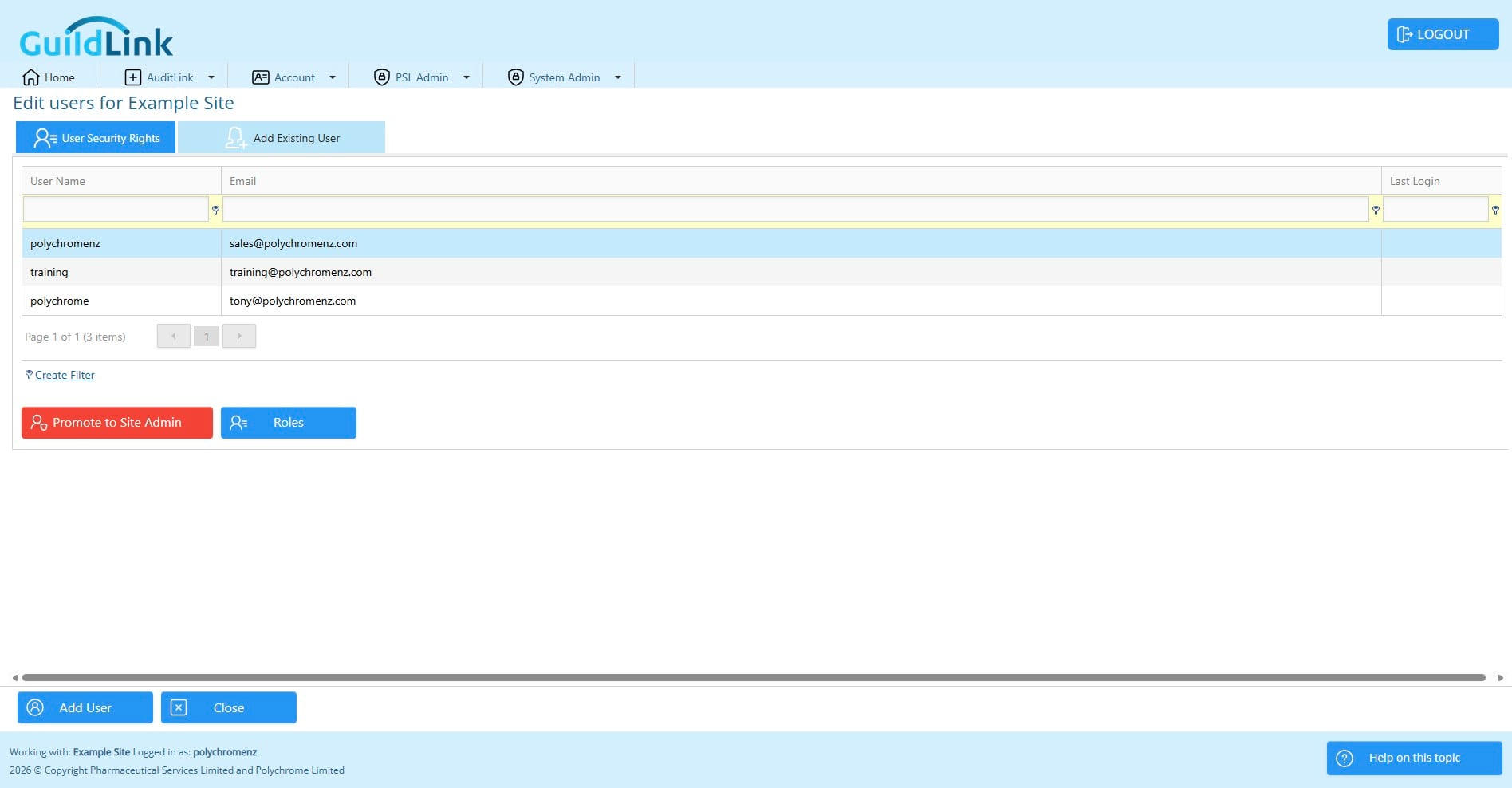
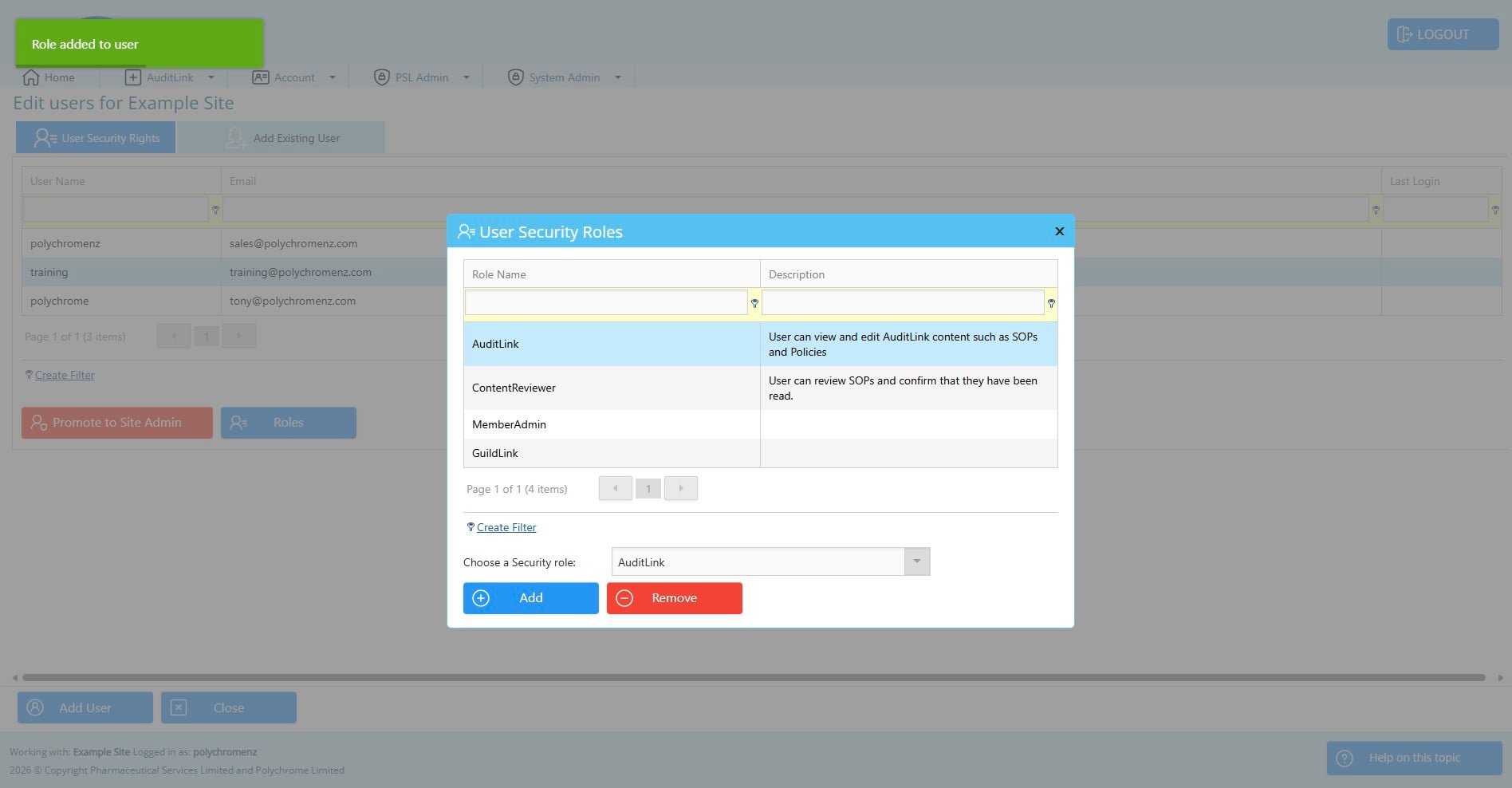
Click on "Roles"
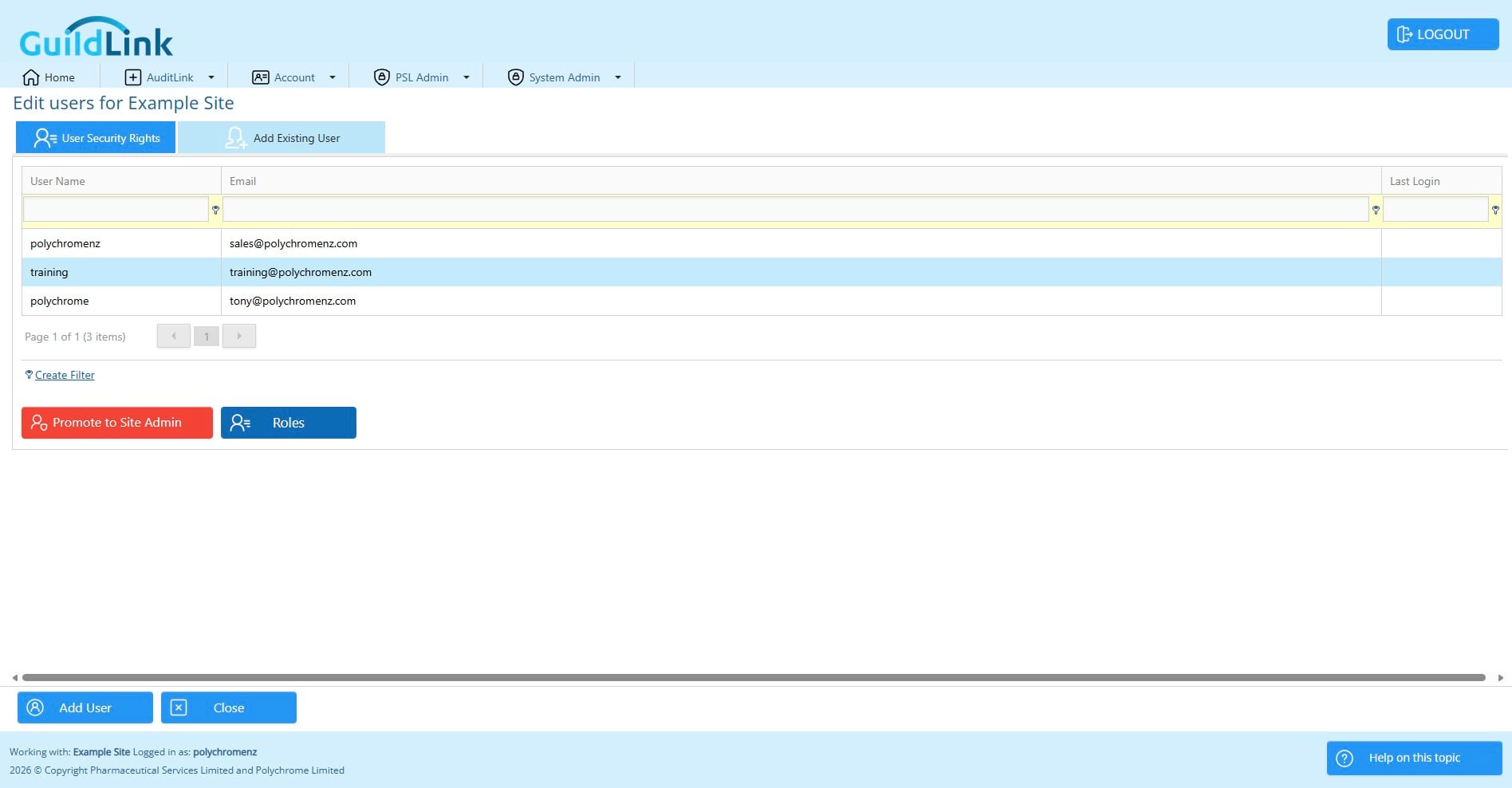
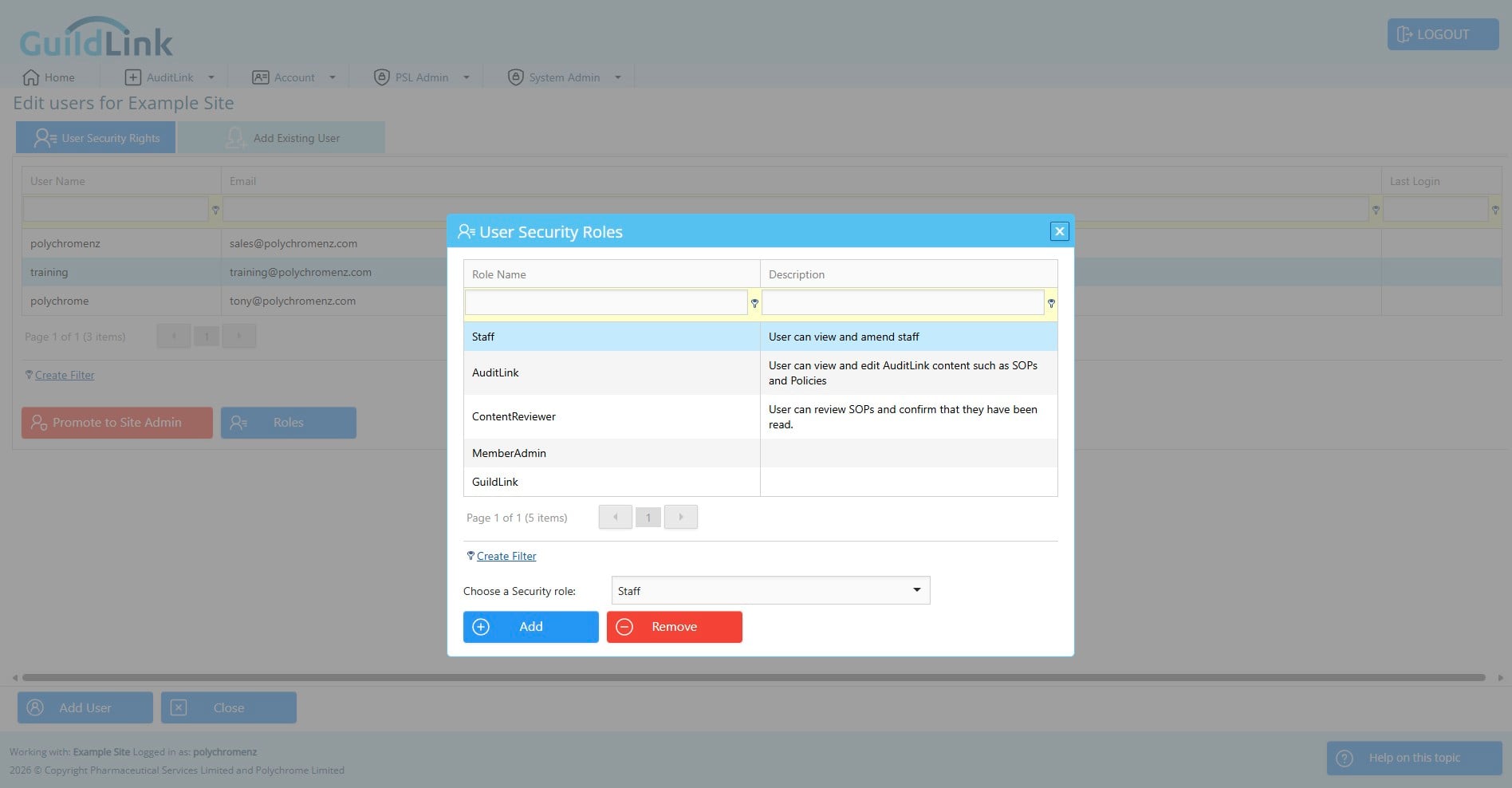
here you can see thier existing roles (permissions)
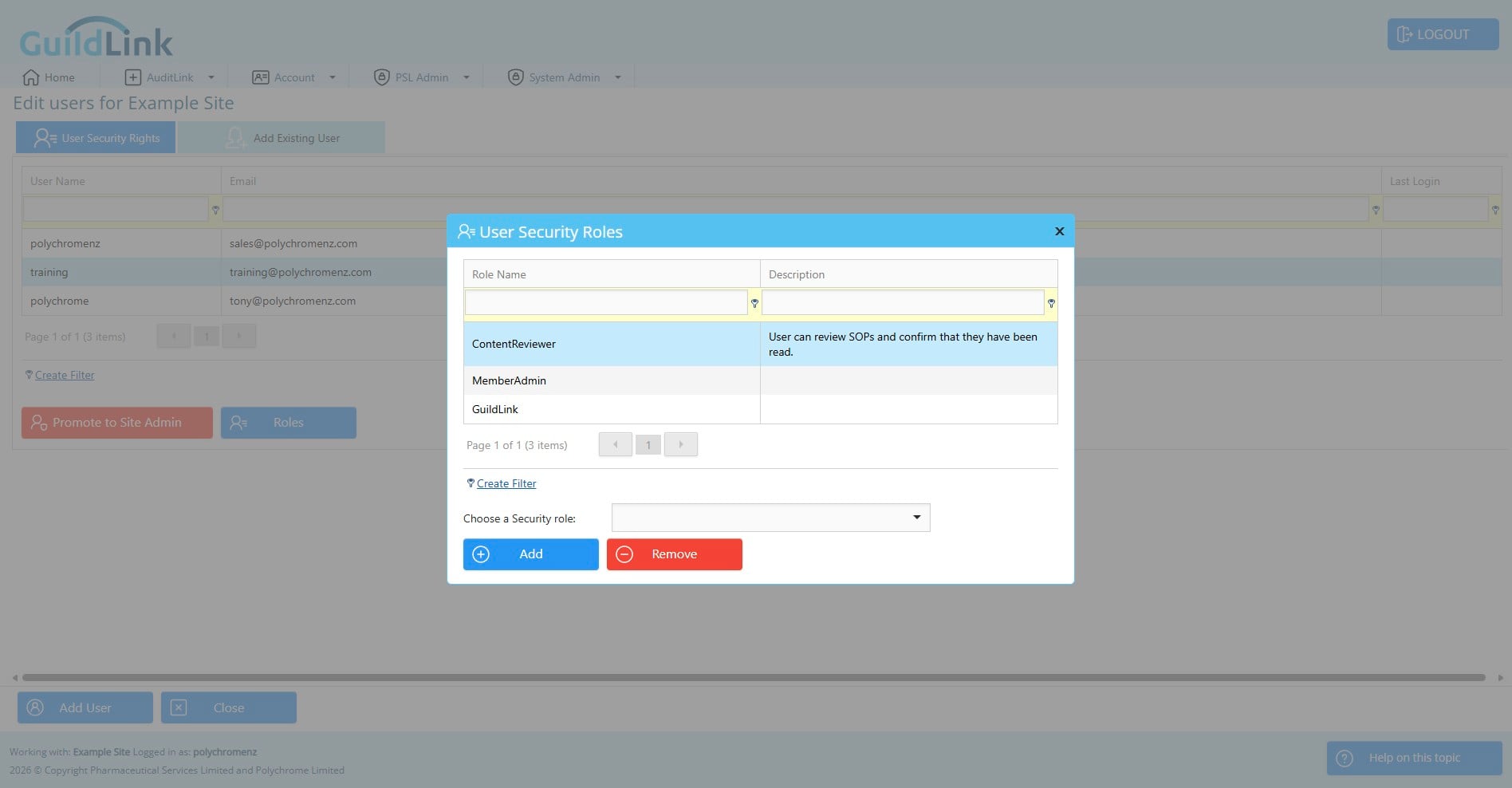
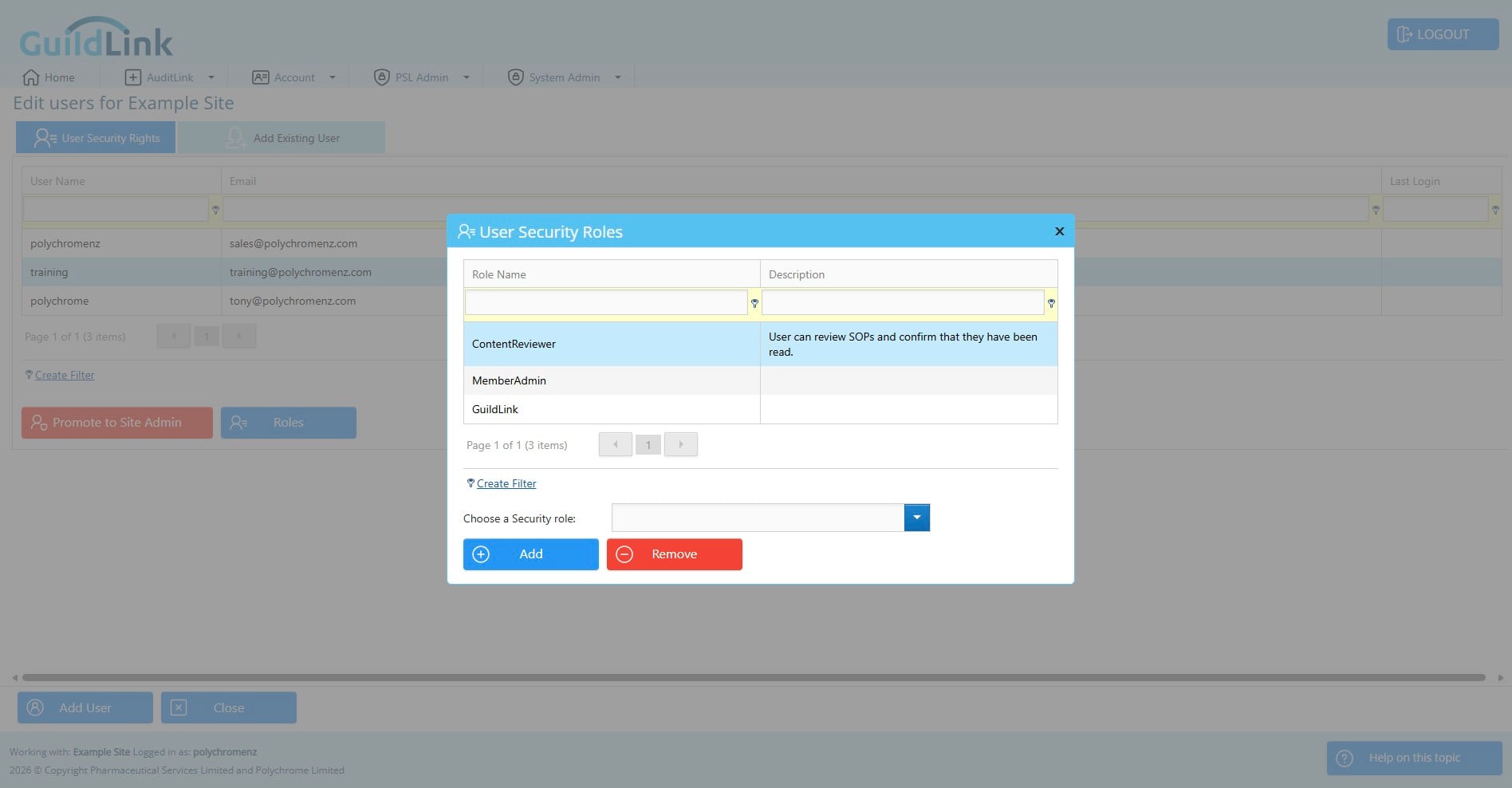
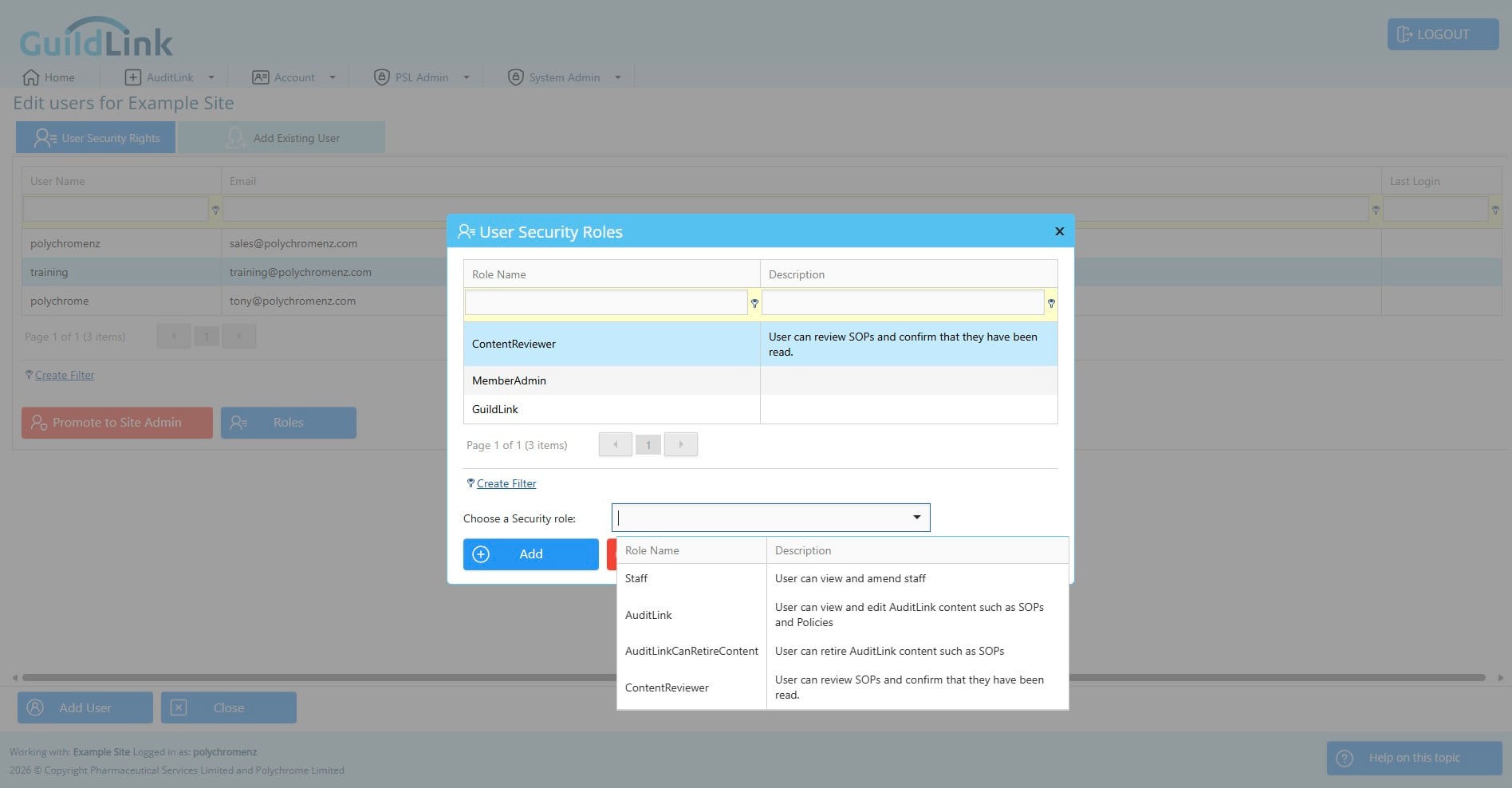
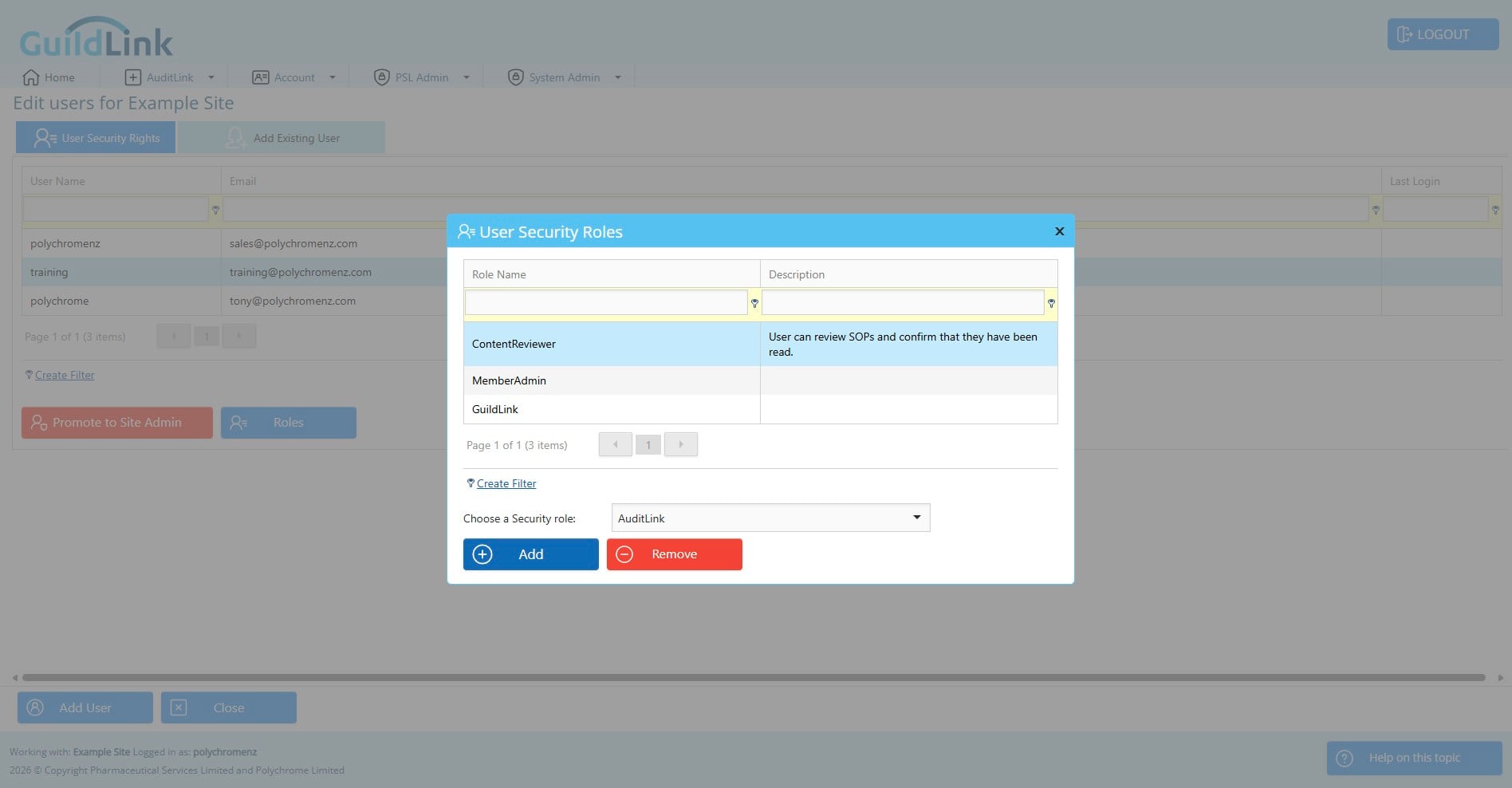
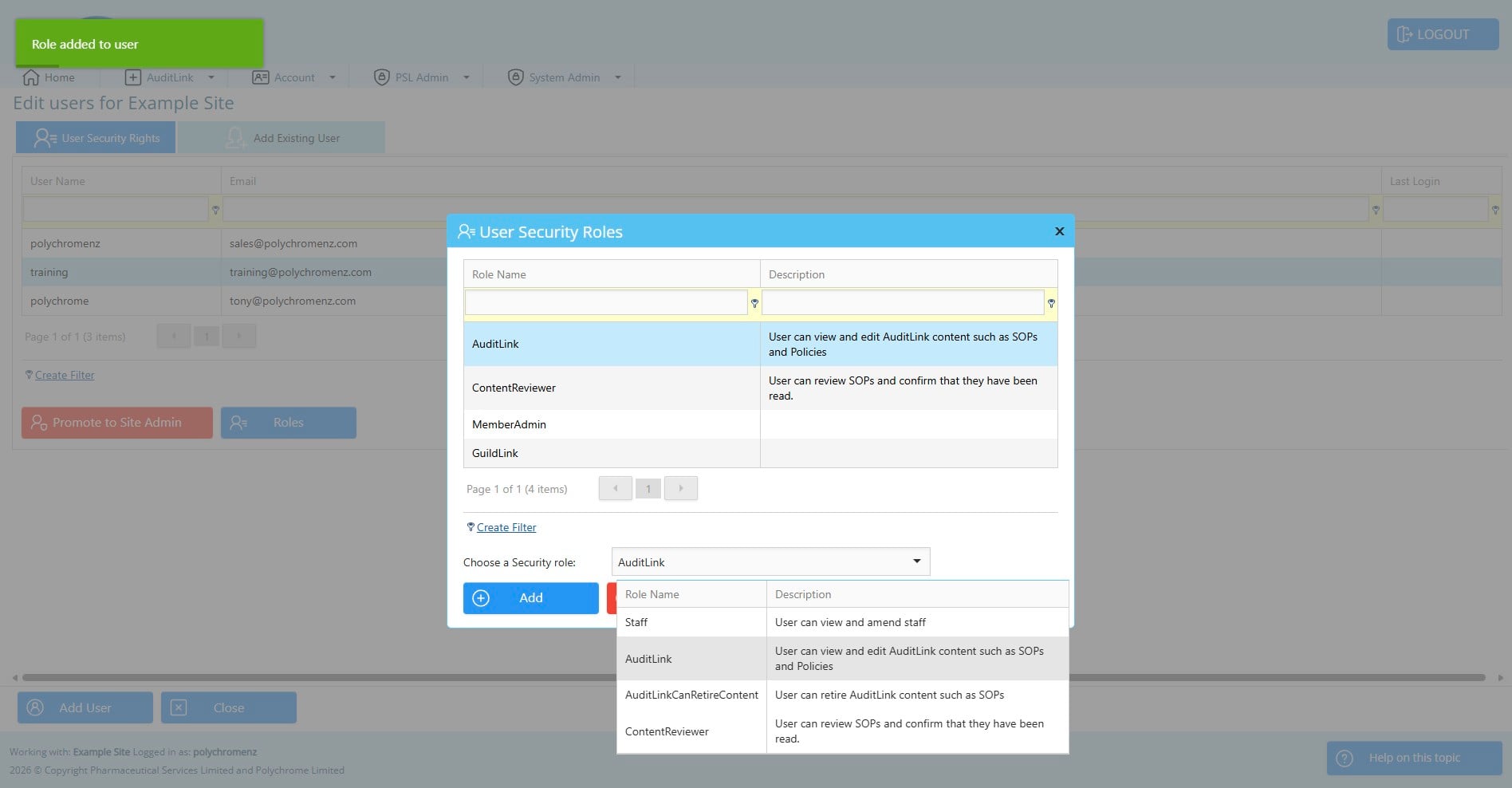
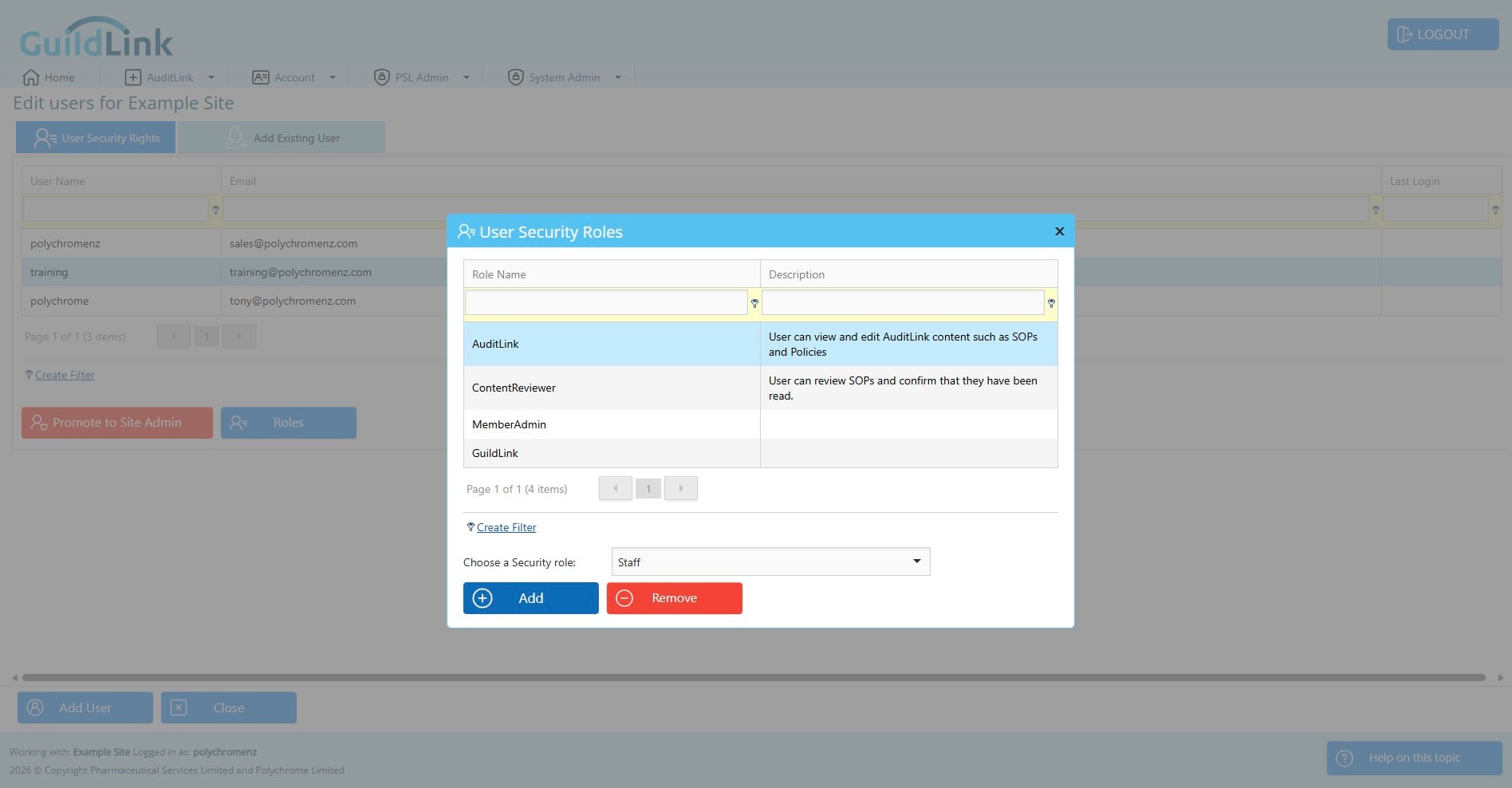
You can choose a security role and then add or remove it from a user. In the list of roles you can see a description of that that role enables. For example, adding staff will allow this user to view and amend staff withing GuildLink so be careful when adding roles.
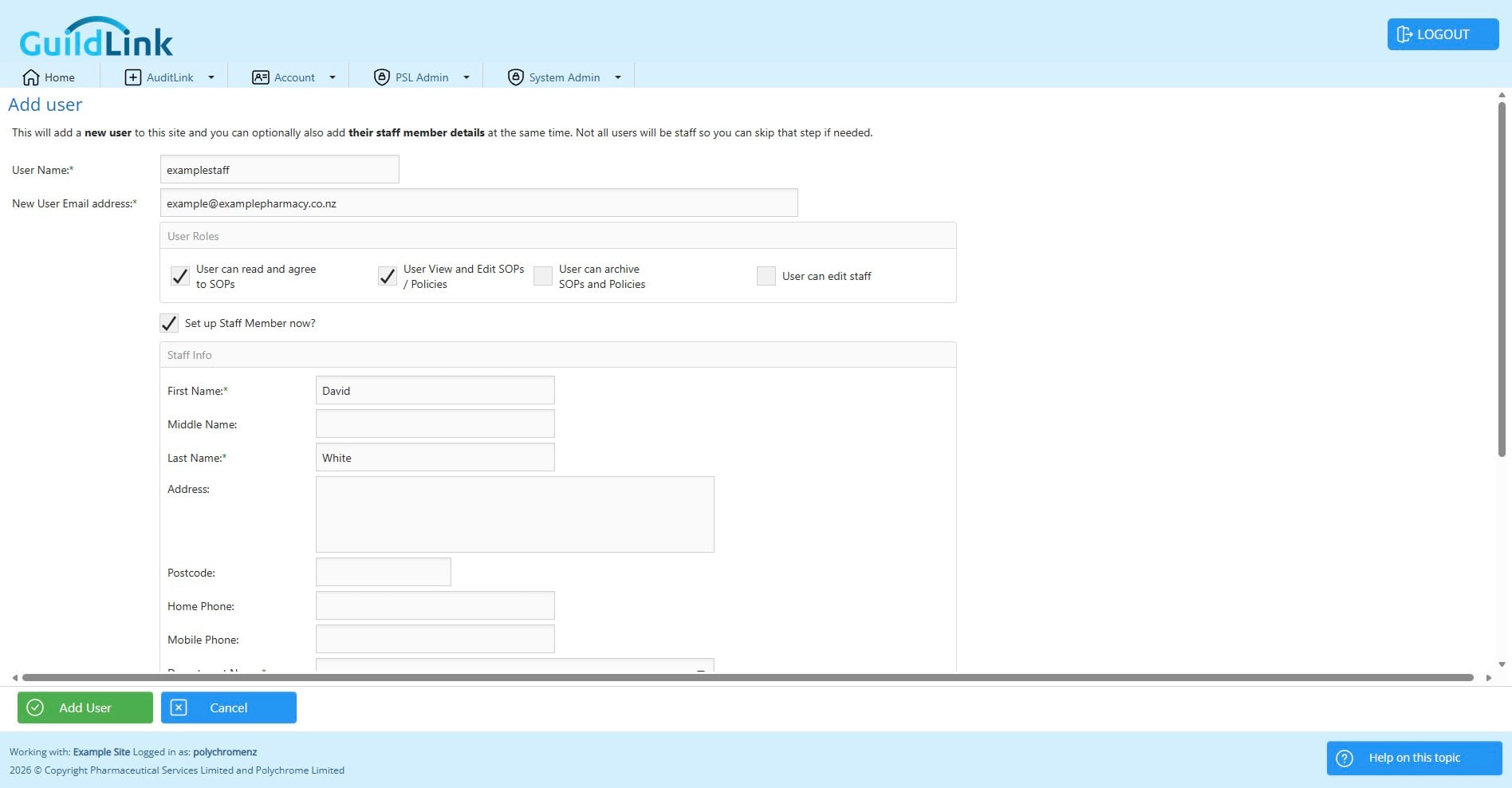
You can add a user to a site here rather than forcing them to signup.
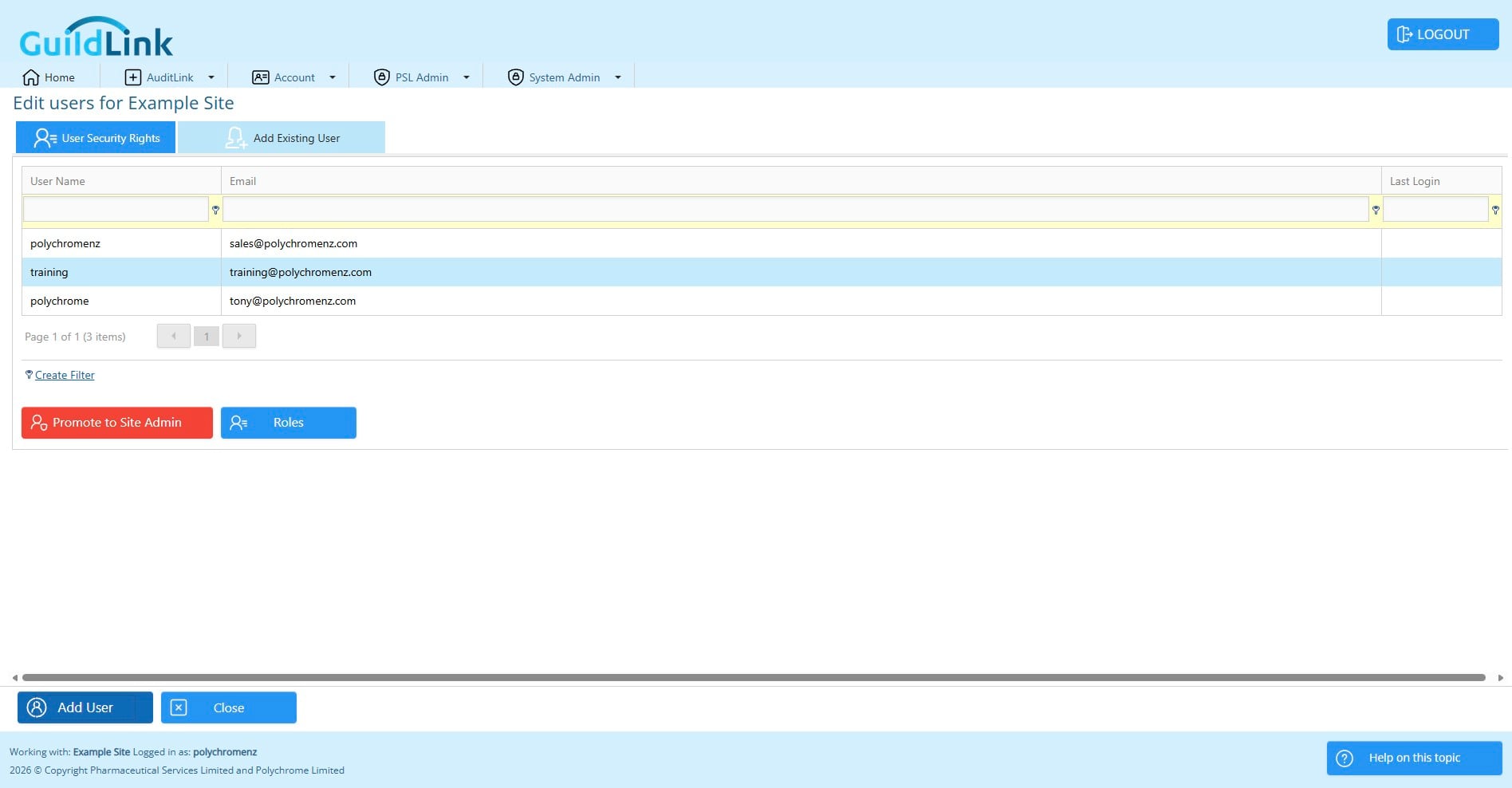
the same rules apply though. The user name must be unique and you must provide their email address.
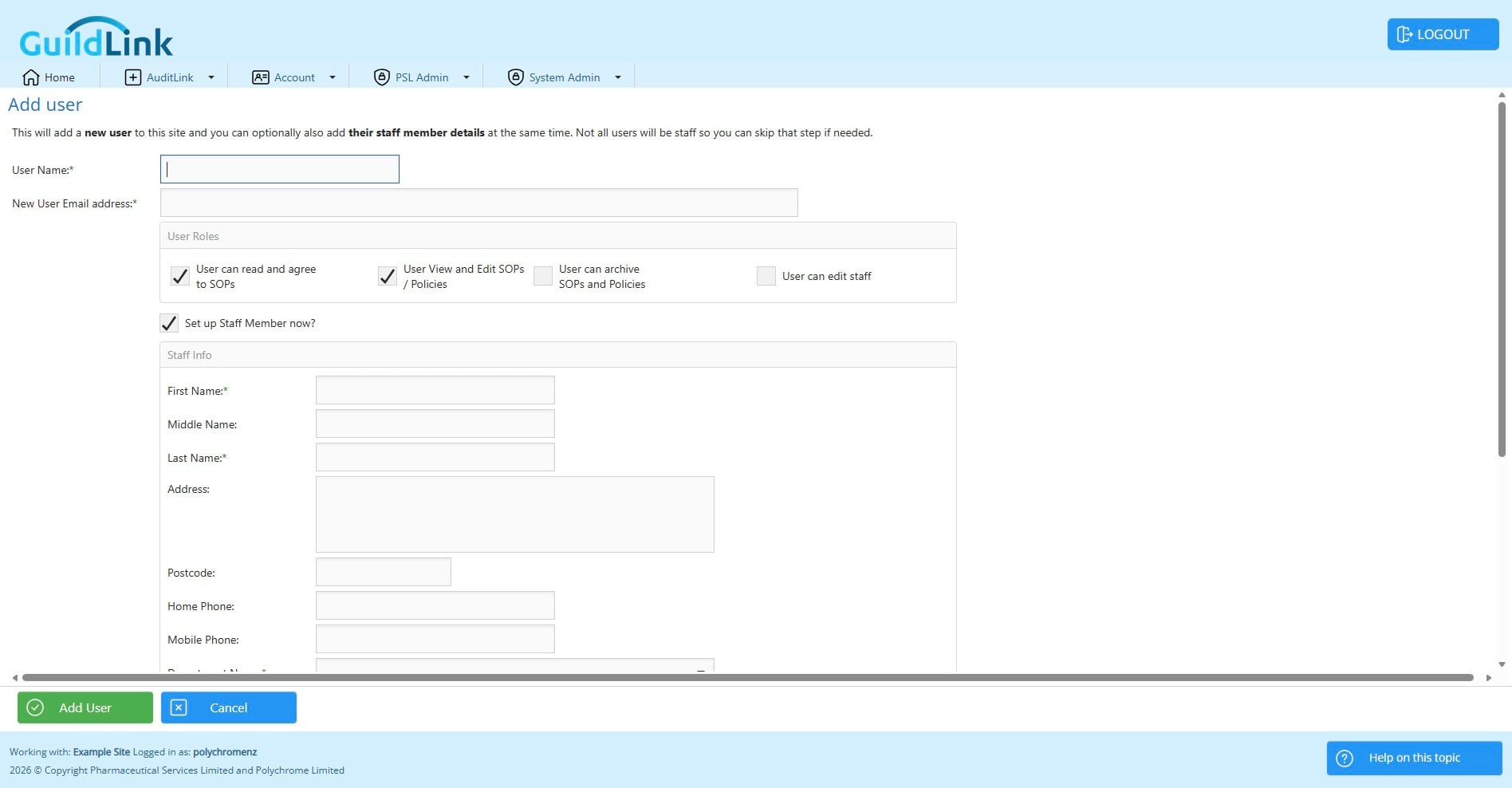
At this step you can choose the security roles you wish to assign rather than adding them later.
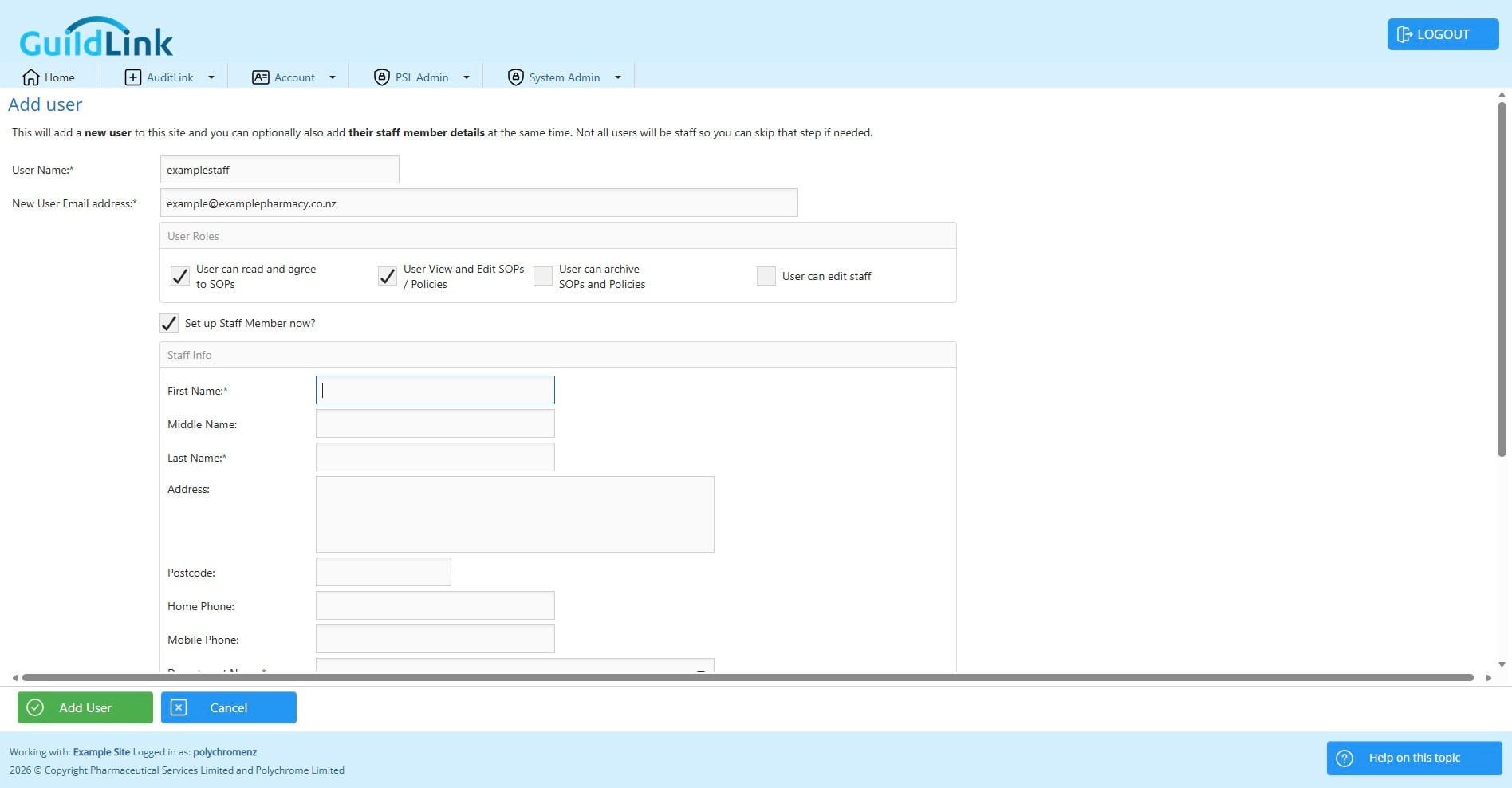
If they are a staff member (usually all users are staff but you could have someone that temps) then add their staff info here and this screen will auto add them as a staff member. That save you having to go to staff and entering much of this info again.
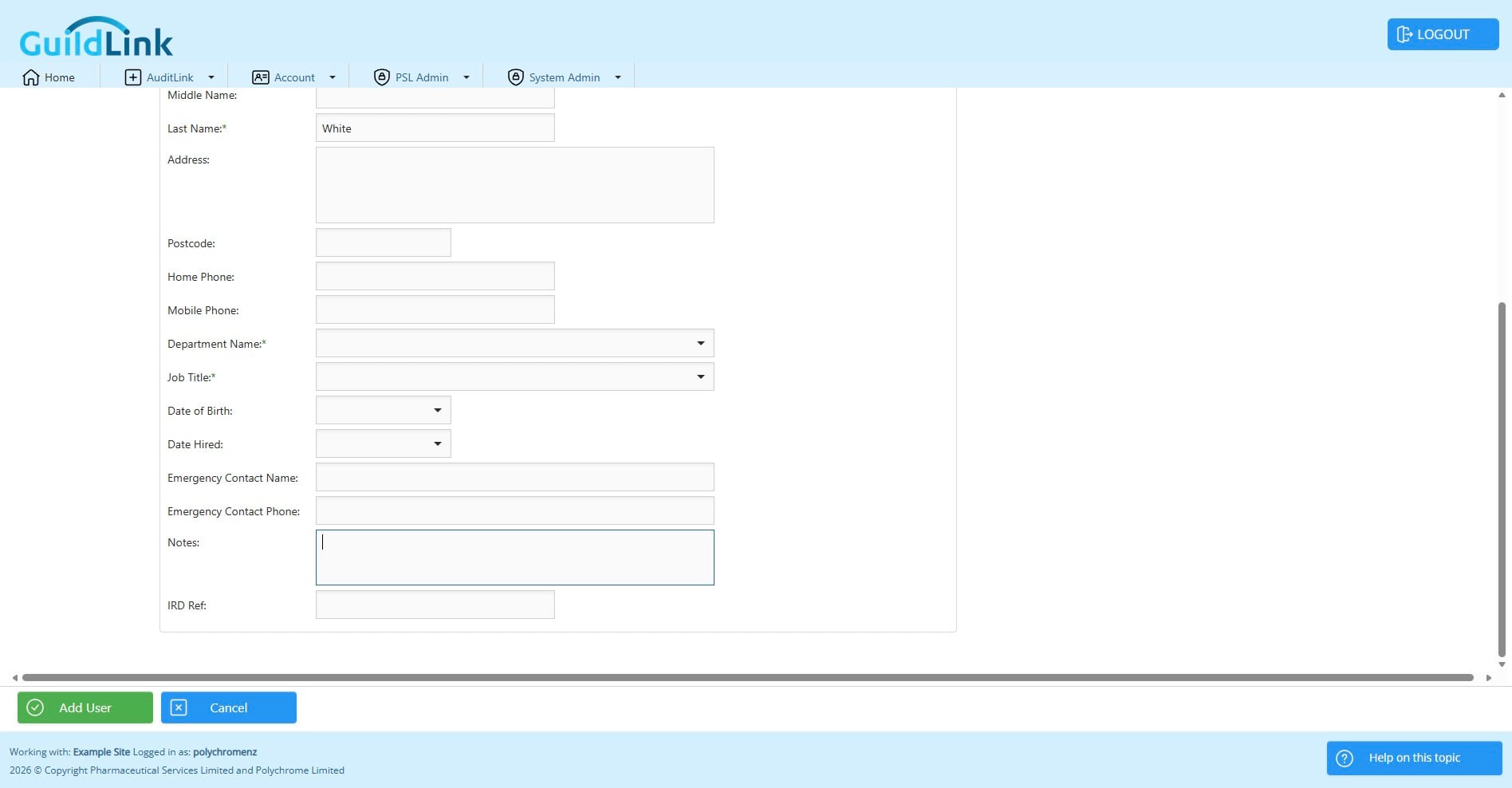
Done 🚀