GuildLink - SOP Versioning
If you have an audit and there is a recommendation to change an SOP, you can create a new document and also keep the original document, whilst marking it as replaced by the new document. You can make the required changes to the new document and AuditLink retains a link to the old document. This lets you go back and view the original document that was in use at a point in time, so an auditor can see the life span of an SOP and how it has been adapted and improved based on real world issues. If a problem arises you can demonstrate that a new SOP was implemented, what the old SOP was and what the new replacement SOP is.
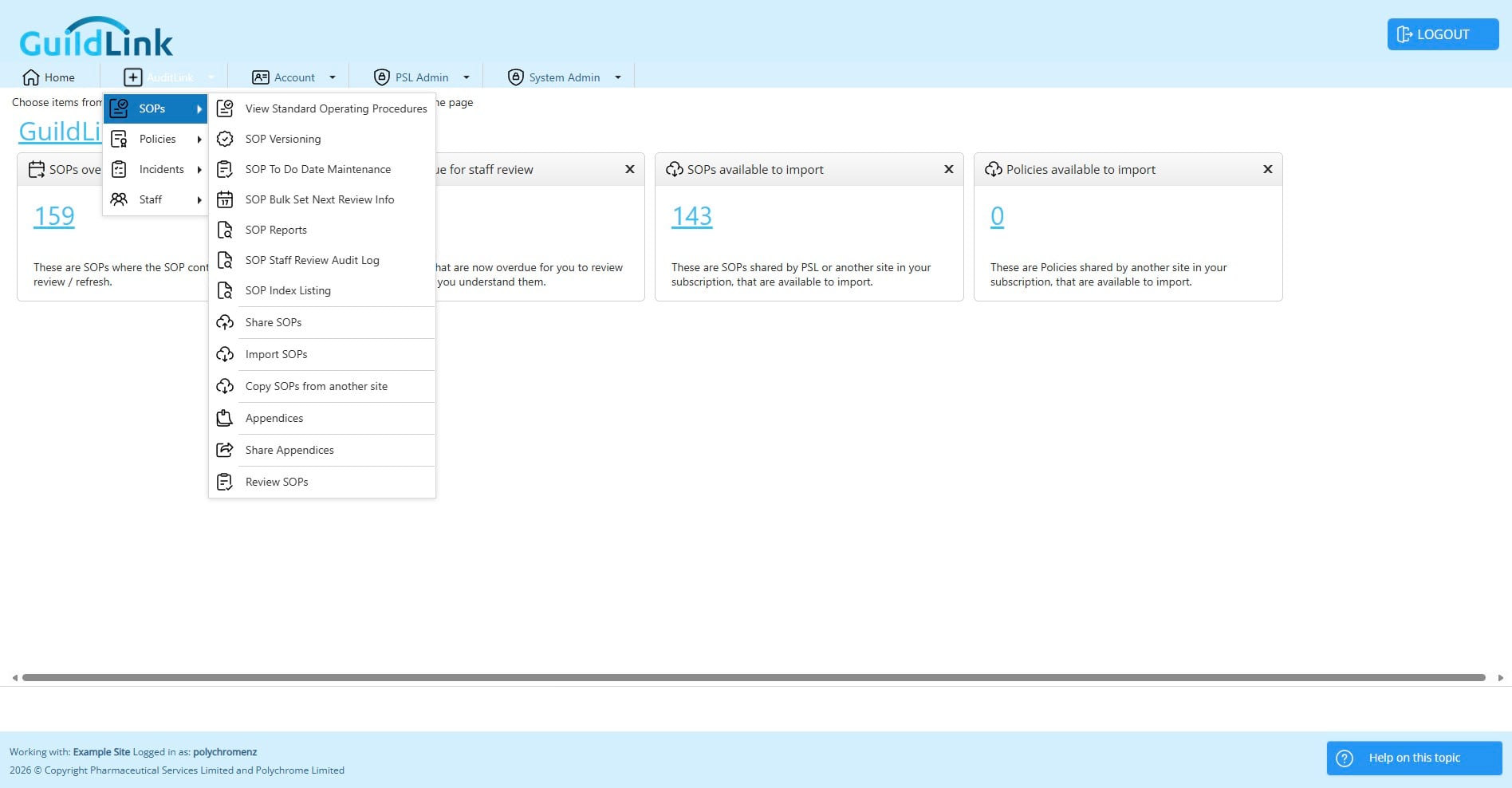
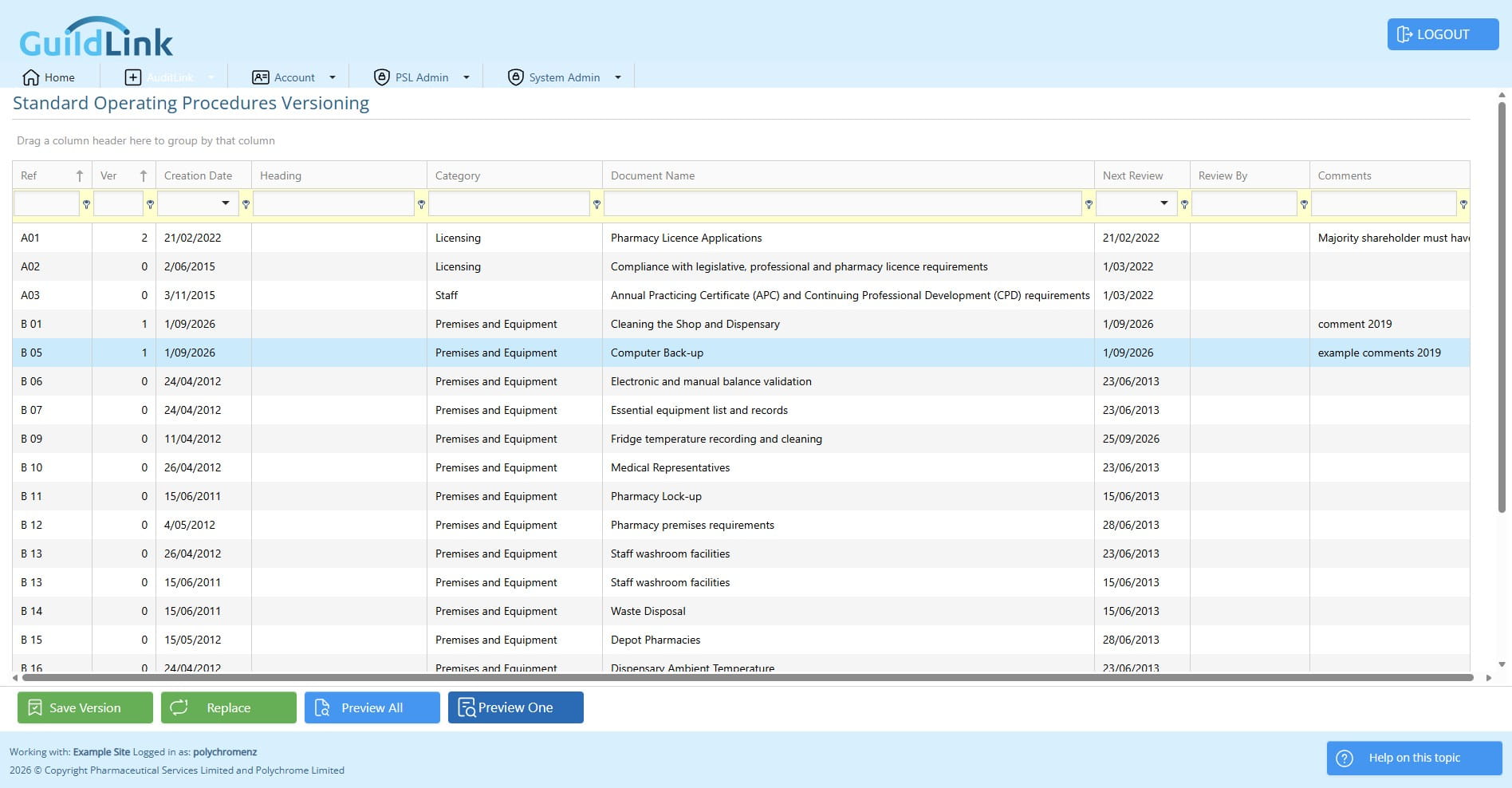
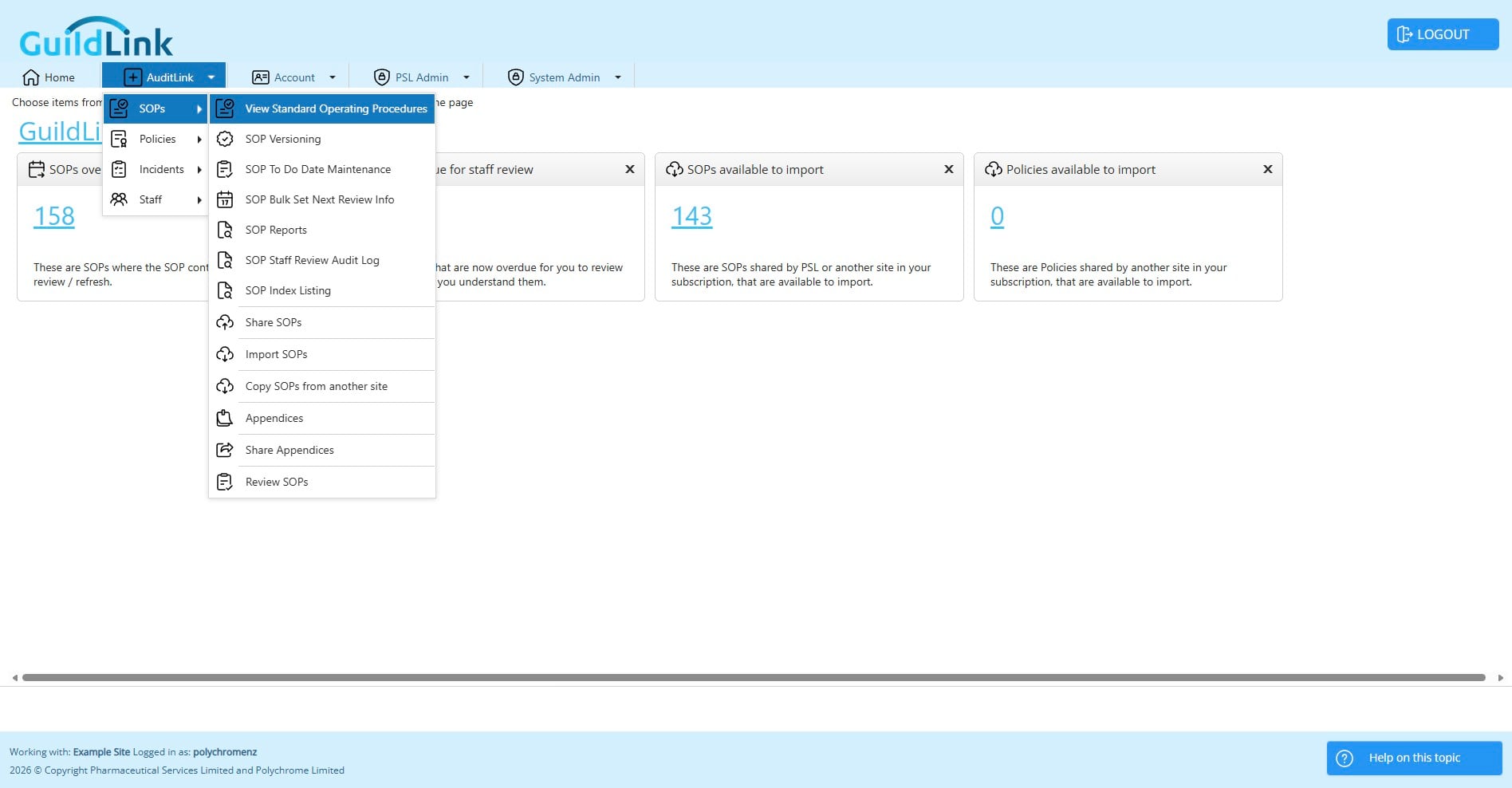
Navigate to AuditLink > SOPs SOP Versioning
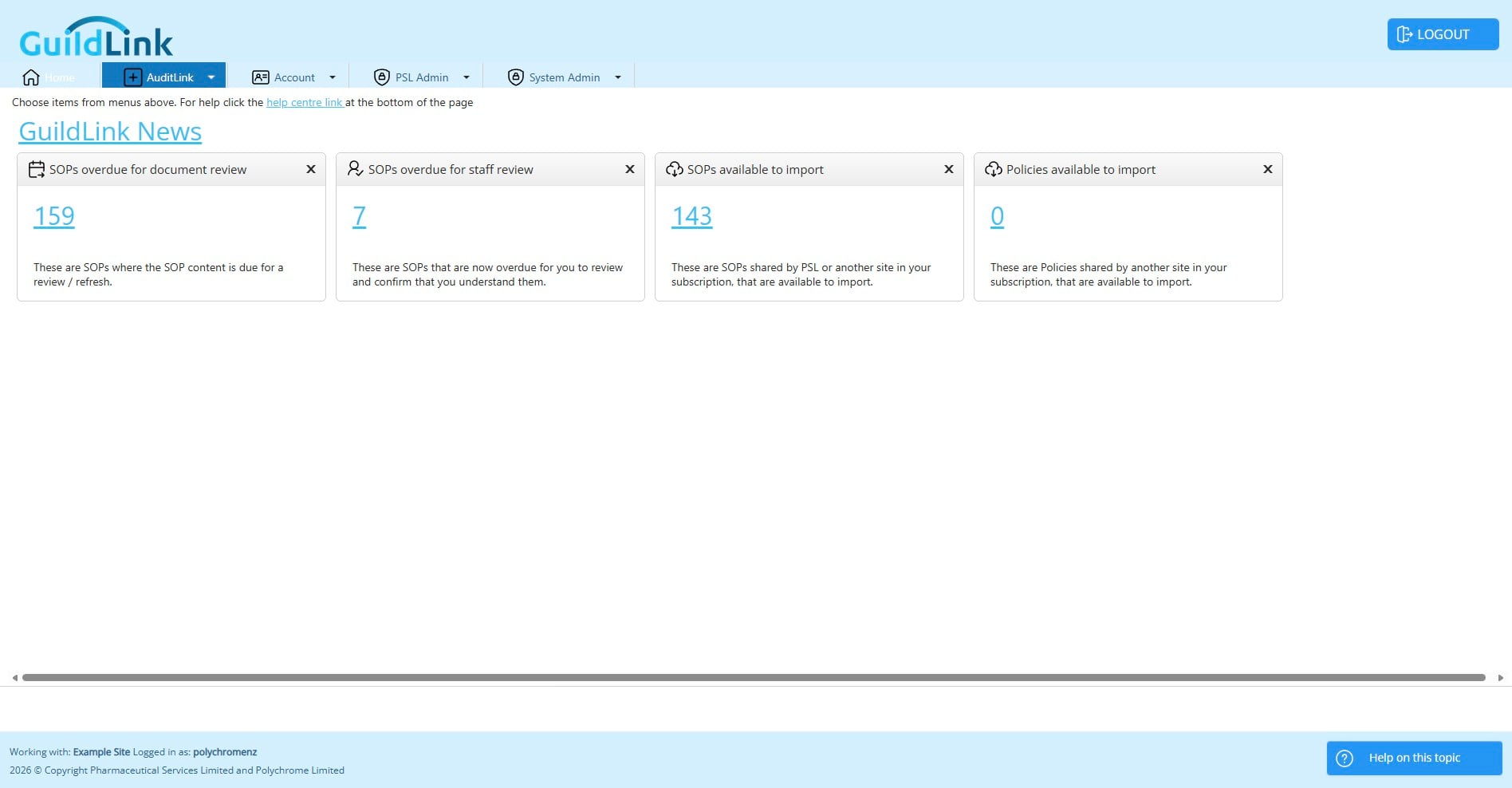
Click on "AuditLink"
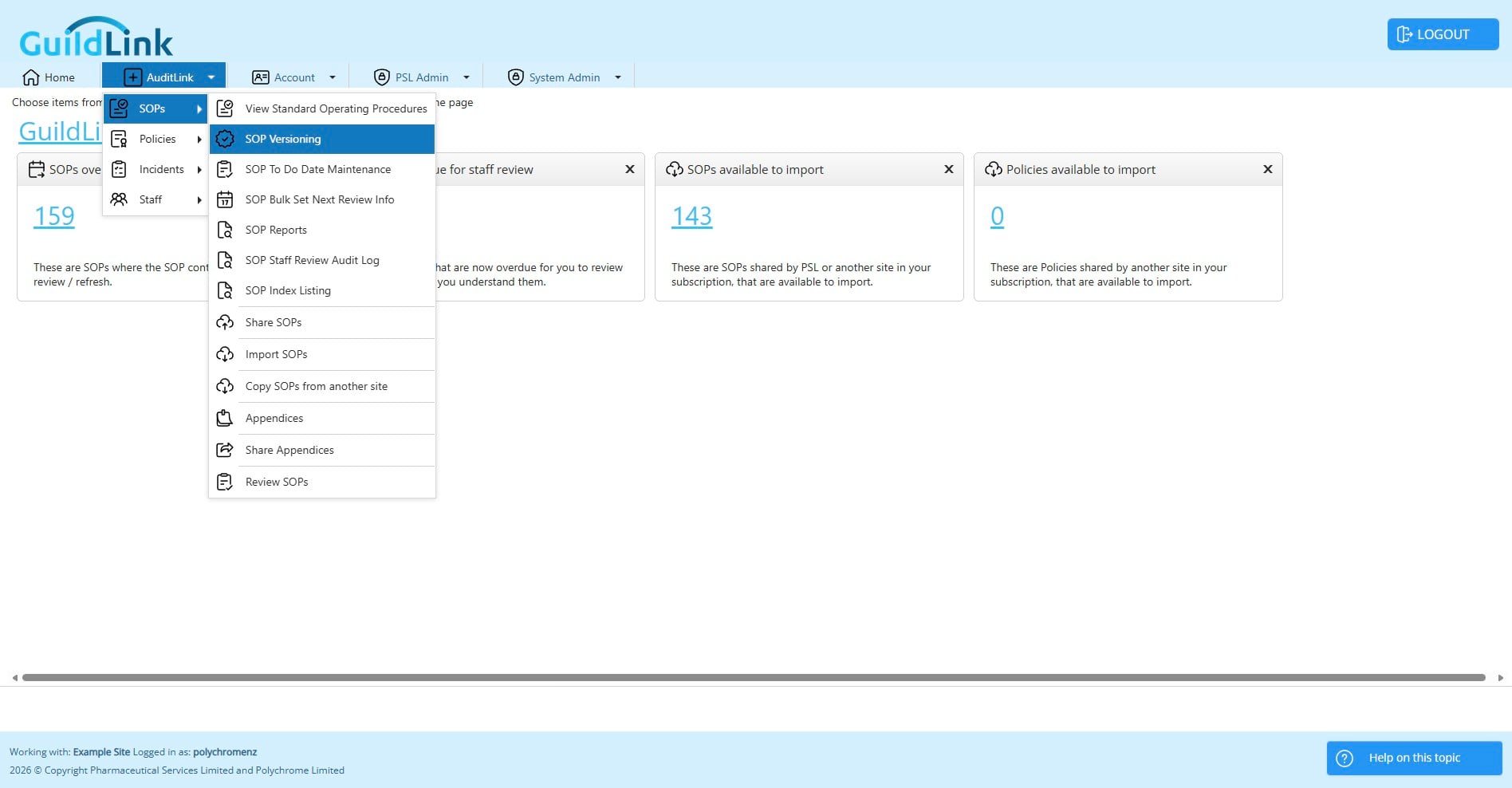
There are two ways to update an SOP
- Make a new version when making changes whilst retaining the old version to show the document history
- Replacing it with a new document that you import from PSL Most often you will be making a new version. When you make a new version the system does a number of things.
- Copies this SOP to a new SOP with the same info except the version number is incremented
- Mark the old SOP as replaced
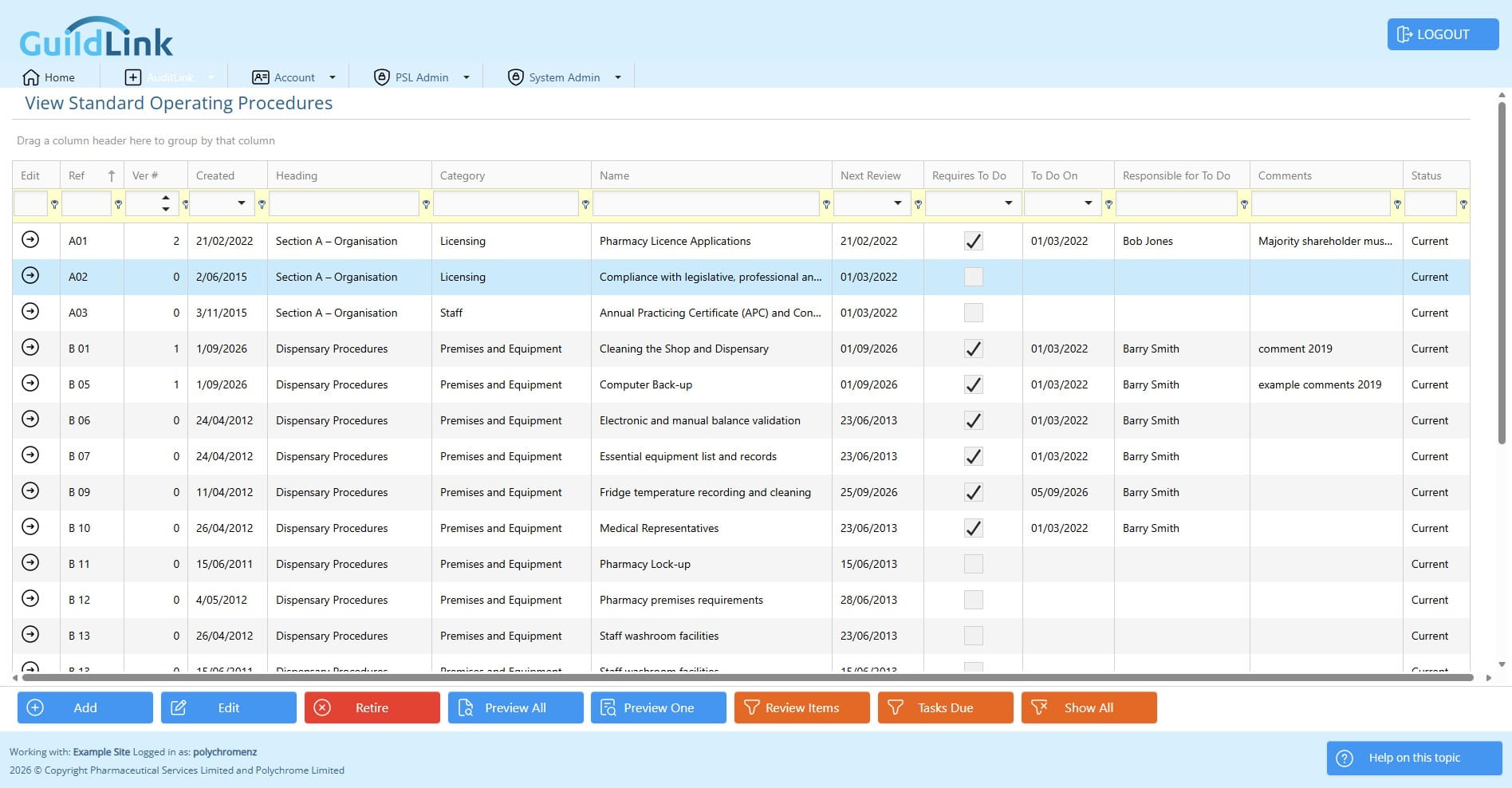
- Internally link the SOPs By changing the old SOP to a status of replaced it isn't shown in View SOPs but it's still there and you can change the filter to Show All to access it. That lets you always come back and print the old SOP if an auditor wants to see it..
Choose an existing SOP
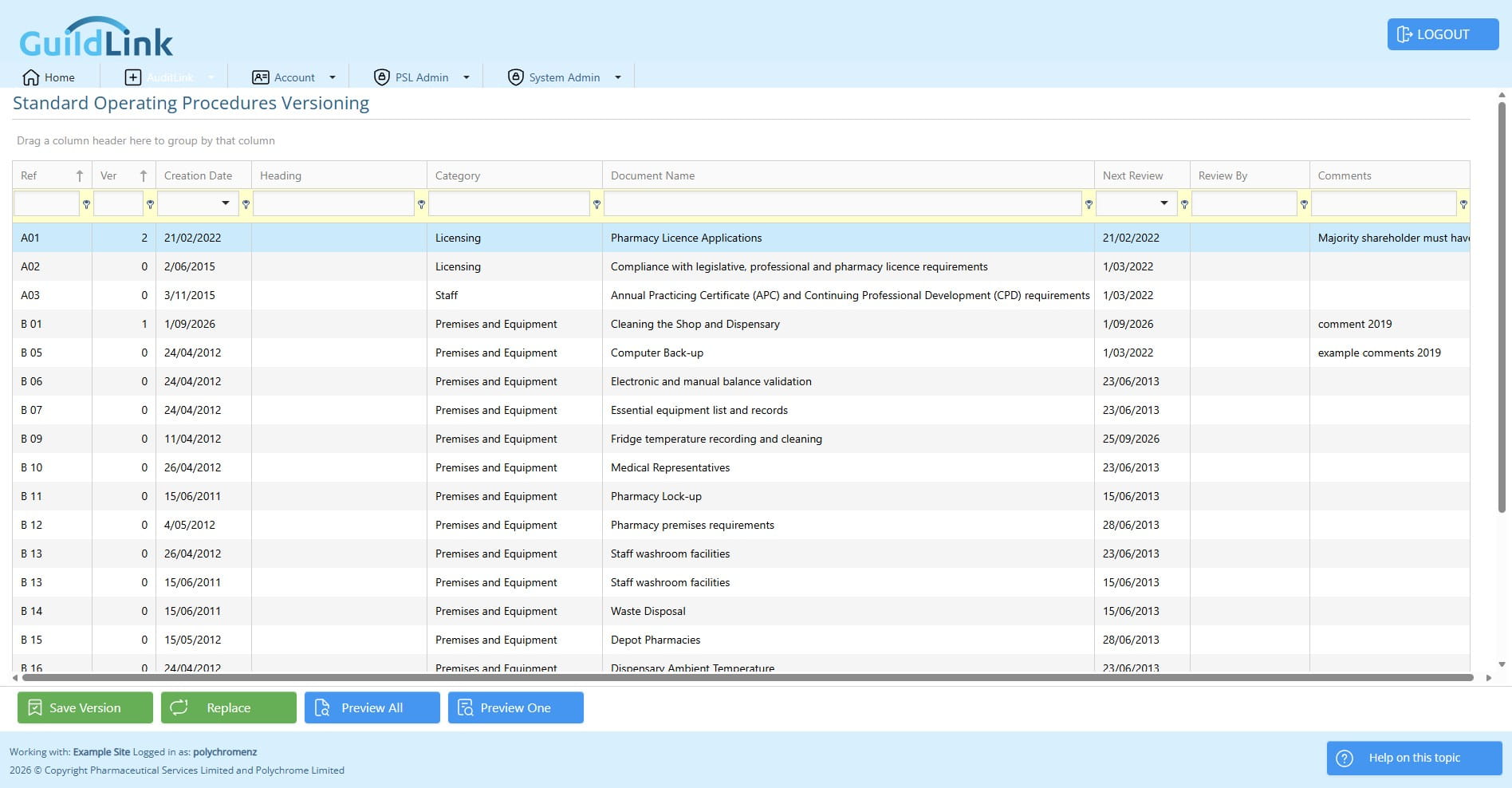
Click on "Save Version"
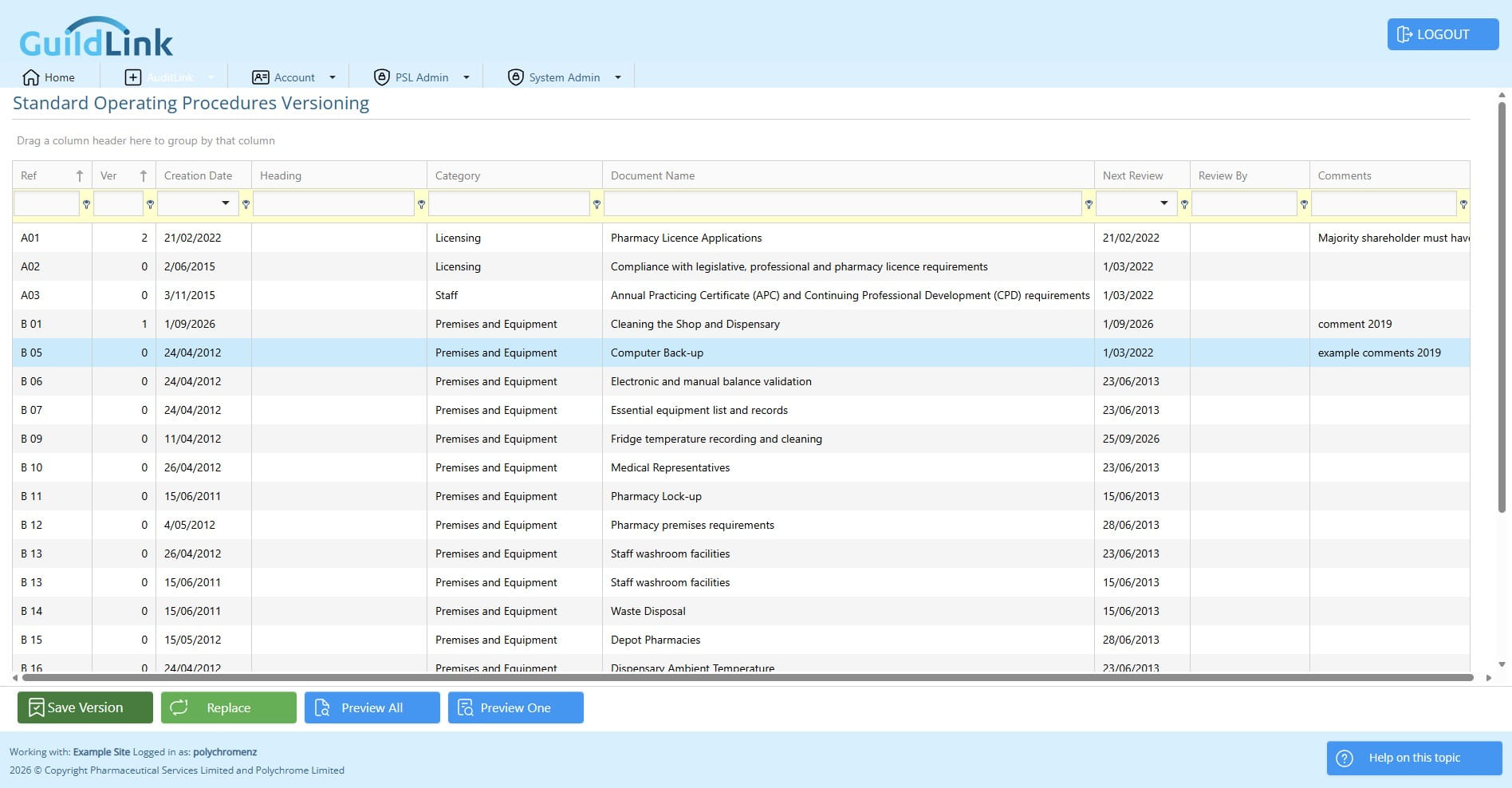
A new version is made with a new version number.
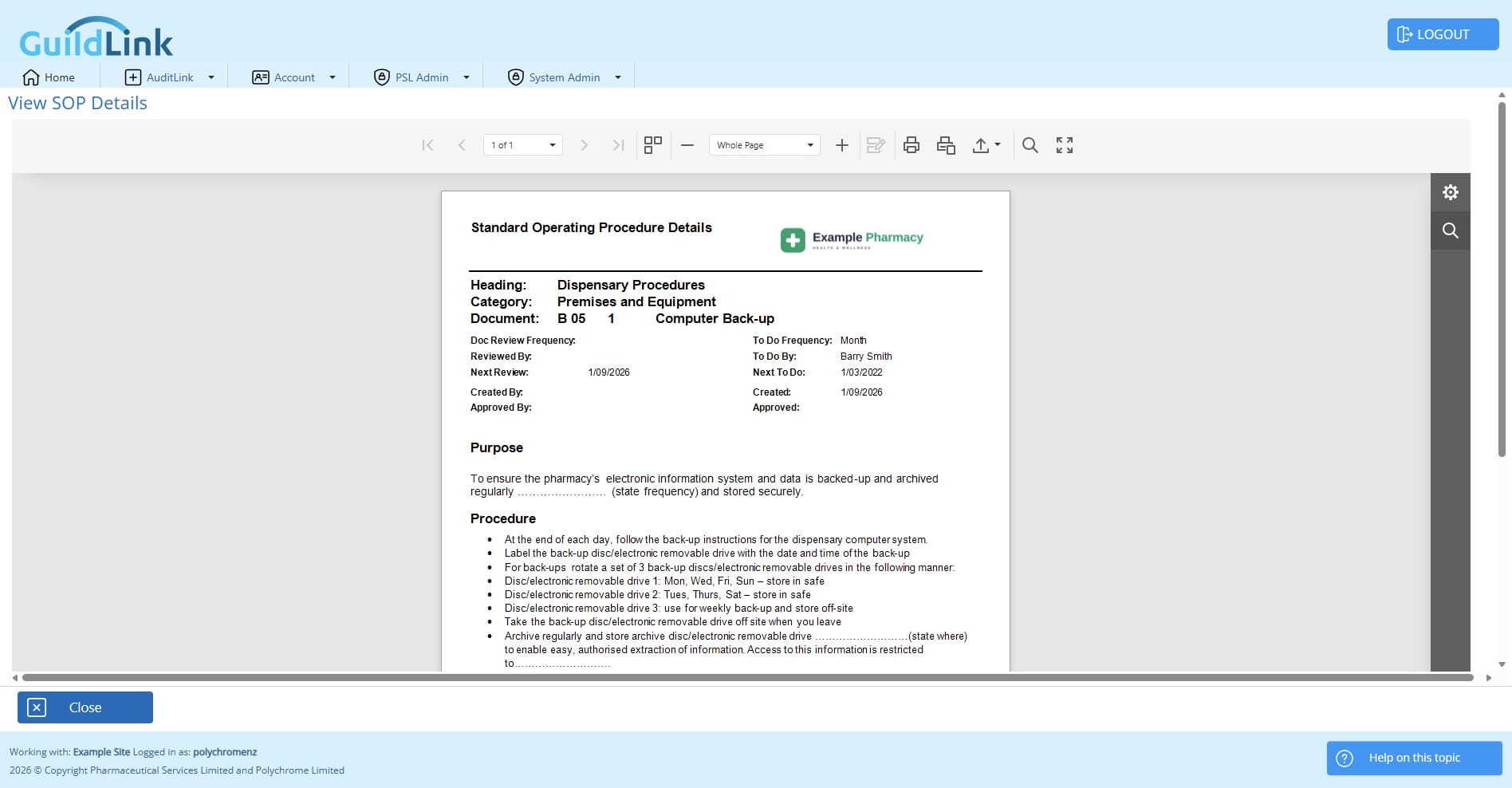
Click on "Preview One"
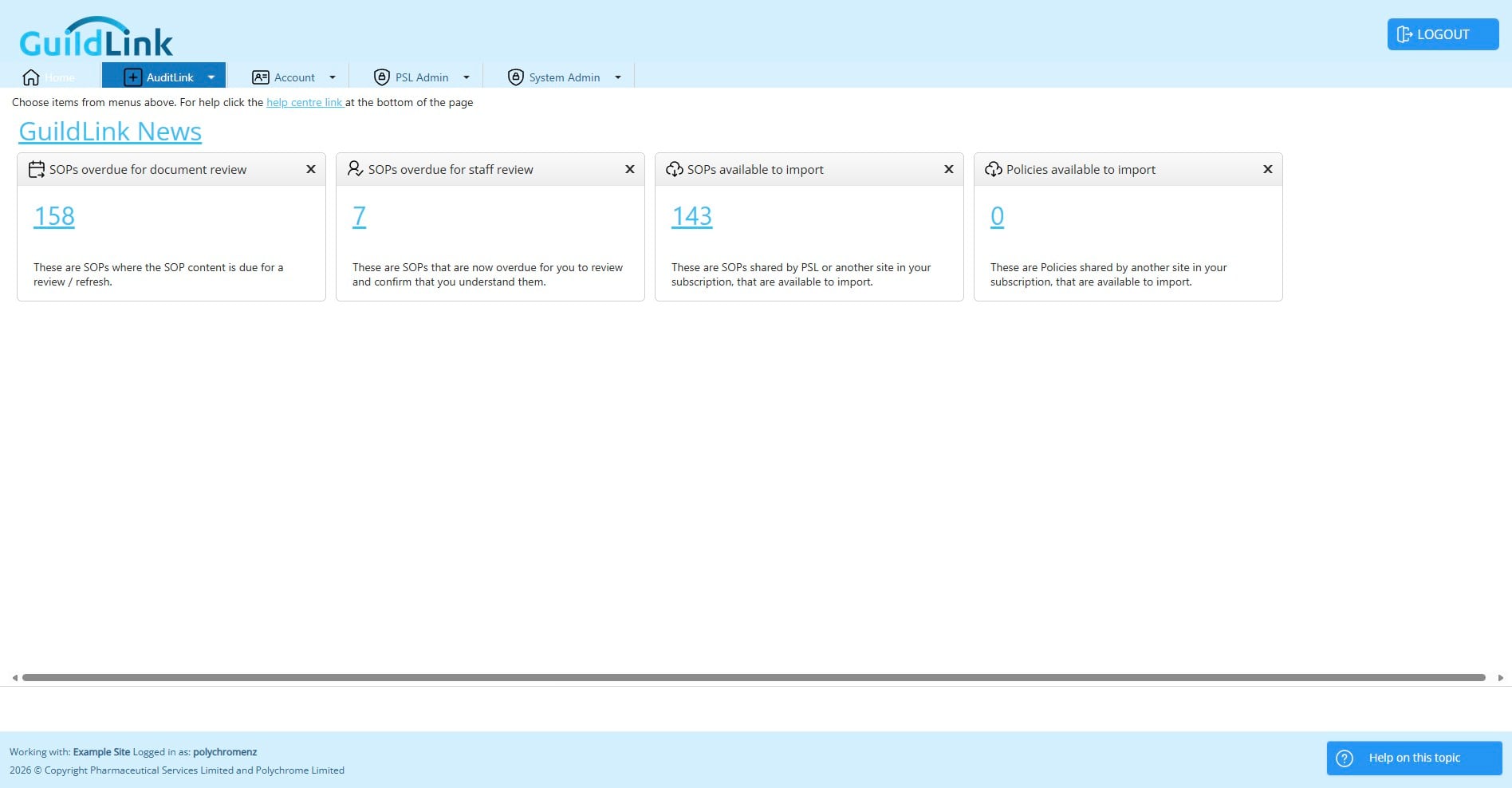
Click on "AuditLink"
Now let's look at View SOPs and see both versions
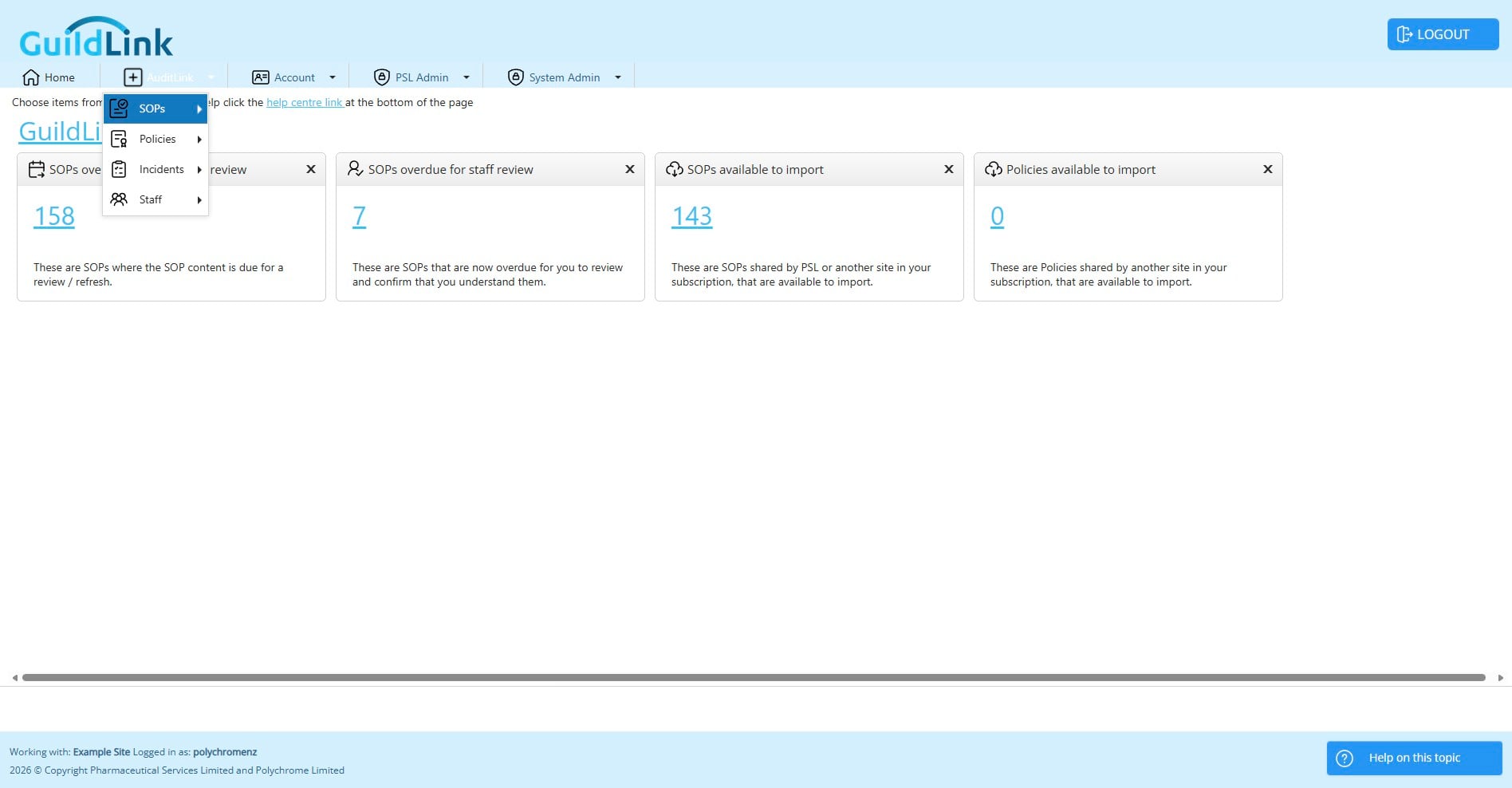
Click on "View Standard Operating Procedures"
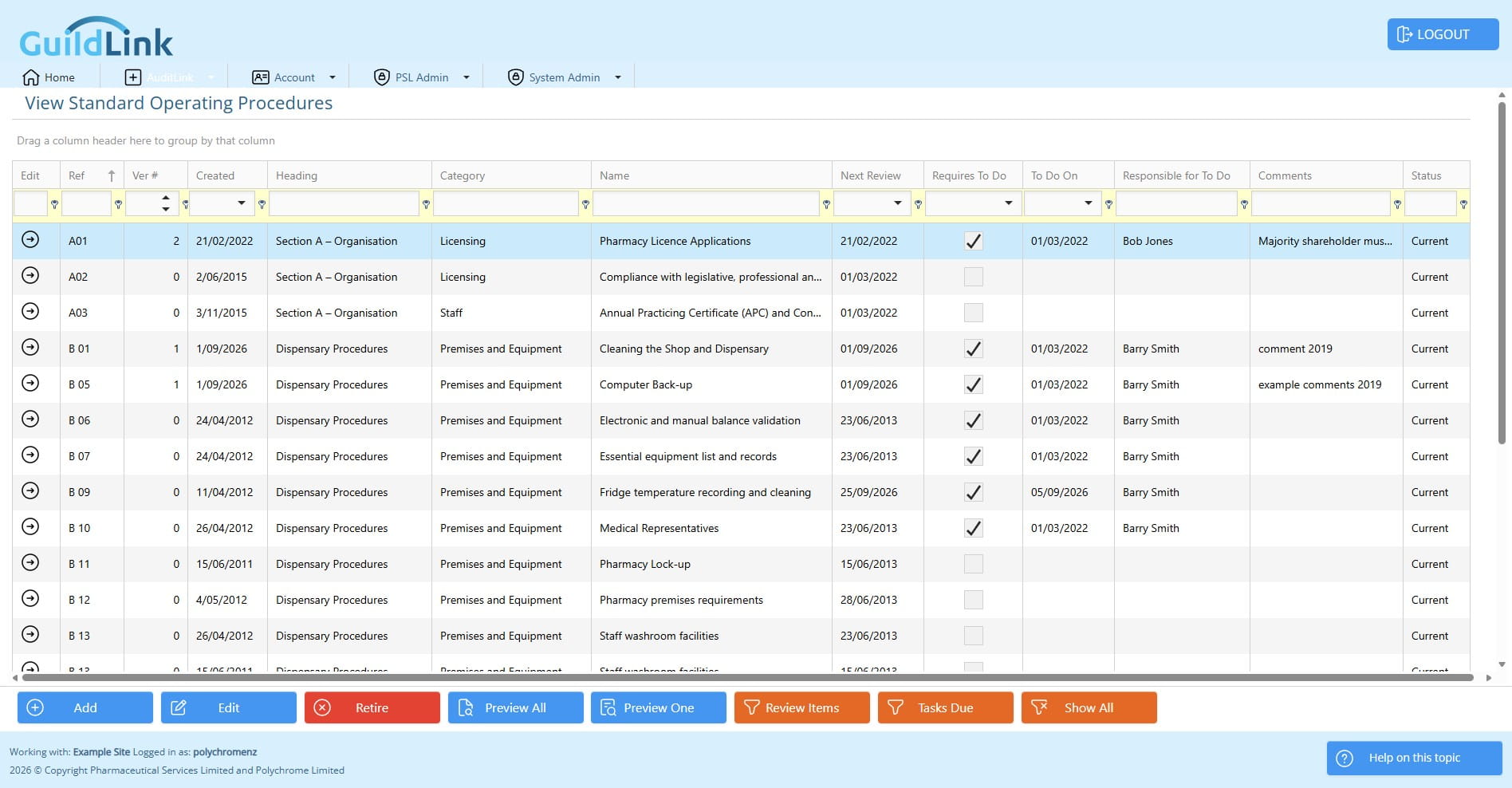
Now we only see version 1 but if we click show all it will include replaced SOPs
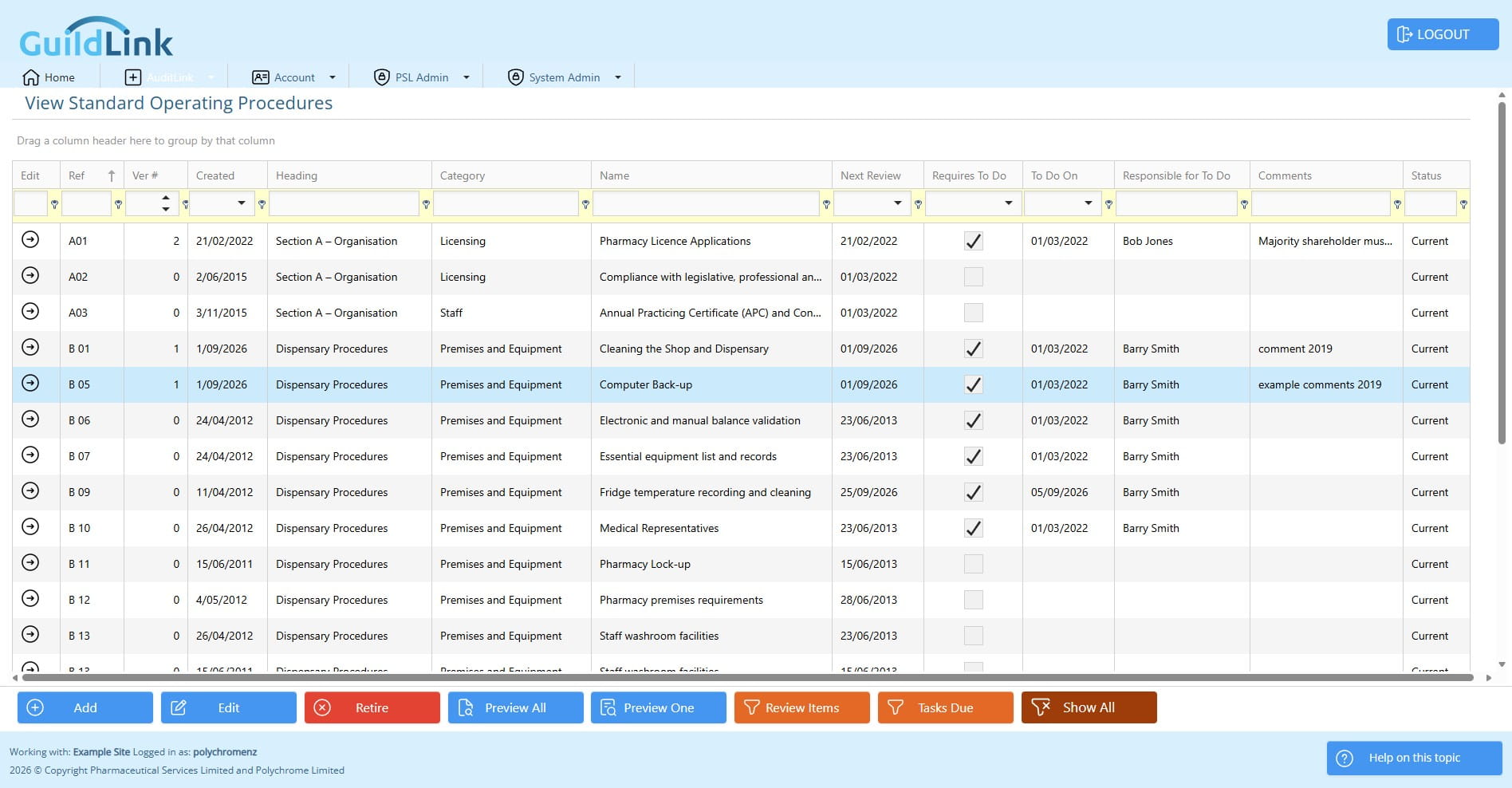
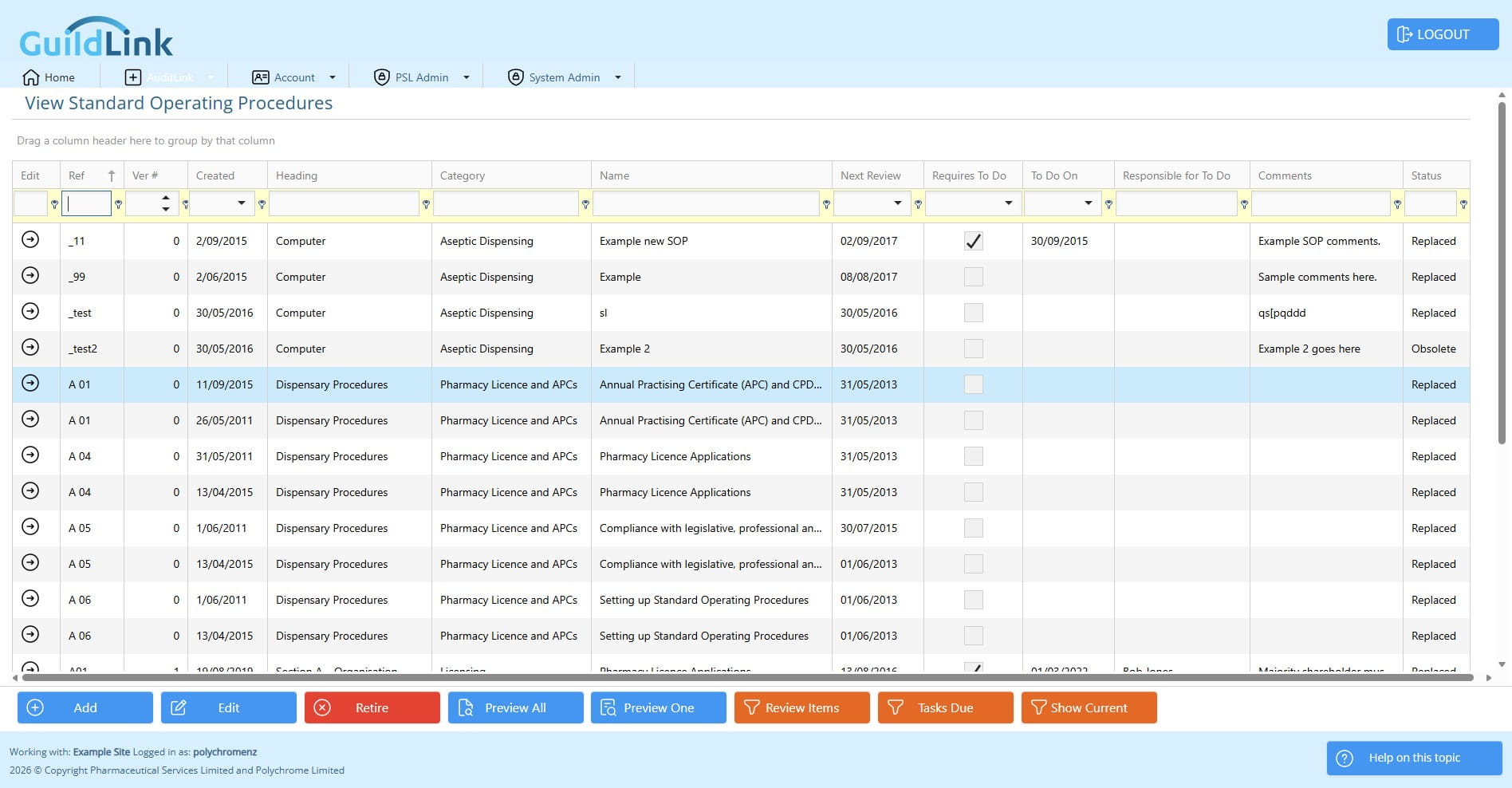
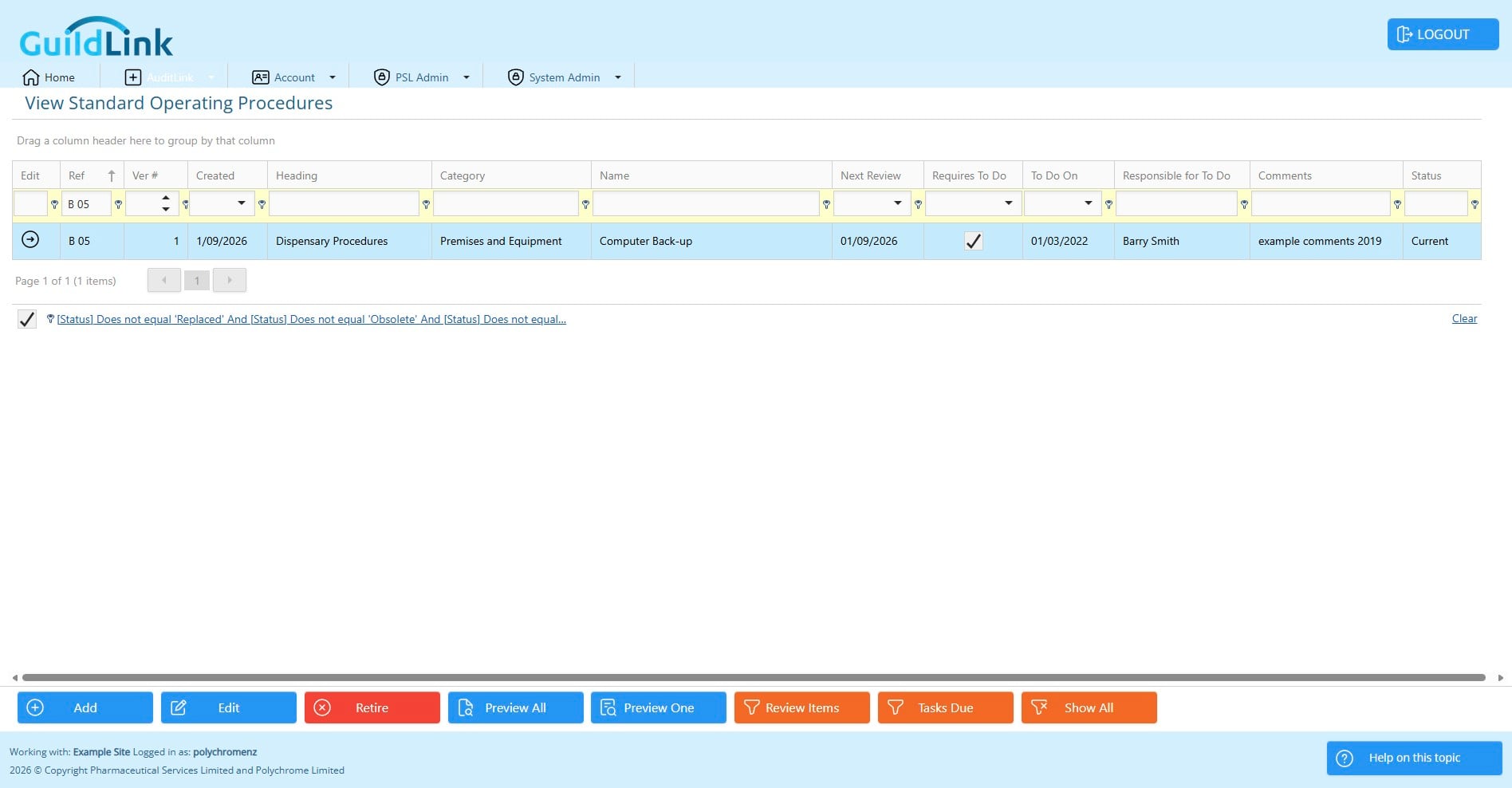
Let's add a filter to make things easier to see.
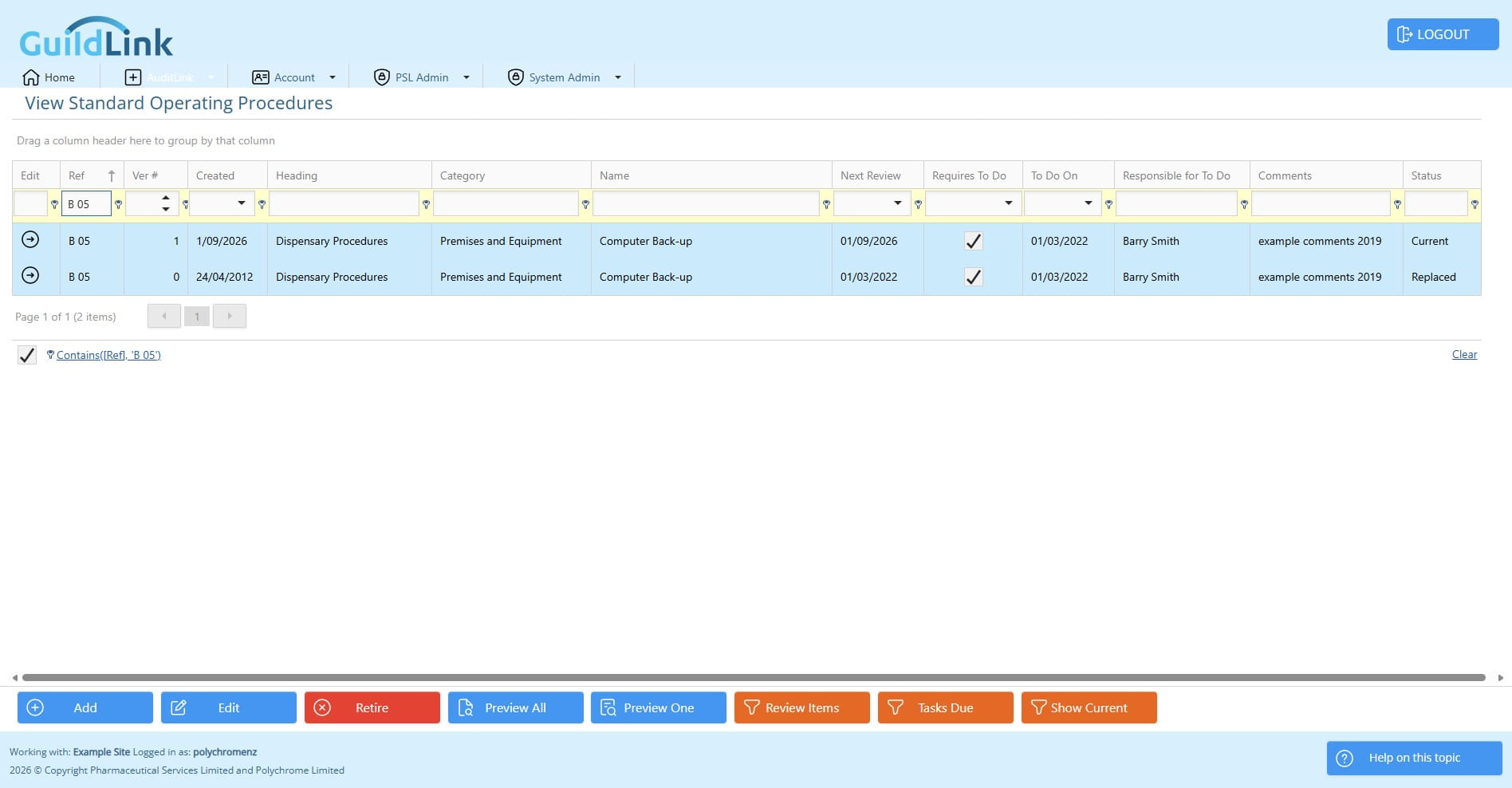
We have both versions now and you can see that the old version has a status of 'Replaced'
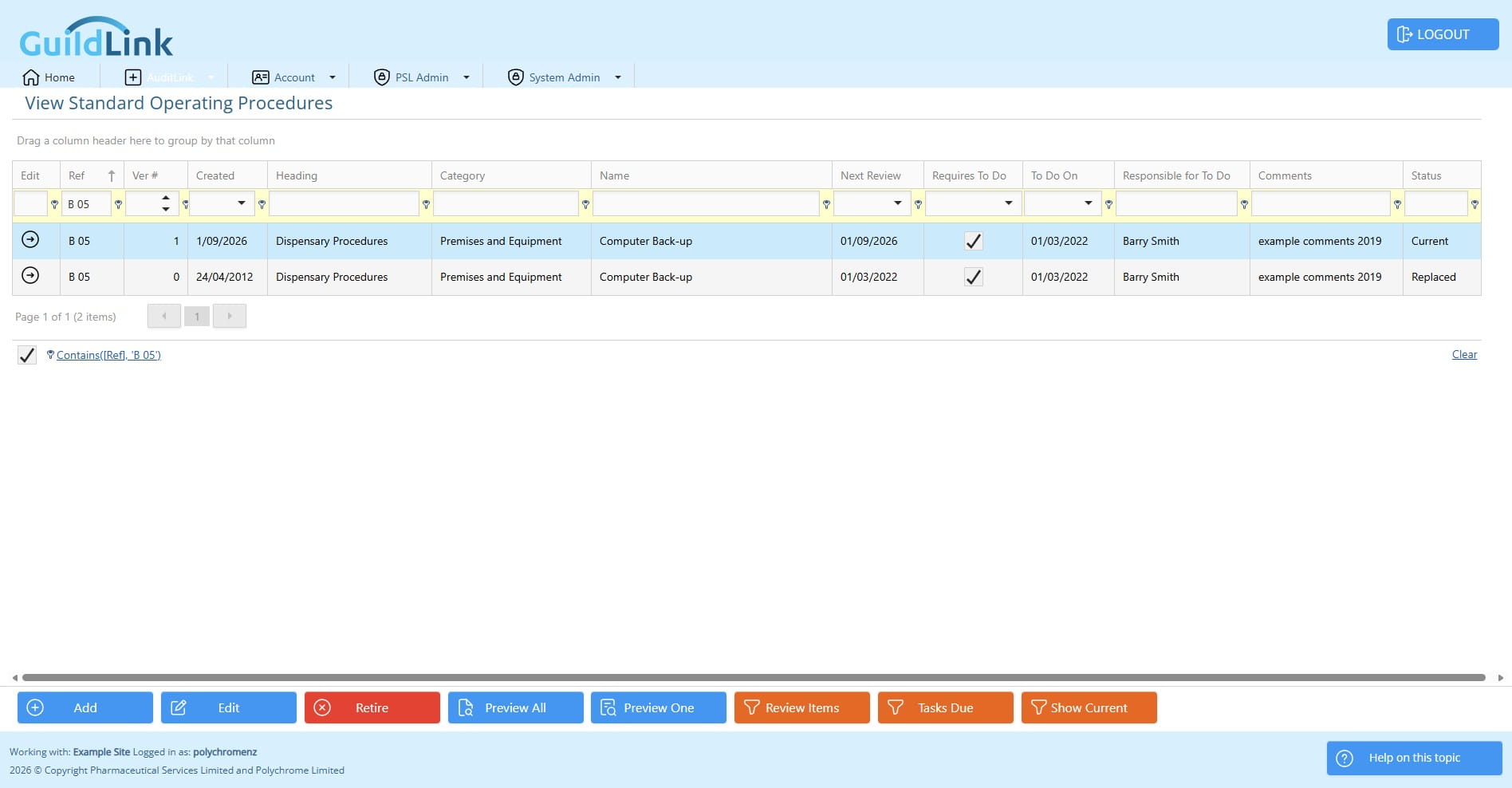
Click on "Show Current" to only see current SOPs again
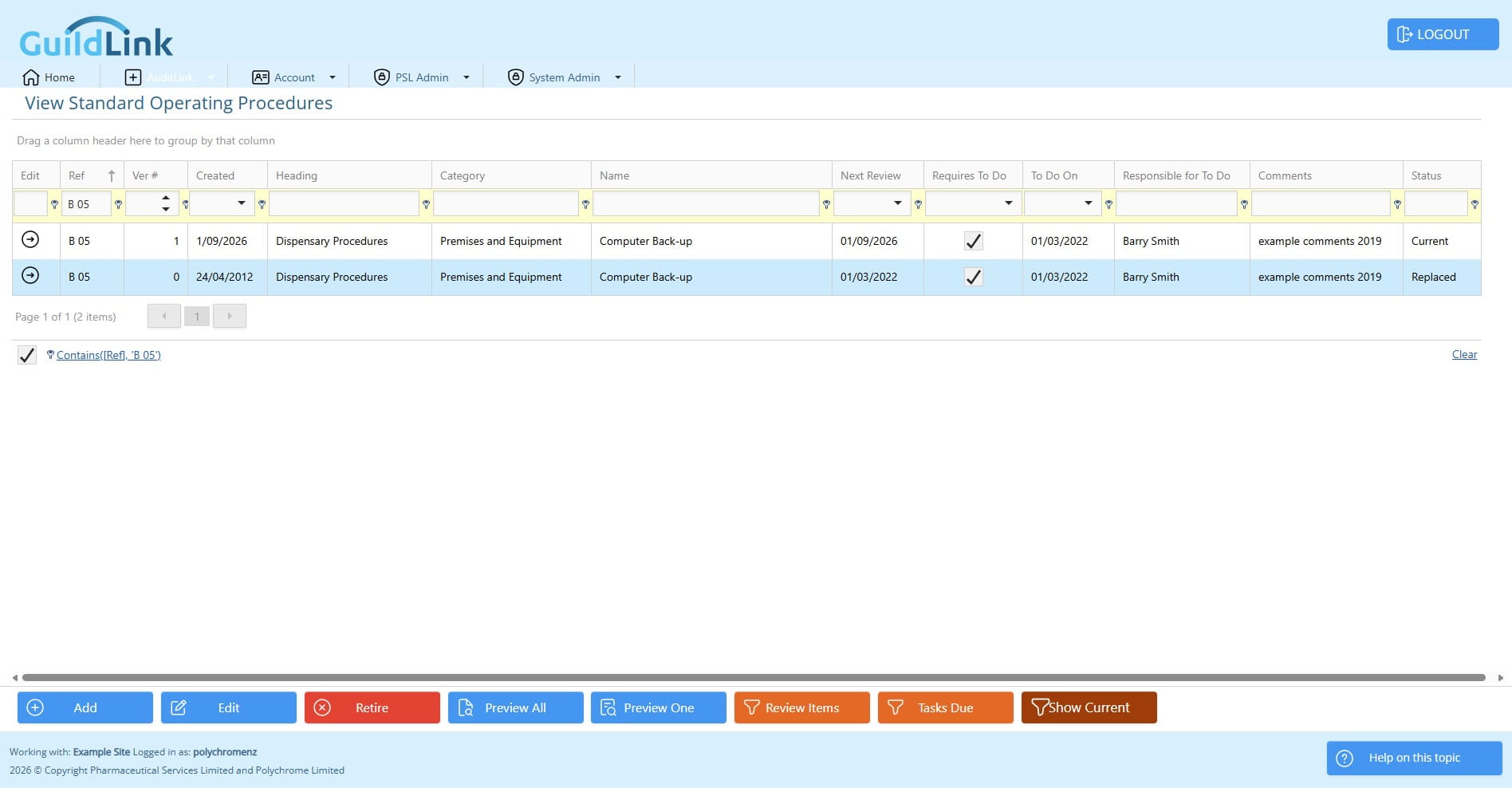
Let's add that filter again "B 05"